

Take the very first steps to use the SharePoint Connector app for Confluence.
- Open the SharePoint Connector app
- Connect your first folder
- Step 1: Click the "Connect folder" button
- Step 2: Select the storage place where the folder you want to connect is and authenticate
- Step 3: Navigate to where the folder you want to share with your team is
- Step 4: Select the folder you want to connect
- Step 5: Select permissions (optional)
- Step 6: Click the "Connect" button
Open the SharePoint Connector app
You can install the SharePoint Connector app from the Atlassian Marketplace, then open it by clicking the SharePoint Connector link on Confluence’s sidebar. It's ready to us
Connect your first folder
You don't need to create an account to use the app. The only thing required is to connect at least one folder to the Confluence Space so that you can start collaborating with your team and build your single source of truth.
If a folder is connected when you first open the app, someone in your team has already shared a folder. You can use that one or add more by following the same steps.
Step 1: Click the "Connect folder" button
Step 2: Select the storage place where the folder you want to connect is, and authenticate
You can connect a folder stored in SharePoint or OneDrive for Business.
You can connect more places later from the file manager. Learn more
Connecting a SharePoint folder
Learn how to authorize the Team Files app to access the content in your SharePoint account so that you can connect a folder.
Instructions
-
In the file manager, click the "Connect folder" button on the right (or select the option from the [···] menu if the window is too narrow).
-
If it's your first time connecting to a storage place, skip this step.
The modal dialog shows a list with your connected storages. Click the "Connect place" button. -
Select SharePoint from the list.
-
Sign in when the screen loads.
-
Press the "Allow" button.
-
You can now browse your SharePoint to connect a folder to your Confluence space or Jira project.
If you have problems connecting your account, please check the SharePoint Permissions Setup
We NEVER store your user or password credentials. We use state-of-the-art OAuth 2.0 to connect securely through an encrypted connection. The app gets an authorization token to use the storage. You can revoke this authorization at any time.
Connecting a OneDrive for Business
Learn how to authorize the Team Files app to access the content in your OneDrive for Business account so that you can connect a folder.
Instructions
-
In the file manager, click the "Connect folder" button on the right (or select the option from the [···] menu if the window is too narrow).
-
If it's your first time connecting to a storage place, skip this step.
The modal dialog shows a list with your connected storages. Click the "Connect place" button. -
Select OneDrive for Business from the list.
-
Sign in when the screen loads.
-
Press the "Allow" button.
-
You can now browse your OneDrive for Business to connect a folder to your Confluence space or Jira project.
If you have problems connecting your account, please check the SharePoint Permissions Setup
We NEVER store your user or password credentials. We use state-of-the-art OAuth 2.0 to connect securely through an encrypted connection. The app gets an authorization token to use the storage. You can revoke this authorization at any time.
Step 3: Navigate to where the folder you want to share with your team is
SharePoint tip: If you can’t see the site where your folder is, you can use the “Find site” button and enter your SharePoint address. More info
Step 4: Select the folder you want to connect
Use the checkbox to select the folder you want to connect.
We recommend connecting a folder where you and your team store your documents, but you can start with a new one by clicking the "New folder" button.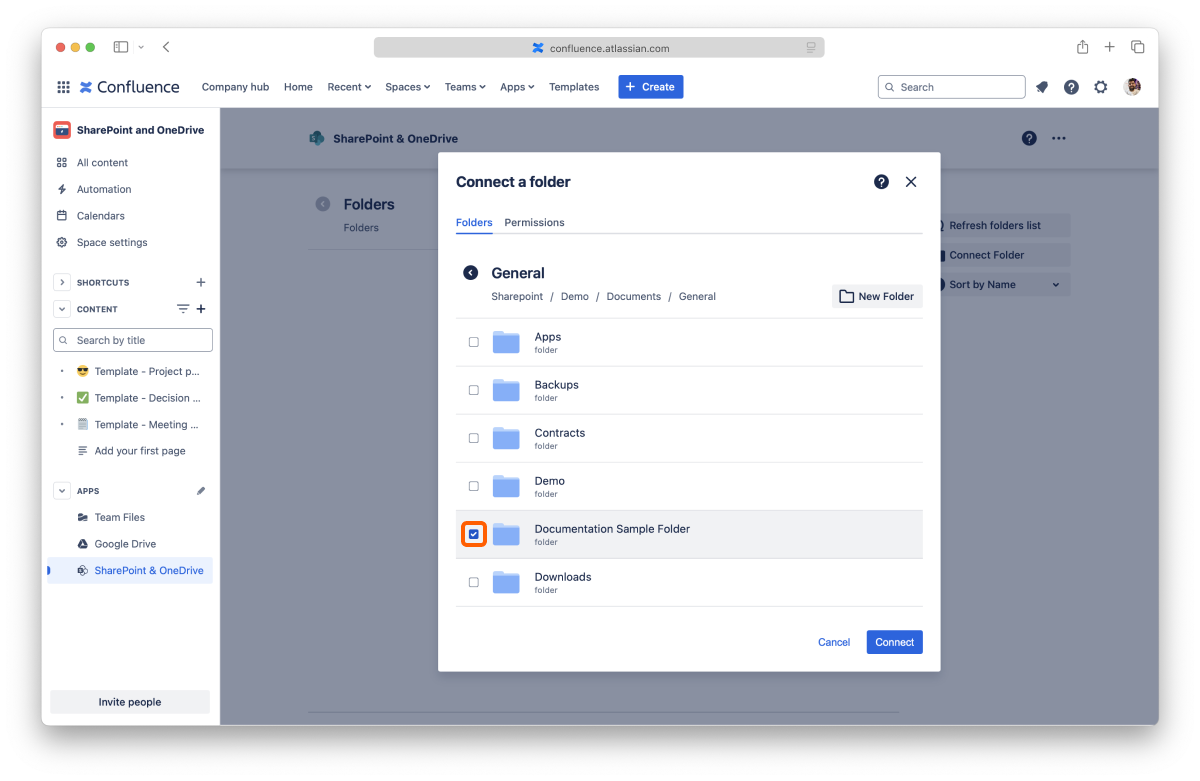
Tip: You can select multiple folders.
Step 5: Select permissions (optional)
Click the "Permissions" tab. By default, your team can view and edit any folders you connect. If you want to limit access or block the edit feature, click the dropdown to change the permissions.

For more information, check the permissions page.
Step 6: Click the "Connect" button
All done. You're ready to use the app. Learn more about the file manager, how to edit documents or attach files and folders to your pages.
IMPORTANT! Please read.
The app uses the storage place as the "single source of truth," However, you need to understand that it has some particular behaviors. Like:
-
When you share the same file in various Confluence pages or Jira issues, it will show all the updates in the other places when edited in one place.
-
Suppose someone deletes the file or folder shared/embedded into a Page or issue from the connected storage (OneDrive, Google Drive, Dropbox, etc.). In that case, it will no longer be available on Confluence or Jira.
-
If someone edits the attached file in the cloud storage via a desktop app, the changes will also be reflected in Confluence and Jira.
-
This behavior is excellent to avoid duplicates and multiple untracked versions across platforms. With this app, you can have one file that is the same everywhere. Handle it with care. :)