

Confluence Google Drive Integration
Create a single source of truth with seamless syncing and real-time collaboration.
Read more


_2026-03-26_20-48-42-1.png?length=720&name=untitled_Gemini%203%20(Nano%20Banana%20Pro)_2026-03-26_20-48-42-1.png)


Take the very first steps to use the SharePoint Connector app for Confluence.
You can install the SharePoint Connector app from the Atlassian Marketplace, then open it by clicking the SharePoint Connector link on Confluence’s sidebar. It's ready to us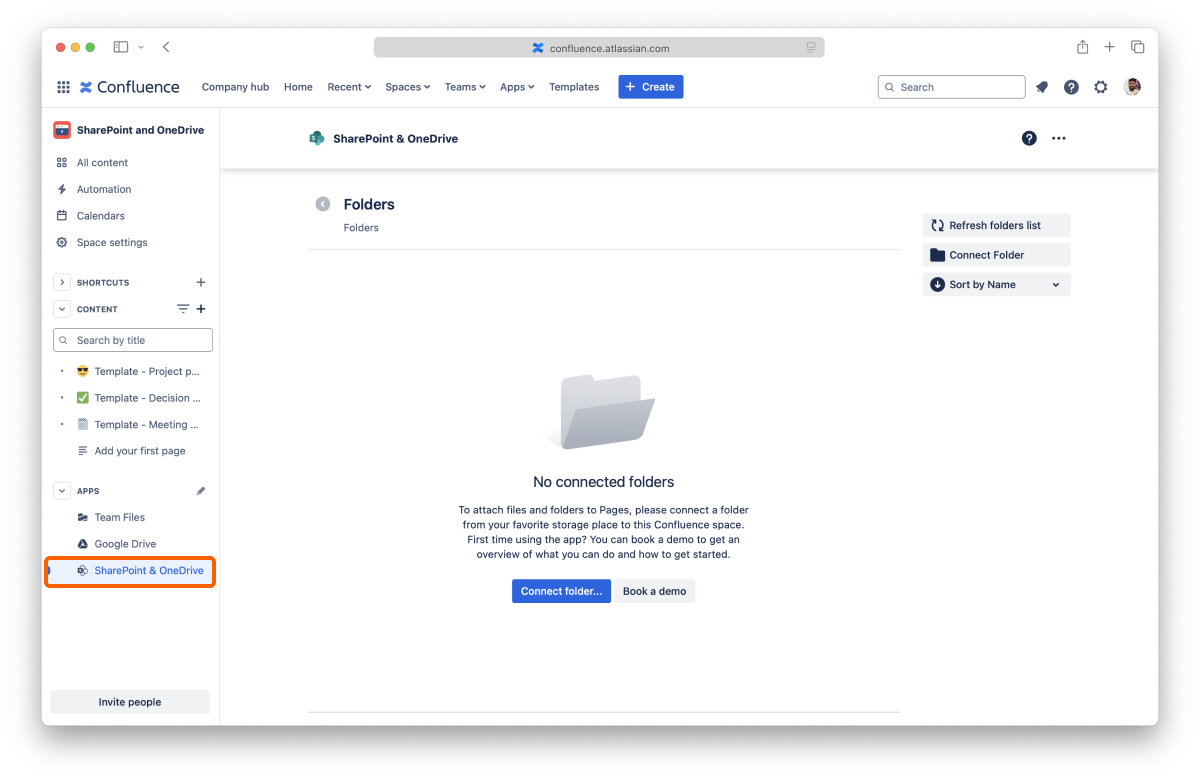
You don't need to create an account to use the app. The only thing required is to connect at least one folder to the Confluence Space so that you can start collaborating with your team and build your single source of truth.
If a folder is connected when you first open the app, someone in your team has already shared a folder. You can use that one or add more by following the same steps.
You can connect a folder stored in SharePoint or OneDrive for Business.
You can connect more places later from the file manager. Learn more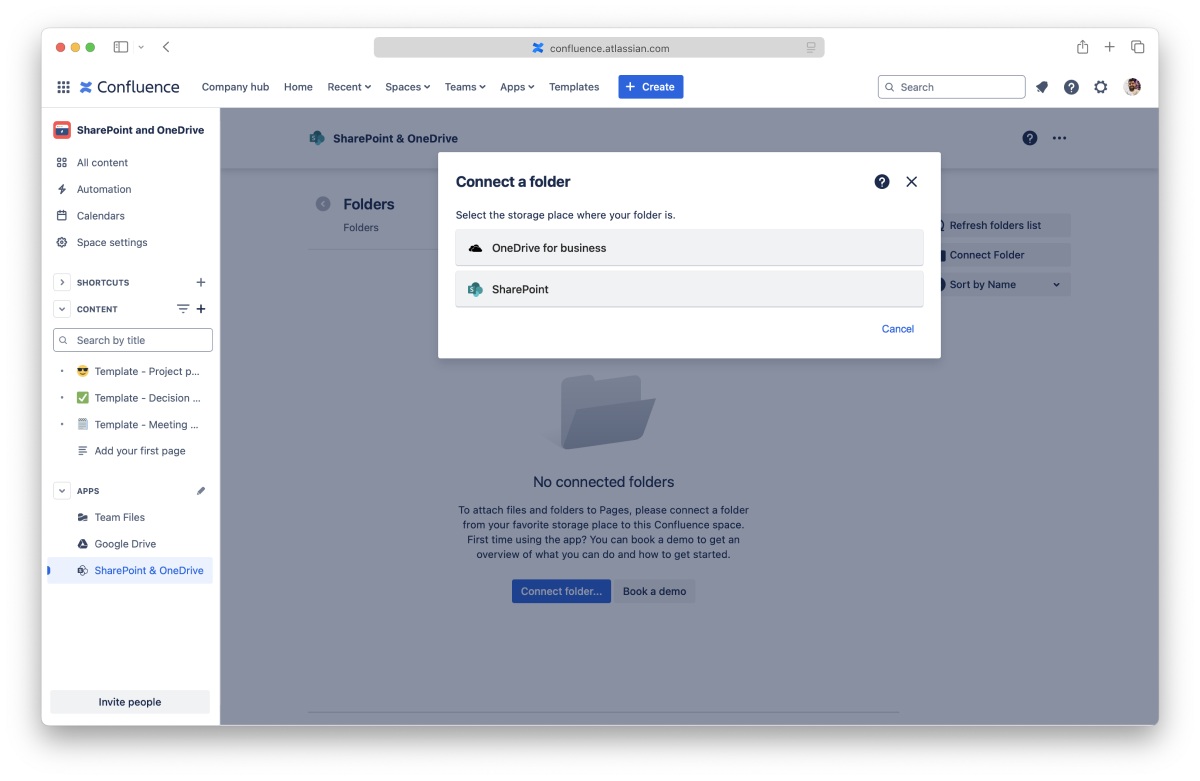
Learn how to authorize the Team Files app to access the content in your SharePoint account so that you can connect a folder.
If you have problems connecting your account, please check the SharePoint Permissions Setup
We NEVER store your user or password credentials. We use state-of-the-art OAuth 2.0 to connect securely through an encrypted connection. The app gets an authorization token to use the storage. You can revoke this authorization at any time.
Learn how to authorize the Team Files app to access the content in your OneDrive for Business account so that you can connect a folder.
If you have problems connecting your account, please check the SharePoint Permissions Setup
We NEVER store your user or password credentials. We use state-of-the-art OAuth 2.0 to connect securely through an encrypted connection. The app gets an authorization token to use the storage. You can revoke this authorization at any time.
SharePoint tip: If you can’t see the site where your folder is, you can use the “Find site” button and enter your SharePoint address. More info
Use the checkbox to select the folder you want to connect.
We recommend connecting a folder where you and your team store your documents, but you can start with a new one by clicking the "New folder" button.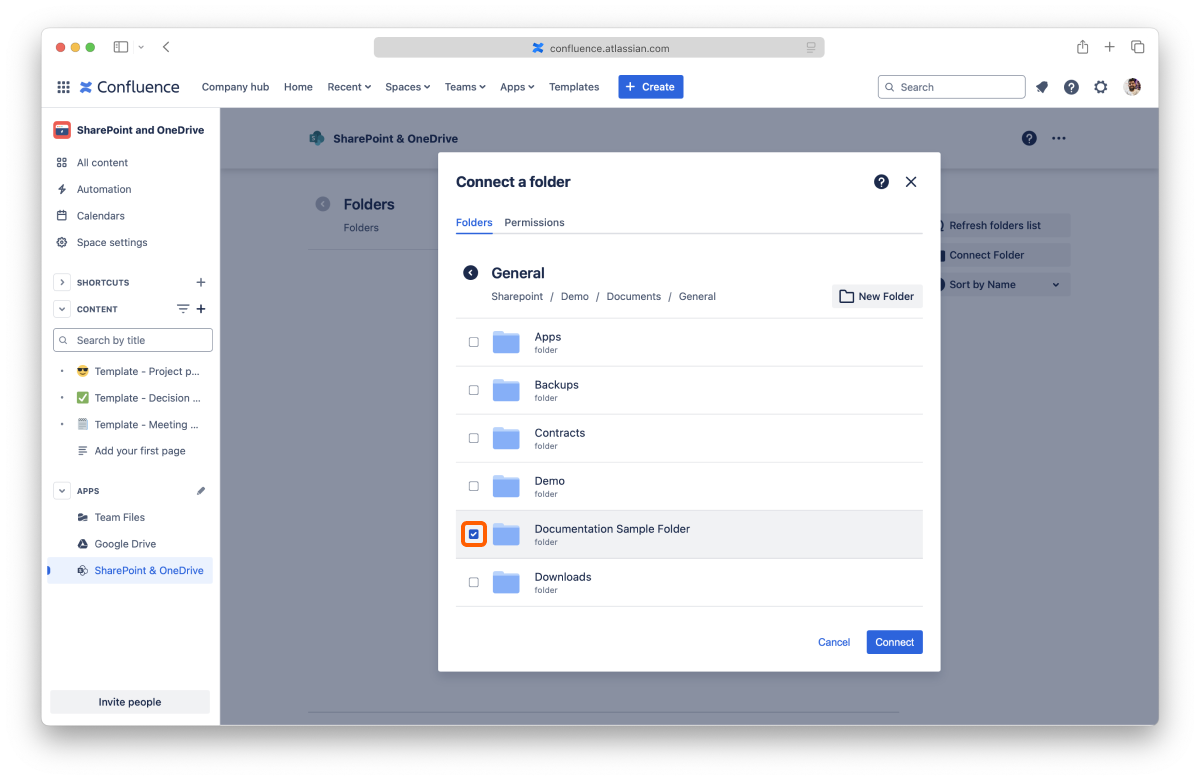
Tip: You can select multiple folders.
Click the "Permissions" tab. By default, your team can view and edit any folders you connect. If you want to limit access or block the edit feature, click the dropdown to change the permissions.
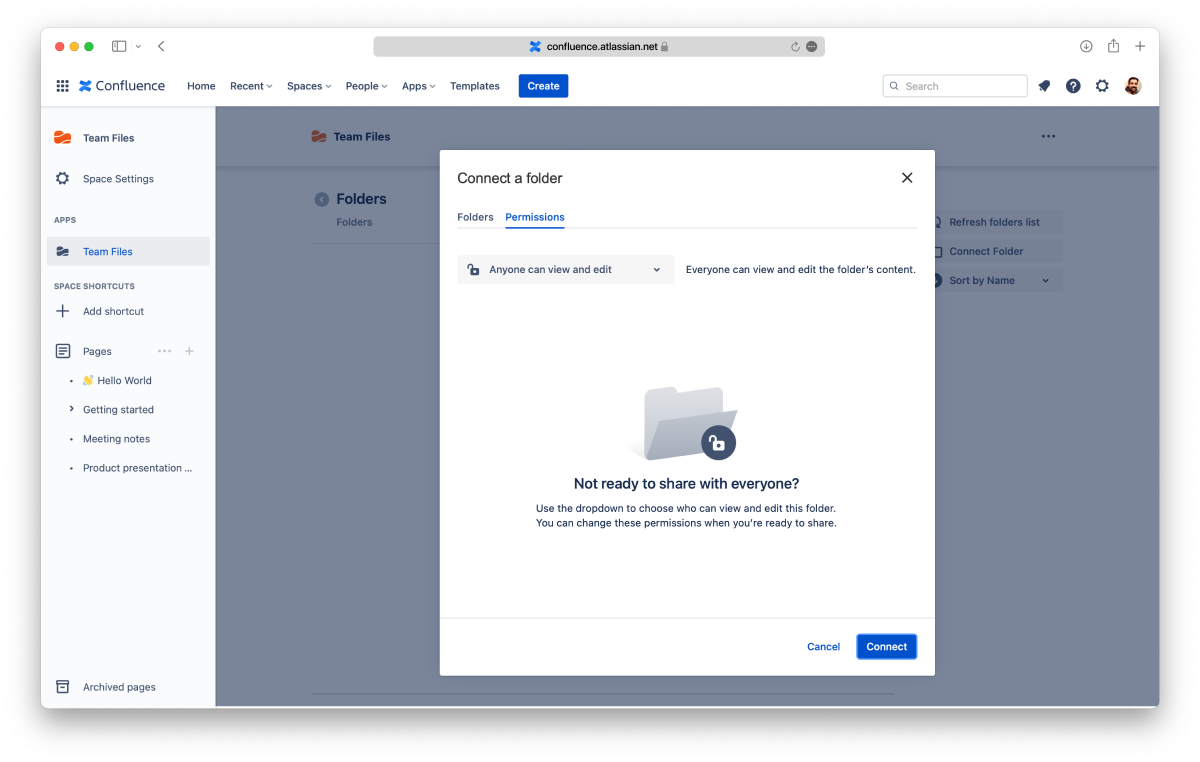
For more information, check the permissions page.
All done. You're ready to use the app. Learn more about the file manager, how to edit documents or attach files and folders to your pages.
The app uses the storage place as the "single source of truth," However, you need to understand that it has some particular behaviors. Like:
You can browse the folders shared with a Confluence space, preview files, edit documents, and more on the file manager.
The file manager is easily accessible from the sidebar, and it's the cornerstone for all you can do with the SharePoint Connector app. When using the macro to attach files and folders to your pages, you'll also use the file manager, which works the same way.
This page covers everything related to the SharePoint Connector app, from what you can do with your files and folders to managing connected folders. Let's start with the latter since you always need at least one connected folder to use the app.
When you open the SharePoint Connector app, you'll first see a list of the connected folders you can browse and use to collaborate with your team.
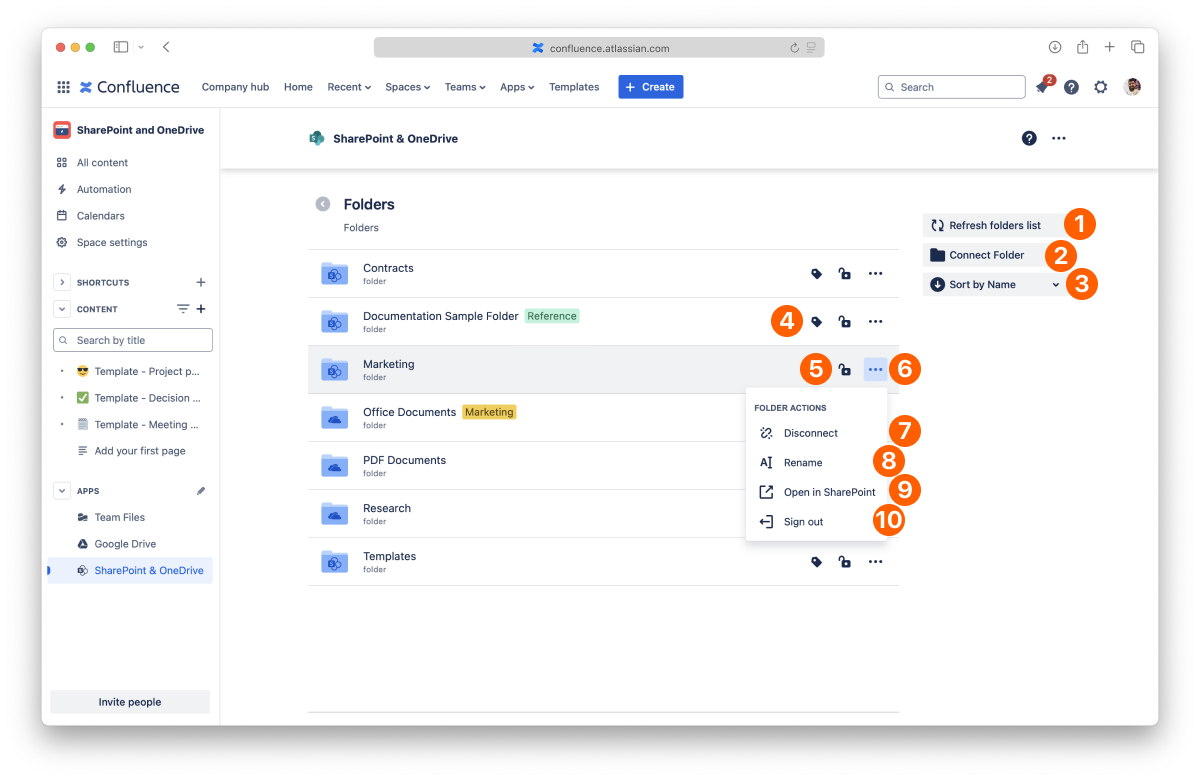
List of the connected folders to the current Confluence space.
Use the "Refresh folders list" button to update the list of connected folders and access folders your team shared with the latest permissions.
On the getting started page, we covered connecting your first folder. The empty screen makes it easy to see how to do it, but you can connect as many folders as you need.
We recommend connecting a folder where you and your team already store your documents, but you can also start with a new one by clicking the "New folder" button.
SharePoint tip: If you can’t see the site where your folder is, you can use the “Find site” button and enter your SharePoint address. More info
All done. You can now use your new folder or add more using the same process.
The connected folders are ordered alphabetically by default.
You can change this by clicking the "Sort by name" button and selecting a sort of option and the order you prefer. You can sort them by name or by added date. The button will always reflect your selection.
You can add a tag to your connected folders to help you keep them organized and easily accessible.
Only the person who connected the folder can add and edit the tag.
To add a tag:
All done.
To edit the tag, click the tag button again. You can change the description and color. When you’re done, click Save.
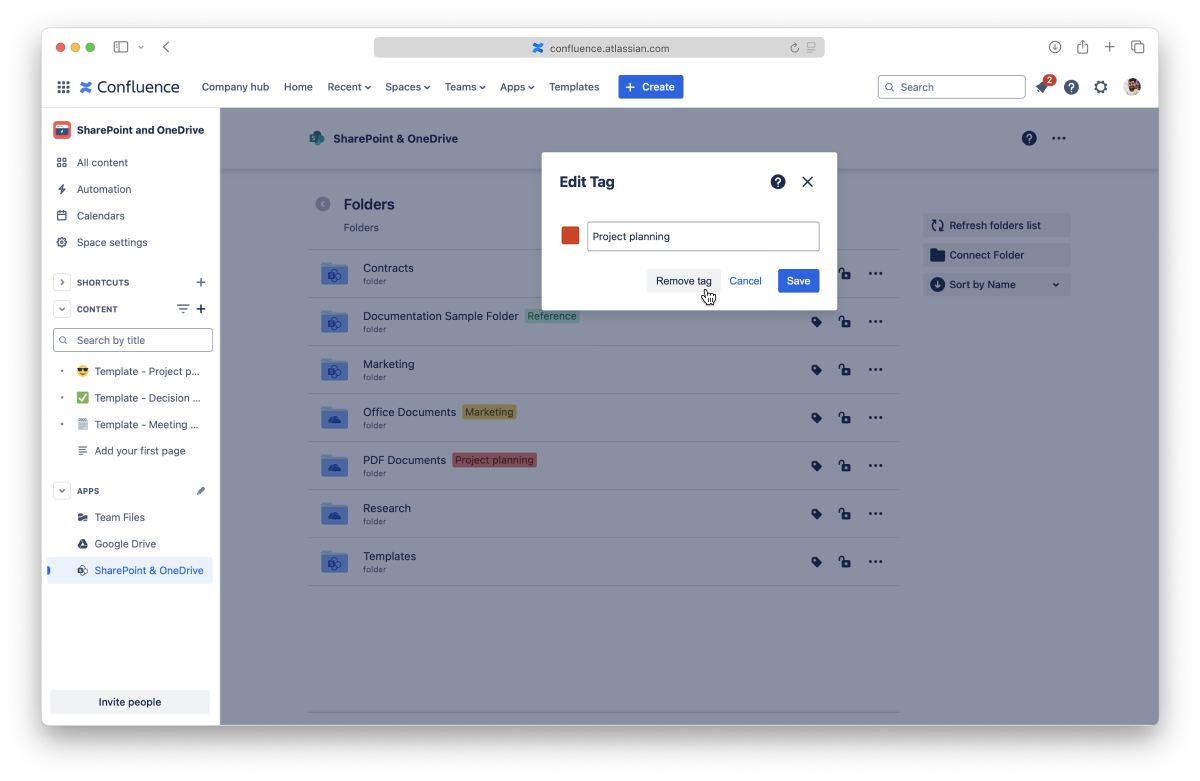
To altogether remove a tag:
All done.
This action is undoable, but you can add a tag again at any moment.
You can set permissions for connected folders from the File Manager at any time by clicking the lock icon. For more information, check the permissions page.
It's also possible to disconnect folders you no longer need. Before getting into how to do it, it's relevant to know that you're only breaking the SharePoint Connector app's link to the original storage when you disconnect a folder. All your content is safe, but any files and folders you or your team attached to Confluence pages from the disconnected folder also lose the link to the original storage and become unavailable.
If you disconnect a folder by mistake, you can connect it again in the following 30 days to restore the attachments. After this period, it’s no longer possible to restore the existing attachments.
Instructions:
All done. Your folder is safe and sound, but your team can't use it anymore in the SharePoint Connector app.
You can only disconnect the folders you added. Admins can disconnect all folders.
When you change the name of a folder, it's updated in the connected storage, too.
The folder opens in a few seconds on the original storage site.
This option lets you sign out from a connected folder if the “Replicate storage permissions” setting is active. This is useful if you need to connect with a different account.
While using the SharePoint Connector app, you can connect folders stored in SharePoint or OneDrive for Business. You only need to authorize the app to access that storage place first. You're in control of your storage places: only you can see the places you allowed, and you, and only you, can disconnect them.
You can view your connected places when you connect a new folder or from the SharePoint Connector settings page.
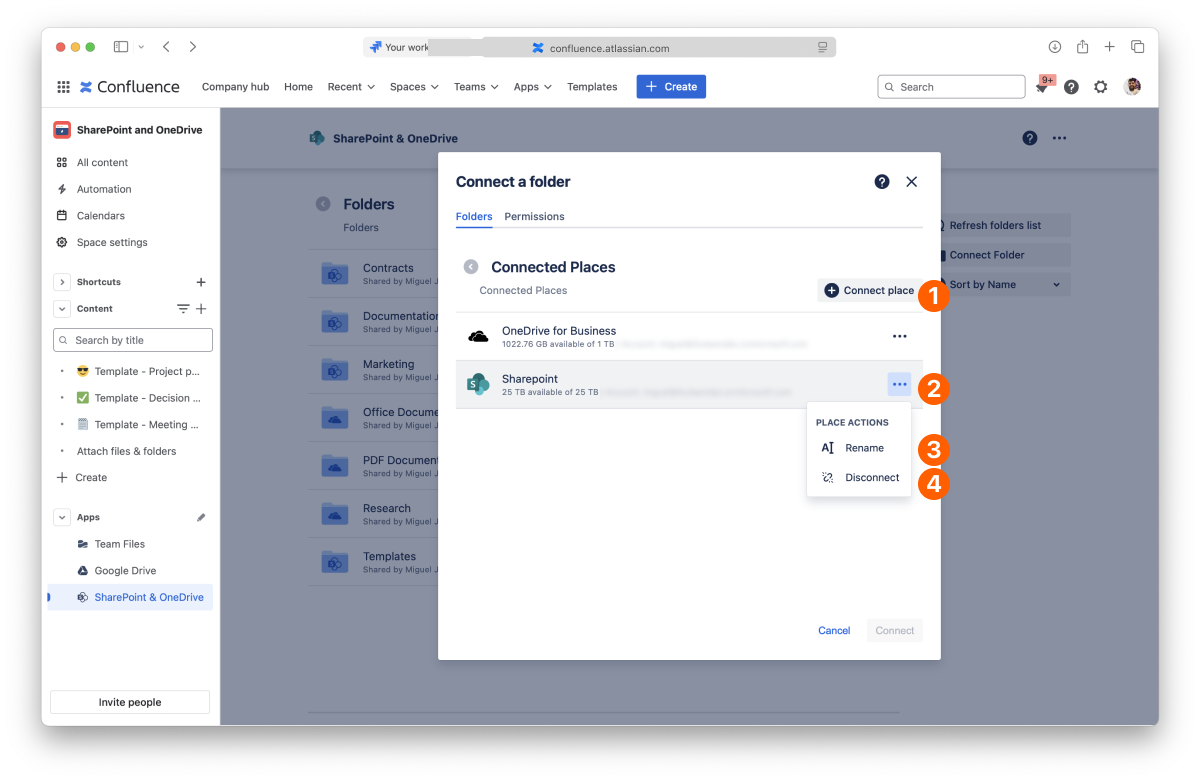
List of your connected places.
Instructions:
You can connect several accounts of the same service. For example, you can connect multiple SharePoint accounts.
Learn how to authorize the Team Files app to access the content in your SharePoint account so that you can connect a folder.
If you have problems connecting your account, please check the SharePoint Permissions Setup
We NEVER store your user or password credentials. We use state-of-the-art OAuth 2.0 to connect securely through an encrypted connection. The app gets an authorization token to use the storage. You can revoke this authorization at any time.
Learn how to authorize the Team Files app to access the content in your OneDrive for Business account so that you can connect a folder.
If you have problems connecting your account, please check the SharePoint Permissions Setup
We NEVER store your user or password credentials. We use state-of-the-art OAuth 2.0 to connect securely through an encrypted connection. The app gets an authorization token to use the storage. You can revoke this authorization at any time.
All done. Your new place is now connected. You can now browse it to connect a folder or return to the file manager.
You can connect several accounts from the same service, and by default, we add a number at the end when you do it to differentiate them. To help you keep things organized, you can rename your places to something more meaningful to you.
Instructions:
That's it. It just takes a few moments to update the name, and it's ready to use.
You can also rename and manage your places from the SharePoint Connector settings [SP CC] page.
When you disconnect a place in the Team Files app, you only remove the connection to the original storage. All your content is safe, but any folders you have connected from that place will also be disconnected. Consequently, files and folders you or your team attached to Confluence pages from the disconnected folders also lose the original storage link and become unavailable.
If you accidentally disconnect a place, you can connect it again in 30 days to restore the connected folders and attachments. After this period, it’s no longer possible to restore the existing attachments.
Instructions:
All done. Your storage place is safe and sound but no longer accessible in the SharePoint Connector app.
You can also disconnect and manage your places from the SharePoint Connector settings page.
Now that we know how to connect folders, it's time to learn how to make the most of the SharePoint Connector app. This section will cover what you can do with files and folders and how to add content to your connected folder.
Click a connected folder to view its content. The navigation is at the top, your content is in the center, and extra options are to the right.
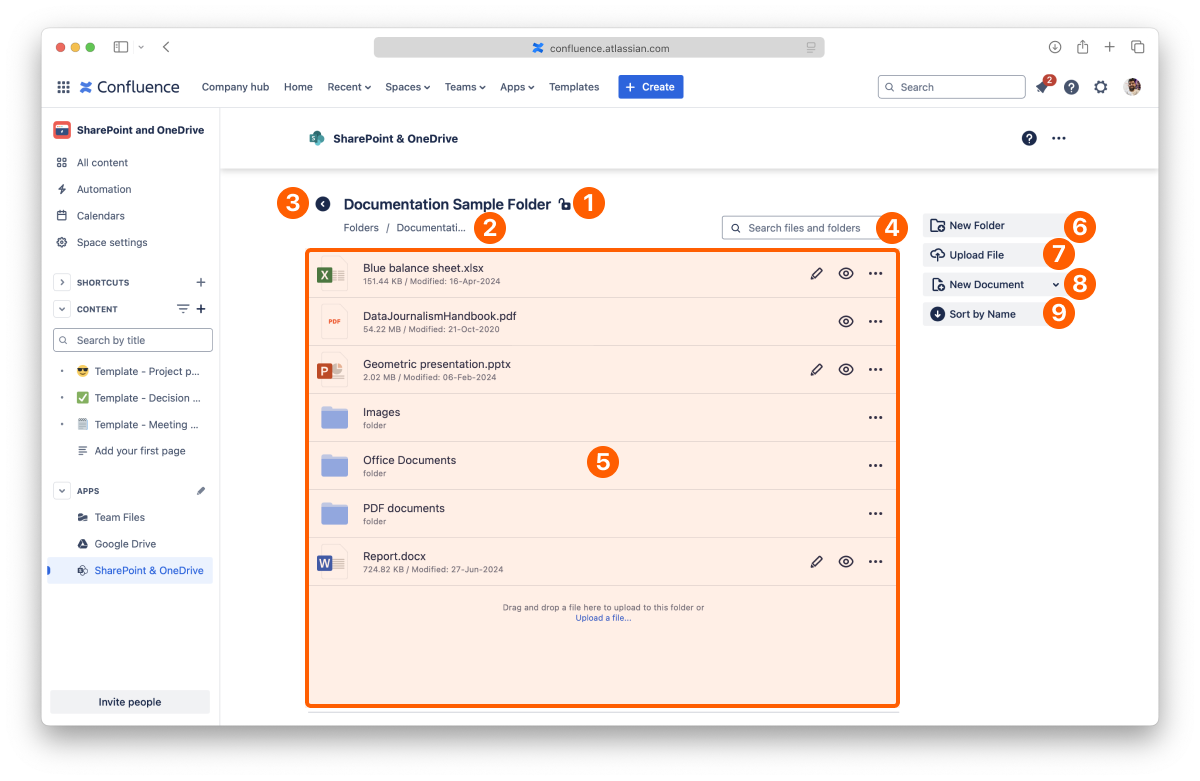
If your window is too narrow, the right section is hidden, but all the options are available in the context menu that appears next to the navigation.
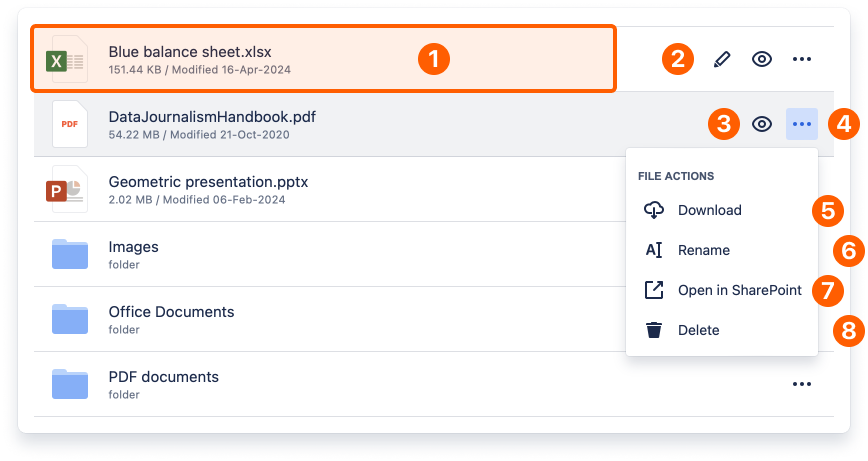
You can preview the content of your files by clicking the icon or name of the file you want. You can preview images, PDF documents, and Microsoft Office and Google documents. For more details, check the Preview files [SP CC] page.

You can edit Microsoft Office documents right from the file manager by clicking the Edit button. A new tab opens with the corresponding Microsoft Office 365 editor and is ready for edition. It supports real-time collaboration, so there are no file lockdowns. There's an autosave feature, so when you finish, close the tab.
The edit option is also available when you're previewing the file (check Preview files [SP CC]) and when you attach the document to a page.
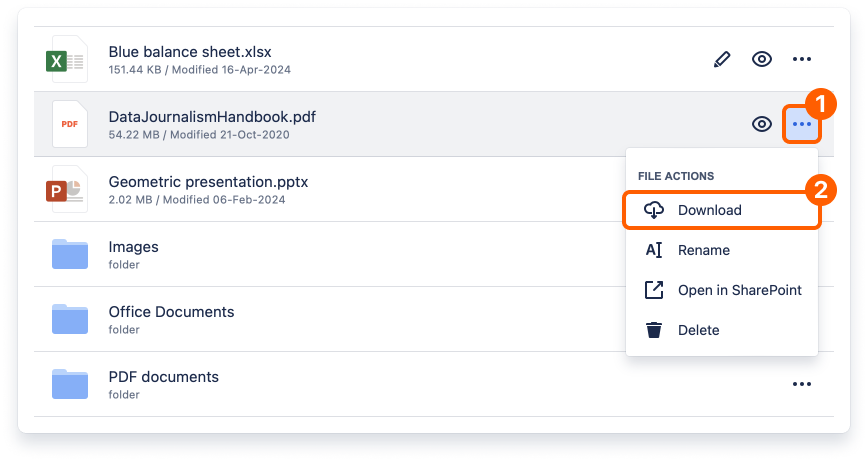
Your browser will open a new tab to download the file automatically. Depending on the browser you're using, the tab closes itself when the download starts, or it might ask you permission to download the file (noticeably Safari browser), requiring that you click the "Allow" button.
Depending on its size, the file will be available in your default download folder after a few moments.
The download option is also available in preview mode (check Preview files [SP CC]) and for files attached to pages.
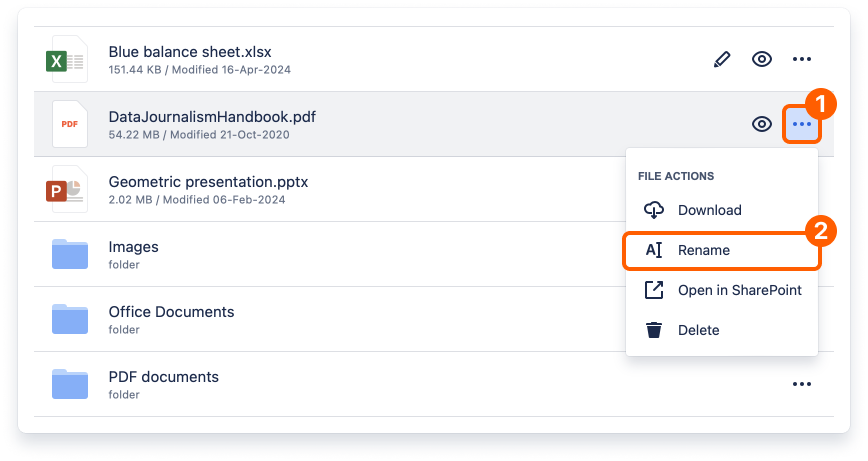
When you change the name of a file, it's updated in the connected storage too.
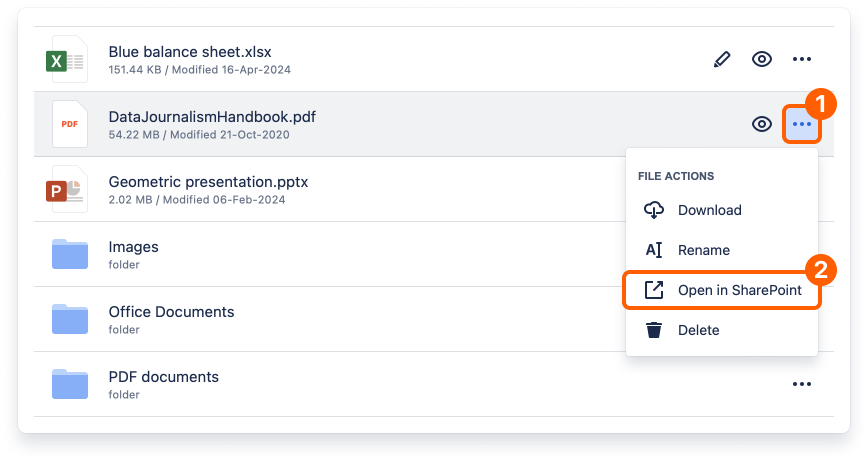
The file opens in a few seconds on the original storage site.
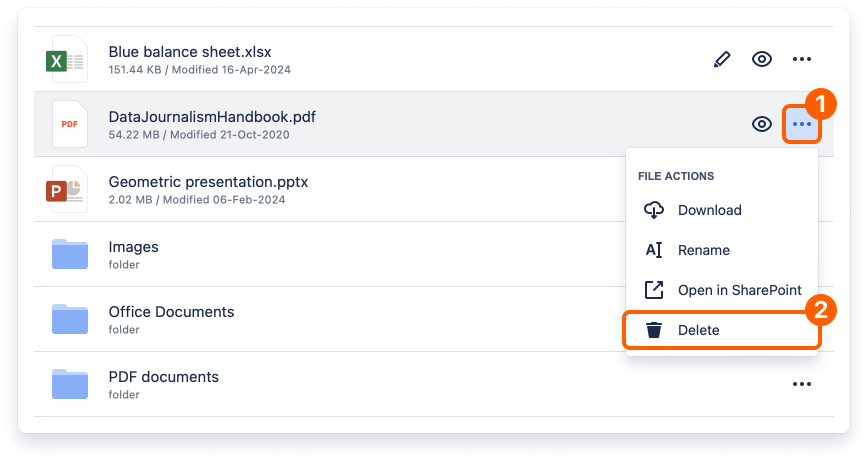
When you delete a file, it's removed in the connected storage place too. This action is undoable in the SharePoint Connector app.
You can drag a file from a local folder and drop it in the folder you have open in the SharePoint Connector app to upload it there. Doing this will save the file in the storage place containing the connected folder, helping you build your single source of truth.
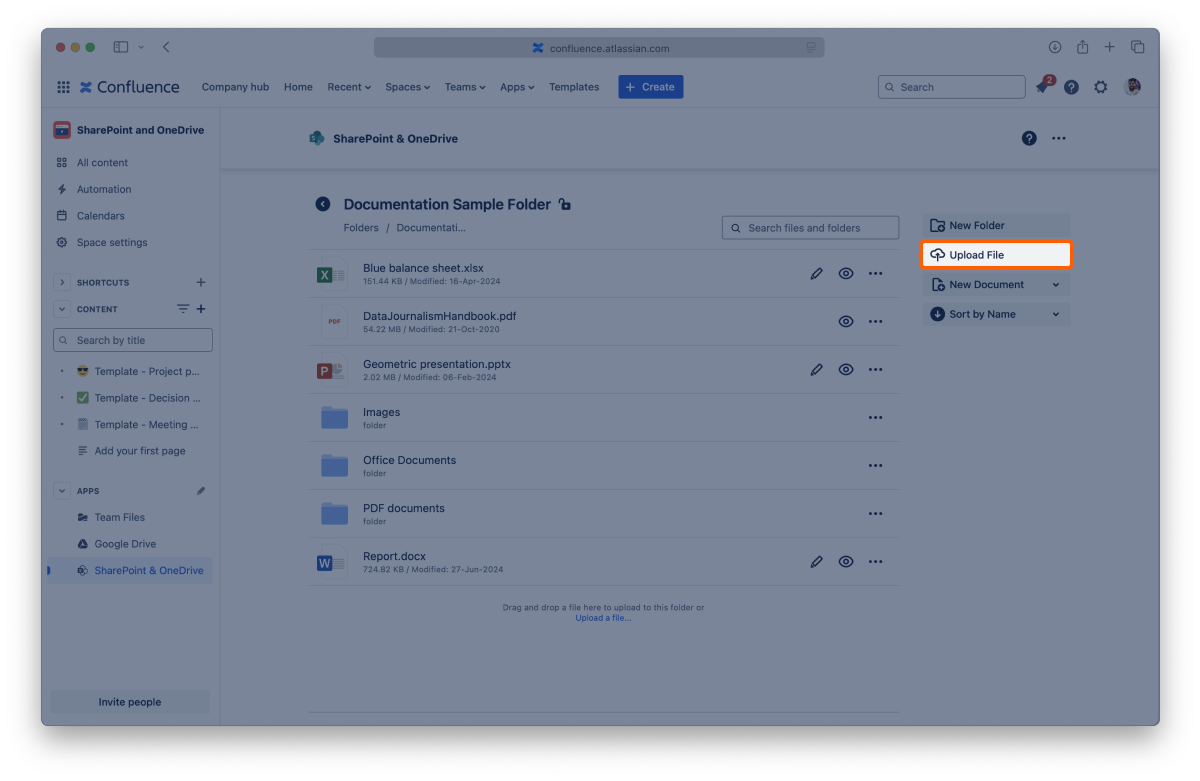
Depending on the file's size, it can take a few moments for it to become available in the app.
The upload option is also available when you attach a folder to a page. You can drag and drop a file there to upload it.
With the SharePoint Connector app, you can create documents where needed. They are always ready for real-time collaboration, with no file locks, and are saved back to the storage place containing the connected folder, avoiding duplicates.
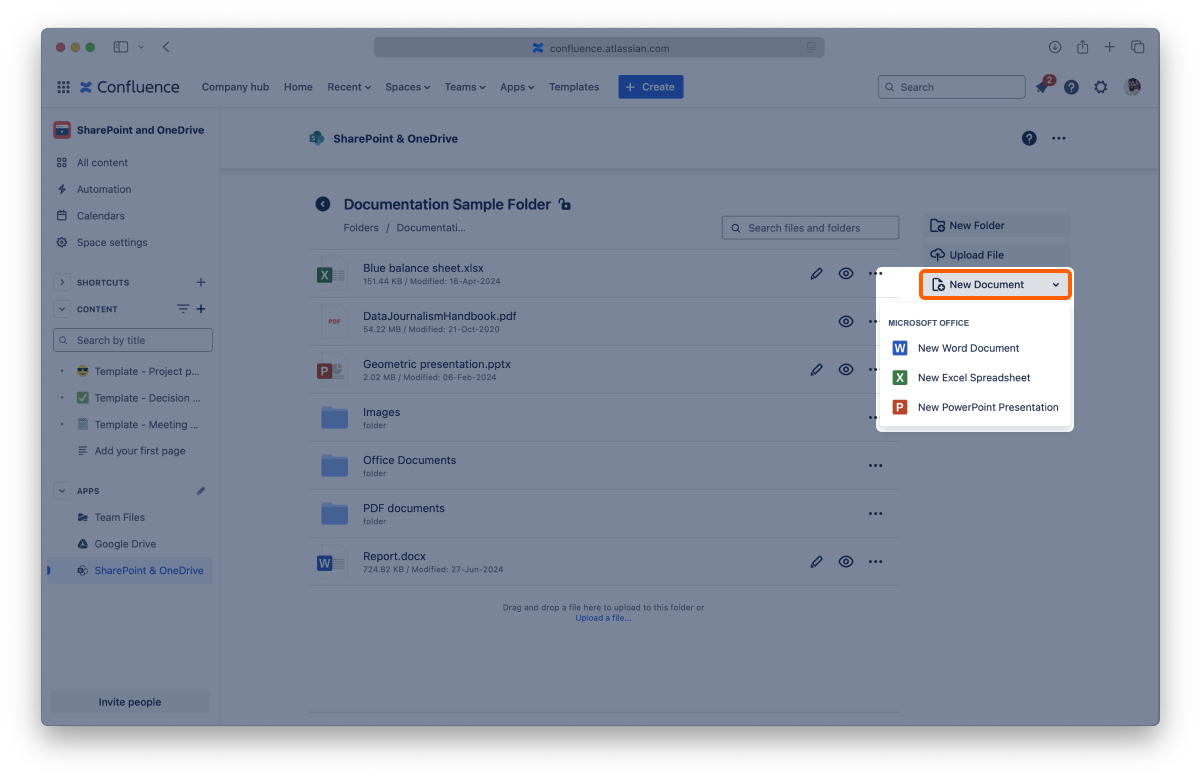
After a few moments, your document appears in the folder, and you can start editing it.
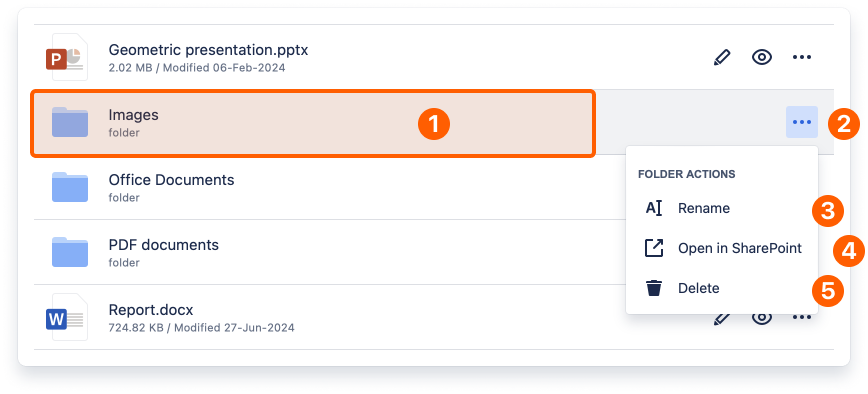
You can see the content of a folder by clicking on it. You can also click folders inside to view the content or click the back button to return to the previous one.
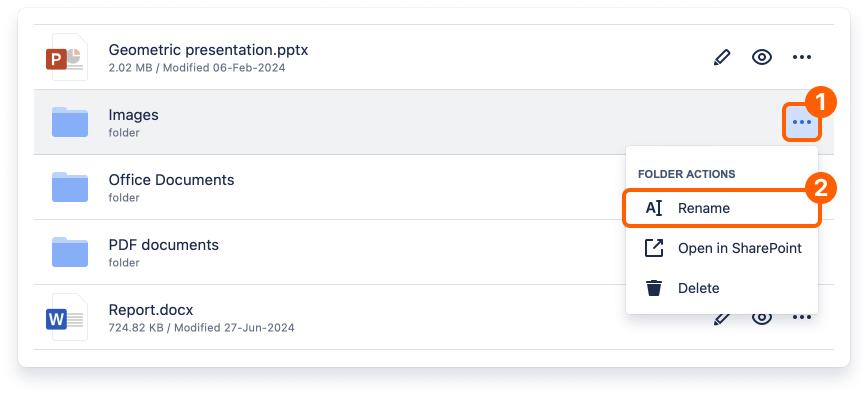
When you change the name of a folder, it's updated in the connected storage too.
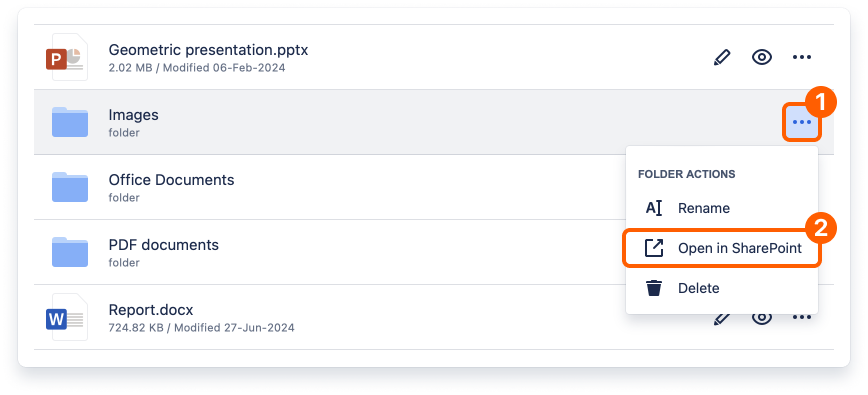
Click the context menu of the folder you want to open.
The folder opens in a few seconds on the original storage site.
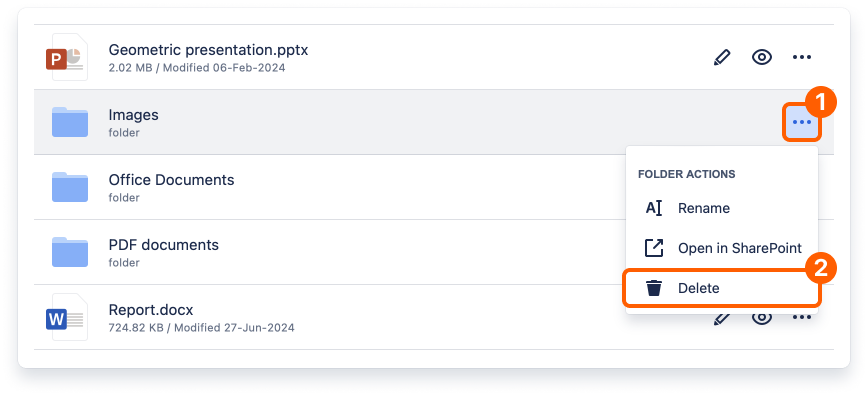
When you delete a folder, it's removed in the connected storage too. This action is undoable in the SharePoint Connector app.
To help you keep things organized, you can create new folders whenever you need them.
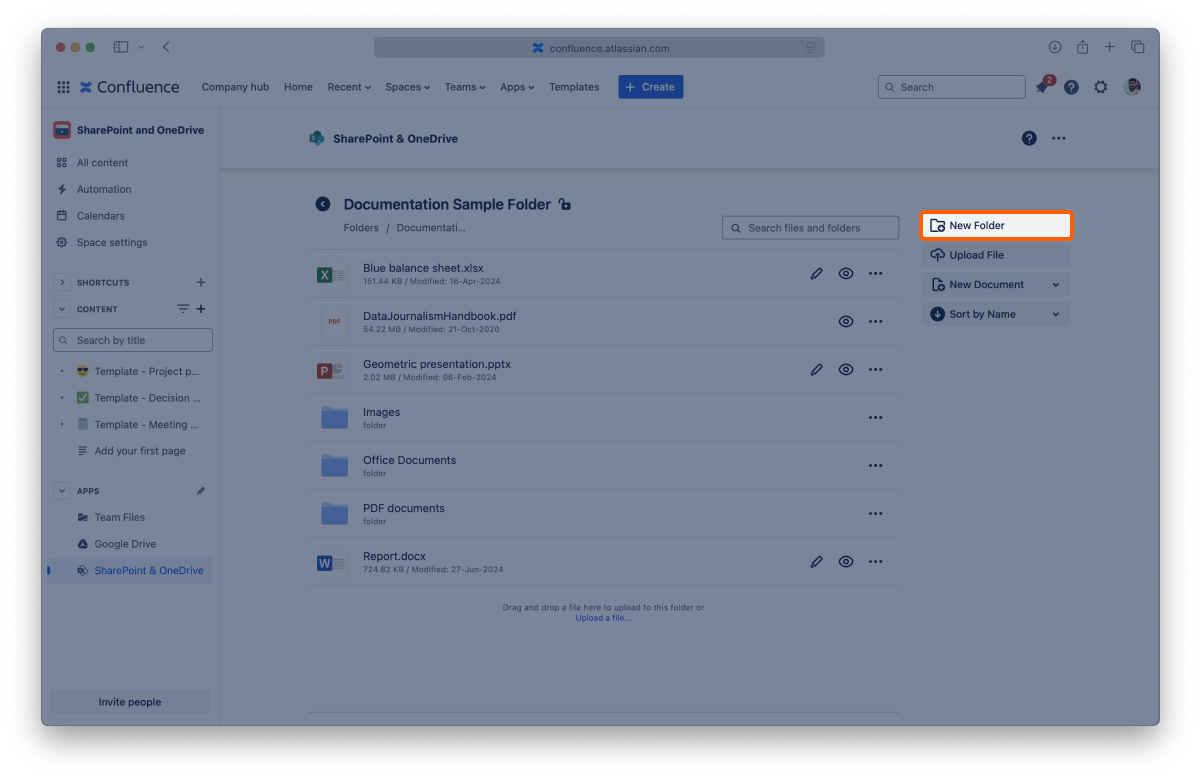
After a few moments, the view reloads, and your new folder will be listed and ready to use.
The content of your folders is ordered alphabetically by default.
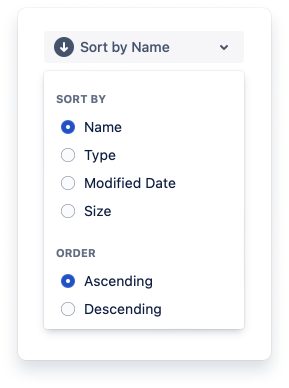
You can change this by clicking the "Sort by name" button and selecting a sort of option and the order you prefer. You can sort content by name, type, modified date, and file size. The button will always reflect your selection.
Now you know all that you need to use the file manager. You can now learn more about Preview files [SP CC] or about using the macro.
If you still have questions about the file manager, visit our support portal and send us your questions. Our team is always happy to help.
The app uses the storage place as the "single source of truth," However, you need to understand that it has some particular behaviors. Like:
Learn how to preview files on Confluence with the SharePoint Connector app.
On this page, we'll cover the different ways to preview your files on Confluence using the SharePoint Connector app, expanding the topics on the page about the file manager.
The SharePoint Connector app lets you preview files in the file manager and the attached files and folders on pages. It supports the most common Office document formats, PDF documents, and popular image formats.
This way, your Confluence pages can easily serve as your one source of truth, with content always accessible and updated.

When using the File Manager, you can preview your files' content by clicking the icon or name of the file you want with the full-screen preview. You can also use the “Preview” button to open the preview. The options available vary slightly depending on the kind of file.
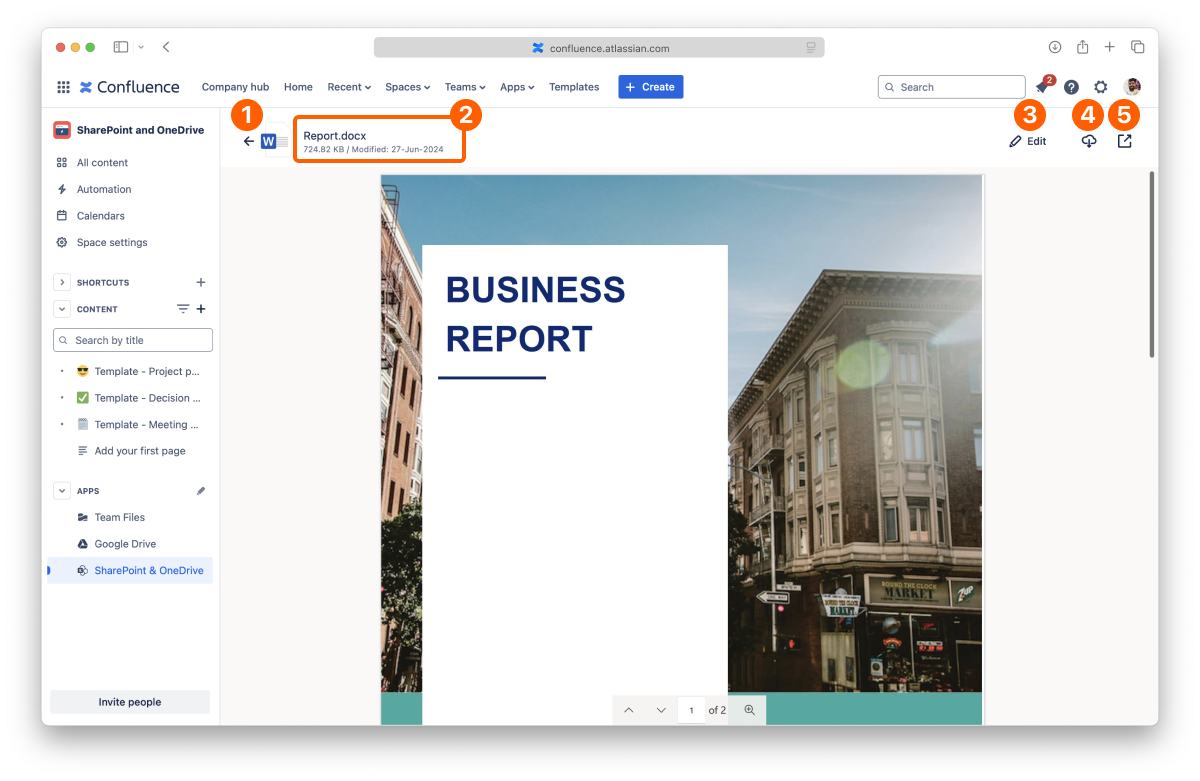
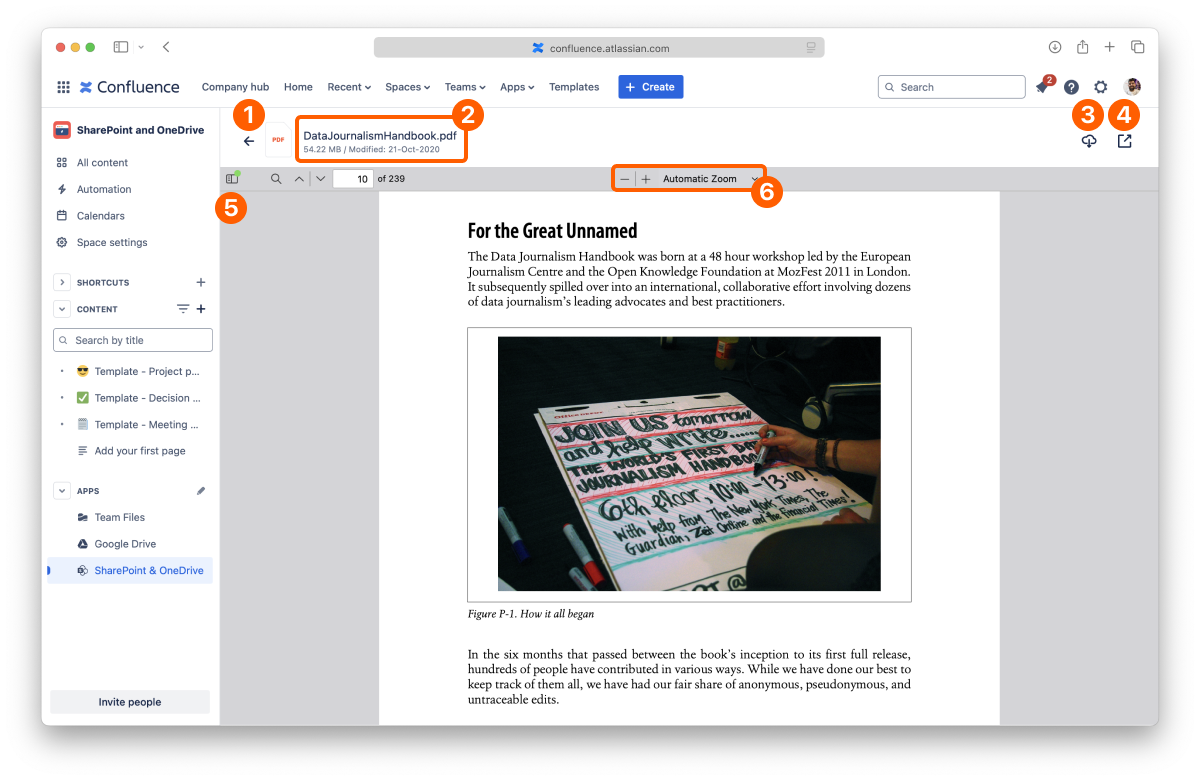
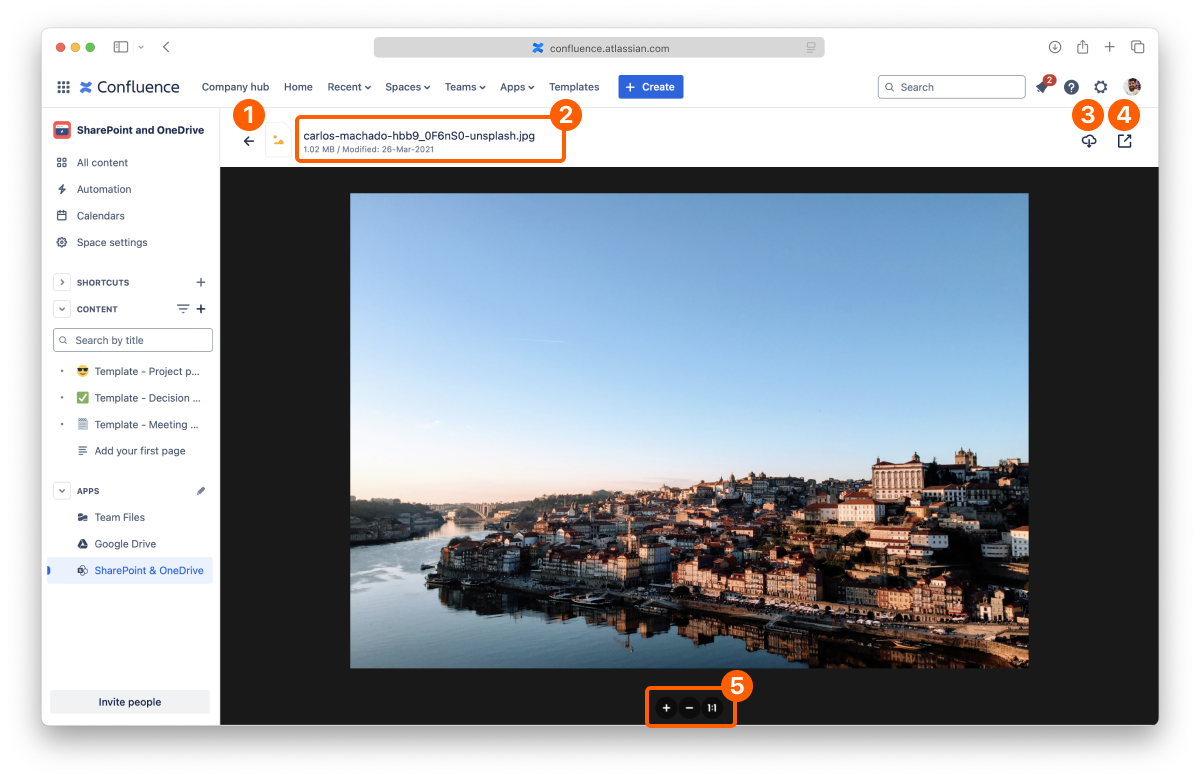
Using the SharePoint Connector app, you can attach files and folders to your Confluence pages with the macro and preview them when the page is published.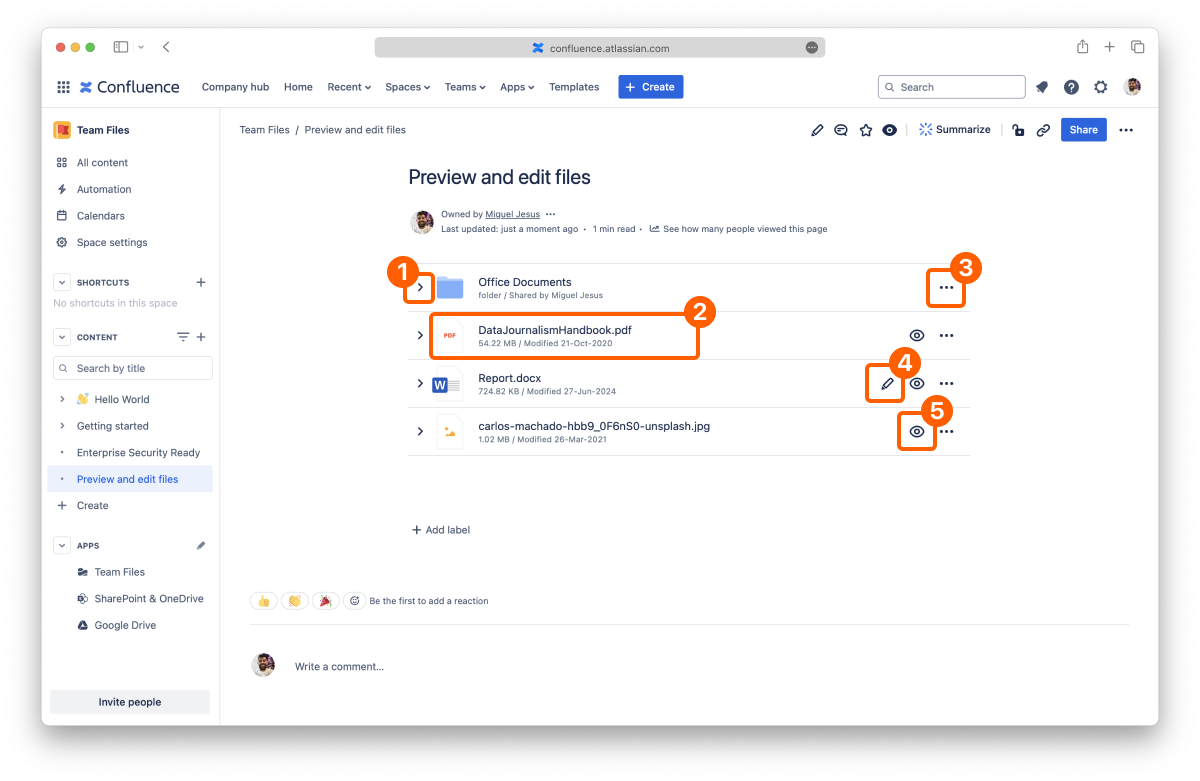
The full-screen preview for the files attached works the same way as described for the file manager. Click the icon or name of the file you want to open the preview.
Another option exclusive to the preview in pages is to view the content inline without hiding your page. By default, every attached file and folder is displayed in a collapsed view to save screen space. You can expand each file by clicking the disclosure button on the left to preview its content.
You can expand attached folders similarly to see their content quickly and even navigate sub-folders. You can also preview the files' contents inside the attached folder by clicking the name to open the full-screen preview.
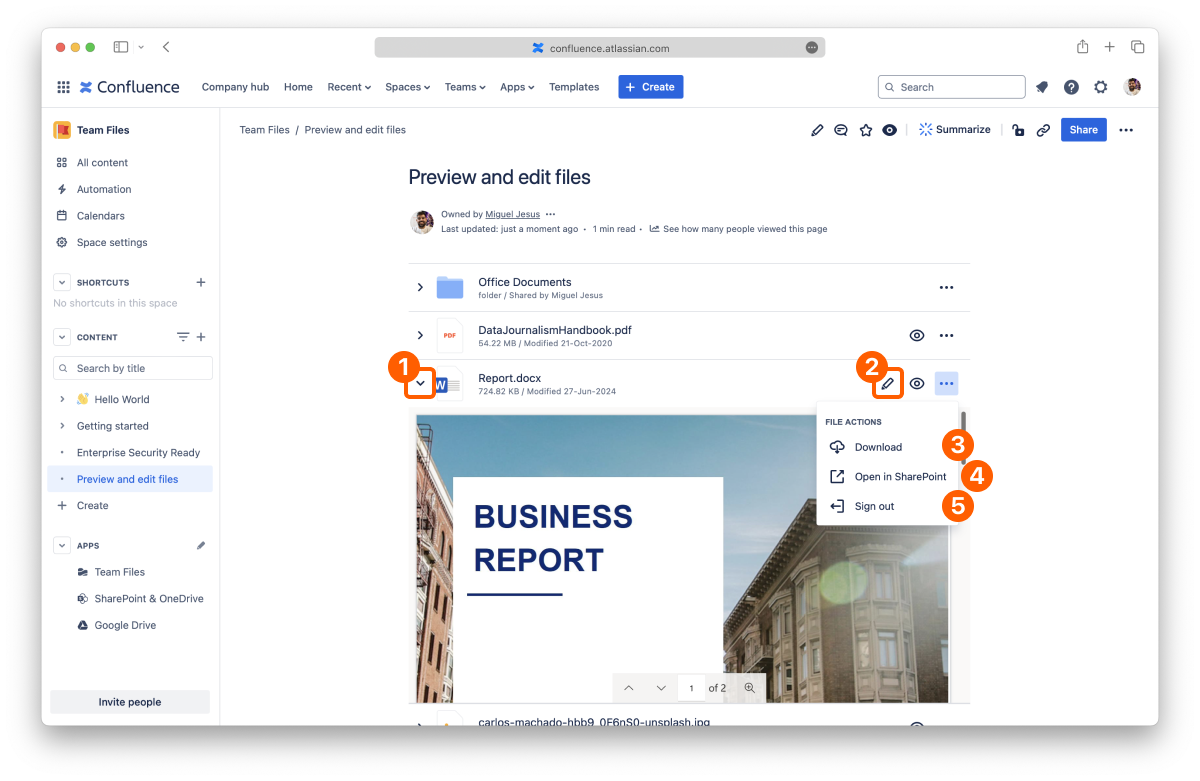
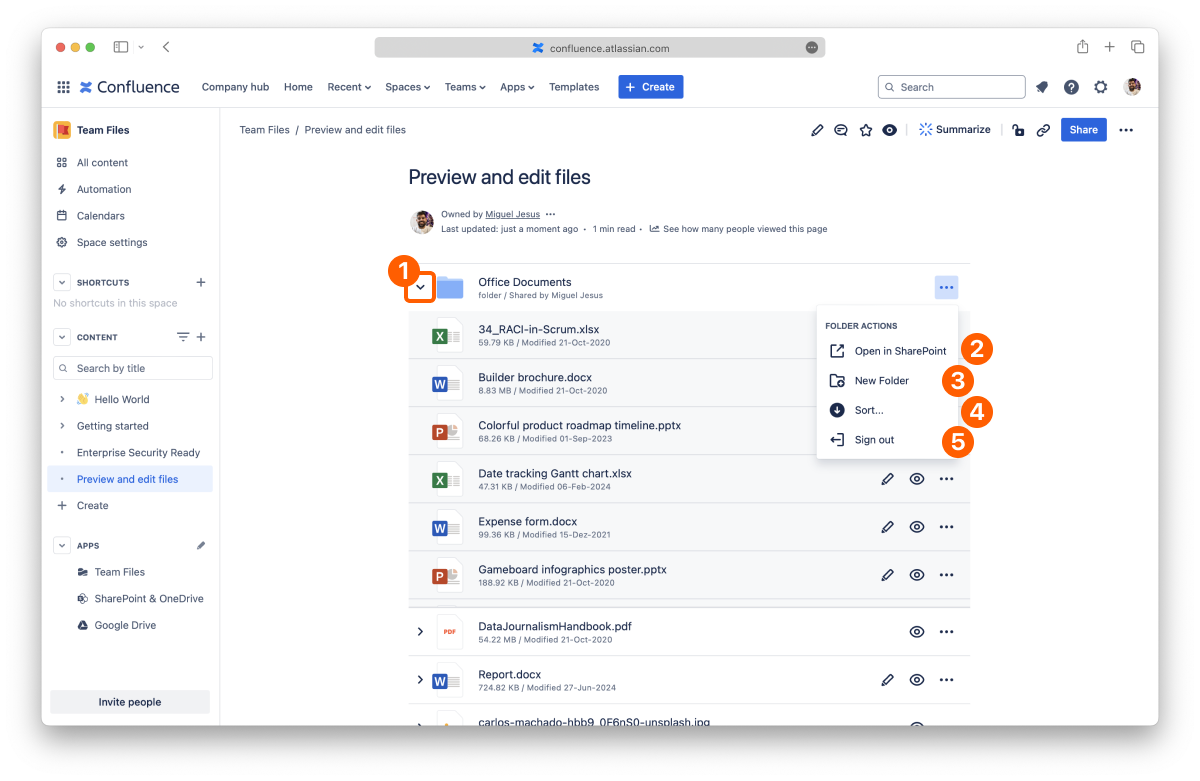
It's possible to make the expanded view the default in the Admin settings [SP CC] or customize an individual macro view.
When you have an attached folder on your page, you can drag and drop a file from a local folder to upload it there. Doing this will save the file in the storage place containing the connected folder, helping you build your single source of truth.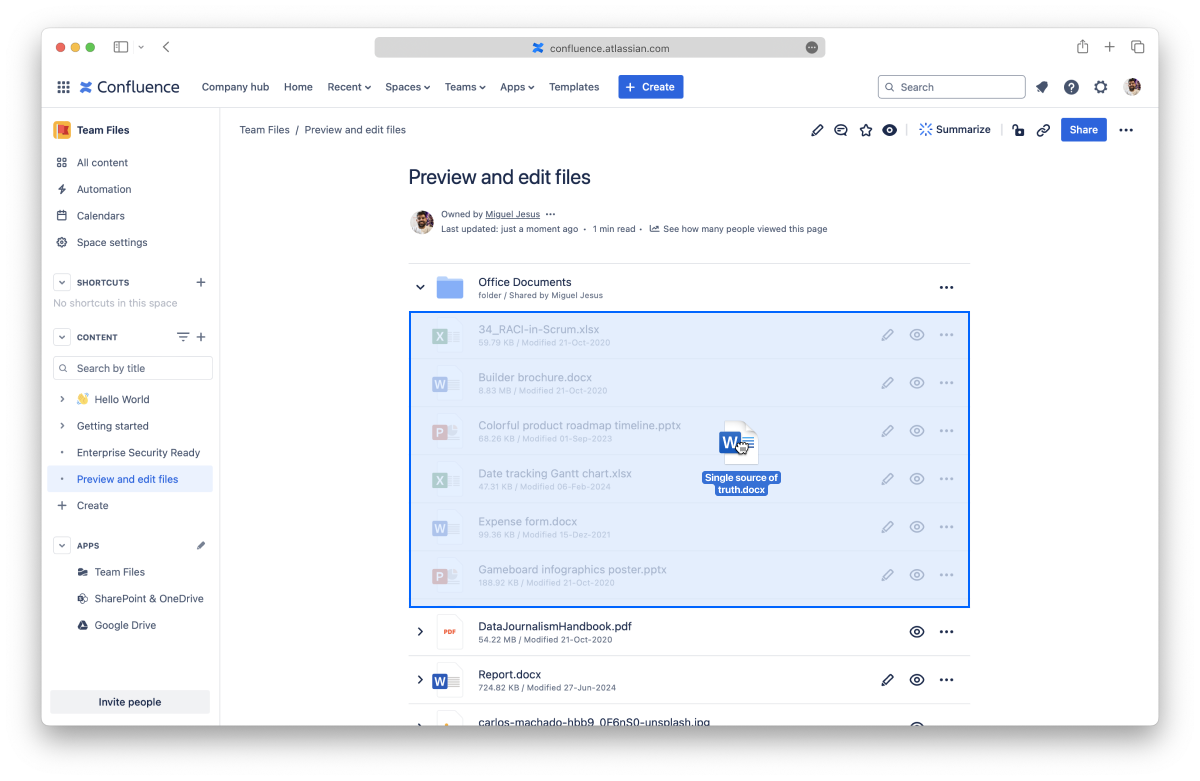
Depending on the size of the file, it may take a few moments for it to become available in the app.
1 Partial support for WEBM, some browsers like Safari don’t support it.
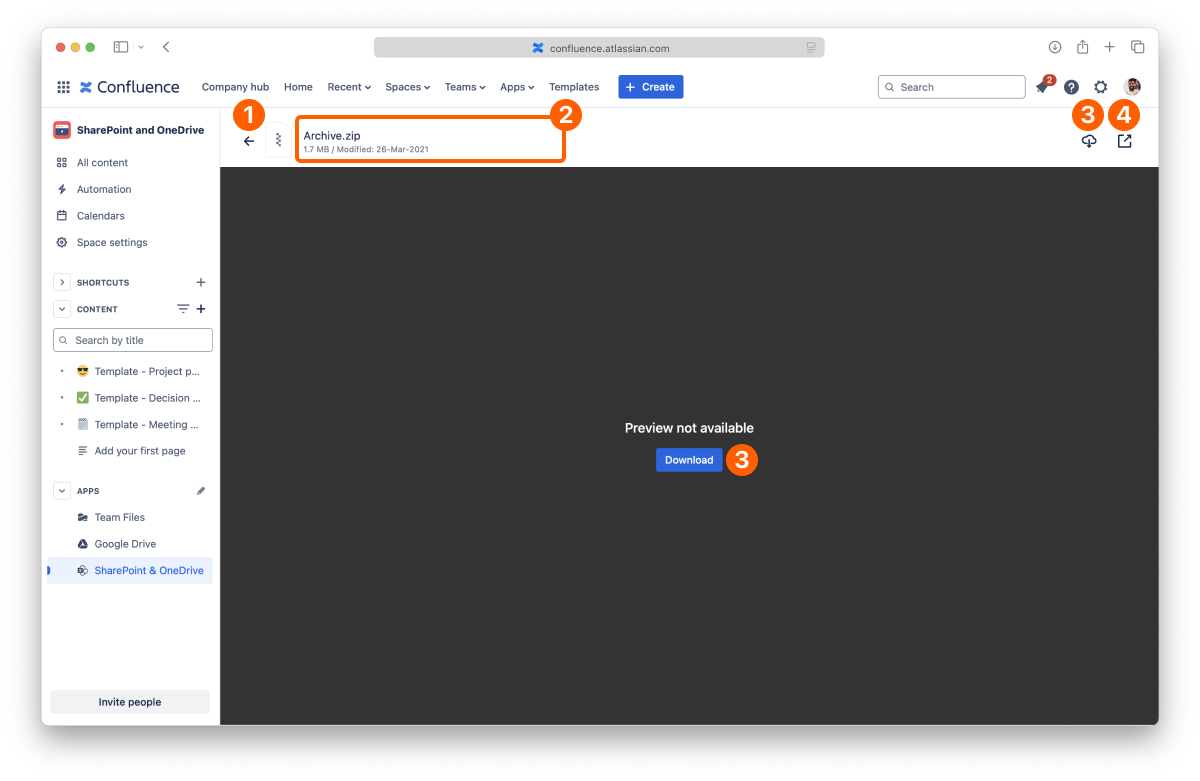
The SharePoint Connector app can preview many popular file types, but not all. When you try to preview a file type not specified above, the preview window will open with the message "No preview available" and a "Download" button so that you can open it with your desktop apps.
You can turn off downloads for shared files by restricting the permissions.
That's all about previewing files. Did you know you can edit documents attached to your pages or create new documents in the file manager?
If you still have questions about the topics covered on this page, visit our support portal and send them to us. Our team is always happy to help.
Learn how to edit documents on Confluence with the SharePoint Connector app.
We'll cover the different ways to edit your documents on Confluence using the SharePoint Connector app, expanding the topics presented on the page about the file manager.
While some files are preview-only, like images and PDF files, when it comes to Office documents, you can also edit the most popular formats right inside Confluence, helping you build your single source of truth without downloading to edit and re-uploading multiple copies or locking other people out while you edit the document.
This way, your Confluence pages can easily serve as your one source of truth, with content always accessible, updated, and editable.
You can edit a document from the file manager, including the full-screen preview, and you can also edit documents attached to your pages.
Regardless of the context, you can edit Office files by clicking the Edit button. A new tab opens, where the appropriate editor opens, and you can edit your file in a few seconds.
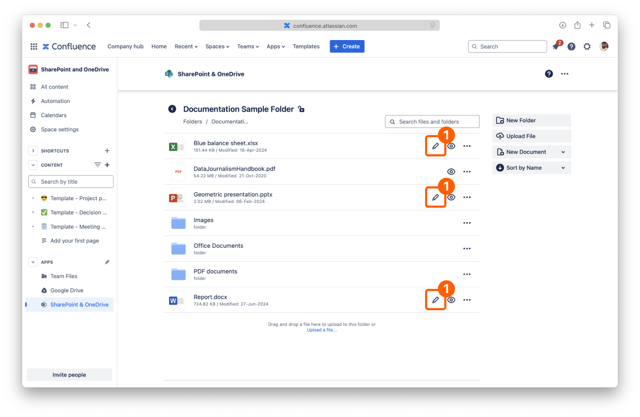
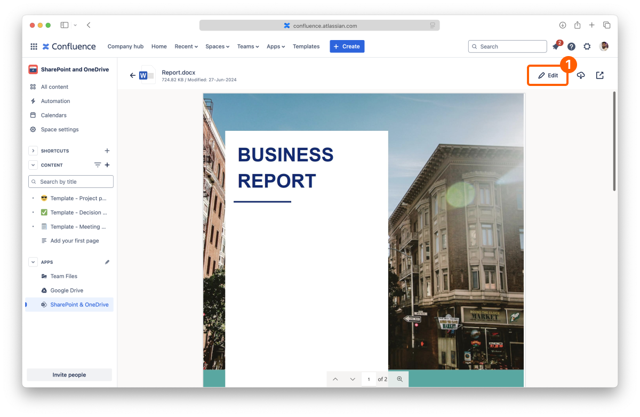
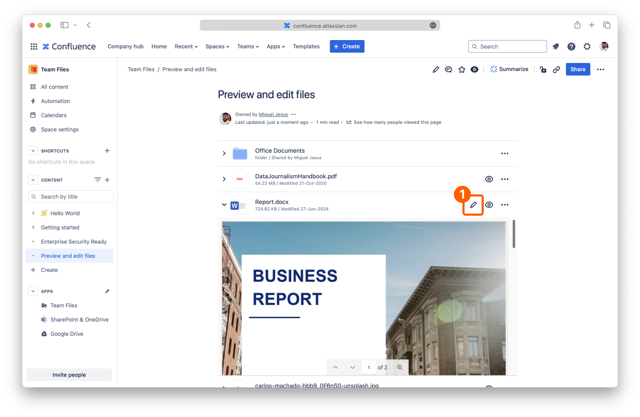
You and your team can work together when editing a Microsoft Office document, spreadsheet, or presentation. The Microsoft 365 editor supports real-time collaboration, so there are no file lockdowns. There's also an autosave feature, so you can close the tab when you finish.
Open Office files work the same way as Microsoft Office files, using the Microsoft 365 editor, but do not support real-time collaboration.
As mentioned before, Microsoft Office supports real-time collaboration and is effortless to use.
You can start editing an Office file attached to a page or even from the file manager. When another person clicks to edit the same file, the editor seamlessly creates a collaboration session. You can continue to edit the file as before and leave it anytime by closing the browser tab.
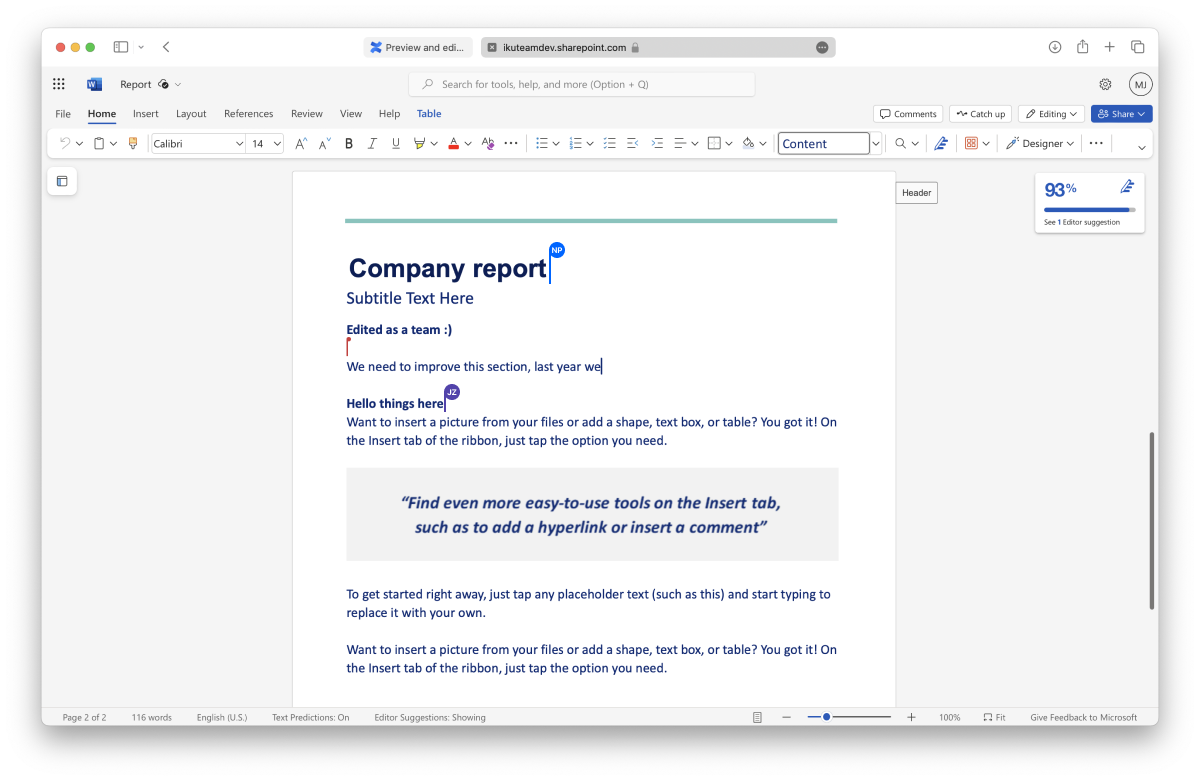
That's all for editing documents. Did you know you can also create new documents using the file manager?
If you still have questions about the topics covered on this page, visit our support portal and send them to us. Our team is always happy to help.
Learn how to attach files and folders to your pages with the SharePoint Connector macro to share the knowledge with your team.
Our macro allows you to attach files and entire folders to your pages using a particular view of the file manager. You can insert the macro on your pages as many times as you need and attach as many files and folders as you want per macro.
On this page, you can check how to use the macro so you and your team can share the relevant files and folders in the right place, quickly building your one source of truth inside Confluence.
Adding the SharePoint Connector macro to your pages is straightforward, with the / shortcut or via the “Insert items” menu.
1. Enter the edit mode of the page where you want to attach files and folders.
2. Place the cursor where you want the macro to appear.
3. Type /attach and select the SharePoint Connector app from the dropdown.
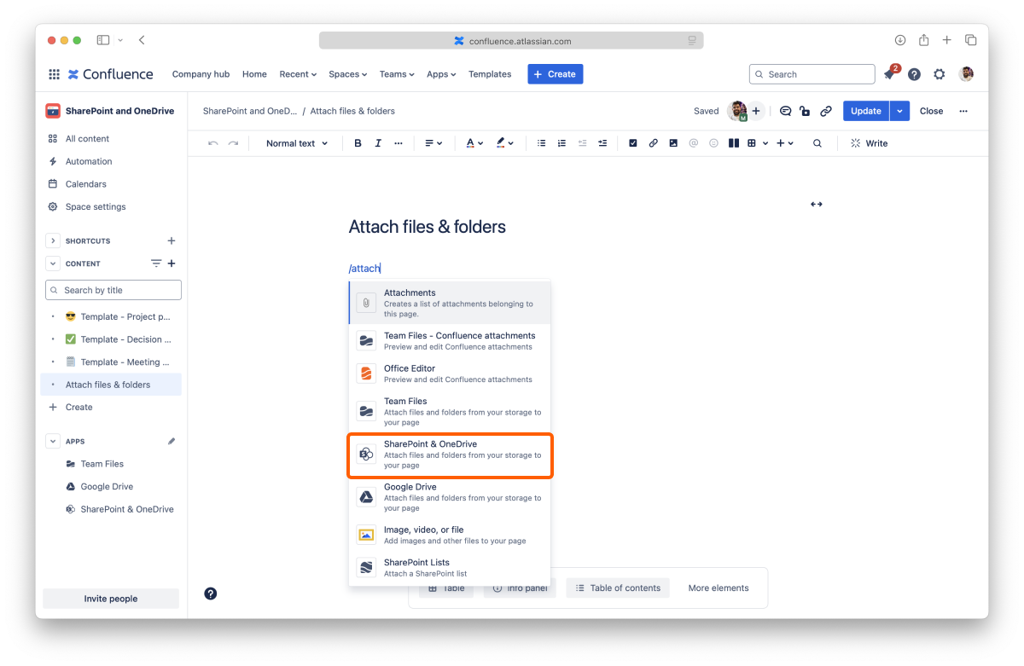
4. The SharePoint Connector dialog opens automatically. If it doesn’t, select the macro and click the “Edit” button.
5. Browse your connected folders in the SharePoint Connector dialog. If you haven’t connected any, you can do that so now. You can also connect more folders from the context menu as you would in the file manager.
6. Click the checkbox to select the files and folders you want to attach. They will appear in the live preview pane on the right side.
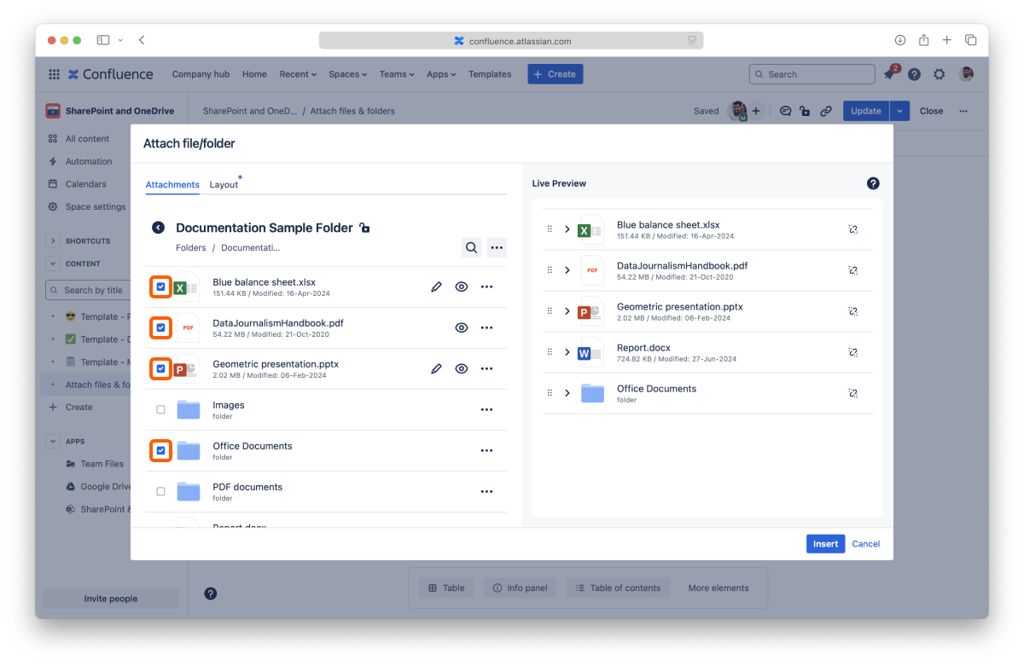
7. Optional: click the “Layout” tab to customize how attachments look on your page.
8. Click the “Insert” button.
It's all done. You’ll be able to see your selections while you edit your page, but they’re not interactive now, as the editor limits the actions available.
While in edit mode, you can view your attachments and add more files and folders by clicking the “Edit” button on the macro again. You can preview your attached items, edit Office files, and browse your folders when you publish the page.
To ensure you’re selecting the correct file, you can preview your files as you would on the file manager. Click the name to open the full-screen preview or click the disclosure button on the live preview pane to preview the content, as you would on files and folders already attached.
Using the / shortcut on the new editor is our preferred way to attach files and folders to pages. For your convenience, we added some options that are easier to remember and type than the app name (which is the default term).
You can add the SharePoint Connector macro to your page using any of the following options: /document, /attach, /file, /folder, /sharepoint, /onedrive and /one drive.
Instructions:
1. Enter the edit mode of the page where you want to attach files and folders.
2. Place the cursor where you want the macro to appear.
3. Click the “Insert items” menu on the toolbar.
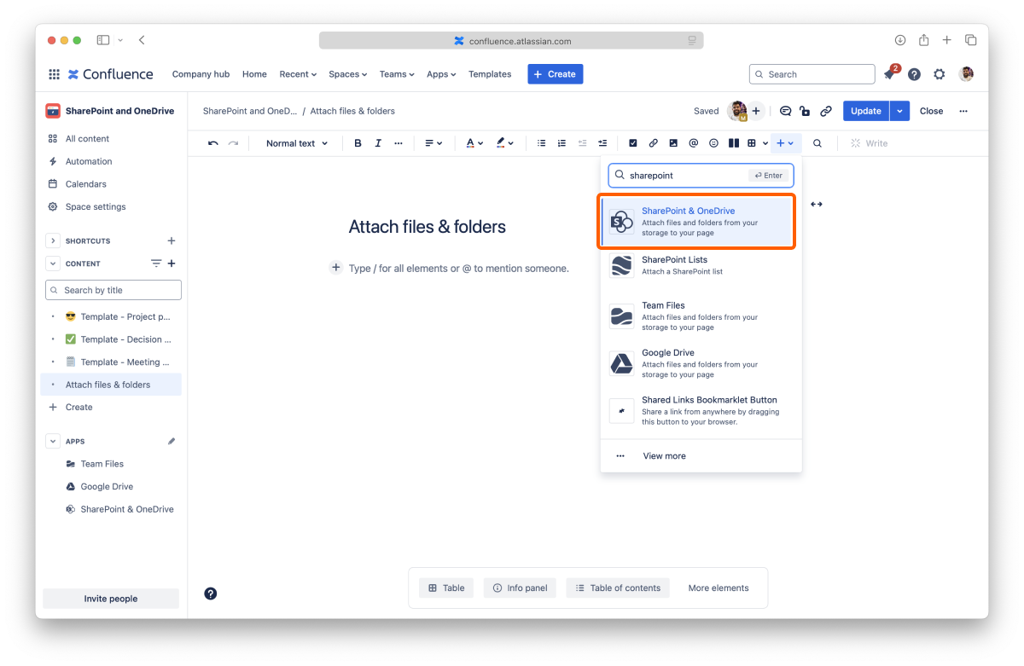
4. Start typing SharePoint in the search field until you see it.
5. Click the “SharePoint & OneDrive” option.
6. Browse your connected folders in the SharePoint Connector dialog. If you haven’t connected any, you can do that so now. You can also connect more folders from the context menu as you would in the file manager.
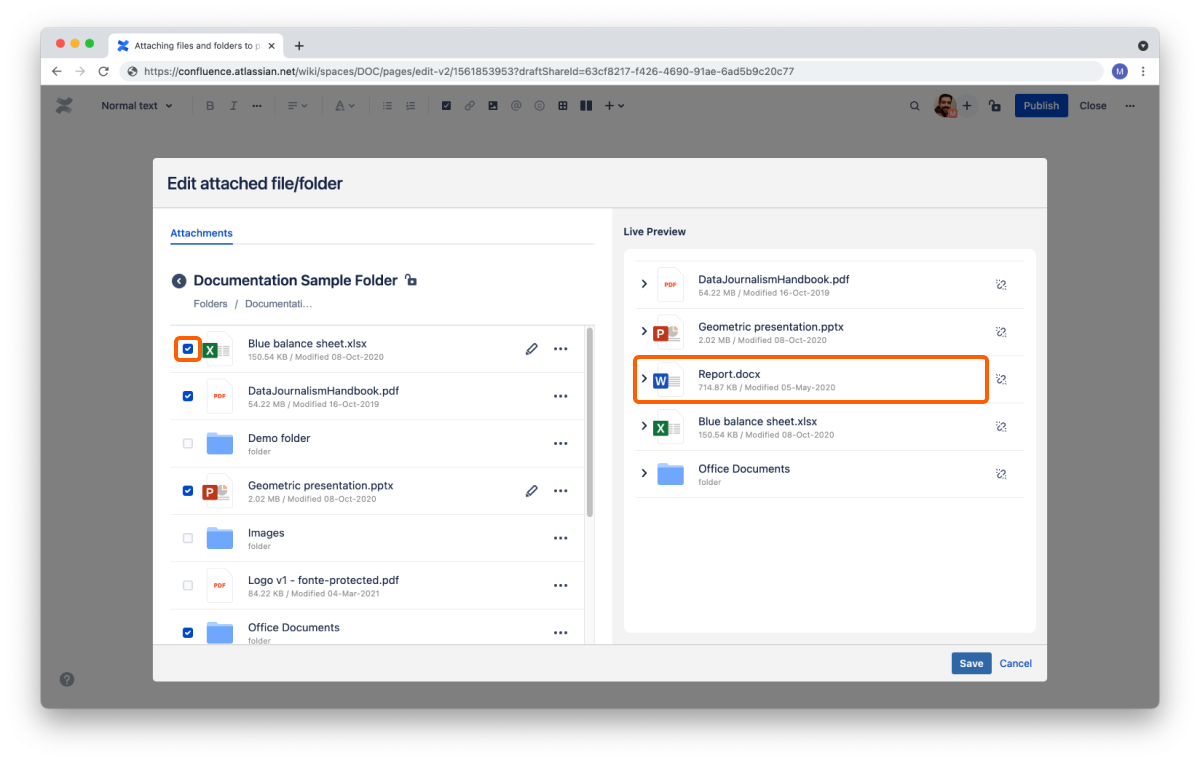
7. Click the checkbox to select the files and folders you want to attach. They will appear in the live preview pane on the right side.
8. Optional: click the “Layout” tab to customize how attachments look on your page.
9. Click the “Insert” button.
All done. You’ll be able to see your selection while you edit your page, but they’re not interactive now, as the editor limits the actions available.
While in edit mode, you can preview your attachments and add more files and folders by clicking the “Edit” button on the macro again. You can preview your attached items, edit Office files, and browse your folders when you publish the page.
To ensure you’re selecting the correct file, you can preview your files as you would on the file manager. Click the name to open the full-screen preview or click the disclosure button on the live preview pane to preview the content, as you would on files and folders already attached.
By default, the files and folders attached to Confluence pages use a regular header and appear in the collapsed view to use less space on the screen. It’s easy to preview the file by clicking the arrow to open the expanded view, which uses the width of the page and is 464px tall.
The Admin can set different defaults for new macros, and you can customize individual macros.
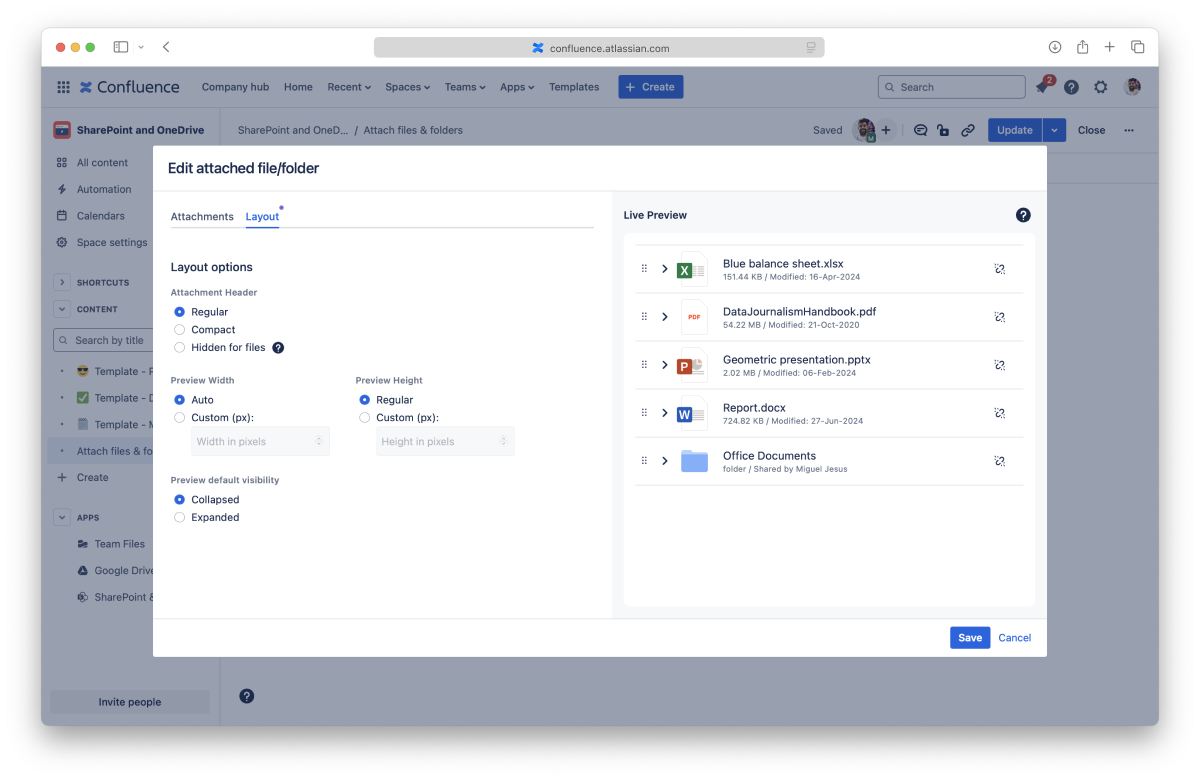
You can set different layout settings when attaching files and folders in a new macro or by editing existing macros by clicking the “Layout” tab in the SharePoint Connector dialog. You can preview the changes in the “Live Preview” panel. When you save the changes, you’ll see the new layout applied to your page.
Select the size for the header of the macro:
Select the width for the preview:
Select the height for the preview:
Select the behavior for the preview:
You can reorder files and folders in the macro.

Instructions:
All done. The macro is updated.
You can remove specific files and folders attached to a macro at any moment.
Instructions:
1. Enter the edit mode of the page
2. Select the macro that you want to change
3. Click the “Edit” button
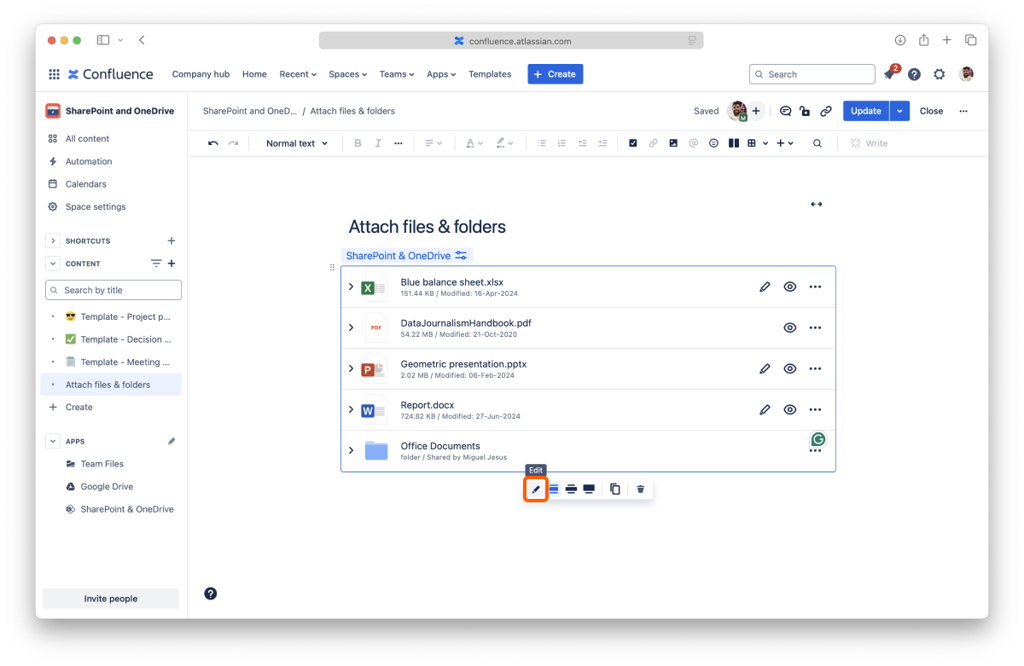
4. The live preview pane lists all the attached files. Click the unlink button on the ones you want to remove from the macro.
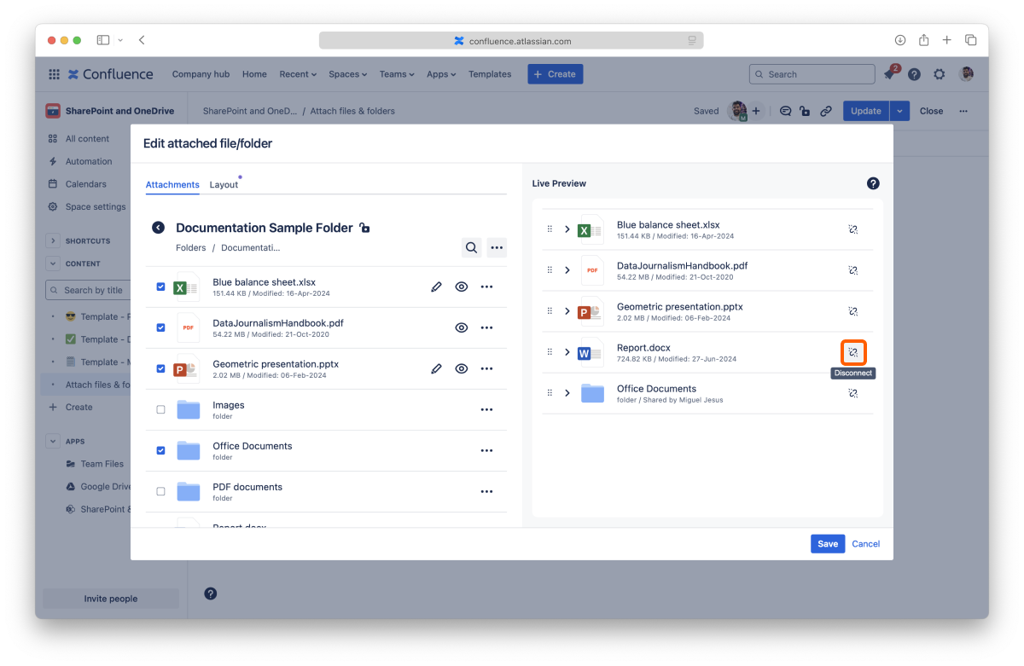
5. Click the “Save” button.
Your macro is updated. You’ll see the updated list if you are using the new editor.
If you make a mistake while removing attached files and folders, you can click the “Cancel” button to discard all changes.
When you click the “Save” button, the changes become permanent and undoable. You can, however, attach the files and folders again, as removing them from the macro doesn’t delete them.
You can also remove the entire macro and all the files and folders attached.
1. Enter the edit mode of the page.
2. Select the macro that you want to remove.
3. Click the “Remove” button.

It's all done. Your files and folders are safe and sound, but they are no longer attached to the page after you publish the changes.
Now you know how to attach files and folders to your pages and make changes to your macros. Don’t forget you can connect more folders from the file manager.
If you still have questions about the topics covered on this page, visit our support portal and send them to us. Our team is always happy to help.
Learn how to set permissions for connected folders.
You can set different permissions for the connected folders to tailor the app experience to your team's needs. You can decide whether other people can view the folders you connect and whether they can edit the content or download files. If you are familiar with Confluence's permissions for pages, you'll feel right at home.
You can set permissions when connecting a folder in the "Permissions" tab or from the File Manager at any moment by clicking the lock icon.
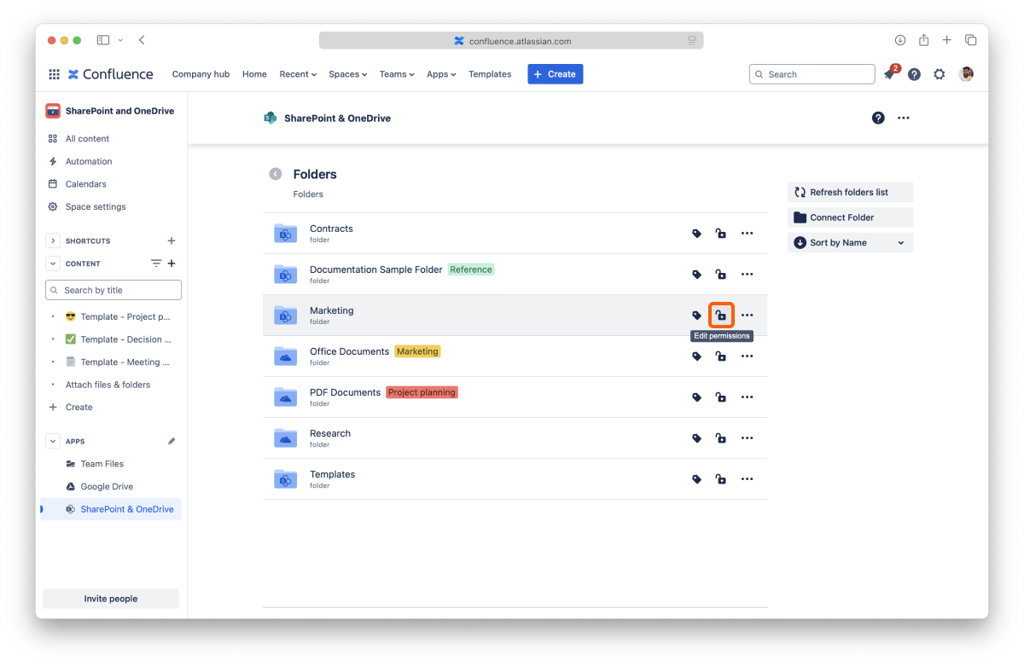
The "Permissions" tab shows the current settings and how they affect your connected folder.
There are three main options that you can select from the drop-down menu:
It is the default option, meaning everyone accessing the Confluence Space can view and edit the connected folder's content.
Everyone can view the folder and its content, but only the person who attached it (the owner) can edit it. The owner can also grant permission to download files or edit documents to specific people, groups, and roles.
Nobody has access to the folder; only the owner can view the folder and edit the content. Only people, groups, or roles added by the owner will have permission to view the folder or edit its content.
The list will be updated to include the new addition. You can add as many entries as you need and click the "Connect" button (when connecting a folder) or the "Apply" button (when editing permissions).
Changing any person's permissions, group, or role in the permissions modal is possible. The connected folder owner can change the permissions anytime, returning to the permissions modal. The owner can add more people and groups or revoke granted permissions by clicking the "Remove" button.
Please keep in mind that permissions are additive. If a person can only view a folder as an individual and is part of a group that can edit, this person will be able to edit the folder, as SharePoint Connector combines all the permissions.
Files and folders attached to pages will only be visible to people with permissions granted in the folder.
When you use the macro to attach files and folders to a page, SharePoint Connector uses the connected folder's permissions at that moment. If you change the folder's permissions, the macro's attachments will not get the updated permissions. You must attach them again if you need them to use the new permissions.
The SharePoint Connector app simplifies access to shared content by default, favoring ease of use with simplified permissions. This default overrides file permissions set in SharePoint and OneDrive for folders connected to Confluence. The original storages are unchanged and keep the permissions set.
Admins can require users to authenticate with an account with access to the connected folders to respect the set permissions in the storage. Use "Require authentication" in conjunction with folder permissions to better control how files are shared, viewed, and edited.
Now you know how to set permissions for your connected folders to your pages and make changes to your macros. Don't forget you can connect more folders from the file manager.
If you still have questions about the topics covered on this page, visit our support portal and send them to us. Our team is always happy to help.
Managers can adjust the SharePoint Connector space settings to the team’s needs.
Managers can find the SharePoint Connector space settings in the “Apps” section of the space settings, accessible from the project sidebar or menu.
The SharePoint Connector app is available by default for every space. Managers can deactivate the app in the space settings if it isn’t required in that space.
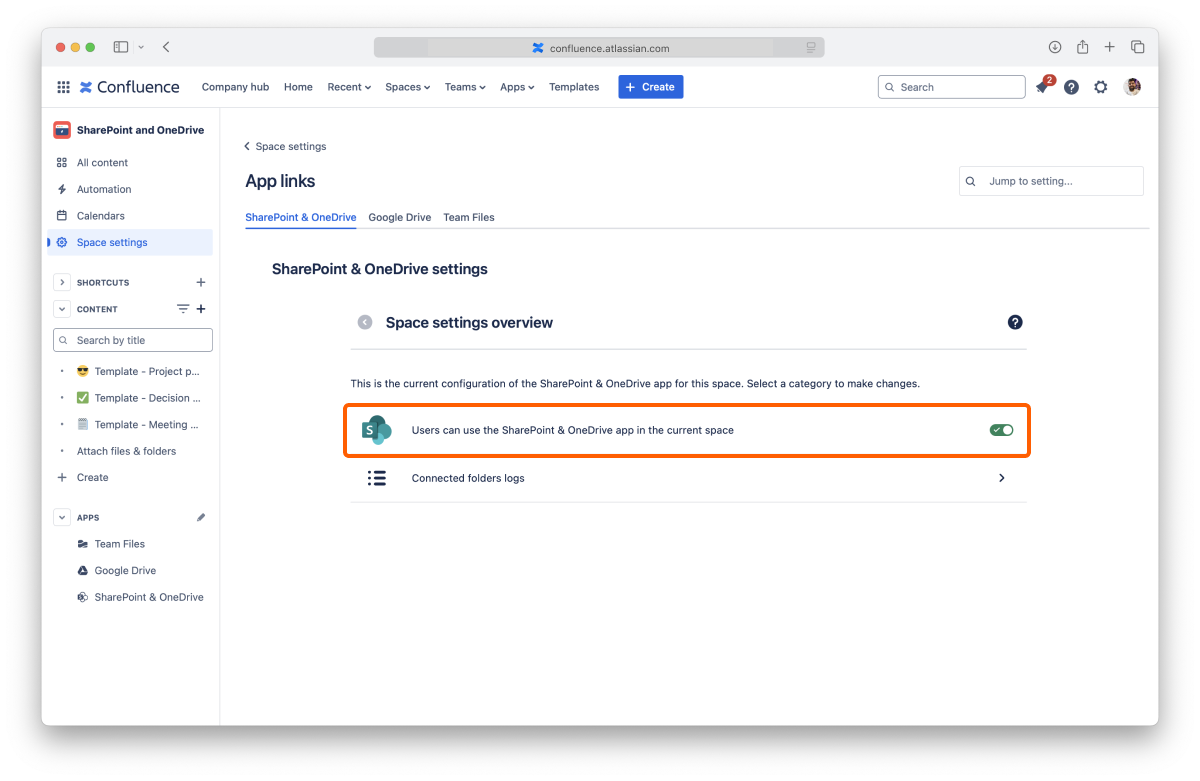
To deactivate the SharePoint Connector app, click the toggle to turn it off. You can reactivate it anytime by clicking the toggle again to turn it on.
Changing this setting saves automatically and applies immediately.
If you're having issues with a connected folder, you can check the “Connected folders log” at any moment. The log will give you details on when a user connected it or if someone disconnected it.

On this page, you learned about all the Space settings available.
If you still have questions about the topics covered on this page, visit our support portal and send them to us. Our team is always happy to help.
Adjust the SharePoint Connector app settings to your needs.
The SharePoint Connector app settings are accessible from the file manager by clicking the context menu in the top right corner and then selecting the "SharePoint Connector settings" option.
Currently, you can only check the name that the Atlassian apps send to the Team Files app.
You can manage your connected places from the "Places" tab inside the SharePoint Connector settings. You're in control of your storage places: only you can see the places you allowed, and you, and only you, can disconnect them.
List of your connected places.
You can connect several accounts from the same service, and by default, we add a number at the end when you do it to differentiate them. To help you keep things organized, you can rename your places to something more meaningful to you.
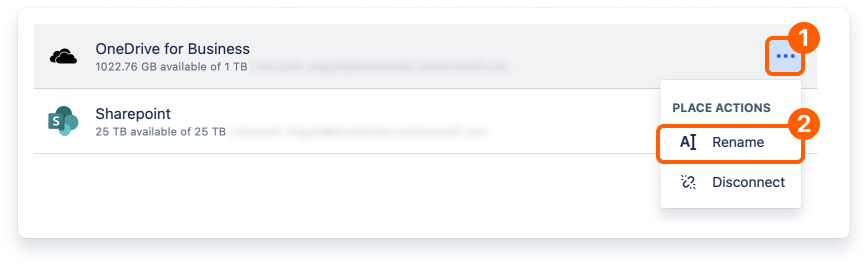
That's it. It just takes a few moments to update the name, and it's ready to use.
You can also rename and manage your places from the "Connect a Folder" dialog.
Before getting into how to do it, it's relevant to know that you're only breaking the link in the SharePoint Connector app to the original storage when you disconnect a place. All your content is safe, but any folders you have connected from that place will also be disconnected. Consequently, files and folders that you or your team attached to Confluence pages from the disconnected folders also lose the link to the original storage and become unavailable.
If you accidentally disconnect a place, you can connect it again in 30 days to restore the connected folders and attachments. After this period, it’s no longer possible to restore the existing attachments.
All done. Your storage place is safe and sound but no longer accessible in the SharePoint Connector app.
You can also disconnect and manage your places from the "Connect a Folder" dialog.
The Help tab contains a brief description of the app, information about the team that developed it, and links to learn more.
You will also find the links to contact the support team and this documentation.
On this page, you learned about all the settings available at the moment. As we introduce new features, we'll add additional settings so you can further customize your experience.
If you still have questions about the topics covered on this page, visit our support portal and send them to us. Our team is always happy to help.
You can now seamlessly copy and move Confluence pages containing SharePoint Connector macros within the same space. This enhancement ensures that the macros are copied correctly and remain functional in the new location. This feature simplifies the process of duplicating content while maintaining the integrity of your SharePoint Connector macros.
The SharePoint Connector macros will break if you copy or move pages to a different space. This happens because the parent folders associated with the macros may not be connected to the new space. To prevent this issue, keep copying or moving operations within the same space.
Administrators can adjust how the SharePoint Connector app works to meet your team's needs and comply with company policies.
As the name implies, these settings are only visible to users with Administrator privileges. All the settings on this page are accessible by entering Confluence settings and then clicking the "SharePoint & OneDrive Settings" link on the sidebar under the "Configuration" section.
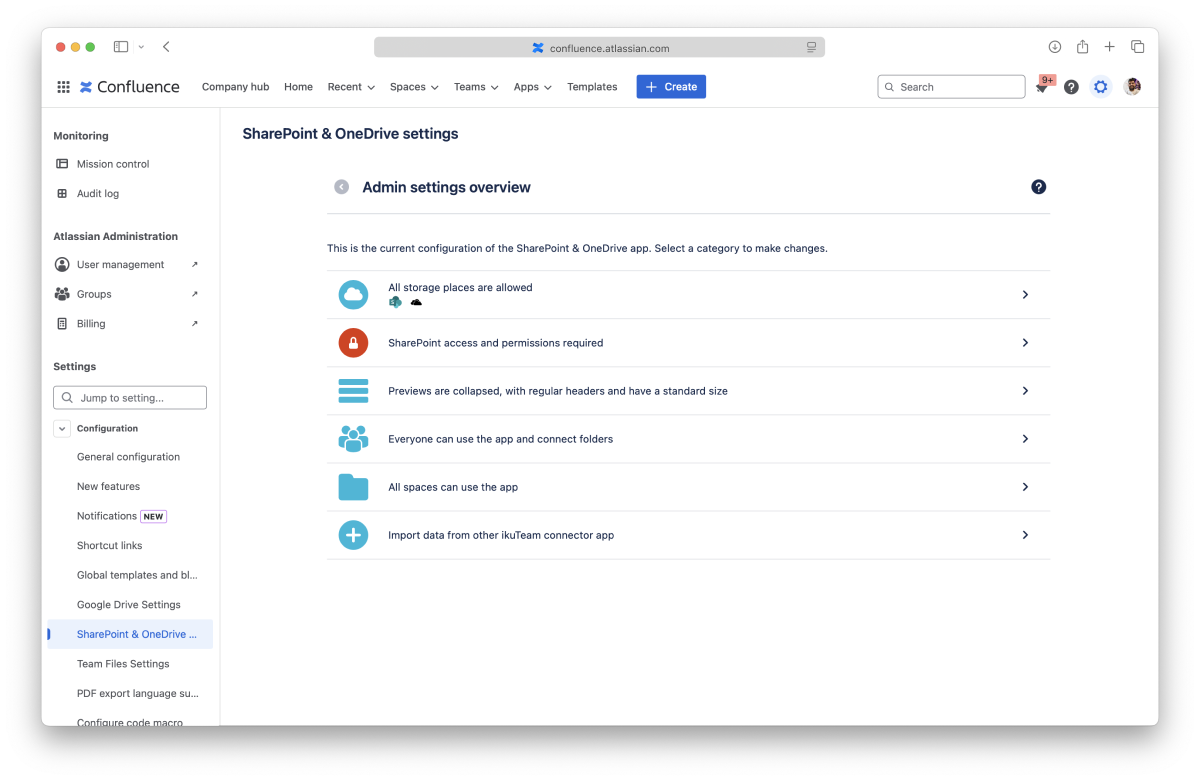
By default, users can connect folders from all the storage places supported by the SharePoint Connector app.
Administrators can easily restrict the use of specific storage places to ensure that the use of the SharePoint Connector aligns with company policies.
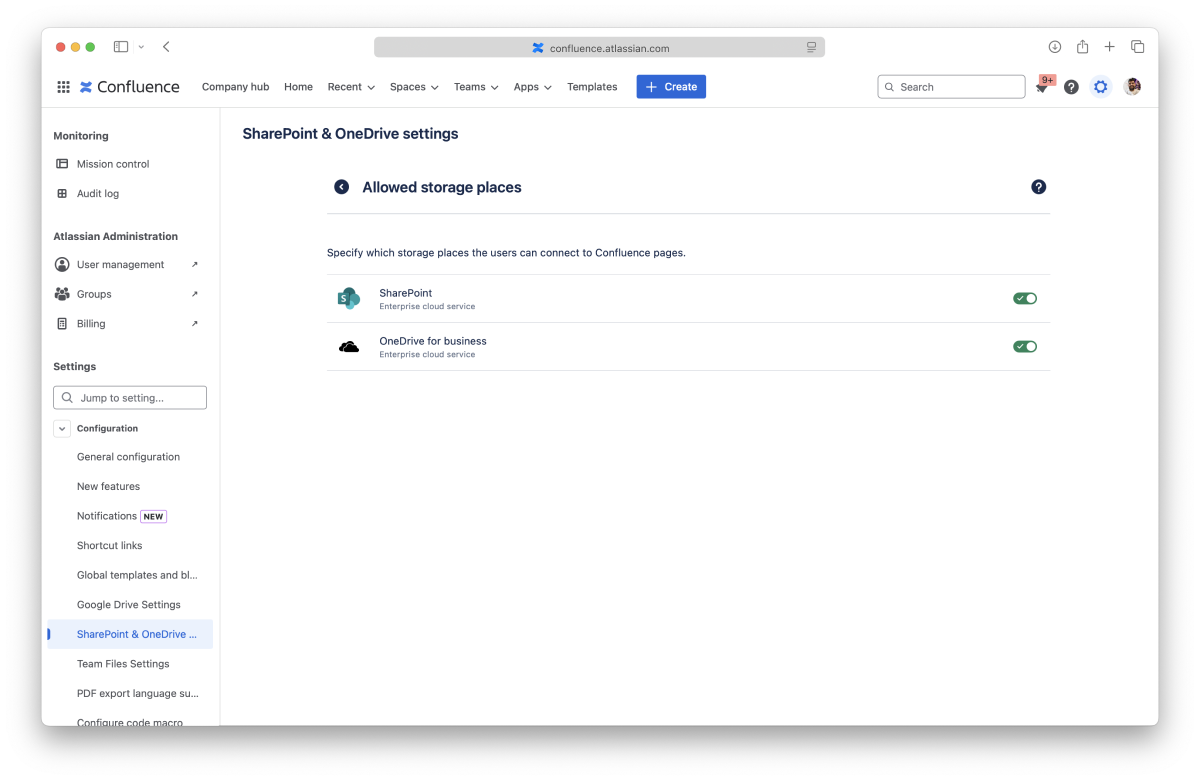
Changes to these settings are saved automatically and applied immediately.
If a user connects a folder from a storage place that the Admin later turns off, it becomes blocked inside the SharePoint Connector app. All connected folders from that place are blocked, too. If there are attached folders and files from a blocked storage place, the content won't be visible, and a warning will appear mentioning that the Admin blocked the access.
Changes to these settings are saved automatically and applied immediately.
The SharePoint Connector app simplifies the authentication by default, favoring ease of use with simplified permissions. Admins can require users to authenticate with an account with access to connected folders to better control how files are shared, viewed, and edited.
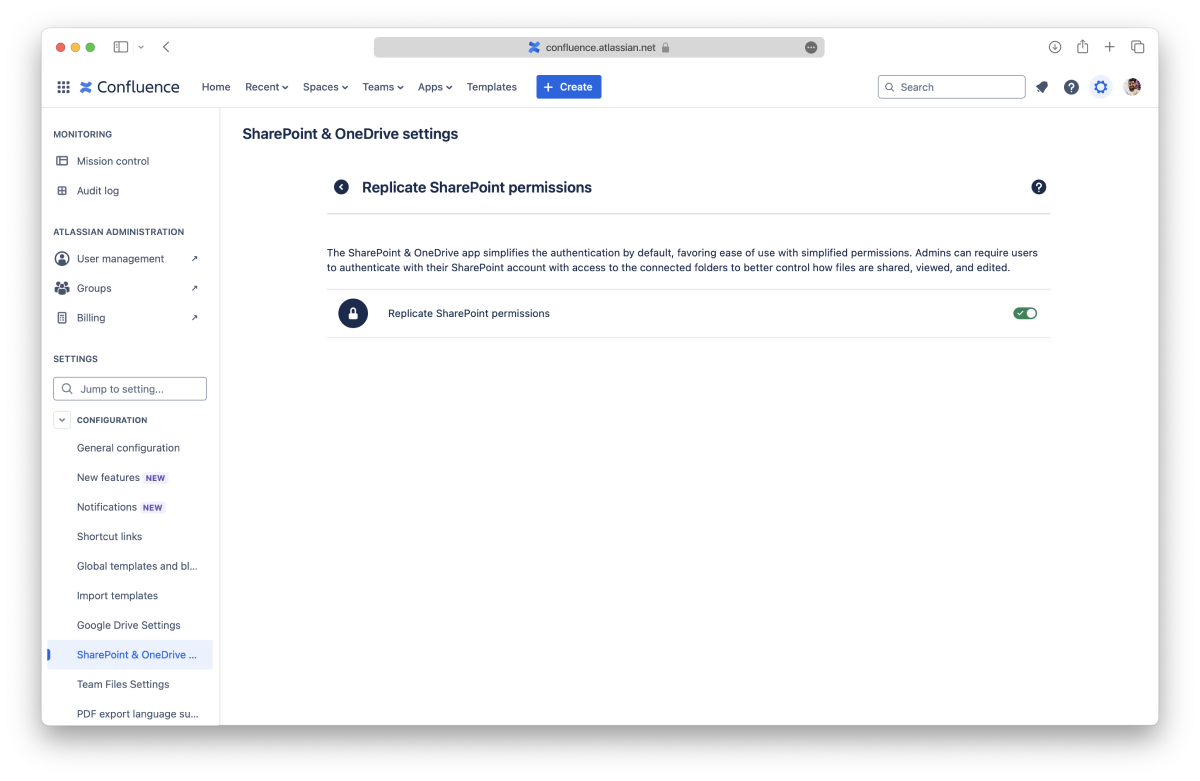
Remember that this option requires users to sign in to each connected folder to view and edit the files and apply the correct permissions for each user. Learn more
Changes to these settings are saved automatically and applied immediately.
Changes to these settings are saved automatically and applied immediately.
By default, the files and folders attached to Confluence pages use a regular header and appear in the collapsed view to use less space on the screen. It's easy to preview the file by clicking the arrow to open the expanded view, which uses the width of the page and is 464px tall by default, or clicking the file name (or preview button) to open the full-screen preview.
The Admin can set different defaults for new macros in the Admin settings section dedicated to the preview options.
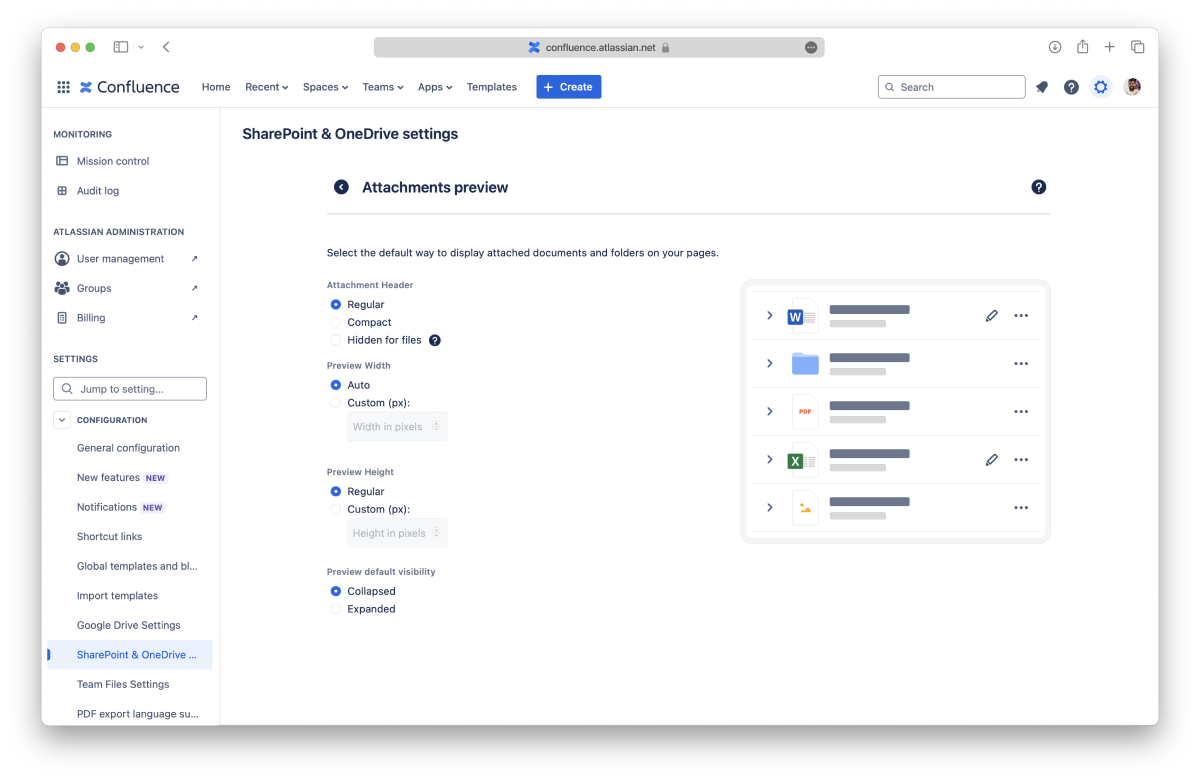
Select the default size for the header of new macros:
Select the default width for the preview:
Select the default height for the preview:
Select the default behavior for the preview:
Changes to these settings are saved automatically and applied immediately.
By default, all users and groups can use the SharePoint Connector app. It's accessible with a link on the project sidebar and as a macro on pages to attach files and folders.
However, an Admin can specify which users and groups can use the SharePoint Connector app. When someone is not permitted to use the app, the file manager and the macro are blocked.
The current settings are in the "Users & Groups" tab. There are three main options that you can select from the drop-down menu:
All users and groups can access the SharePoint Connector app with the default option.
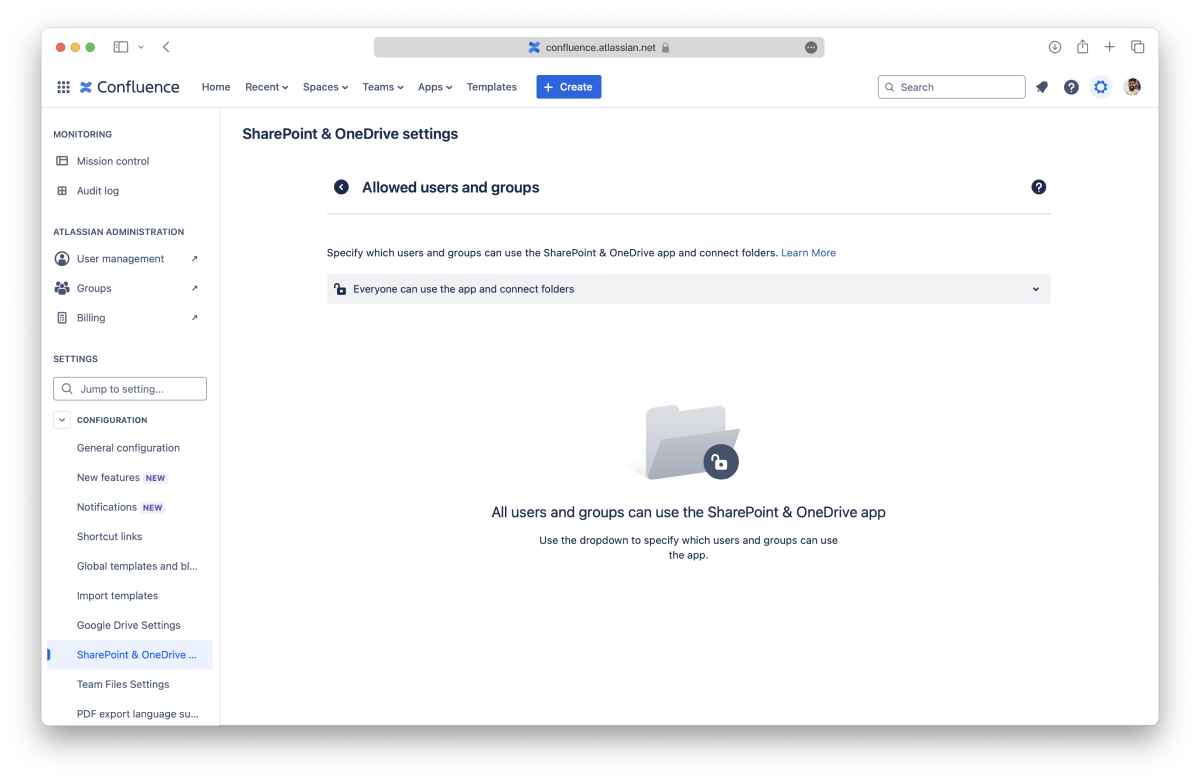
Select this option if everyone should be able to use the SharePoint Connector app, but only some users and groups can connect folders.
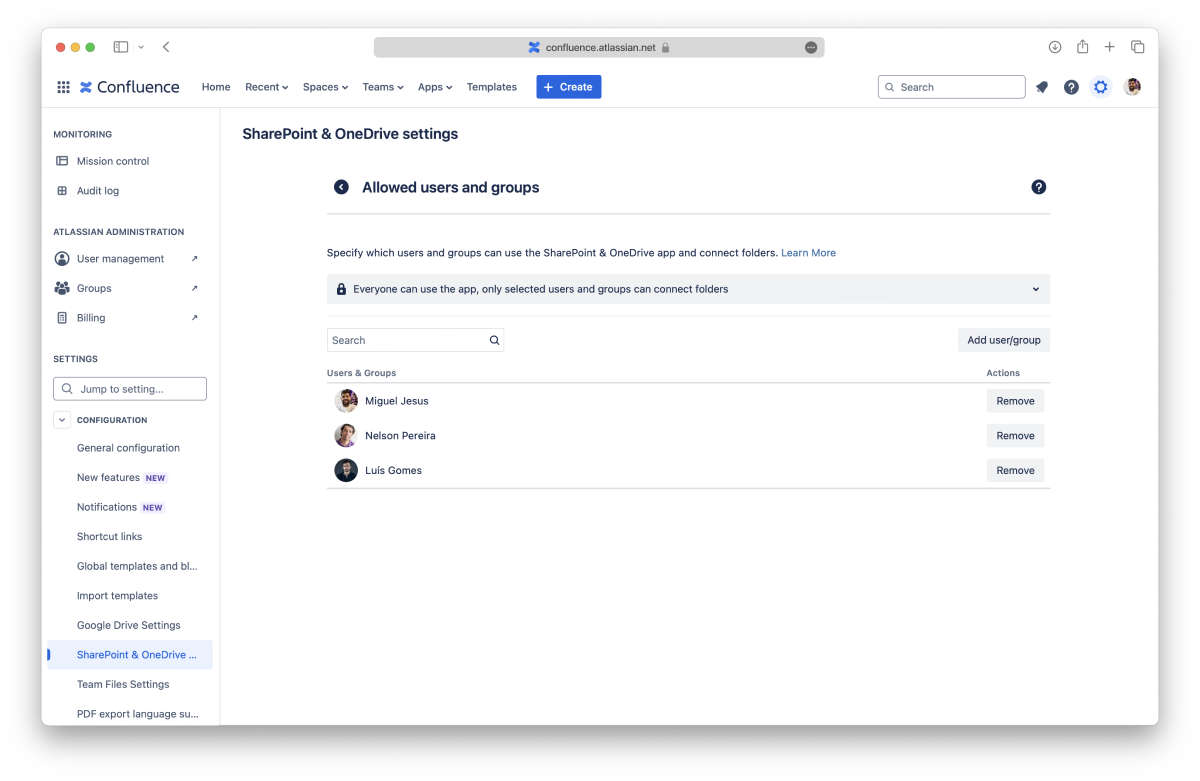
Click the "Add User/Group" button, start typing to select a name, and click the "Add" button. The user or group gets access to connect folders immediately.
Search for the user or group you want to remove, click the "Remove" button and confirm. The option to connect folders is hidden from the user or group immediately.
Select this option if you only want some users and groups to use the SharePoint Connector app, and specify who can connect folders.
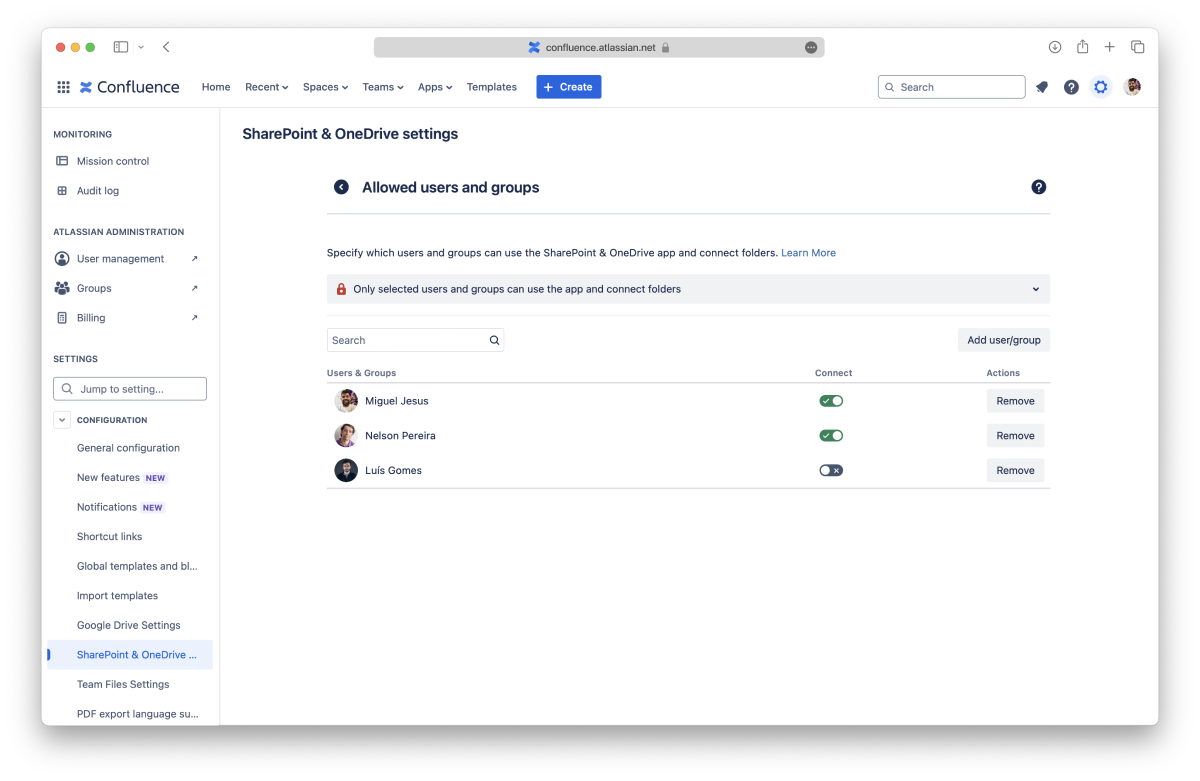
Click the "Add User/Group" button, start typing to select a name, and click the "Add" button. The user or group will have immediate access to the app.
Use the toggle button to determine if a user or group can connect folders.
Search for the user or group you want to remove, click the "Remove" button, and confirm. The app will be blocked for that user or group immediately.
By default, all spaces can use the SharePoint Connector app. It's accessible with a link on the space sidebar and as a macro on pages to attach files and folders.
However, an Admin can specify which Confluence spaces can use the SharePoint Connector app. Blocking a space from using the app hides the file manager and turns off the macro for that space.
In the "Spaces" section, you can see the current settings. There are three main options that you can select from the drop-down menu:
This is the default option, meaning every space can access the Team Files app.
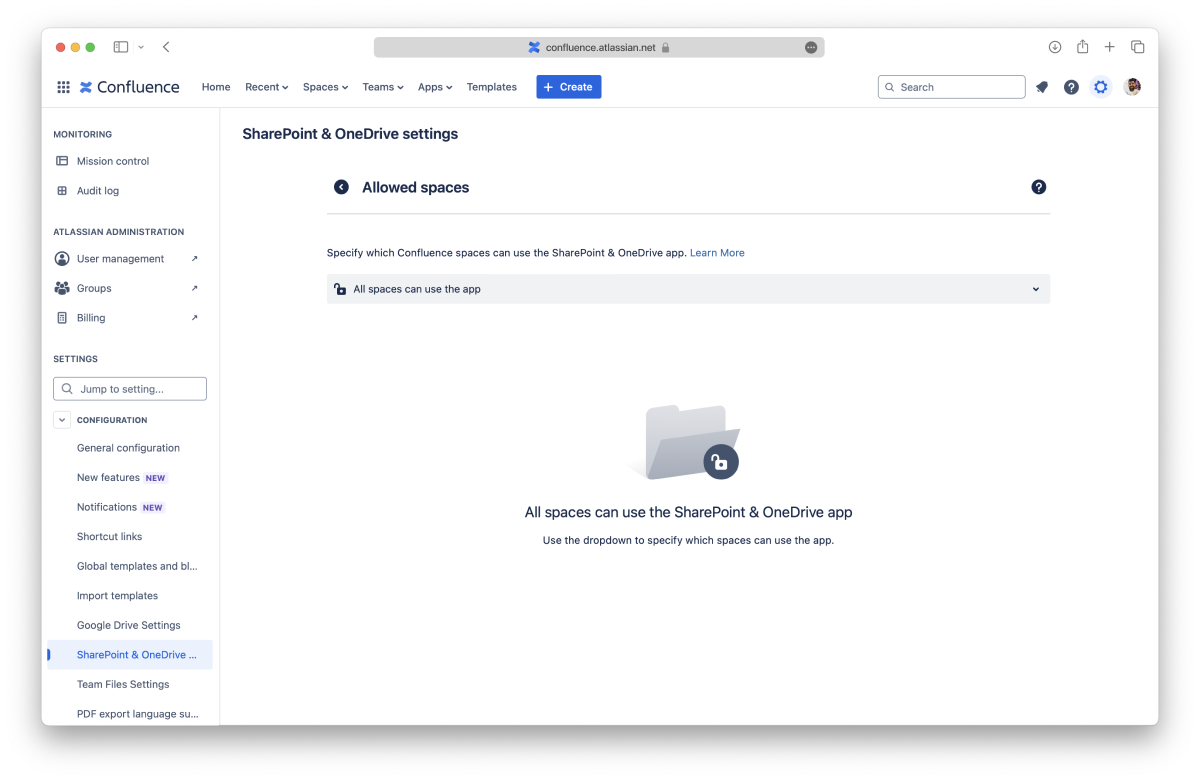
Select this option if you only want to allow the SharePoint Connector app for some spaces.
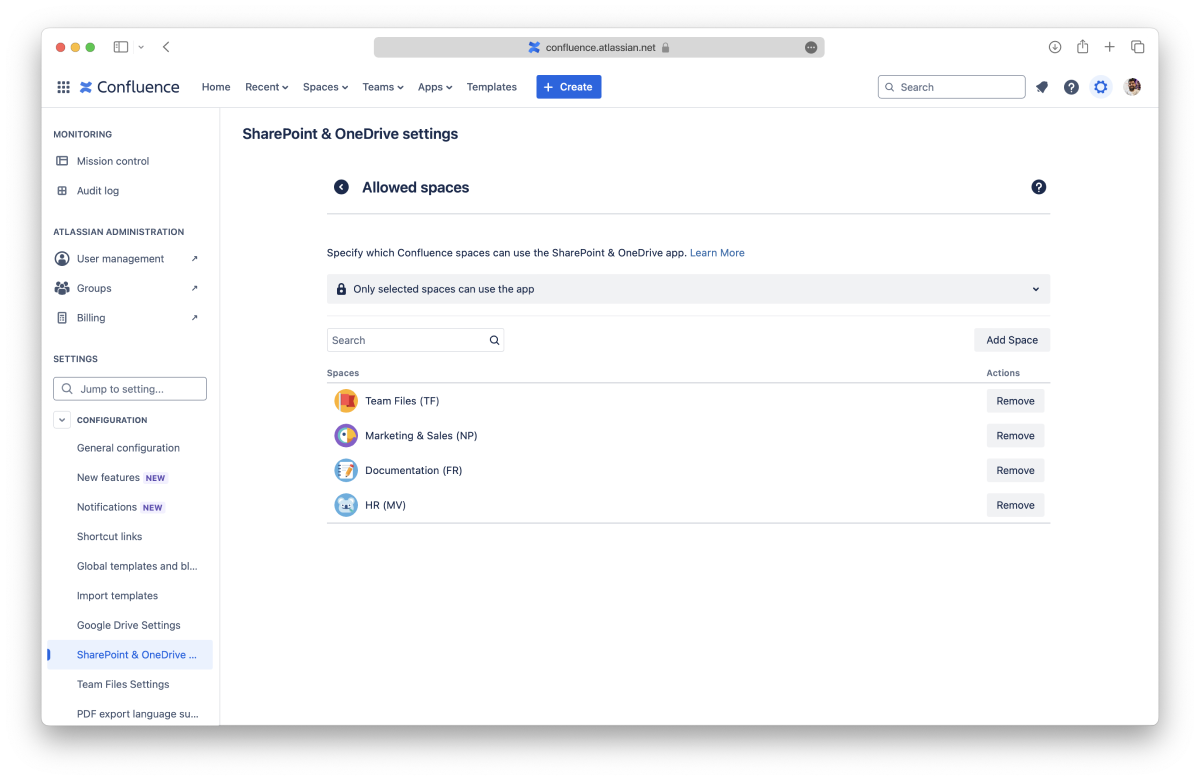
Click the "Add Space" button, start typing to select a space, and click the "Add" button. The space will have immediate access to the app.
When searching for a specific space, please keep in mind that the Atlassian CQL search has limitations for texts that include any of these special characters:
+ - && || ! ( ) { } [ ] ^ " ~ * ? : \ /
If you space name includes one of these characters, you can search for the space key instead.
Search for the space you want to remove, click the "Remove" button, and confirm. The app will be hidden from that space immediately.
Select this option if you only want to hide the SharePoint Connector app for some spaces.
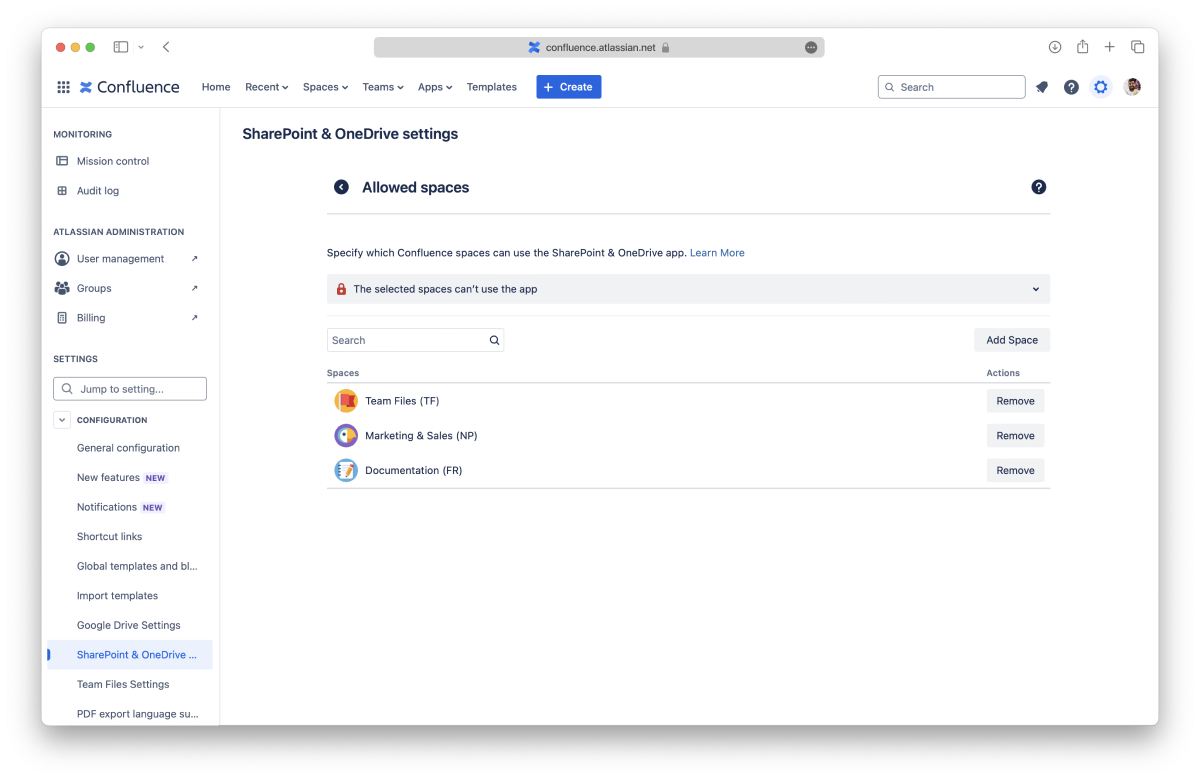
Click the "Add Space" button, start typing to select a space, and click the "Add" button. The app is hidden from the space immediately.
Search for the space you want to remove, click the "Remove" button, and confirm. The space will immediately have access to the app.
Disabling the SharePoint Connector app on space already using it hides the file manager link and all the attached files and folders to issues. The attachments reappear if the app is allowed again.
Space owners can also toggle on/off the SharePoint Connector app, as long as the Admin allows.
If your team previously used the Team Files app and downgraded to, or plans to downgrade to, the SharePoint Connector app, you can import the data from Team Files and use it with the connector.
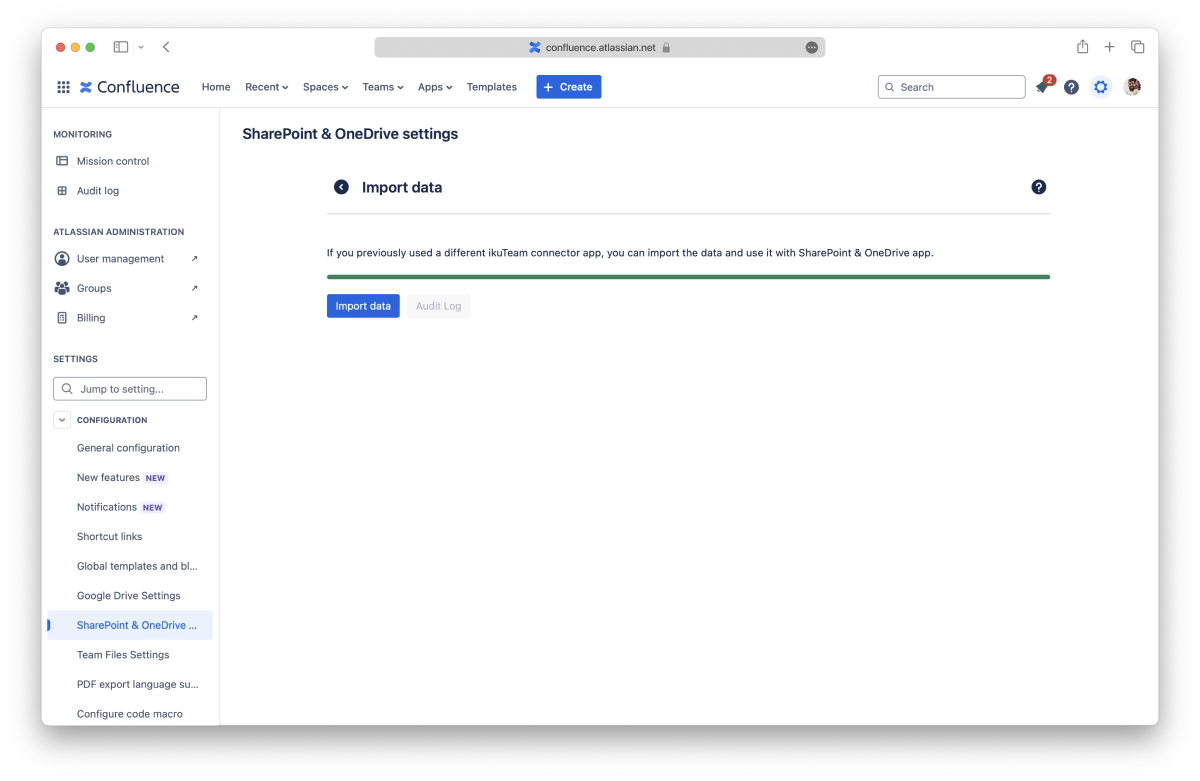
An Admin needs to:
The importing process can take some time, depending on the size of your instance, but you don’t need to wait on the page.
When it finishes, you can check the audit log, which will show the start and finish time and how many pages were imported. If errors occur during the import process, you can repeat it.
On this page, you learned about all the Admin settings available.
If you still have questions about the topics covered on this page, visit our support portal and send them to us. Our team is always happy to help.
When the "Replicate storage permissions" option is active, users must authenticate to each folder connected by other users to browse folders and preview and edit documents. This applies to the file manager and macros on pages.
The connected folders will show an "Authenticate" button for every folder that the user hasn't connected yet, and they won't be able to open the folder or make changes until they do.
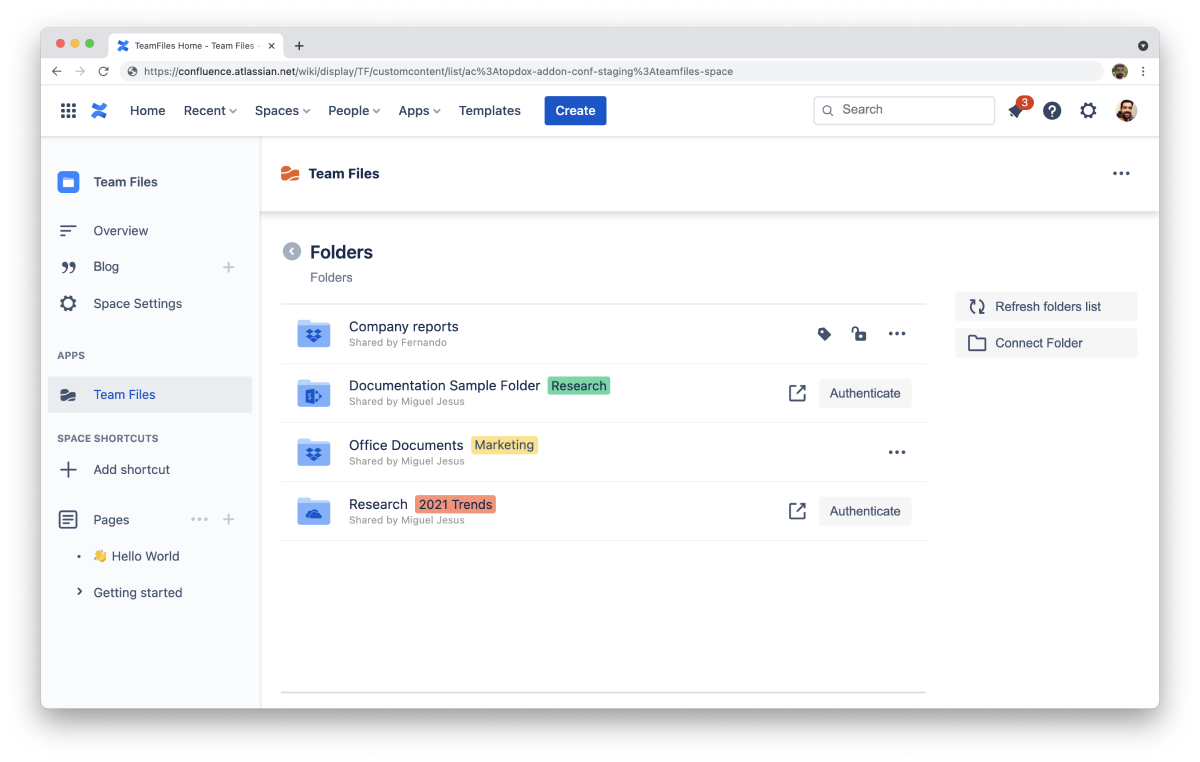
All done. You can now use the folder according to the permissions set for it.
If the account selected doesn't have access to the folder, an error will be shown with the option to connect to a different account.
De-authenticating a folder
After authenticating to a folder with an account, it's possible to remove the access if needed (e.g., authenticating with a different account).
All done. To view the folder's content, you'll need to authenticate again.
The attached files and folders on macros will show an "Authenticate" button for every item that the user hasn't connected yet, and they won't be able to open folders or view and edit files until they do.
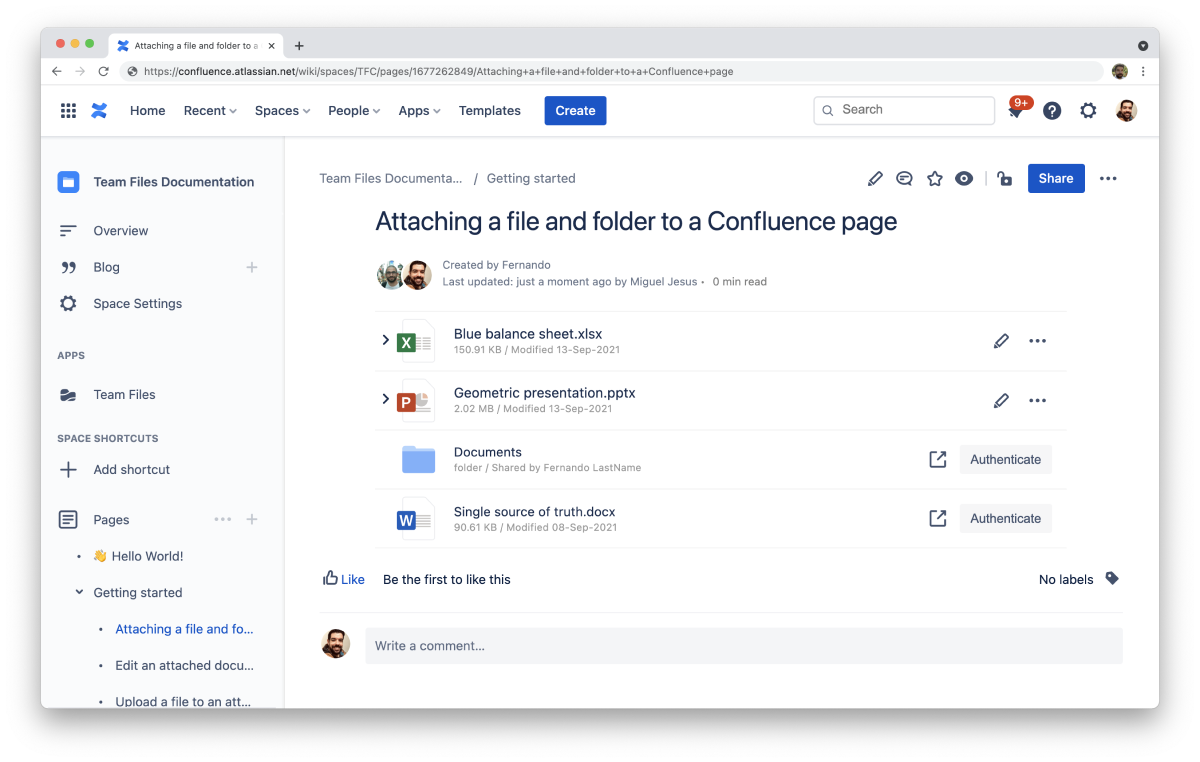
All done. You can now use the folder/file according to the permissions set for it.
If the account selected doesn't have access to the folder, an error will be shown with the option to connect to a different account.
After authenticating to a folder/file with an account, it's possible to remove the access if needed (e.g., authenticating with a different account).
All done. To view the folder's content or file, you'll need to authenticate again.

_2026-03-26_20-48-42-1.png?length=960&name=untitled_Gemini%203%20(Nano%20Banana%20Pro)_2026-03-26_20-48-42-1.png)


