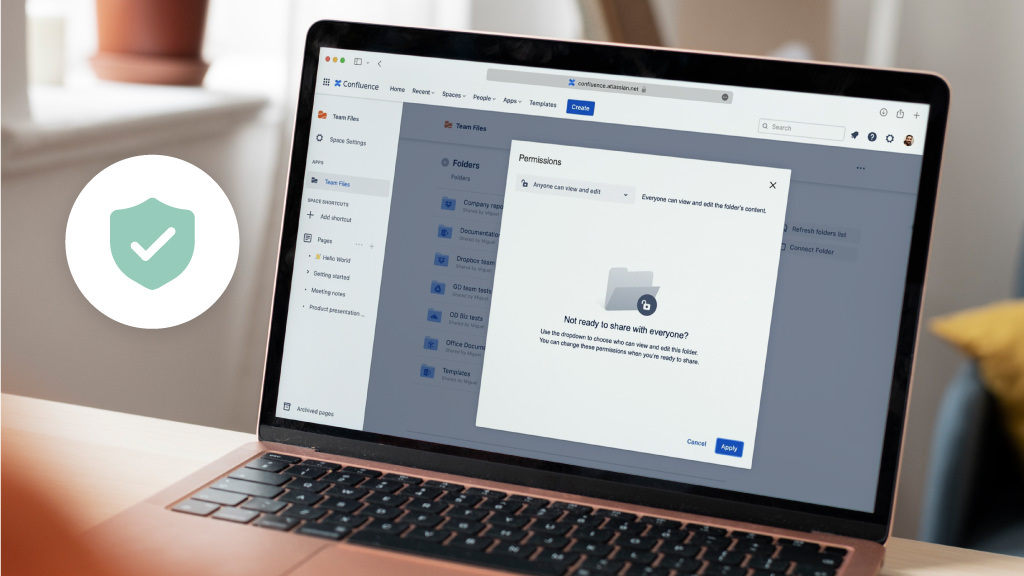
Confluence is where teams document decisions, share knowledge, and collaborate on work in progress. But as spaces grow and more pages accumulate, attachments and files can quickly become difficult to manage. The same document may be uploaded to different pages, the version history becomes unclear, and team members start asking, “Which one is the latest?” instead of continuing the work.
This happens because Confluence allows files to be attached anywhere, without enforcing structure. Over time, files become scattered across spaces, duplicated by different teams, and disconnected from the pages where discussions and approvals take place. When this happens, collaboration slows down, document reliability decreases, and people lose confidence in the information they rely on.
A thoughtful approach to Confluence file management changes this. When documents follow clear structures, naming conventions, and version control workflows, your teams always know where to find information and which version to trust. Collaboration becomes faster, knowledge remains centralized, and work stays aligned.
This guide walks through practical steps to:
-
Organize Confluence spaces so files stay easy to find
-
Manage and update attachments without creating duplicates
-
Maintain a clean and understandable version history
-
Control access with consistent permission practices
-
Connect Confluence to storage platforms like SharePoint, OneDrive, Google Drive, Box, Dropbox, and Egnyte when needed
You’ll also learn when to use:
-
Confluence’s native attachments
-
ikuTeam Office (for editing Word, Excel, and PowerPoint directly on the page)
-
Google Drive Connector or SharePoint Connector (if your files already live in Workspace storage)
-
ikuTeam Files (when your organization uses multiple storage platforms and needs one unified workflow)
A clear and reliable Confluence file system means:
Everyone works from one source of truth.
No version confusion.
No unnecessary searching.
No lost time.
Common Challenges with Files in Confluence
Even when teams use Confluence actively, file-related issues tend to appear gradually. At first, everything seems manageable, but over time, the number of pages, attachments, and contributors grows. Without a clear file management approach, this leads to duplicated work, confusion, and inefficiencies that slow teams down.
Here are the most frequent challenges we see in Confluence workspaces:
1. Duplicate or Outdated Versions
Because Confluence allows the same file to be uploaded to multiple pages, teams often create parallel copies without realizing it.
Someone downloads a document, edits it locally, and re-uploads it, but to a different page, with a slightly different name.
Suddenly:
-
Two or more versions exist
-
Each claims to be the latest
-
No one is completely sure which is correct
This version drift undermines trust and leads to unnecessary rework.
2. Files Scattered Across Spaces
Documents are often stored in different spaces, personal folders, shared drives, or local desktops.
Even if the right file exists somewhere in Confluence, users may not know where.
This results in:
-
Searching instead of working
-
Requesting links from colleagues
-
Recreating documents that already exist
Time is wasted, and knowledge becomes fragmented.
3. Inconsistent Permission Control
Confluence permissions are powerful, but only if applied intentionally.
Without clear rules:
-
Some files become visible to more people than intended
-
Other files are locked away from teams who need them
-
Sensitive content may end up duplicated or stored in the wrong place
Mismanaged permissions create friction, risk, or both.
4. Limited Visibility into File History
Confluence attachment versioning works, but many teams are unaware of it or don’t follow a standard update workflow.
When documents are replaced by uploading a new file with a new name, the version history disappears.
The result:
5. Switching Between Confluence and External Storage
Most organizations use SharePoint, OneDrive, Google Drive, Box, Dropbox, or Egnyte in addition to Confluence.
When these systems are not connected, users end up bouncing between tools to view, edit, and store files.
This can lead to:
The Good News
None of these problems requires a full reorganization to solve.
They simply require:
-
A clear structure for where files live
-
A shared workflow for updating and editing documents
-
Tools that keep one authoritative version accessible from Confluence
The next section explains what a good Confluence document management system looks like and how to build one step by step.
What a Good Confluence Document Management System Looks Like
Before restructuring spaces or choosing tools, it’s important to define what an effective file management setup in Confluence actually looks like. A well-organized Confluence workspace doesn’t just store documents; it helps teams find information quickly, collaborate confidently, and work from a single source of truth.
A strong Confluence document management system has five core characteristics:
1. One Clear Source of Truth
Every document should have one authoritative home, whether it’s a policy, project plan, or report.
Users should always know:
This eliminates duplicated files stored across multiple pages and spaces.
2. Spaces and Pages Organized by Purpose
Spaces should represent teams, projects, or knowledge domains, not mixed-use storage. Inside each space, page hierarchies should follow a predictable structure.
When the structure is predictable, people always know where new documents belong.
3. Transparent and Consistent Version Control
Teams need to understand how to:
-
Update a file without creating duplicates
-
View previous versions when needed
-
Record context about changes
-
Restore earlier versions if required
Even the basic version of discipline dramatically reduces confusion.
4. Permissions That Match How Teams Actually Work
Permissions should align with workflows, not block them.
Strong systems use:
-
Space permissions to define who has general access
-
Page restrictions only when the content is sensitive
-
Group-based access rather than manual user-by-user controls
This prevents accidental oversharing and unnecessary access requests.
5. Files Stay Connected to Their Work Context
Documents shouldn’t live alone as silent files. They need to appear on the pages where decisions, discussions, and updates happen.
This means:
-
Pages explain the purpose, outcomes, and decisions
-
Files contain the working content
-
Comments and collaboration happen in context
Context is what turns documentation into shared understanding.
The Goal
When these elements are in place, Confluence becomes:
Teams stop asking, “Where is the latest version?”
They start asking, “What are we deciding next?”
How to Structure Your Confluence Spaces for Clear File Organization
Strong file management in Confluence begins with a clear structure. When spaces and pages follow a consistent layout, people know where to store files, where to look for information, and how to add new content without creating duplicates. A predictable structure removes guesswork and keeps documentation aligned across teams.
Below is a simple, scalable framework you can apply to any department or project.
A. Organize by Space (Team, Function, or Project)
Each Space should represent a unit of ownership, such as:
-
A team (e.g., Product, Marketing, HR)
-
An initiative or long-running project
-
A knowledge base or documentation hub
This ensures relevant documents stay grouped together.
For example:
Product Team Space
HR Policy and Benefits Space
Customer Support Knowledge Base
If everything has a home, files stop accumulating in random pages.
B. Use a Predictable Page Hierarchy
Inside each space, pages should follow a logical structure similar to a table of contents. This reduces browsing time and makes navigation intuitive, even for new members.
C. Store Files Where Work Happens
Instead of keeping documents on one centralized “Files” page, attach or link them directly in the page where they are discussed or used.
Examples:
-
Requirements document → stored in the Requirements page
-
Budget spreadsheet → stored in the Planning page
-
Design assets → stored in the Design Review page
This preserves context, so discussions and decisions stay connected to the file.
D. Use Labels to Improve Search
Labels act as metadata and make documents easier to find through Confluence search.
Useful labels include:
-
policy
-
proposal
-
meeting-notes
-
approved
-
archive
Users can filter pages and attachments by label, reducing time spent scrolling or guessing.
E. Use Clear and Consistent Page Titles
Avoid generic names like “Notes,” “Files,” or “Documents.” Make titles descriptive and specific.
Better examples:
-
Quarterly Roadmap – Q1 2025
-
Employee Onboarding Guidelines
-
Feature Requirements – Notification Settings
Clear names help search, navigation, and onboarding.
The Goal of Structure
A strong structure ensures your team always knows:
|
Question
|
The Answer Should Be Obvious
|
|
Where does this file belong?
|
In the correct space and page based on context
|
|
Where do I find the latest version?
|
In the file’s primary page; not in email or chat
|
|
How do I avoid duplicates?
|
By attaching or linking to the authoritative file location
|
When structure is predictable, file management becomes natural.
Managing Attachments and Version Control in Confluence (Without the Chaos)
Confluence makes it easy to attach files to pages, but without a consistent workflow, attachments can quickly become duplicated, outdated, or hard to track. The key to reliable document collaboration is to ensure everyone works from a single authoritative version of every file.
Below are practical steps to prevent version confusion and keep attachment history clear.
A. Replace Existing Attachments Instead of Uploading New Copies
When updating a document, don’t upload it as a separate file.
This creates duplicates and breaks version continuity.
Instead:
-
Go to the page
-
Select Attachments
-
Choose Upload a New Version
-
Upload the new file using the same file name
This maintains:
You can always view, compare, or restore earlier versions when needed.
B. Avoid Download → Edit → Re-Upload Workflows
Downloading documents to edit them locally is one of the main sources of:
When possible, keep edits in Confluence or in connected cloud editors (if your files live in Drive or SharePoint). This ensures changes automatically apply to the shared version rather than creating new copies.
C. Keep Discussions and Feedback With the File
When feedback happens in Slack, email, or private chats, context disappears.
Use:
This keeps discussions visible and ensures decisions and revisions are recorded.
D. Use Simple Version Notes
Whenever you upload a new version, include a short note.
Examples:
Clear notes make history easy to understand months later, even for someone who didn’t work on the document.
E. Establish Light Team Rules for Attachments
Small agreements prevent long-term clutter.
|
Practice
|
Why It Matters
|
|
One file per page (or per context)
|
Avoids scatter and duplicates
|
|
Replace files, don’t re-attach under new names
|
Maintains version continuity
|
|
Use page labels whenever possible
|
Improves search and filtering
|
|
Add version notes
|
Helps future readers understand changes
|
These rules are easy to adopt and prevent chaos without strict policing.
The Result: Clear, Trustworthy Version History
When everyone follows a consistent workflow:
-
No one has to ask “Which version are we using?”
-
No one wastes time tracking files down
-
Updates are visible and traceable
-
Collaboration becomes faster and more confident
This also creates a strong foundation for the next step: connecting external storage like Google Drive or SharePoint without creating duplicates, which is the focus of the next section.
Bringing External Storage Into Confluence (Without Creating Duplicates)
Many organizations already store documents in SharePoint, OneDrive, Google Drive, Box, Dropbox, or Egnyte. The challenge arises when teams upload copies of these files into Confluence. The moment a file is uploaded as an attachment, a second version exists, and version drift begins.
The goal is not to move files into Confluence.
The goal is to make external files accessible inside Confluence while keeping one authoritative version in your storage system.
To achieve that, you need to connect storage to Confluence, not duplicate it.
A. Keep Files in Their Original Storage, but Accessible in Confluence
Instead of uploading files, you link or connect them.
This allows the file to:
-
Stay stored in Google Drive, SharePoint, OneDrive, Box, etc.
-
Keep its original permissions, ownership, and audit history
-
Remain the single source of truth
-
Be accessed directly from Confluence pages
This is how you prevent version drift entirely.
B. Using Google Drive With Confluence
If your teams collaborate in Google Docs, Sheets, or Slides, the Google Drive Connector for Confluence lets you:
-
Browse folders directly inside Confluence
-
Insert live Drive files and folders into pages
-
Open Google files in their native editors
-
Co-author in real time, exactly as in Google Drive
-
Keep Drive permissions in control (no accidental oversharing)
Updates made in Drive or Confluence pages are always in sync. No re-uploading, no duplicates.
C. Using SharePoint & OneDrive With Confluence
If your organization uses Microsoft 365, the SharePoint Connector for Confluence lets you:
-
Attach SharePoint and OneDrive folders to pages
-
Preview Office files directly inside Confluence
-
Open files in Word/Excel/PowerPoint Online for co-authoring
-
Sync permission access from SharePoint / Azure AD
This keeps files governed by your existing Microsoft compliance and security policies, while making them accessible where teams collaborate.
D. When Teams Use Multiple Storage Providers
If your company works across storage systems, or collaborates with external vendors or subsidiaries, maintaining control can get complicated.
This is where ikuTeam Files for Confluence provides a unified approach:
|
Capability
|
Team Files for Confluence
|
|
Connects SharePoint & OneDrive
|
✅
|
|
Connects Google Drive (including Shared Drives)
|
✅
|
|
Connects Box, Dropbox & Egnyte
|
✅
|
|
Browsing folders inside Confluence
|
✅
|
|
Preview files without downloading
|
✅
|
|
Open files in Microsoft 365 / Google Workspace editors
|
✅
|
|
Optional "Require Authentication" to enforce storage-level security
|
✅
|
This allows teams to collaborate across multiple platforms, without ever duplicating files.
E. The Core Principle: One File. One Location. Multiple Access Points.
Let storage handle:
-
Security
-
Ownership
-
Audit trails
-
Compliance
Let Confluence handle:
-
Context
-
Documentation
-
Decision-making
-
Team communication
Store once. View anywhere. Edit in-place.
That is the cleanest, safest, and most scalable Confluence file workflow.
Building a Clean and Scalable Folder + Page Structure in Confluence
Even with the right tools in place, Confluence can become cluttered over time if pages and files aren’t structured intentionally. A well-organized space reduces the need to search, prevents duplicate files, and helps new contributors onboard faster.
The key is to create predictable patterns so that everyone knows:
This turns Confluence into a system, not a pile of pages.
A. Start by Defining a “Home” for Each Document Type
Every document needs one clear location based on:
-
Who owns it → This determines the Space
-
Its purpose → This determines the Page
The structure doesn’t need to be complex, only consistent.
B. Store Files Where Work Happens (Not in One Big Files Page)
Avoid generic “Files” pages filled with unsorted attachment
Instead:
Examples:
|
Document
|
Where It Should Live
|
|
Sprint planning spreadsheet
|
Sprint Planning page
|
|
Contract or vendor docs
|
Procurement or Vendor page
|
|
Design review slides
|
Design Review page
|
|
Policy documents
|
Policy or Procedures section
|
This keeps files in context, so no one wastes time searching.
C. If Your Files Live in Google Drive or SharePoint: Connect, Don’t Upload
If your organization already stores files externally:
When you connect instead of uploading:
-
The file stays in its original storage
-
Edits happen in Google Docs / Sheets / Slides or Microsoft Word / Excel / PowerPoint Online
-
Permissions and compliance remain controlled by IT
-
No duplicates are ever created
D. Standardize Naming Conventions (Just a Few Rules)
Clear names reduce search time significantly.
Good naming patterns:
ProjectX_Requirements_Q1_2025
Team_MeetingNotes_2025-03-02
Policy_Security_Internal_v3_Approved
Avoid:
Notes_v2_final_FINAL
Copy of copy of presentation.pptx
Stuff_for_upload
You only need 5–6 naming rules, nothing heavy.
E. Use Confluence Pages for Context, Not Storage
A page should explain the work. The file holds the work.
Example Page Structure:
## Purpose
This spreadsheet tracks quarterly budget allocation across regions.
## Latest Version
→ Embedded live Excel file (ikuTeam Office)
or
→ Linked Google Sheet / SharePoint Excel workbook
This prevents the common trap of opening every file just to understand what’s inside.
F. If You Work Heavily with Word, Excel, or PowerPoint Files
Use ikuTeam Office for Confluence when attachments are intentionally stored inside Confluence:
-
Edit Word / Excel / PowerPoint directly from the page
-
Real-time co-authoring via Microsoft 365 Online
-
Changes autosave back to the attachment
-
Clean version history, no downloading or re-uploading
This is ideal for:
-
Meeting notes & shared spreadsheets
-
Reports and planning docs
-
Team collaboration inside Confluence
The Goal of Structure
Your team should never have to ask:
-
“Where does this file belong?”
-
“Where is the latest version?”
-
“Who owns this document?”
When the structure is clear, the answers become automatic, and Confluence stays clean without extra effort.
Best Practices for Keeping Your Confluence File System Clean (Long-Term)
Once you’ve organized your spaces and aligned file workflows, the next challenge is keeping Confluence clean over time. Chaos usually returns slowly, not because teams don’t care, but because the easiest workflow is often the one that creates duplicates:
-
Download → Edit locally → Re-upload as a new file
-
Save the same spreadsheet to multiple project pages
-
Create “just one more” version to avoid overwriting
The key to preventing this is to make the correct workflow the easiest one.
Below are lightweight habits that maintain consistency without requiring strict rules or heavy documentation.
A. Use Clear Naming Conventions (Just a Few Rules)
Consistent naming makes files searchable and understandable at a glance — no need to open everything to see what it is.
Good examples:
ProjectX_ReleasePlan_Q1_2025
HR_Policy_Onboarding_V3_Approved
Team_MeetingNotes_2025-02-14
Avoid:
final-version
notes_Jane
Copy of Copy_Final_v2_LAST
Create a simple 5-rule naming guide and pin it in each Space.
No strict policing required; clarity spreads by example.
B. Maintain One Live Version of Every File
Choose the workflow based on where your files live:
The rule:
Never download → edit → re-upload as a new version.
Always edit in place.
This single habit eliminates 90% of version chaos.
C. Use Confluence Pages for Context, Not as File Dumps
Pages should:
Example:
## About This Document
Tracks quarterly revenue targets by region.
## Latest Version (Live)
→ Embedded Excel (ikuTeam Office)
If someone has to open a file just to understand it, the page is incomplete.
D. Centralize Key Files at the Space Level
Create one anchor page per space, e.g.: Files & Resources
Store:
-
Frequently accessed documents
-
Connected storage folders (Team Files / Drive / SharePoint)
-
Links to active working pages
This page becomes the “home base”, especially useful for onboarding.
E. Do a Lightweight Monthly Clean-Up (10–15 minutes max)
No audits. No spreadsheets. Just quick tidying:
-
Delete unused attachments
-
Move old content into an Archive section
-
Merge duplicate pages if needed
Assign ownership per space, not per document.
Optional rule: Rotate responsibility every quarter to avoid burnout.
F. Encourage Editing in Confluence, Not Offline
If your team works heavily with Microsoft files:
Use ikuTeam Office for Confluence so people can:
-
Open Word/Excel/PPT directly from a page
-
Edit in Microsoft 365 online
-
Autosave changes back to the attachment
-
Avoid re-uploading or version splitting
If your team works in Google:
Use the Google Drive Connector for Confluence so Docs/Sheets/Slides stay truly collaborative
If your organization is Microsoft 365–first or has storage compliance requirements:
Use the SharePoint Connector for Confluence (or ikuTeam Files for Confluence if multiple platforms co-exist).
The goal is always the same:
No downloads.
No re-uploads.
No duplicates.
Bottom Line
File systems don’t stay clean because of rules; they stay clean because the smoothest workflow also happens to be the correct one.
When Confluence is structured consistently, and files are edited in place rather than copied or exported:
Confluence becomes a workspace that stays clean naturally, not one that needs constant cleanup drives.
How to Manage Documents at Scale Using ikuTeam Files for Confluence
Managing files in Confluence works well when teams are small and documentation stays within a single space. But once your organization grows into multiple projects, departments, storage systems, and editors, a simple attachment workflow isn’t enough.
This is where ikuTeam Files for Confluence becomes essential.
Instead of uploading documents into Confluence, ikuTeam Files connects your existing cloud storage directly into your Confluence pages, so your files stay exactly where they are (Google Drive, SharePoint, OneDrive, Box, Dropbox, or Egnyte), while teams collaborate in Confluence without creating duplicates.
What ikuTeam Files for Confluence Does
ikuTeam Files allows teams to:
-
Browse cloud storage folders directly inside Confluence
-
Preview files without downloading
-
Open and edit Word, Excel, and PowerPoint in Microsoft 365
-
Open and edit Google Docs, Sheets, and Slides in Google Workspace
-
Save changes back into the original file automatically
-
Reference one file across multiple pages without duplicating it
-
Optionally enforce strict storage-level permissions using Require Authentication (Microsoft 365 or Google Workspace identity)
This means:
One file
One source of truth
Multiple places to collaborate
Zero duplicates
Why This Matters at Scale
|
Without Team Files
|
With Team Files
|
|
Files uploaded repeatedly → duplicates pile up
|
One live version referenced in multiple pages
|
|
People download → edit → re-upload → version chaos
|
Files are edited in Microsoft 365 or Google Workspace and auto-save back
|
|
Users search across Confluence and storage platforms
|
Storage folders are browsable directly in Confluence
|
|
Permissions must be manually recreated
|
Native storage permissions remain in control (or enforced strictly via Require Authentication)
|
This drastically reduces:
-
Searching time
-
Rework
-
Confusion
-
Compliance risk
And increases:
-
Clarity
-
Alignment
-
Documentation quality
-
Trust in the workspace
How Editing Works
When a user clicks Edit on a file embedded via ikuTeam Files:
|
File Type
|
Opens In
|
Saved To
|
Collaboration
|
|
Word / Excel / PowerPoint
|
Microsoft 365 Online
|
SharePoint or OneDrive file location
|
Real-time co-authoring
|
|
Google Docs / Sheets / Slides
|
Google Workspace editors
|
Google Drive / Shared Drive
|
Real-time co-authoring
|
No downloads.
No local copies.
No re-uploading required.
No new versions accidentally created.
When to Choose ikuTeam Files vs. the Connectors
If your organization uses only Google Workspace, the Google Drive Connector for Confluence may be all you need.
If your organization uses only Microsoft 365, the SharePoint Connector for Confluence is the more focused option.
If your organization uses multiple storage providers, moves between platforms, or collaborates with external partners, ikuTeam Files for Confluence is the better choice because it unifies everything in one app.
|
Storage Environment
|
Recommended Solution
|
|
Google Workspace only
|
Google Drive Connector for Confluence
|
|
Microsoft 365 only
|
SharePoint Connector for Confluence
|
|
Multiple storage platforms (Google + Microsoft + others)
|
Team Files for Confluence
|
And Where Does ikuTeam Office Fit?
Use ikuTeam Office for Confluence when your team intentionally keeps files as Confluence attachments and needs:
-
On-page editing of Word, Excel, and PowerPoint
-
Real-time collaboration in Microsoft 365
-
Automatic version control and autosave
This applies especially to internal documents that should stay inside Confluence.
Summary
|
Situation
|
Best Tool
|
Why
|
|
Files already live in cloud storage
|
ikuTeam Files / Connectors
|
Keep one live source of truth, no duplicates
|
|
Files intentionally stored in Confluence
|
ikuTeam Office
|
Edit attachments directly in-place, clean version history
|
|
Mixed storage across teams
|
ikuTeam Files
|
One unified file management layer across all providers
|
Choosing the Right File Management Workflow in Confluence
There isn’t one universal way to manage files in Confluence. The right workflow depends on where your documents currently live and how your teams collaborate.
Your goal is always the same: One source of truth. One live version. No duplicates.
But how you achieve that depends on whether your organization stores files primarily inside Confluence or in an external storage platform.
Scenario 1: Your Files Already Live in Cloud Storage (SharePoint, OneDrive, Google Drive, Box, Dropbox, or Egnyte)
If your team is already storing documents in one or more cloud storage platforms, do not upload copies into Confluence.
Uploading copies leads to:
-
Duplicate versions across pages and spaces
-
Lost file history and ownership
-
Conflicting access permissions
-
Confusion about which version is “the real one”
Instead, connect storage to Confluence, so the file stays in its original location, but is previewed, linked, edited, and referenced in Confluence pages.
Use one of the following:
|
Your Storage Environment
|
Recommended Solution
|
Why
|
|
Google Workspace only (Google Drive + Shared Drives)
|
Google Drive Connector for Confluence
|
Native Docs/Sheets/Slides editing + folder browsing inside Confluence
|
|
Microsoft 365 only (SharePoint + OneDrive)
|
SharePoint Connector for Confluence
|
Direct access to SharePoint/OneDrive folders + native Word/Excel/PowerPoint editing
|
|
Multiple storage platforms / Hybrid environments
|
ikuTeam Files for Confluence
|
One unified interface that connects SharePoint, OneDrive, Google Drive, Box, Dropbox, Egnyte from a single app
|
This ensures:
Files stay governed where they belong
Editing happens in Microsoft 365 or Google Workspace
Confluence provides the collaboration + context
No duplicates are ever created
Scenario 2: Your Team Works Primarily with Files Stored Inside Confluence
Some teams intentionally keep documents inside Confluence as attachments because:
-
Documentation lives directly in pages
-
Files support decisions and discussions in context
-
Teams collaborate mostly inside Confluence, not storage platforms
The challenge is that editing attachments normally requires downloading, editing locally, and re-uploading, which quickly causes version drift.
To prevent this, use ikuTeam Office for Confluence.
This app allows you to:
-
Open Word, Excel, and PowerPoint attachments directly from the page
-
Edit using Microsoft 365 Online
-
Autosave changes back into the attachment
-
Preserve clean version history with no re-uploading
Best for:
-
Internal knowledge base workflows
-
Project and planning documents
-
Meeting notes and shared spreadsheets
Quick Decision Guide
|
Your Current Setup
|
Use This
|
What You Get
|
|
Files live in SharePoint / OneDrive
|
SharePoint Connector or ikuTeam Files
|
Open + co-edit Office files, keep SharePoint permissions
|
|
Files live in Google Drive
|
Google Drive Connector or ikuTeam Files
|
Real-time co-editing in Docs/Sheets/Slides
|
|
Files live across multiple cloud storage platforms
|
ikuTeam Files for Confluence
|
One unified file system across Confluence
|
|
Files intentionally stored as Confluence attachments
|
ikuTeam Office for Confluence
|
Edit Word/Excel/PowerPoint directly on the page
|
The Core Principle
No matter which workflow your team uses:
One file → Many places → Never duplicated.
When everyone works on the same live version, collaboration accelerates and trust in the workspace increases.
Conclusion: Build a Clear and Scalable File System Inside Confluence
Effective file management in Confluence is about more than storing documents. It is about creating a shared workspace where teams:
-
Find information quickly
-
Work on the same version of every file
-
Collaborate without switching tools
-
Maintain clarity, governance, and continuity over time
When files are consistently organized, version-controlled, and edited directly where collaboration happens, Confluence becomes a true knowledge hub rather than a collection of disconnected pages.
Your Next Step Depends on Where Your Files Live Today
If your organization already uses SharePoint, OneDrive, Google Drive, Box, Dropbox, or Egnyte, don’t upload copies into Confluence. Keep files in their original storage and connect them:
These approaches let you:
-
Browse and preview files inside Confluence
-
Edit in Microsoft 365 or Google Workspace
-
Keep permissions synced with your identity and governance model
-
Maintain a single source of truth for every document
If your teams use Confluence as the main home for files, especially shared Excel, Word, and PowerPoint:
Use ikuTeam Office for Confluence to edit attachments on the page, with:
This prevents version drift while keeping discussion and documentation in context.
The Goal Is Always the Same
No matter which workflow fits your teams best: One file. One version. One place.
When file management is simple and repeatable, teams communicate better, move faster, and avoid rework; all while maintaining security and consistency.
Further Reading (Recommended Next Steps)
To help you expand your Confluence setup effectively, continue with these two blog posts:




_2026-03-26_20-48-42-1.png?length=720&name=untitled_Gemini%203%20(Nano%20Banana%20Pro)_2026-03-26_20-48-42-1.png)


_2026-03-26_20-48-42-1.png?length=960&name=untitled_Gemini%203%20(Nano%20Banana%20Pro)_2026-03-26_20-48-42-1.png)