Confluence Google Drive Integration
Create a single source of truth with seamless syncing and real-time collaboration.
Read more


_2026-03-26_20-48-42-1.png)



Team Files and Confluence make a powerful combination to distribute always updated presentations and technical documents to the sales team.
Presenting new products and services to clients is a crucial part of any business, and it’s of the utmost importance to use tailored presentations. It’s also essential to use the latest information. Here’s an example of how the Team Files app can help the sales team work efficiently and confidently.
A sales team member needs the latest product deck & specs presentation to customize it for a meeting with a client. The employee opens the Product & Sales information Space in Confluence and downloads the latest version to customize for a specific client.
They know that those files are the latest version because the product team keeps updating them on SharePoint and, with Team Files, automatically syncs them to Confluence.
This use case involves the company's product team and the sales team working to close new deals with existing and new clients.
The Product team maintains updated presentation templates on SharePoint.
The folder with the templates is connected with Team Files to the Confluence space with editing restricted permissions, with only the option to download.
The product team member attached these presentations to the Confluence using Team Files.
1. The product team creates a page to publish the templates.
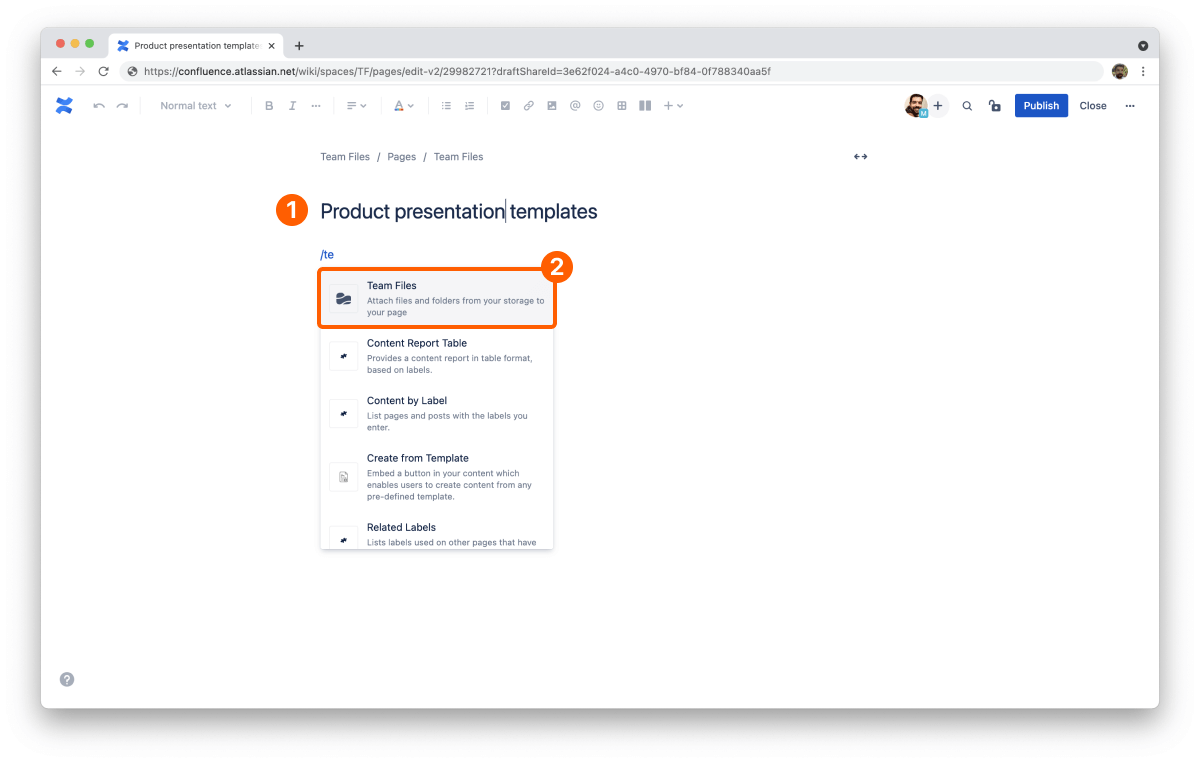
2. In edit mode, they add the Team Files macro, either with the /team files shortcut ({team files on Server/DC)or from the insert menu.
3. On the Team Files dialog, they open the folder with the templates and select the ones they want to publish to the page.
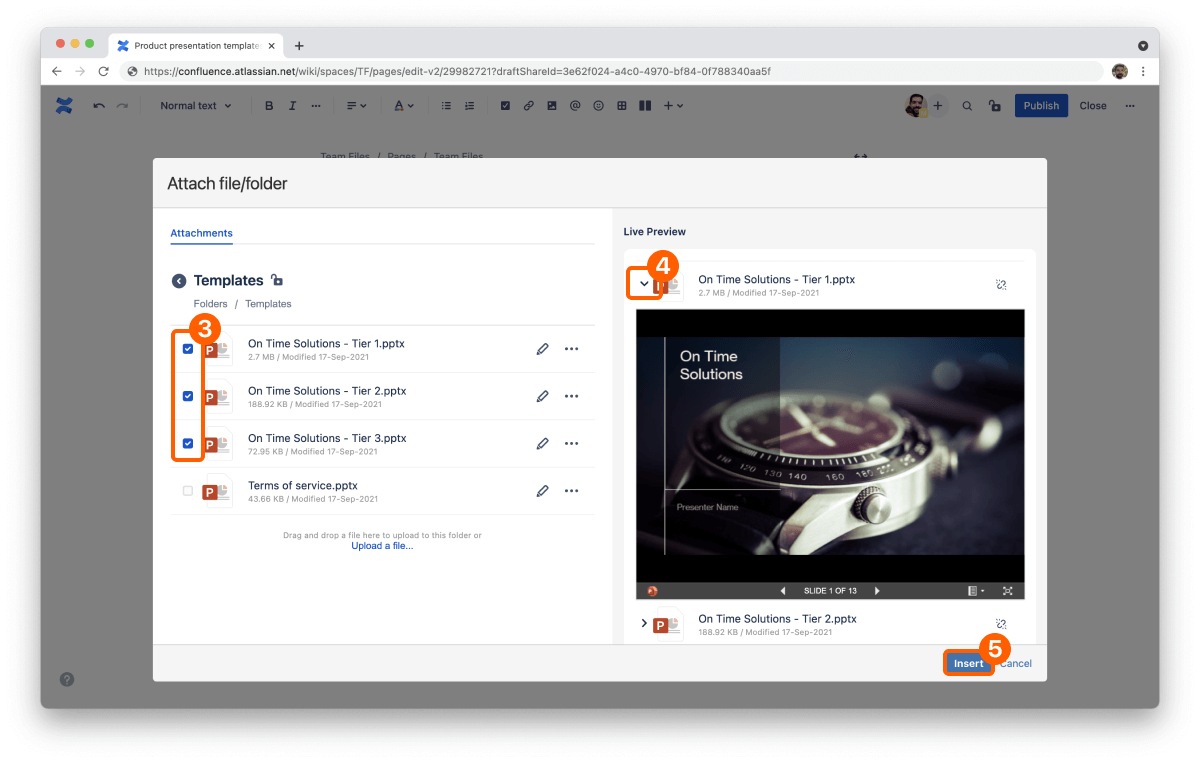
4. They can use the side panel to check the live preview and double-check they’re adding the right files.
5. Click the Insert button.
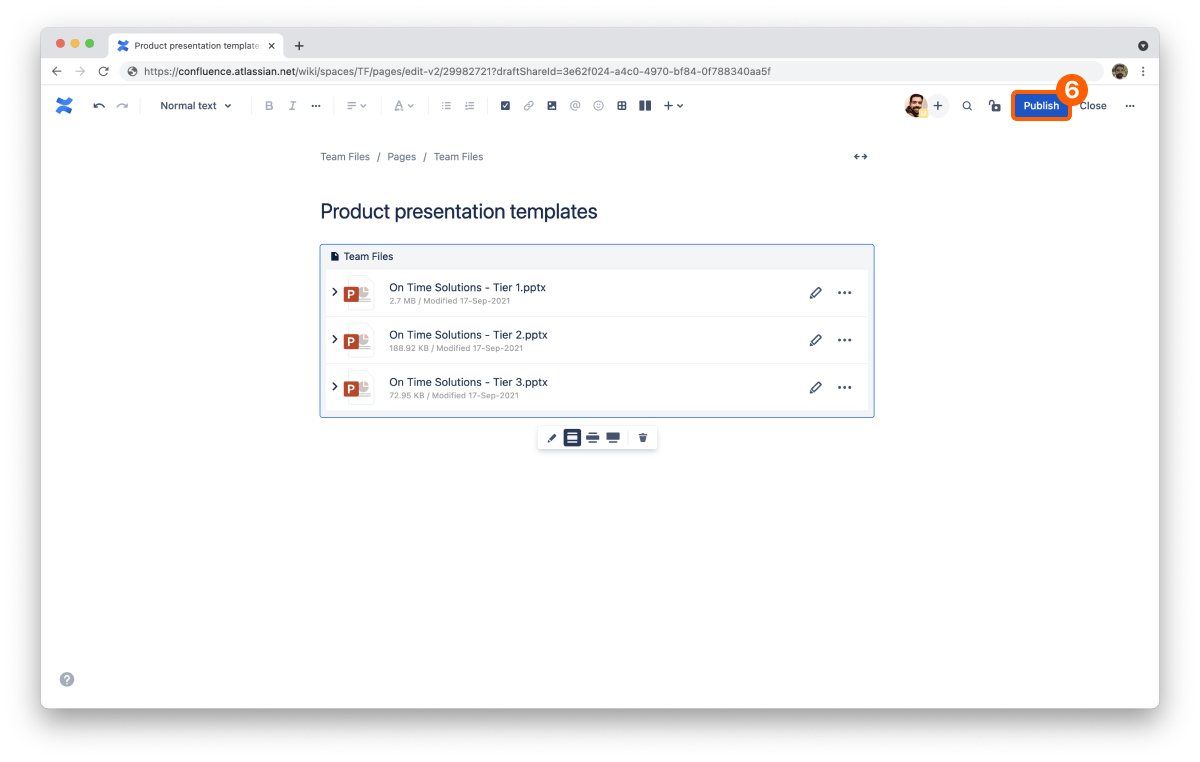
6. Publish the new page and notify the sales team where they can find the updated presentations.
7. The sales team opens the page.
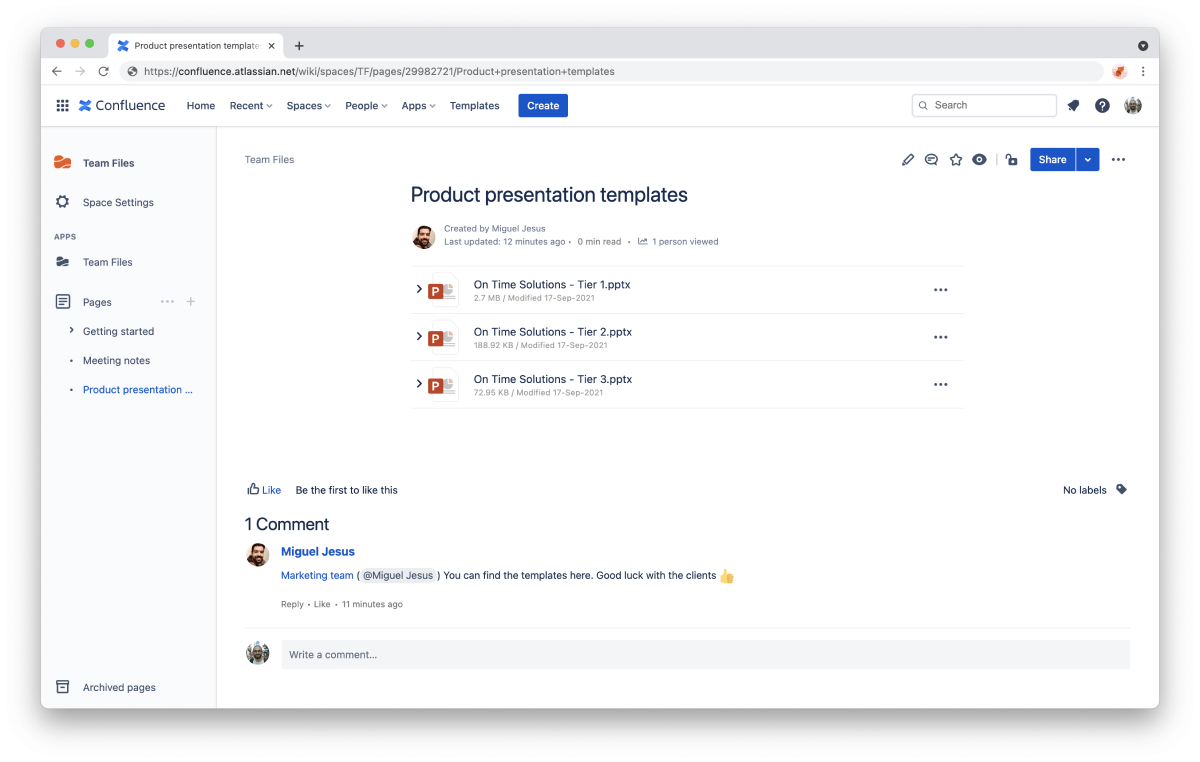
8. They can use the inline preview or click the file to open the full-screen preview to double-check it’s the product they need.
9. They can download from the inline preview by clicking the context menu (···) and clicking download. It’s also available from the full-screen preview with a direct button on the top right corner.

10. The download starts in a few moments, and the presentation is ready to be tailored to the client.
The presentation files automatically sync to Confluence pages every time the product team updates the decks with new specs or features.
The product team won’t have to re-upload a presentation to Confluence every time there’s a change or send countless emails with multiple versions.
Take advantage of a single source of truth among different teams in your company and create your customized decks with the confidence that you’re using the latest version.
The Team Files app is available on the Atlassian Marketplace, and you can start a free trial in a few clicks.
You can also check the Team Files documentation on Attaching files and folders to pages to learn more.