

Confluence Google Drive Integration
Create a single source of truth with seamless syncing and real-time collaboration.
Read more


_2026-03-26_20-48-42-1.png?length=720&name=untitled_Gemini%203%20(Nano%20Banana%20Pro)_2026-03-26_20-48-42-1.png)


Take the first steps to use the ikuTeam Files for Confluence.
You can install the ikuTeam Files for Confluence from the Atlassian Marketplace, then open it by clicking the ikuTeam Files link on Confluence’s sidebar. It’s ready to use.
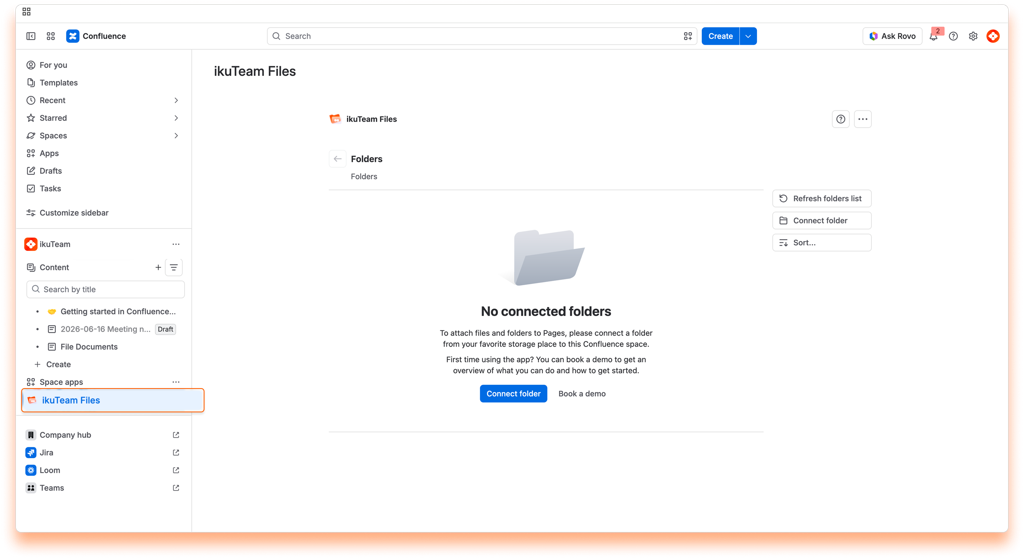
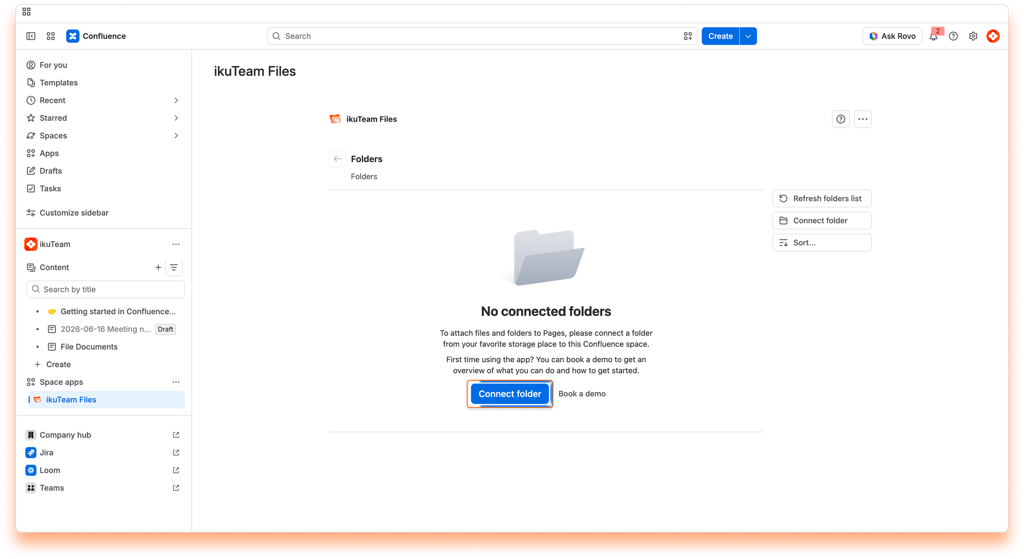
You don’t need to create an account to use the app. The only thing required is to connect at least one folder to the Confluence space so that you can start collaborating with your team and build your single source of truth.
ℹ️ If a folder is connected when you first open the app, someone in your team has already shared a folder. You can use that one or add more by following the same steps.
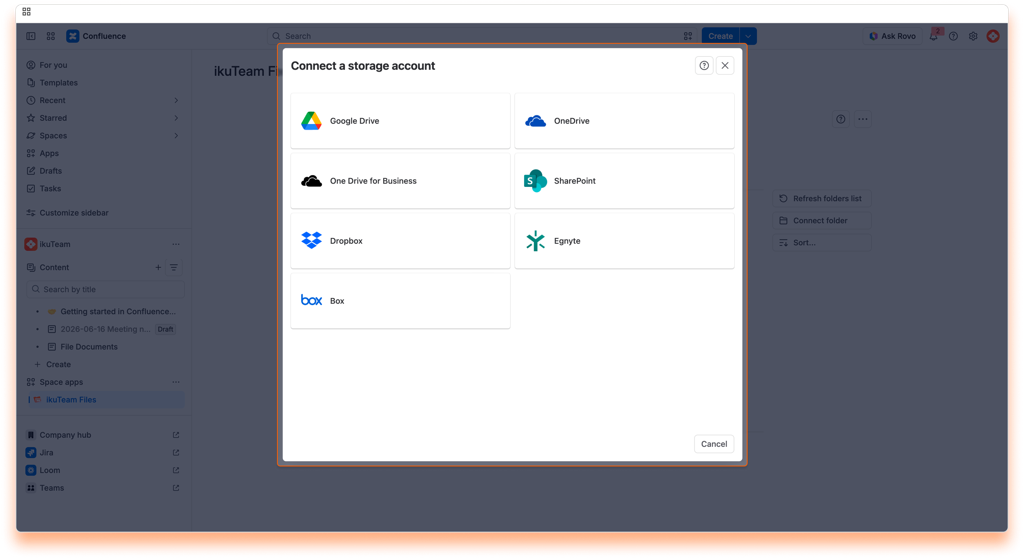
You can connect a folder stored in SharePoint, OneDrive for Business, Google Drive, Dropbox, OneDrive, Box, or Egnyte.
ℹ️ You can connect more places later from the file manager. Learn more
Connecting a Dropbox folder
Learn how to authorize the ikuTeam Files for Confluence app to access the content in your Dropbox account so that you can connect a folder.
Instructions
ℹ️ We NEVER store your user or password credentials. We use state-of-the-art OAuth 2.0 to connect securely through an encrypted connection. The app gets an authorization token to use the storage. You can revoke this authorization at any time.
Connecting a Google Drive folder
Learn how to authorize the ikuTeam Files for Confluence app to access the content in your Google Drive account so that you can connect a folder.
Instructions
ℹ️ We NEVER store your user or password credentials. We use state-of-the-art OAuth 2.0 to connect securely through an encrypted connection. The app gets an authorization token to use the storage. You can revoke this authorization at any time.
Connecting a SharePoint folder
Learn how to authorize the ikuTeam Files for Confluence app to access the content in your SharePoint account so that you can connect a folder.
Instructions
ℹ️ We NEVER store your user or password credentials. We use state-of-the-art OAuth 2.0 to connect securely through an encrypted connection. The app gets an authorization token to use the storage. You can revoke this authorization at any time.
ℹ️ Learn more about the SharePoint Permissions Setup
Connecting a OneDrive for Business folder
Learn how to authorize the ikuTeam Files for Confluence app to access the content in your OneDrive for Business account so that you can connect a folder.
Instructions
ℹ️ We NEVER store your user or password credentials. We use state-of-the-art OAuth 2.0 to connect securely through an encrypted connection. The app gets an authorization token to use the storage. You can revoke this authorization at any time.
ℹ️ Learn more about the SharePoint Permissions Setup
Connecting a OneDrive folder
Learn how to authorize the ikuTeam Files for Confluence app to access the content in your OneDrive account so that you can connect a folder.
Instructions
ℹ️ We NEVER store your user or password credentials. We use state-of-the-art OAuth 2.0 to connect securely through an encrypted connection. The app gets an authorization token to use the storage. You can revoke this authorization at any time.
Connecting a Box folder
Learn how to authorize the ikuTeam Files for Confluence app to access the content in your Box account so that you can connect a folder.
Instructions
ℹ️ We NEVER store your user or password credentials. We use state-of-the-art OAuth 2.0 to connect securely through an encrypted connection. The app gets an authorization token to use the storage. You can revoke this authorization at any time.
Connecting an Egnyte folder
Learn how to authorize the ikuTeam Files for Confluence app to access the content in your Egnyte account so that you can connect a folder.
Instructions
ℹ️ We NEVER store your user or password credentials. We use state-of-the-art OAuth 2.0 to connect securely through an encrypted connection. The app gets an authorization token to use the storage. You can revoke this authorization at any time.
⚠️ Make sure your browser allows pop-ups. A new tab opens to let you authorize the remote storage for your Confluence site.
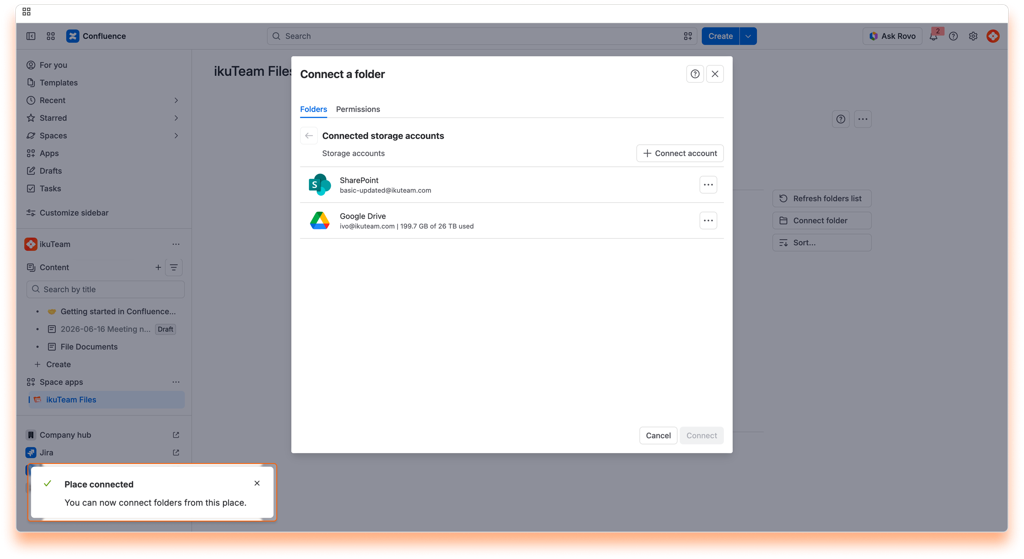
Once the connection is successful, the previous tab will give you a success message, and the site will be added to the list.
ℹ️ SharePoint tip: If you can’t see the site where your folder is, you can use “Find site” and “Connect by URL” options to directly use the site name and URL.
Use the checkbox to select the folder you want to connect.
We recommend connecting a folder where you and your team store your documents, but you can start with a new one by clicking the “New folder” button.
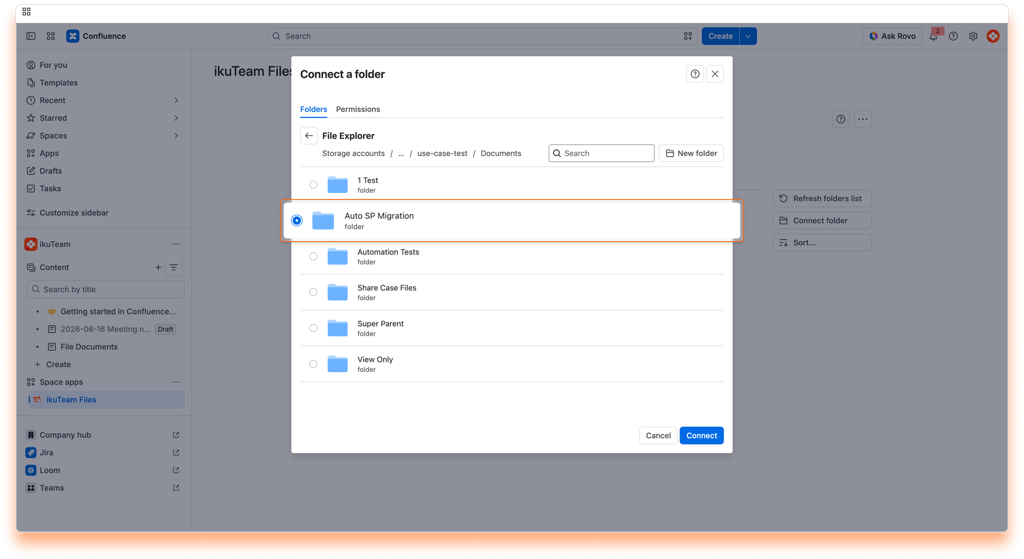
ℹ️ Tip: You can select multiple folders.
Click the “Permissions” tab. By default, your team can view and edit any folders you connect. If you want to limit access or block the edit feature, click the dropdown to change the permissions.
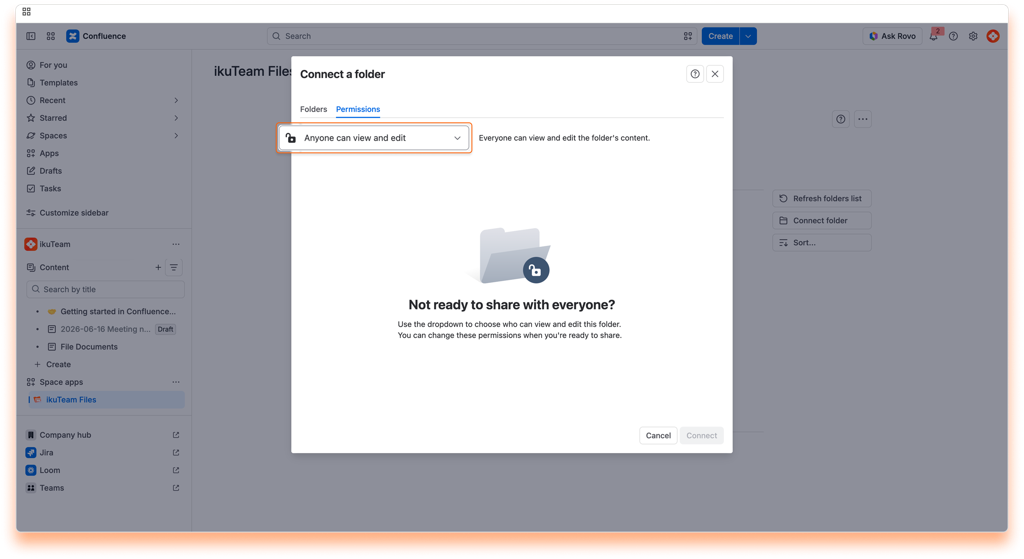
For more information, check the permissions page.
✅ You’re all done. You’re ready to use the app. Learn more about the file manager, how to edit documents, and how to attach files and folders to your pages.
The app uses the storage place as the “single source of truth.” However, you need to understand that it has some particular behaviors. Like:
Create an in-context file manager for your Confluence space. Seamlessly browse shared folders, preview files, and edit documents from SharePoint, Google Drive, Box, Dropbox, or Egnyte without ever leaving your workspace.
The file manager is easily accessible from the sidebar, and it’s the cornerstone for all you can do with the ikuTeam Files app. When using the macro to attach files and folders to your pages, you’ll also use the file manager, which works the same way.
This page covers everything related to the ikuTeam Files app, from what you can do with your files and folders to managing connected folders. Let’s start with the latter since you always need at least one connected folder to use the app.
When you open the ikuTeam Files app, you’ll first see a list of the connected folders you can browse and use to collaborate with your team.
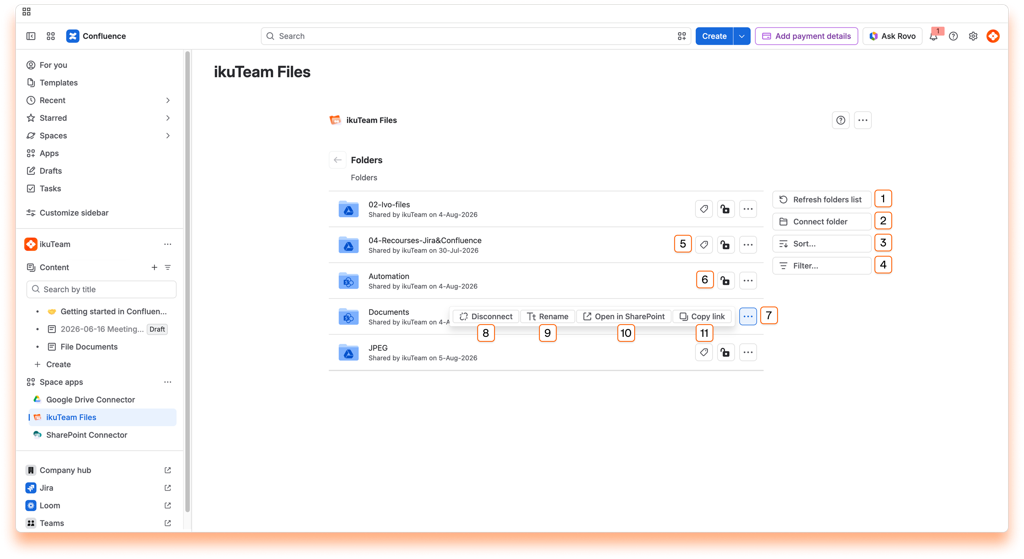
ikuTeam Files app home screen:
List of the connected folders to the current Confluence space.
Use the “Refresh folders list” button to update the list of connected folders and access folders your team shared with the latest permissions.
In the Getting started page, we covered how to connect your first folder. The empty screen makes it easy to see how to do it, but you can connect as many folders as you need.
Instructions:
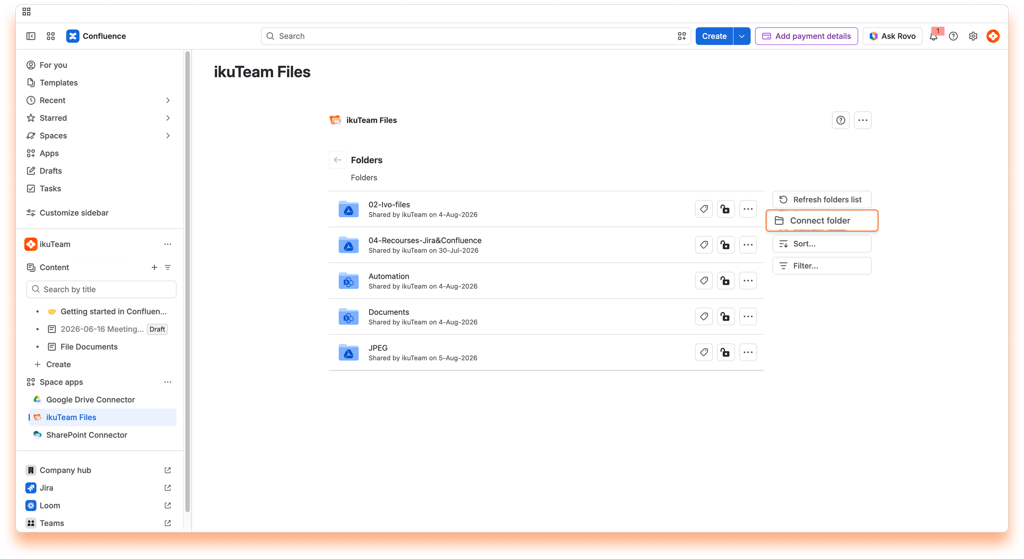
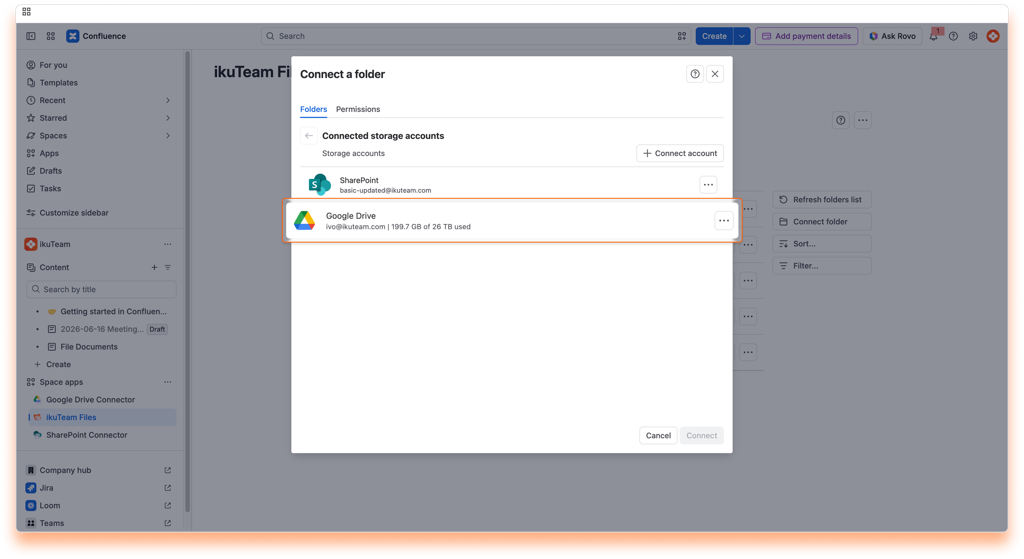
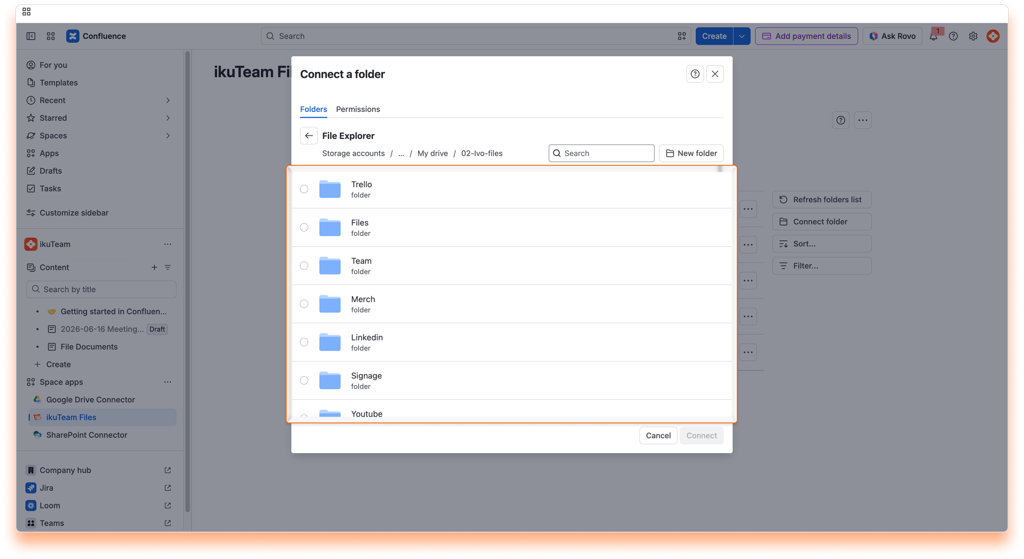
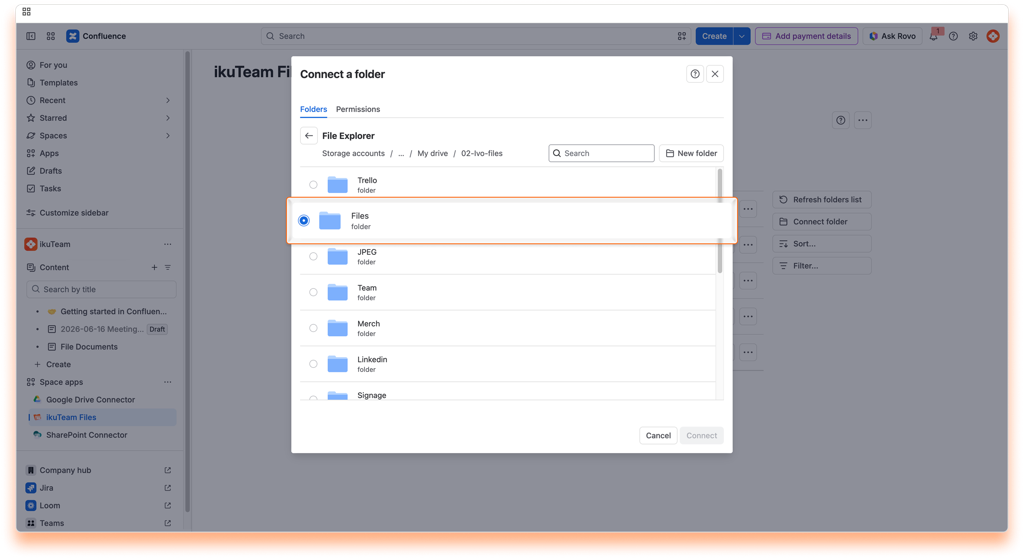
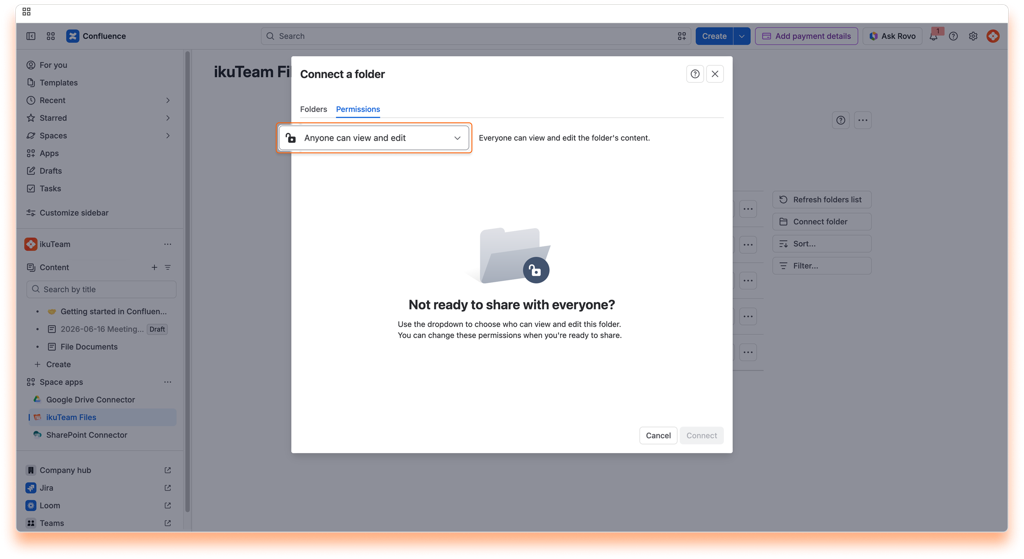
ℹ️️ We recommend connecting a folder where you and your team store your documents, but you can start with a new one by clicking the “New folder” button.
ℹ️ SharePoint tip: If you can’t see the site where your folder is, you can use the “Find site” or “Connect by URL” options to locate and link your SharePoint folder.
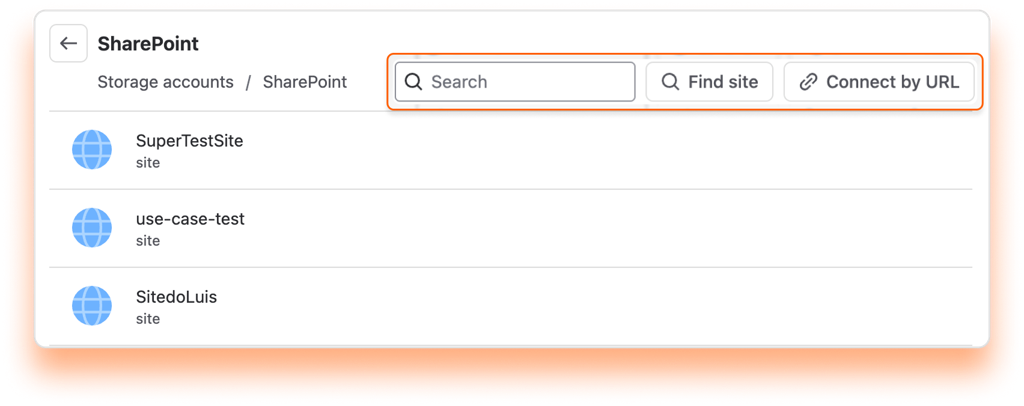
✅ All done. You can now use your new folder or add more using the same process.
The connected folders are ordered alphabetically by default.
You can change this by clicking the “Sort” button and selecting a sort by option and the order you prefer. The button will always reflect your selection.
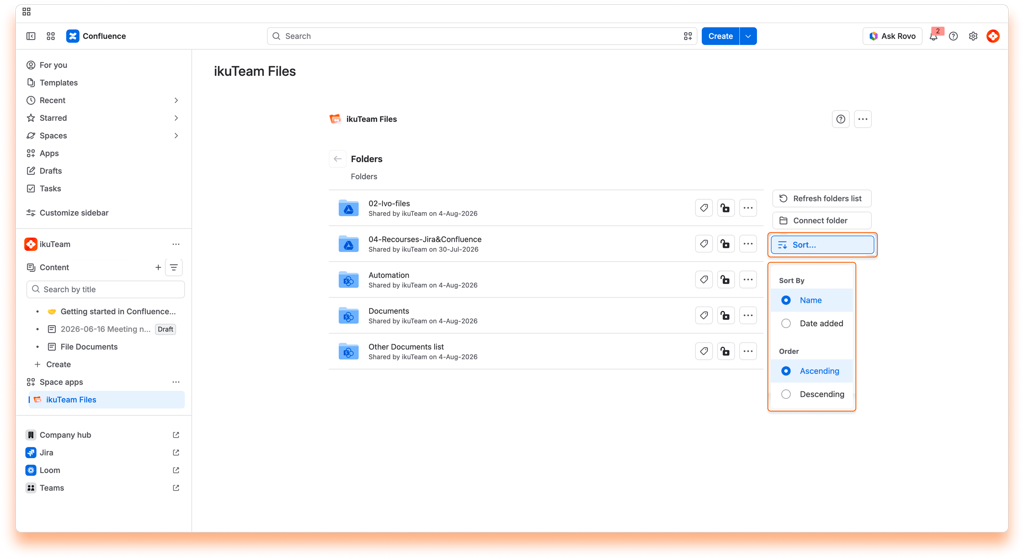
Connected folders can be sorted by these criteria:
By default, the file manager shows every folder connected to the space, including folders your teammates connected. Select “Connected by me” to narrow the list to the folders you connected yourself.
This is handy in spaces with a lot of connected folders. Instead of scrolling through the full list, you can jump straight to the folders you work with, and any search or browsing you do runs against that shorter list.
You can add a tag to your connected folders to help you keep them organized and easily accessible.
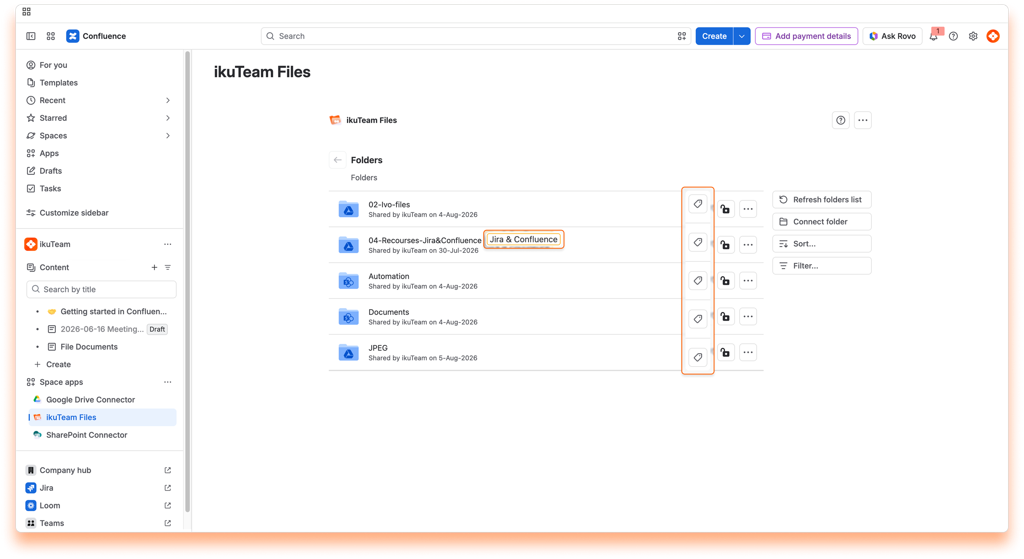
Adding a tag
To add a tag:
✅ All done.
Editing a tag
To edit the tag, click the tag button again. You can change the description and color. When you’re done, click Save.
Removing a tag
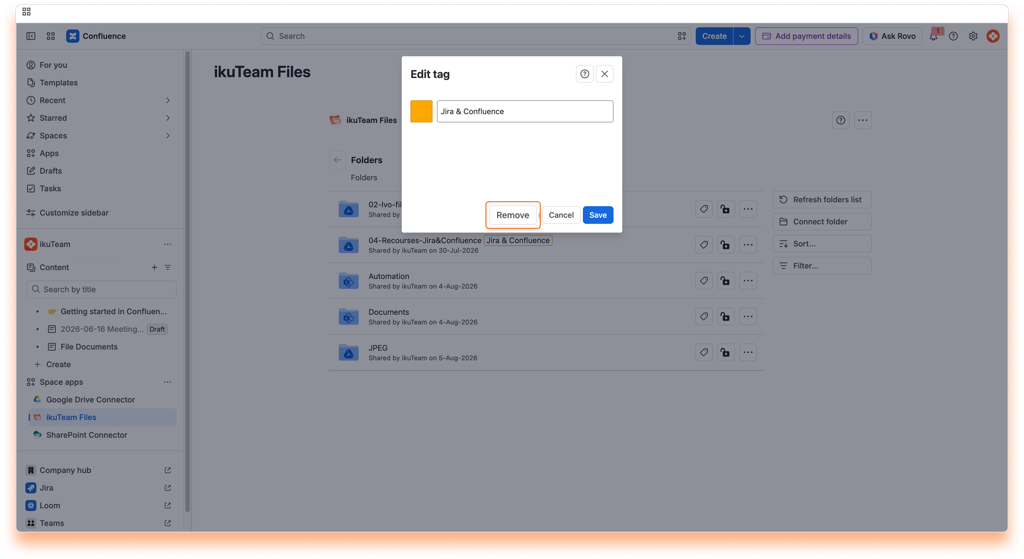
To altogether remove a tag:
✅ All done.
⚠️ This action can’t be undone, but you can add a tag again anytime.
You can set permissions for connected folders from the file manager at any time by clicking the lock icon. For more information, check the permissions page.
It’s also possible to disconnect folders you no longer need. Before getting into how to do it, it’s relevant to know that you’re only breaking the ikuTeam Files app’s link to the original storage when you disconnect a folder. All your content is safe, but any files and folders you or your team attached to Confluence pages from the disconnected folder also lose the link to the original storage and become unavailable.
⚠️ If you accidentally disconnect a folder, you can connect it again within 30 days to restore the attachments. After this period, it’s no longer possible to restore the existing attachments.
Instructions:
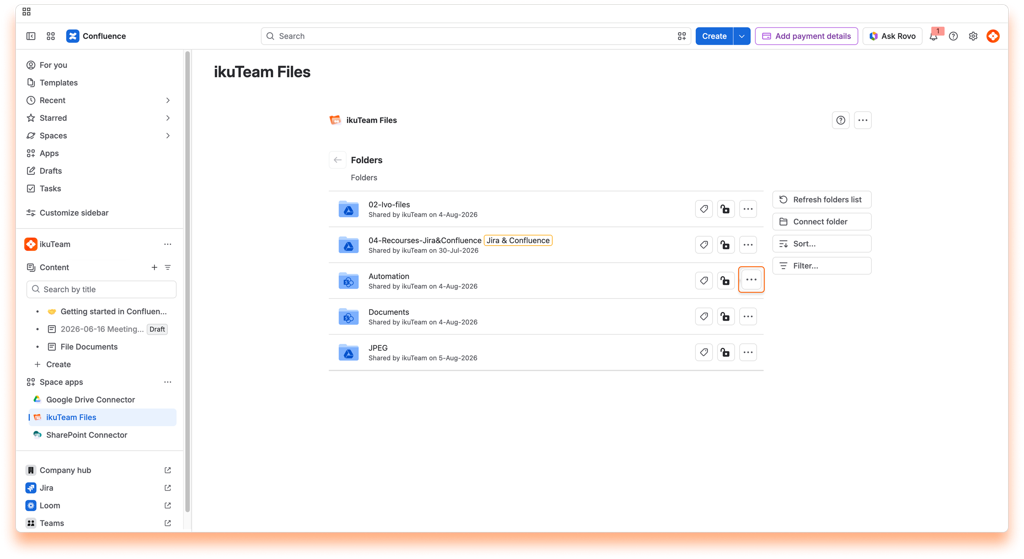
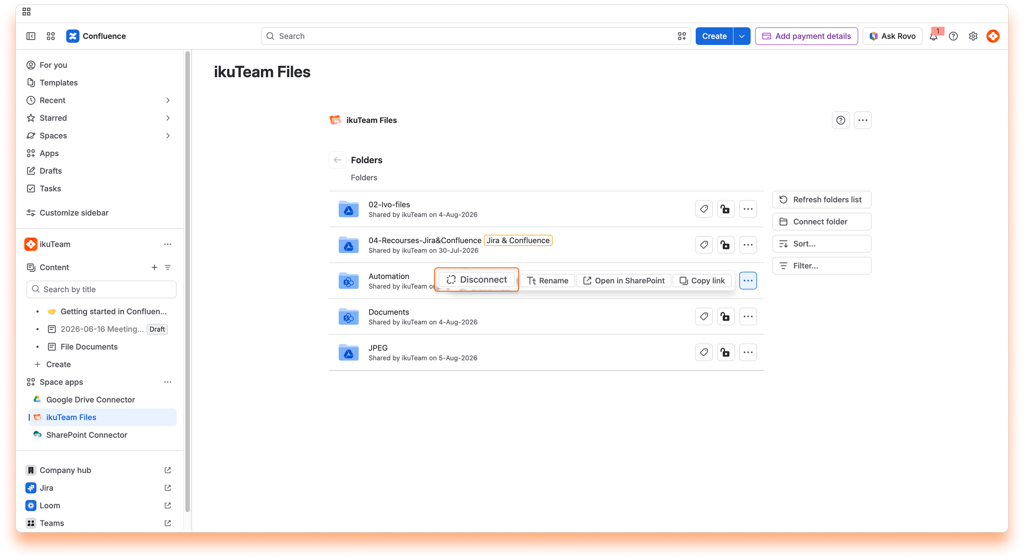
✅ All done. Your folder is safe and sound, but your team can’t use it anymore in the ikuTeam Files for Confluence app.
ℹ️ You can only disconnect the folders you added. Admins can disconnect all folders.
Instructions:
ℹ️ When you change the name of a folder, it’s updated in the connected storage, too.
⚠️ Changing the name of connected folders from Dropbox and Egnyte breaks existing attachments.
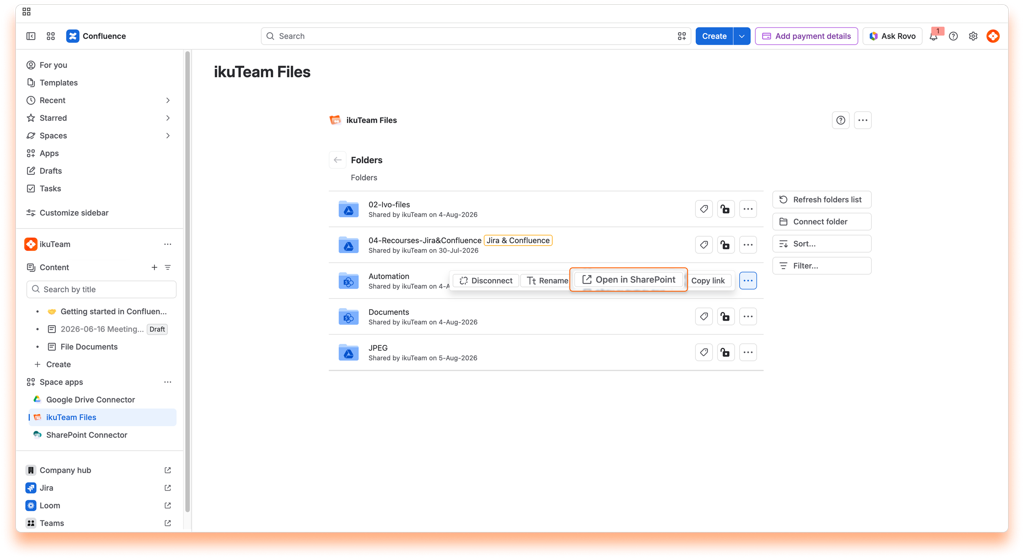
This option lets you sign out from a connected folder if the “Mirror Storage Permissions” setting is active. This is useful if you need to connect with a different account.
While using the ikuTeam Files app, you can connect folders stored in SharePoint, OneDrive for Business, Google Drive, Dropbox, OneDrive, Box, or Egnyte. You only need to authorize the app to access that storage place first. You’re in control of your storage places: only you can see the places you allowed, and you, and only you, can disconnect them.
You can view your connected places when you connect a new folder or from the ikuTeam Files settings page.
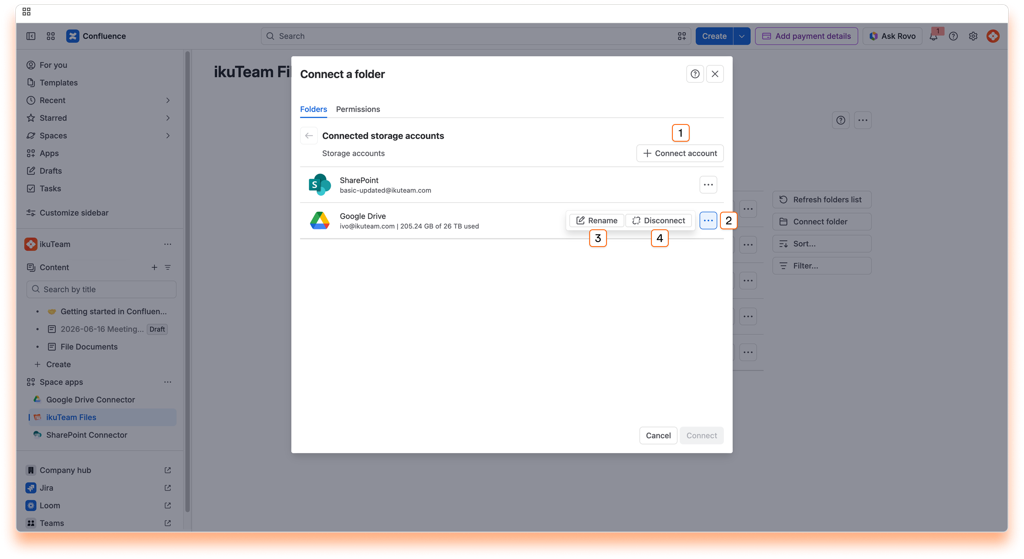
Connect folder dialog:
List of your connected places.
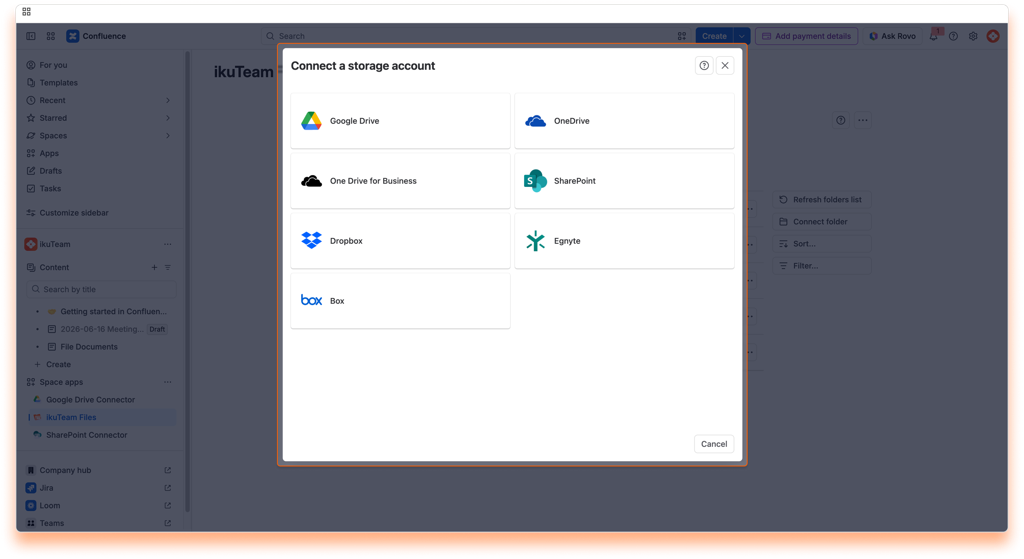
Instructions:
ℹ️️ You can connect several accounts of the same service. For example, you can connect a personal Dropbox and Dropbox for Business.
For step-by-step instructions for each storage place (SharePoint, OneDrive for Business, Google Drive, Dropbox, OneDrive, Box, and Egnyte), check Step 2 in Getting started.
✅ It’s all done. Your new place is now connected. You can browse it to connect a folder or return to the file manager.
You can connect several accounts from the same service, and by default, we add a number at the end when you do it to differentiate them. To help you keep things organized, you can rename your places to something more meaningful to you.
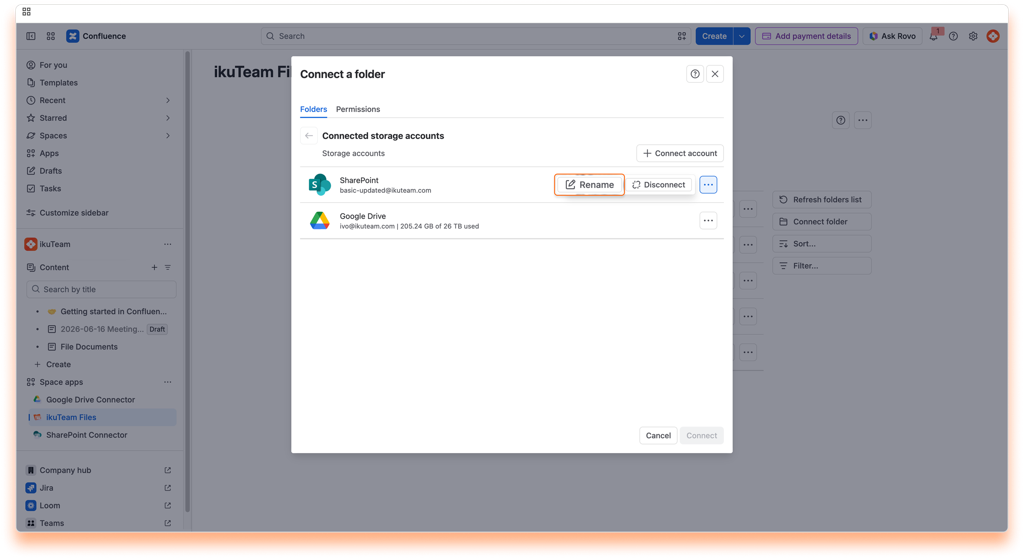
Instructions:
✅ That’s it. Updating the name takes a few moments and is ready to use.
ℹ️️ You can also rename and manage your places from the ikuTeam Files settings page.
When you disconnect a place in the ikuTeam Files for Confluence app, you only remove the connection to the original storage. All your content is safe, but any folders you have connected from that place will also be disconnected. Consequently, files and folders you or your team attached to Confluence pages from the disconnected folders also lose the original storage link and become unavailable.
⚠️ If you accidentally disconnect a place, you can connect it again within 30 days to restore the connected folders and attachments. After this period, it’s no longer possible to restore the existing attachments.
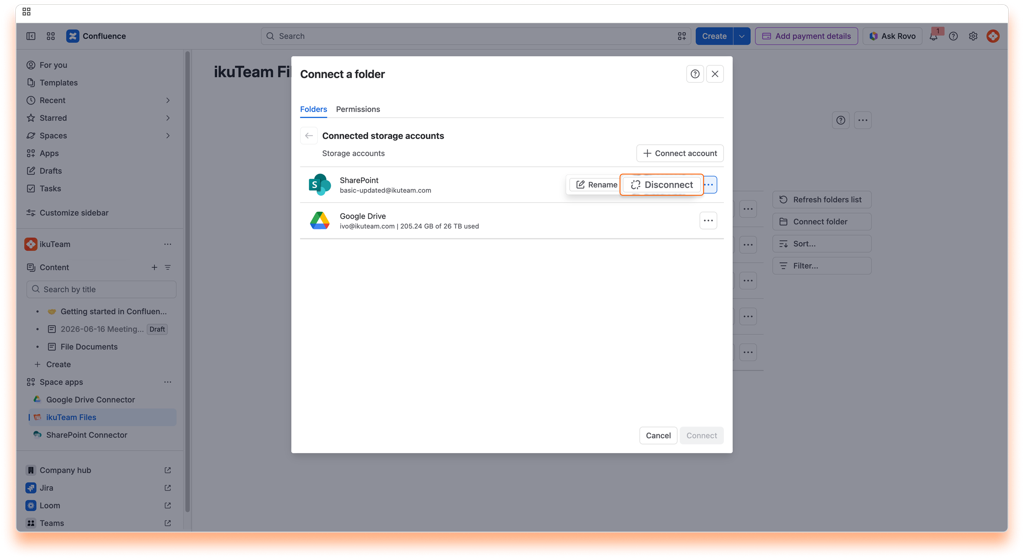
Instructions:
✅ All done. Your storage place is safe and sound but no longer accessible in the ikuTeam Files app.
ℹ️️ You can also disconnect and manage your places from the ikuTeam Files settings page.
Now that we know how to connect folders, it’s time to learn how to make the most of the ikuTeam Files app. This section will cover what you can do with files and folders and how to add content to your connected folder.
Click a connected folder to view its content. The navigation is at the top, your content is in the center, and extra options are to the right.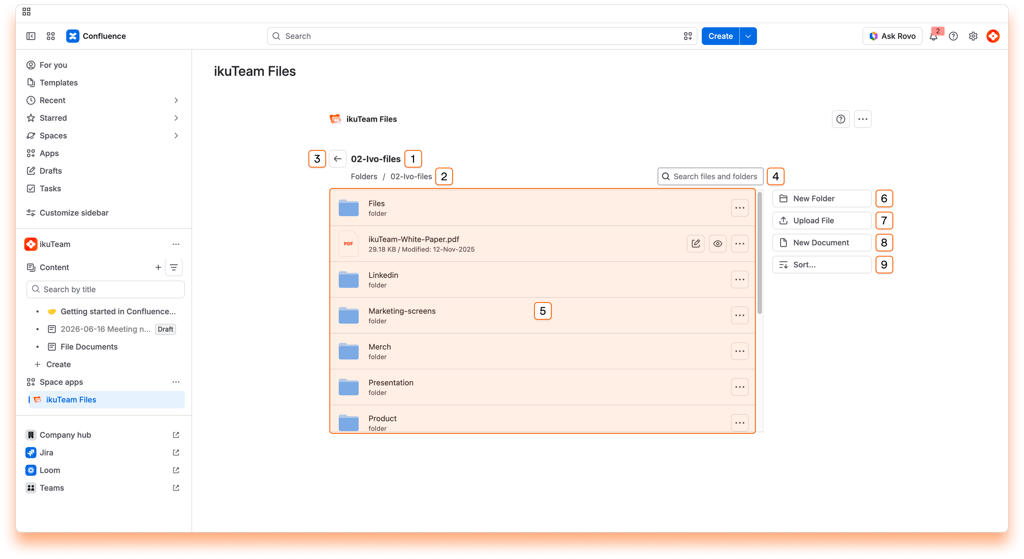
If your window is too narrow, the right section is hidden, but all the options are available in the context menu that appears next to the navigation.
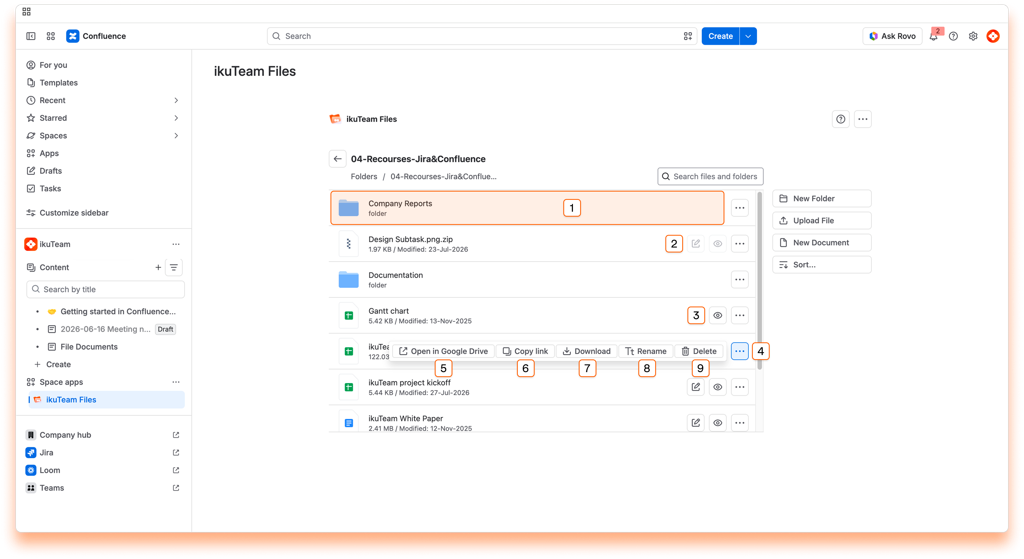
Preview files
You can preview the content of your files by clicking the name of the file you want or the preview button. You can preview images, PDF documents, Microsoft Office documents, and Google documents. For more details, check the Preview files page.
Edit documents
You can edit Microsoft Office documents from the file manager by clicking the Edit button. When Mirror Storage Permissions is turned OFF for simplified access, ikuTeam Files uses the ikuTeam Office engine to render and edit documents.
When Mirror Storage Permissions is turned ON for more complex access control, the app uses Microsoft 365 to edit files in SharePoint, OneDrive, and Box. The ikuTeam Office engine is used for the rest of the supported cloud storage. With Mirror Storage Permissions ON, real-time collaboration isn’t available.
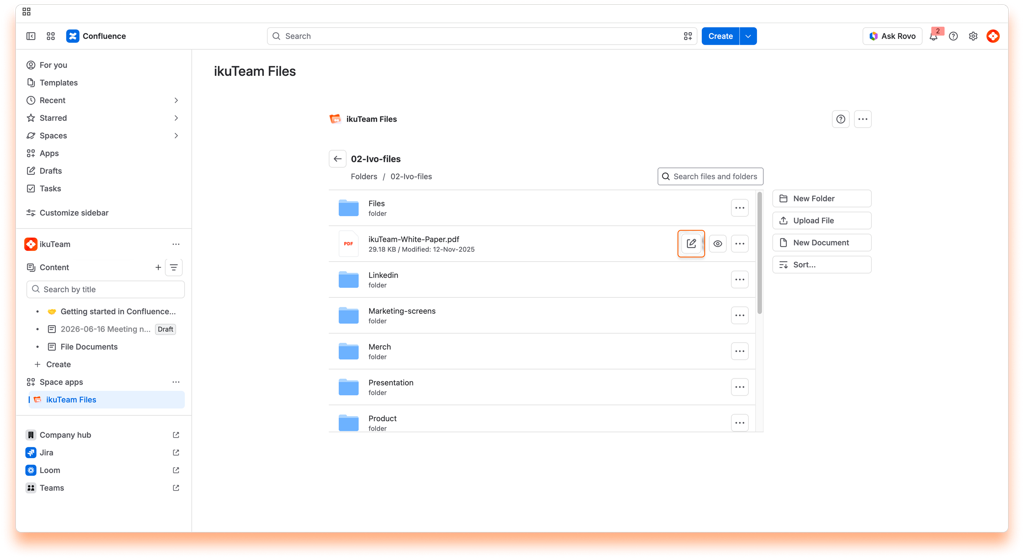
If you’re using Google Drive, you can edit Google Drive documents the same way; just click the edit button. Google Docs also supports real-time collaboration and autosave.
In addition to Office and Google documents, ikuTeam Files can also preview and edit PDF files with the Advanced Edition of the app.
ℹ️️ The edit option is also available when previewing the file (check Preview files) and when you attach the document to a page.
For more details, check the Edit documents page.
Download a file
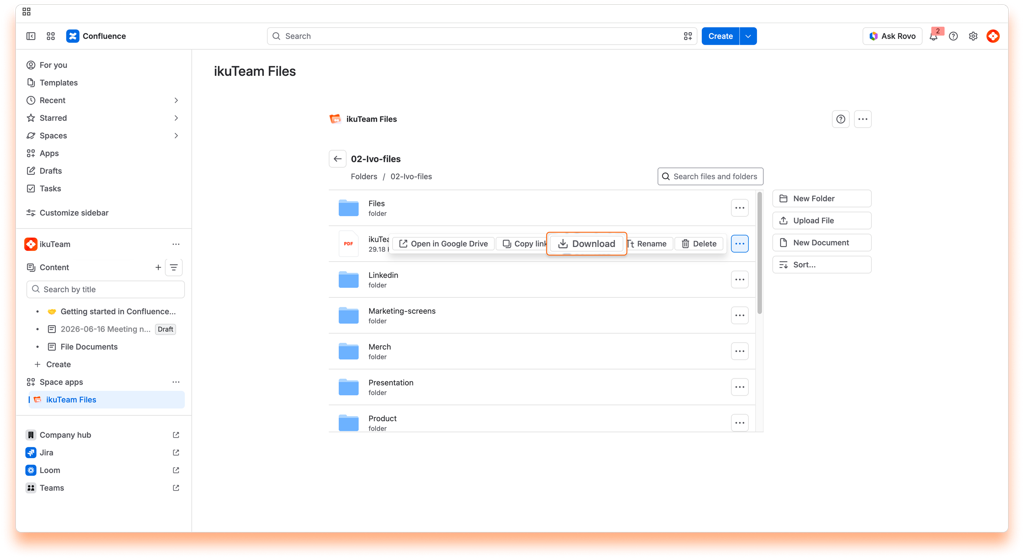
Your browser will open a new tab to download the file automatically. Depending on the browser you’re using, the tab closes itself when the download starts, or it might ask you permission to download the file (notably Safari), requiring that you click the “Allow” button.
Depending on its size, the file will be available in your default download folder after a few moments.
ℹ️ The download option is also available in preview mode (check Preview files) and for files attached to pages.
Rename a file
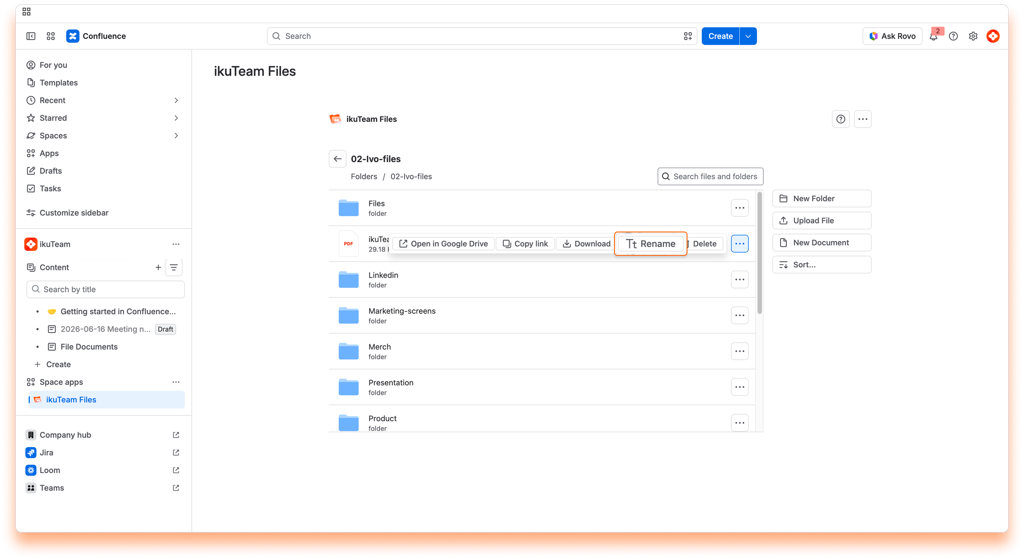
ℹ️ When you change the name of a file, it’s updated in the connected storage too.
Open in original storage
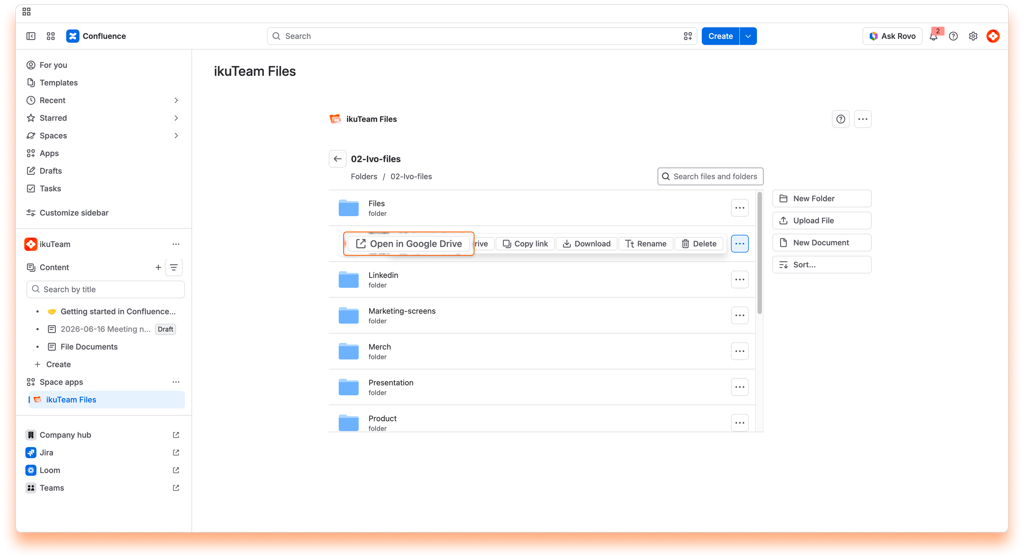
The file opens in a few seconds on the original storage site.
Delete a file
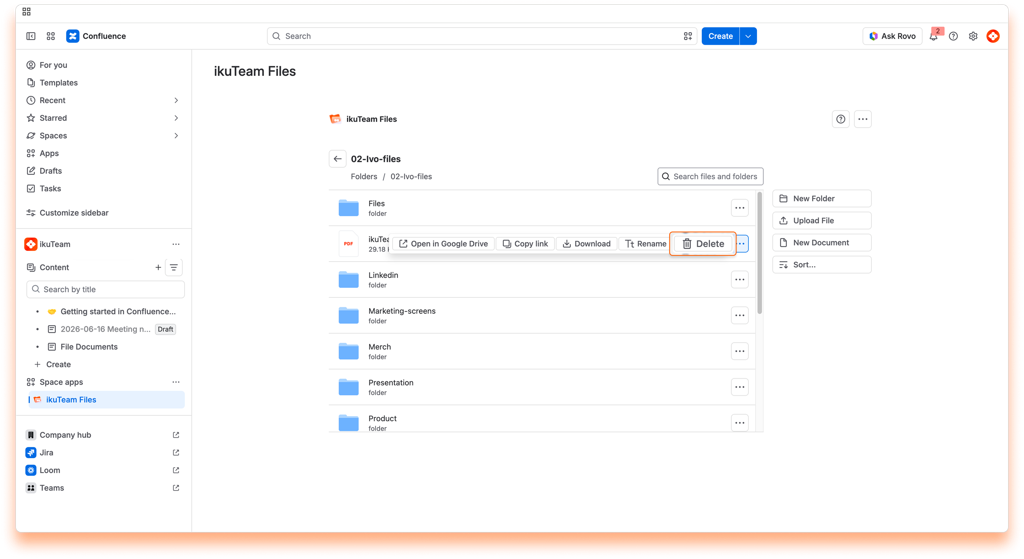
⚠️ When you delete a file, it’s also removed from the connected storage place. This action can’t be undone in the ikuTeam Files app.
Upload a file
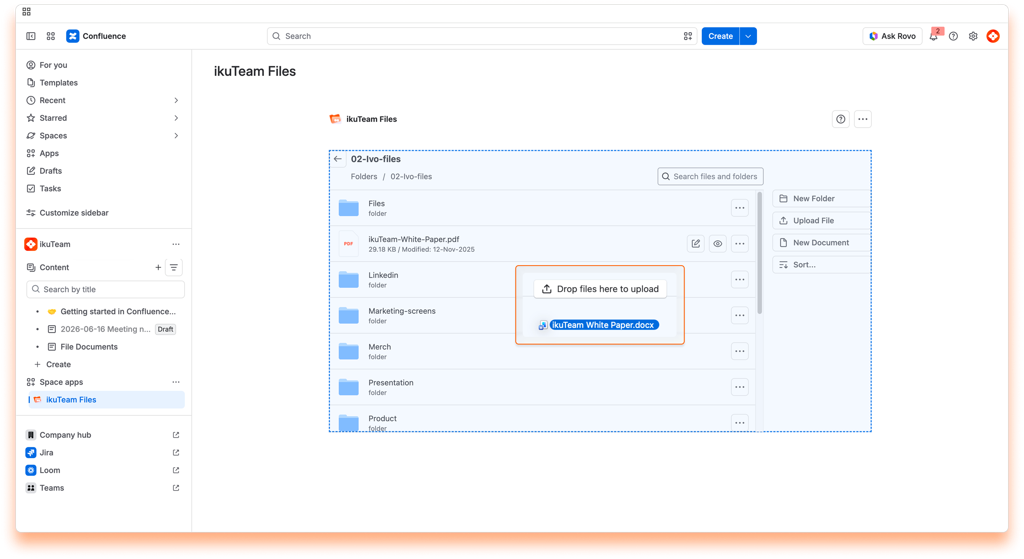
Via drag and drop:
You can drag a file from a local folder and drop it in the folder you have open in the ikuTeam Files app to upload it there. Doing this will save the file in the storage place containing the connected folder, helping you build your single source of truth.
Via file picker:
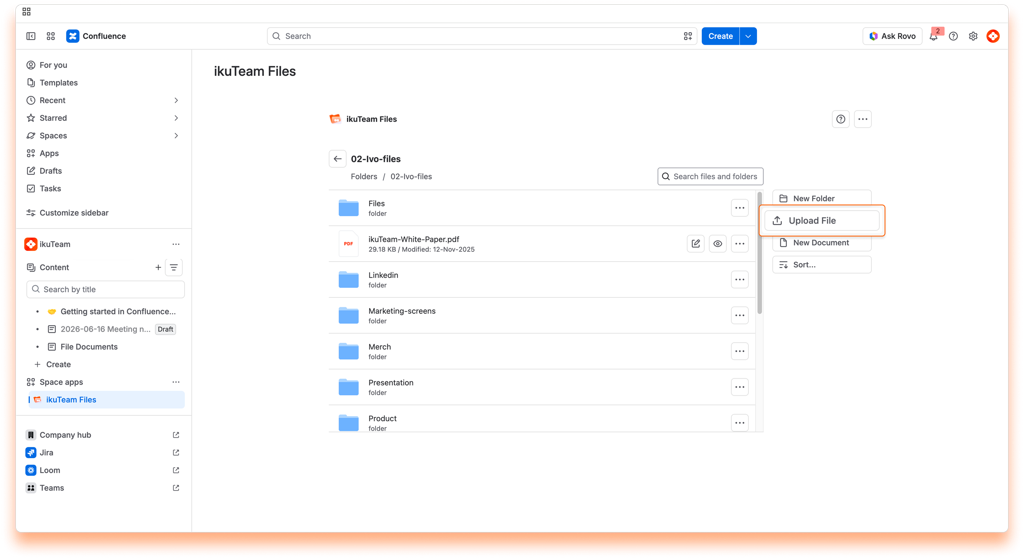
Depending on the size of the file, it may take a few moments for it to become available in the app.
ℹ️ The upload option is also available when you attach a folder to a page. You can drag and drop a file to upload it there.
Creating new documents
With the ikuTeam Files app, you can create documents where needed. They are ready for real-time collaboration when “Mirror Storage Permissions” is OFF, with no file locks, and are saved back to the storage place containing the connected folder, avoiding duplicates.
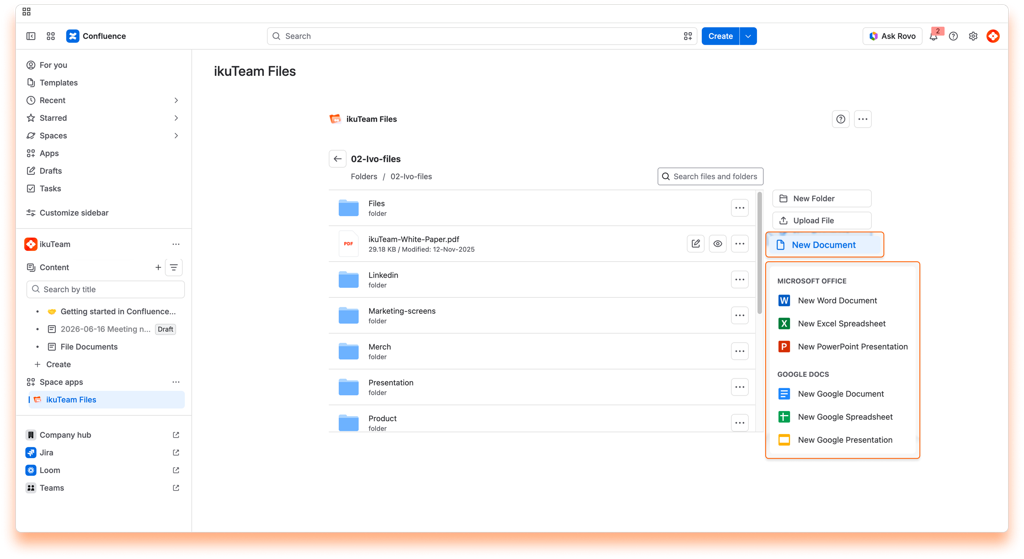
For Microsoft Office Documents:
After a few moments, your document appears in the folder, and you can edit it.
For Google Documents:
You can close the tab when you finish your edits. Your new document will show in your folder when you reload the page.
ℹ️ You can create Microsoft Office documents in any connected folder, but Google Documents are only available for connected folders from Google Drive.
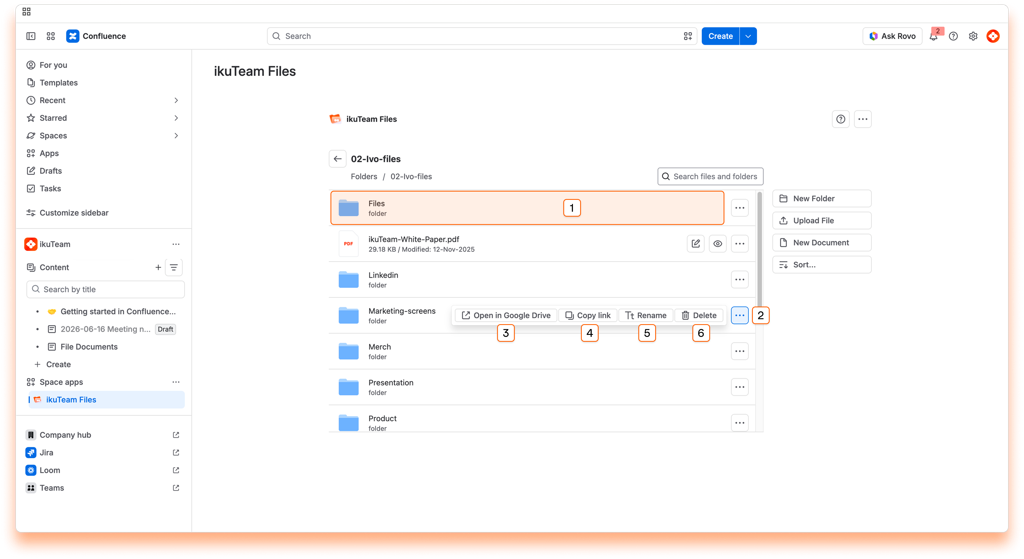
View the content of a folder
You can see the content of a folder by clicking on it. You can also click folders inside to view the content or click the back button to return to the previous one.
Rename a folder
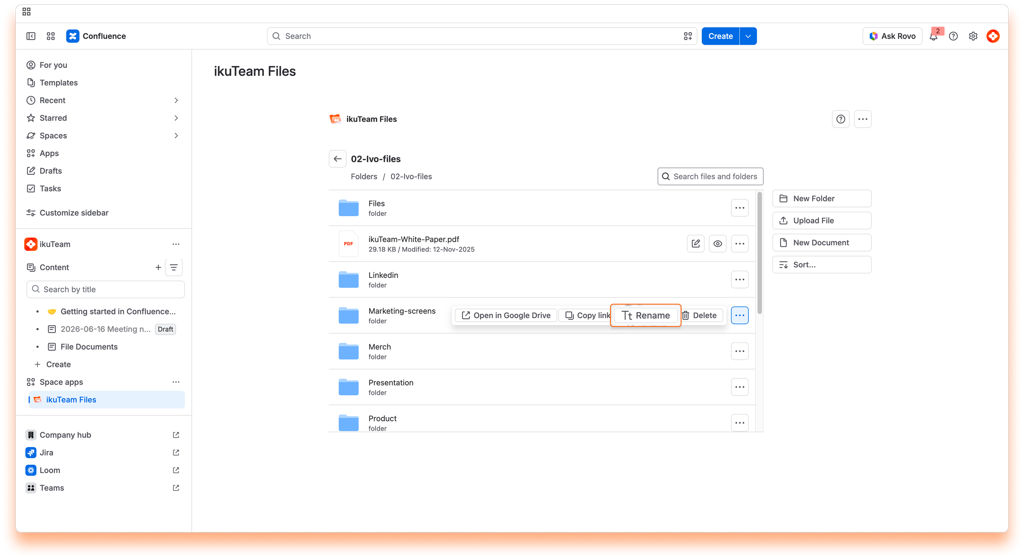
ℹ️ When you change the name of a folder, it’s updated in the connected storage too.
Open in original storage
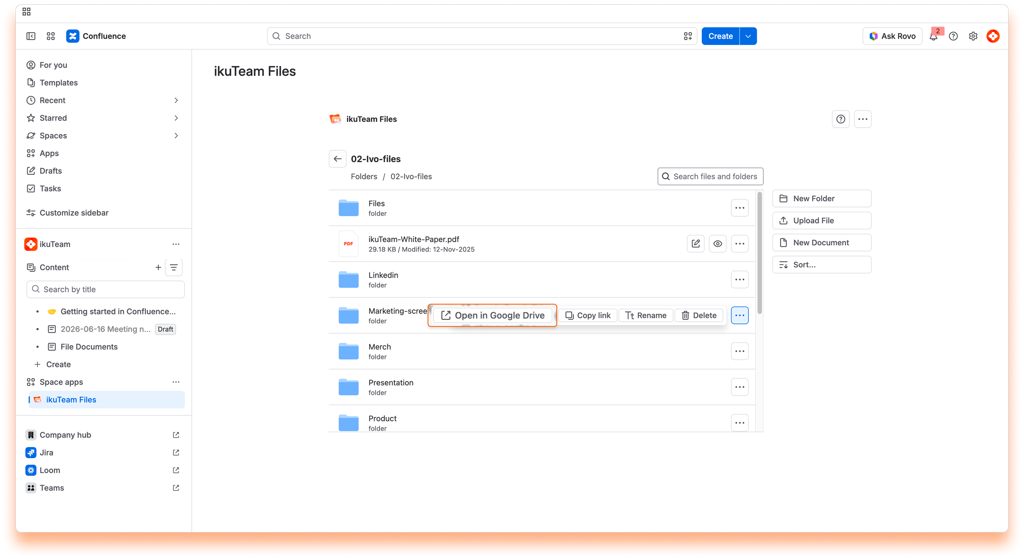
The folder opens in a few seconds on the original storage site.
Delete a folder
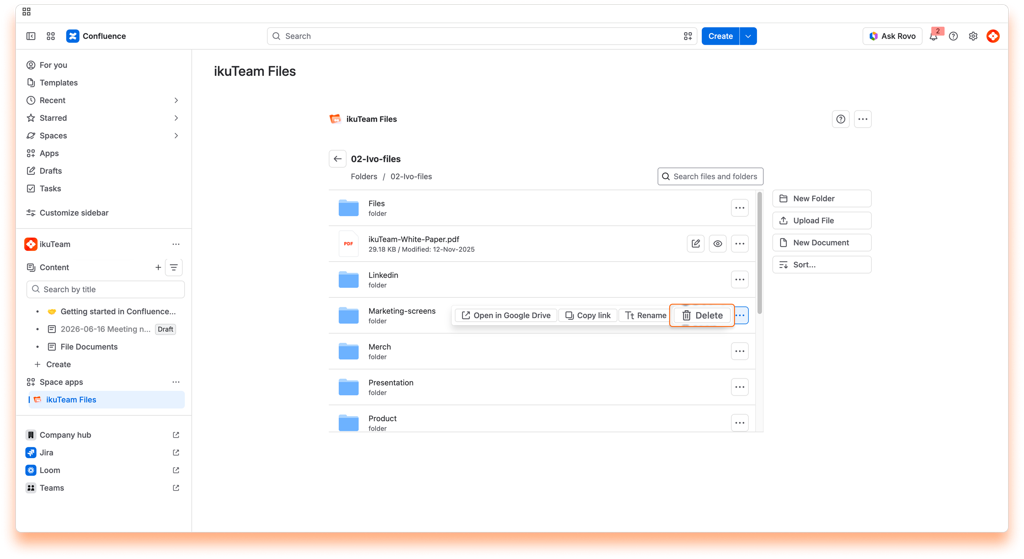
⚠️ When you delete a folder, it’s also removed from the connected storage. This action can’t be undone in the ikuTeam Files app.
Create a folder
To help you keep things organized, you can create new folders whenever needed.
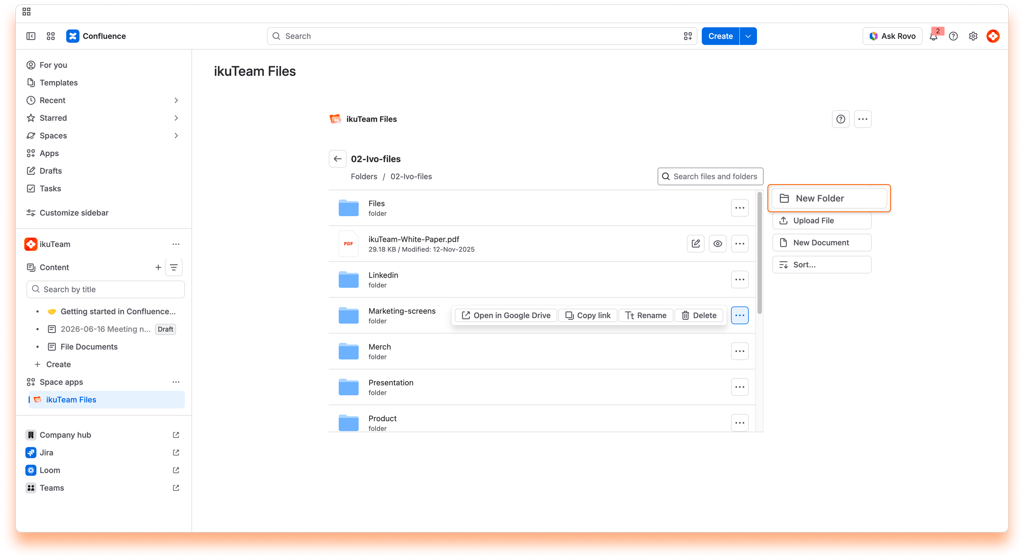
After a few moments, the view reloads, and your new folder will be listed and ready to use.
Sort
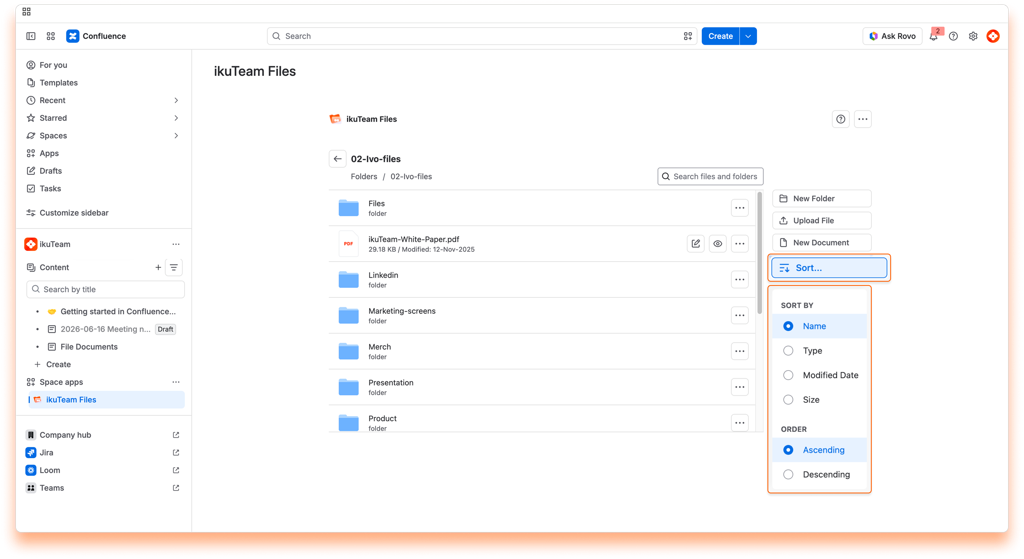
The content of your folders is ordered alphabetically by default.
You can change this by clicking the “Sort by name” button and selecting a sort option and the order you prefer. You can sort content by name, type, modified date, and file size. The button will always reflect your selection.
Now you know all that you need to use the file manager. You can now learn more about Preview files or about using the macro.
If you still have questions about the topics covered on this page, visit our support portal and send them to us. Our team is always happy to help.
The app uses the storage place as the “single source of truth.” However, you need to understand that it has some particular behaviors. Like:
Learn how to preview files on Confluence with the ikuTeam Files for Confluence app.
On this page, we’ll cover the different ways to preview your files on Confluence using the ikuTeam Files for Confluence app, expanding the topics on the page about the file manager.
The ikuTeam Files for Confluence app lets you preview files in the file manager and the attached files and folders on pages. It supports the most common Office file formats, PDFs, and popular image formats.
This way, your Confluence pages can easily serve as your one source of truth, with content that is always accessible and updated.
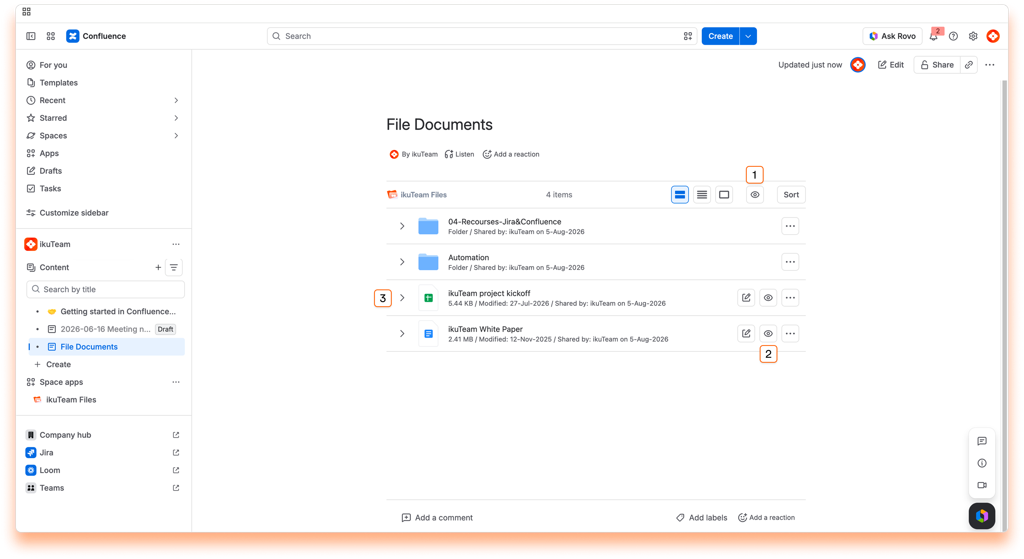
When using the file manager, you can preview your files’ content by clicking the expand icon or name of the file you want with the full-screen preview. You can also use the “Preview” button to open the preview. The options available vary slightly depending on the kind of file.
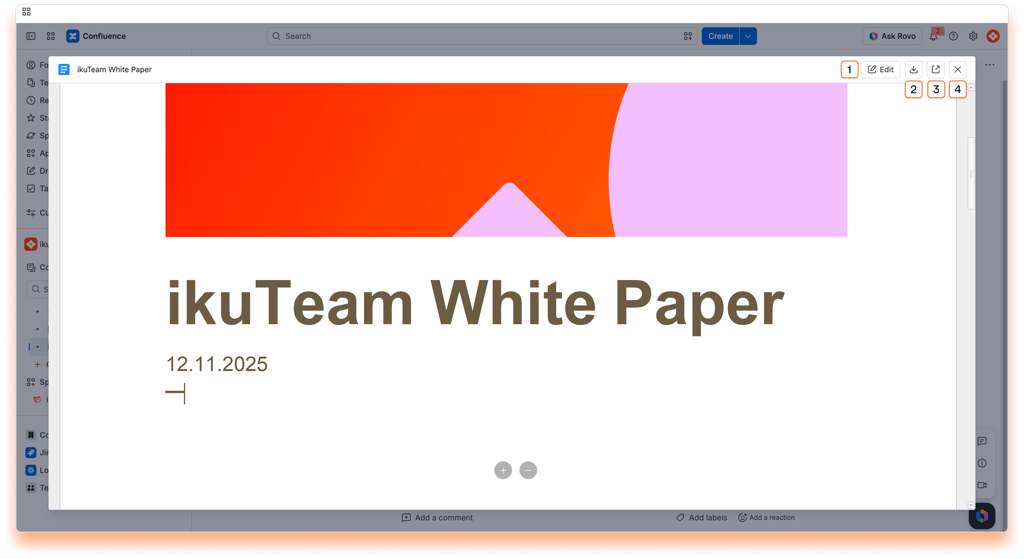
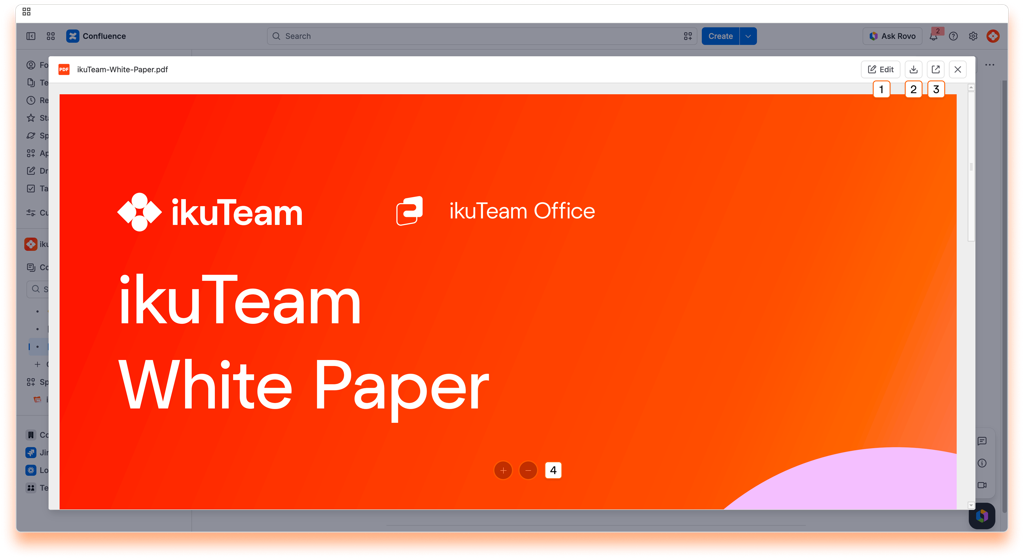
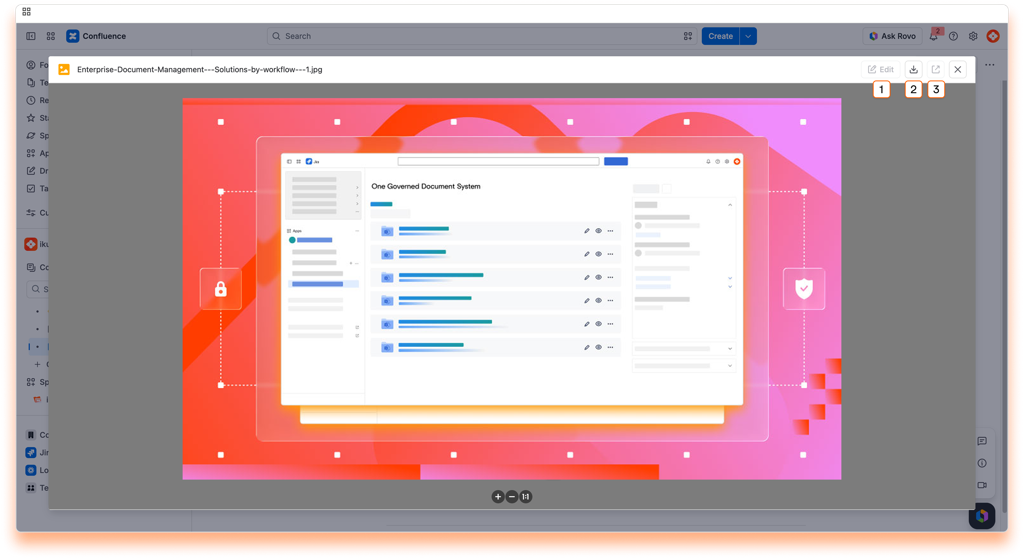
Using the ikuTeam Files app, you can attach files and folders to your Confluence pages with the macro and preview them when the page is published.
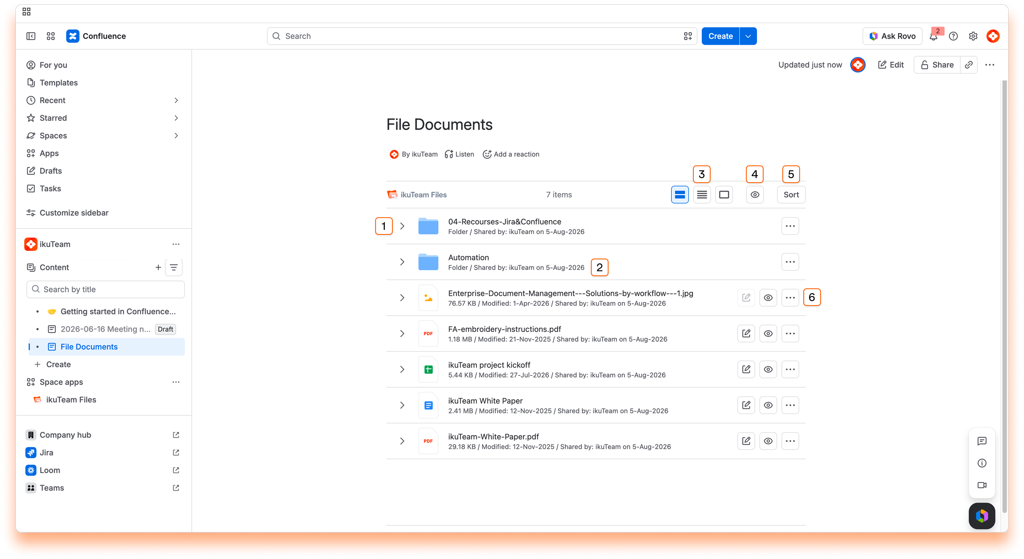
The full-screen preview for the files attached works the same way as described for the file manager. Click the icon or name of the file you want to open the preview.
Another option exclusive to the preview in pages is to view the content inline without hiding your page. By default, every attached file and folder is displayed in a collapsed view to save screen space. You can expand each file by clicking the disclosure button on the left to preview its content.
You can expand attached folders similarly to see their content quickly and even navigate sub-folders. You can also preview the files’ contents inside the attached folder by clicking the name to open the full-screen preview.
When you have an attached folder on your page, you can drag and drop a file from a local folder to upload it there. Doing this will save the file in the storage place containing the connected folder, helping you build your single source of truth.
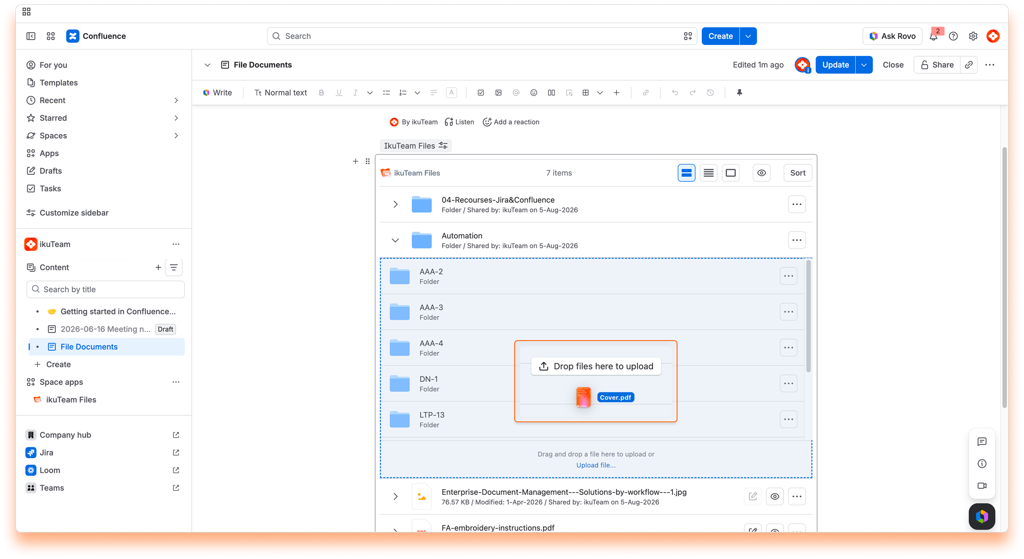
ℹ️ Depending on the size of the file, it may take a few moments for it to become available in the app.
1 Partial support for WEBM, some browsers like Safari don’t support it.
That’s all about previewing files. Did you know you can edit documents attached to your pages or create new documents in the file manager?
If you still have questions about the topics covered on this page, visit our support portal and send them to us. Our team is always happy to help.
Learn how to edit documents on Confluence with the ikuTeam Files app.
We’ll cover the different ways to edit your documents on Confluence using the ikuTeam Files for Confluence app, expanding the topics presented on the page about the file manager.
While some files are preview-only, like images, when it comes to Office files, you can also edit the most popular formats and PDF files right inside Confluence, helping you build your single source of truth, without downloading to edit and re-uploading multiple copies or locking other people out while you edit the document.
This way, your Confluence pages can easily serve as your one source of truth, with content always accessible, updated, and editable.
You can edit a document from the file manager, including the full-screen preview, and you can also edit documents attached to your pages.
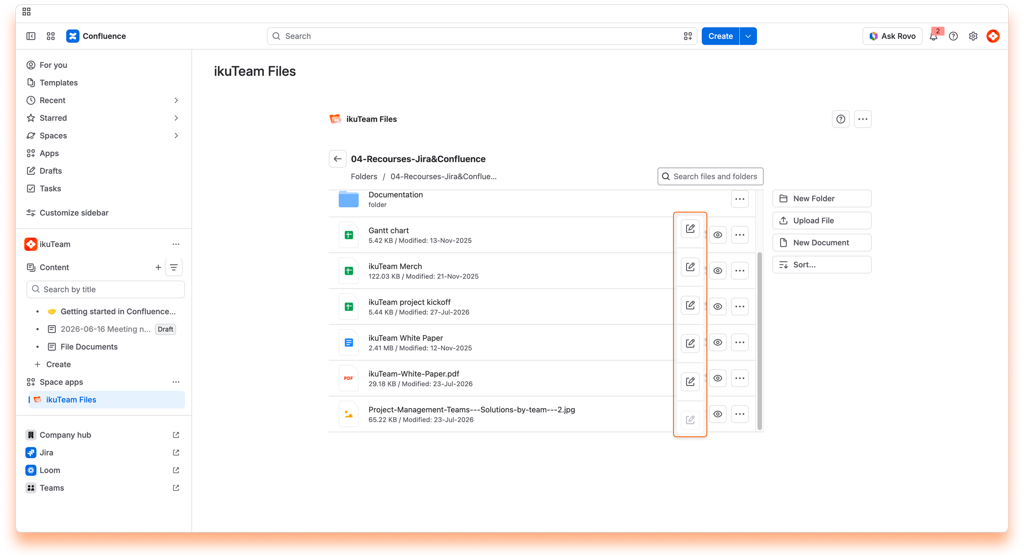
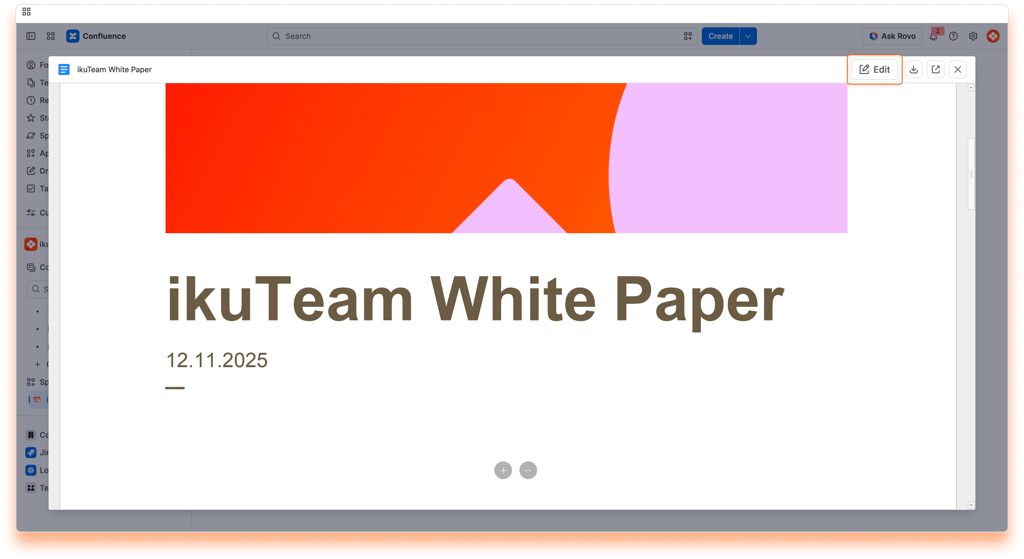
Regardless of the context, you can edit Office files by clicking the Edit button. A new tab opens, where the appropriate editor opens, and you can edit your file in a few seconds.
ℹ️ When Mirror Storage Permissions is turned OFF for simplified access, ikuTeam Files uses the ikuTeam Office engine to render and edit documents.
When Mirror Storage Permissions is turned ON for more complex access control, the app uses Microsoft 365 to edit files in SharePoint, OneDrive, and Box. The ikuTeam Office engine is used for the rest of the supported cloud storage. With Mirror Storage Permissions ON, real-time collaboration isn’t available.
If you’re using Google Drive, you can also edit Google Drive documents using the Google Docs editor, supporting real-time collaboration and autosave.
OpenOffice files work the same way as Microsoft Office files, using the ikuTeam Office engine, but do not support real-time collaboration.
As mentioned before, ikuTeam Office engine, Microsoft Office, and Google Docs support real-time collaboration when “Mirror Storage Permissions” is OFF.
You can start editing an Office file attached to a page or from the file manager. The editor seamlessly creates a collaboration session when another person clicks to edit the same file. You can continue to edit the file as before and leave it anytime by closing the browser tab.
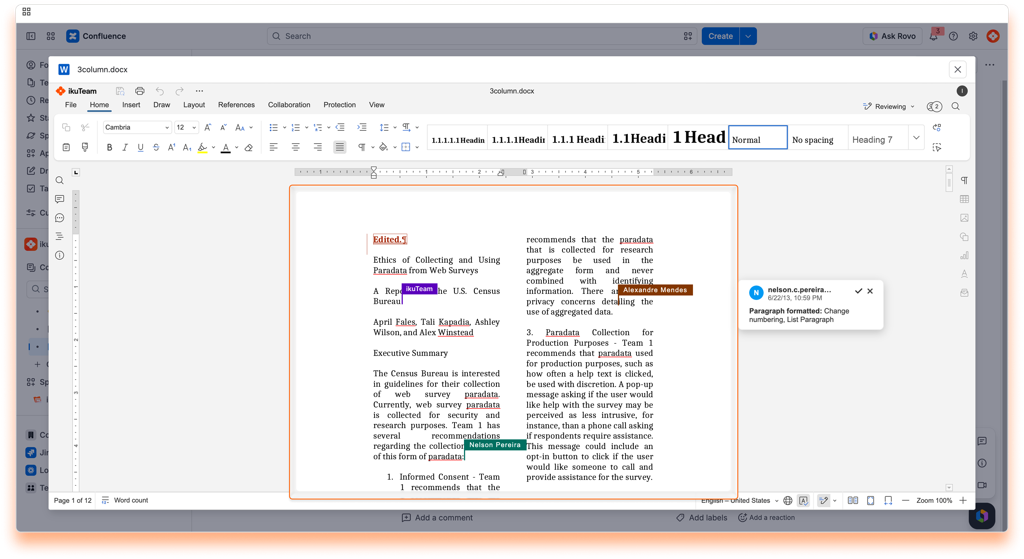
With the Advanced Edition of the ikuTeam Files for Confluence app, you can edit PDF files attached to your pages by clicking the “Edit” button (also available in the full-screen preview).
A new tab opens, and you can edit your document in a few seconds.
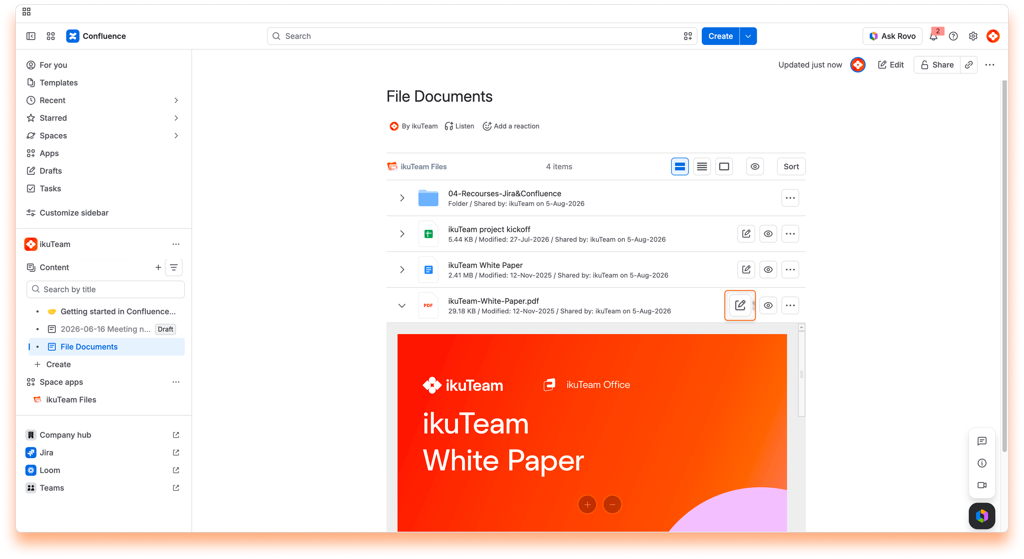
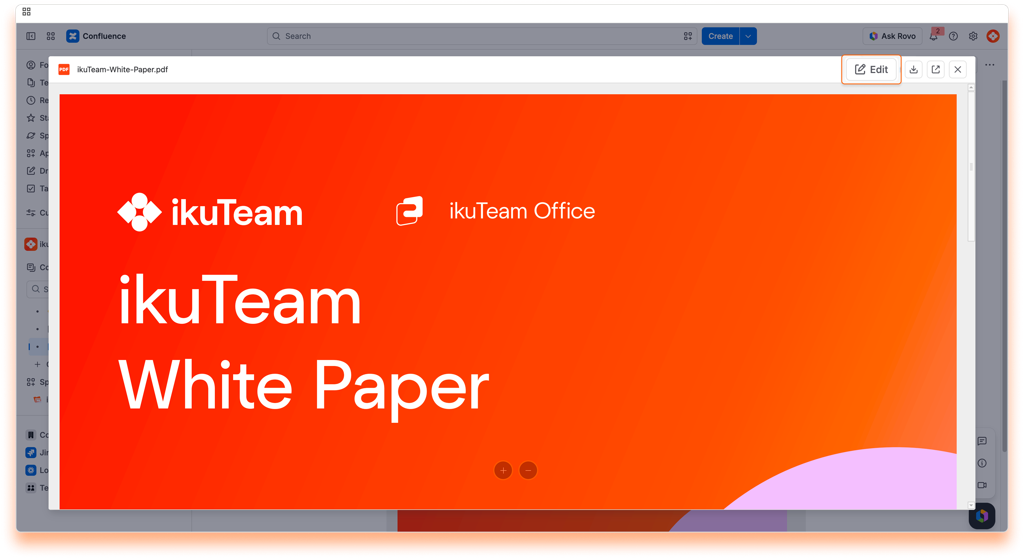
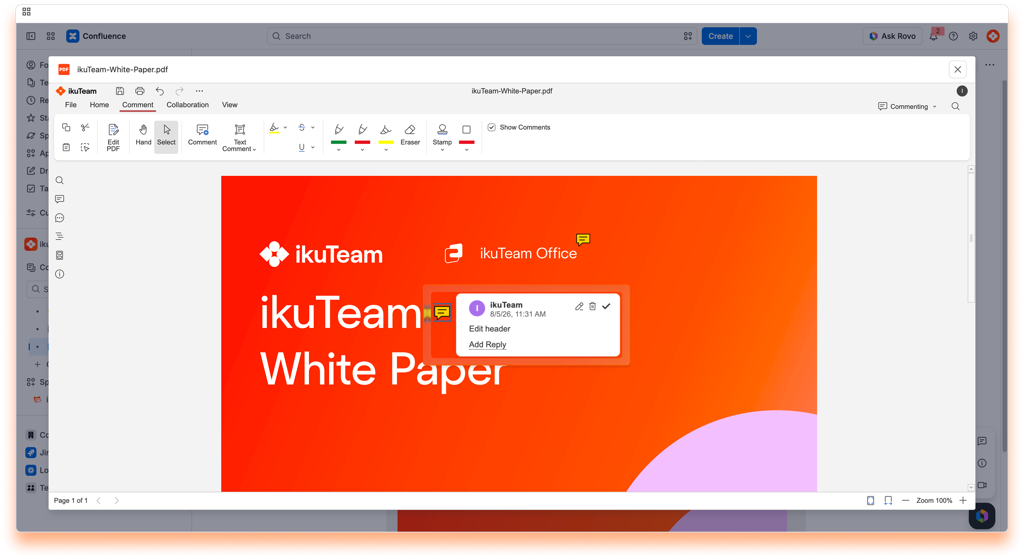
When editing a PDF file, you and your team can work together, as the editor supports real-time collaboration, so there are no file lockdowns. There’s also an autosave feature, so you can close the tab when you finish.
As mentioned before, PDF documents support real-time collaboration, and it’s effortless to use.
Start editing a PDF file attached to a page. When another person clicks to edit the same file, the editor seamlessly creates a collaboration session. You can continue to edit the file as before and leave it anytime by closing the browser tab.
That’s all for editing documents. Did you know you can also create new documents using the file manager?
If you still have questions about the topics covered on this page, visit our support portal and send them to us. Our team is always happy to help.
ikuTeam Files for Confluence now focuses exclusively on cloud storage integrations: SharePoint, Dropbox, Box, Egnyte, and Google Drive. Native Confluence attachment preview and editing has moved out of ikuTeam Files.
The good news: it’s still fully available, just in a better home.
Native Confluence attachment support is now part of ikuTeam Office, with even more capabilities and a better fit.
Learn how to attach files and folders to your pages with the ikuTeam Files macro to share knowledge with your team.
Our macro allows you to attach files and entire folders to your pages using a particular view of the file manager. You can insert the macro on your pages as many times as you need and attach as many files and folders as you want per macro.
On this page, you can check how to use the macro so you and your team can share the relevant files and folders in the right place, quickly building your one source of truth inside Confluence.
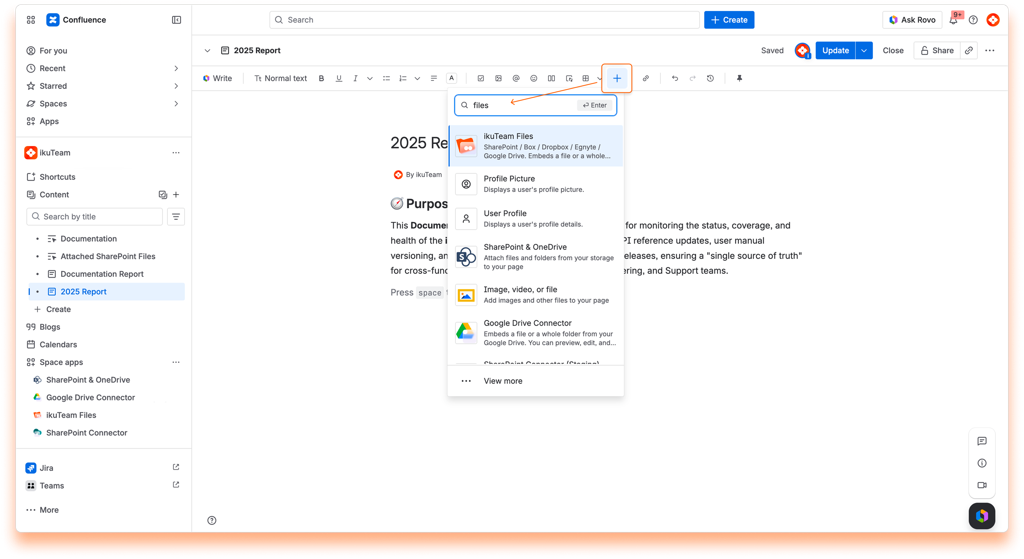
Adding the ikuTeam Files macro to your pages is straightforward, with the / shortcut or via the “Insert items” menu.
Instructions:
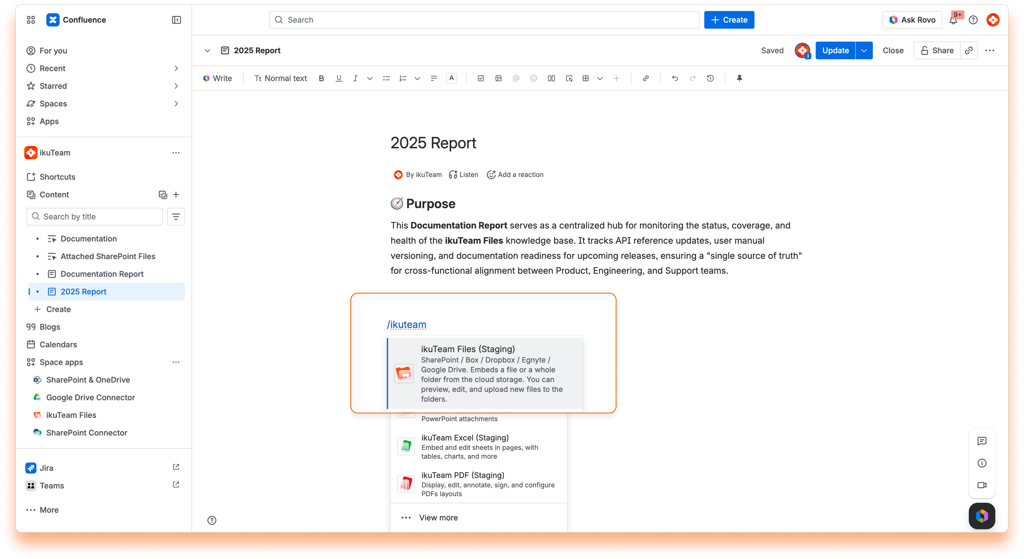
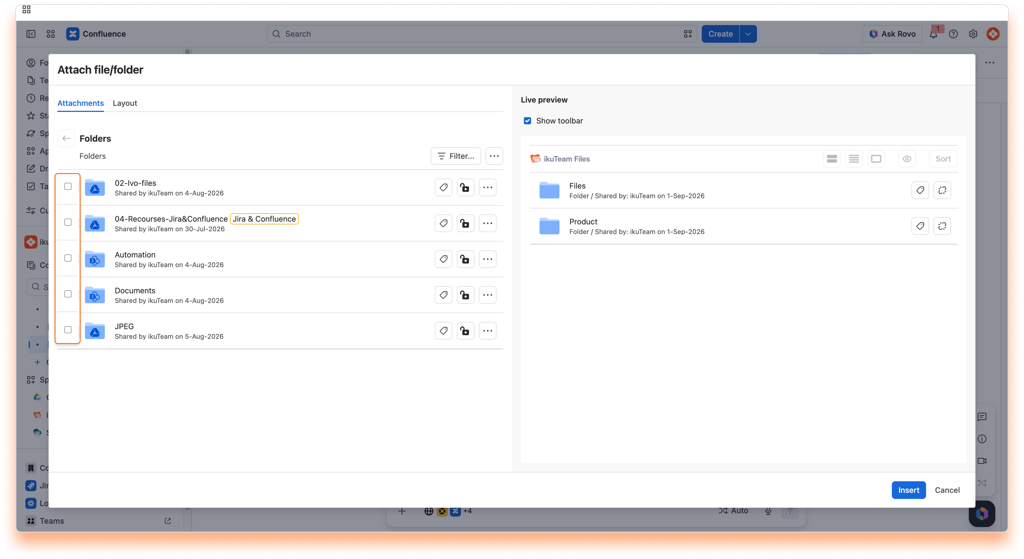
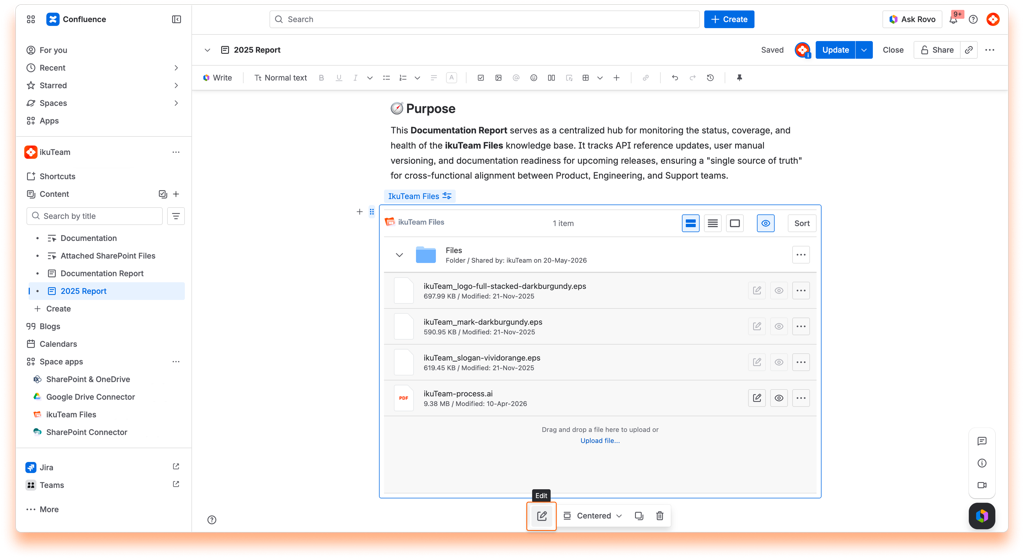
✅ It’s all done. You’ll be able to see your selections while you edit your page, but they’re not interactive now, as the editor limits the actions available.
While in edit mode, you can view your attachments and add more files and folders by clicking the “Edit” button on the macro again. You can preview your attached items, edit Office files, and browse your folders when you publish the page.
ℹ️ To ensure you’re selecting the correct file, you can preview your files as you would on the file manager. Click the name to open the full-screen preview or click the disclosure button on the live preview pane to preview the content, as you would on files and folders already attached.
ℹ️ / shortcut options
Using the / shortcut on the new editor is our preferred way to attach files and folders to pages. We added some options that are easier to remember and type than the app name (the default term) for your convenience.
You can add the ikuTeam Files macro to your page using any of the following options: /document, /attach, /teamfiles, /ikuTeam Files, /file, /folder, /sharepoint, /dropbox, /drive, /google drive, /box, /onedrive, /one drive, and /egnyte.
Instructions:
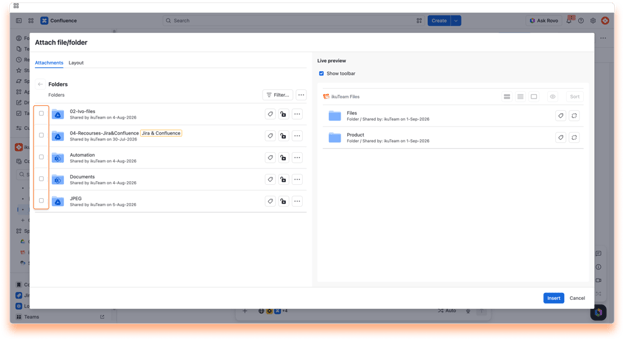
✅ It’s all done. You’ll be able to see your selections while you edit your page, but they’re not interactive now, as the editor limits the actions available.
While in edit mode, you can preview your attachments and add more files and folders by clicking the “Edit” button on the macro again. You can preview your attached items, edit Office files, and browse your folders when you publish the page.
ℹ️ To ensure you’re selecting the correct file, you can preview your files as you would on the file manager. Click the name to open the full-screen preview or click the disclosure button on the live preview pane to preview the content, as you would on files and folders already attached.
By default, the files and folders attached to Confluence pages use a regular header and appear in the collapsed view to use less space on the screen. It’s easy to preview the file by clicking the arrow to open the expanded view, which uses the width of the page and is 464px tall.
The Admin can set different defaults for new macros, and you can customize individual macros.
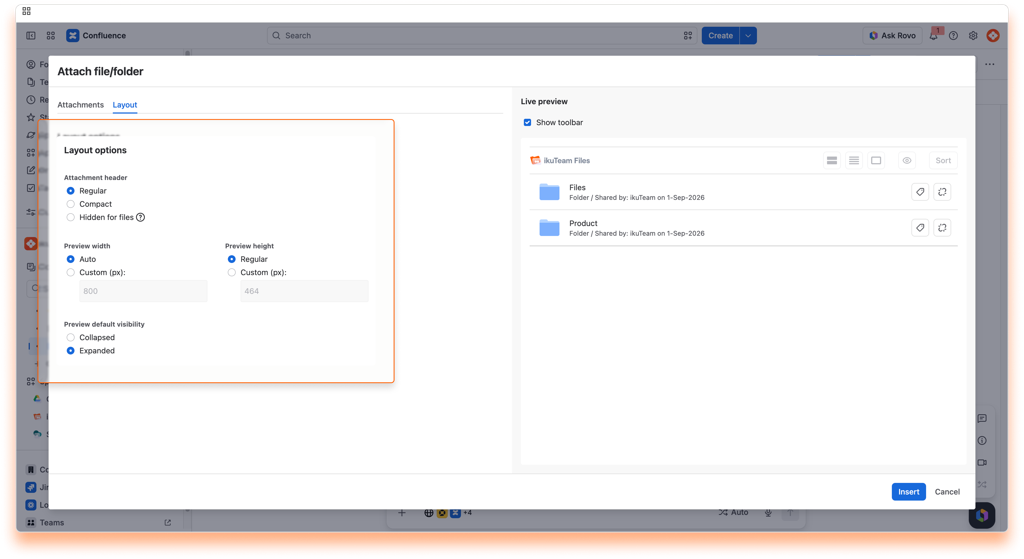
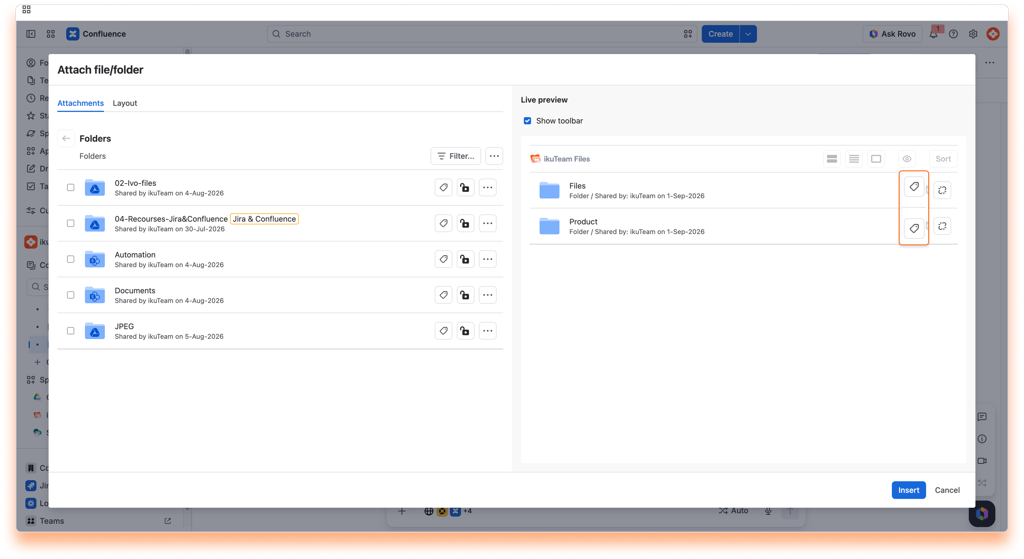
You can set different layout settings when attaching files and folders in a new macro or by editing existing macros by clicking the “Layout” tab in the ikuTeam Files dialog. You can preview the changes in the “Live Preview” panel. When you save the changes, you’ll see the new layout applied to your page.
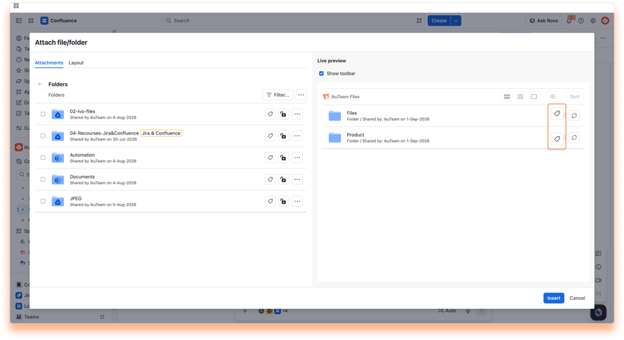
In “Live Preview”, you have an “Edit tag” button for files and folders. Select it to add a tag to any item, or to change or remove a tag you added earlier.
A tag is a short label that sits next to the file or folder. It gives an item context that its name alone does not carry, for example Approved, Draft, Invoices, or a client or team name.
Select the size for the header of the macro:
Select the width for the preview:
Select the height for the preview:
Select the behavior for the preview:
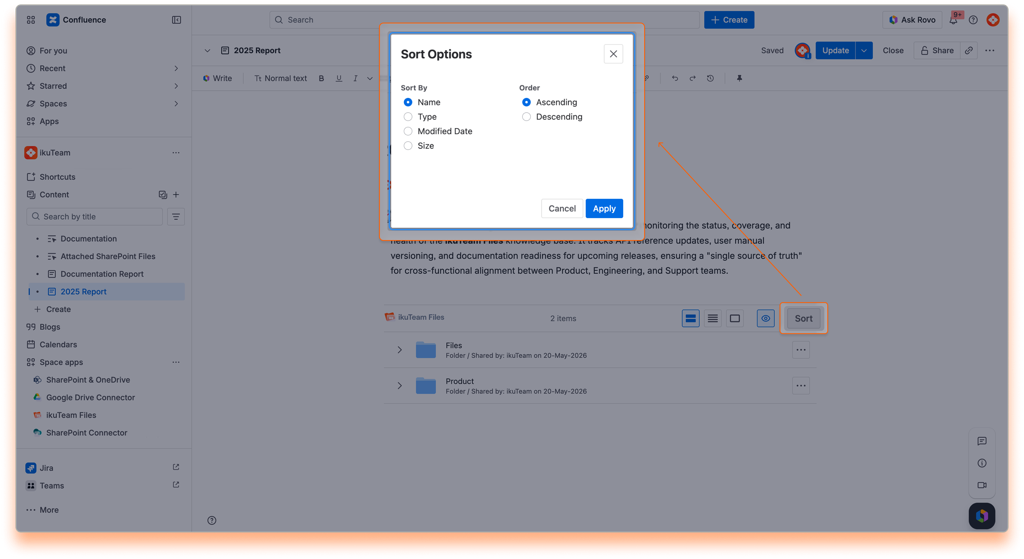
The macro now supports automatic sorting by size, date, and more, letting you keep your content organized without lifting a finger.
You can remove specific files and folders attached to a macro at any moment.
Instructions:
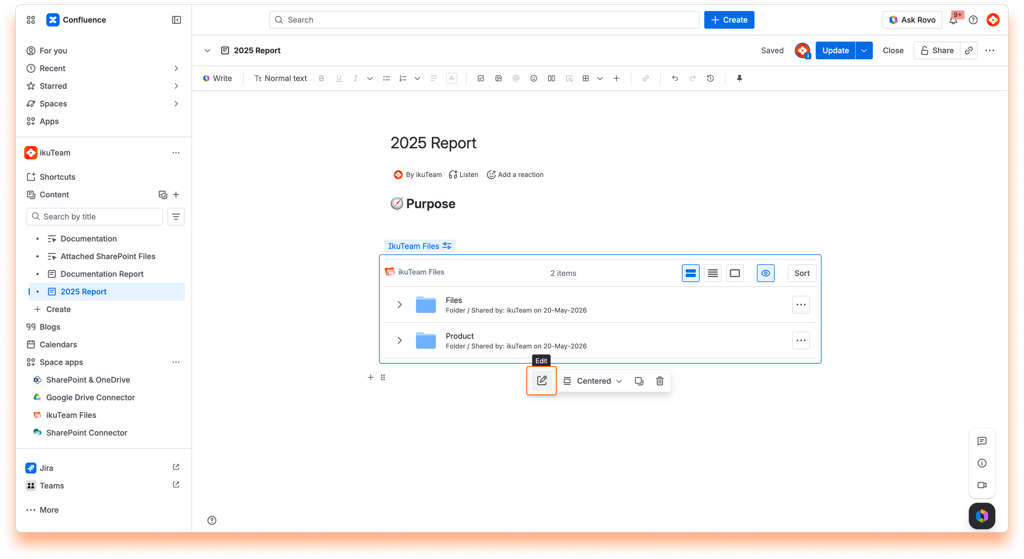
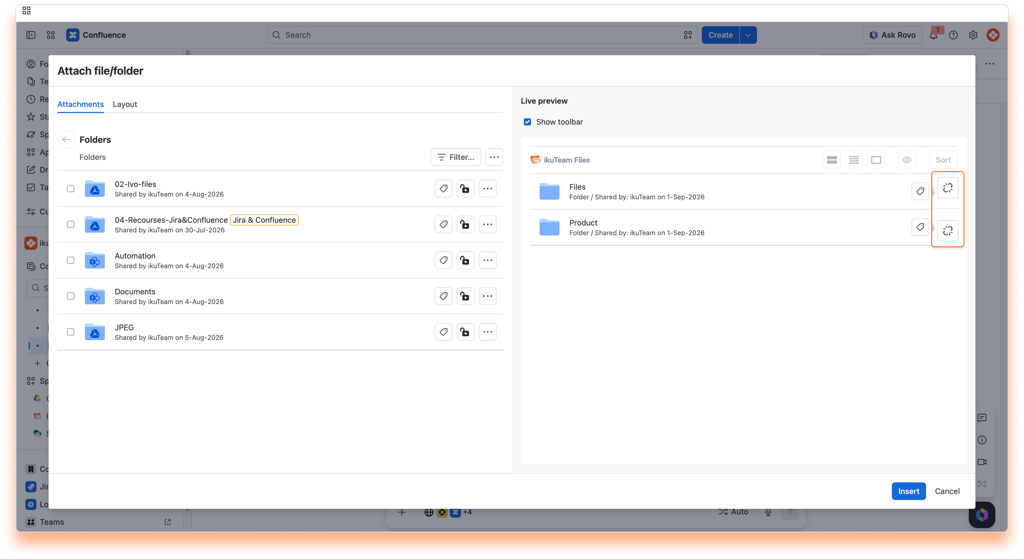
Your macro is updated. You’ll see the updated list if you are using the new editor.
ℹ️ If you make a mistake while removing attached files and folders, you can click the “Cancel” button to discard all changes.
⚠️ The changes become permanent and can’t be undone when you click the “Save” button. You can, however, attach the files and folders again, as removing them from the macro doesn’t delete them.
You can also remove the entire macro and all the files and folders attached.
Instructions:
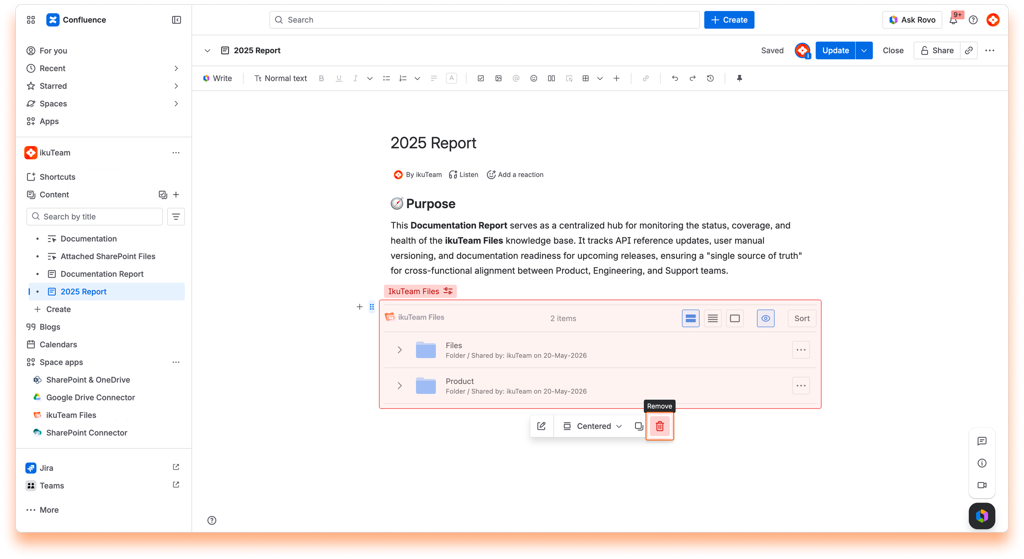
It’s all done. Your files and folders are safe and sound but no longer attached to the page after you publish the changes.
Now you know how to attach files and folders to your pages and make changes to your macros.
If you still have questions about the topics covered on this page, visit our support portal and send them to us. Our team is always happy to help.
Learn how to set permissions for connected folders.
You can set different permissions for each connected folder, controlling who can view, edit, or download its content. These work similarly to Confluence page permissions, so if you’re already familiar with those, you’ll feel right at home.
One important thing to know: these permissions are independent of your cloud storage (SharePoint, OneDrive, Google Drive, Dropbox, Box, Egnyte). How the two layers interact depends on whether your admin has enabled Mirror Storage Permissions.
You can set permissions when connecting a folder in the “Permissions” tab or from the file manager at any moment by clicking the lock icon.
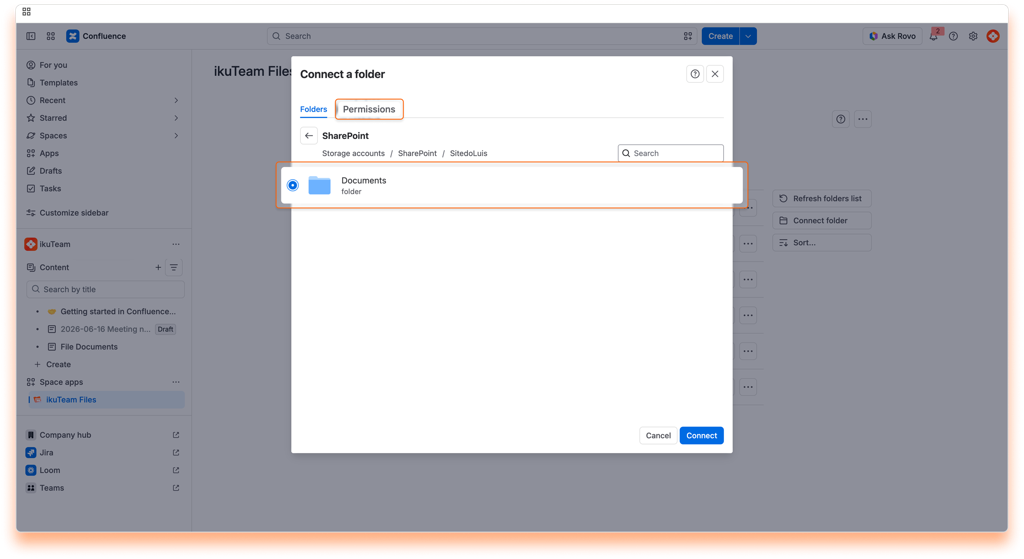
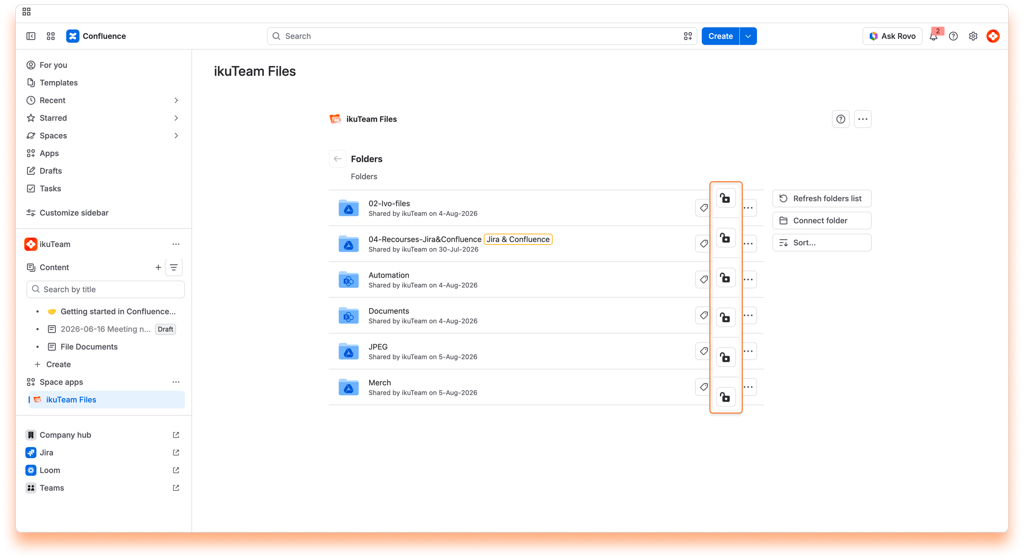
The “Permissions” tab shows the current settings and how they affect your connected folder.
There are three main options that you can select from the drop-down menu:
It is the default option, which means everyone with access to the Confluence space can view and edit the content of the connected folder.
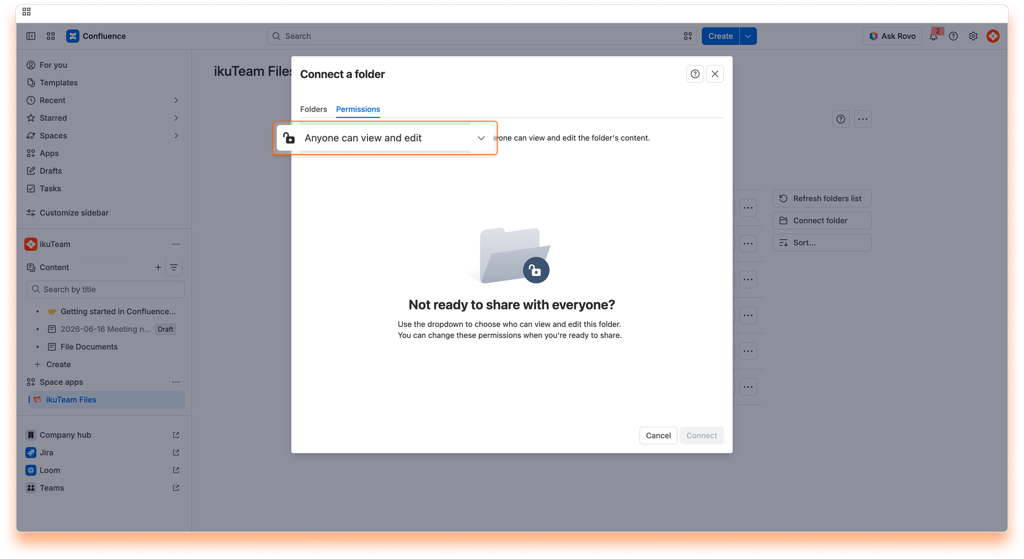
Everyone can view the folder and its content, but only the person who attached it (the owner) can edit it. The owner can also grant permission to download files or edit documents to specific people, groups, and roles.
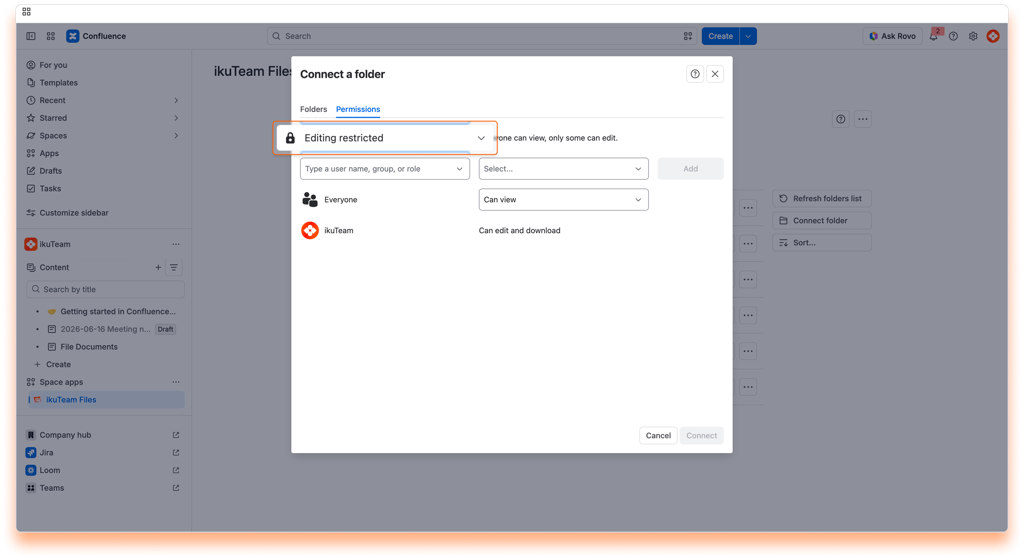
Nobody has access to the folder; only the owner can view it and edit its content. Only people, groups, or roles added by the owner will have permission to view the folder or edit its content.
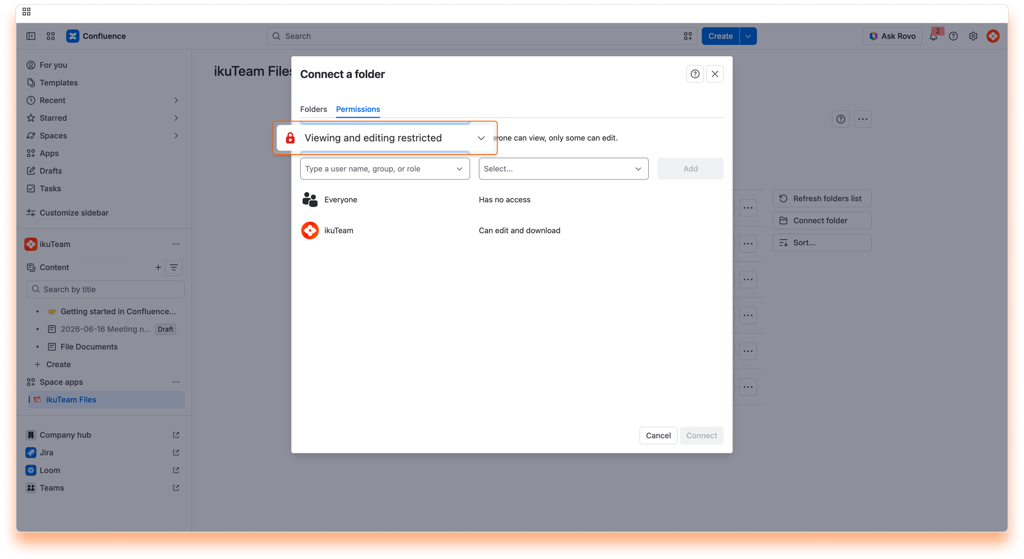
The list will be updated to include the new addition. You can add as many entries as you need and click the “Connect” button (when connecting a folder) or the “Apply” button (when editing permissions).
The permissions modal allows you to change the permissions of any person, group, or role. The connected folder owner can change the permissions anytime by returning to the permissions modal. The owner can add more people and groups or revoke granted permissions by clicking the “Remove” button.
Please keep in mind that permissions are additive. If a person can only view a folder as an individual and is part of a group that can edit, this person can edit the folder, as ikuTeam Files for Confluence combines all the permissions.
ℹ️ Files and folders attached to pages will only be visible to people with permissions granted in the folder.
⚠️ When you use the macro to attach files and folders to a page, ikuTeam Files for Confluence uses the connected folder’s permissions at that moment. If you change the folder’s permissions, the macro’s attachments will not get the updated permissions. You must attach them again if you need them to use the new permissions.
The ikuTeam Files for Confluence app simplifies access to shared content by default, favoring ease of use with simplified permissions. This default overrides file permissions set in SharePoint, OneDrive, Box, Dropbox, Google Drive, and Egnyte for folders connected to Confluence. The original storages are unchanged and keep the permissions set.
Admins can require users to authenticate with an account with access to the connected folders to respect the set permissions in the storage. Use the “Mirror Storage Permissions” setting with folder permissions to control better how files are shared, viewed, and edited.
ℹ️ NOTE: When “Mirror Storage Permissions” is enabled, access to files follows the permissions set in your cloud storage provider. However, Confluence permissions always take final precedence. If a user doesn’t have access to a space or a page, they won’t be able to see or interact with the files attached to it, regardless of their cloud storage permissions.
In short, cloud storage permissions control what files are accessible, but Confluence permissions decide who can see them.
Now you know how to set permissions for your connected folders. Don’t forget you can connect more folders from the file manager.
If you still have questions about the topics covered on this page, visit our support portal and send them to us. Our team is always happy to help.
Space admins can adjust the ikuTeam Files space settings to the team’s needs.
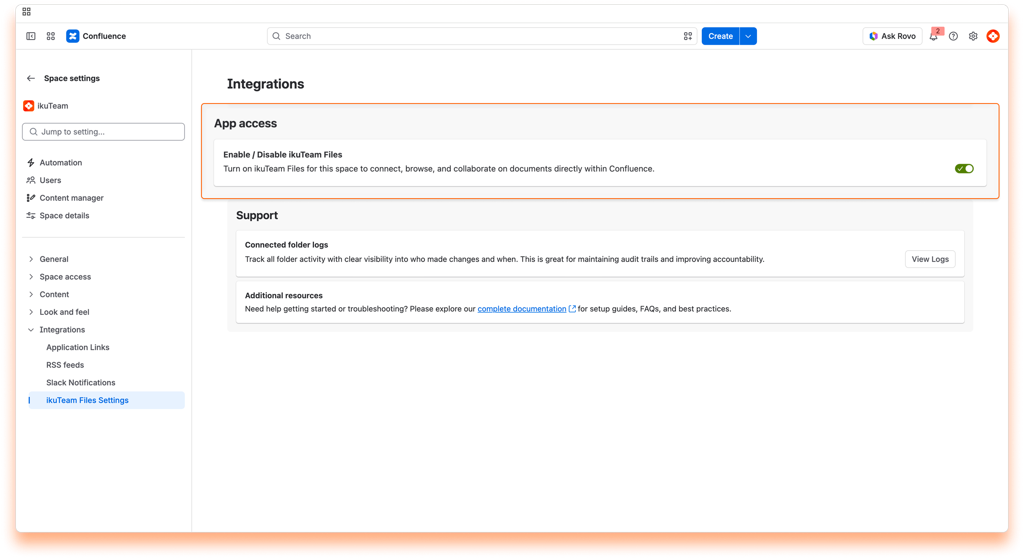
Space admins can find the ikuTeam Files space settings in the Space settings > Integrations > ikuTeam Files section, accessible from the space sidebar or menu.
The ikuTeam Files for Confluence app is available by default for every space. Space admins can deactivate the app in the individual space settings if it isn’t required in that space.
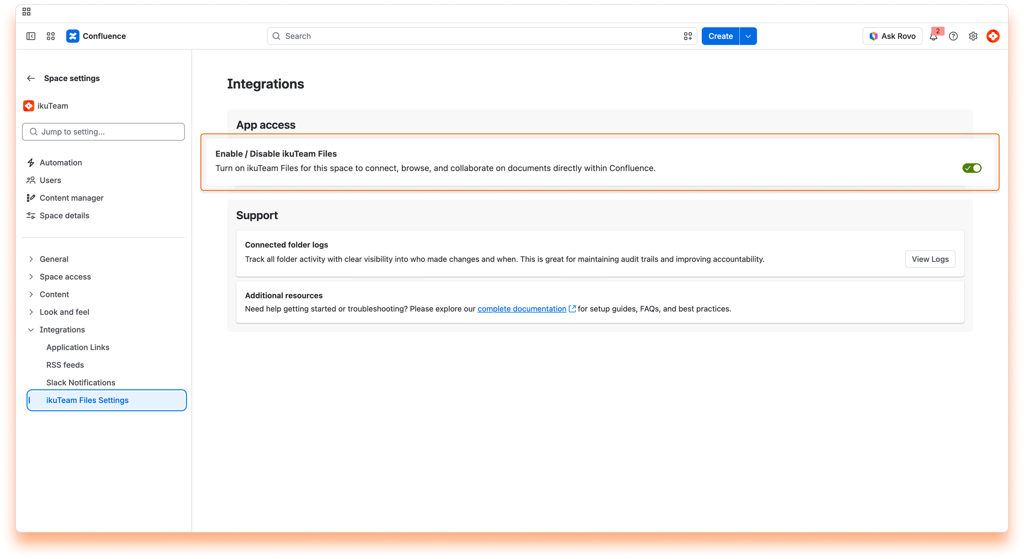
To deactivate the ikuTeam Files for Confluence app, click the toggle to turn it off. You can reactivate it anytime by clicking the toggle again to turn it on.
ℹ️ Changing this setting saves automatically and applies immediately.
If you’re having issues with a connected folder, you can check the “Connected folders log” at any moment. The log will give you details on when a user connected it or if someone disconnected it.
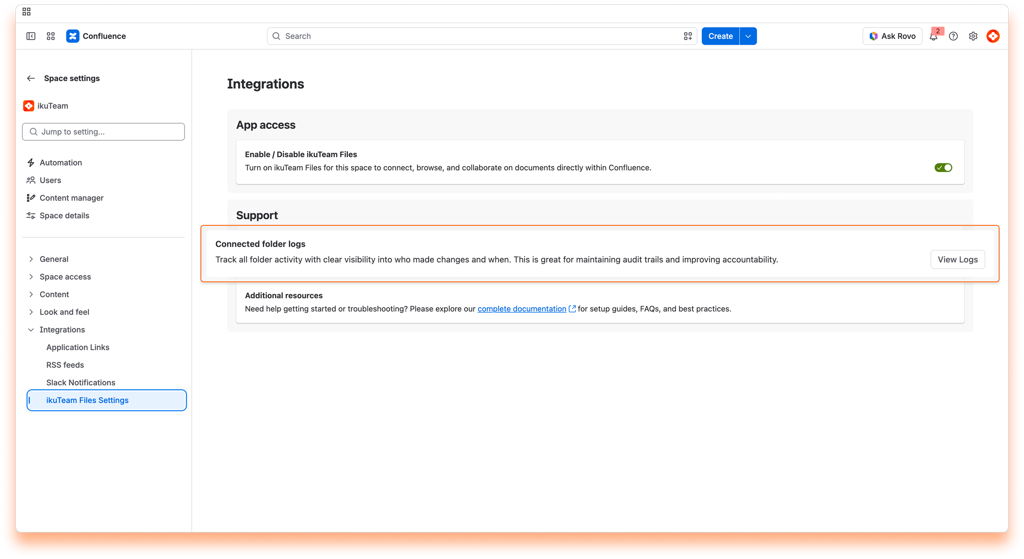
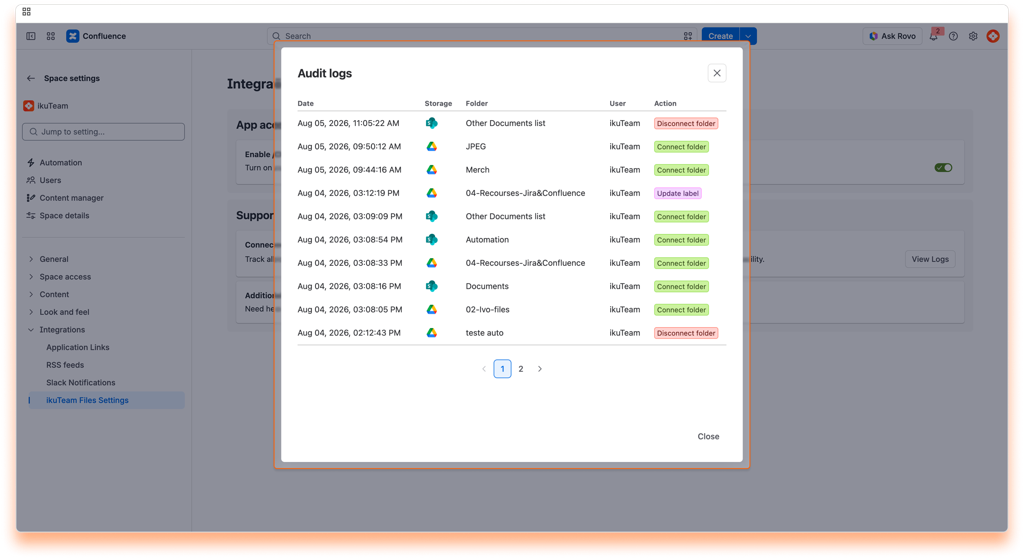
On this page, you learned about all the space settings available.
If you still have questions about the topics covered on this page, visit our support portal and send them to us. Our team is always happy to help.
Adjust the ikuTeam Files app settings to your needs.
The ikuTeam Files settings are accessible from the file manager by clicking the context menu in the top right corner and then selecting the “ikuTeam Files settings” option.
You can manage your connected places from the “Places” tab inside the ikuTeam Files settings. You’re in control of your storage places: only you can see the places you allowed, and you, and only you, can disconnect them.
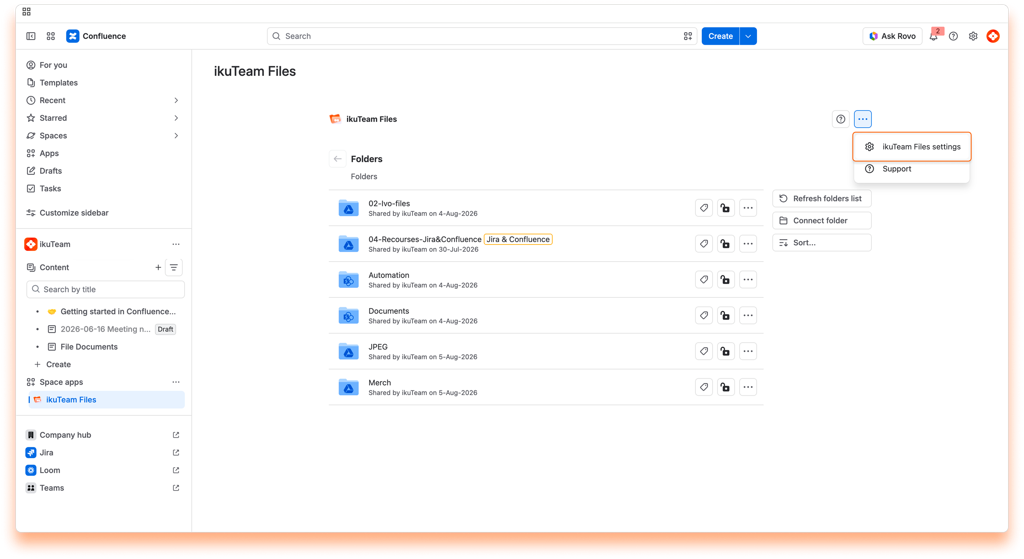
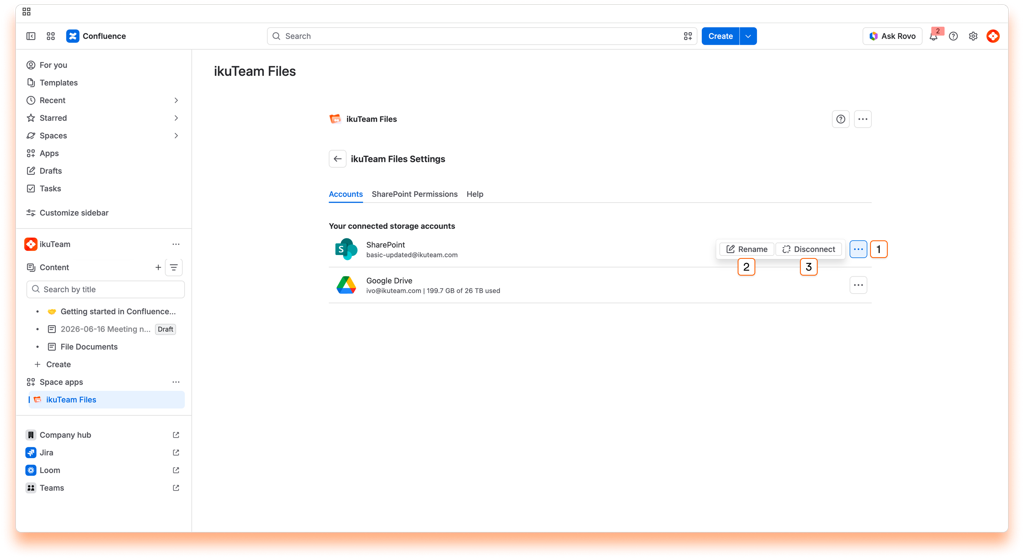
Places tab:
List of your connected places.
Rename a place
You can connect several accounts from the same service, and by default, we add a number at the end when you do it to differentiate them. To help you keep things organized, you can rename your places to something more meaningful to you.
Instructions:
✅ That’s it. Updating the name just takes a few moments, and it’s ready to use.
ℹ️ You can also rename and manage your places from the “Connect a folder” dialog.
Before getting into how to do it, it’s relevant to know that you’re only breaking the link in the ikuTeam Files for Confluence app to the original storage when you disconnect a place. All your content is safe, but any folders you have connected from that place will also be disconnected. Consequently, files and folders that you or your team attached to Confluence pages from the disconnected folders also lose the link to the original storage and become unavailable.
⚠️ If you accidentally disconnect a place, you can connect it again within 30 days to restore the connected folders and attachments. After this period, it’s no longer possible to restore the existing attachments.
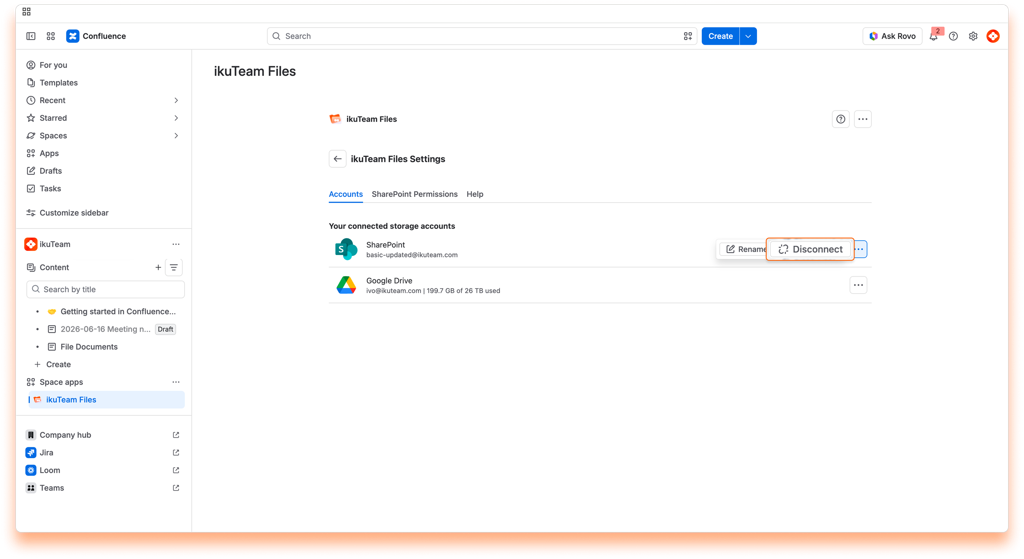
Instructions:
✅ All done. Your storage place is safe and sound but no longer accessible in the ikuTeam Files app.
ℹ️ You can also disconnect and manage your places from the “Connect a folder” dialog.
The Help tab contains a brief description of the app, information about the team that developed it, and links to learn more.
You also find the links to contact the support team and to this documentation.
On this page, you learned about all the settings available at the moment. As we introduce new features, we’ll add additional settings so you can further customize your experience.
If you still have questions about the topics covered on this page, visit our support portal and send them to us. Our team is always happy to help.
You can now seamlessly copy and move Confluence pages containing ikuTeam Files macros within the same space. This enhancement ensures that the macros are copied correctly and remain functional in the new location. This feature simplifies the process of duplicating content while maintaining the integrity of your ikuTeam Files macros.
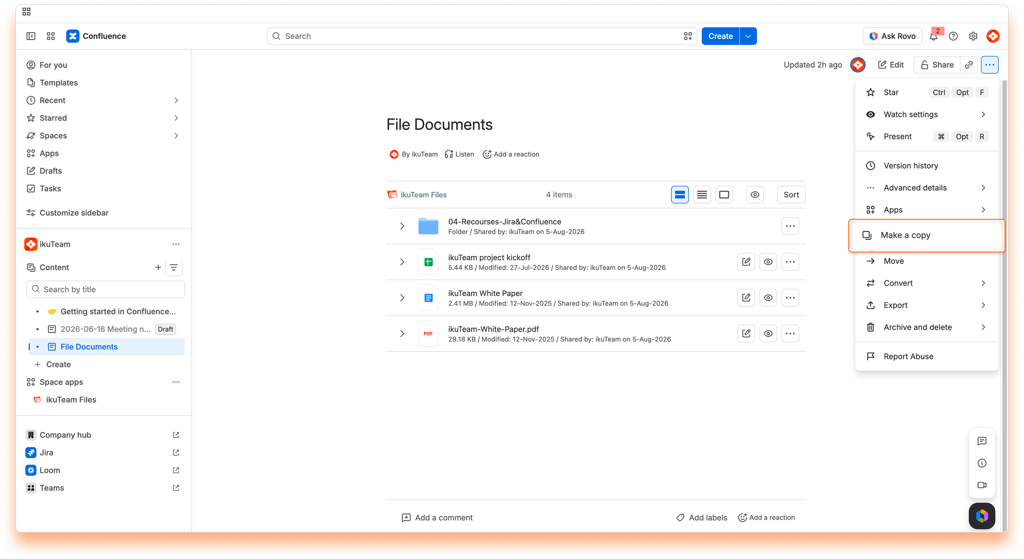
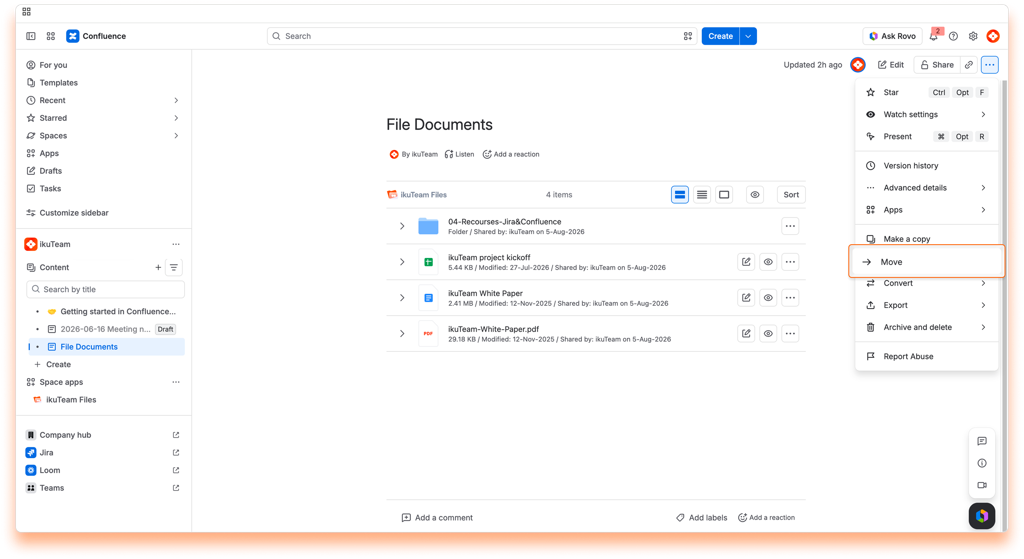
The ikuTeam Files for Confluence macros will break if you copy or move pages to a different space. This happens because the parent folders associated with the macros may not be connected to the new space. To prevent this issue, keep copying or moving operations within the same space.
Administrators can adjust how the ikuTeam Files for Confluence app works to meet your team’s needs and comply with company policies.
As the name implies, these settings are only visible to users with Administrator privileges. All the settings on this page are accessible by entering Confluence settings and then clicking the “ikuTeam Files Settings” link on the sidebar in the “Configuration” section.
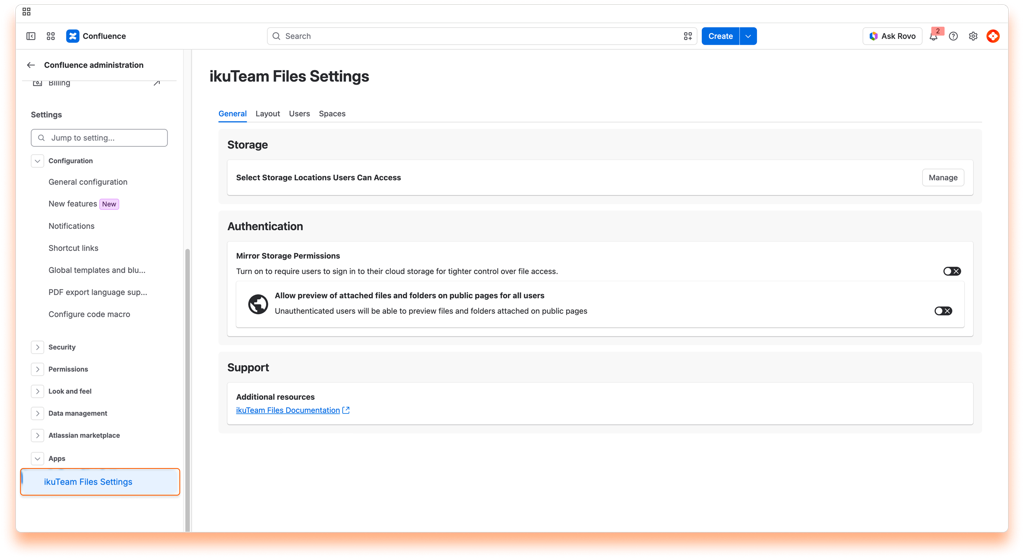
By default, users can connect folders from all the storage places supported by the ikuTeam Files for Confluence app.
Administrators can easily restrict the use of specific storage places to ensure that the use of the ikuTeam Files for Confluence app aligns with company policies.
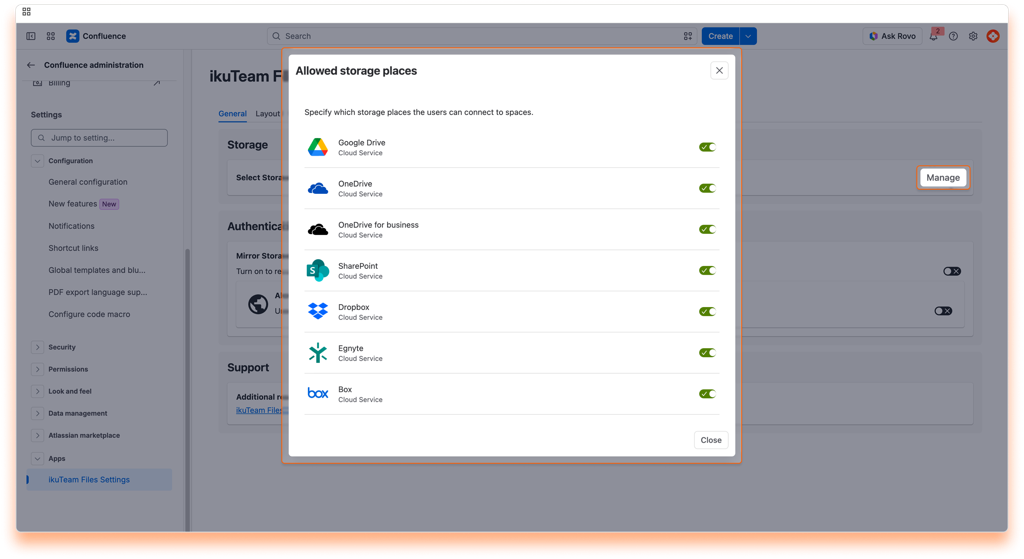
ℹ️ Changes to these settings are saved automatically and applied immediately.
⚠️ What happens to places the users connected before the Admin turns them off?
If a user connects a folder from a storage place that the Admin later turns off, it becomes blocked inside the ikuTeam Files app. All connected folders from that place are blocked, too. If there are attached folders and files from a blocked storage place, the content won’t be visible, and a warning will appear mentioning that the Admin blocked the access.
ℹ️ Changes to these settings are saved automatically and applied immediately.
By default, ikuTeam Files for Confluence app uses simplified permissions, meaning the permissions you set here are the only ones that apply. Cloud storage permissions are bypassed, so any Confluence user you grant access to can view or edit files regardless of their access in SharePoint, OneDrive, Box, Dropbox, Google Drive, or other connected storage. The files in your cloud storage remain unchanged; only how they’re accessed through ikuTeam Files is affected.
One thing worth noting: in this default and simplified setup, all activity in the cloud storage is logged under the account used to connect the folder. We recommend using a dedicated service account to connect folders; that way, your audit log stays clean, and activity is clearly attributed to the app, not to an individual user.
When an admin enables Mirror Storage Permissions, both layers apply at the same time, and the more restrictive one always wins:
Think of it as a double lock: a user needs to pass both checks to perform any action. Use this Mirror Storage Permissions setting together with connected folder permissions for precise control over how files are shared, viewed, and edited.
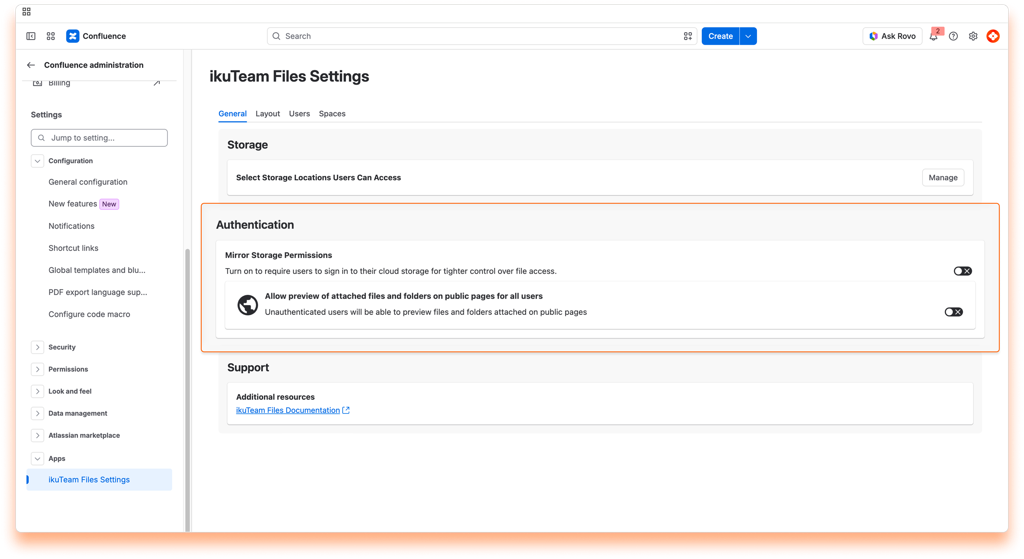
Remember that this option requires users to sign in to each connected folder to view and edit the files and apply the correct permissions for each user. With Mirror Storage Permissions ON, public pages are not supported. Learn more
ℹ️ Changing this setting saves automatically and applies immediately.
ℹ️ Changing this setting saves automatically and applies immediately.
In a space open to unauthenticated users, they can preview files and folders attached with ikuTeam Files to public pages by default.
With this option active, any user can view the content of all attached files in public pages without any authentication. This can be turned off at any moment.
With Mirror Storage Permissions set to ON the preview of attached files and folders on public pages is NOT supported.
ℹ️ Unauthenticated users can’t edit the content of ikuTeam Files macros, even if the space allows them to edit pages.
By default, the files and folders attached to Confluence pages use a regular header and appear in the collapsed view to use less space on the screen. It’s easy to preview the file by clicking the arrow to open the expanded view, which uses the width of the page and is 464px tall by default, or clicking the file name (or preview button) to open the full-screen preview.
The Admin can set different defaults for new macros in the Admin settings section dedicated to the preview options.
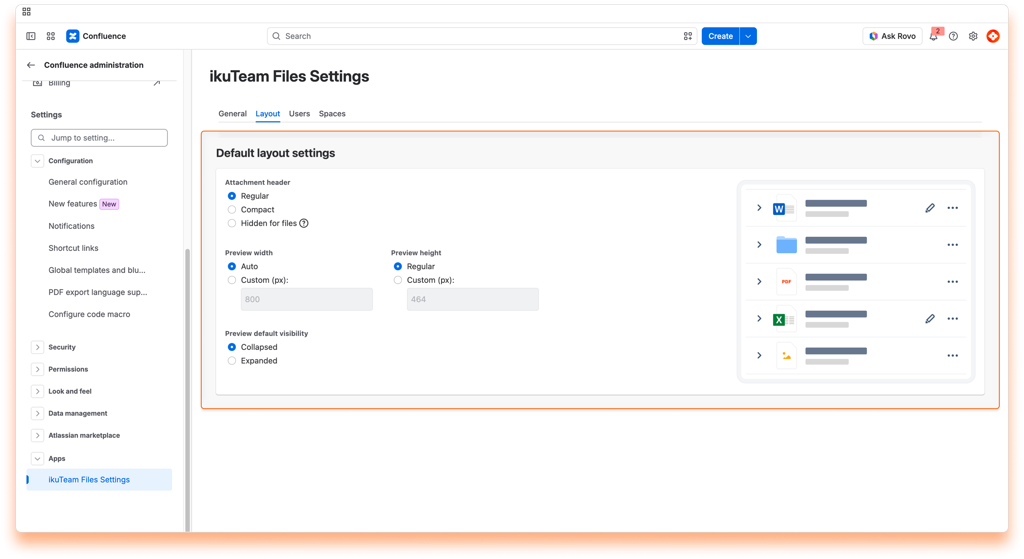
Select the default size for the header of new macros:
Select the default width for the preview:
Select the default height for the preview:
Select the default behavior for the preview:
ℹ️ Changes to these settings are saved automatically and applied immediately.
By default, all users and groups can use the ikuTeam Files app. It’s accessible with a link on the Space sidebar and as a macro on pages to attach files and folders.
However, an Admin can specify which users and groups can use the ikuTeam Files app. When someone is not permitted to use the app, the file manager and the macro are blocked.
The current settings are in the “Users & Groups” section. There are three main options that you can select from the drop-down menu:
All users and groups can access the ikuTeam Files app with the default option.
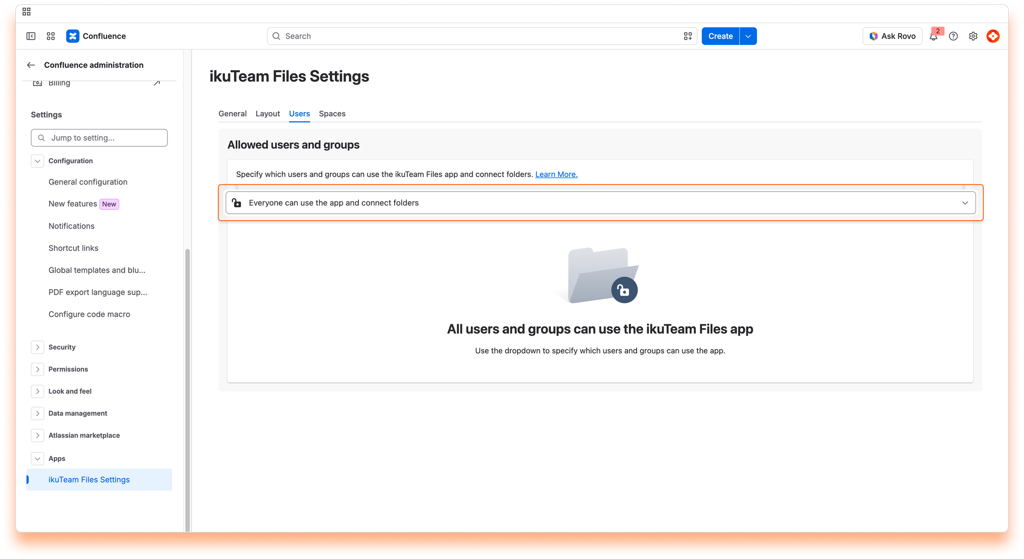
Select this option if everyone should be able to use the ikuTeam Files app, but only some users and groups can connect folders.
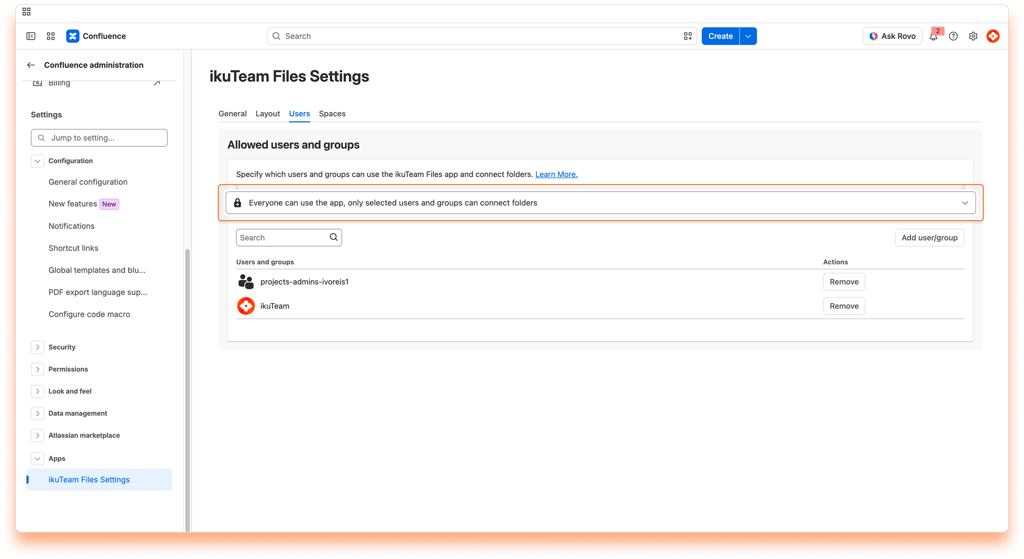
Adding a user or group:
Click the “Add User/Group” button, start typing to select a name, and click the “Add” button. The user or group gets access to connect folders immediately.
Removing a user or group:
Search for the user or group you want to remove, click the “Remove” button, and confirm. The option to connect folders will be hidden from the user or group immediately.
Select this option if you want only some users and groups to use the ikuTeam Files app and specify who can connect folders.
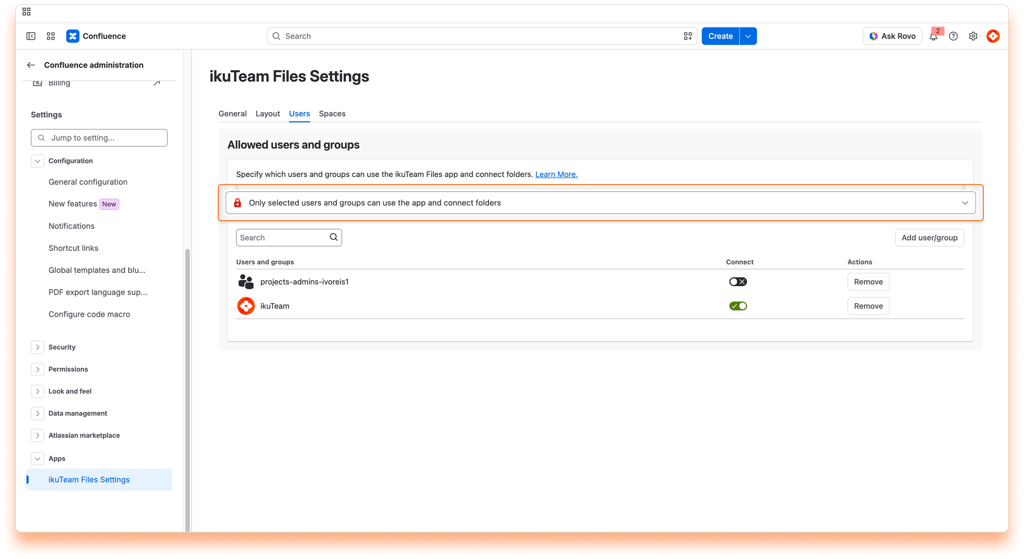
Adding a user or group:
Click the “Add User/Group” button, start typing to select a name, and click the “Add” button. The user or group will have immediate access to the app.
Connect folder permission:
Use the toggle button to determine if a user or group can connect folders.
Removing a user or group:
Search for the user or group you want to remove, click the “Remove” button, and confirm. The app will be blocked for that user or group immediately.
All spaces can use the ikuTeam Files app by default. It’s accessible with a link on the space sidebar and as a macro on pages to attach files and folders.
However, an Admin can specify which Confluence spaces can use the ikuTeam Files app. Blocking a space from using the app hides the file manager and turns off the macro for that space.
In the “Spaces” section, you can see the current settings. There are three main options that you can select from the drop-down menu:
This is the default option, meaning every space can access the ikuTeam Files for Confluence app.
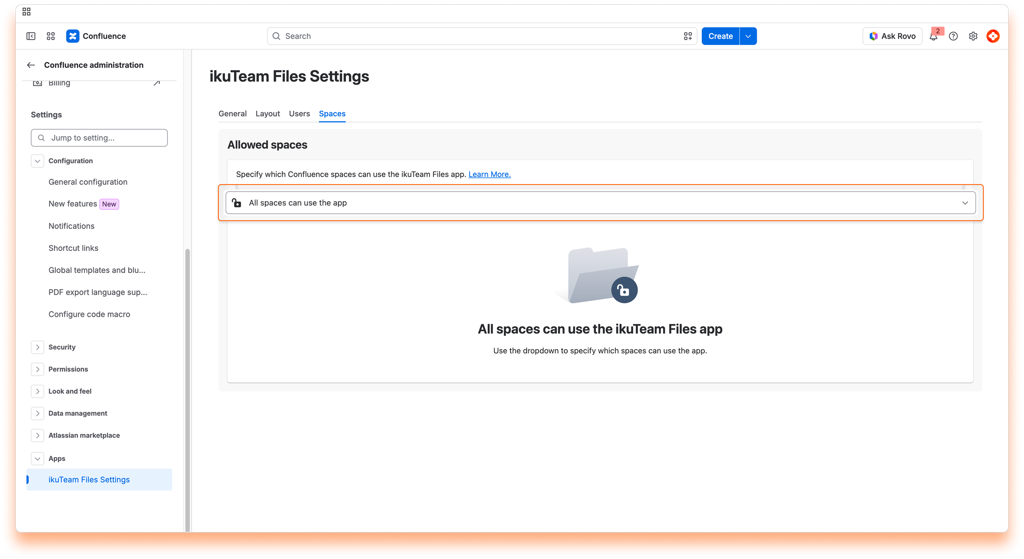
Select this option if you only want to allow the ikuTeam Files for Confluence app for some spaces.
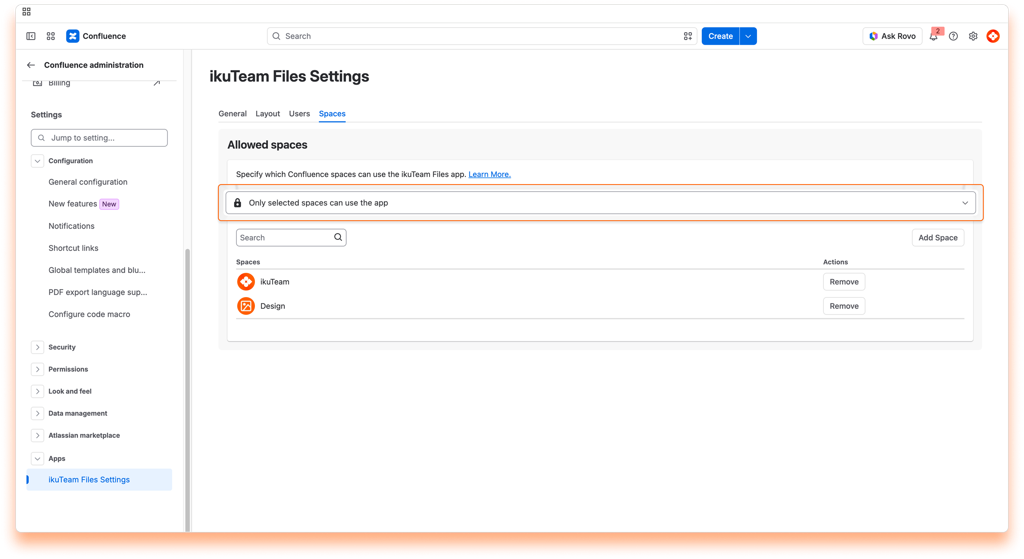
Adding a space:
Click the “Add Space” button, start typing to select a space, and click the “Add” button. The space will have immediate access to the app.
ℹ️ Searching Spaces
When searching for a specific space, please keep in mind that the Atlassian CQL search has limitations for texts that include any of these special characters:
+ - && || ! ( ) { } [ ] ^ " ~ * ? : \ /
If your space name includes one of these characters, you can search for the space key instead.
Removing a space:
Search for the space you want to remove, click the “Remove” button, and confirm. The app will be hidden from that space immediately.
Select this option if you only want to hide the ikuTeam Files app for some spaces.
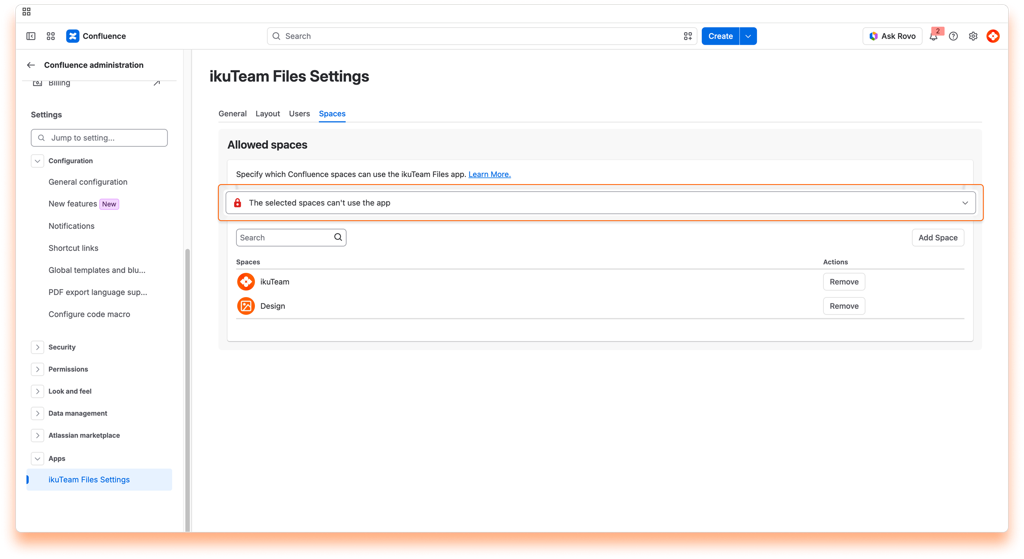
Adding a space:
Click the “Add Space” button, start typing to select a space, and click the “Add” button. The app is hidden from the space immediately.
Removing a space:
Search for the space you want to remove, click the “Remove” button, and confirm. The space will immediately have access to the app.
⚠️ Blocking the ikuTeam Files app on a space that uses it hides the file manager link and all the files and folders attached to pages. The attachments reappear if the app is allowed again.
ℹ️️ Space owners can also toggle on/off the ikuTeam Files app in the Space Settings, as long as the Admin allows.
On this page, you learned about all the Admin settings available.
If you still have questions about the topics covered on this page, visit our support portal and send them to us. Our team is always happy to help.
The connected folders will show an “Authenticate” button for every folder the user hasn’t connected yet, and they won’t be able to open the folder or make changes until they do.
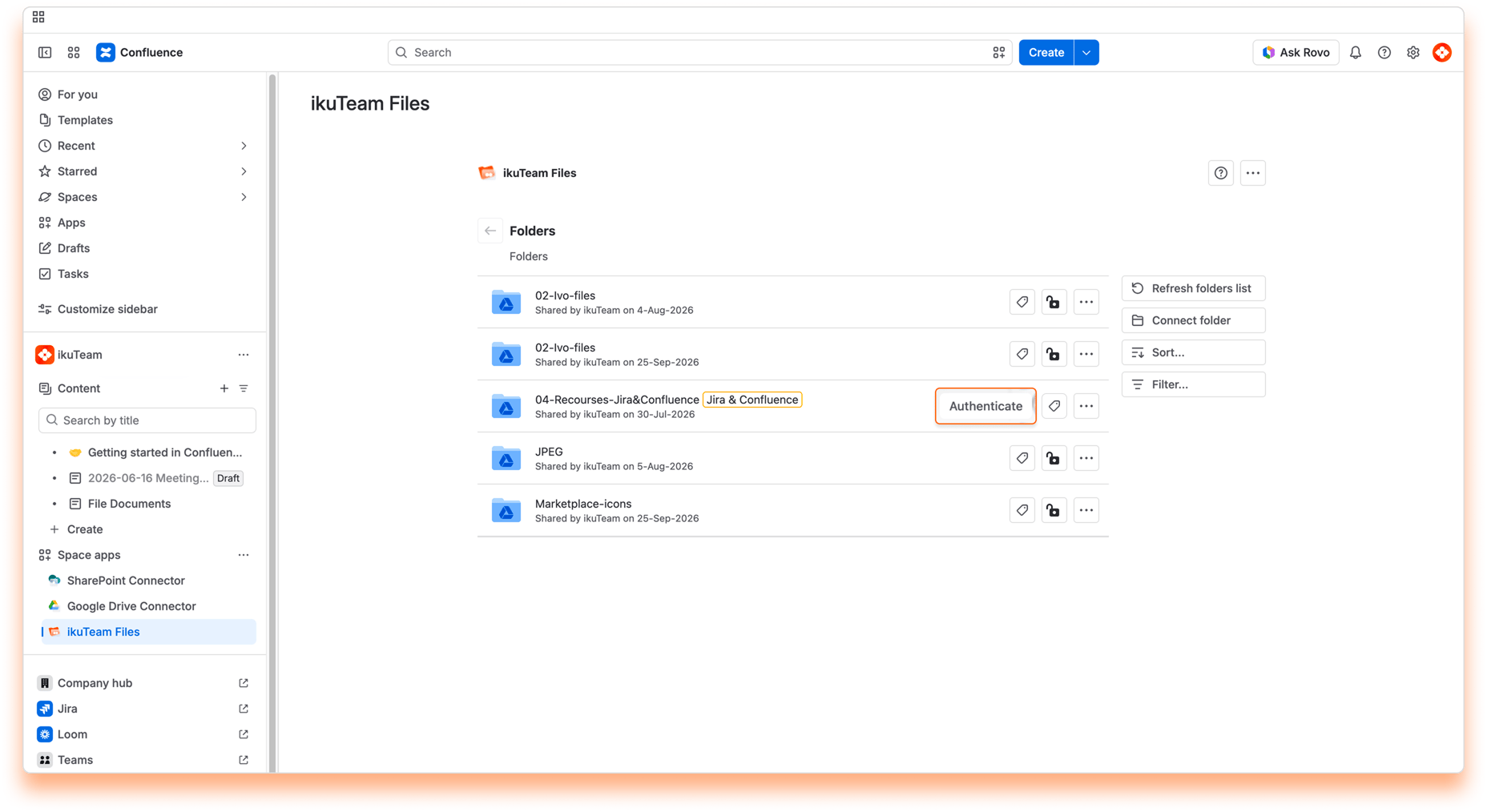
✅ All done. You can now use the folder according to the permissions set for it.
⚠️ If the account selected doesn’t have access to the folder, an error appears with the option to connect to a different account.
After authenticating to a folder with an account, you can remove the access if needed (e.g., to authenticate with a different account).
✅ All done. To view the folder’s content, you’ll need to authenticate again.
The attached files and folders on macros will show an “Authenticate” button for every item the user hasn’t connected yet. They won’t be able to open folders or view and edit files until they do.
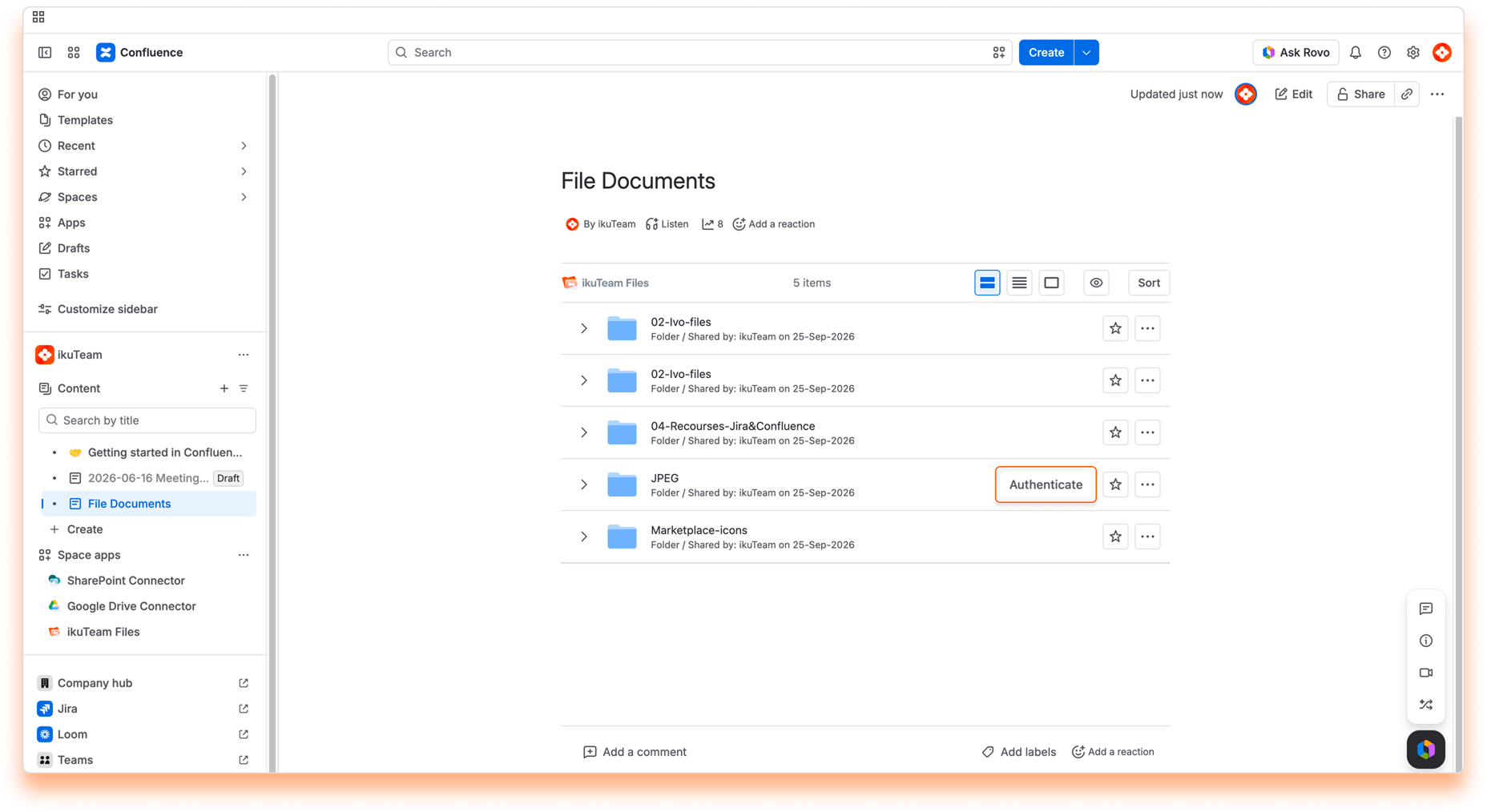
✅ All done. You can now use the folder/file according to its permissions.
⚠️ If the account selected doesn’t have access to the folder, an error appears with the option to connect to a different account.
After authenticating to a folder/file with an account, you can remove the access if needed (e.g., to authenticate with a different account).
✅ All done. You’ll need to authenticate again to view the folder’s content or file.
The ikuTeam Files Agent for Confluence is a specialized AI extension designed to work alongside Atlassian Rovo. It bridges the gap between your Atlassian workspace and your external cloud storage, including SharePoint, Google Drive, OneDrive, Box, Dropbox, and Egnyte.
Instead of manually opening and reading through every attached or linked file, the agent allows Atlassian Rovo to “read” and index the actual content of your documents. Built on Atlassian’s Forge platform, it ensures that your data processing remains secure and stays within the Atlassian ecosystem.
To use Atlassian Rovo in Confluence, you must be an Organization Admin.
Your site must have:
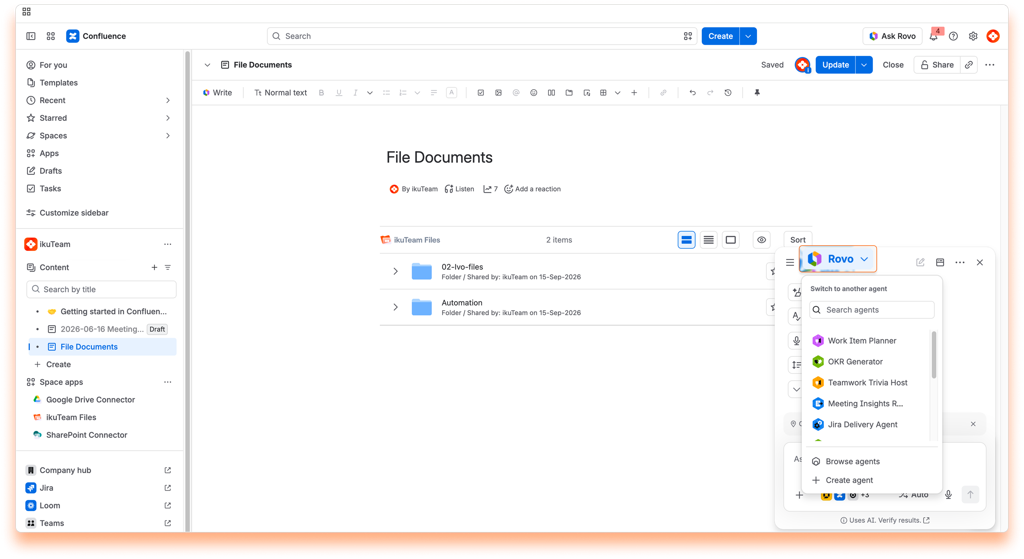
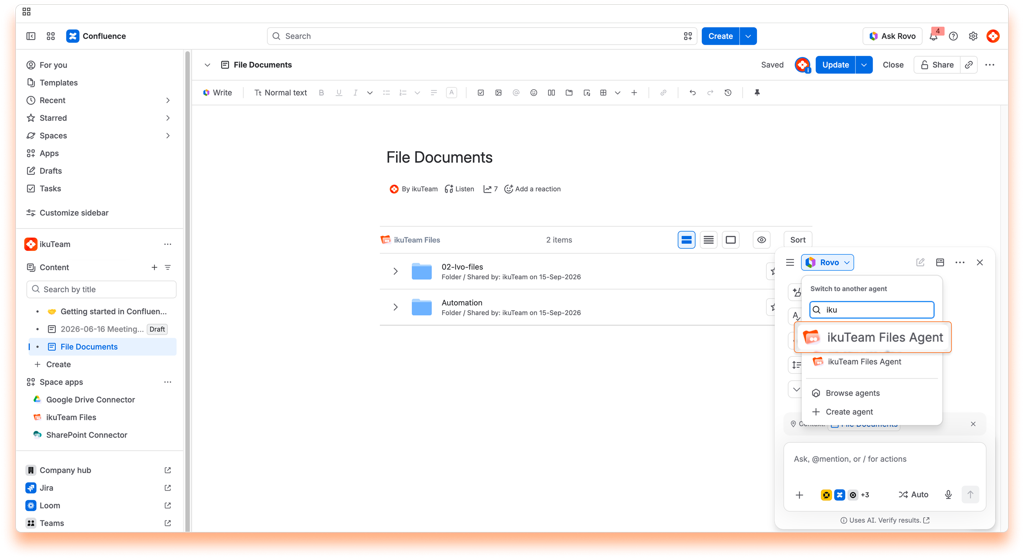
ℹ️ We’re just getting started! More advanced file features are being added to the agent soon. Stay tuned for exciting updates.
You can interact with the agent using natural language. Try these examples:
Privacy by Design: ikuTeam is built on the Atlassian Forge platform. This means we never store your data on our own servers; all app-related information remains securely within the Atlassian environment, governed by Atlassian’s data residency and security policies.
⚠️ What happens if you uninstall?
Before uninstalling, please be aware of the following:
Permanent Deletion: Once the 30-day period expires, Atlassian permanently deletes the data. Beyond this point, recovery is impossible.

_2026-03-26_20-48-42-1.png?length=960&name=untitled_Gemini%203%20(Nano%20Banana%20Pro)_2026-03-26_20-48-42-1.png)


