

Confluence Google Drive Integration
Create a single source of truth with seamless syncing and real-time collaboration.
Read more


Take the very first steps to use Excel for Confluence.
You can install Excel for Confluence from the Atlassian Marketplace by clicking the “Try it free” button in the top right corner of the page.
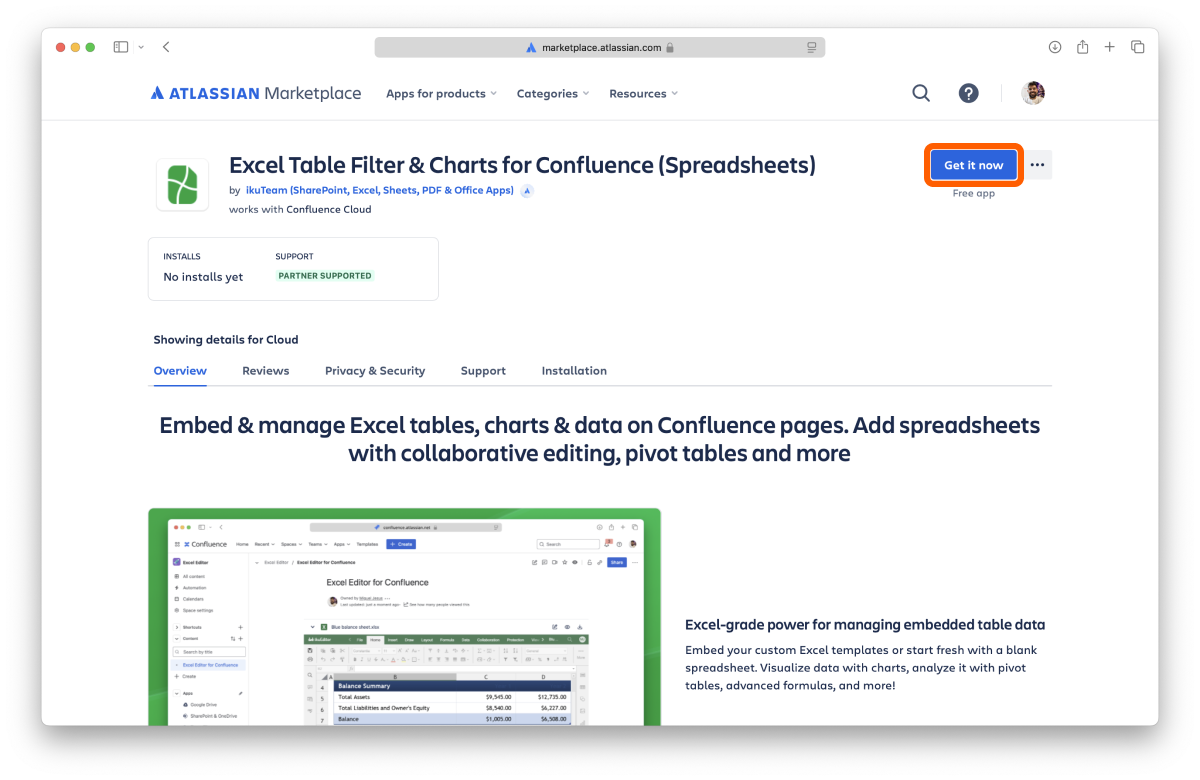
Once the app is installed on your Confluence site, you can use it immediately.
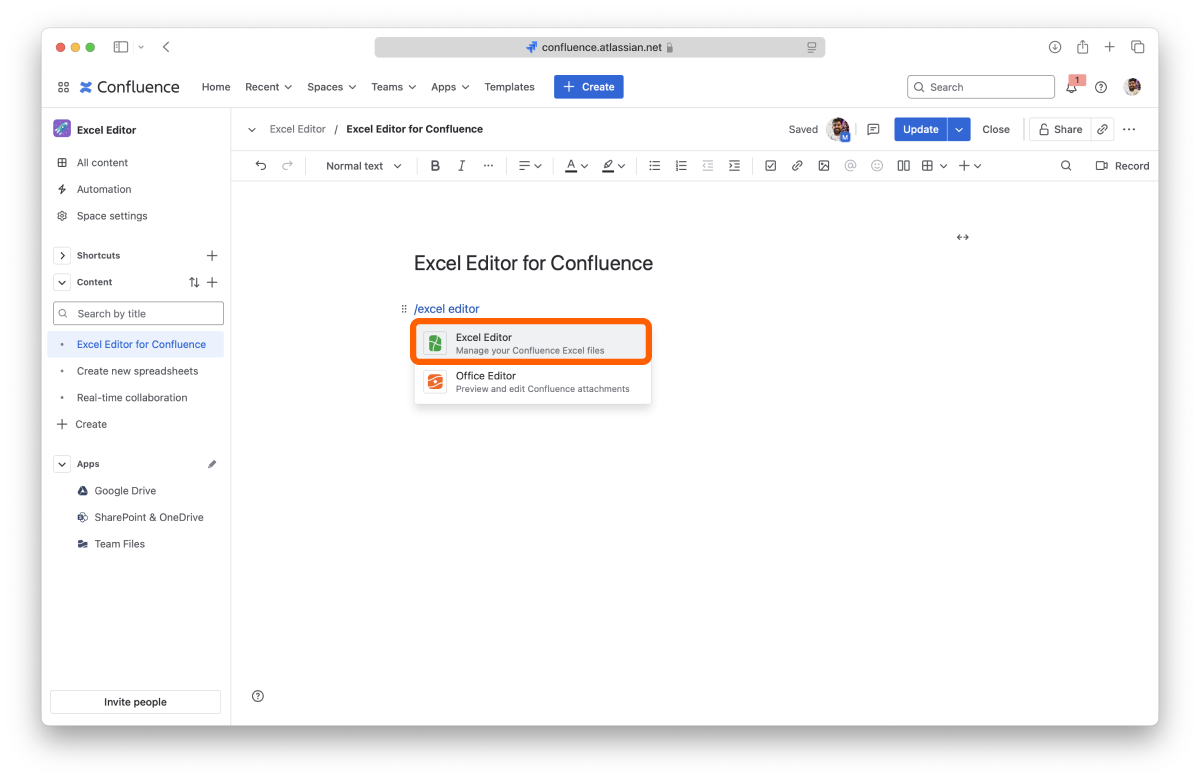
Enter edit mode on a page, and type /excel or select it from the Insert menu to add the macro to your page.
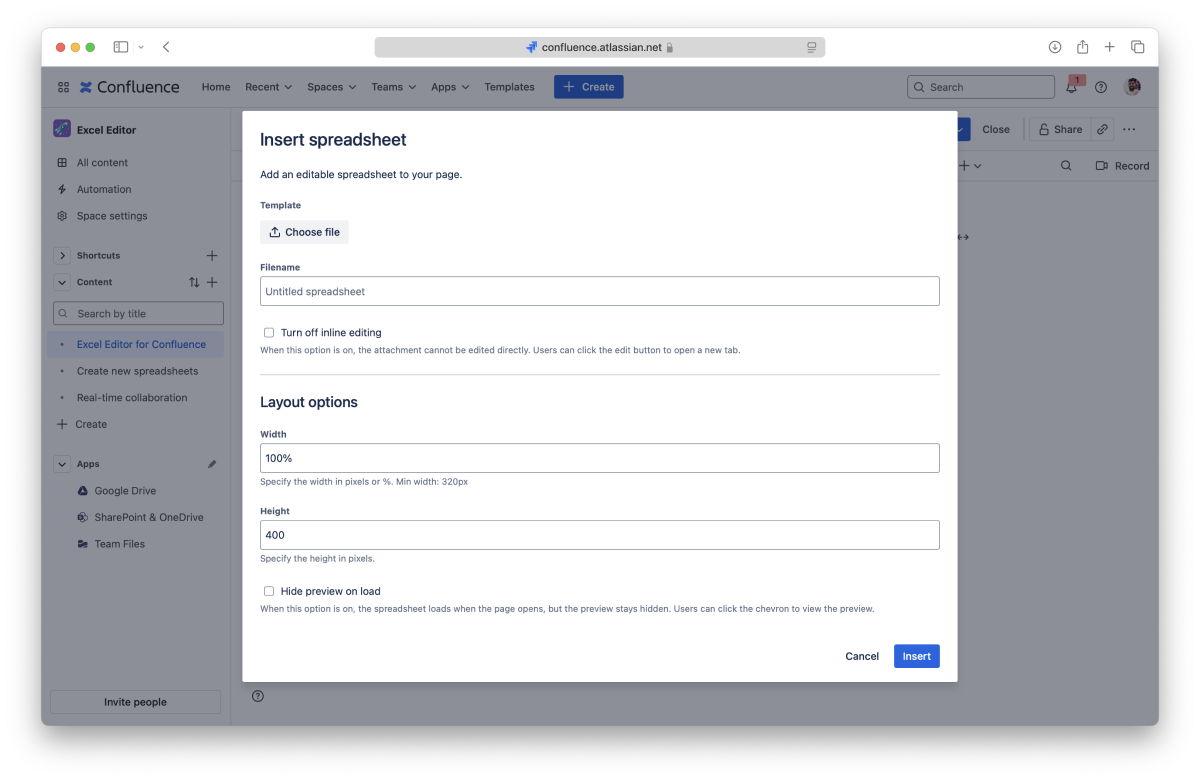
In the Insert spreadsheet dialog, choose a Template:
Blank template: start with a new, empty spreadsheet (XLSX).
Upload template: upload an Excel file to start from. You can upload XLSX or XLS files up to 100 MB.
Available template: pick a spreadsheet that's already attached to the page. The macro shows that attachment itself, so no copy is made.
Enter a Filename for your spreadsheet and click Insert. The filename can't be empty or match a file that's already attached to the page. Once the spreadsheet is inserted, you can't change its filename from the macro settings. With Available template, the macro keeps the attachment's name.
Inline editing is off by default. To let people who can edit the page also edit the spreadsheet directly on the page, select Turn on inline editing in the Insert spreadsheet dialog.
If you need to add more spreadsheets, you can add more macros.
When you copy a page, its ikuTeam Excel macros switch to the copied attachments on the new page, matched by filename.
You’ve just learned the fundamentals of using Excel for Confluence.


