team-files-vs-confluence-1
Confluence Smart Links Explained
See how they work, where they fail with external files, and more secure, consistent management alternatives.
Read more: Confluence Smart Links Explained
untitled_Flux 2 Pro_2026-03-26_21-41-00
Jira SharePoint Integration
Discover how to sync files, automate folders, and enhance collaboration in Jira Cloud and Data Center.
Read more: Jira SharePoint Integration
Porto-pic
About us
From the start, our goal has been to remove the hidden friction that prevents teammates from collaborating easily on the files that matter most. We believe productivity is not about adding more tools but making the ones you already use work together seamlessly. Based in Porto, ikuTeam builds the invisible layer for the Atlassian ecosystem to dissolve file silos and help over a million users stay focused and move faster.
Read more: About us
team-files-vs-confluence-1

Confluence Smart Links Explained

See how they work, where they fail with external files, and more secure, consistent management alternatives.
Read more: Confluence Smart Links Explained
untitled_Flux 2 Pro_2026-03-26_21-41-00

Jira SharePoint Integration

Discover how to sync files, automate folders, and enhance collaboration in Jira Cloud and Data Center.
Read more: Jira SharePoint Integration

About us

From the start, our goal has been to remove the hidden friction that prevents teammates from collaborating easily on the files that matter most. We believe productivity is not about adding more tools but making the ones you already use work together seamlessly. Based in Porto, ikuTeam builds the invisible layer for the Atlassian ecosystem to dissolve file silos and help over a million users stay focused and move faster.
Read more: About us
Porto-pic
Product Documentation

Nov 19, 2026

2.2 Edit PDFs

Learn how to edit, annotate, and sign PDF documents with PDF for Confluence.


About editing files

You can edit, annotate and sign PDF documents on your pages without downloading them, re-uploading copies, or locking other people out while you work.


Editing a PDF document

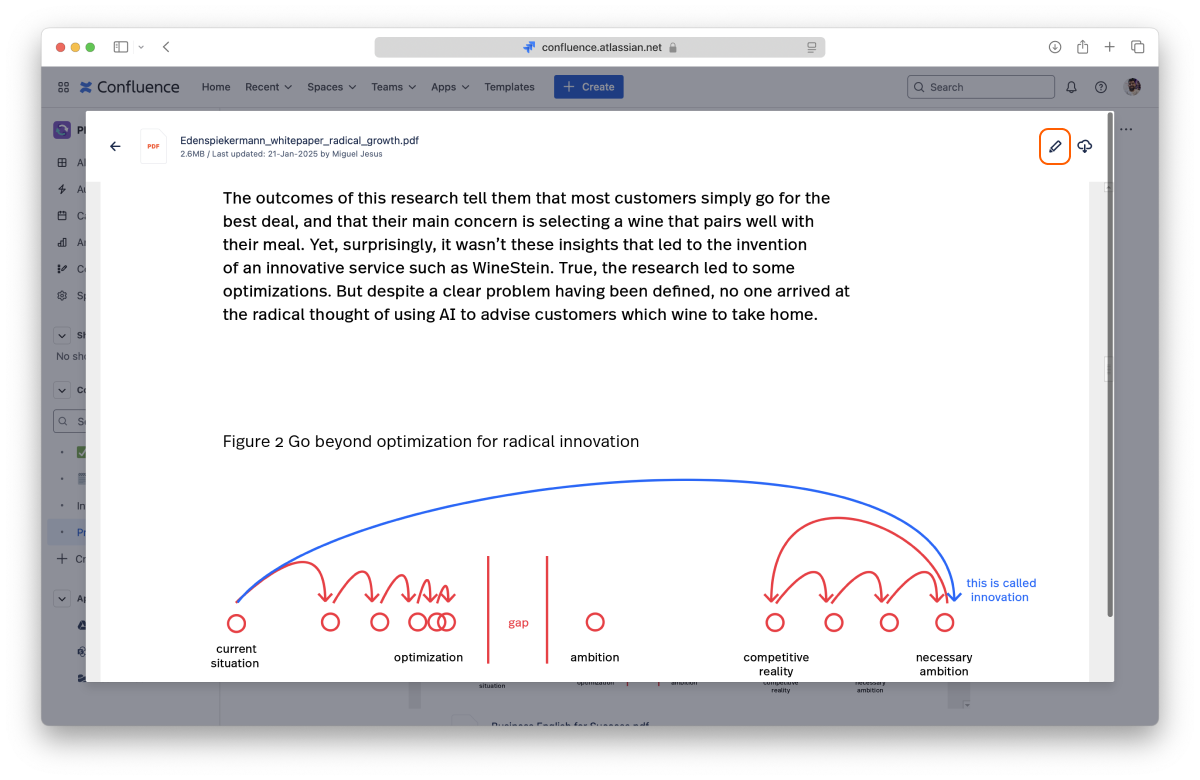
You can edit PDF files attached to your pages by clicking the “Edit” button (also available in the full-screen preview).

The editor opens, and you can edit your document in a few seconds.
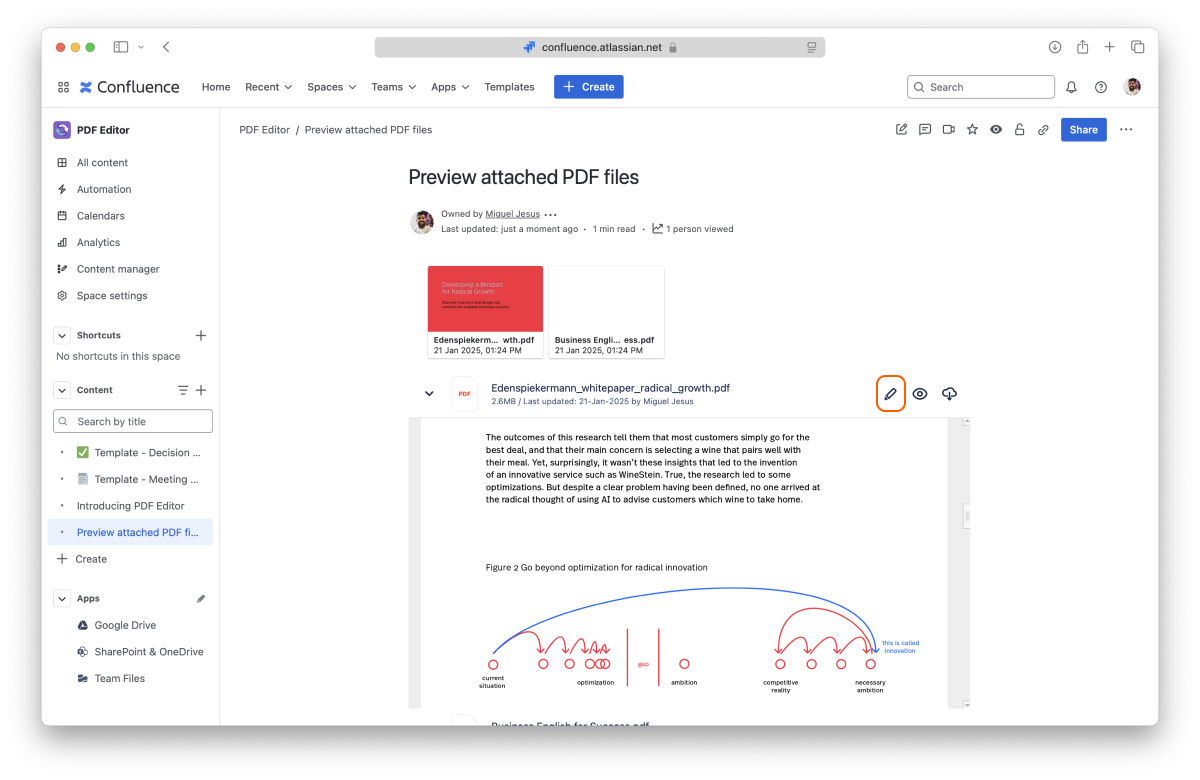
Screenshot: Edit button

When editing a PDF file, you and your team can work together, as the editor supports real-time collaboration, so there are no file lockdowns. There's also an autosave feature, so you can close the editor when you finish. Each save adds a new version of the attachment in Confluence.


Real-time collaboration

As mentioned before, PDF documents support real-time collaboration, and it's effortless to use.

Start editing a PDF file attached to a page. When another person clicks to edit the same file, the editor seamlessly creates a collaboration session. You can continue to edit the file as before and leave it anytime by closing the editor.
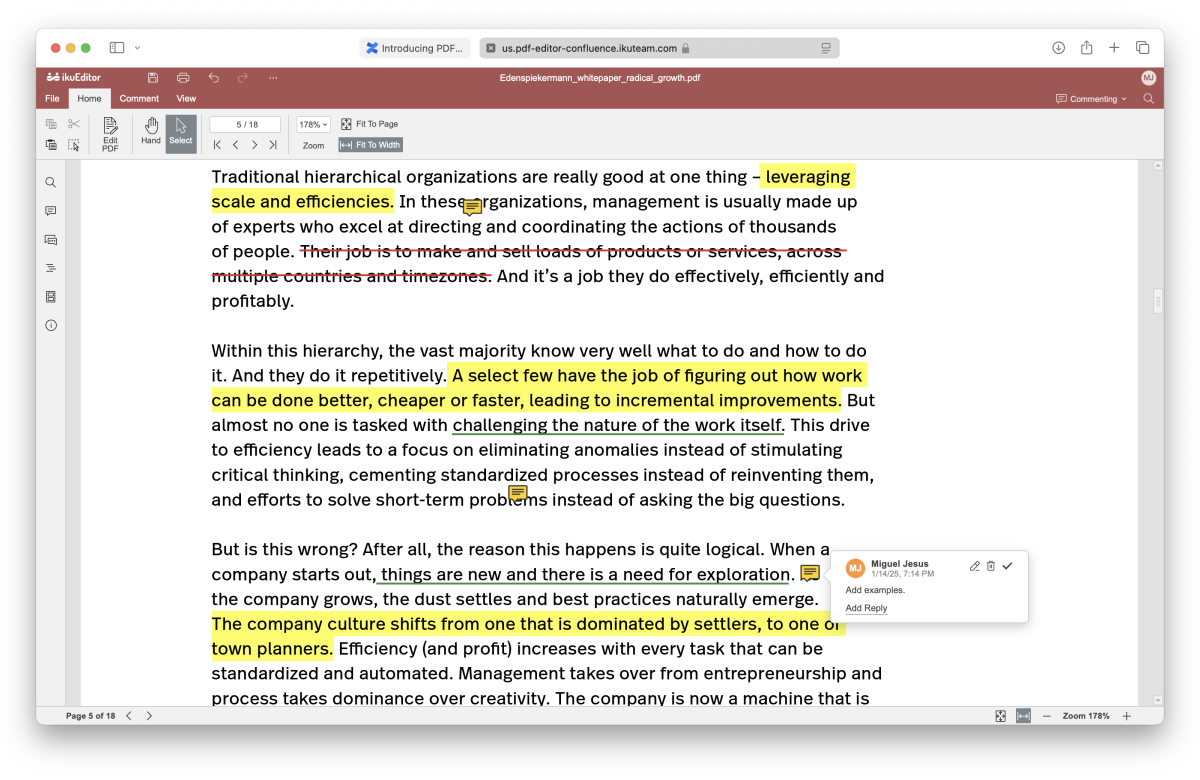
Screenshot: Edit

Supported file formats for edit

  • PDF documents


Permissions

To edit, annotate or sign a PDF, you need permission to edit the page in Confluence. People who can only view the page can preview and download the PDFs, but not edit them. Editing, annotating and signing work on every plan.


Wrap up 

That's all for editing files attached to your pages.

If you still have questions about any topics covered on this page, visit our support portal and send us your questions. Our team is always happy to help.