

Confluence Google Drive Integration
Create a single source of truth with seamless syncing and real-time collaboration.
Read more


Learn how to preview files with PDF for Confluence.
With PDF for Confluence, you can preview the PDFs attached to your pages. Each ikuTeam PDF macro shows the PDFs you choose for it. See 1. Getting started.
The PDF for Confluence app lets you preview files attached to your Confluence pages.
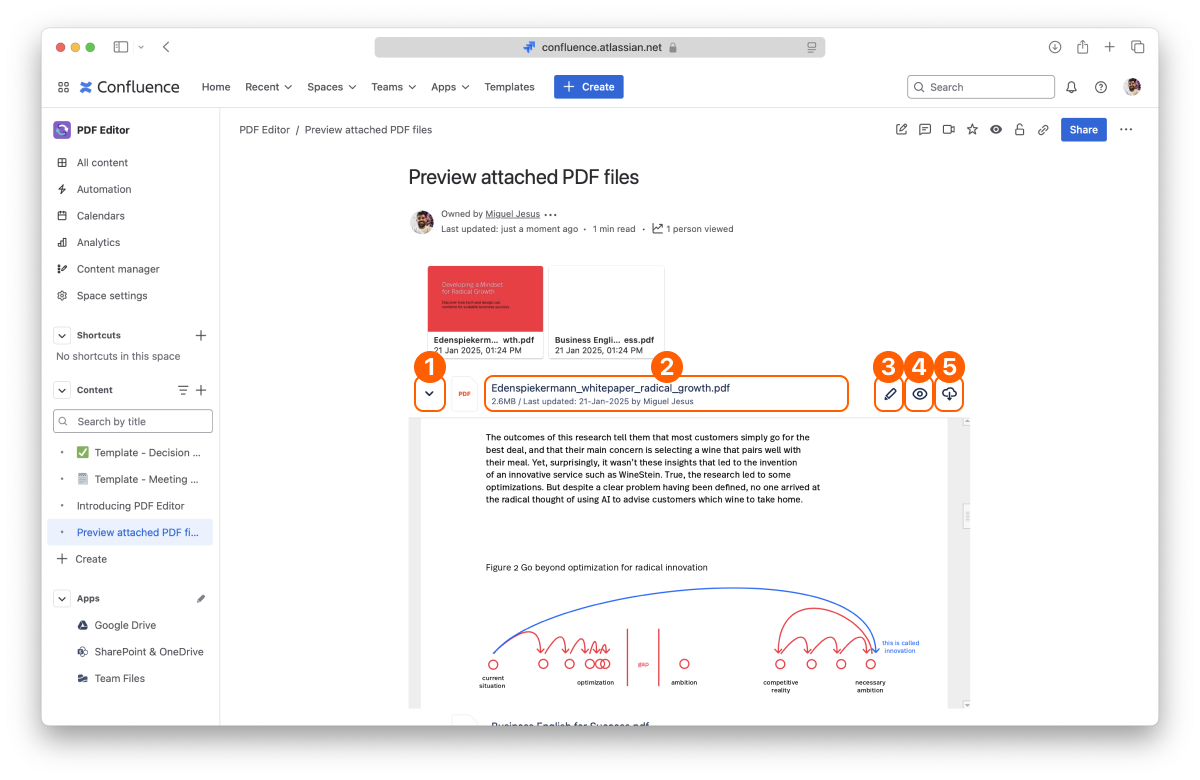
Disclosure button
Document info
Edit document
Full-screen Preview
Download
By default, each file in the macro shows collapsed to save space. To preview a file, click the chevron on the left (Expand item). Click it again to hide the preview (Collapse item).
Above the files, the toolbar shows how many files the macro has, and these buttons:
Regular header, Compact header and Hidden header: change the size of the file headers.
Expand or collapse preview: show or hide the preview of every file.
Sort: sort the files by Name, Type, Modified date or Size, in Ascending or Descending order, then click Apply.
Changes you make from the toolbar are only for you, and they aren't saved. The macro settings set what everyone sees when the page opens. The toolbar shows when Show toolbar is selected in the macro settings. See 2.3 Layout options.
Click the “Preview” button of the file you want to open in the full-screen preview. The full-screen preview also shows the comments in the PDF.
Everyone who can view the page can preview and download its PDFs. Edit is available only to people who can edit the page. For everyone else, it's turned off.
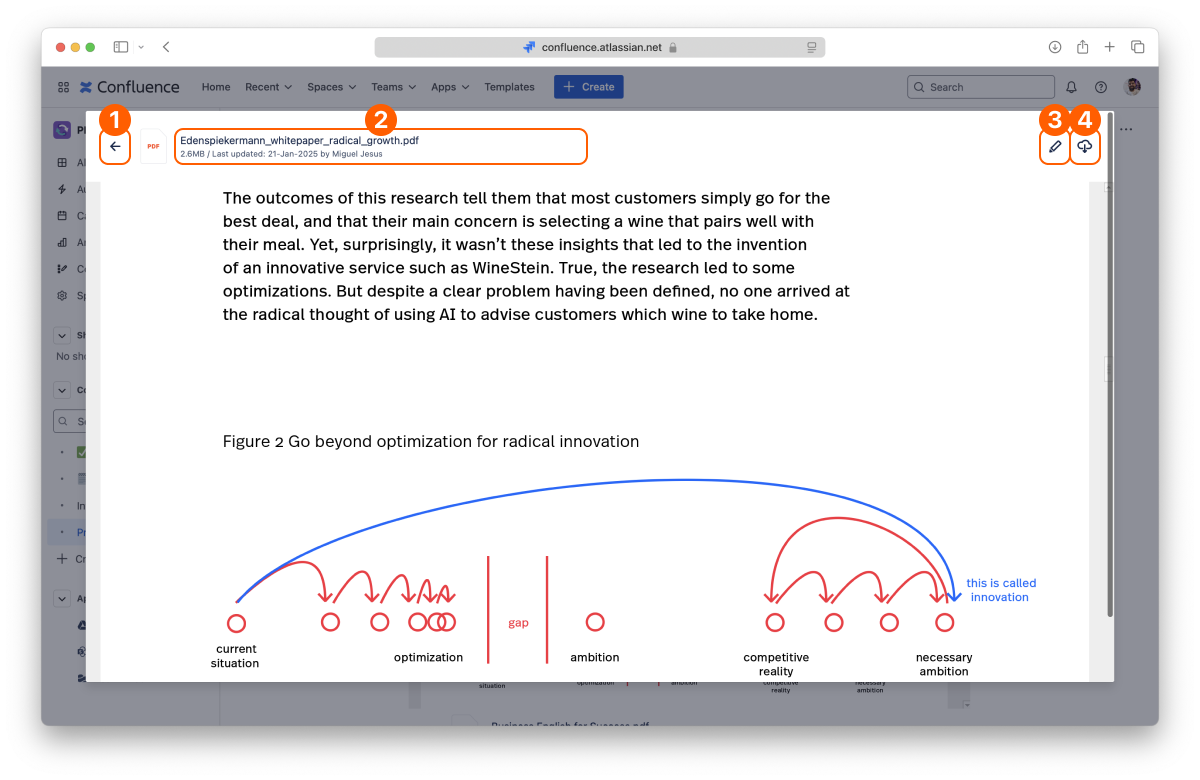
Back button
Document info
Edit document
Download
You can change the preview settings with the layout options.
PDF files
That's all on previewing files. Did you know you can also edit PDF documents attached to your pages?
If you still have questions about any of the topics covered on this page, visit our support portal and send us your questions. Our team is always happy to help.


