team-files-vs-confluence-1
Confluence Smart Links Explained
See how they work, where they fail with external files, and more secure, consistent management alternatives.
Read more: Confluence Smart Links Explained
untitled_Flux 2 Pro_2026-03-26_21-41-00
Jira SharePoint Integration
Discover how to sync files, automate folders, and enhance collaboration in Jira Cloud and Data Center.
Read more: Jira SharePoint Integration
Porto-pic
About us
From the start, our goal has been to remove the hidden friction that prevents teammates from collaborating easily on the files that matter most. We believe productivity is not about adding more tools but making the ones you already use work together seamlessly. Based in Porto, ikuTeam builds the invisible layer for the Atlassian ecosystem to dissolve file silos and help over a million users stay focused and move faster.
Read more: About us
team-files-vs-confluence-1

Confluence Smart Links Explained

See how they work, where they fail with external files, and more secure, consistent management alternatives.
Read more: Confluence Smart Links Explained
untitled_Flux 2 Pro_2026-03-26_21-41-00

Jira SharePoint Integration

Discover how to sync files, automate folders, and enhance collaboration in Jira Cloud and Data Center.
Read more: Jira SharePoint Integration

About us

From the start, our goal has been to remove the hidden friction that prevents teammates from collaborating easily on the files that matter most. We believe productivity is not about adding more tools but making the ones you already use work together seamlessly. Based in Porto, ikuTeam builds the invisible layer for the Atlassian ecosystem to dissolve file silos and help over a million users stay focused and move faster.
Read more: About us
Porto-pic
Product Documentation

Nov 19, 2026

1. Getting started

Take the very first steps to use PDF for Confluence.


Installing the app

You can install the PDF for Confluence app from the Atlassian Marketplace by clicking the “Try it free” button in the top right corner of the page.
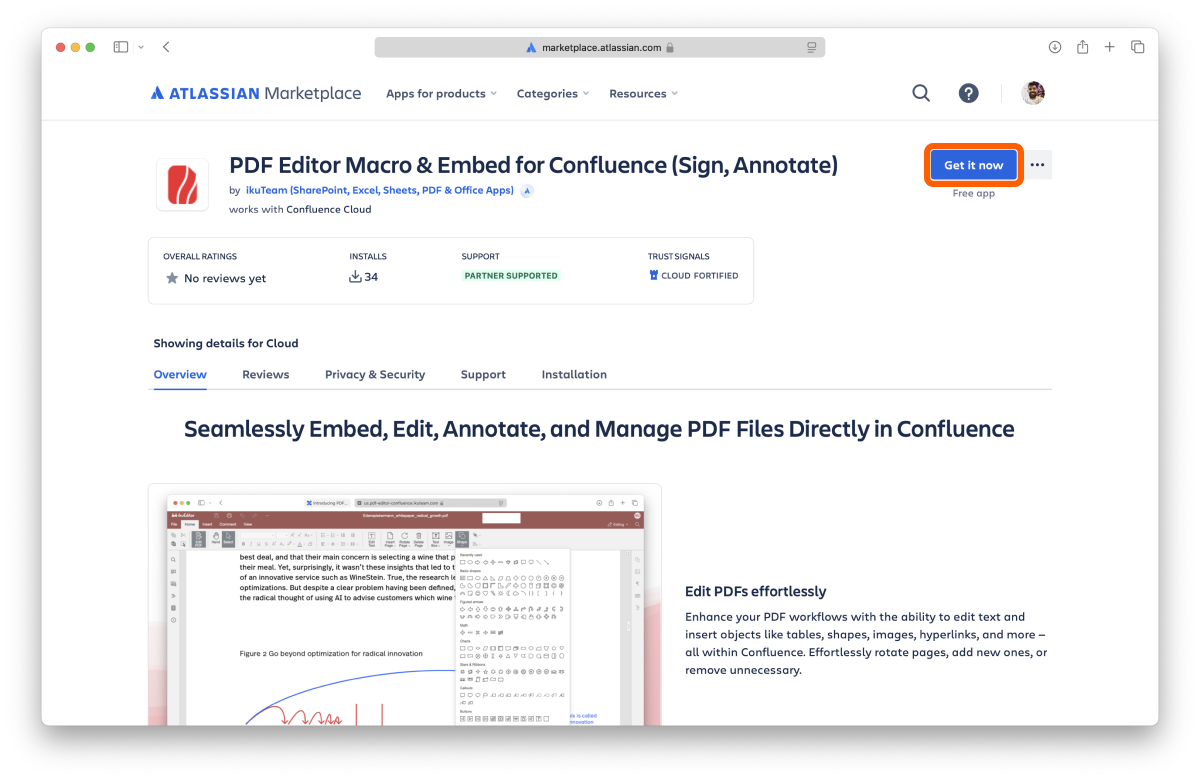
Screenshot: Marketplace

Using the app

Once the app is installed on your Confluence site, you can use it immediately.

Enter edit mode on a page, and type /PDF or /ikuTeam PDF, or select it from the Insert menu to add the macro to your page.
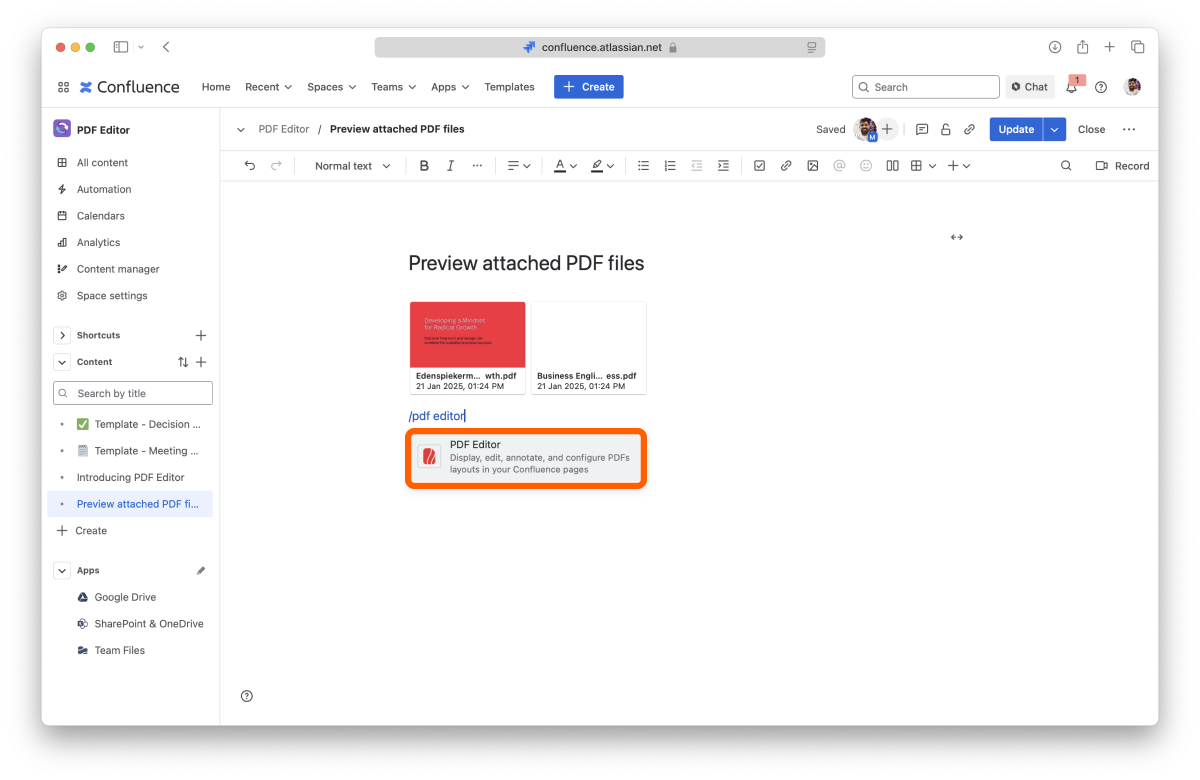
Screenshot: App

The macro settings open on the Attachments tab. Choose the PDFs the macro shows:

  • Select the files you want under Available attachments, or use Select all.

  • Or turn on Automatically add future attachments to show every PDF on the page, including the ones added later. This option is off by default.

Click Insert. To change the files or the layout later, edit the macro. See 2.3 Layout options.

You can also drag a PDF onto the macro to attach it to the page and add it to the macro, one file at a time, up to 100 MB.

Click Edit next to a file to start editing it.

When you copy a page, its ikuTeam PDF macros switch to the copied PDFs on the new page, matched by file name.

On a page template, the macro doesn't show files and you can't upload to it. Files show once you create a page from the template.

You’ve just learned the fundamentals of using PDF for Confluence.