team-files-vs-confluence-1
Confluence Smart Links Explained
See how they work, where they fail with external files, and more secure, consistent management alternatives.
Read more: Confluence Smart Links Explained
untitled_Flux 2 Pro_2026-03-26_21-41-00
Jira SharePoint Integration
Discover how to sync files, automate folders, and enhance collaboration in Jira Cloud and Data Center.
Read more: Jira SharePoint Integration
Porto-pic
About us
From the start, our goal has been to remove the hidden friction that prevents teammates from collaborating easily on the files that matter most. We believe productivity is not about adding more tools but making the ones you already use work together seamlessly. Based in Porto, ikuTeam builds the invisible layer for the Atlassian ecosystem to dissolve file silos and help over a million users stay focused and move faster.
Read more: About us
team-files-vs-confluence-1

Confluence Smart Links Explained

See how they work, where they fail with external files, and more secure, consistent management alternatives.
Read more: Confluence Smart Links Explained
untitled_Flux 2 Pro_2026-03-26_21-41-00

Jira SharePoint Integration

Discover how to sync files, automate folders, and enhance collaboration in Jira Cloud and Data Center.
Read more: Jira SharePoint Integration

About us

From the start, our goal has been to remove the hidden friction that prevents teammates from collaborating easily on the files that matter most. We believe productivity is not about adding more tools but making the ones you already use work together seamlessly. Based in Porto, ikuTeam builds the invisible layer for the Atlassian ecosystem to dissolve file silos and help over a million users stay focused and move faster.
Read more: About us
Porto-pic
Product Documentation

Nov 19, 2026

1. Getting started

Welcome to ikuTeam Office for Jira. In a few minutes you can preview, create and edit the files attached to your work items, right inside Jira. Here's how to get started.

Step 1: Install the app

Install ikuTeam Office for Jira from the Atlassian Marketplace. Click Try it free in the top right corner of the listing and follow the steps. You need to be a Jira admin to install apps.
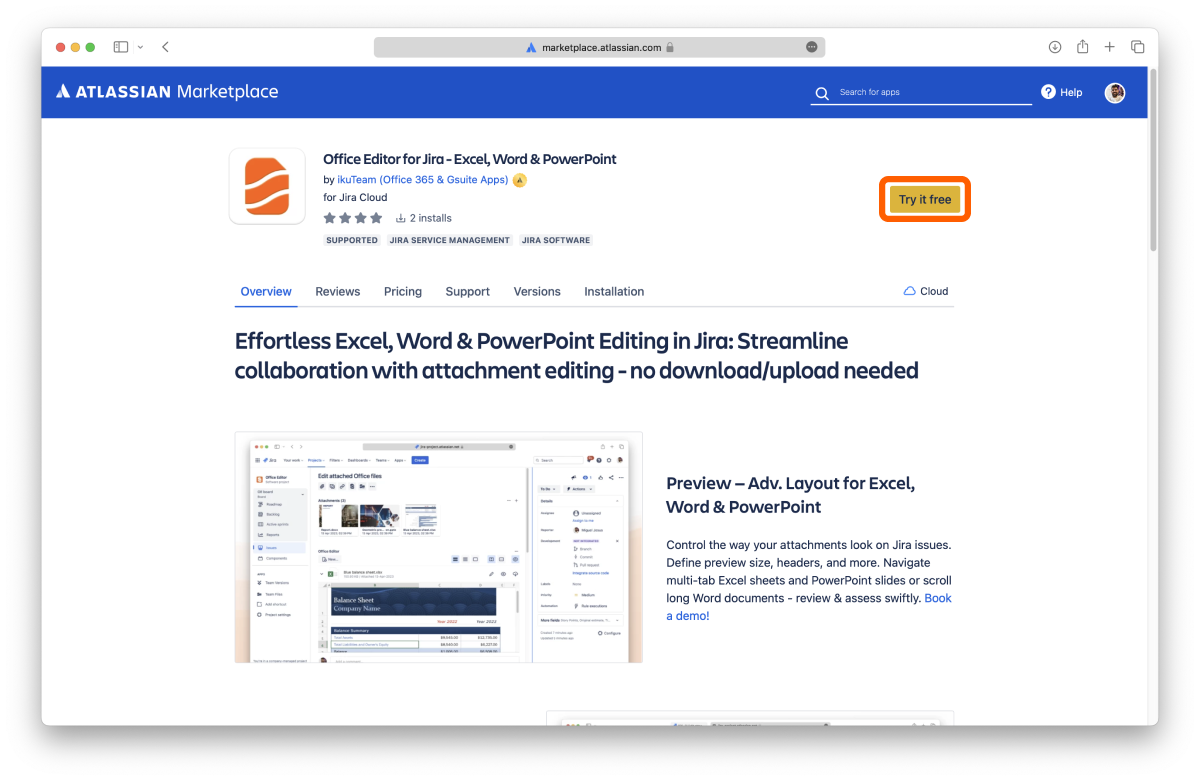
Screenshot: 1 marketplace

Step 2: Add ikuTeam Office to a work item

Once the app is installed, you can start right away. Open a work item. Below its title, select the apps button and choose ikuTeam Office. The ikuTeam Office panel appears on the work item.
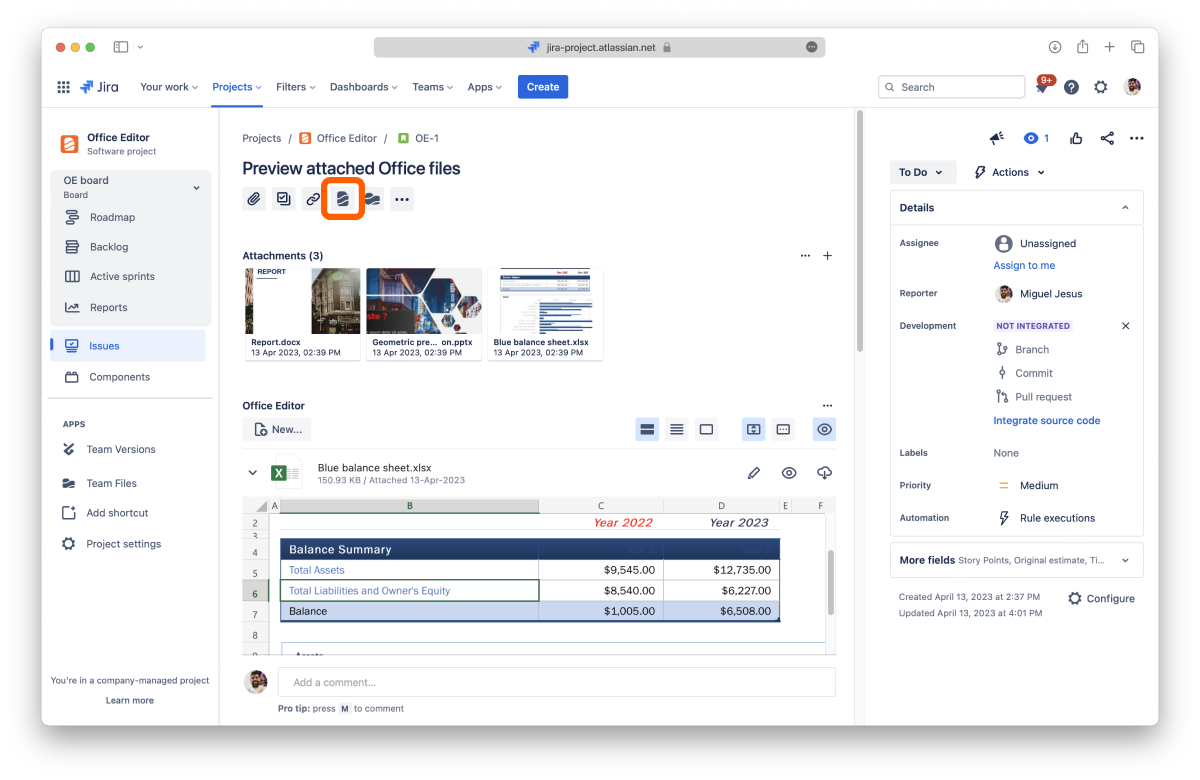
Screenshot: App

Don't see ikuTeam Office in the apps button? A Jira admin may have limited the app to some spaces, or a space admin may have turned it off for this space. See 3.1 Admin settings and 3.2 Space settings.

Step 3: Preview and edit your attachments

Word documents, Excel spreadsheets, PowerPoint presentations, OpenOffice files and PDFs attached to the work item appear in the panel. Expand a file to preview it, or select Edit to start editing. The editor opens in the same tab, and your changes are saved back to the attachment.

Step 4: Create a new document

Select New... in the panel, choose a Word document, Excel spreadsheet or PowerPoint presentation, give it a name and select Create. The new file is attached to the work item, ready to edit.

You're all set. Next, learn more about previewing files and creating and editing documents, or open the Workspace Overview to see your team's documents in one place.