

Confluence Google Drive Integration
Create a single source of truth with seamless syncing and real-time collaboration.
Read more


The Workspace Overview brings your team's documents into one view. Track recent activity, jump back into the files you worked on, and create or upload documents for any work item, without going from space to space.
In Jira's navigation, open Apps and select ikuTeam Office. The Workspace Overview opens.
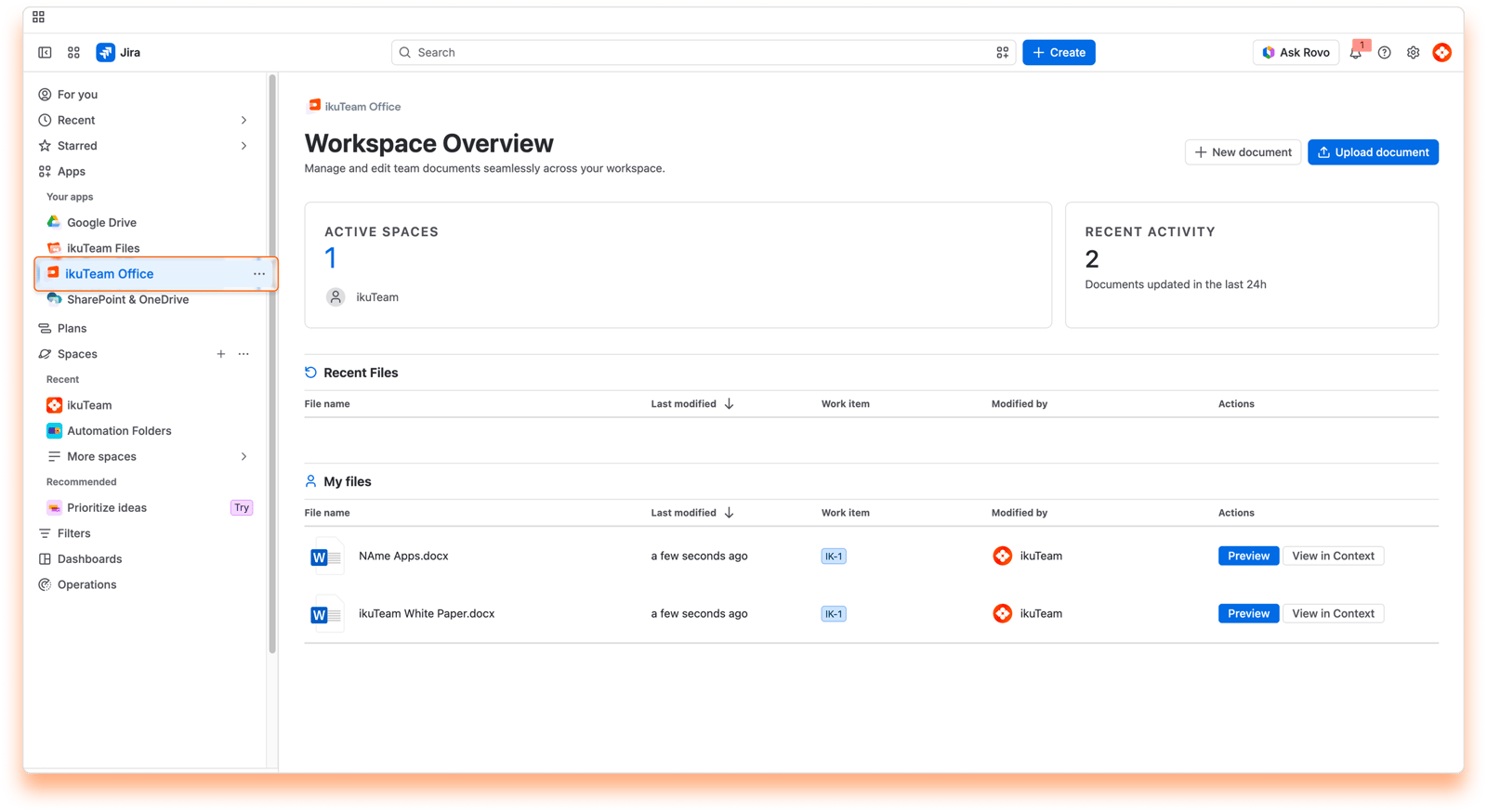
The spaces where you've recently opened, created or edited files with ikuTeam Office, with the number of spaces and their avatars. Select a space to go to it.
The number of documents opened or edited across your site in the last 24 hours, so you can see your team's momentum at a glance.
The files your team recently opened, created or edited with ikuTeam Office, newest first. You only see files on work items you can view.
The same list, filtered to the files you opened, created or edited yourself, so it's easy to pick up where you left off.
Both tables have these columns: File name, Last modified, Work item, Modified by and Actions. Select Last modified to switch between newest and oldest first. In Actions:
Preview opens the file in full screen.
View in Context takes you to the work item the file is attached to.
Select New document at the top of the Workspace Overview.
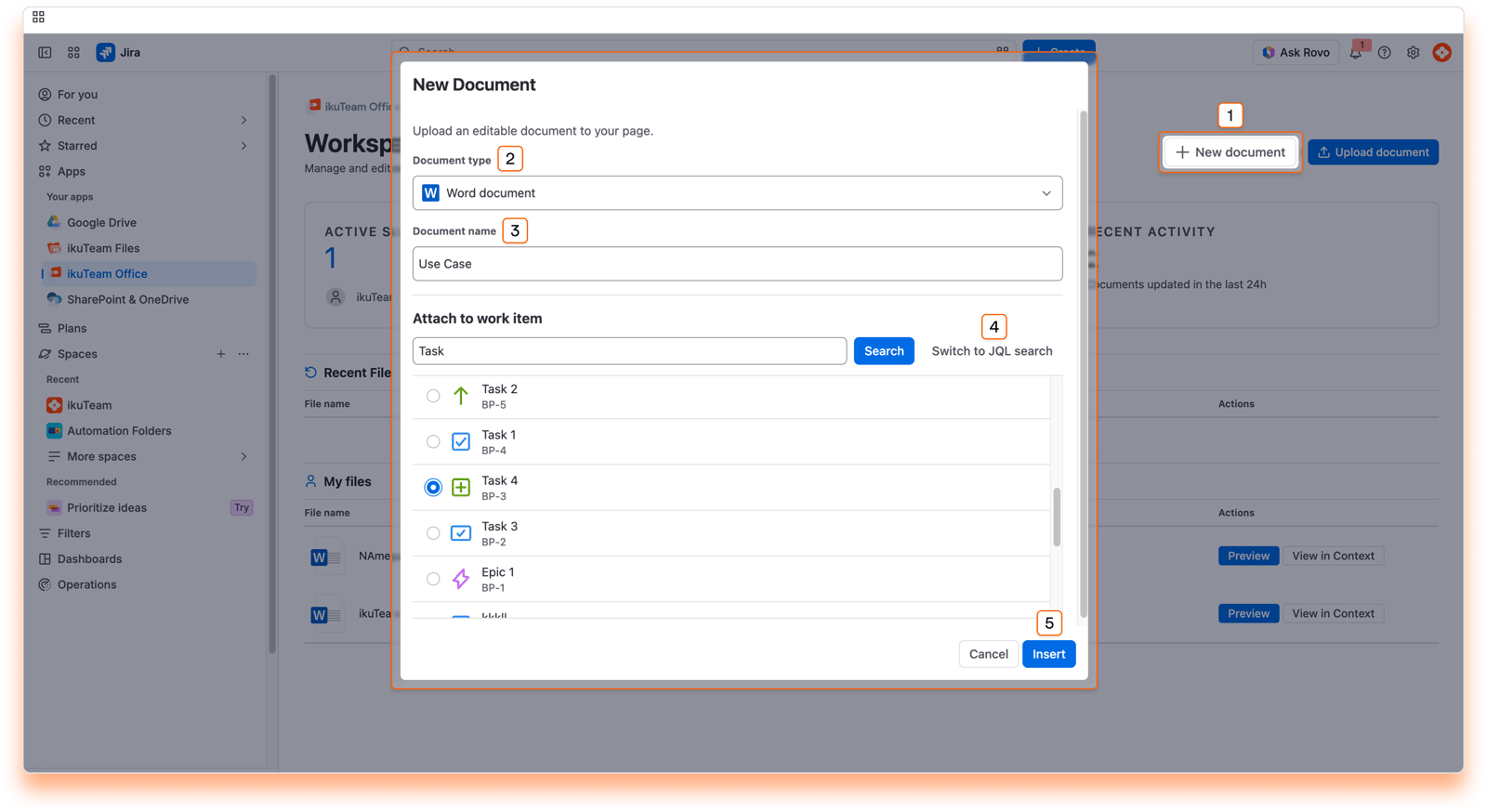
Choose the Document type: Word, Excel or PowerPoint.
Enter a Document name.
Under Attach to work item, search for the work item by text, or select Switch to JQL search to use JQL.
Select the work item, then select Insert.
When the document is attached, select View work item in the confirmation to open it.
Select Upload document, choose a DOCX, XLSX or PPTX file from your computer, search for the work item the same way, and confirm. The file is attached to that work item.
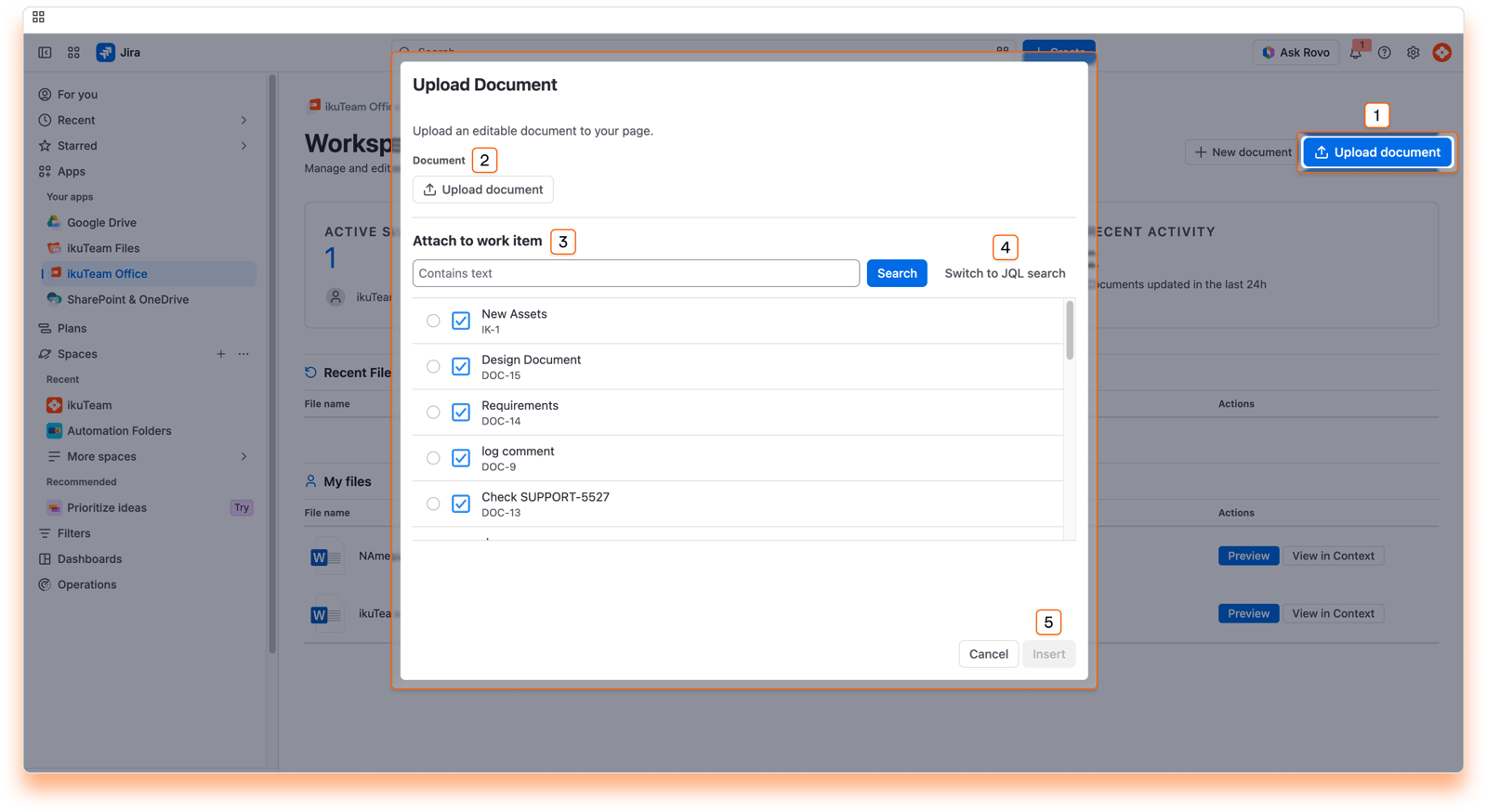
To attach a file, you need permission to attach files to the work item you select.


