

Confluence Google Drive Integration
Create a single source of truth with seamless syncing and real-time collaboration.
Read more


With ikuTeam Office, you can preview the files attached to your work items without downloading them. Previews open right inside Jira, in the ikuTeam Office panel or in full screen.
Every supported file attached to the work item appears in the ikuTeam Office panel.
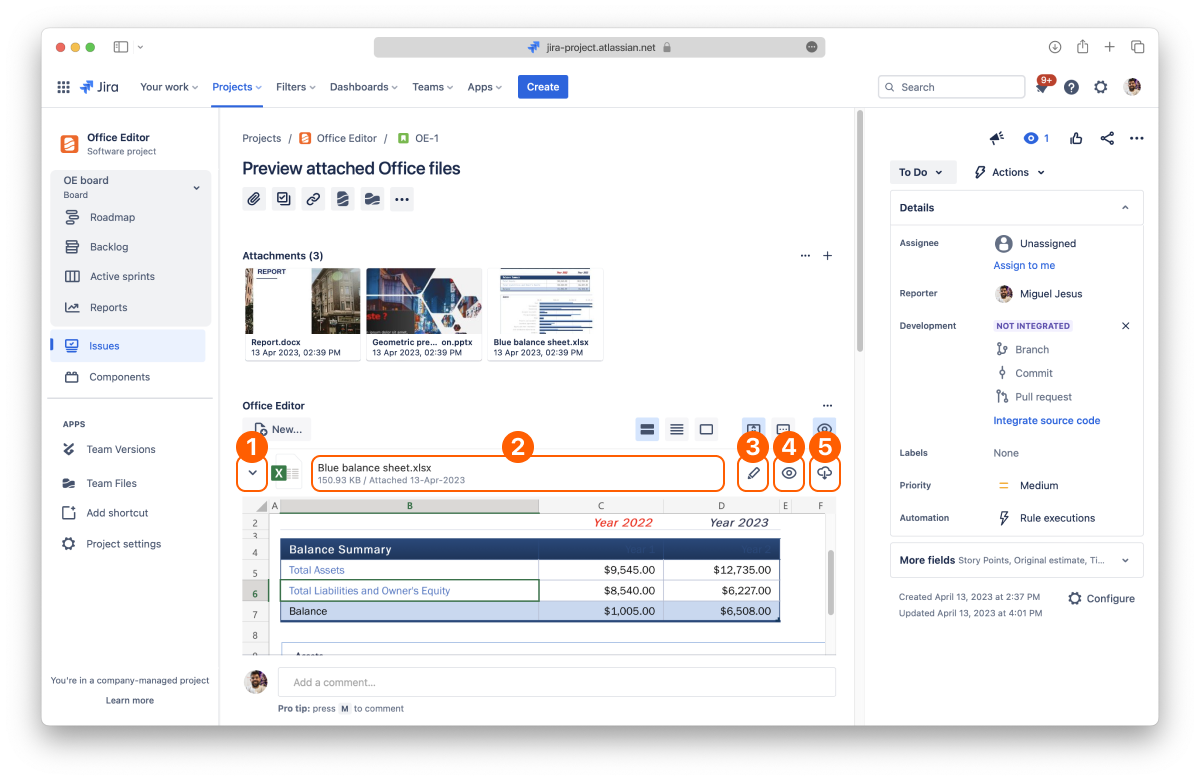
Disclosure button
Document info
Edit
Preview (full screen)
Download
By default, every file is collapsed to save space. Select the disclosure arrow on the left of a file to expand it and preview its content right in the panel. To expand all files at once, use Toggle preview in the panel's toolbar (see 2.3 Layout options).
Select Preview on a file to open it in full screen. From there, you can select Edit (if you're allowed to edit the file) or Download.
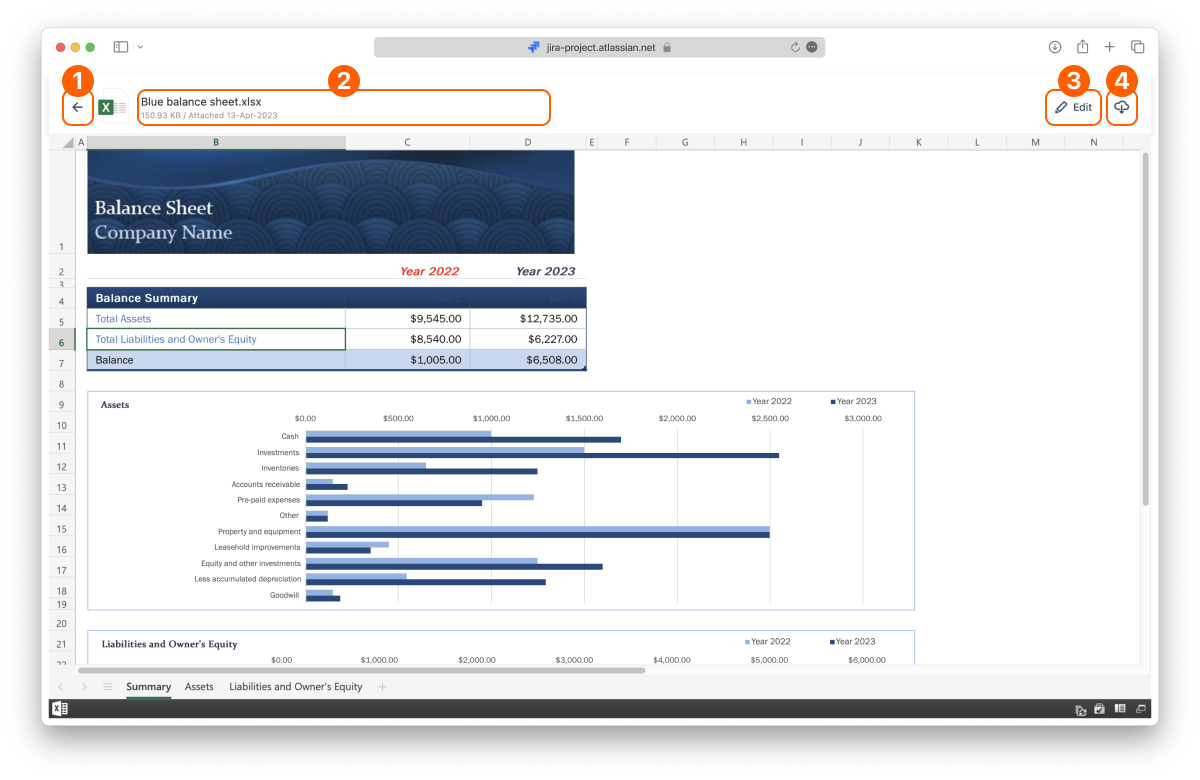
Back button
Document info
Edit
Download
Each file also has a File actions menu with Delete, available when your Jira permissions let you delete that attachment. Use Sort in the toolbar to order the files by Name, Type, Modified date or Size, in ascending or descending order. By default, the newest files come first.
Anyone who can see the work item can preview its files. To edit, you need the attachment permissions described in 2.6 Permissions.
Word documents and templates: DOC, DOCX, DOCM, DOT, DOTX, DOTM
Excel spreadsheets and templates: XLS, XLSX, XLSM, XLSB, XLT, XLTX, XLTM
PowerPoint presentations and templates: PPT, PPTX, PPTM, PPS, PPSX, PPSM, POT, POTX, POTM
OpenOffice documents and templates: ODT, OTT, FODT, ODS, OTS, FODS, ODP, OTP, FODP
Older StarOffice and WPS Office files: SXW, STW, SXC, SXI, WPS, WPT, ET, ETT, DPS, DPT
Text and web files: RTF, TXT, CSV, HTML, HTM, MHT, MHTML, XML, LOG, CONFIG
E-books: EPUB, FB2
PDF and similar files: PDF, XPS, OXPS, DJVU, DOCXF, OFORM
Other files attached to the work item don't appear in the panel. You can still find them in Jira's own attachments section.


