

Confluence Google Drive Integration
Create a single source of truth with seamless syncing and real-time collaboration.
Read more


Administrators can adjust how the ikuTeam Files for Confluence app works to meet your team's needs and comply with company policies.
These settings are visible only to Confluence admins. To open them, go to Confluence settings and select ikuTeam Files Settings in the sidebar.
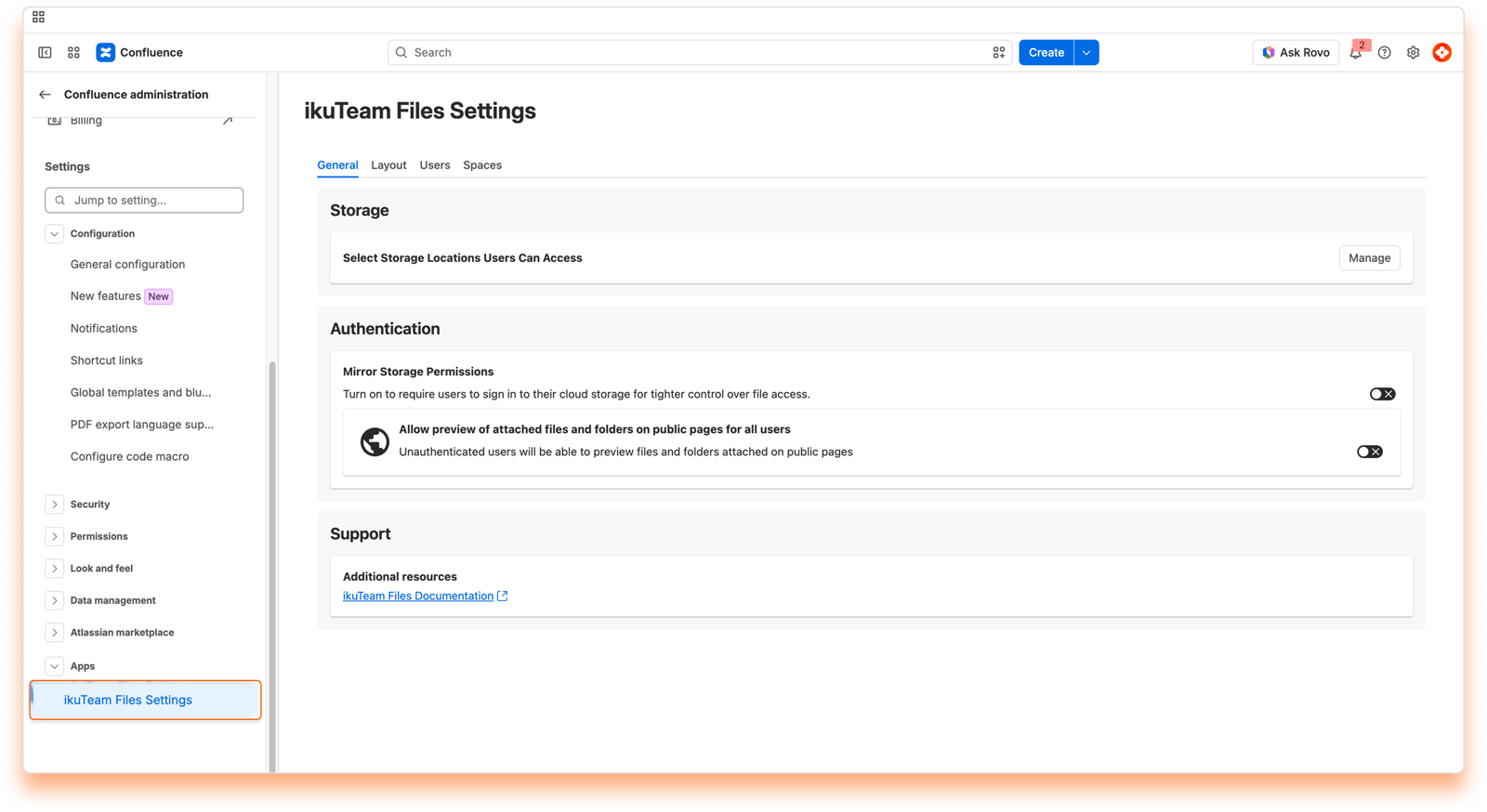
By default, users can connect folders from all the storage places supported by the ikuTeam Files for Confluence app.
Administrators can easily restrict the use of specific storage places to ensure that the use of the ikuTeam Files for Confluence app aligns with company policies.
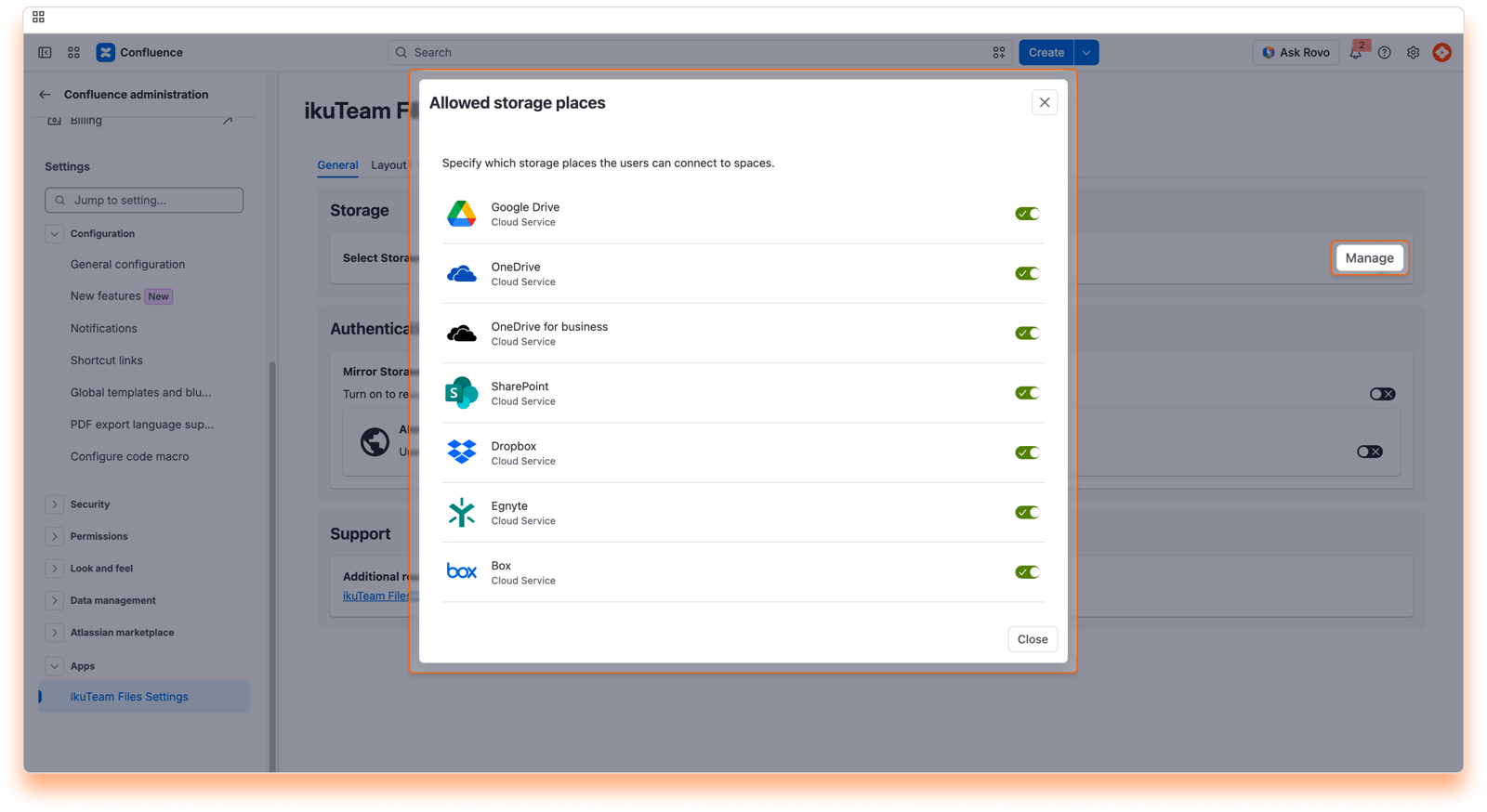
On the "General" tab of the ikuTeam Files settings page, click "Manage" in the "Storage" card to open "Allowed storage places";
Click the switch on the storage places you want to turn off;
The switch changes, indicating users can no longer connect folders from that storage place.
Changes to these settings are saved automatically and applied immediately.
If a user connects a folder from a storage place that the Admin later turns off, it becomes blocked inside the ikuTeam Files app. All connected folders from that place are blocked, too. If there are attached folders and files from a blocked storage place, the content won't be visible, and a warning will appear mentioning that the Admin blocked the access.
On the "General" tab of the ikuTeam Files settings page, click "Manage" in the "Storage" card to open "Allowed storage places";
Click the switch on the storage place you want to turn on again;
The switch changes, indicating users can connect folders from that place again.
Changes to these settings are saved automatically and applied immediately.
Mirror Storage Permissions is ON by default, so each user signs in with their own storage account and the permissions set in the cloud storage apply. Admins can switch to Mirror Storage Permissions OFF to use simplified permissions instead, meaning the permissions you set here are the only ones that apply. Cloud storage permissions are then bypassed, so any Confluence user you grant access to can view or edit files regardless of their access in SharePoint, OneDrive, Box, Dropbox, Google Drive, or other connected storage. The files in your cloud storage remain unchanged; only how they're accessed through ikuTeam Files is affected.
One thing worth noting: in the simplified setup, all activity in the cloud storage is logged under the account used to connect the folder. With Mirror Storage Permissions OFF, we recommend connecting folders with a service account instead of a personal account. That way, your audit trail stays clear and folders keep working when people leave.
With Mirror Storage Permissions ON, both layers apply at the same time, and the more restrictive one always wins:
A user without edit access in SharePoint or other cloud storage cannot edit, even if their ikuTeam Files permission allows it.
A user with edit access in SharePoint won't see the edit button if their ikuTeam Files permission restricts it.
Think of it as a double lock: a user needs to pass both checks to perform any action. Use this Mirror Storage Permissions setting together with connected folder permissions for precise control over how files are shared, viewed, and edited.
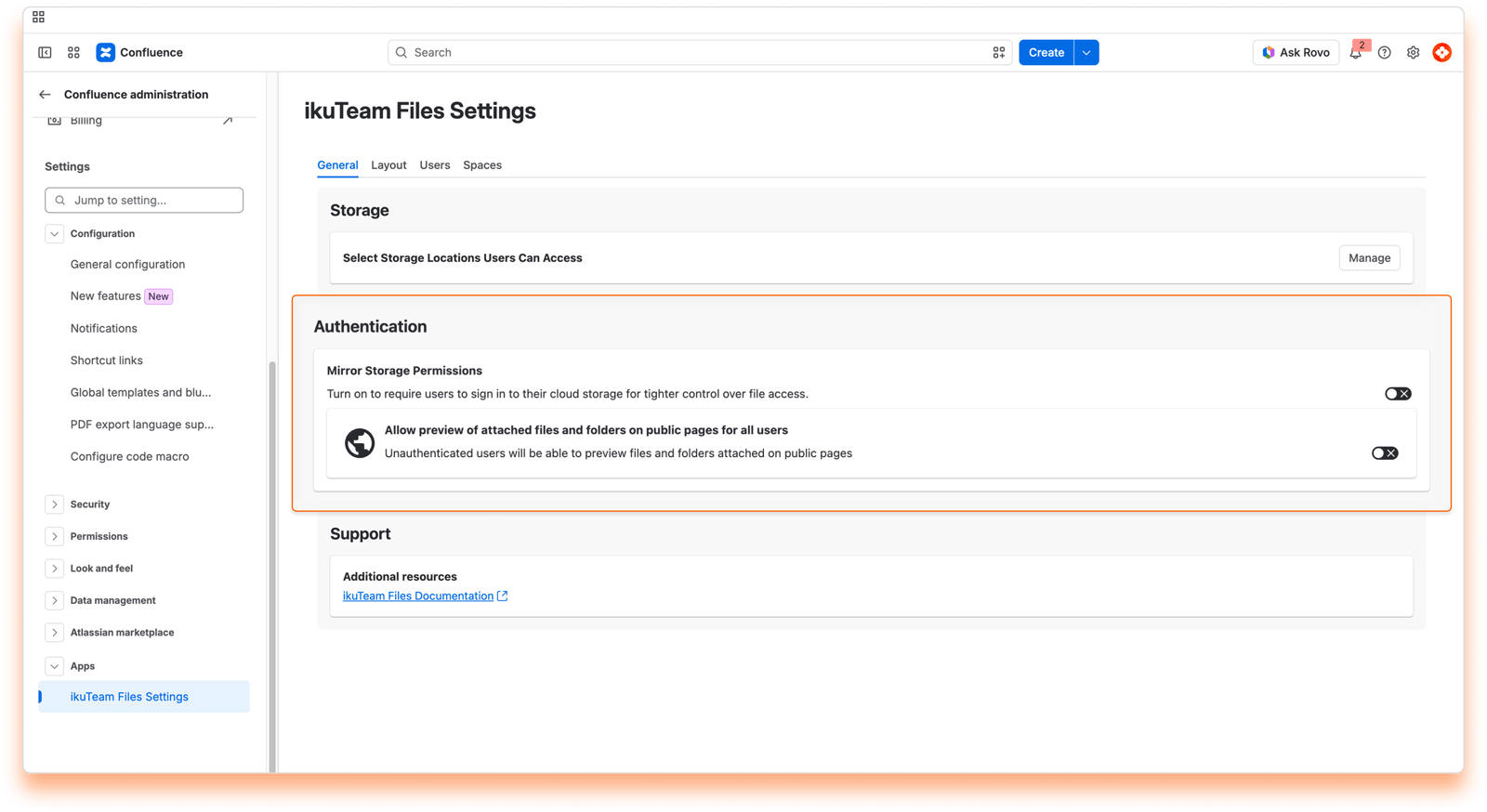
With Mirror Storage Permissions ON, each user signs in to each connected folder with their own storage account, so the right permissions apply to everyone. With Mirror Storage Permissions OFF, users don't sign in per folder, and the app uses the folder owner's account for everyone. With Mirror Storage Permissions ON, public pages are not supported. Learn what changes with Mirror Storage Permissions OFF
On the "General" tab of the ikuTeam Files Settings page, go to the Authentication card.
Click the toggle to turn off the option "Mirror Storage Permissions".
Changing this setting saves automatically and applies immediately.
On the "General" tab of the ikuTeam Files Settings page, go to the Authentication card.
Click the toggle to turn on the option "Mirror Storage Permissions".
Changing this setting saves automatically and applies immediately.
In a space open to unauthenticated users, they can preview files and folders attached with ikuTeam Files to public pages. This needs Mirror Storage Permissions OFF. The option "Allow preview of attached files and folders on public pages for all users" then appears in the Authentication card, and an admin turns it on. A confirmation dialog opens: select I understand any user can view attached content in public pages. and click Allow.
With this option active, any user can view the content of all attached files in public pages without any authentication. This can be turned off at any moment.
With Mirror Storage Permissions ON, the preview of attached files and folders on public pages is NOT supported. Mirror Storage Permissions is ON by default, so to allow public page previews, an admin first switches to Mirror Storage Permissions OFF.
Unauthenticated users can’t edit the content of ikuTeam Files macros, even if the space allows them to edit pages.
By default, the files and folders attached to Confluence pages use a regular header and appear in the collapsed view to use less space on the screen. It's easy to preview the file by clicking the arrow to open the expanded view, which uses the width of the page and is 464px tall by default, or clicking the file name (or preview button) to open the full-screen preview.
The Admin can set different defaults for new macros on the "Layout" tab of the Admin settings.
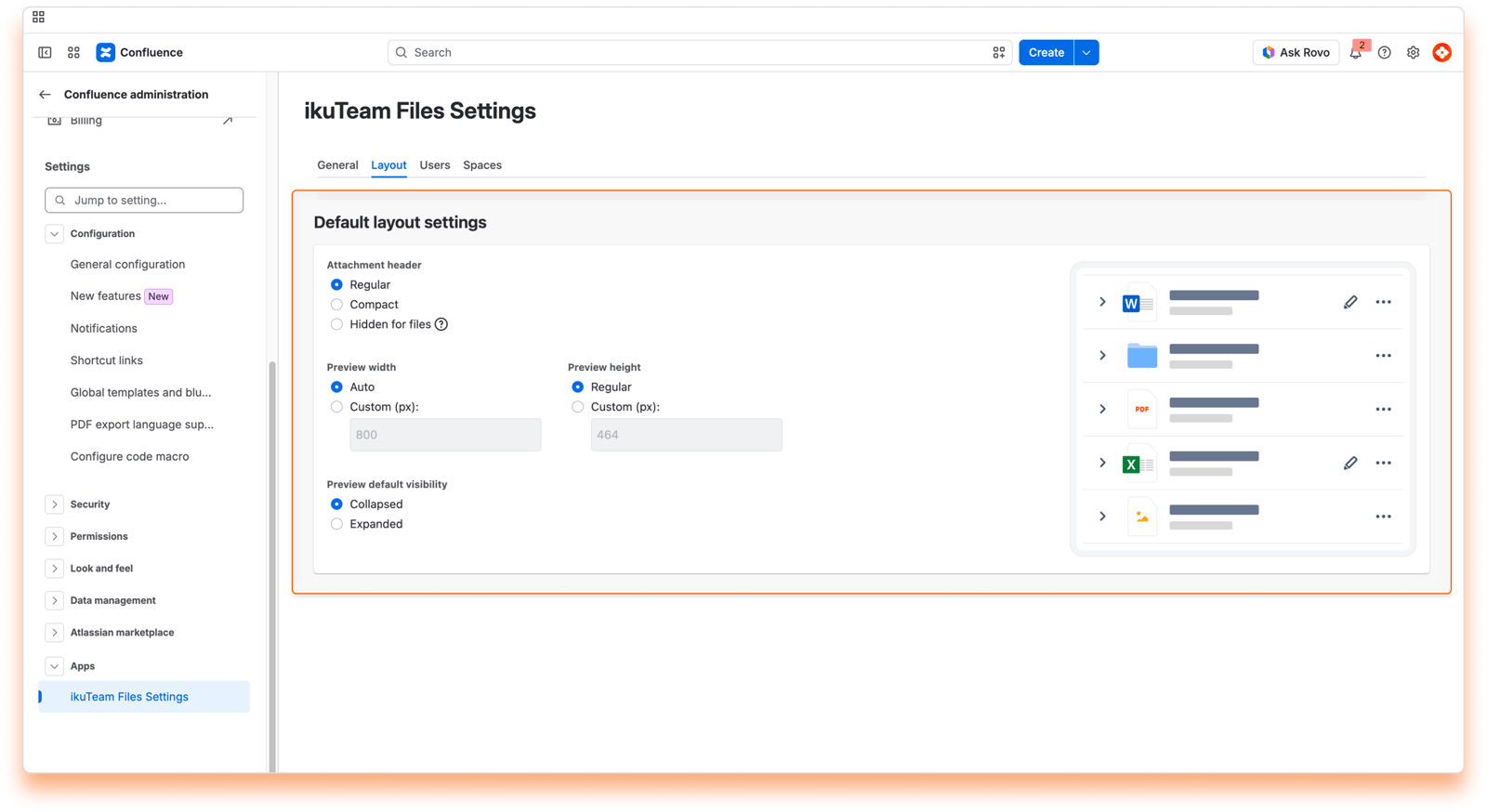
Select the default size for the header of new macros:
Regular: The standard size for the header of attached files and folders. It shows a big icon and additional details;
Compact: Uses a smaller icon and only shows the name of the file or folder;
Hidden for files: Completely hides the file header and forces the expanded preview option. Moving the mouse over the file will show a compact header.
Select the default width for the preview:
Auto: The standard width for previews uses the available space;
Custom: Define a value for the width of the preview area.
Select the default height for the preview:
Regular: The standard height for previews (464px);
Custom: Define a value for the height of the preview area.
Select the default behavior for the preview:
Collapsed: The standard option that hides the preview;
Expanded: Automatically shows the preview of files and folders. This option is required when selecting the "Hidden for files" header.
Changes to these settings are saved automatically and applied immediately.
By default, all users and groups can use the ikuTeam Files app. It's accessible with a link on the Space sidebar and as a macro on pages to attach files and folders.
However, an Admin can specify which users and groups can use the ikuTeam Files app. When someone is not permitted to use the app, the file manager and the macro are blocked.
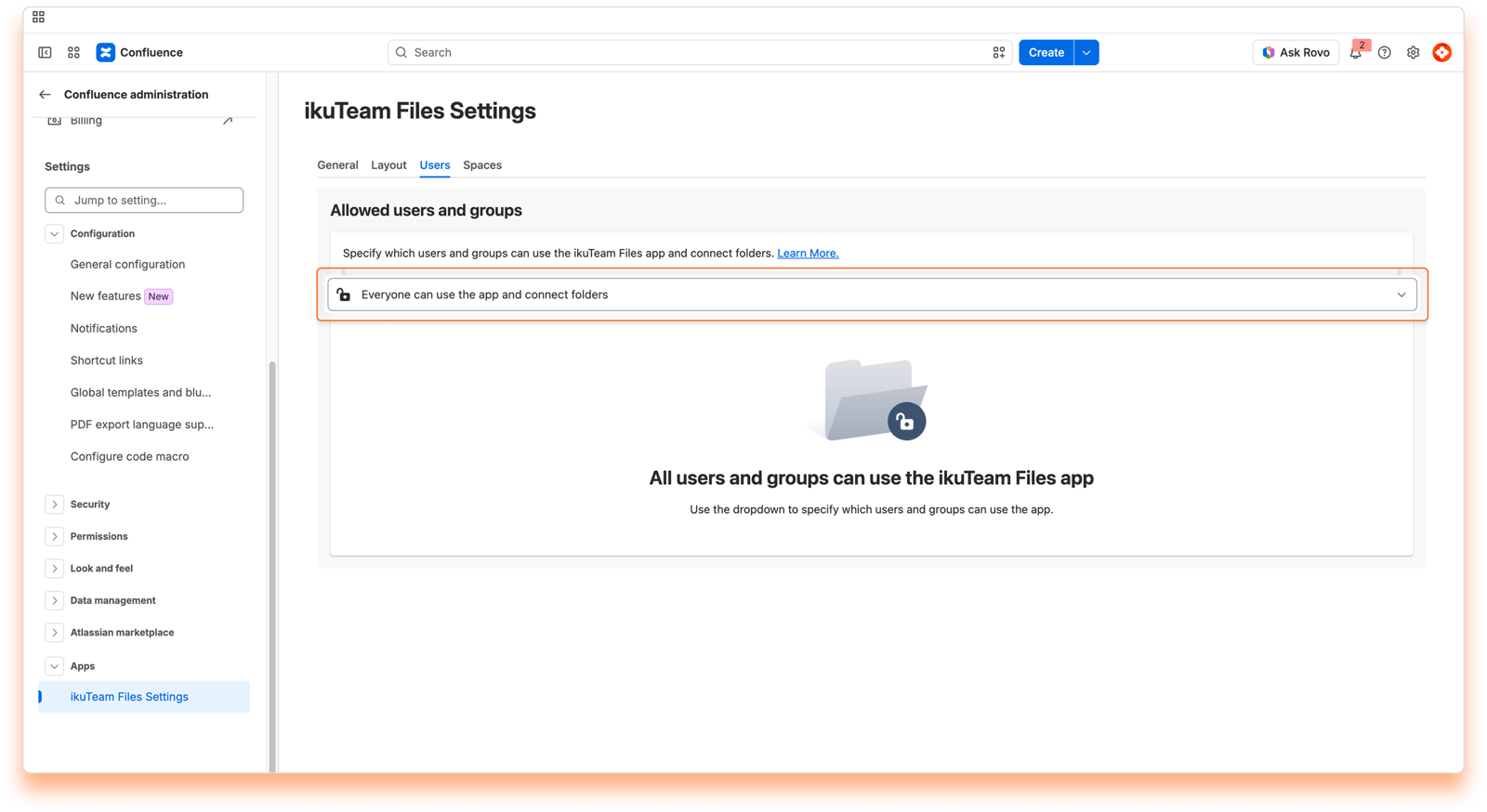
The current settings are on the "Users" tab. There are three main options that you can select from the drop-down menu:
All users and groups can access the ikuTeam Files app with the default option.
Select this option if everyone should be able to use the ikuTeam Files app, but only some users and groups can connect folders.
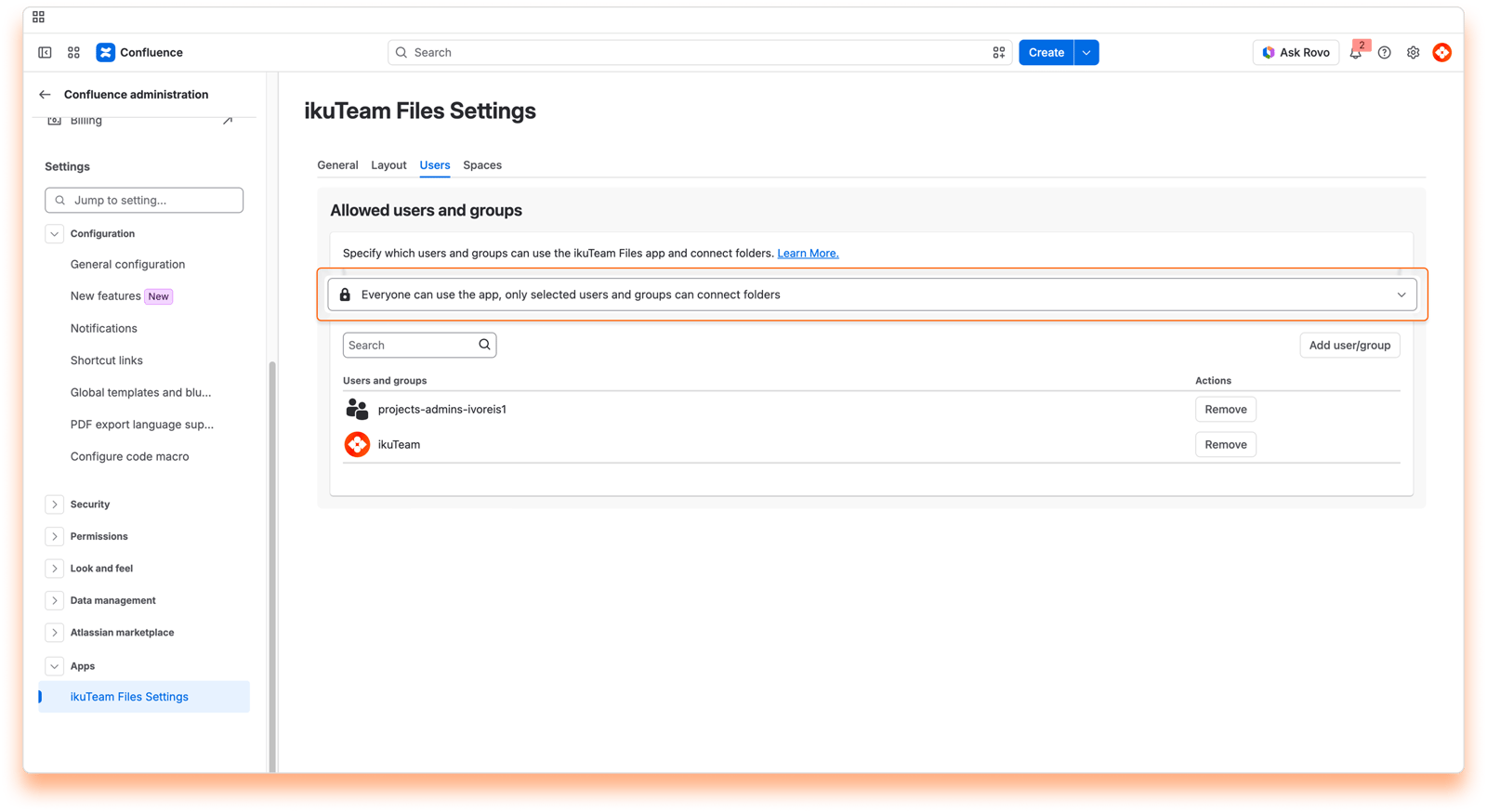
Click the "Add user/group" button, start typing to select a name, and click the "Add" button. The user or group gets access to connect folders immediately.
Search for the user or group you want to remove, click the "Remove" button, and confirm. The option to connect folders will be hidden from the user or group immediately.
Select this option if you want only some users and groups to use the ikuTeam Files app and specify who can connect folders.
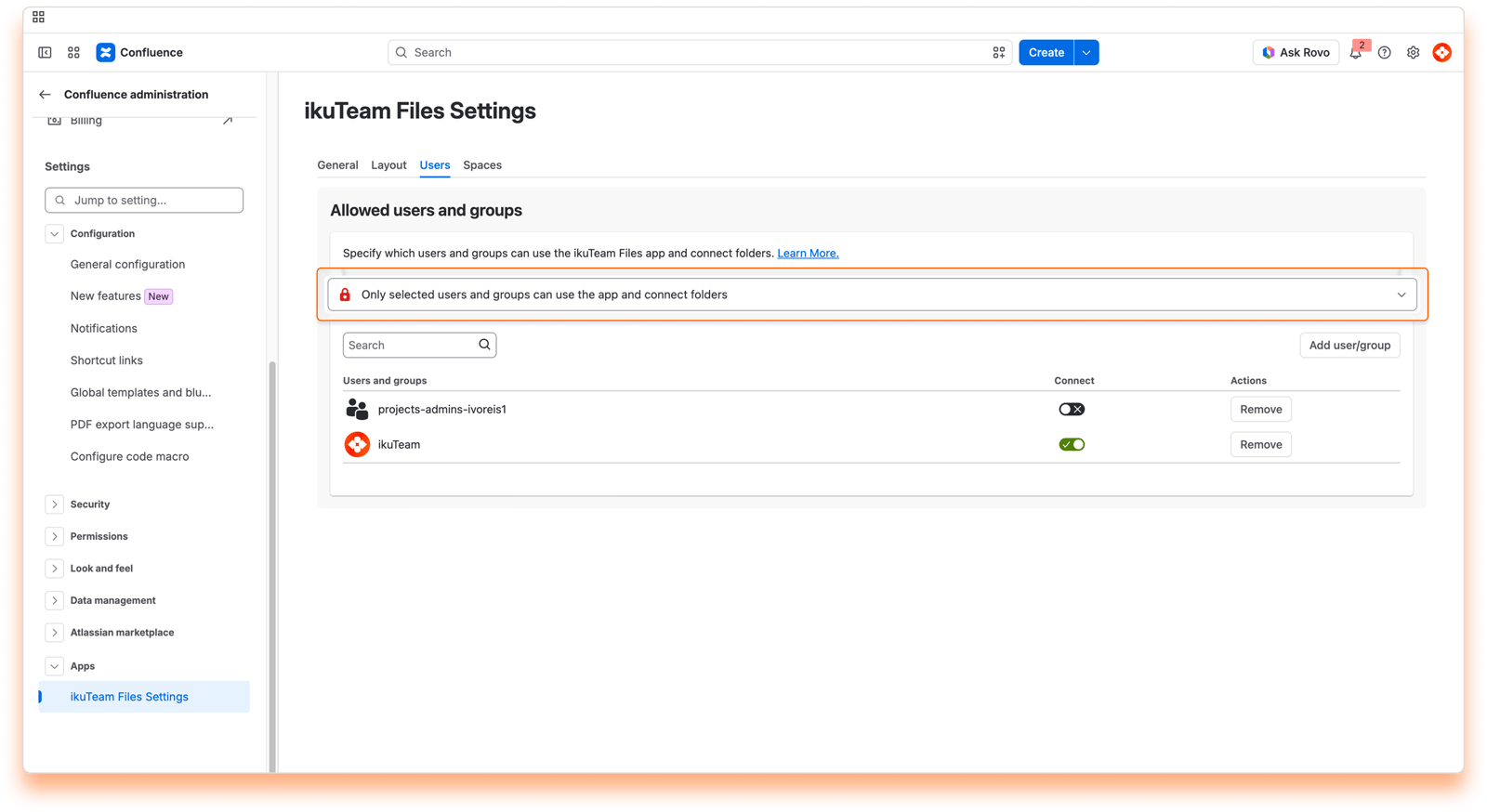
Click the "Add user/group" button, start typing to select a name, and click the "Add" button. The user or group will have immediate access to the app.
Use the toggle button to determine if a user or group can connect folders.
Search for the user or group you want to remove, click the "Remove" button, and confirm. The app will be blocked for that user or group immediately.
All spaces can use the ikuTeam Files app by default. It's accessible with a link on the space sidebar and as a macro on pages to attach files and folders.
However, an Admin can specify which Confluence spaces can use the ikuTeam Files app. Blocking a space from using the app hides the file manager and turns off the macro for that space.
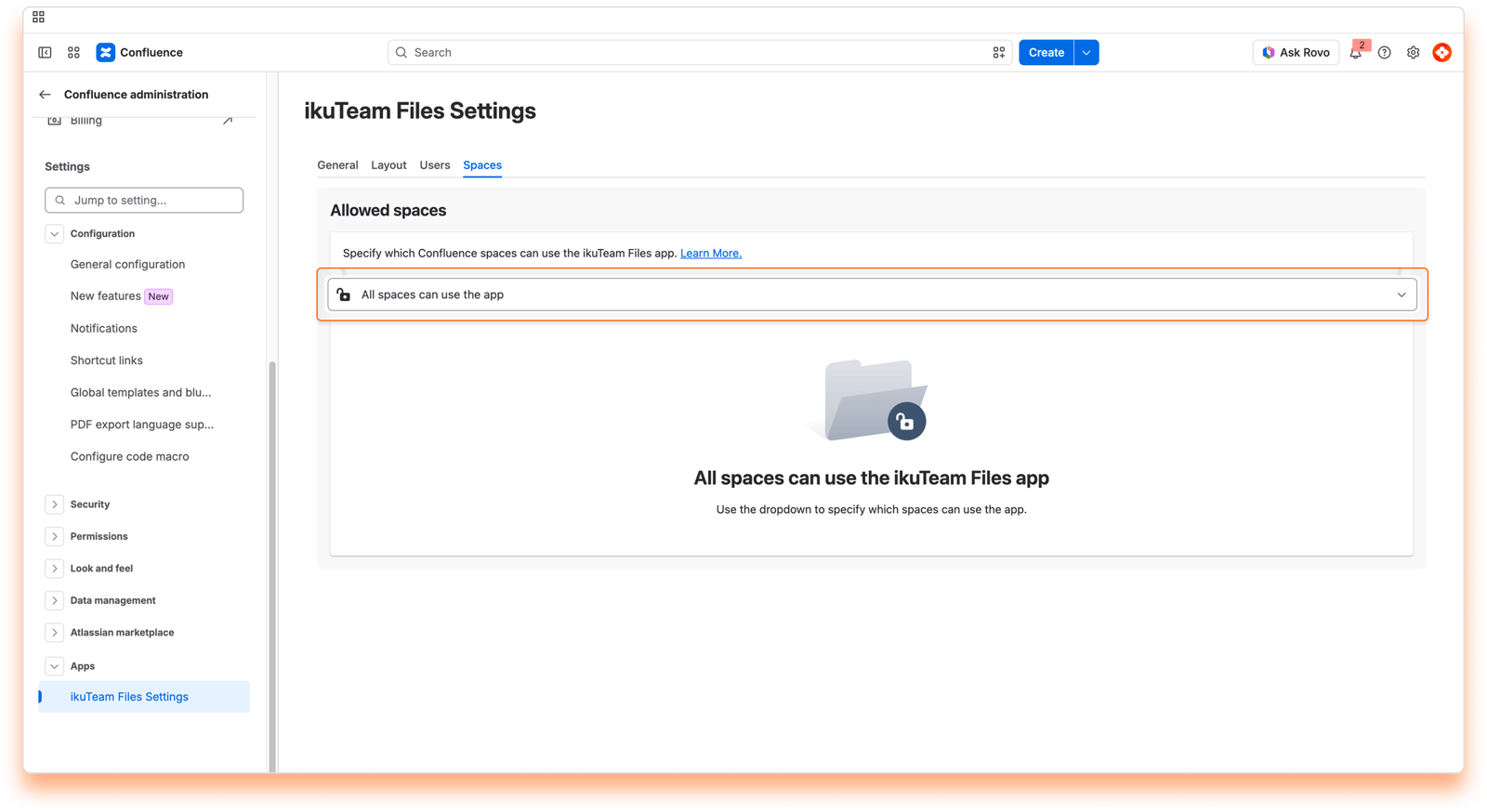
On the "Spaces" tab, you can see the current settings. There are three main options that you can select from the drop-down menu:
This is the default option, meaning every space can access the ikuTeam Files for Confluence app.
Select this option if you only want to allow the ikuTeam Files for Confluence app for some spaces.
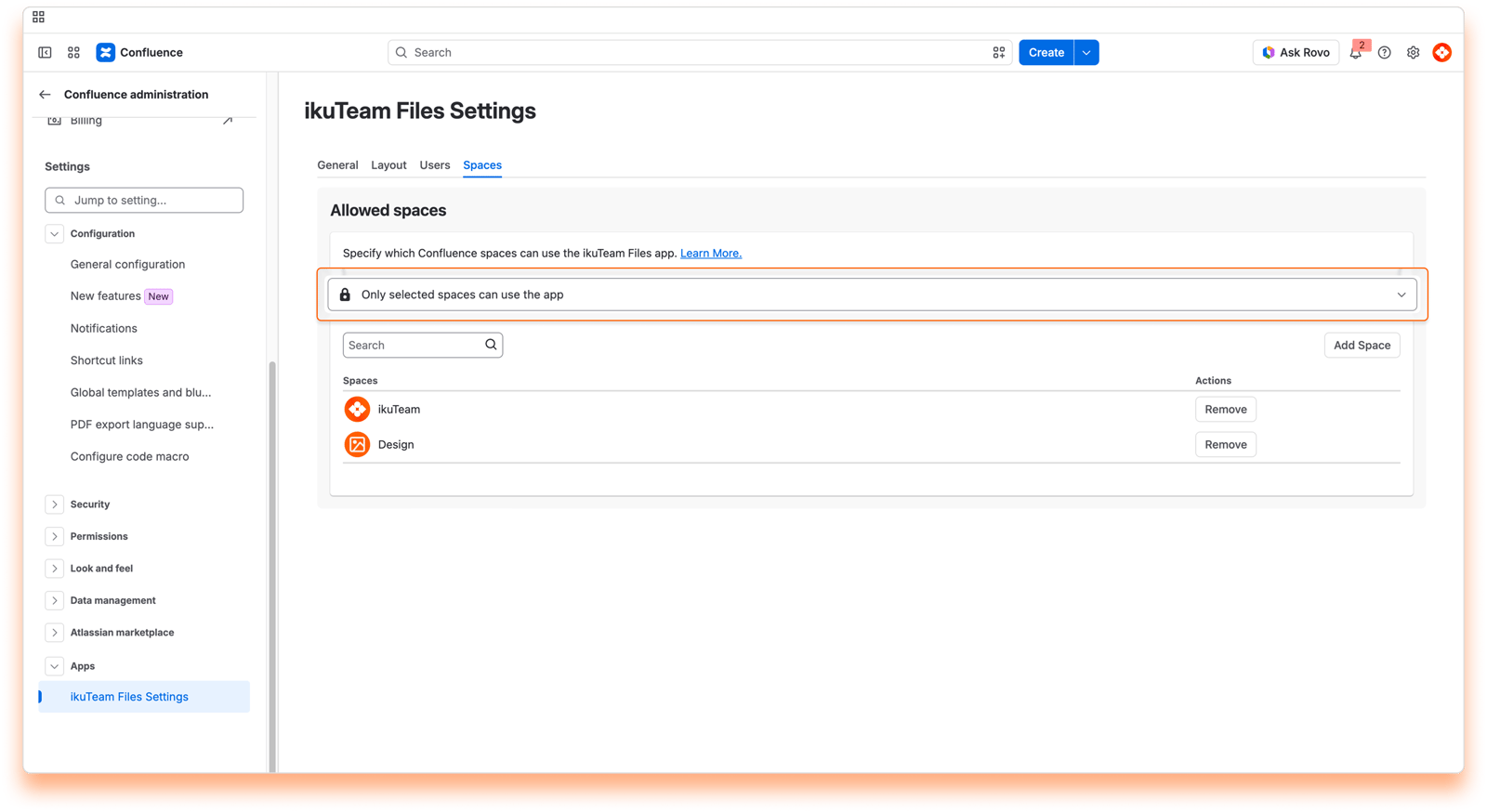
Click the "Add Space" button, start typing to select a space, and click the "Add" button. The space will have immediate access to the app.
When searching for a specific space, please keep in mind that the Atlassian CQL search has limitations for texts that include any of these special characters: + - && || ! ( ) { } [ ] ^ " ~ * ? : \ /
If your space name includes one of these characters, you can search for the space key instead.
Search for the space you want to remove, click the "Remove" button, and confirm. The app will be hidden from that space immediately.
Select this option if you only want to hide the ikuTeam Files app for some spaces.
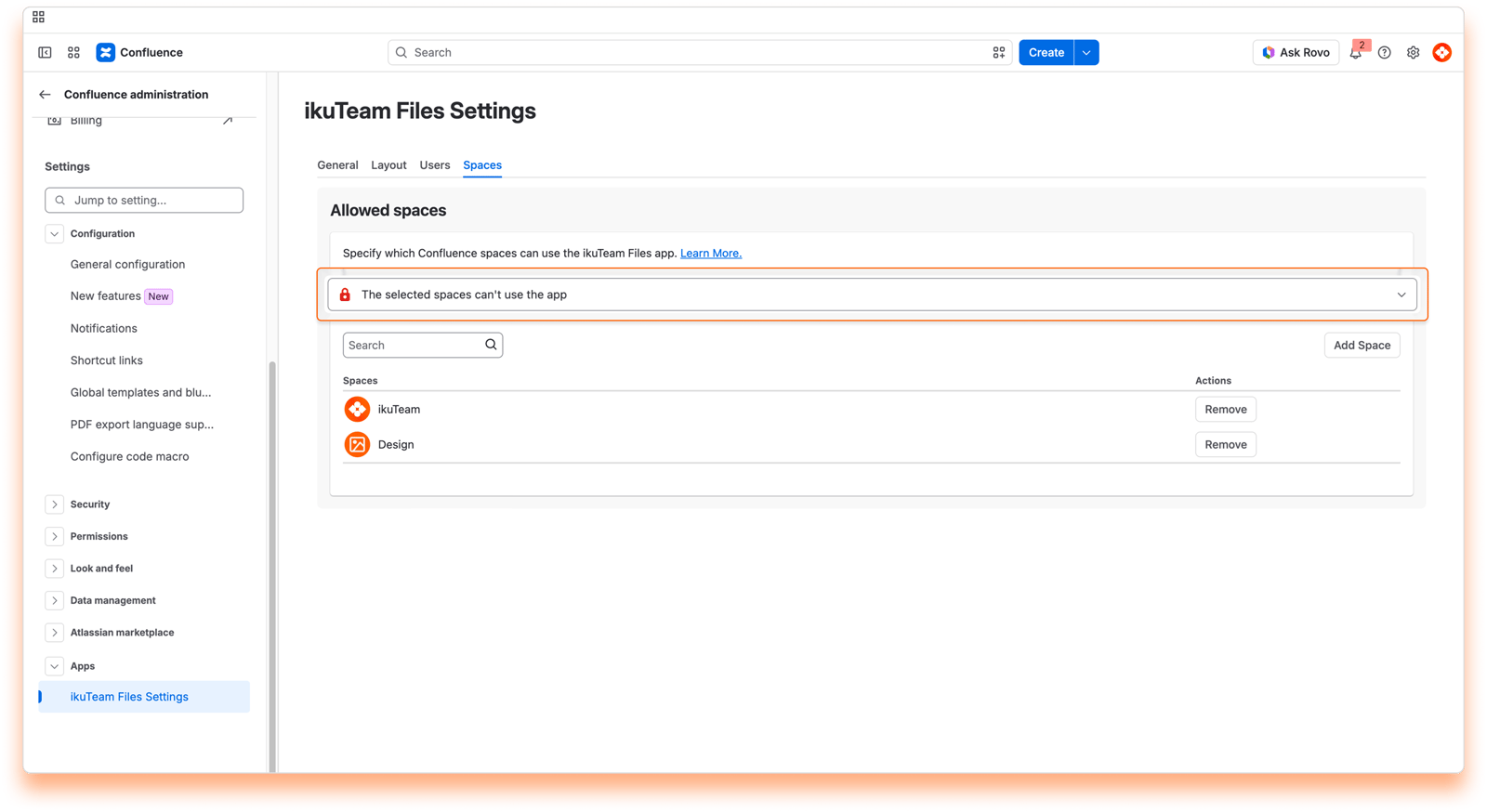
Click the "Add Space" button, start typing to select a space, and click the "Add" button. The app is hidden from the space immediately.
Search for the space you want to remove, click the "Remove" button, and confirm. The space will immediately have access to the app.
Blocking the ikuTeam Files app on a space using it hides the file manager link and all the files and folders attached to pages. The attachments reappear if the app is allowed again.
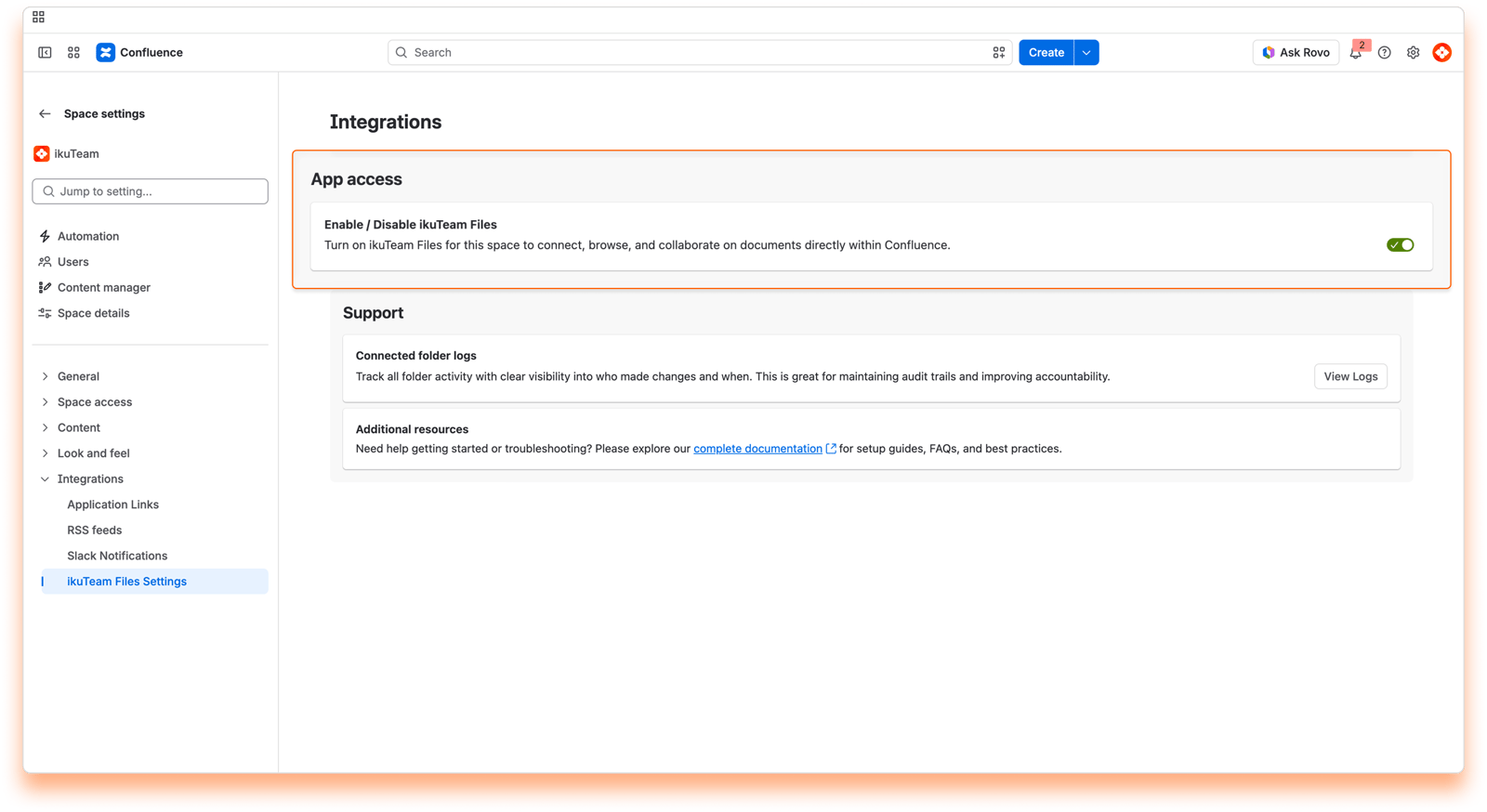
Space admins can also turn the ikuTeam Files app on or off in the Space Settings, as long as the Admin allows.
On this page, you learned about all the Admin settings available.
If you still have questions about the topics covered on this page, visit our support portal and send them to us. Our team is always happy to help.


