

Confluence Google Drive Integration
Create a single source of truth with seamless syncing and real-time collaboration.
Read more


New to the ikuTeam Files Agent for Confluence? If your day usually goes like this, open the page, read the summary someone wrote three months ago, jump to SharePoint or Drive or Dropbox, hunt for the source file, open it, skim it, come back to Confluence, then this article is for you. It walks through everything you need to get started: how to bring your cloud storage files onto the page with the ikuTeam Files macro, and how to ask the agent about them without leaving Confluence.
The ikuTeam Files Agent is an AI extension built into ikuTeam Files for Confluence, working alongside Atlassian Rovo to connect your Confluence space directly to your cloud storage, including SharePoint, Google Drive, OneDrive, Box, Dropbox, and Egnyte. Instead of opening and reading through every attached or linked file yourself, the agent lets Rovo "read" the content of your documents for you when you ask. It runs on Atlassian's Forge platform, so your data stays inside the Atlassian ecosystem the whole time.
The agent works from the files and folders your team has already connected in Confluence, not from everything in your storage. Two places matter:
The files and folders attached to the page you are viewing with the ikuTeam Files macro.
The root folders connected to the space in the ikuTeam Files file manager, so a shared team library connected there can also give the agent context.
In short, if a file or folder is already visible to Confluence from that page or space, the agent can see it too, whichever storage it lives in. If it is only sitting in your personal storage, the agent cannot.
Three things need to be in place, and the first two are one-time steps:
ikuTeam Files for Confluence is installed on the Advanced Edition, and at least one folder is connected to the space in the file manager.
Atlassian Rovo is active on your site. This is an Org admin step, and admins can check the current state on the Rovo activation guide before anyone starts asking questions.
The files you want to ask about are attached to the page with the ikuTeam Files macro, which is the part you do per page.
Once the first two are done, everyone in the space can use the agent without any setup of their own.
Useful resource: Manage Rovo access | Atlassian Support
This is the step that gives the agent something to work with. You add the ikuTeam Files macro and attach the files and folders you care about.
Open the page in edit mode and place the cursor where you want the files to appear.
Type /ikuteam, then select ikuTeam Files from the list.
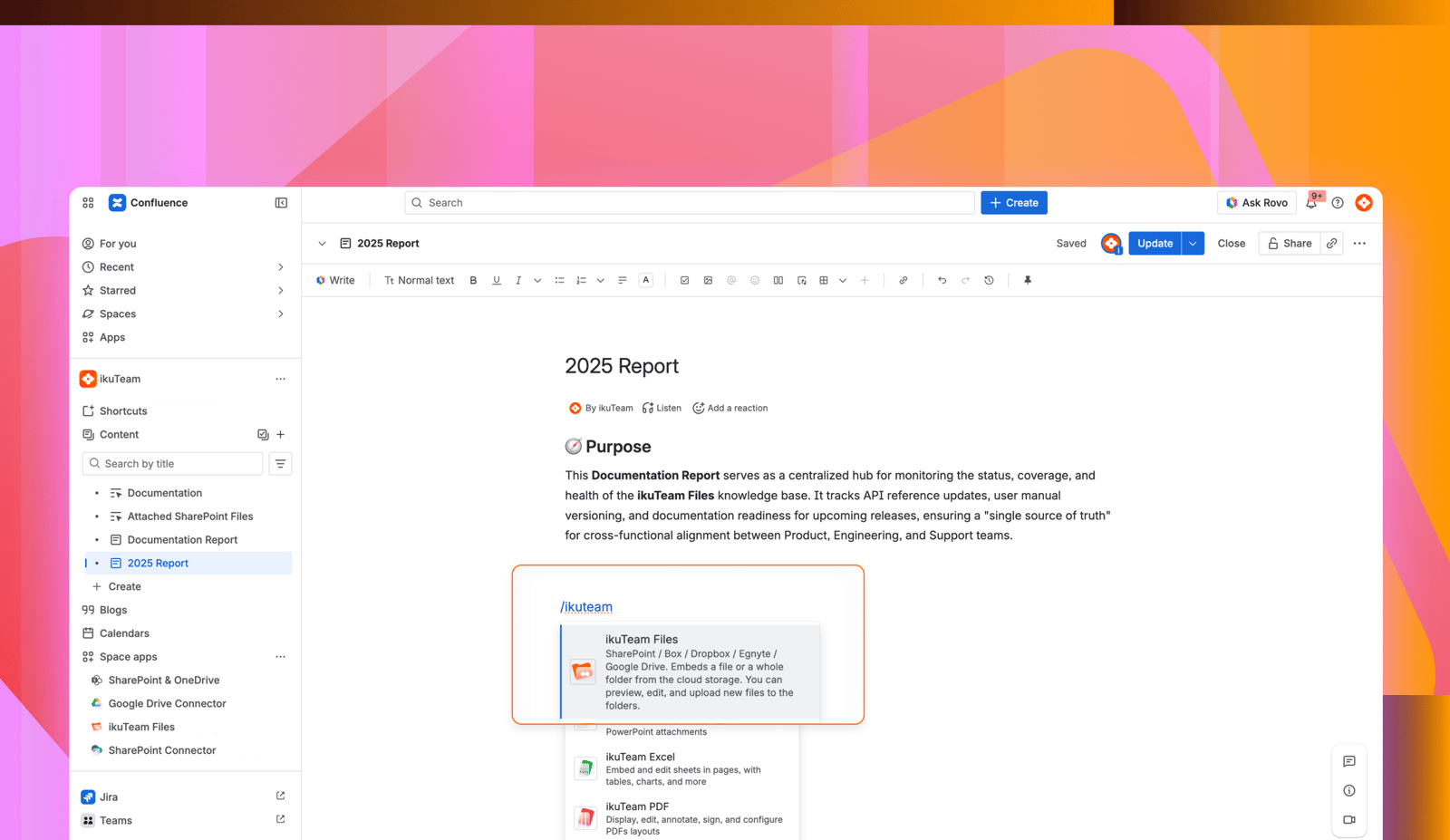
Browse your connected folders. If none are connected yet, you can connect one from here, the same way you would in the file manager.
Click the checkbox next to each file and folder you want to attach. Your selections appear in the live preview pane on the right.
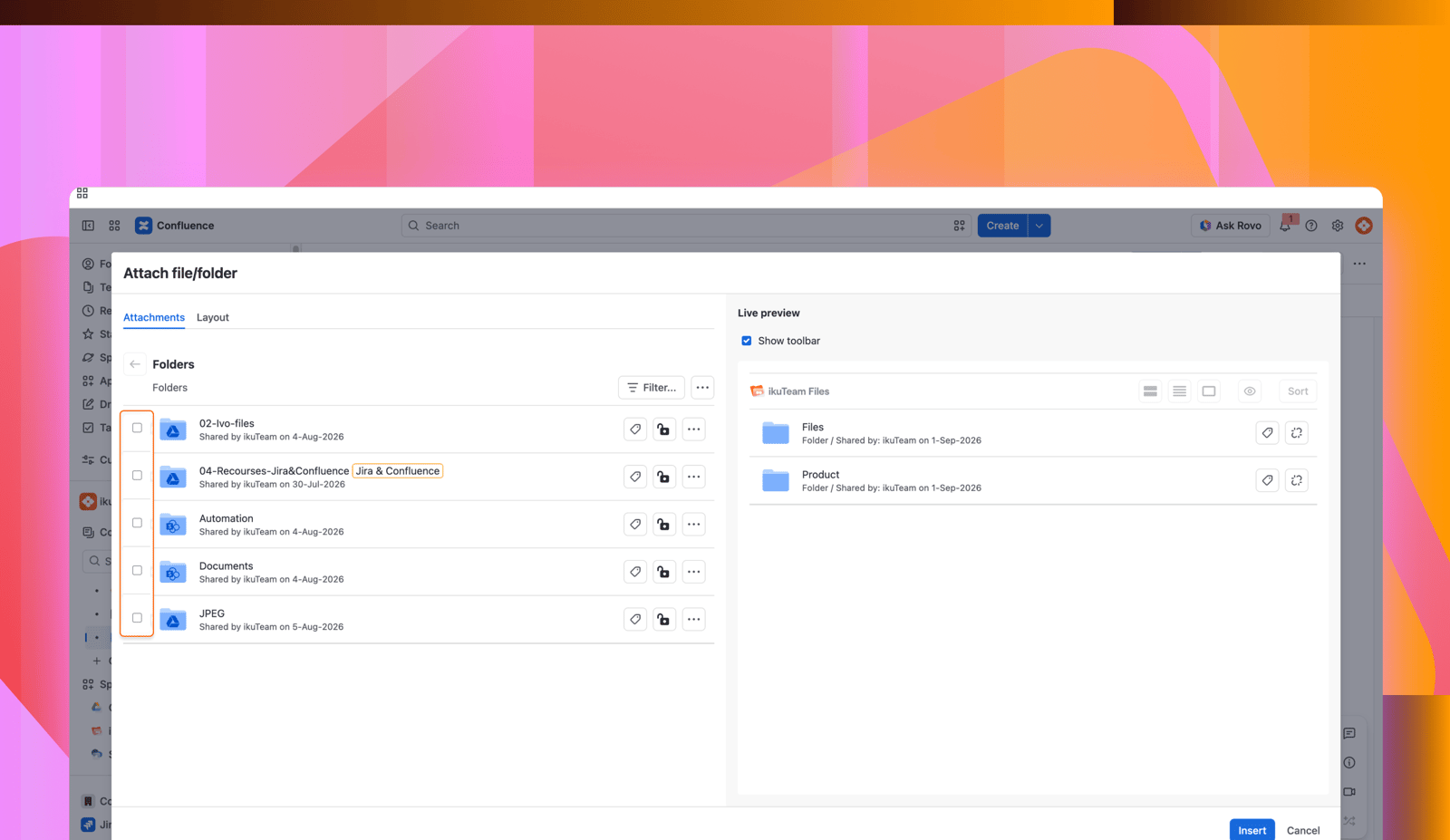
Click the Insert button, then publish the page.
Your files are now on the page, live from your storage, and the agent can read them.
Look for the Ask Rovo button next to the notification icon in your Confluence site.
Open Rovo Chat.
Switch to the ikuTeam Files Agent.
Open the page whose files you want to ask about, then start typing, the same way you would message a teammate.
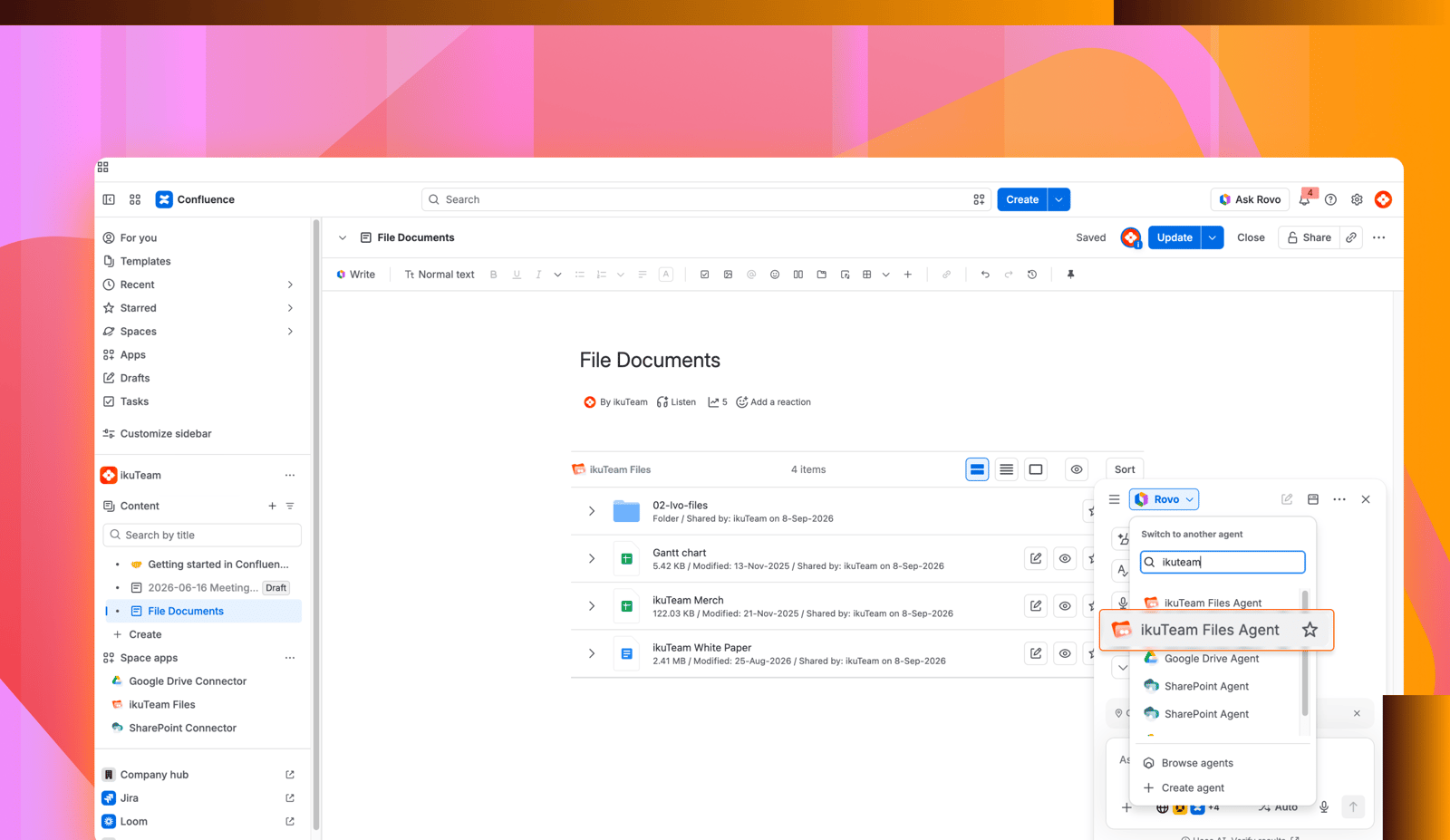
You can ask anything that points to a specific page, space, or file.
A few examples to get you started:
"What are the files attached to this page?"
"Find the file named Budget in this space."
"Summarize TestCases.xlsx."
"What are the key takeaways from the meeting notes attached to this page?"
"Summarize the requirements doc attached here, and list anything that looks like a technical constraint."
Beyond answering one question at a time, the agent can summarize long PDFs, Word documents, Excel sheets, PowerPoint files, and Google Docs, Sheets, and Slides, wherever your team keeps them across SharePoint, Google Drive, OneDrive, Box, Dropbox, and Egnyte, without you opening them. It answers questions about those files without you leaving Confluence, and it can find a file by name on the page or across the folders connected to your space.
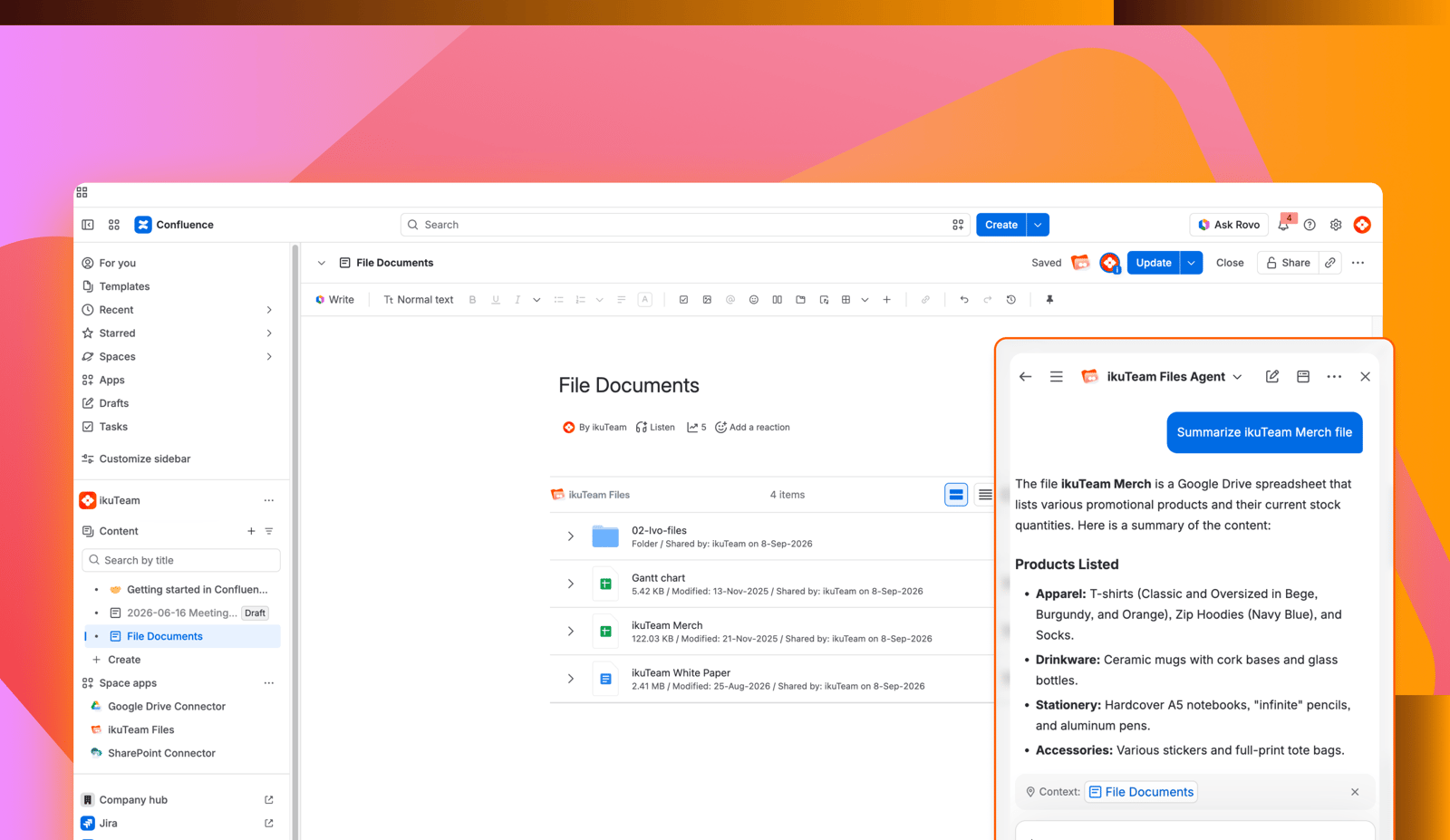
In this article, you learned everything you need to get started with the ikuTeam Files Agent in Confluence: How to attach your files to a page with the ikuTeam Files macro, what the agent can see, and how to ask it questions in Rovo Chat.
If you still have questions about the ikuTeam Files Agent, visit our support portal and send them to us. Our team is always happy to help.


