

Confluence Google Drive Integration
Create a single source of truth with seamless syncing and real-time collaboration.
Read more


Create an in-context file manager for your Confluence Space. Seamlessly browse shared folders, preview files, and edit documents from SharePoint, OneDrive for Business, Google Drive, Dropbox, OneDrive, Box, or Egnyte without ever leaving your workspace.
The file manager is easily accessible from the sidebar, and it's the cornerstone for all you can do with the ikuTeam Files app. When using the macro to attach files and folders to your pages, you'll also use the file manager, which works the same way.
This page covers everything related to the ikuTeam Files app, from what you can do with your files and folders to managing connected folders. Let's start with the latter since you always need at least one connected folder to use the app.
When you open the ikuTeam Files app, you'll first see a list of the connected folders you can browse and use to collaborate with your team.
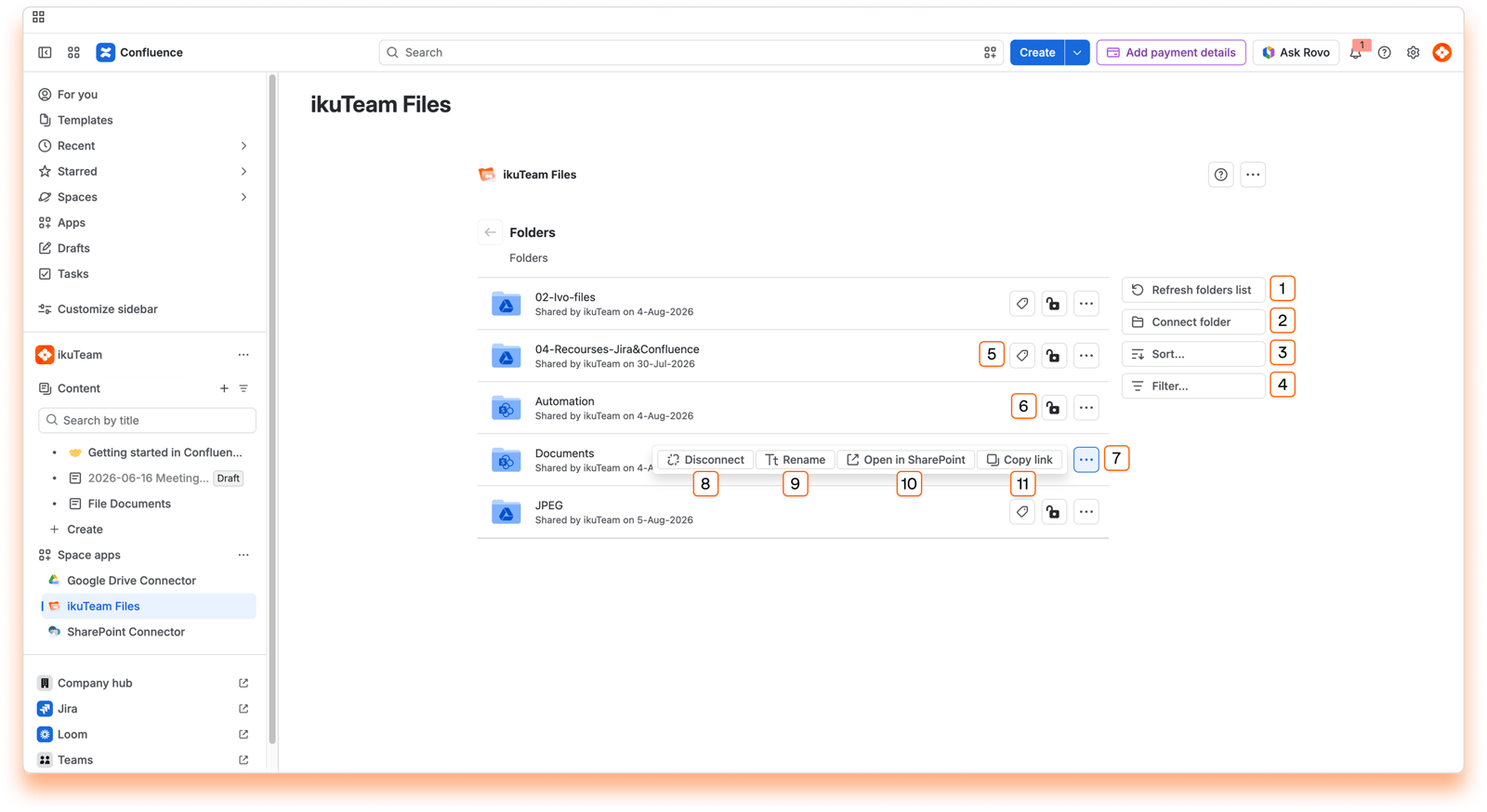
List of the connected folders to the current Confluence space.
Refresh folders list button
Connect folder button
Sort connected folders button
Filter connected folder
Folder tag button
Folder permissions button
Context menu button
Disconnect folder option
Rename connected folder
Open in original storage option
Copy Link
Use the "Refresh folders list" button to update the list of connected folders and access folders your team shared with the latest permissions.
In the Getting started page, we covered how to connect your first folder. The empty screen makes it easy to see how to do it, but you can connect as many folders as you need.
Click the "Connect folder" button.
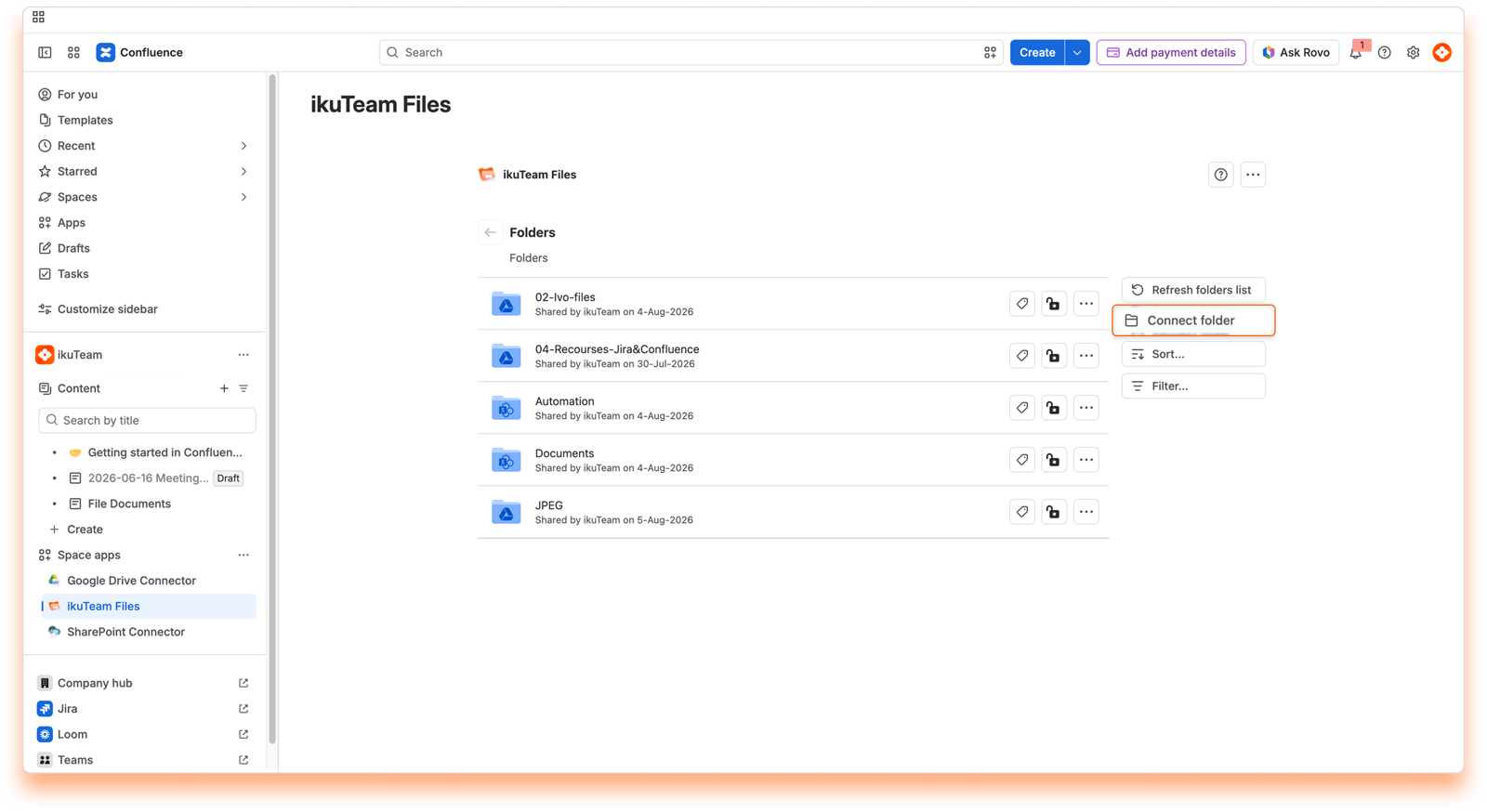
Select the storage place where the folder is, or connect a new one if needed.
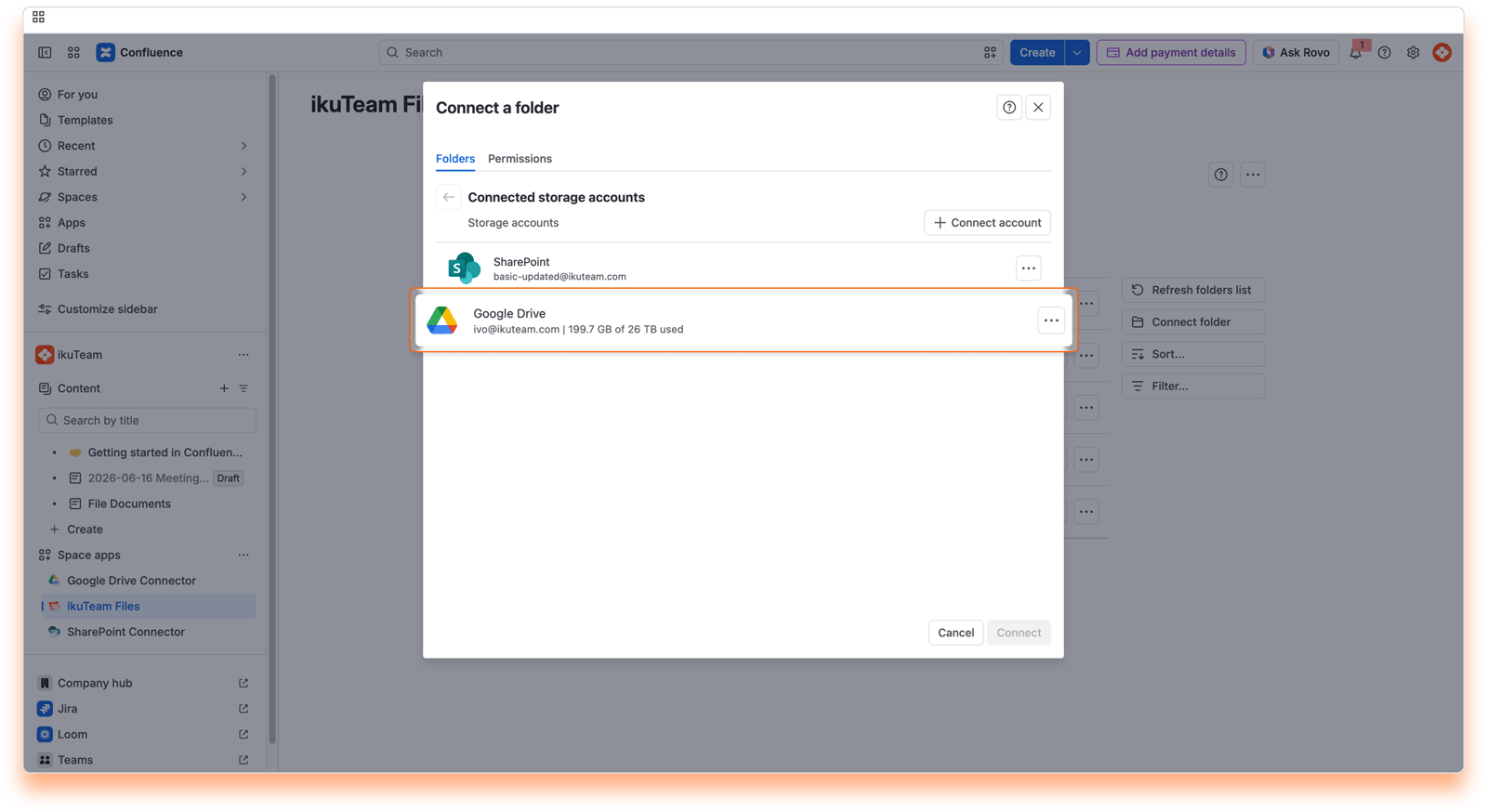
Navigate to the folder you want to share with your team.
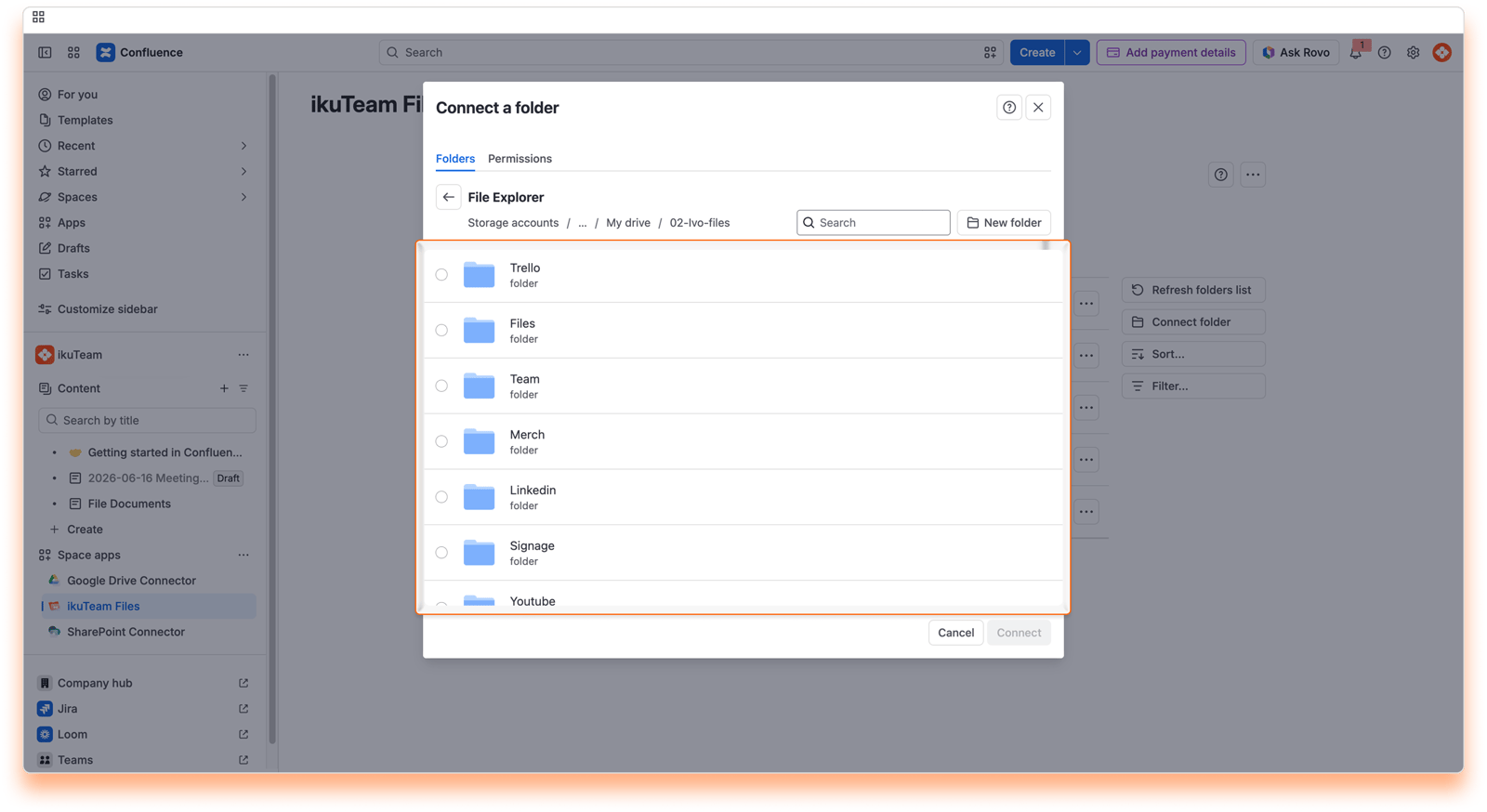
Select the folders you want to connect by clicking the checkboxes.
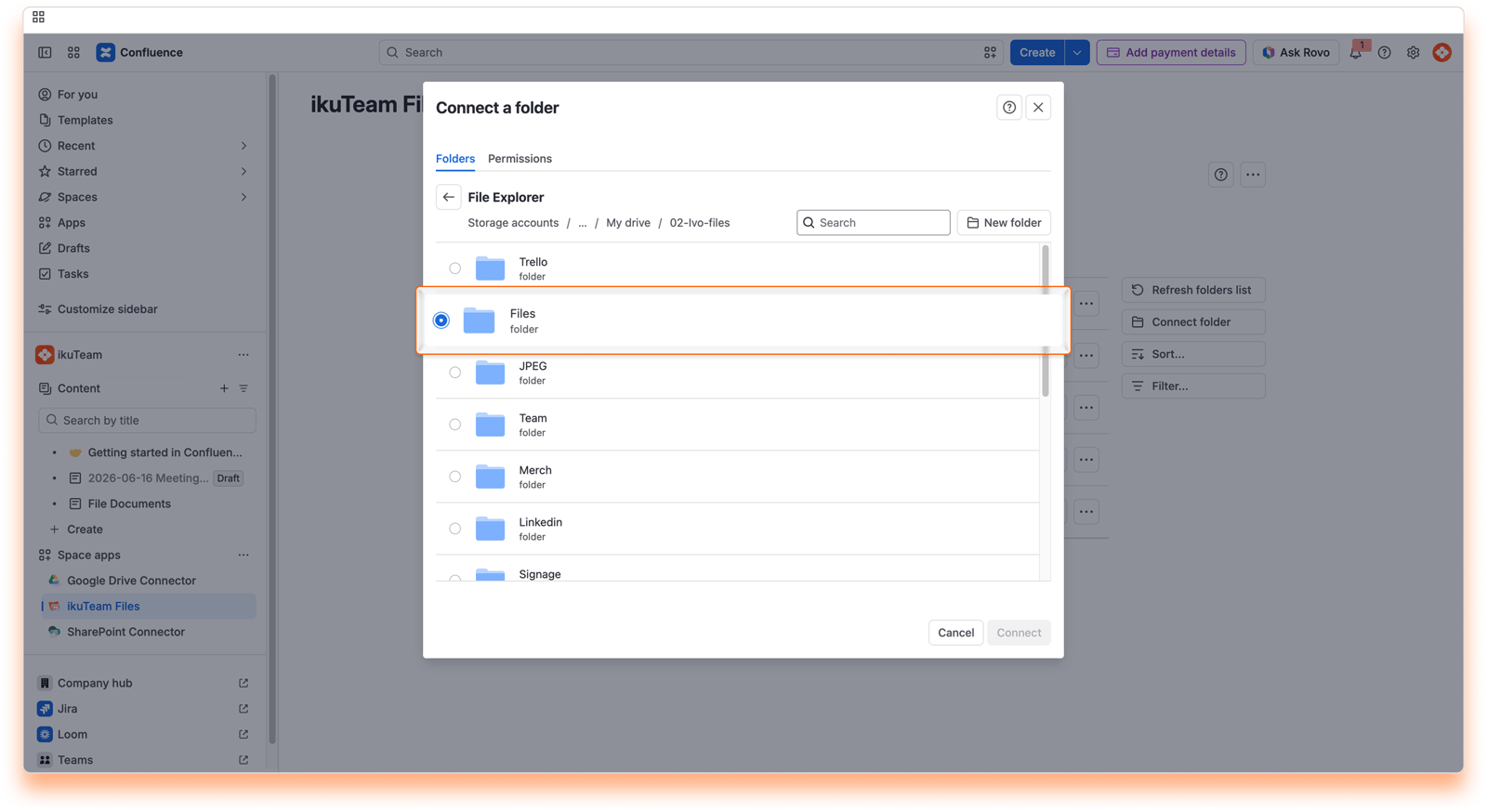
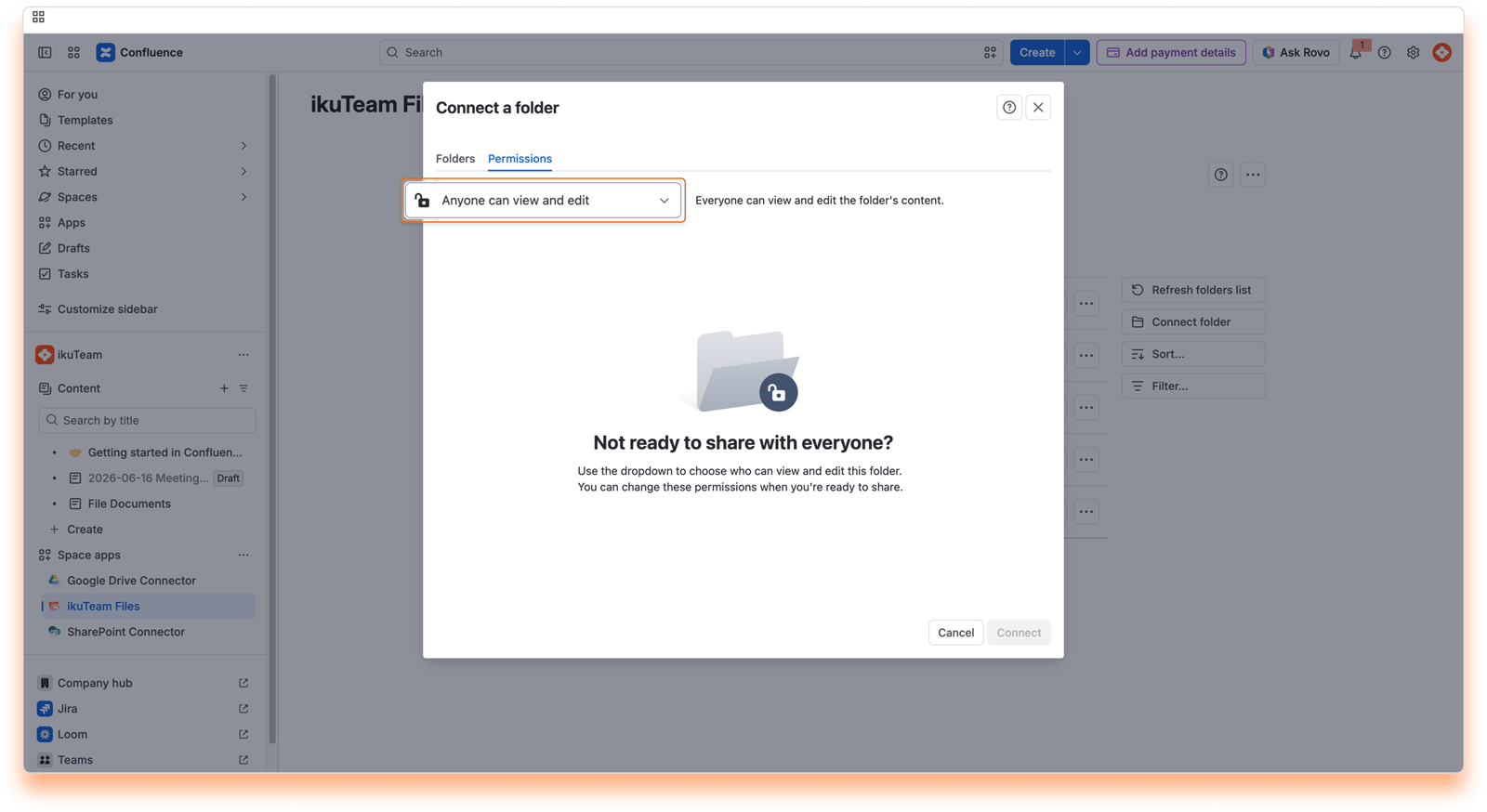
Optional: Click the "Permissions" tab to set advanced options. By default, your team can see and edit any folder you connect. For more information, check the permissions page.
Click the "Connect" button.
We recommend connecting a folder where you and your team store your documents, but you can start with a new one by clicking the "New folder" button.
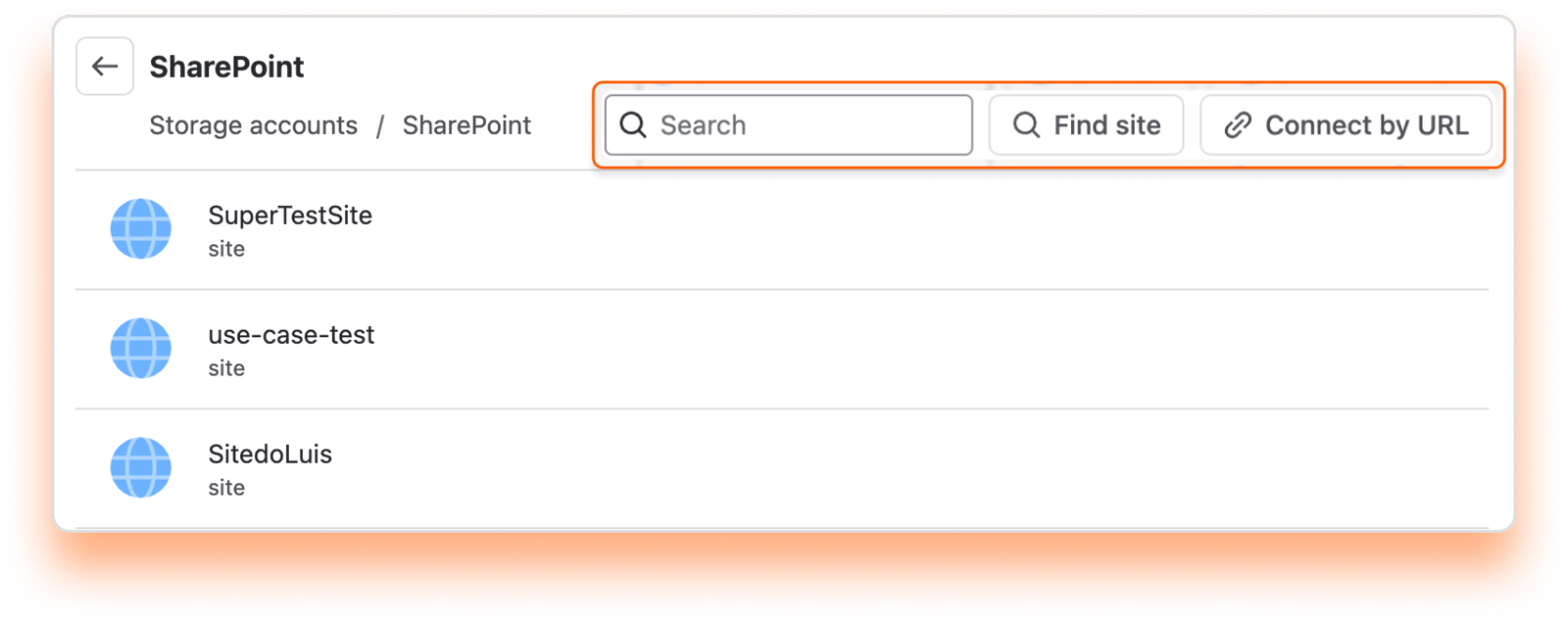
SharePoint tip: If you can't see the site where your folder is, use "Find site" or "Connect by URL" to locate and link your SharePoint folder.
All done. You can now use your new folder or add more using the same process.
The connected folders are ordered alphabetically by default.
You can change this by clicking the "Sort" button and selecting a sort by option and the order you prefer. The button will always reflect your selection.
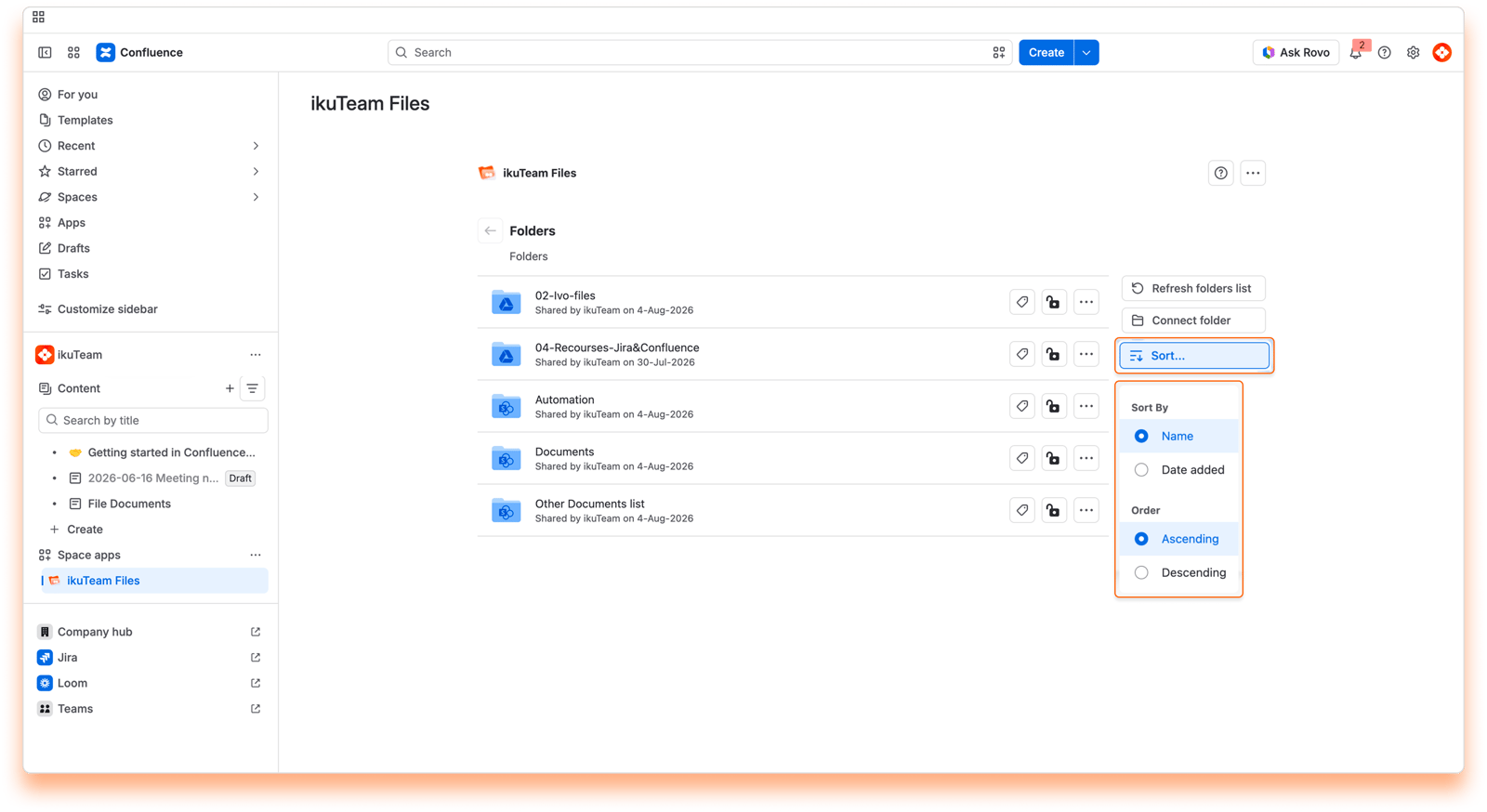
Connected folders can be sorted by these criteria:
Name (ascending or descending)
Date added (ascending or descending)
By default, the file manager shows every folder connected to the space, including folders your teammates connected. Select “Connected by me” to narrow the list to the folders you connected yourself.
This is handy in spaces with a lot of connected folders. Instead of scrolling through the full list, you can jump straight to the folders you work with, and any search or browsing you do runs against that shorter list.
You can add a tag to your connected folders to help you keep them organized and easily accessible.
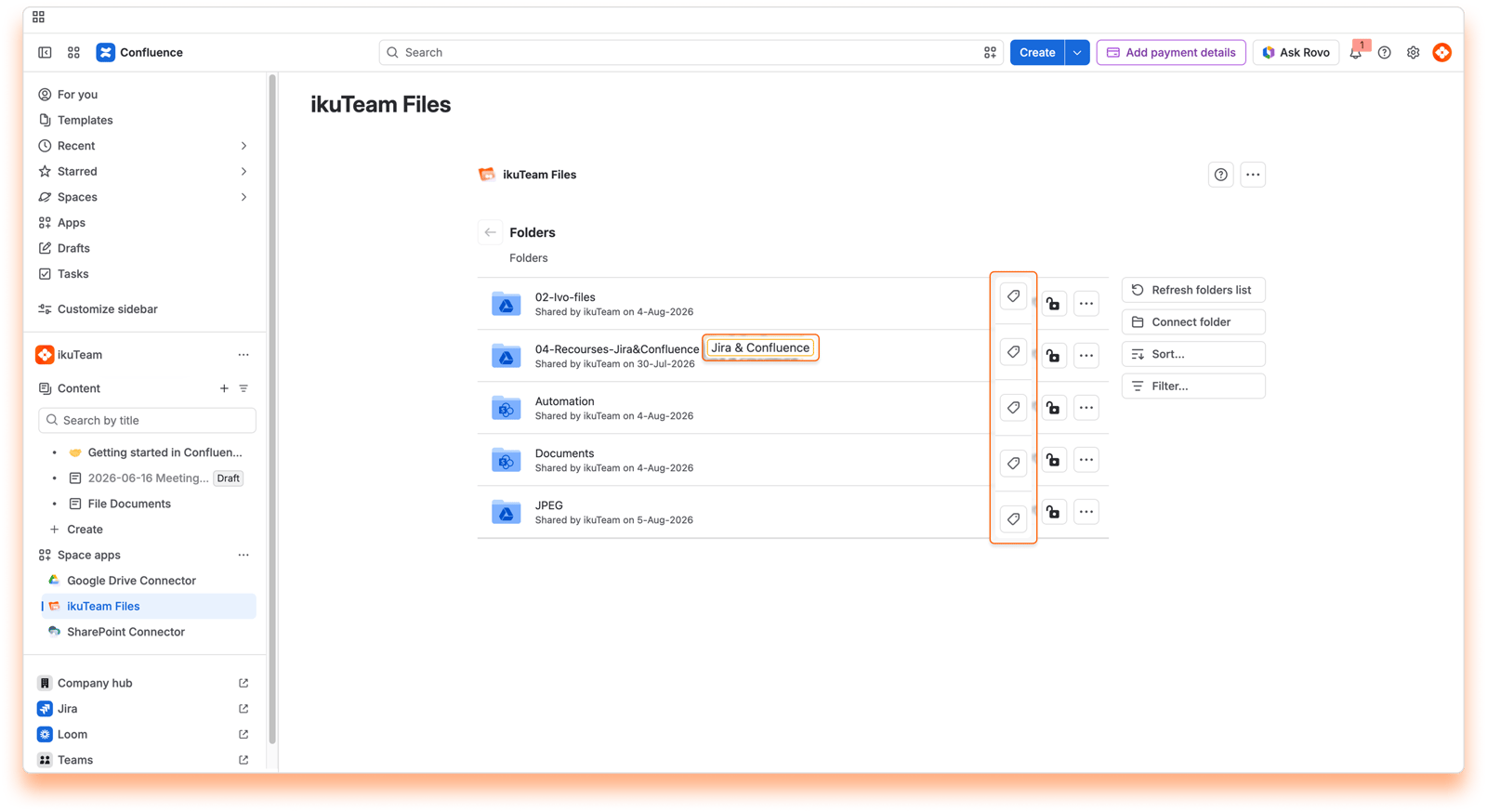
To add a tag:
Click the tag button.
Enter a name.
Pick a color.
Click Save.
All done.
To edit the tag, click the tag button again. You can change the name and color. When you’re done, click Save.
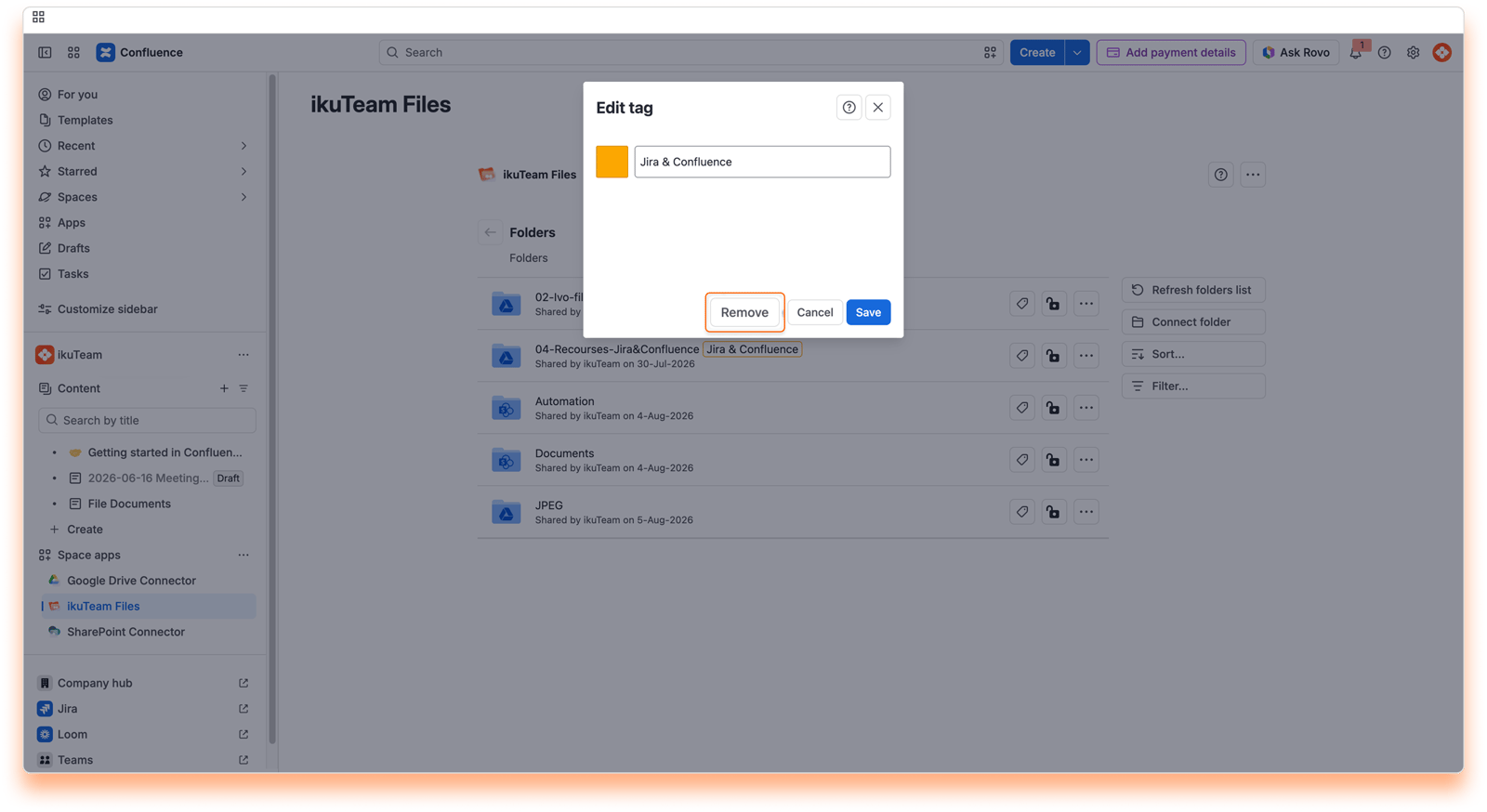
To altogether remove a tag:
Click the tag button.
Click the Remove button.
Confirm the removal.
All done.
This action can’t be undone, but you can add a tag again anytime.
The folder owner can set permissions for a connected folder at any time, from the lock icon or with Edit permissions in the folder's menu. For more information, check the permissions page.
It's also possible to disconnect folders you no longer need. Before getting into how to do it, it's relevant to know that you're only breaking the ikuTeam Files app's link to the original storage when you disconnect a folder. All your content is safe, but any files and folders you or your team attached to Confluence pages from the disconnected folder also lose the link to the original storage and become unavailable.
If you accidentally disconnect a folder, the same owner can connect it to the same space again within 30 days to restore the attachments. After this period, it’s no longer possible to restore the existing attachments.
Instructions:
Click the context menu button (look for the ··· button) on the right side of the folder you want to disconnect.
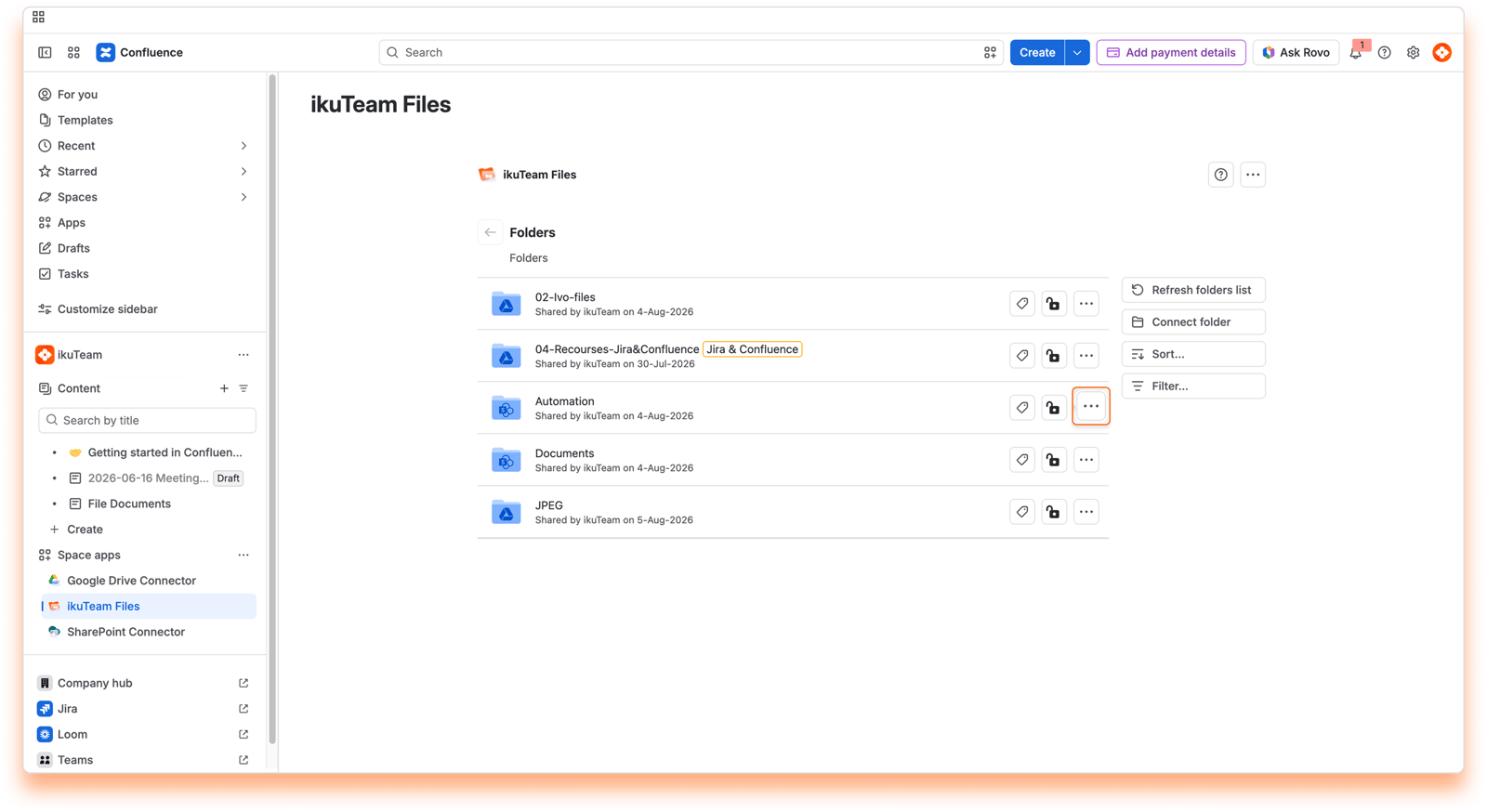
Click the "Disconnect" option.
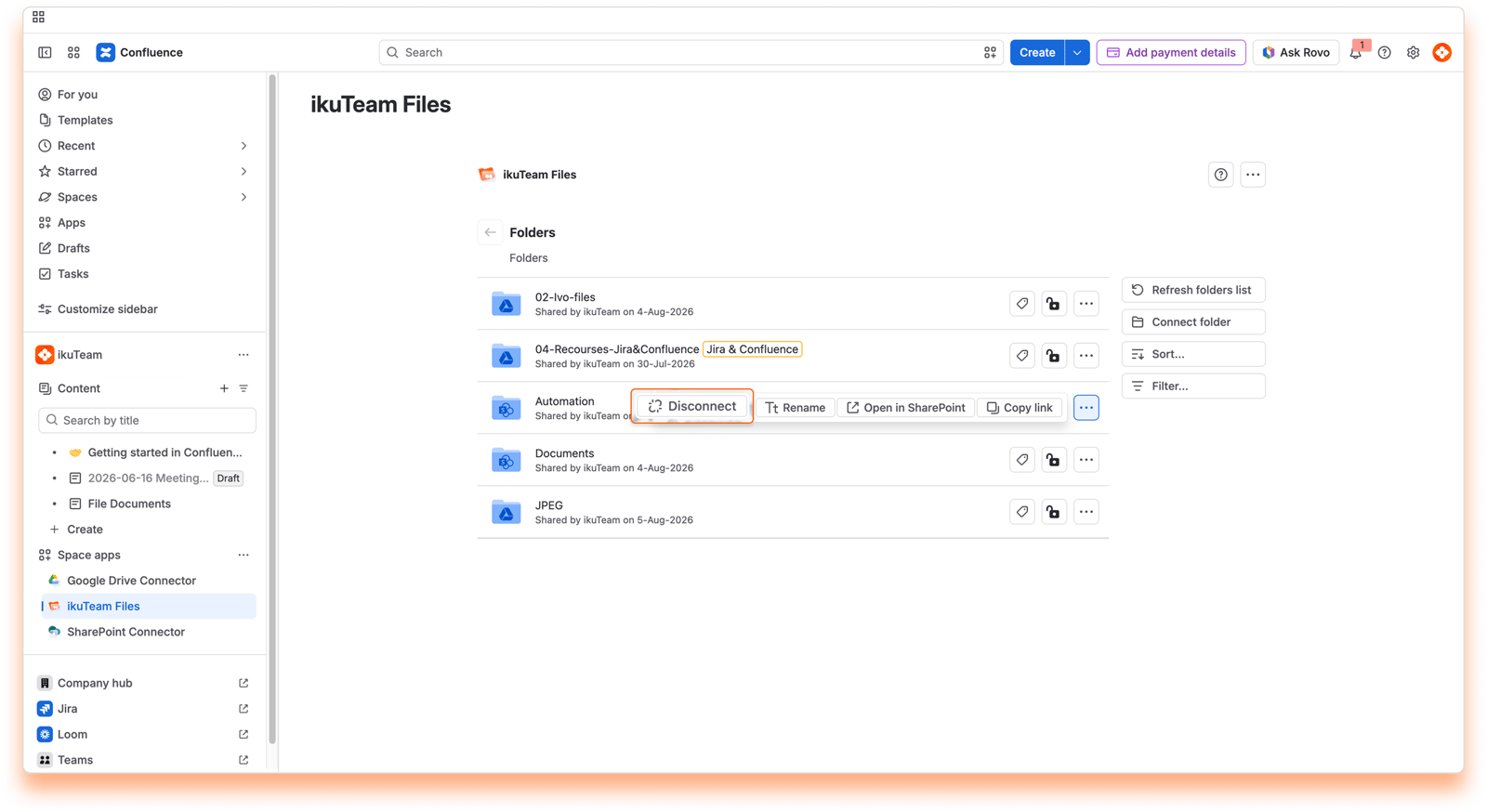
Confirm by clicking the "Disconnect" button.
All done. Your folder is safe and sound, but your team can't use it anymore in the ikuTeam Files for Confluence app.
You can only disconnect the folders you connected. Confluence admins can disconnect any folder.
Click the context menu of the connected folder you want to rename.
Click the "Rename" option.
Enter the new name in the dialog window.
Click the "Rename" button. All done.
When you change the name of a folder, it's updated in the connected storage, too.
Egnyte identifies files and folders by their path. If you rename a connected Egnyte folder, files and folders attached to pages from it stop working.
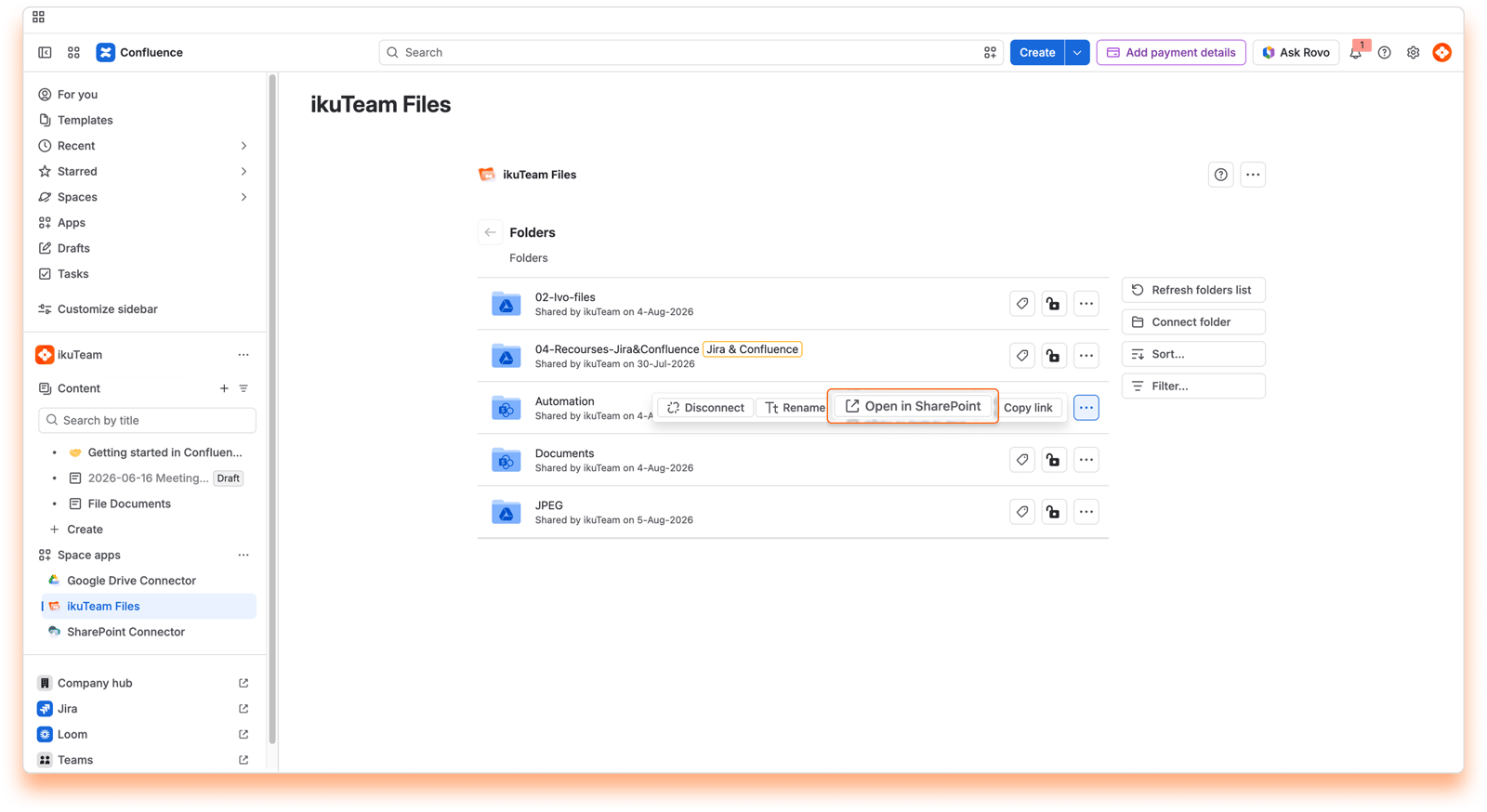
Open in [Storage] opens the file or folder in its storage (for example SharePoint or Google Drive) in a new browser tab.
Copy link allows you to copy the location of the file/folder from your storage site.
This option lets you sign out from a connected folder if Mirror Storage Permissions is ON. This is useful if you need to connect with a different account.
When a folder needs you to sign in before you can open it, its menu shows Authenticate. Select it, choose one of your connected storage accounts (or click Connect account), and use an account that can access the folder. Once you're signed in, the folder opens as usual.
Space admins and Confluence admins can take over a connected folder, for example when its owner leaves the team. Select Transfer ownership in the folder's menu and confirm. You become the owner, and the previous owner's access then follows the folder's permissions. If you haven't authenticated the folder yet, authenticate it right away, so it keeps working for everyone who relies on the owner's account.
While using the ikuTeam Files app, you can connect folders stored in SharePoint, OneDrive for Business, Google Drive, Dropbox, OneDrive, Box, or Egnyte. You only need to authorize the app to access that storage place first. You're in control of your storage places: only you can see the places you allowed, and you, and only you, can disconnect them.
You can view your connected places when you connect a new folder or from the ikuTeam Files settings page.
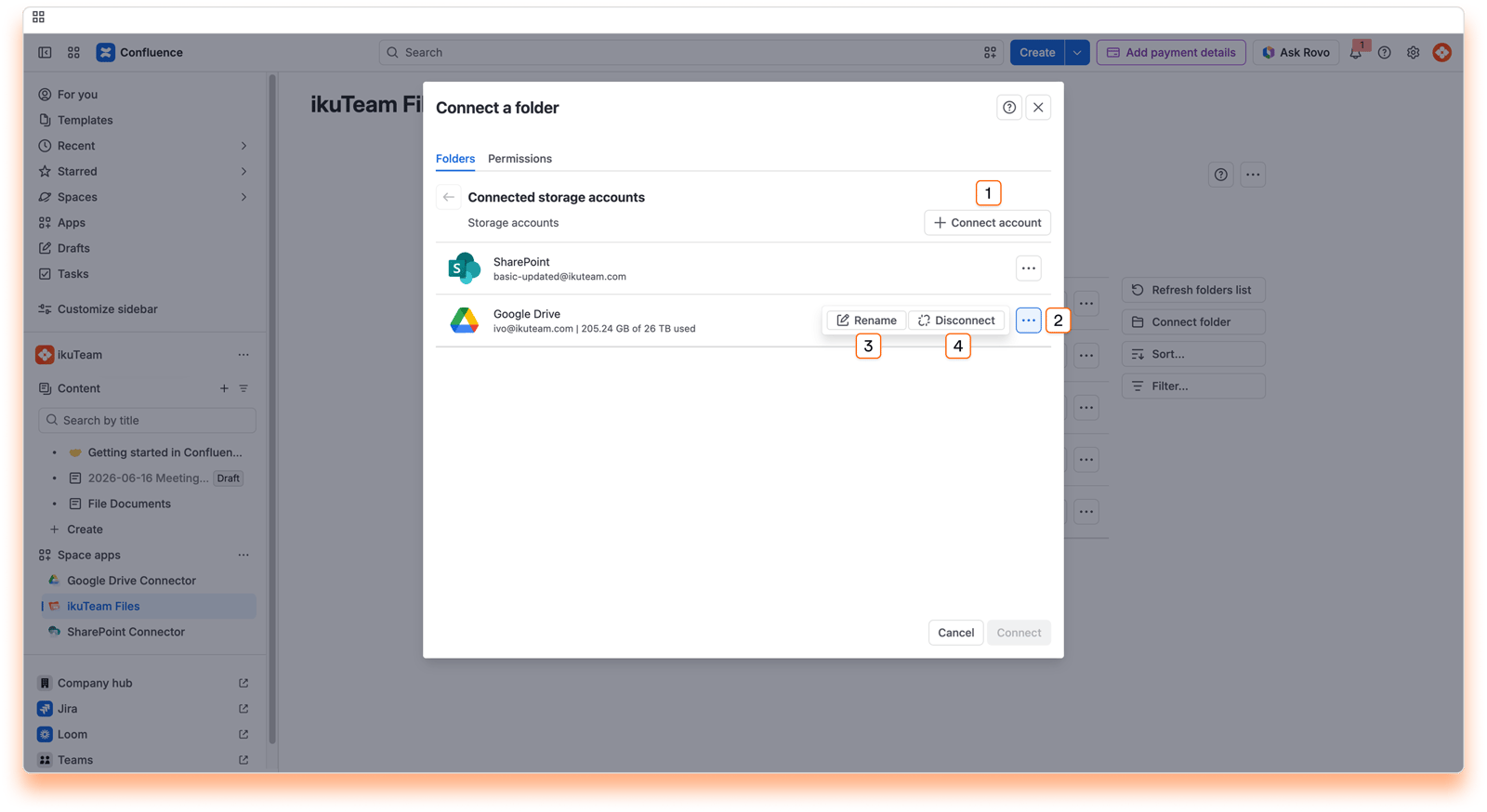
List of your connected places.
Connect account button
Context menu button
Rename place option
Disconnect place option
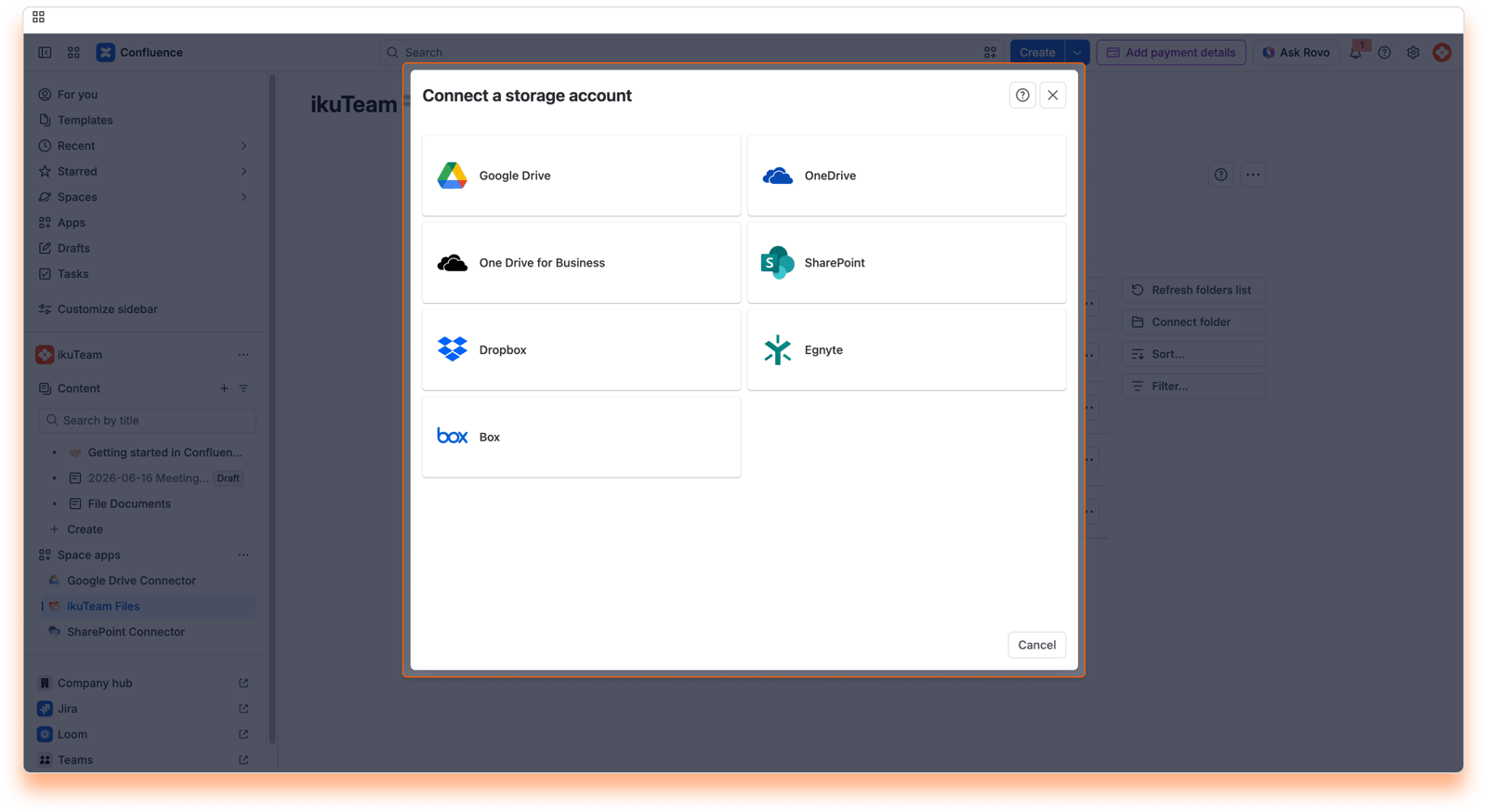
Instructions:
Click on the "Connect folder" button from the list of connected folders.
If you have connected places before, they will appear on the list. Click the "Connect account" button. If you haven't, you'll see a list of all the places you can connect directly.
Select the storage place you want to connect and authenticate.
You can connect several accounts of the same service. For example, you can connect a personal Dropbox and Dropbox for Business.
For step-by-step instructions for each storage place (SharePoint, OneDrive for Business, Google Drive, Dropbox, OneDrive, Box, and Egnyte), check Step 2 in Getting started.
It's all done. Your new place is now connected. You can browse it to connect a folder or return to the file manager.
You can connect several accounts from the same service. By default, each new place is named after its service (for example, "Google Drive"), so places from the same service start with the same name. To keep things organized, you can rename your places to something more meaningful to you.
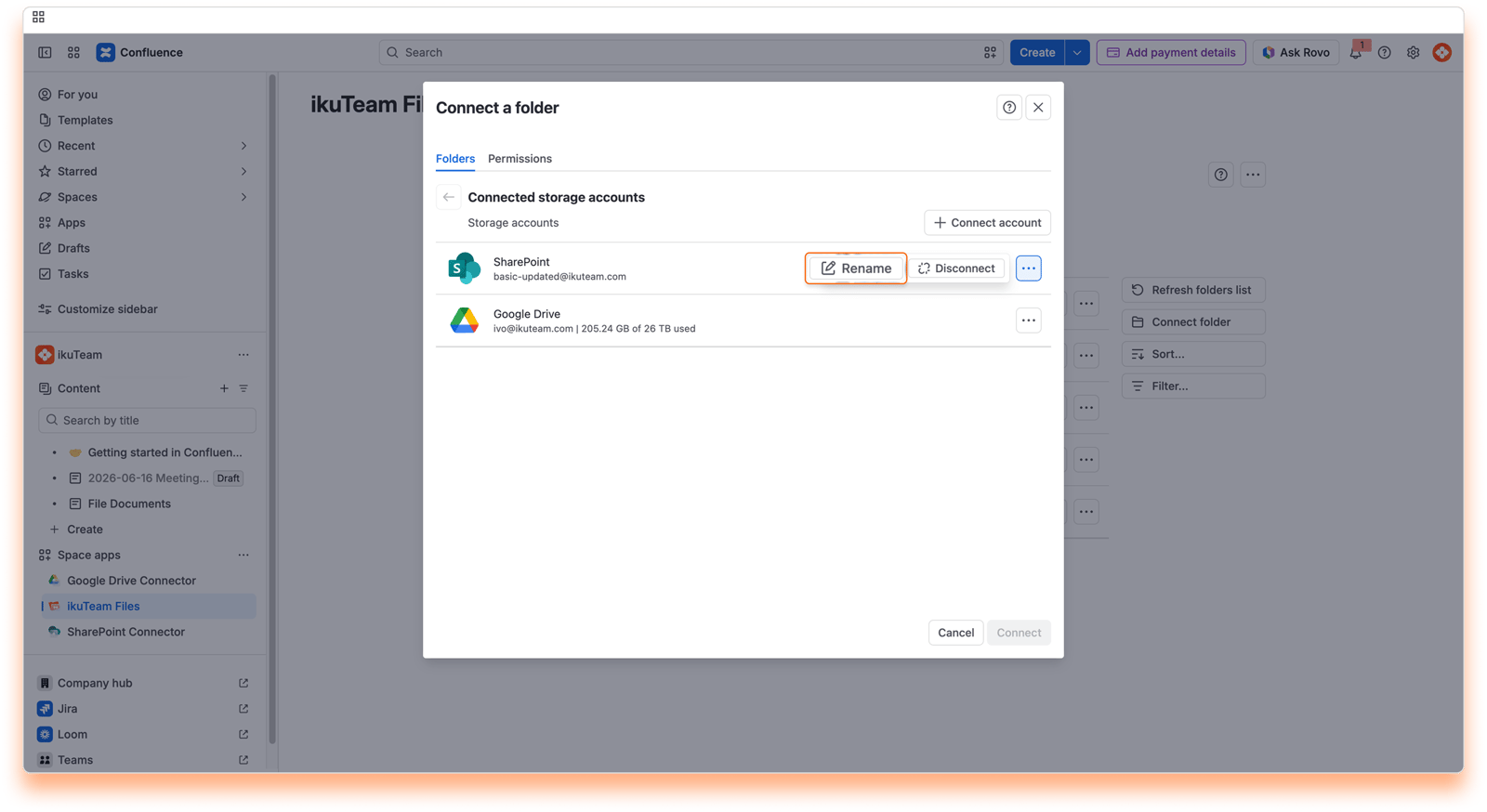
Instructions:
Click on the "Connect folder" button from the list of connected folders.
Click the context menu button of the place you want to rename.
Click the "Rename" option.
Enter the new name and click Rename.
That's it. Updating the name takes a few moments and is ready to use.
You can also rename and manage your places from the ikuTeam Files settings page.
When you disconnect a place in the ikuTeam Files for Confluence app, you only remove the connection to the original storage. All your content is safe, and the folders you connected from that place stay connected to the space. With Mirror Storage Permissions ON, you're signed out of the folders you opened with that account. With Mirror Storage Permissions OFF, the folders you connected with that account, and the files and folders attached to pages from them, become temporarily unavailable.
If you accidentally disconnect a place, connect the same account again and access is restored automatically.
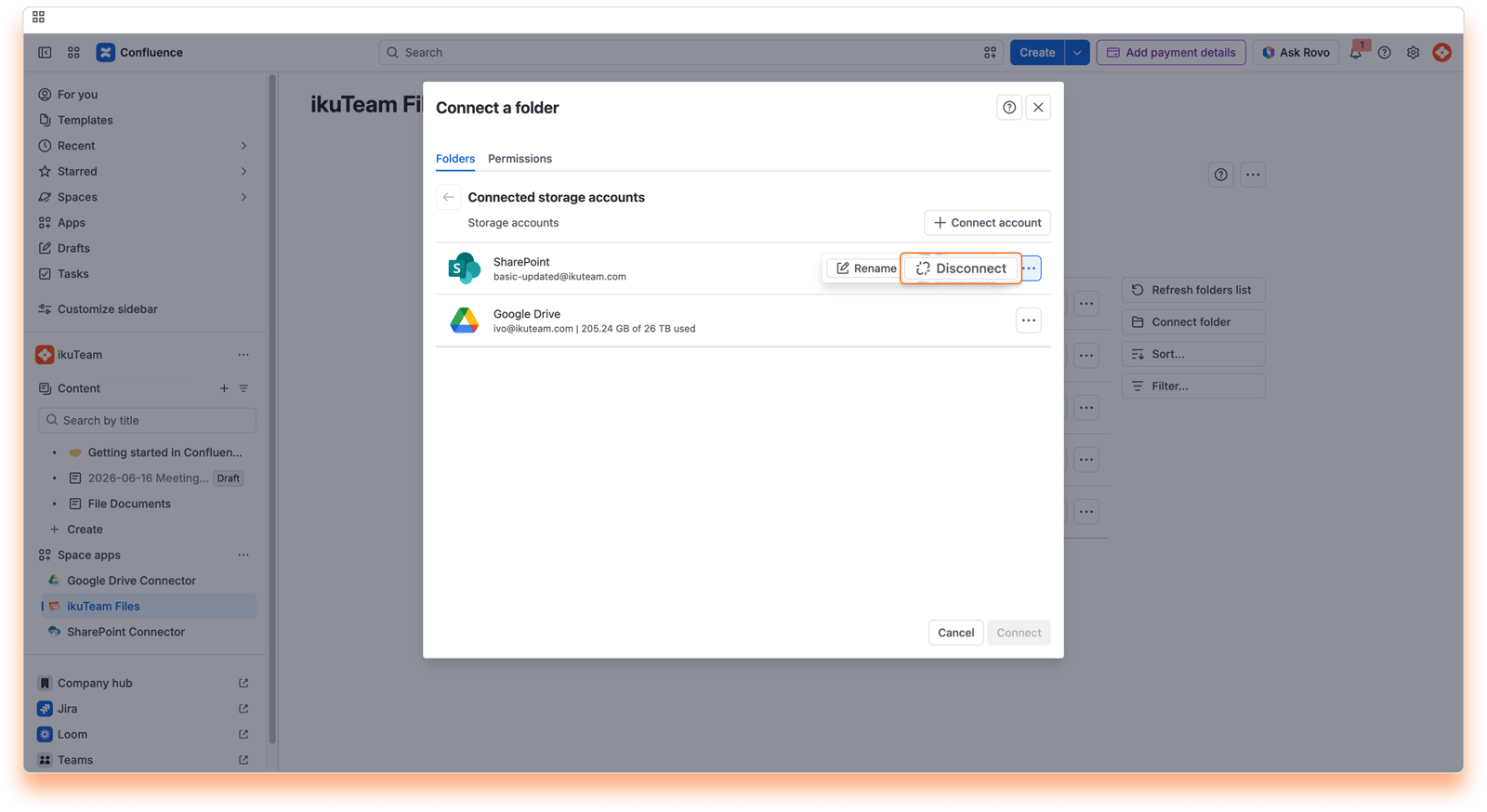
Instructions:
Click on the "Connect folder" button from the list of connected folders.
Click the context menu button on the right side of the place you want to disconnect.
Click the "Disconnect" option.
Confirm by clicking the "Disconnect" button.
All done. Your storage place is safe and sound but no longer accessible in the ikuTeam Files app.
You can also disconnect and manage your places from the ikuTeam Files settings page.
Now that we know how to connect folders, it's time to learn how to make the most of the ikuTeam Files for Confluence app. This section will cover what you can do with files and folders and how to add content to your connected folder.
Click a connected folder to view its content. The navigation is at the top, your content is in the center, and extra options are to the right.
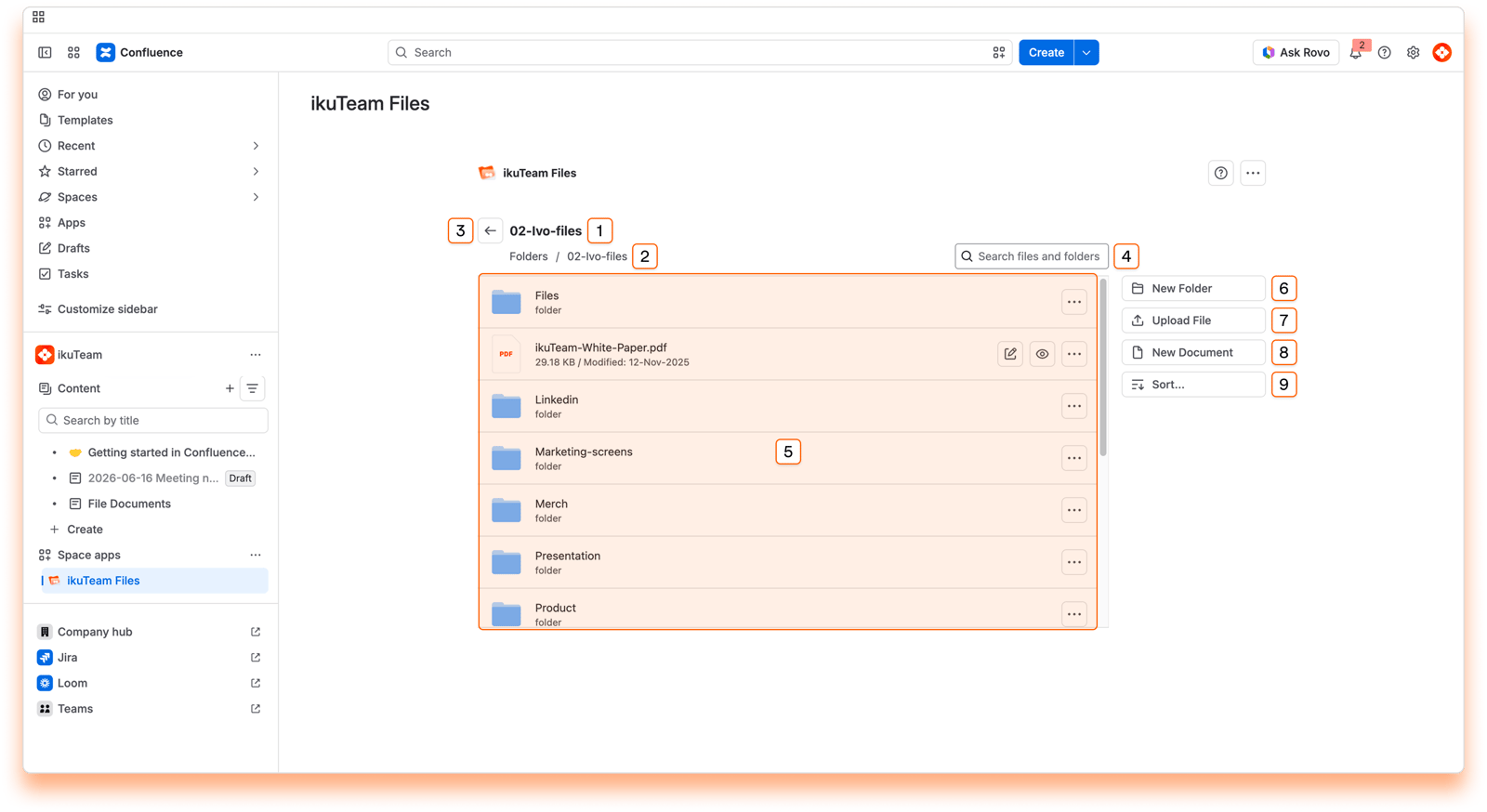
Current folder name
Path: you can click in any section to return there
Back button: return to the previous folder
Search field
Content area
New folder button
Upload file button
New document button
Sort button
If your window is too narrow, the right section is hidden, but all the options are available in the context menu that appears next to the navigation.
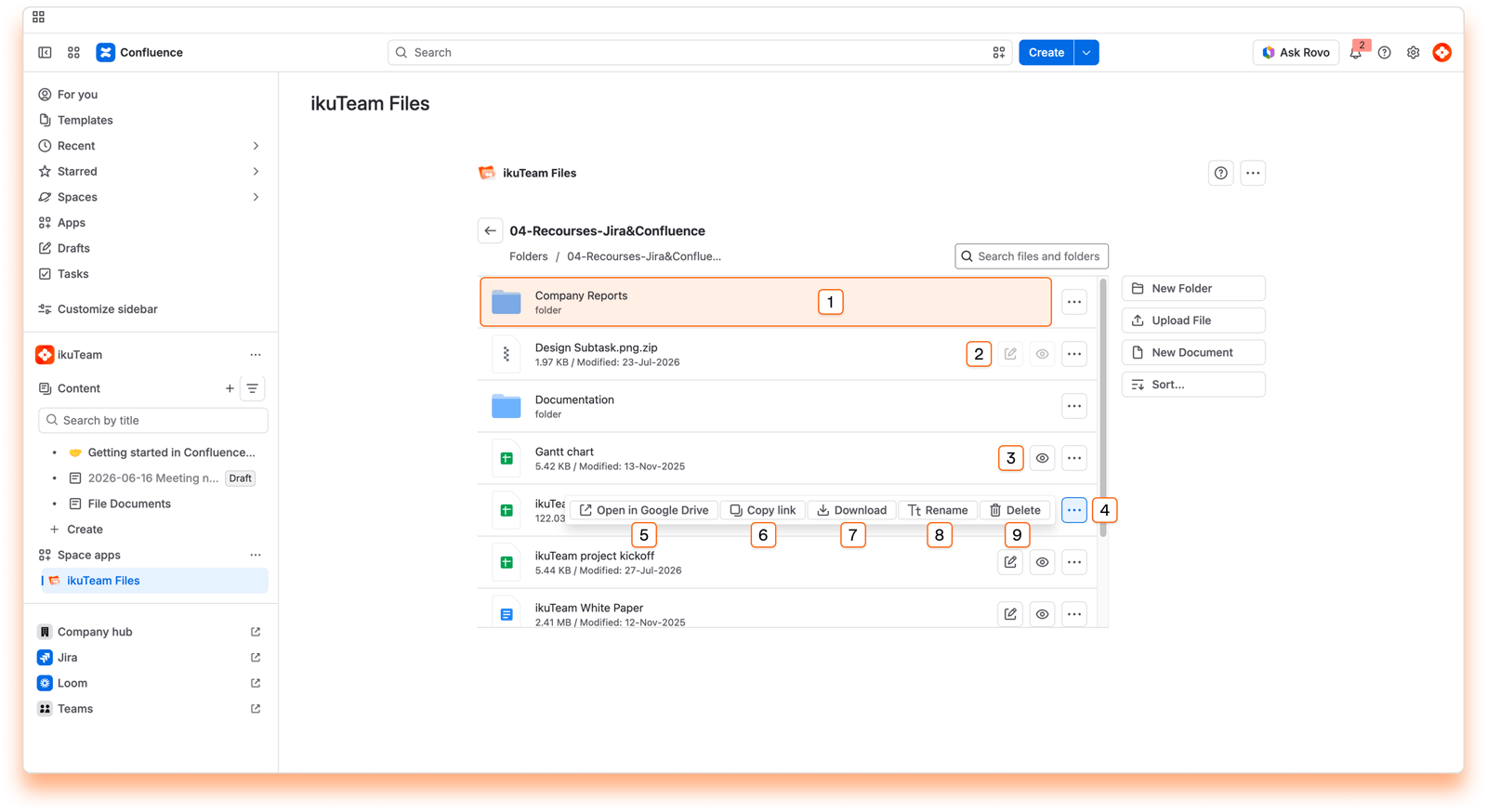
Preview click area
Edit button
Preview button
Context menu
Open in [Storage]
Copy Link
Download file
Rename file
Delete file
You can preview the content of your files by clicking the name of the file you want or the preview button. You can preview images, PDF documents, Microsoft Office documents, and Google documents. For more details, check the 2.3 Preview files page.
You can edit Microsoft Office documents from the file manager by clicking the Edit button. When Mirror Storage Permissions is OFF for simplified access, ikuTeam Files for Confluence uses the ikuTeam Office engine to render and edit documents on the same tab, right inside Confluence, with real-time co-editing.
When Mirror Storage Permissions is ON for more complex access control (the default), the app uses Microsoft 365 to edit Microsoft Office and OpenOffice files in SharePoint, OneDrive, and Box, in a new browser tab. Microsoft Office files support real-time collaboration there; OpenOffice files can only be edited, without co-editing. PDFs always open in the ikuTeam Office engine on the same tab. The ikuTeam Office engine is used for the rest of the supported cloud storage.
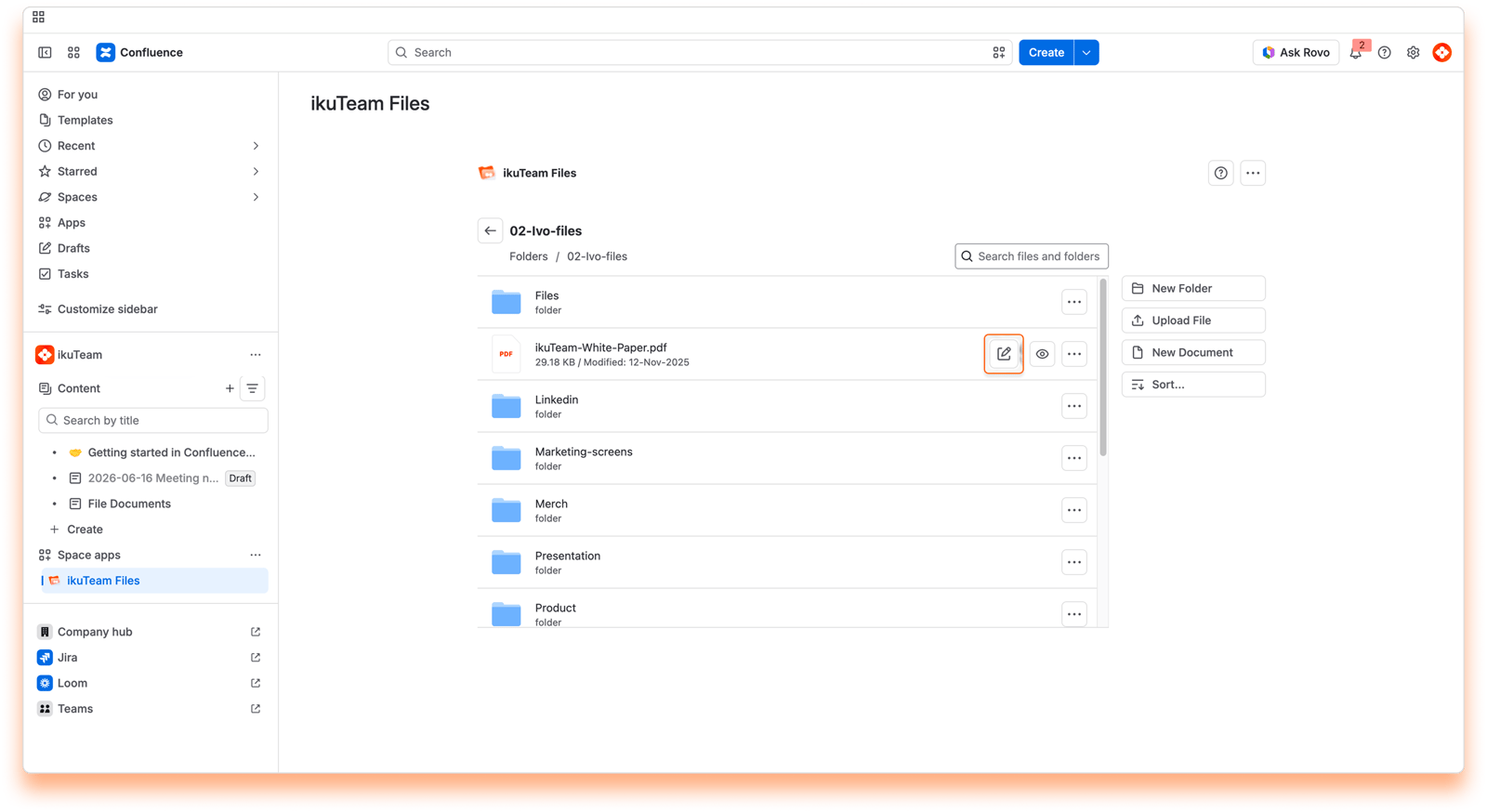
If you're using Google Drive, click Edit on a Google Docs, Sheets, or Slides file to open it in Google's editor in a new browser tab. Google Docs also supports real-time collaboration and autosave.
In addition to Office and Google documents, ikuTeam Files can also preview PDF files, and with the Advanced Edition of the app you can edit, annotate and sign them.
The edit option is also available when previewing the file (check Preview files) and when you attach the document to a page.
For more details, check the 2.4 Edit documents page.
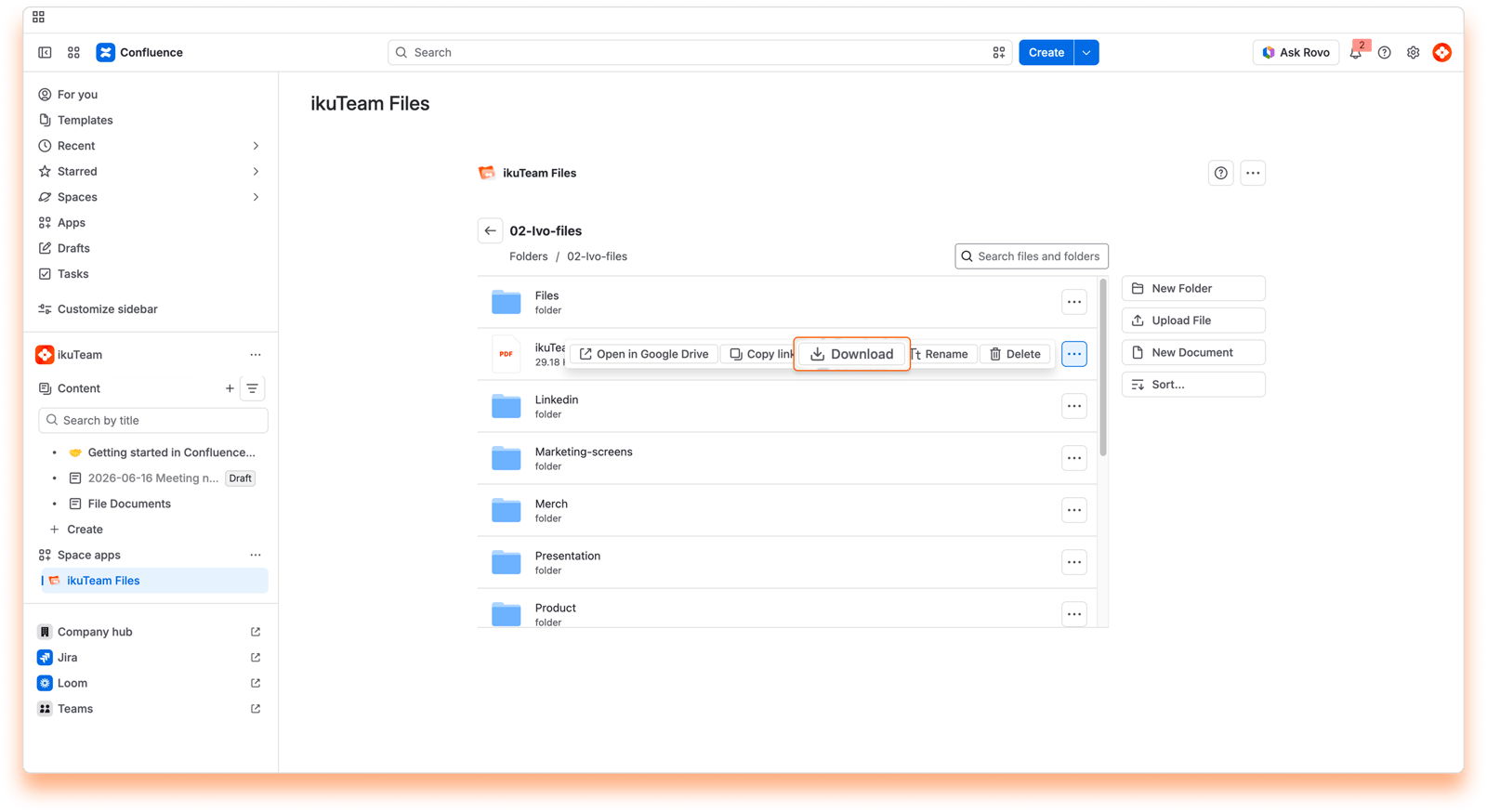
Click the context menu of the file you want to download.
Click the "Download" option.
Your browser will open a new tab to download the file automatically. Depending on the browser you're using, the tab closes itself when the download starts, or it might ask you permission to download the file (noticeably Safari browser), requiring that you click the "Allow" button.
Depending on its size, the file will be available in your default download folder after a few moments.
The download option is also available in preview mode (check Preview files) and for files attached to pages.
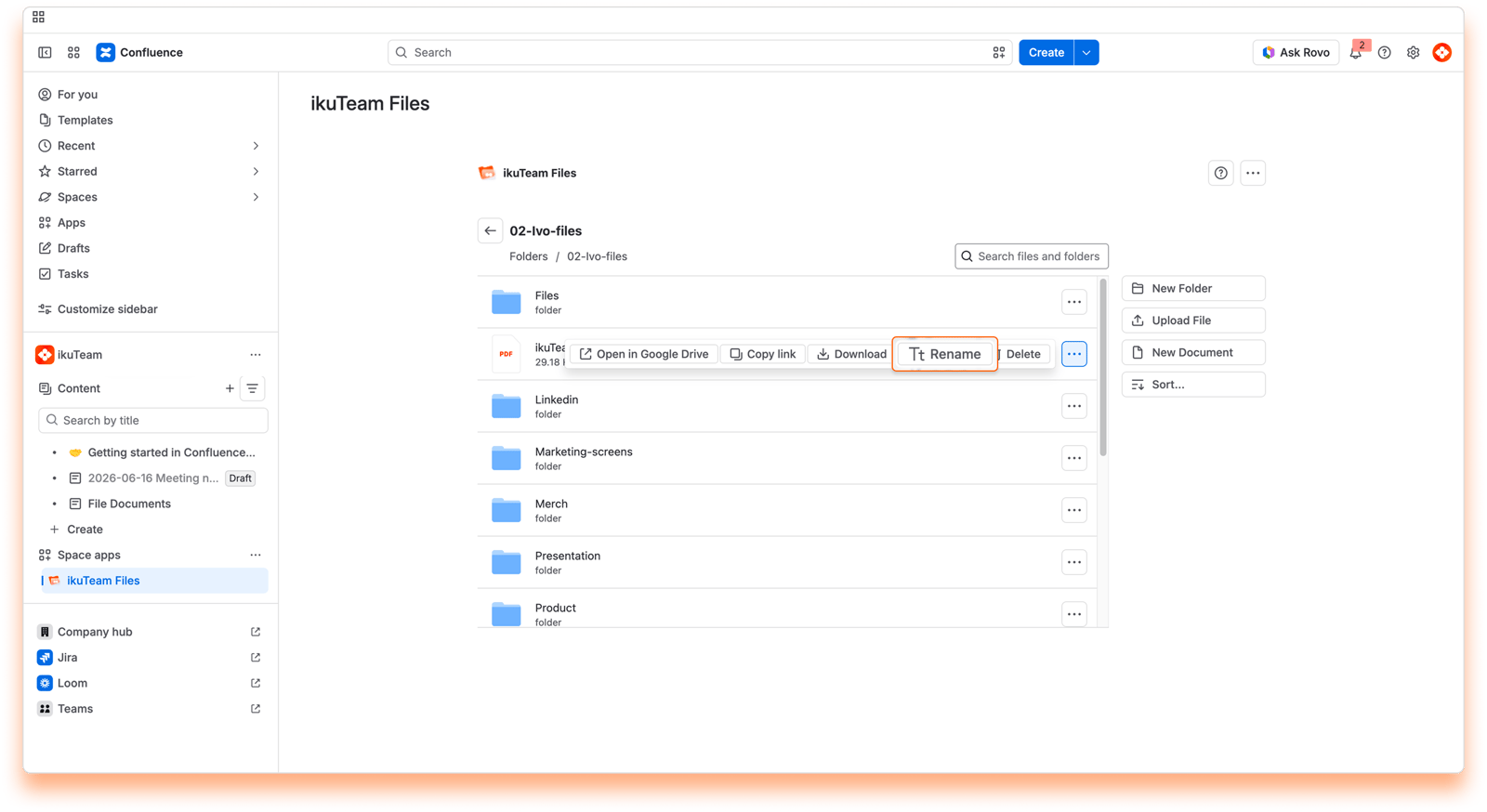
Click the context menu of the file you want to rename.
Click the "Rename" option.
Enter the new name in the dialog window.
Click the "Rename" button. All done.
When you change the name of a file, it's updated in the connected storage too.
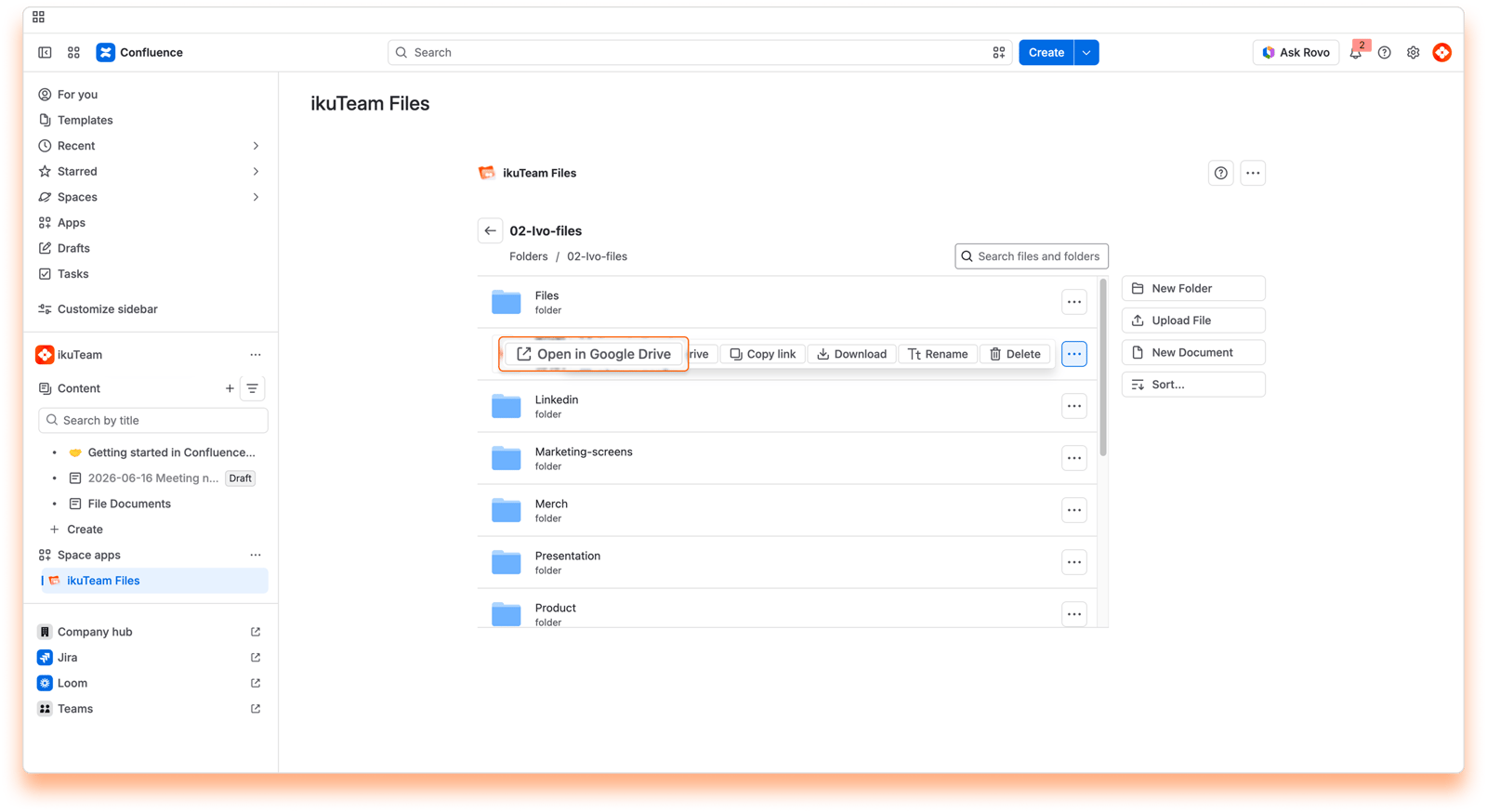
Click the context menu of the file you want to open.
Click the “Open in [Storage]” option.
The file opens in a few seconds on the original storage site.
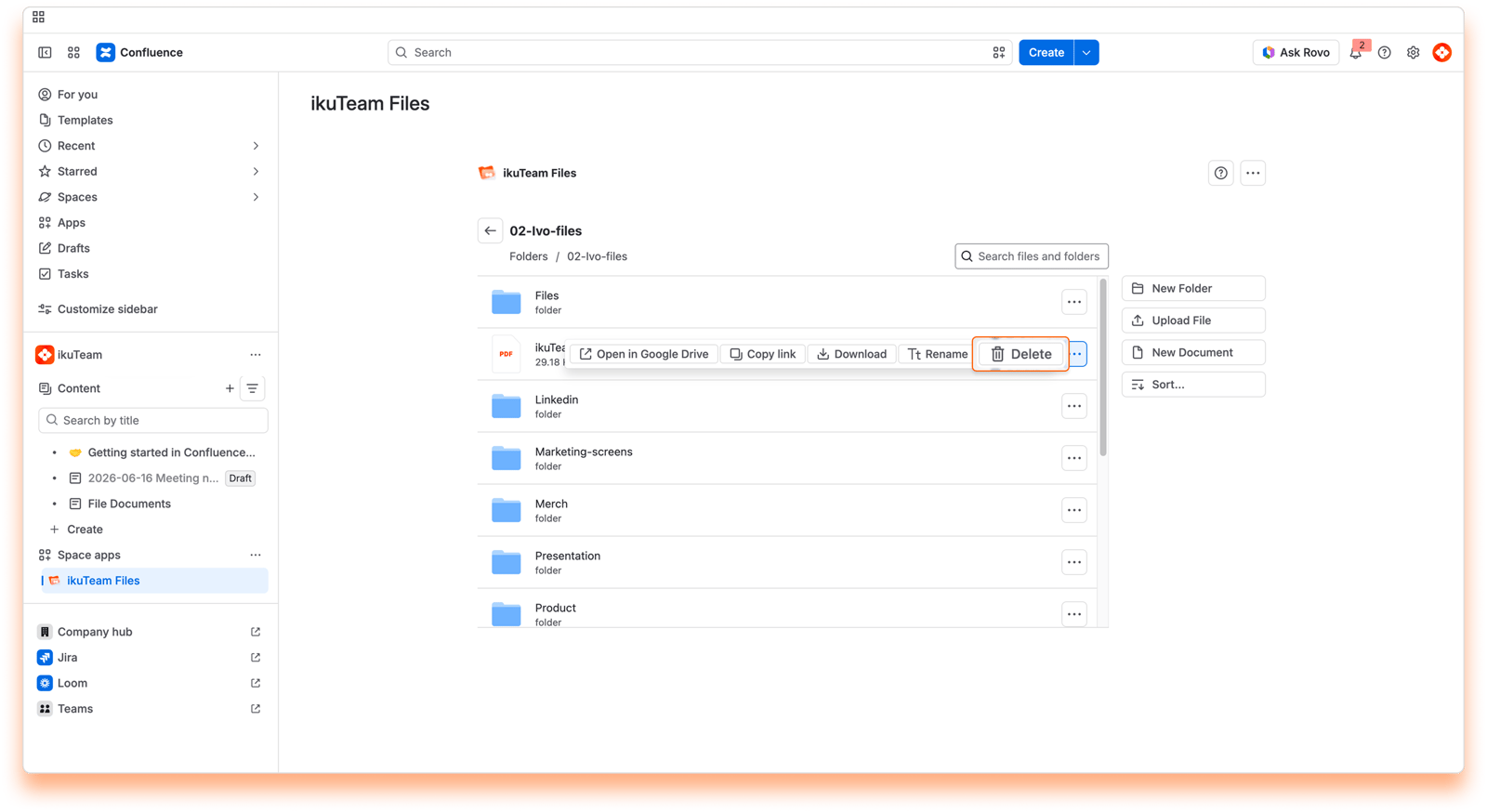
Click the context menu of the file you want to delete.
Click the "Delete" option.
Click the "Delete" button in the confirmation dialog. All done.
When you delete a file, it's also removed from the connected storage place. This action can’t be undone in the ikuTeam Files for Confluence.
You can drag a file from a local folder and drop it in the folder you have open in the ikuTeam Files for Confluence app to upload it there. Doing this will save the file in the storage place containing the connected folder, helping you build your single source of truth.
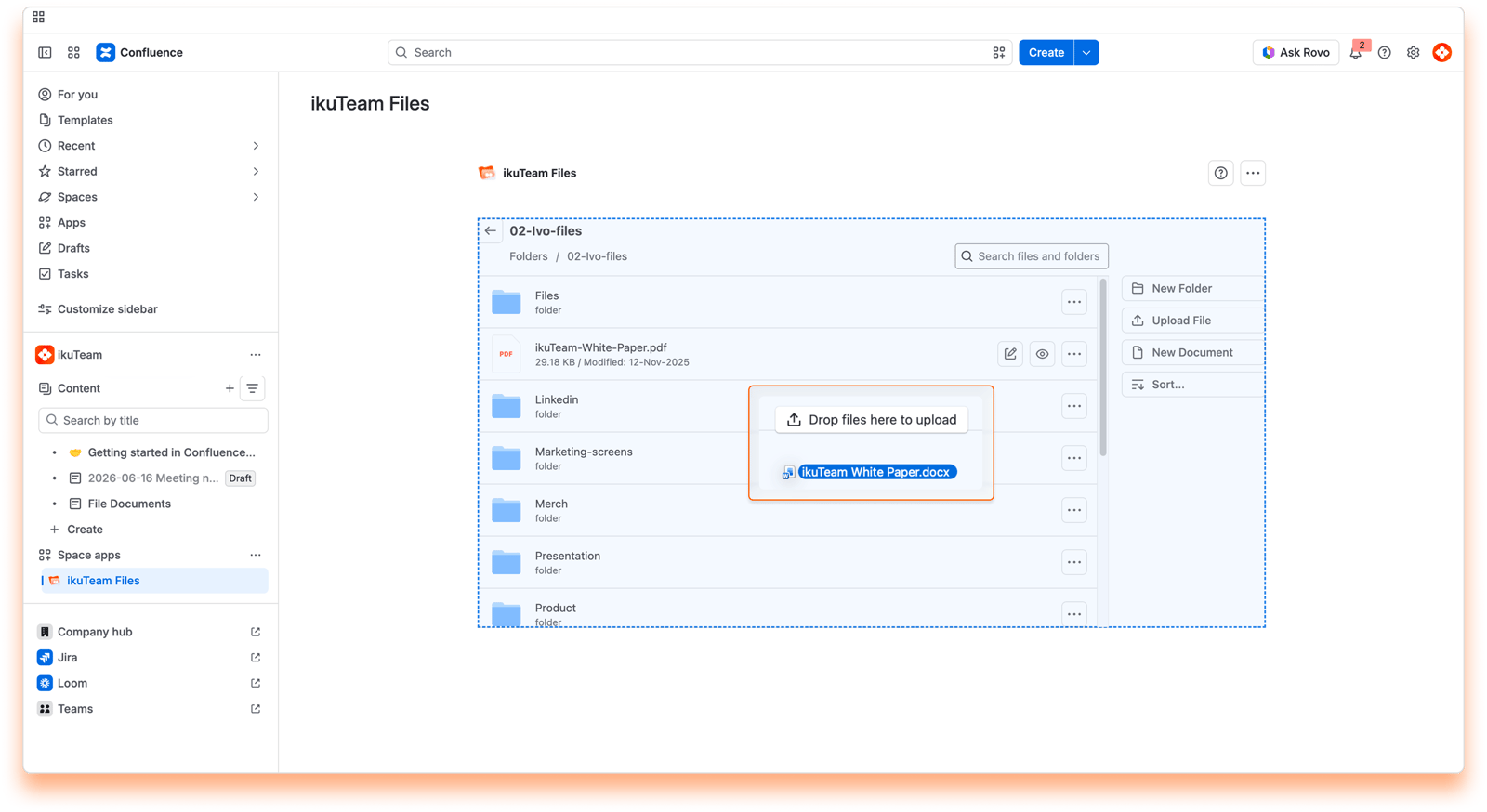
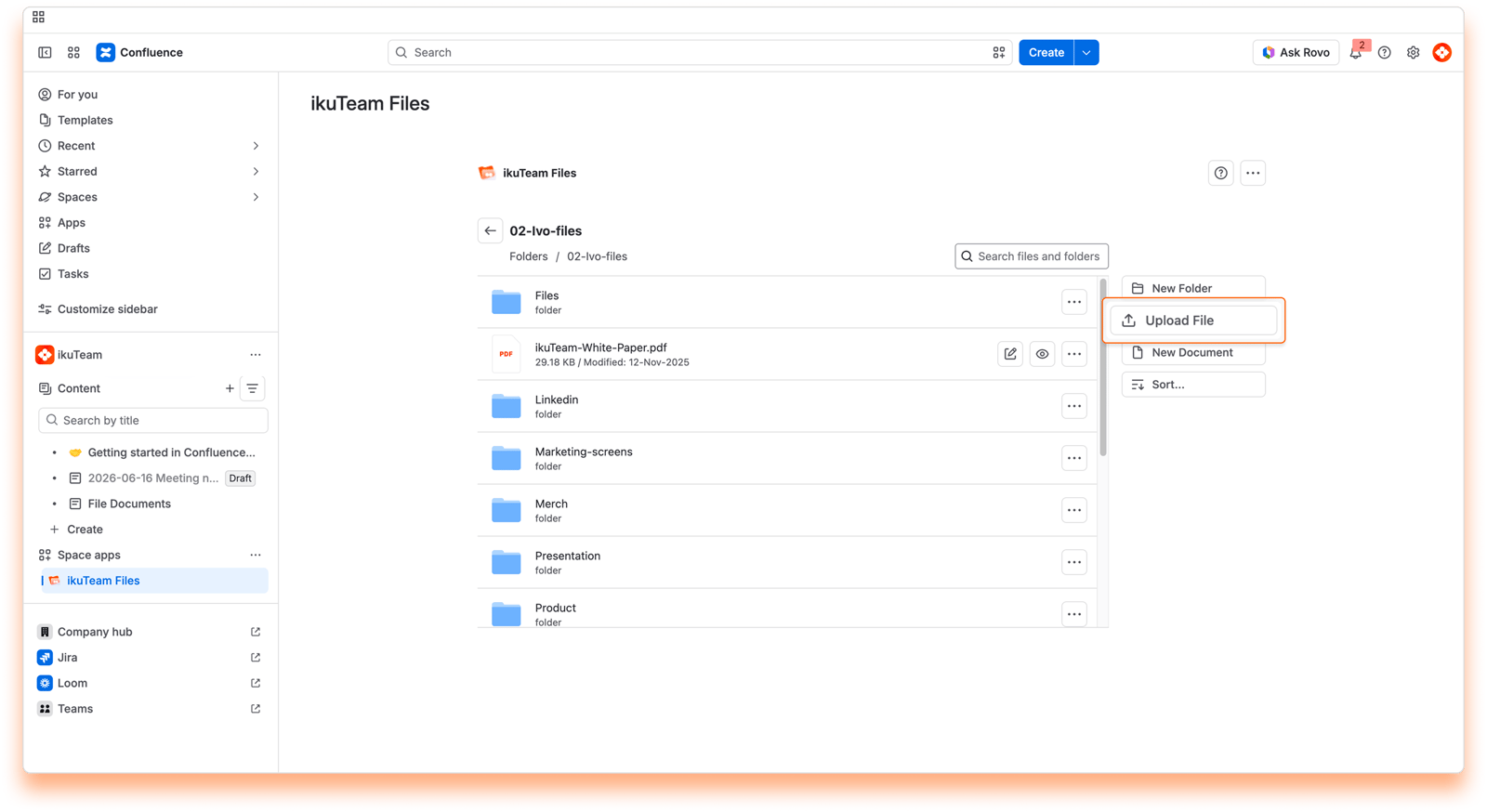
Click the "Upload file" button on the right or at the bottom of the open folder.
Look for the file you want to upload in the file picker.
Select the file and confirm.
Depending on the size of the file, it may take a few moments for it to become available in the app.
The upload option is also available when you attach a folder to a page. You can drag and drop a file to upload it there.
With the ikuTeam Files for Confluence app, you can create documents where needed. They are always ready for real-time collaboration, with no file locks, and are saved back to the storage place containing the connected folder, avoiding duplicates.
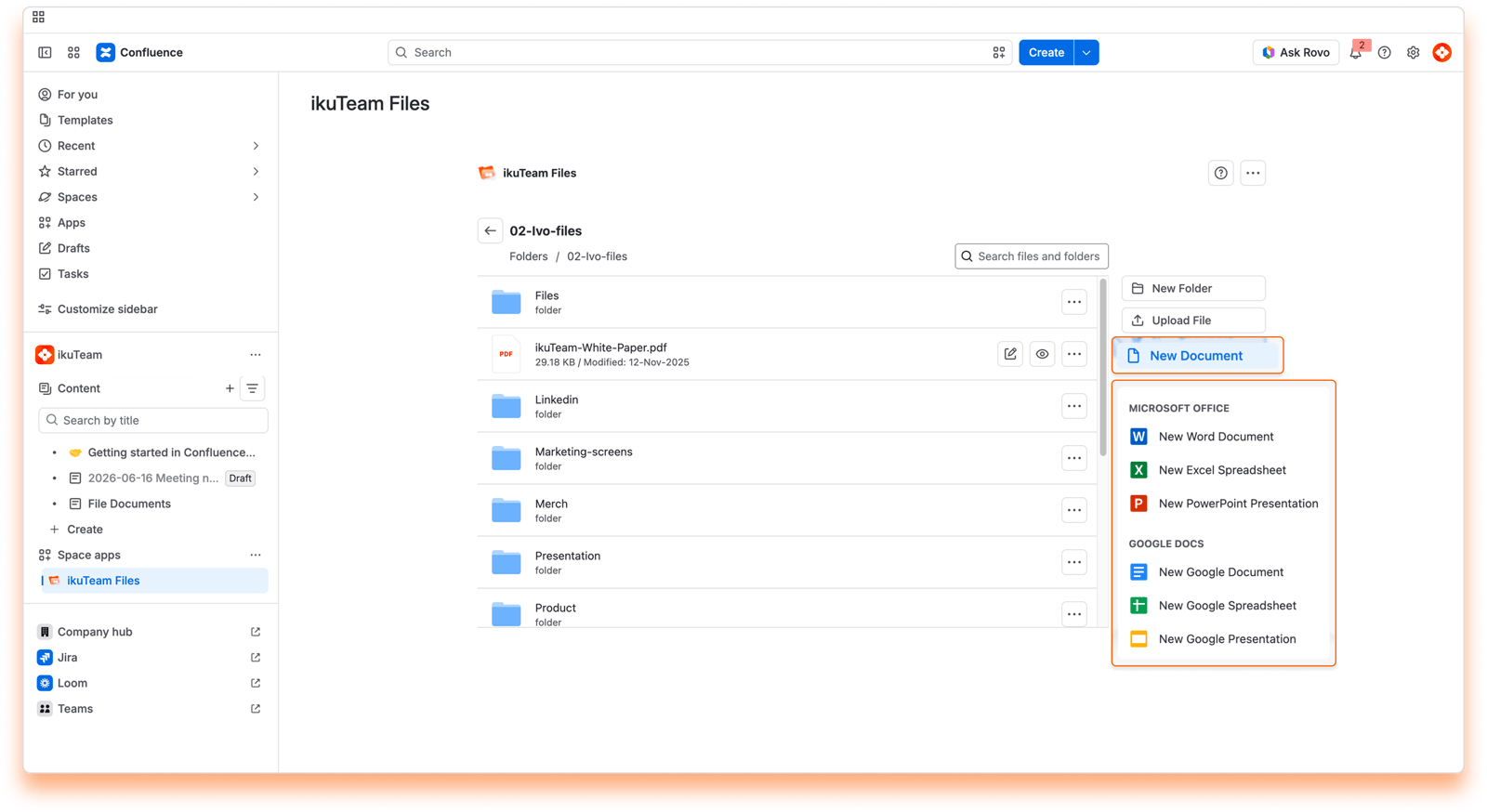
Click the "New Document" button.
Select the kind of document you want.
Type a name for your document and click the "Create" button.
After a few moments, your document appears in the folder, and you can edit it.
Click the "New Document" button.
Select the kind of document you want.
A new tab with the Google editor opens, and you can start editing your document.
You can close the tab when you finish your edits. Your new document will show in your folder when you reload the page.
You can create Microsoft Office documents in any connected folder, but Google Documents are only available for connected folders from Google Drive.
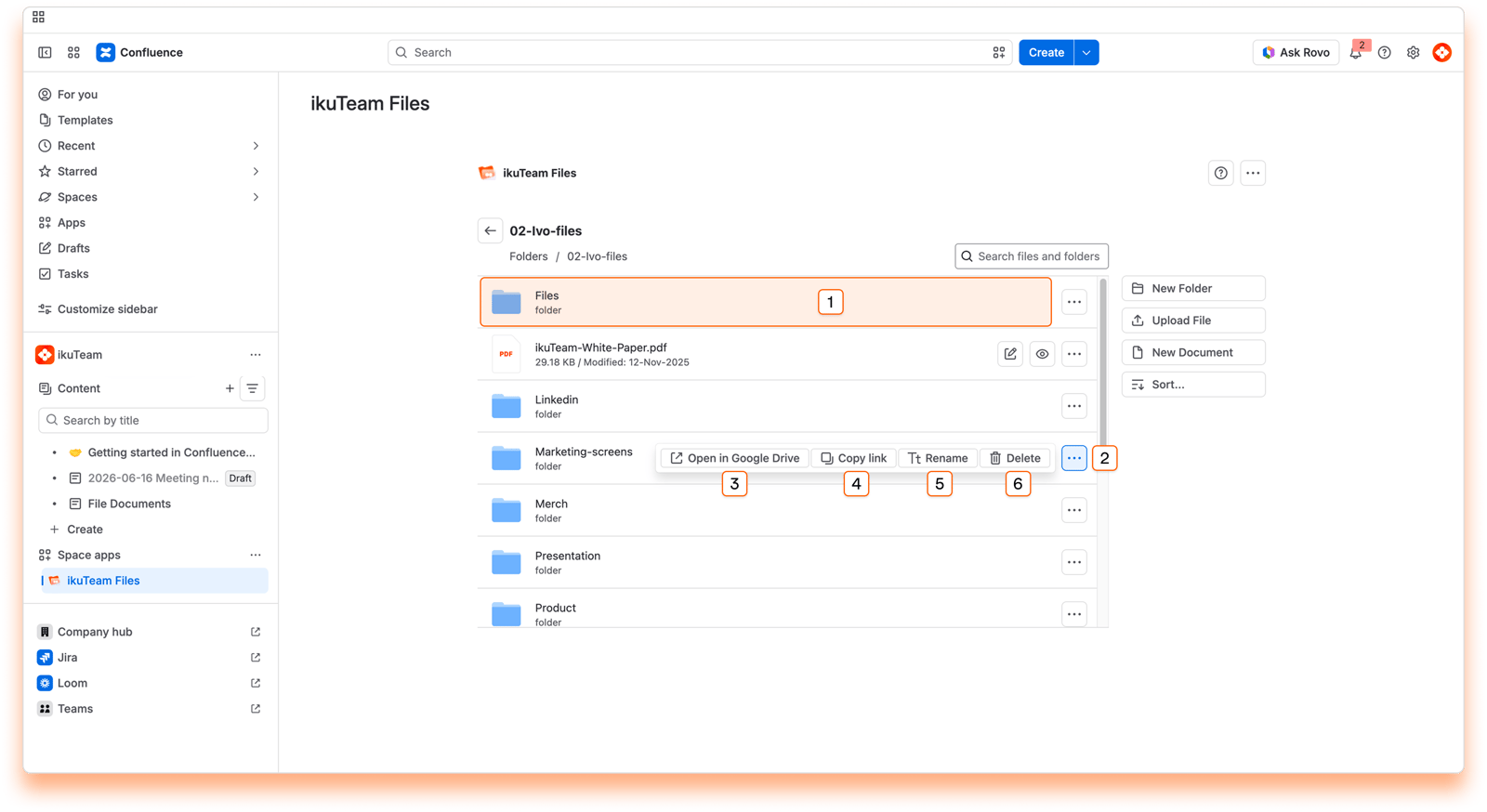
Preview click area
Context menu
Open in [Storage]
Copy link
Rename folder
Delete folder
You can see the content of a folder by clicking on it. You can also click folders inside to view the content or click the back button to return to the previous one.
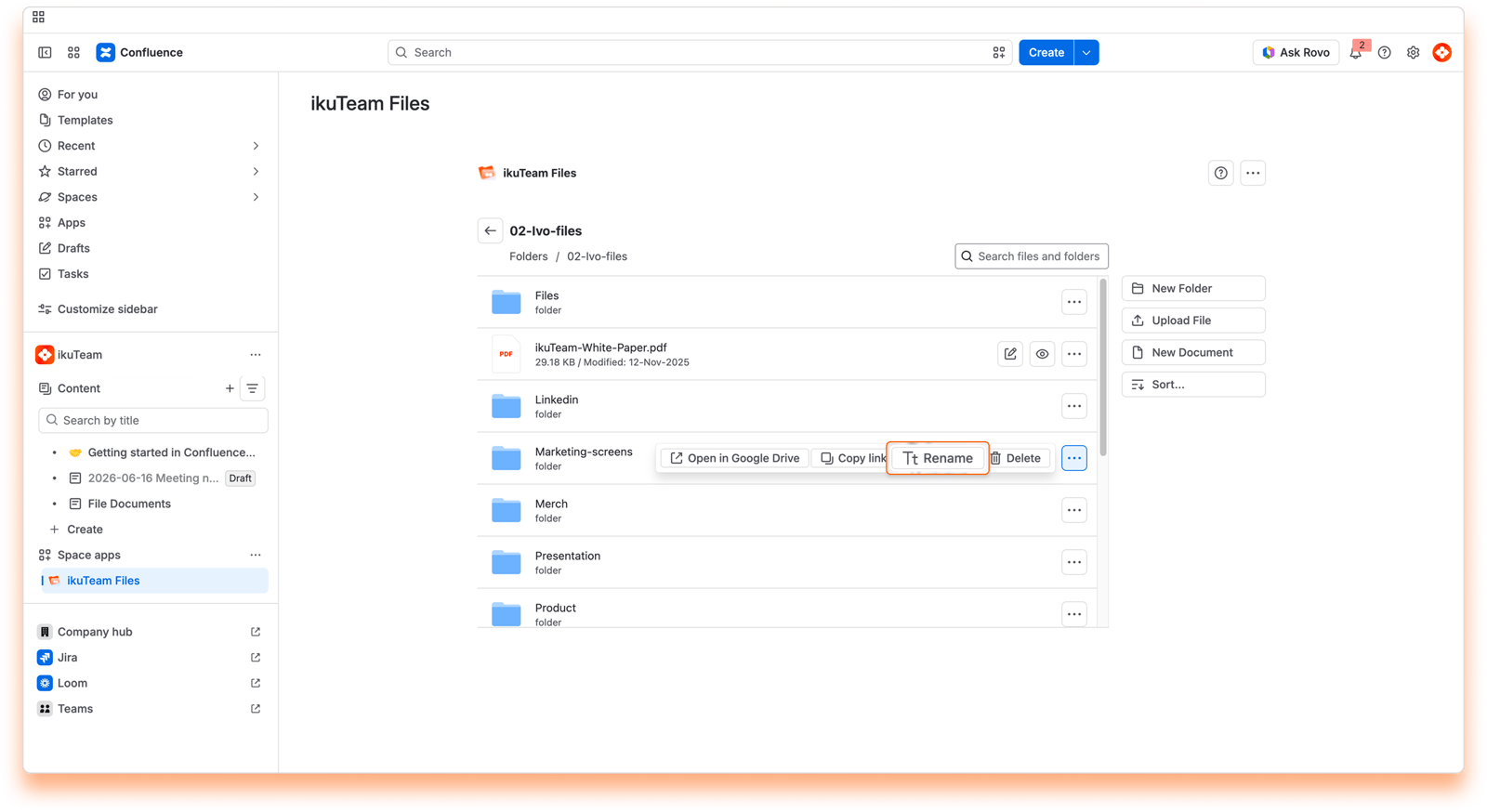
Click the context menu of the folder you want to rename.
Click the "Rename" option.
Enter the new name in the dialog window.
Click the "Rename" button. All done.
When you change the name of a folder, it's updated in the connected storage too.
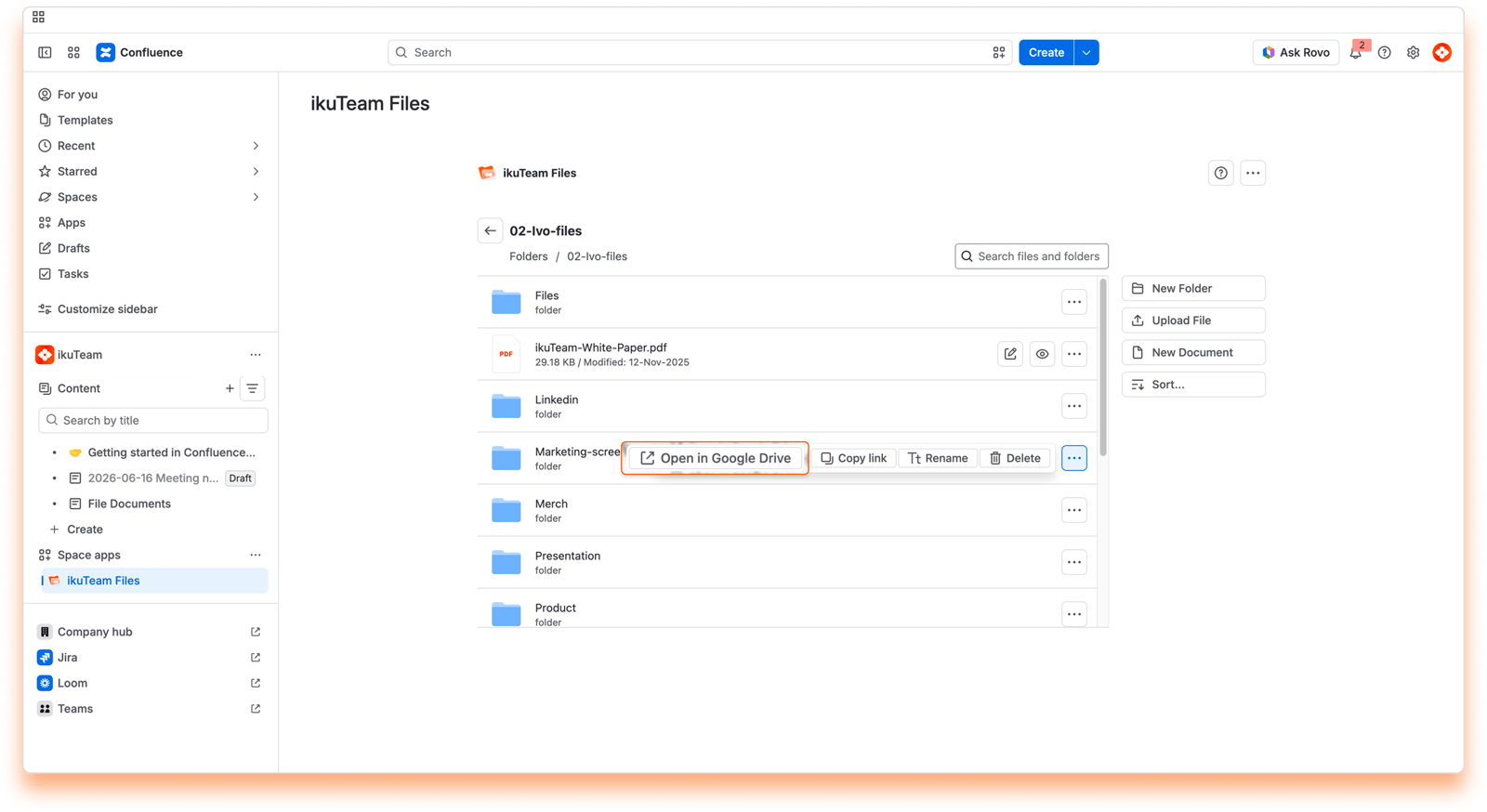
Click the context menu of the folder you want to open.
Click the “Open in [Storage]” option.
The folder opens in a few seconds on the original storage site.
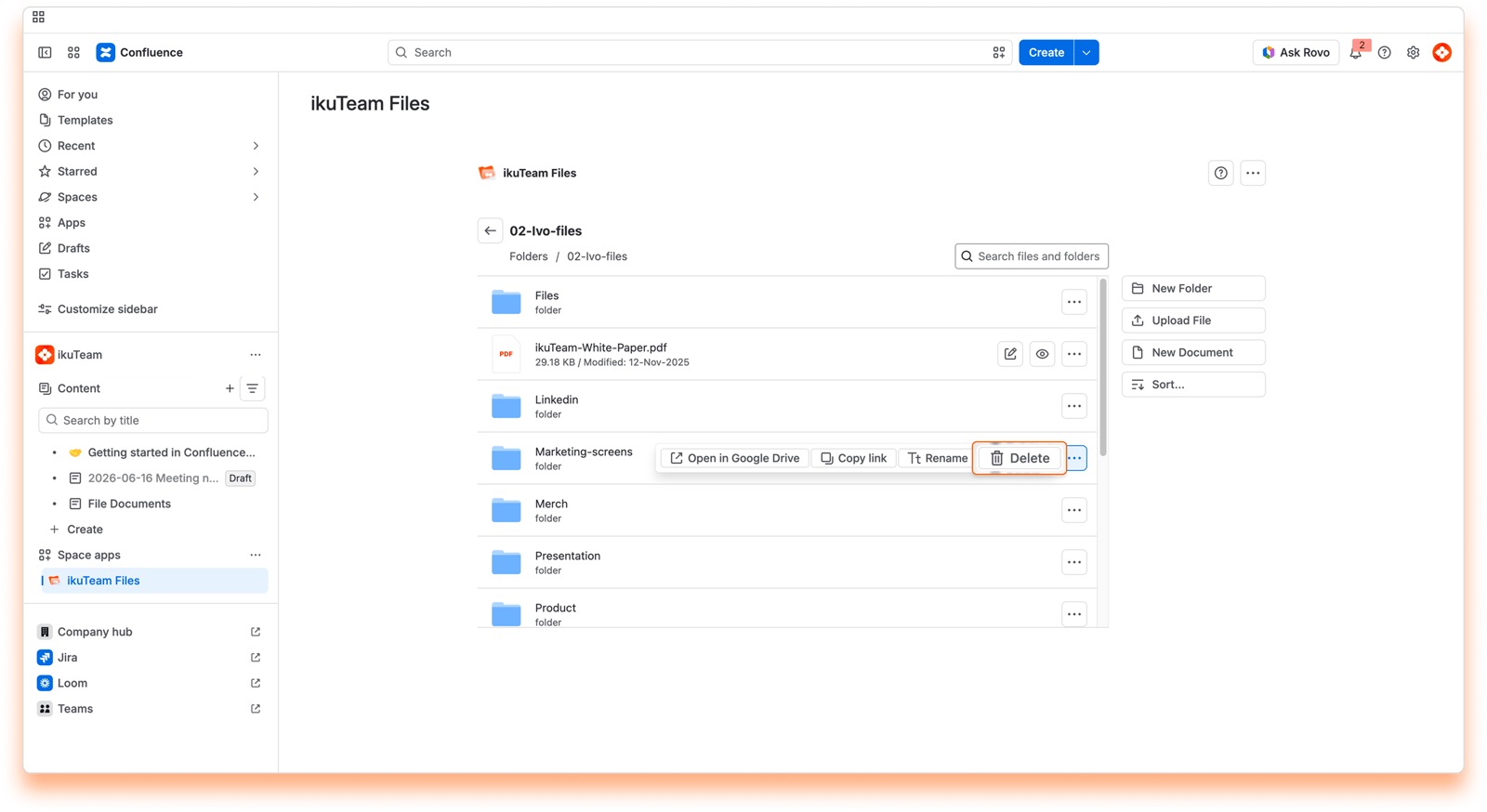
Click the context menu of the folder you want to delete.
Click the "Delete" option.
Click the "Delete" button in the confirmation dialog. All done.
When you delete a folder, it's also removed from the connected storage. This action can’t be undone in the ikuTeam Files for Confluence app.
To help you keep things organized, you can create new folders whenever needed.
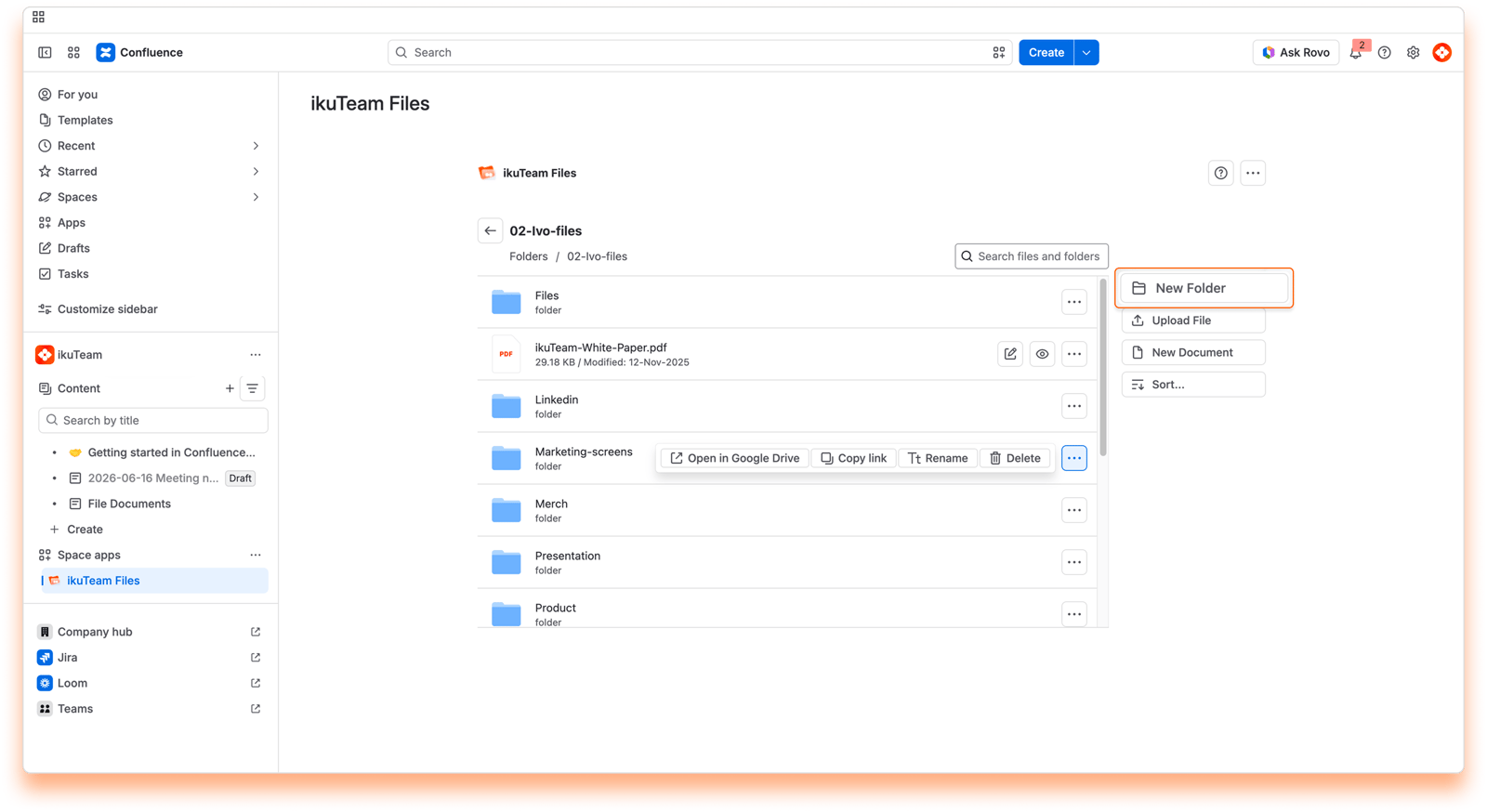
Click the "New Folder" button on the right side (or from the context menu in narrow views).
Enter the name in the dialog window.
Click the "Create" button.
After a few moments, the view reloads, and your new folder will be listed and ready to use.
The content of your folders is ordered alphabetically by default.
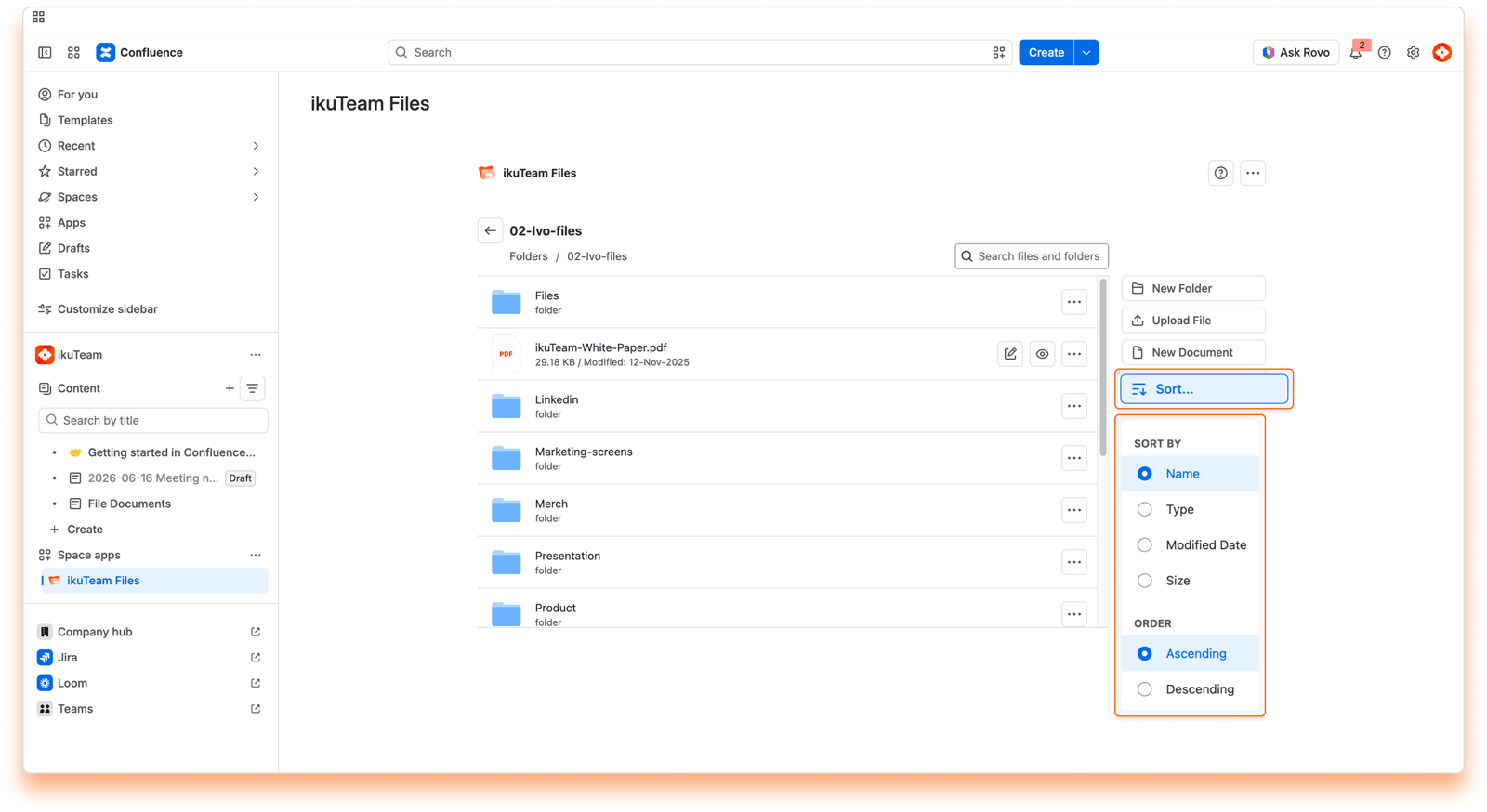
You can change this by clicking the "Sort..." button and selecting a sort option and the order you prefer. You can sort content by name, type, modified date, and file size. The button will always reflect your selection.
Keep the files and folders you use most close at hand. Select Add to favorites on any file or folder, and it appears under Favorite folders and files on the ikuTeam Files Workspace Overview page, along with your recent activity. Right after you add a favorite, click Go to Dashboard in the confirmation to open that page. To remove one, select Remove from favorites.
Now you know all that you need to use the file manager. You can now learn more about Preview files or about using the macro.
If you still have questions about the topics covered on this page, visit our support portal and send them to us. Our team is always happy to help.
Your cloud storage is the single source of truth. A few things to know:
When you share the same file on several Confluence pages, an edit made in one place shows up in all of them.
If someone deletes a file or folder from the connected storage (for example OneDrive, Google Drive or Dropbox), it's no longer available on the Confluence pages it's attached to.
If someone edits an attached file in the cloud storage, for example with a desktop app, you see the changes in Confluence too.
This way you avoid duplicates and untracked versions across tools: one file, the same everywhere. Just handle it with care.


