

Confluence Google Drive Integration
Create a single source of truth with seamless syncing and real-time collaboration.
Read more


Learn how to edit documents in Jira with the ikuTeam Files for Jira app.
We'll cover the different ways to edit your documents in Jira using the ikuTeam Files for Jira app, expanding the topics presented on the page about the file manager.
While some files, like images, are preview-only, you can edit the most popular Microsoft Office and OpenOffice formats and PDF files right inside Jira, helping you build your single source of truth, without downloading to edit and re-uploading multiple copies or locking other people out while you continue to progress on the work item.
This way, your work items can easily serve as your one source of truth, with associated files that always stay accessible, updated, and editable.
You can edit a document from the file manager, including the full-screen preview, and you can also edit documents attached to your work items.
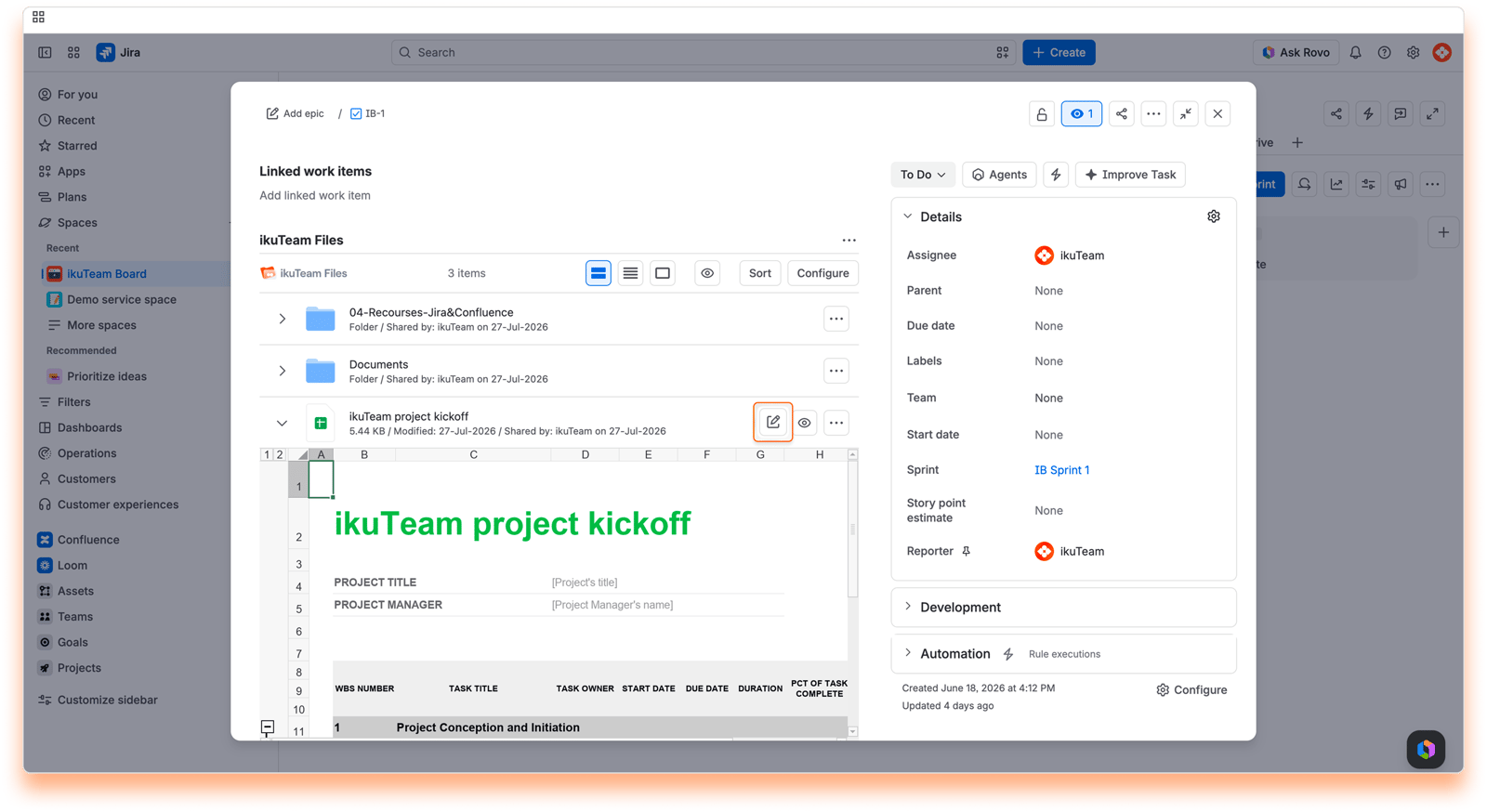
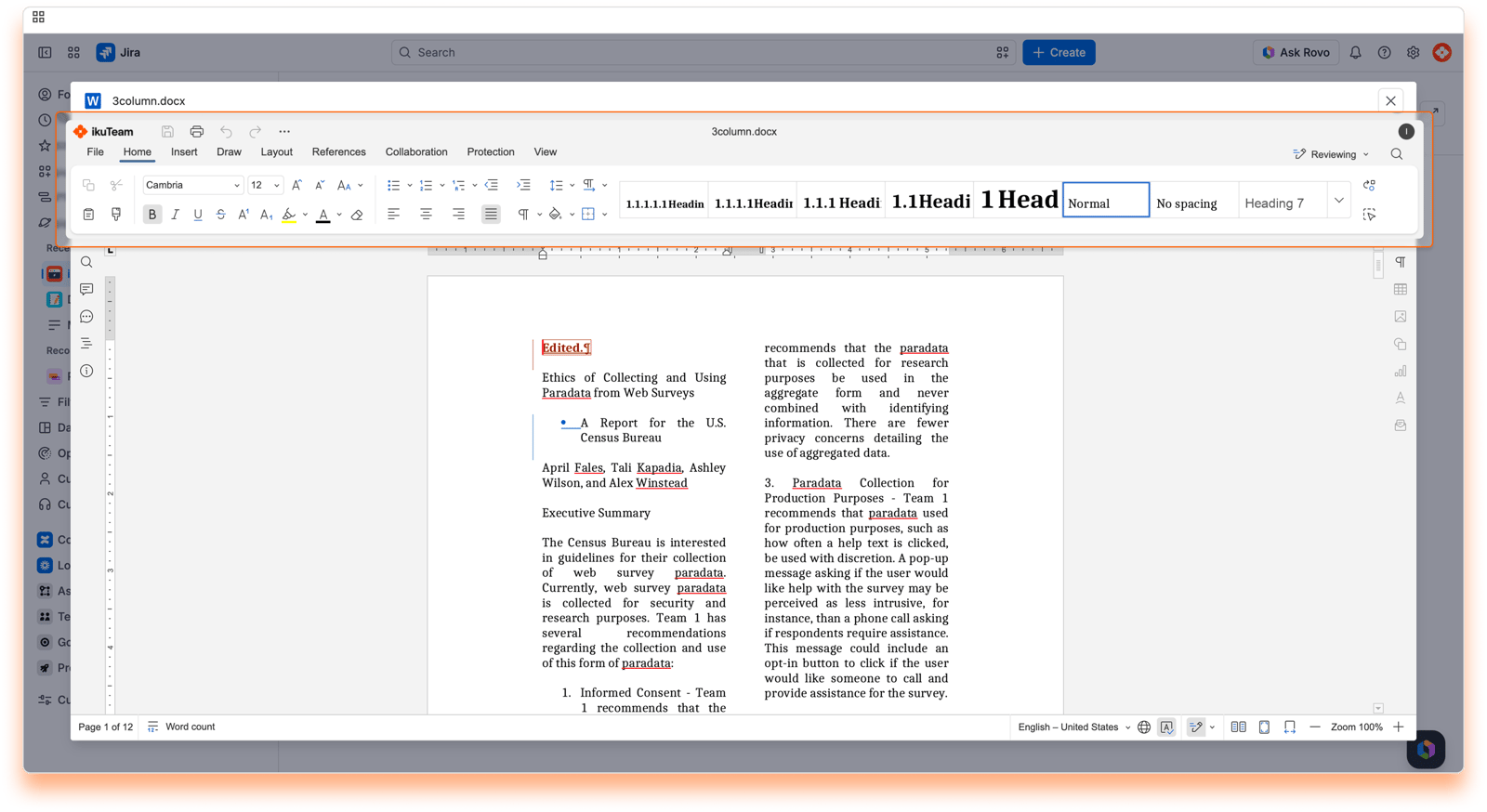
Regardless of the context, you can edit Microsoft Office and OpenOffice files by clicking the Edit button. The ikuTeam Office engine opens on the same tab, right inside Jira, and you can edit your file in a few seconds. With Mirror Storage Permissions ON, Microsoft Office and OpenOffice files in SharePoint, OneDrive, and Box open in Microsoft 365 in a new browser tab instead. Google Docs, Sheets, and Slides open in Google's editor in a new browser tab.
With Mirror Storage Permissions OFF, ikuTeam Files uses the ikuTeam Office engine to render and edit documents from every storage.
With Mirror Storage Permissions ON (the default), the app uses Microsoft 365 for Microsoft Office and OpenOffice files in SharePoint, OneDrive, and Box, and the ikuTeam Office engine for PDFs and the rest of the supported cloud storage. Microsoft 365 supports real-time co-editing for Microsoft Office files; OpenOffice files can only be edited there.
If you're using Google Drive, you can also edit Google Drive documents using the Google Docs editor, supporting real-time collaboration and autosave.
OpenOffice files work the same way as Microsoft Office files: in the ikuTeam Office engine, they support real-time collaboration. In Microsoft 365, they can only be edited.
As mentioned before, the ikuTeam Office engine (for Microsoft Office and OpenOffice files), Microsoft 365 (for Microsoft Office files) and Google Docs support real-time collaboration.
You can start editing a Microsoft Office or OpenOffice file attached to a work item or from the file manager. The editor seamlessly creates a collaboration session when another person clicks to edit the same file. You can continue to edit the file as before and leave it anytime by closing the editor.
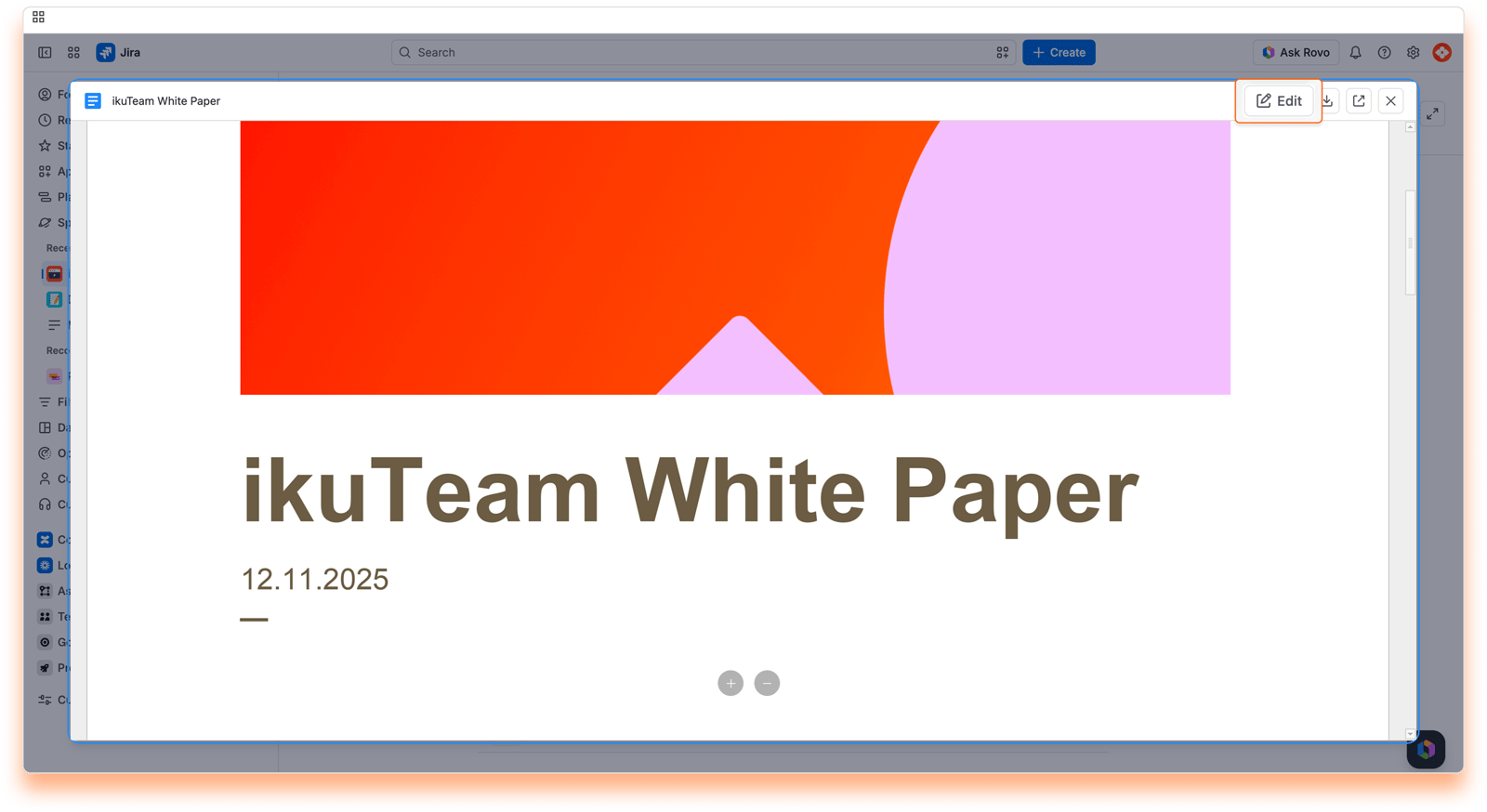
You can edit, annotate and sign PDF files added to the folder by clicking the “Edit” button (also available in the full-screen preview) and edit the documents in a few seconds.
Note: Support for PDF file editing is only available with the Advanced Edition of the ikuTeam Files for Jira app.
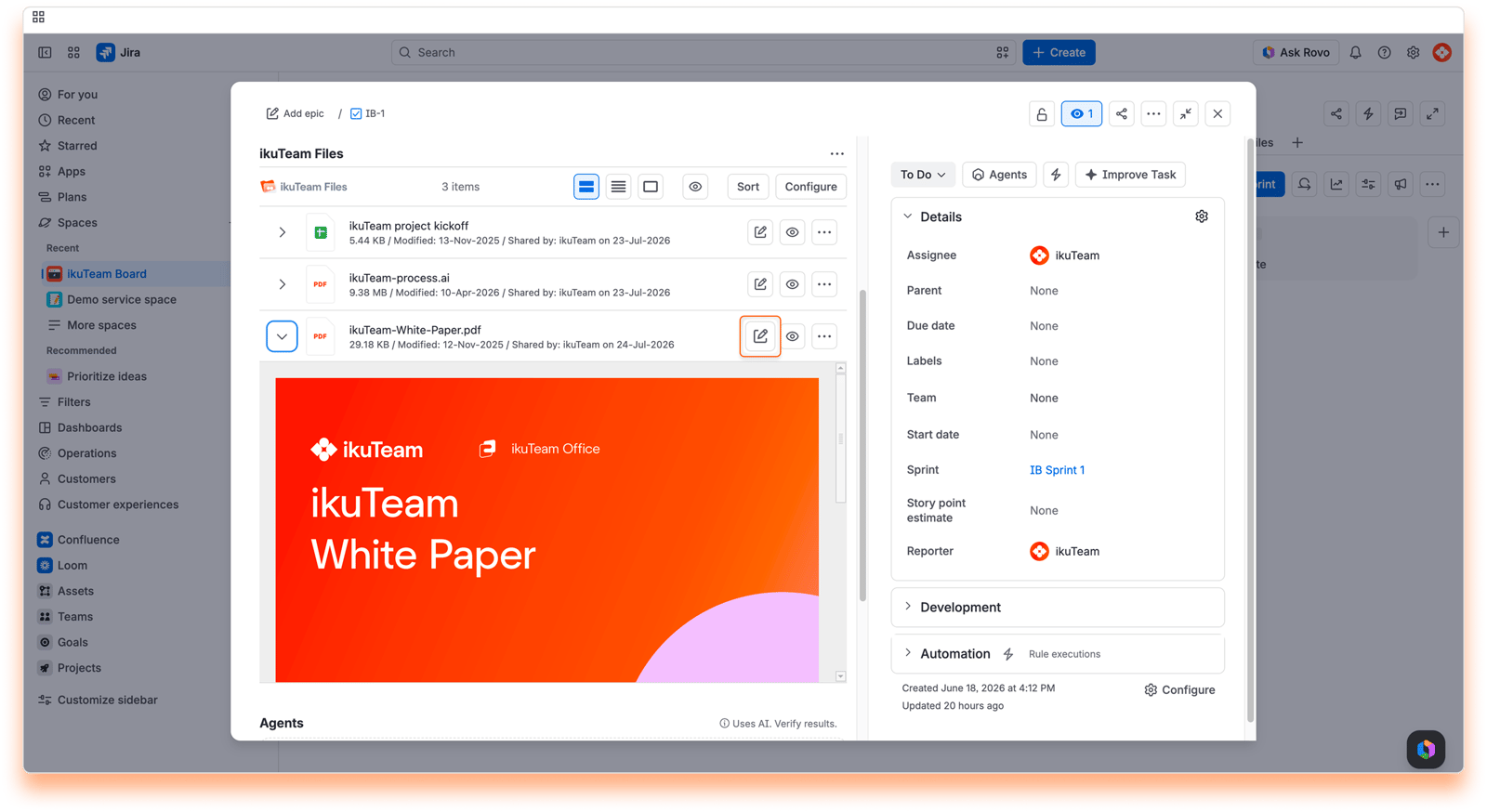
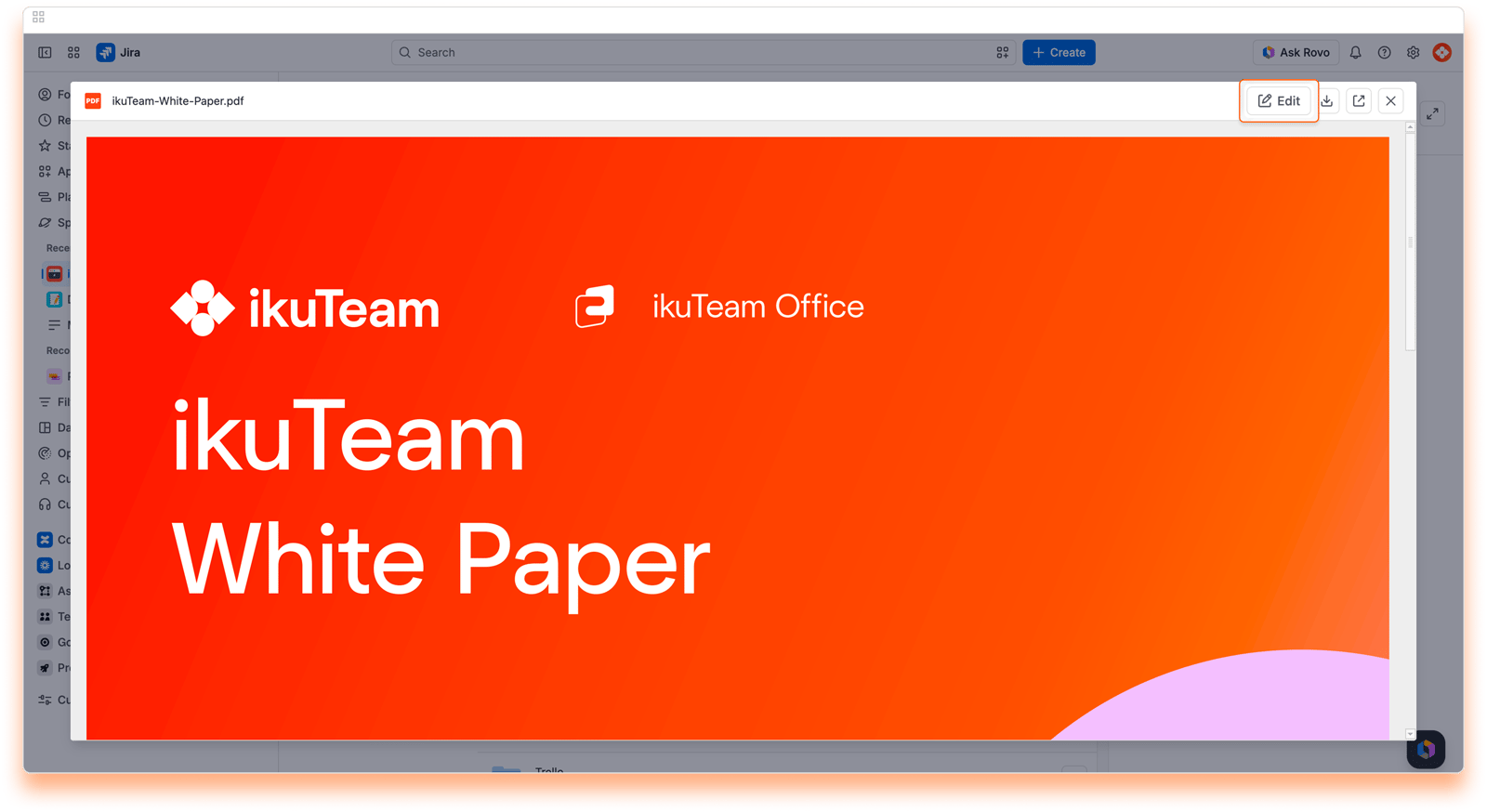
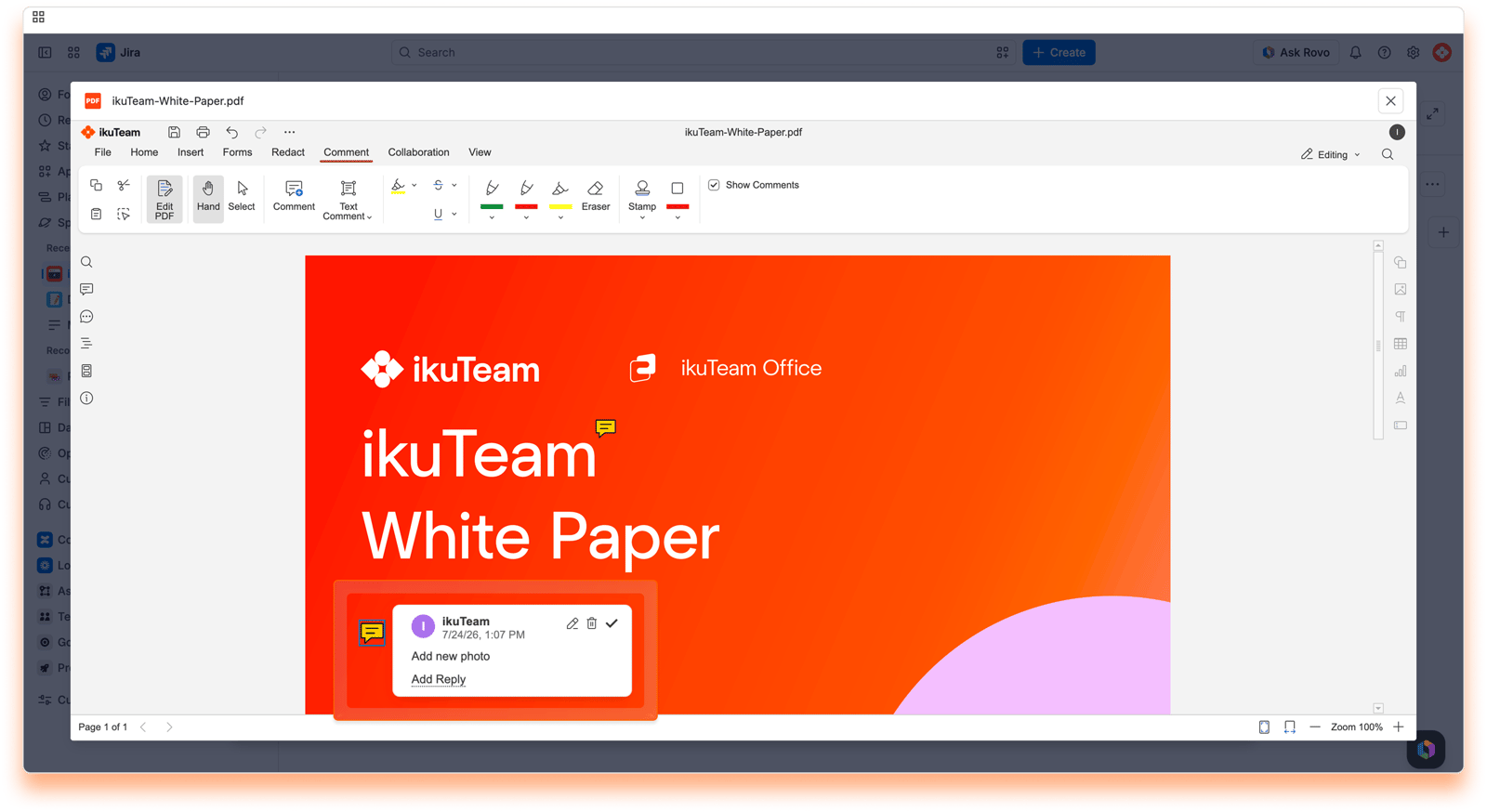
When editing a PDF file, you and your team can work together, as the editor supports real-time collaboration, so there are no file lockdowns. There's also an autosave feature, so you can close the editor when you finish.
As mentioned before, PDF Documents support real-time collaboration, and it's effortless to use.
Start editing a PDF file attached to a work item. When another person clicks to edit the same file, the editor seamlessly creates a collaboration session. You can continue to edit the file as before and leave it anytime by closing the editor.
Microsoft Office documents: DOC, DOCX, DOCM, XLS, XLSX, XLSM, XLSB, PPT, PPTX, PPTM, PPS, PPSX, and PPSM
Microsoft Office templates: DOT, DOTX, DOTM, XLT, XLTX, XLTM, POT, POTX, and POTM
OpenOffice documents and templates: ODT, ODS, ODP, OTT, OTS, and OTP
Other text and spreadsheet files: RTF and CSV
PDF documents (edit, annotate and sign, with the Advanced Edition)
Google documents, sheets, and slides
iWork files: Pages, Keynote, and Numbers on Box (requires Mirror Storage Permissions ON and iWork for Box turned on)
That's all for editing documents. Did you know you can also create new documents using the file manager?
If you still have questions about the topics covered on this page, visit our support portal and send them to us. Our team is always happy to help.


