

Confluence Google Drive Integration
Create a single source of truth with seamless syncing and real-time collaboration.
Read more


Learn how to preview files in Jira with the ikuTeam Files for Jira app.
On this page, we'll cover the different ways to preview your files on ikuTeam Files for Jira app, expanding the topics on the page about the file manager.
The ikuTeam Files for Jira app lets you preview files in the file manager and the attached files and folders in Jira. It supports the most common Office file formats, PDFs, and popular image formats.
This way, your Jira work items can easily serve as your one source of truth, with content that is always accessible and updated.
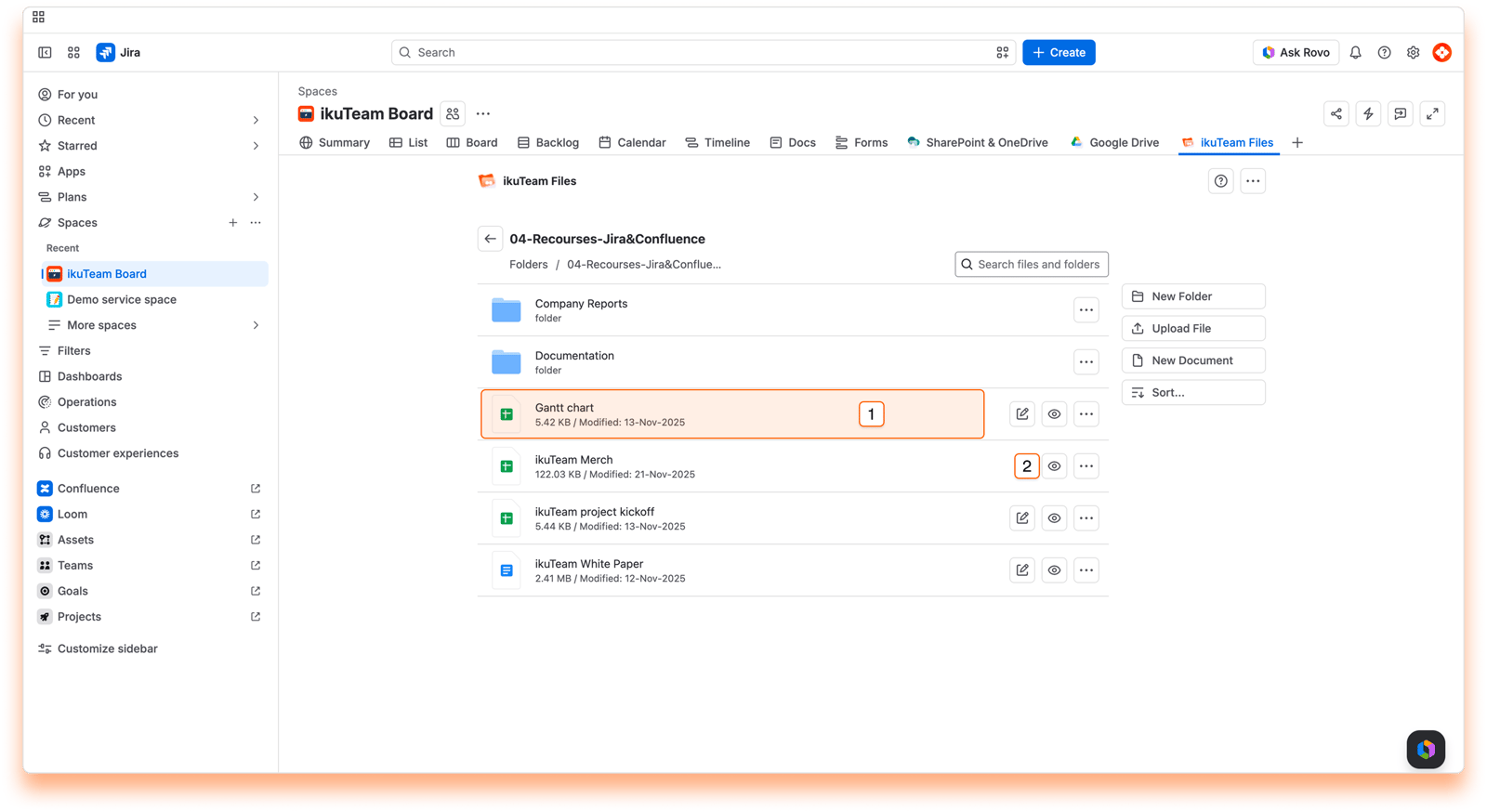
Expand Preview
Preview button
When using the File Manager, you can preview your files' content by clicking the “Preview” button to open the preview. The options available vary slightly depending on the kind of file.
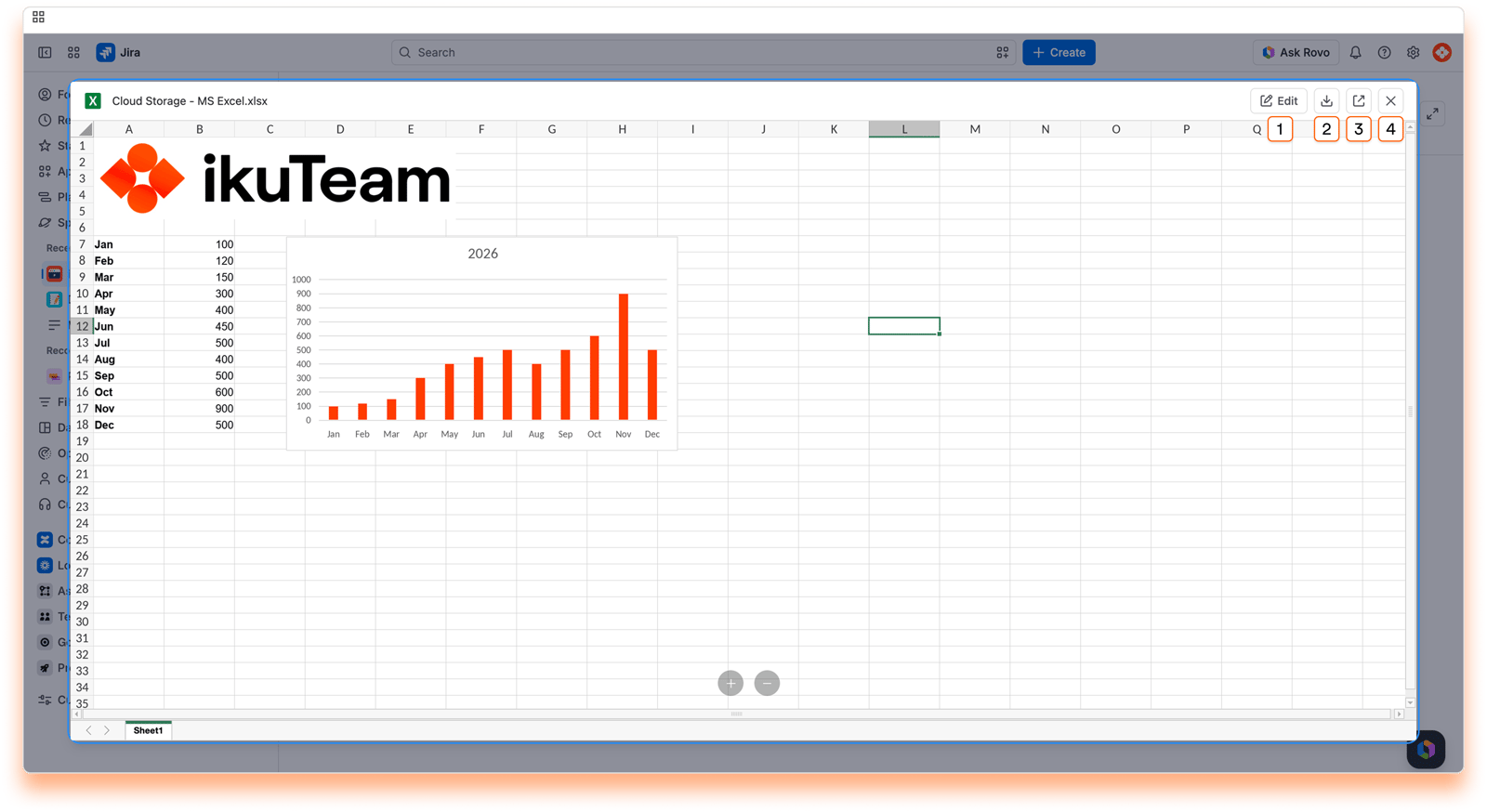
Edit mode
Download Document
Open in [Storage]
Close Preview
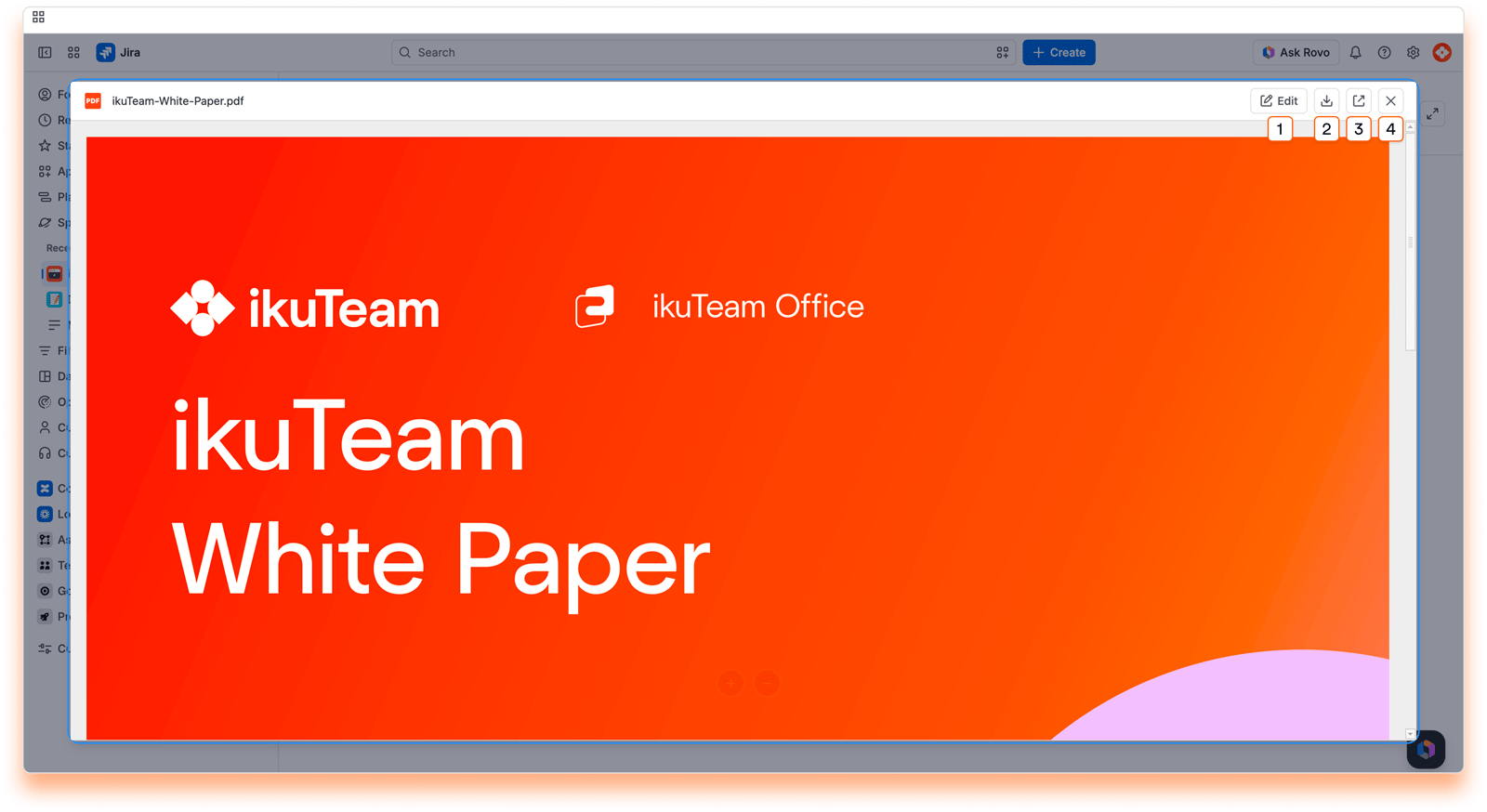
Edit the PDF file.
Download
Open in [Storage]
Close Preview
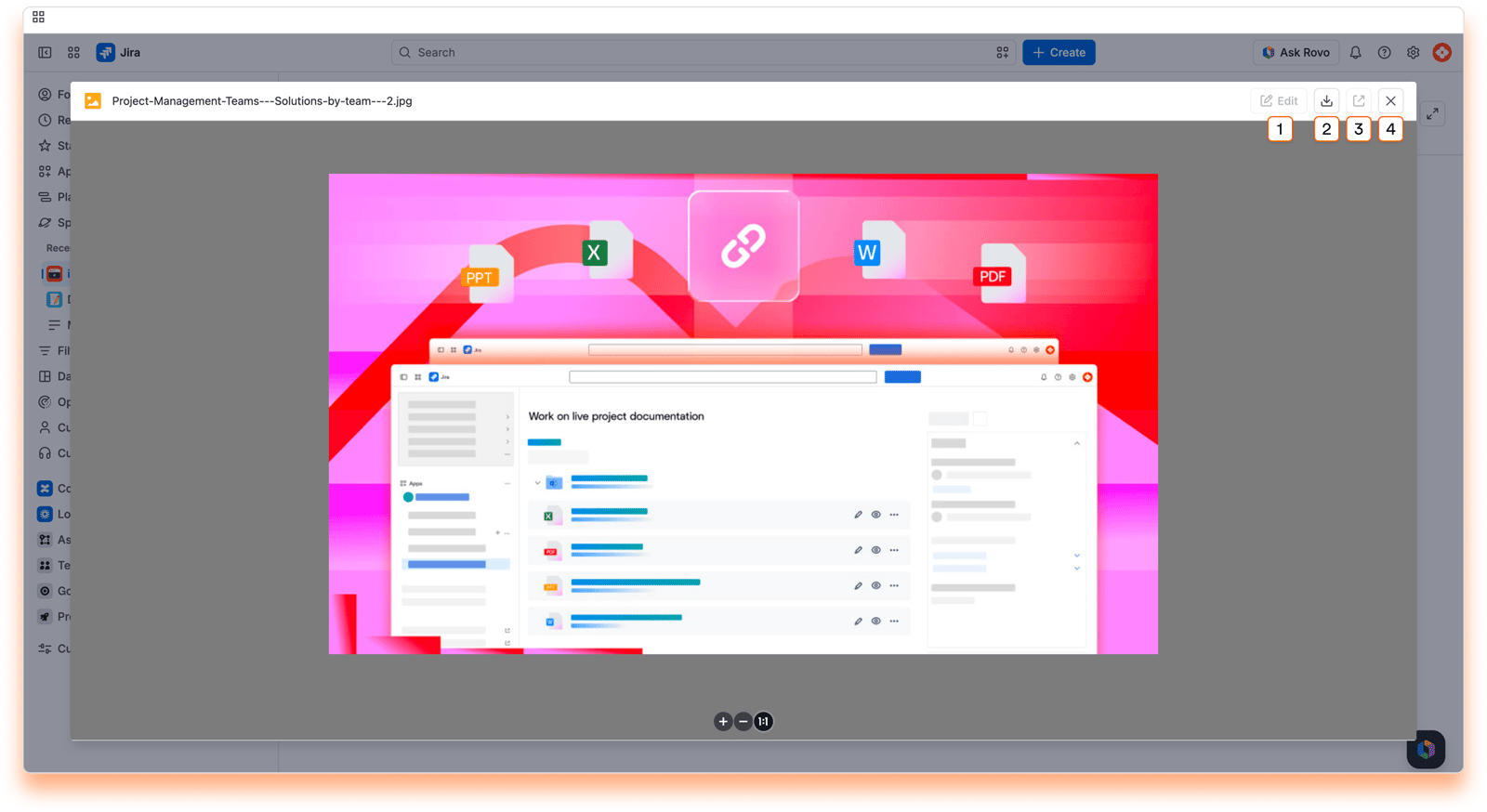
Return to the file manager
Download
Open in [Storage]
Close Preview
Click on the ikuTeam Files for Jira app by expanding the view app actions button on the work item to see the ikuTeam Files section.
Using the ikuTeam Files for Jira app, you can attach files and folders to your Jira work items and preview them.
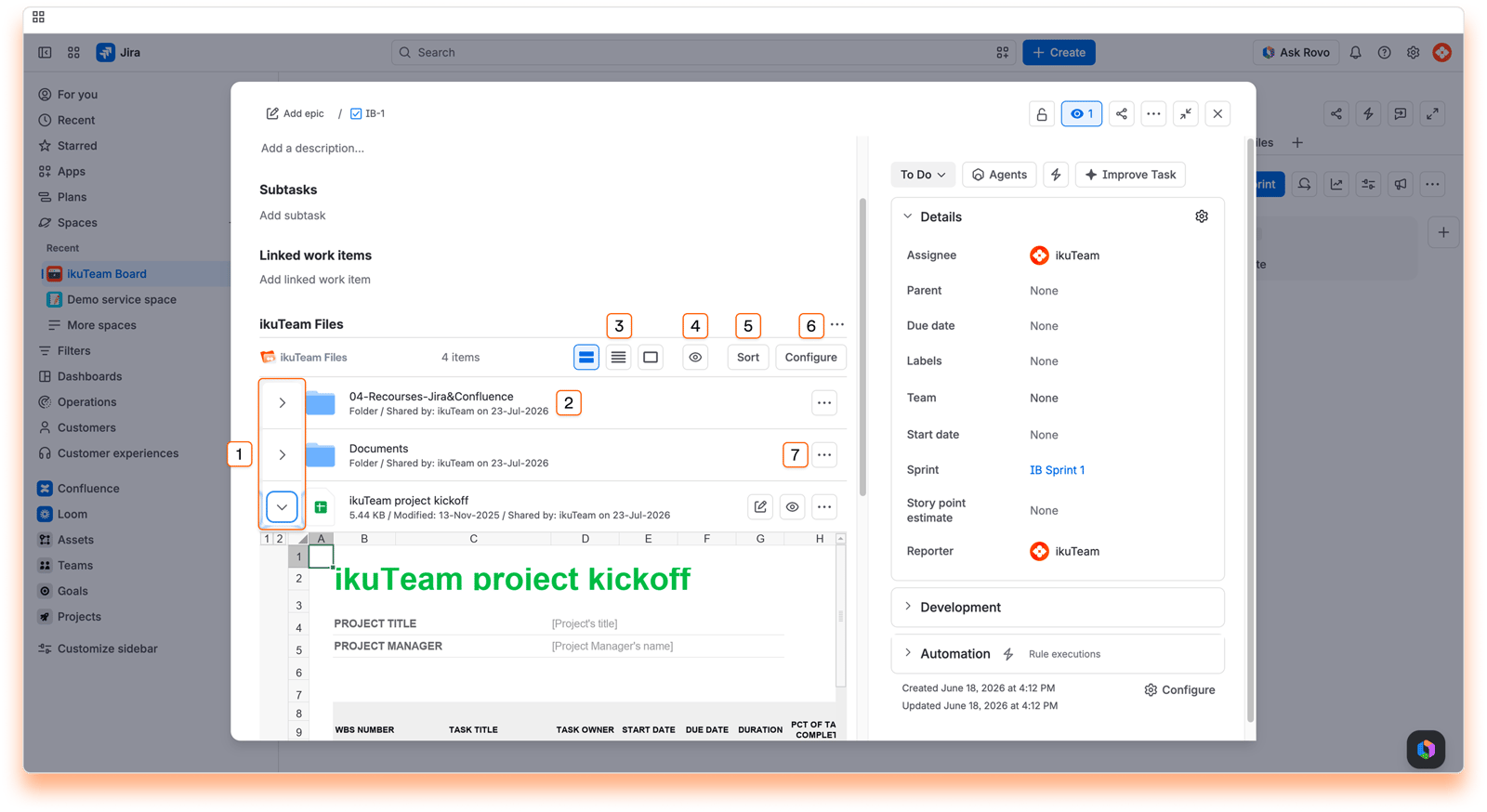
Disclosure button
Document info
Header options
Preview
Sort options
Attach/Remove button
Context options
The full-screen preview for the files attached works the same way as described for the file manager. Click the preview icon and the full-screen preview will open.
You can expand attached folders similarly to see their content quickly and even navigate sub-folders. You can also preview the files' contents inside the attached folder by clicking on the preview icon.
When you have an attached folder on your work item, you can drag and drop a file from a local folder to upload it there. Doing this will save the file in the storage place containing the connected folder, helping you build your single source of truth.
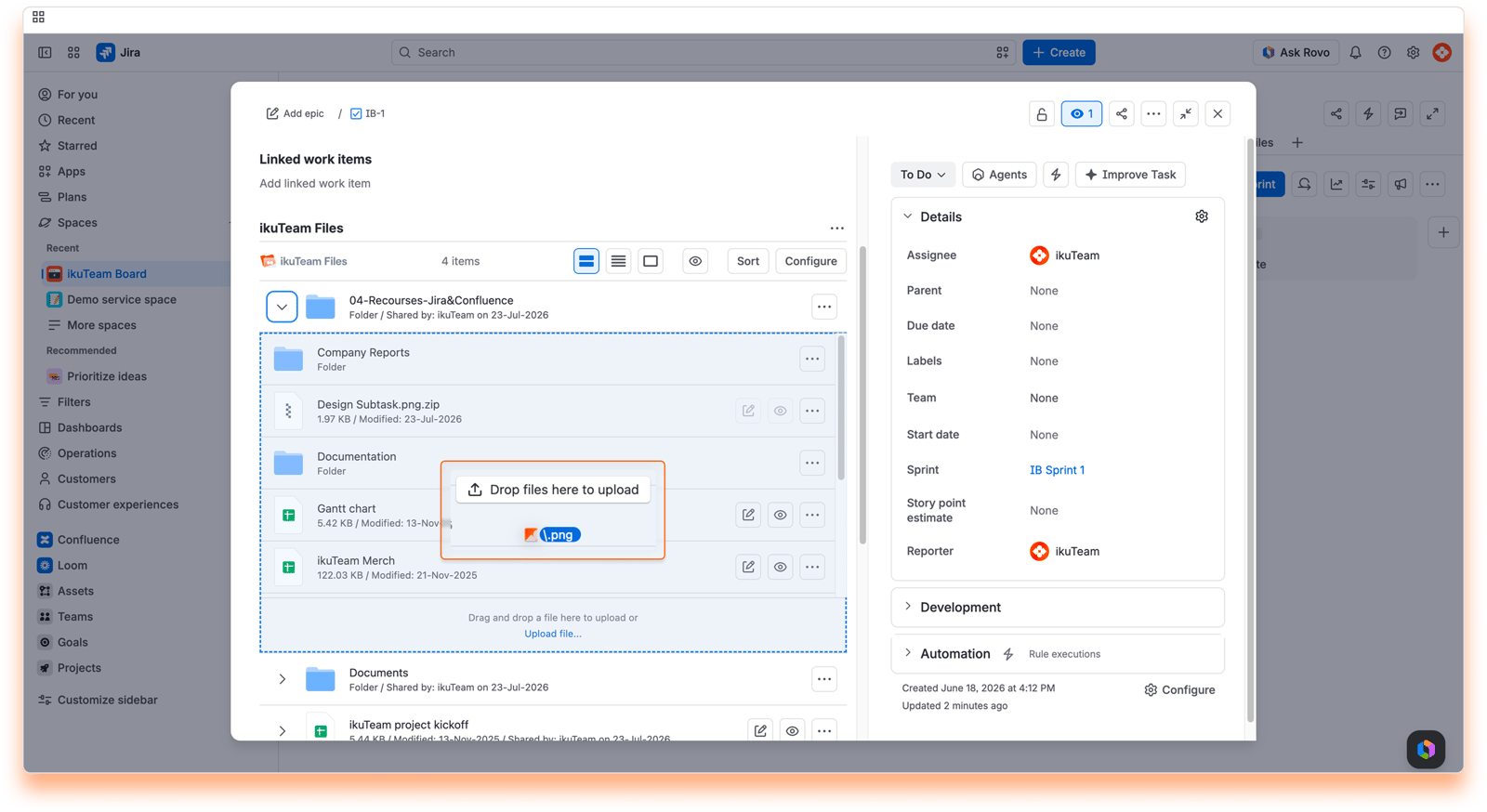
Depending on the size of the file, it may take a few moments for it to become available in the app.
Images: GIF, JPG, JPEG, and PNG
PDF documents (including password-protected files), plus DJVU, XPS, and OXPS files
Microsoft Office documents: DOC, DOCX, DOCM, XLS, XLSX, XLSM, XLSB, PPT, PPTX, PPTM, PPS, PPSX and PPSM
Microsoft Office templates: DOT, DOTX, DOTM, XLT, XLTX, XLTM, POT, POTX, and POTM
Microsoft Visio files: VDW, VSD, VSDX in SharePoint, OneDrive, and Box (requires Mirror Storage Permissions ON)
OpenOffice documents and templates: ODT, ODS, ODP, OTT, OTS, and OTP
Google documents, sheets, and slides
Other documents: RTF, CSV, EPUB, FB2, MHT, and MHTML
iWork files: Pages, Keynote, and Numbers on Box (requires Mirror Storage Permissions ON and iWork for Box turned on)
Videos: MP4, MOV, OGG, and WEBM1
1 Partial support for WEBM, some browsers like Safari don’t support it.
That's all about previewing files. Did you know you can edit documents attached to your work items or create new documents in the file manager?
If you still have questions about the topics covered on this page, visit our support portal and send them to us. Our team is always happy to help.


