

Confluence Google Drive Integration
Create a single source of truth with seamless syncing and real-time collaboration.
Read more


Space admins can adjust the ikuTeam Files for Jira’s space settings to the team’s needs.
Space admins can find the ikuTeam Files settings in the “Apps” section of the space settings.
The ikuTeam Files app is available by default for every space. Space admins can deactivate it in the space settings if it isn’t required in that space.
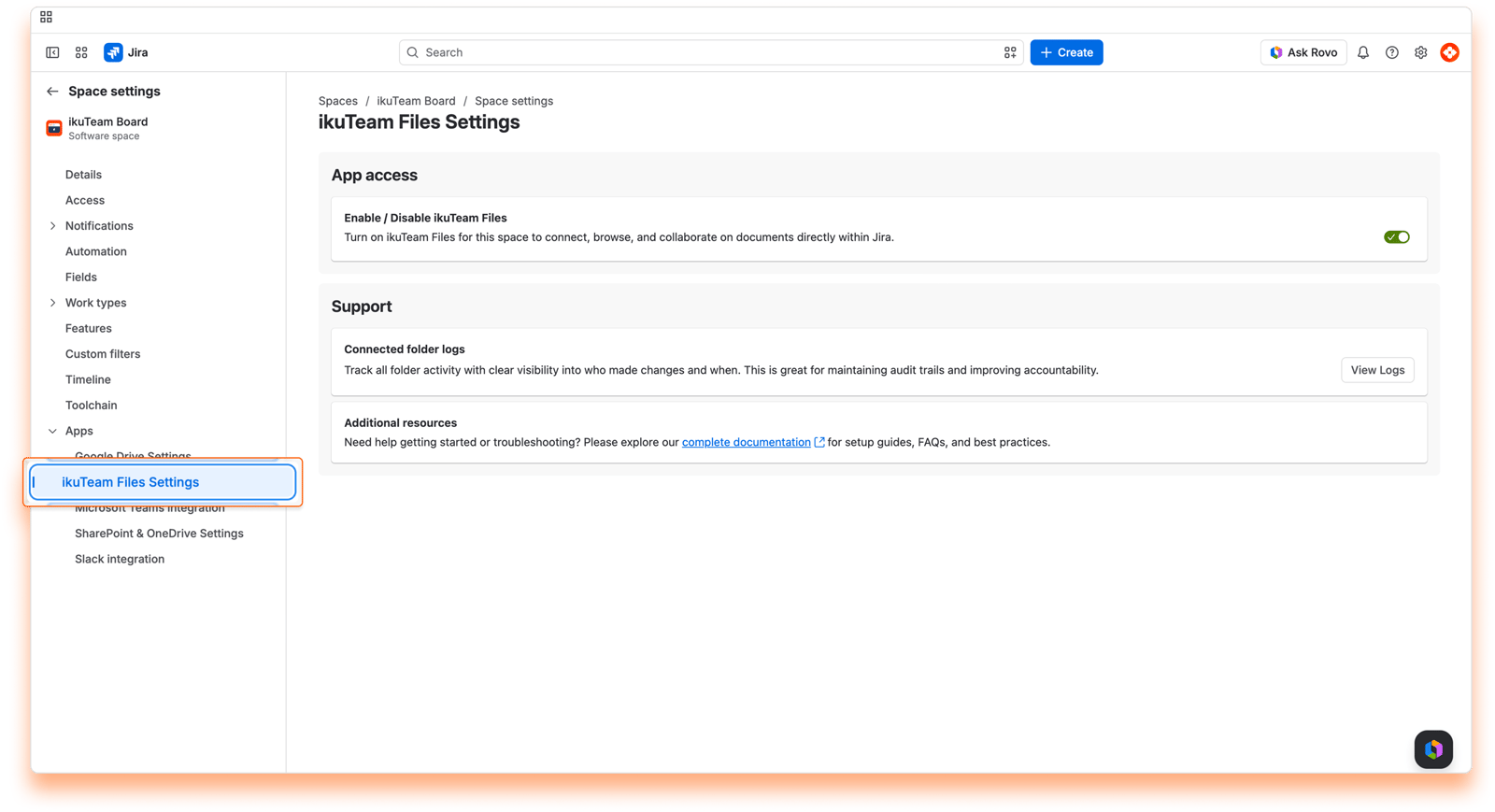
To turn the ikuTeam Files for Jira app off for this space, go to the App access card and use the Enable / Disable ikuTeam Files toggle. You can turn it back on anytime with the same toggle.
Changing this setting saves automatically and applies immediately.
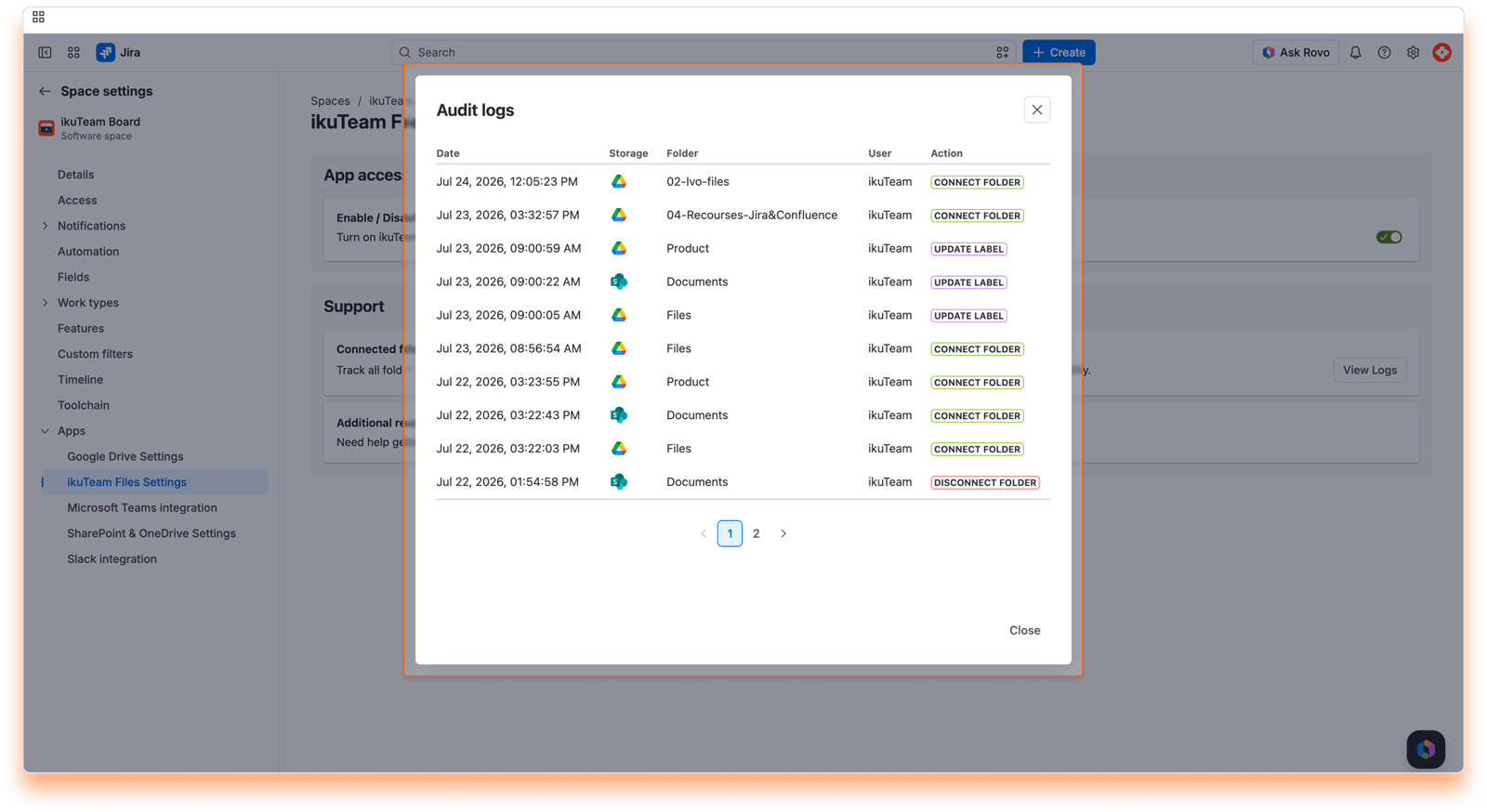
If you're having issues with a connected folder, you can check the logs at any moment: in the Support section, find "Connected folder logs" and click "View Logs". The log shows when someone connected, disconnected, or renamed a folder, updated its label, or transferred its ownership, and who did it.
The Support card also has an Additional resources section with a link to our complete documentation, where you can find setup guides, FAQs, and best practices.
In Jira Service Management spaces, the space settings also show the Customer permissions defaults card. Use its toggles to choose what customers can do, by default, with the files and folders agents share with them:
Customers can edit attachments
Customers can download attachments
Customers can always see the files and folders shared with them. When agents attach files for customers, the Customer Permissions tab starts with these defaults, and agents can change them for that work item. To share files with customers, a Jira admin needs to turn on Customer Access for Jira Service Management in the Admin settings.
Changing this setting saves automatically and applies immediately.
On this page, you learned about all the space settings available.
If you still have questions about the topics covered on this page, visit our support portal and send them to us. Our team is always happy to help.


