

Confluence Google Drive Integration
Create a single source of truth with seamless syncing and real-time collaboration.
Read more


Learn how to set permissions for connected folders.
You can set different permissions to the connected folders to tailor the app experience to your team's needs. You can decide whether other people can view the folders you connect to and whether they can edit the content or download files. If you are familiar with Jira's permissions for work items, you'll feel right at home.
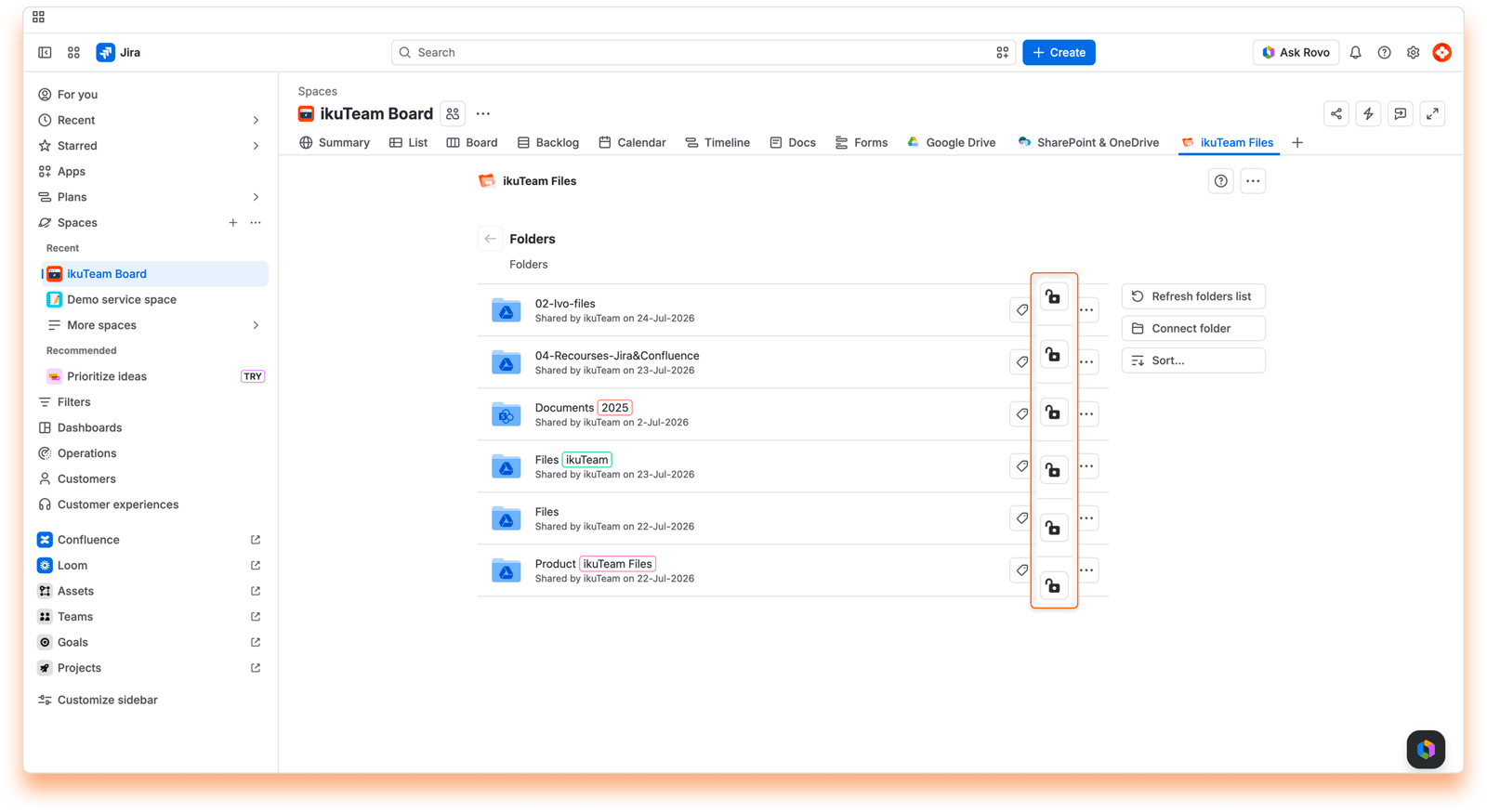
You can set permissions when connecting a folder in the "Permissions" tab or from the File Manager at any moment by clicking the lock icon.
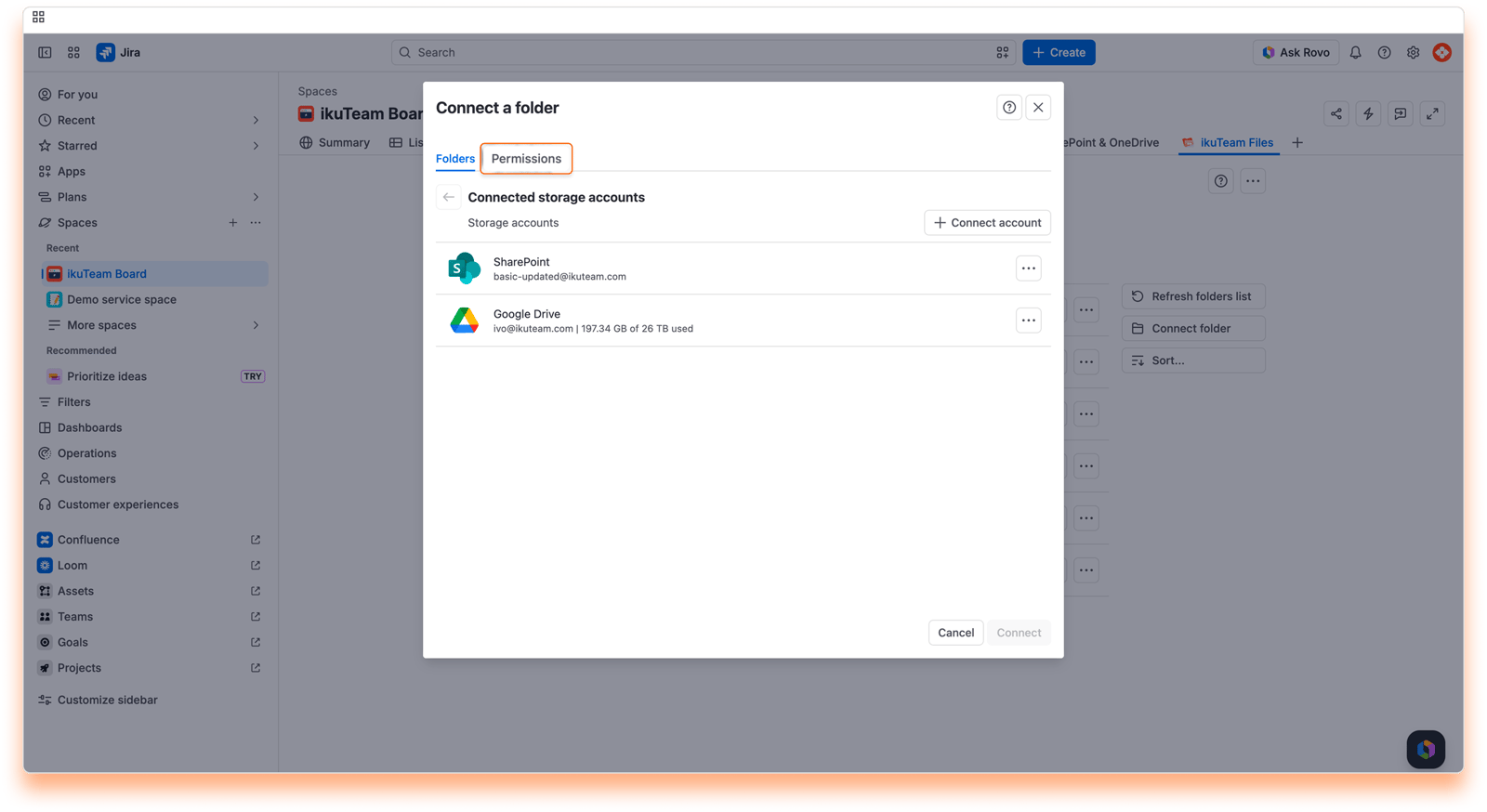
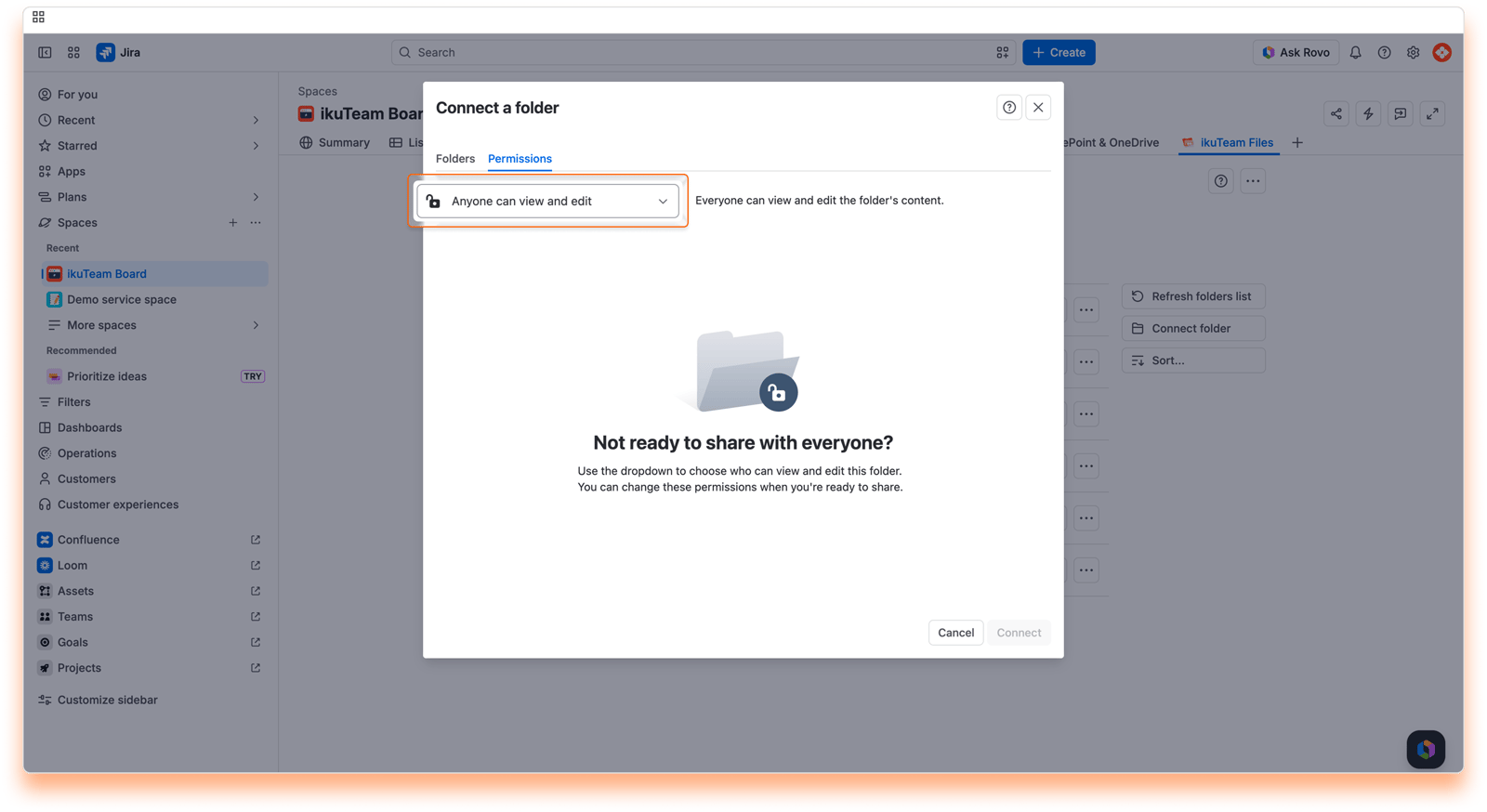
The "Permissions" tab shows the current settings and how they affect your connected folder.
There are three main options that you can select from the drop-down menu:
It is the default option, which means everyone with access to the Jira space can view and edit the content of the connected folder.
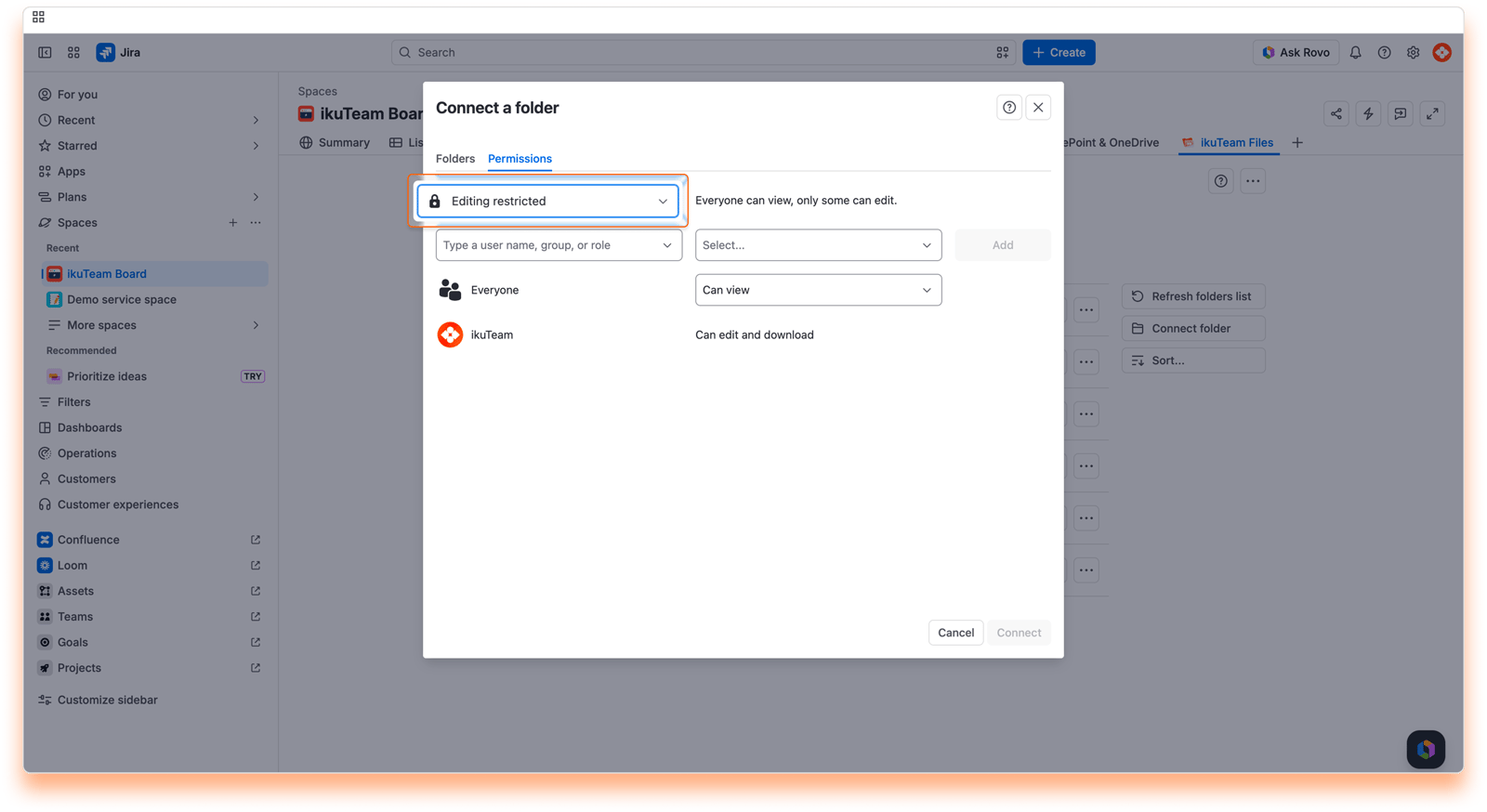
Everyone can view the folder and its content (you can set Everyone to "Can view" or "Can view and download"), but only the person who connected it (the owner) can edit it. The owner can also grant permission to download files or edit documents to specific people, groups, and roles.
No one else has access to the folder; only the owner can view it and edit its content. Only people, groups, or roles added by the owner will have permission to view the folder or edit its content.
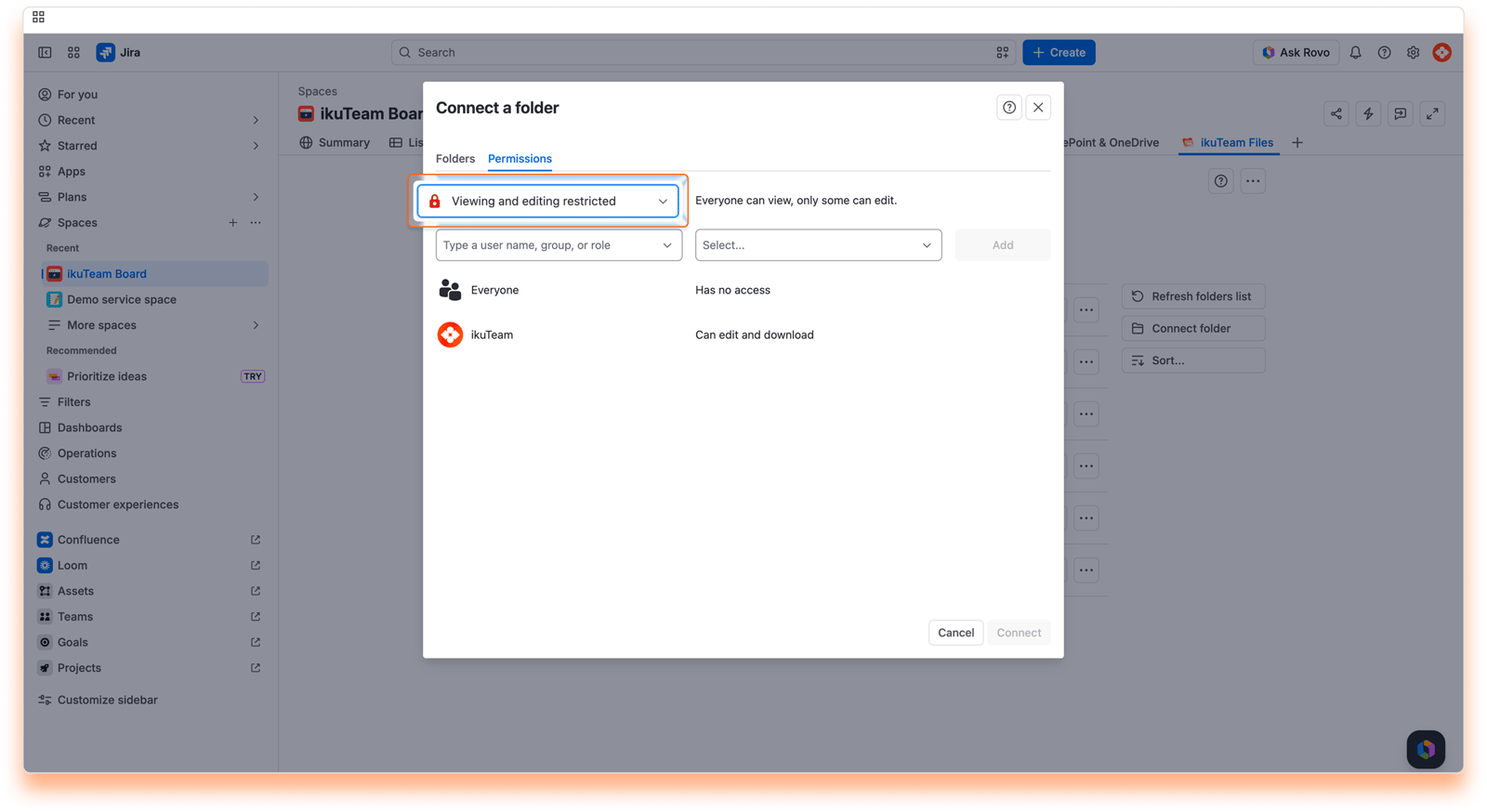
Select the "Editing restricted" or "Viewing and editing restricted" option from the combo box. New fields appear, and a list of the current permissions shows what "Everyone" and the owner can do with the folder:
Click the input box to start typing a name, group, or role, or select one directly from the menu.
Select the permission level to grant: "Can view and download" or "Can edit and download". With "Viewing and editing restricted", you can also choose "Can view".
Click the "Add" button.
The list will be updated to include the new addition. You can add as many entries as you need and click the "Connect" button (when connecting a folder) or the "Apply" button (when editing permissions).
The permissions modal allows you to change the permissions of any person, group, or role. The folder owner or a Jira admin can change the permissions anytime by returning to the permissions modal. They can add more people and groups or revoke granted permissions by clicking the "Remove" button.
Please keep in mind that permissions are additive. If a person can only view a folder as an individual and is part of a group that can edit, this person will be able to edit the folder, as ikuTeam Files for Jira app combines all the permissions.
Files and folders attached to work items will only be visible to people with appropriate permission for the folder.
Files and folders attached to work items always follow the connected folder's current permissions. When you change the folder's permissions, the attachments on your work items use the new permissions right away, so there's no need to attach them again. Attaching for customers on Jira Service Management works a little differently: the customer permission you choose is saved with the work item (see 2.3 Attach files and folders for customers).
The ikuTeam Files for Jira app has Mirror Storage Permissions ON by default, so access follows the permissions set in your cloud storage. Admins can turn it off for simplified access. With Mirror Storage Permissions OFF, the app accesses each connected folder with the folder owner's account and overrides file permissions set in SharePoint, OneDrive, Box, Dropbox, Google Drive, and Egnyte for folders connected to Jira. The original storages are unchanged and keep the permissions set. In that case, we recommend connecting folders with a service account instead of a personal account, so your audit trail stays clear and folders keep working when people leave.
With Mirror Storage Permissions ON, users authenticate with an account that has access to the connected folders, so the permissions set in the storage are respected. Use the Mirror Storage Permissions setting with folder permissions to better control how files are shared, viewed, and edited.
NOTE : With Mirror Storage Permissions ON, access to files follows the permissions set in your cloud storage provider.
However, Jira's permission scheme always takes final precedence. If a user doesn't have access to a Jira space or work item, they won't be able to see or interact with the files attached to it, regardless of their cloud storage permissions.
In short, cloud storage permissions control what files are accessible, but Jira decides who can see them.
Now you know how to set permissions for the folders you connect to your spaces. Don't forget you can connect more folders from the file manager.
If you still have questions about the topics covered on this page, visit our support portal and send them to us. Our team is always happy to help.


