

Confluence Google Drive Integration
Create a single source of truth with seamless syncing and real-time collaboration.
Read more


The ikuTeam Files Agent for Jira and JSM is a specialized AI extension designed to work alongside Atlassian Rovo. It bridges the gap between your Atlassian workspace and your external cloud storage, including SharePoint, Google Drive, OneDrive, Box, Dropbox, and Egnyte.
Instead of opening and reading every attached or linked file yourself, just ask Rovo. When you ask, the agent pulls the file from your cloud storage, extracts its text and hands it to Rovo. The app is built on Atlassian’s Forge platform, and we never store your files’ content.
To set up Atlassian Rovo in Jira, you must be an Organization Admin.
Your site must have:
Atlassian Rovo active (Rovo is available on Standard, Premium, and Enterprise plans). More details about Rovo plans and trials: Rovo licensing.
Advanced Edition of the ikuTeam Files for Jira app installed.
Once these are in place, anyone who can use ikuTeam Files and Rovo on your site can use the agent. They don't need to be admins.
Enable Atlassian Rovo: Follow Atlassian’s Get started with Atlassian Rovo guide to enable the feature on your site.
Locate Rovo Chat: Once enabled, you will see the Ask Rovo button next to the notification icon in your Jira site.
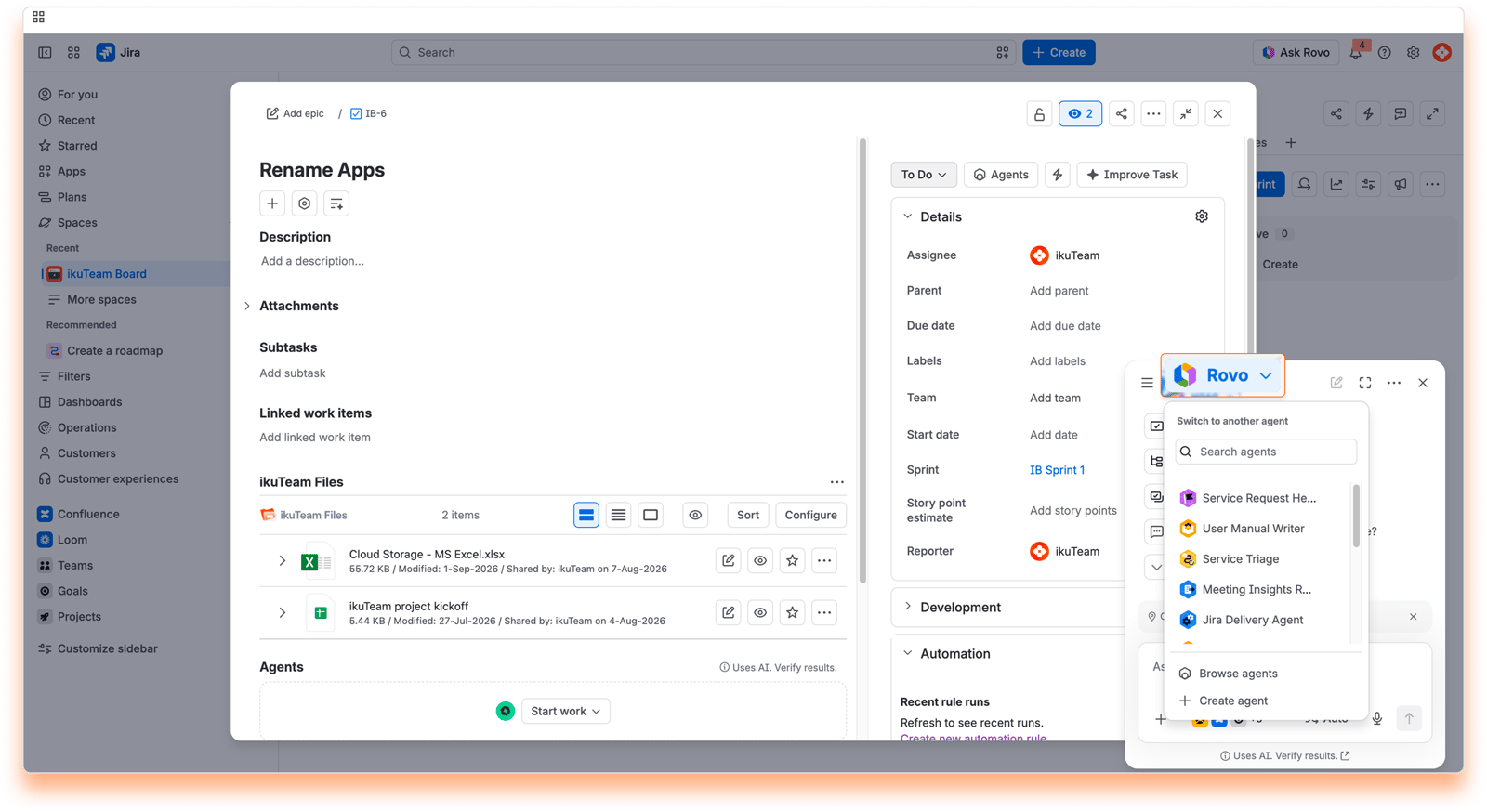
Select the Agent: Open the Rovo Chat and switch to the ikuTeam Files Agent to begin getting insights about the files added to your work item.
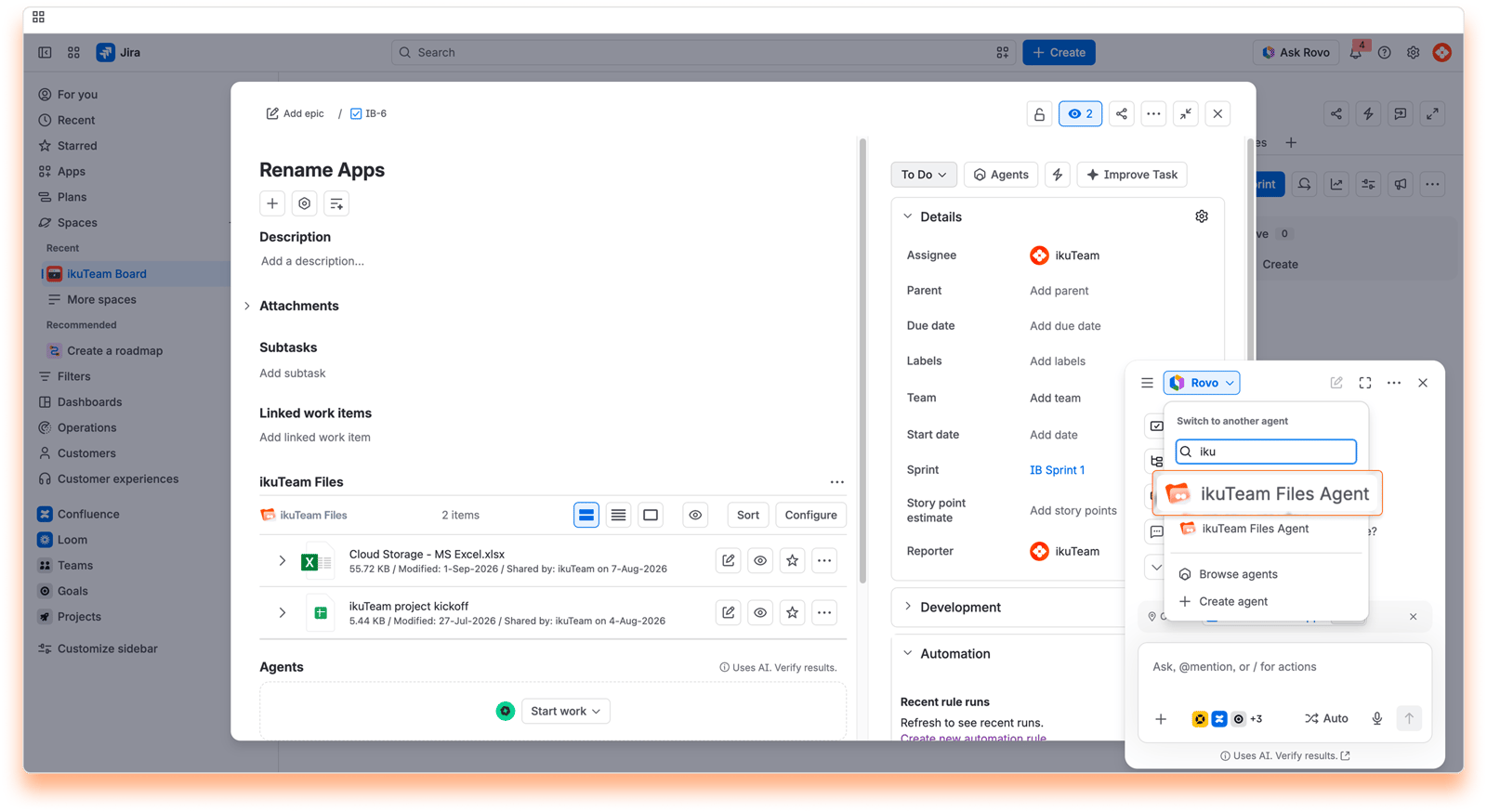
The agent works from the cloud storage files and folders your team has already connected in Jira, not from your entire storage:
The files and folders attached to the work item you are viewing.
The root folders connected to the Jira space in the ikuTeam Files file manager, so a shared team library connected there can also give the agent context.
The agent opens files the same way the app does. With Mirror Storage Permissions ON, it uses your own storage account, so it only reads what your cloud storage permissions allow. With Mirror Storage Permissions OFF, it uses the folder owner's account, and the app's folder permissions decide what you can reach.
If some of the folders connected to the space need authentication first, the agent can't search them yet. It lets you know with this message: "I may not have access to all your files. One or more folders require authentication before I can search them. Head to the app's File Manager to connect them." Connect those folders in the ikuTeam Files file manager, then ask again.
Very large files are read only in part. The agent reads up to the first 440,000 characters of a file. When a file is longer, it answers from that first part and tells you that the rest of the file wasn't read.
Instant AI Summaries: Generate concise highlights of long documents (PDF, Word, Excel, PowerPoint, and Google Docs, Sheets, and Slides) directly within a Jira work item.
Cross-Platform Intelligence: Ask questions about files stored in SharePoint, Google Drive, OneDrive, Box, Dropbox, and Egnyte without leaving Atlassian.
More context via the ikuTeam Files file manager: Access files inside the root folders connected to the Jira space in the ikuTeam Files file manager to provide more context.
Find files by name: The agent finds a file by its name, or part of it, in a work item or across the folders connected to your space. You can narrow the search to one storage (for example, Google Drive) or to a folder name. When you ask, it then reads the file's content to answer your question.
Secure Data Handling: The agent reads a file only when you ask, and we never store your files’ content.
You can interact with the agent using natural language. Try these examples:
"What are the files attached to this work item?"
"Find the file named Budget in this space."
"Summarize the file 'TestCases.xlsx'."
"What are the key takeaways from the PDF attached here?"
"Find the onboarding checklist in the HR folder on Google Drive."
When you open the agent in Rovo Chat, you can also start with one of its conversation starters: Summarize a file, Find a file or Find a file in this space.


