

Confluence Google Drive Integration
Create a single source of truth with seamless syncing and real-time collaboration.
Read more


Applies to: ikuTeam Files for Jira, SharePoint and OneDrive, Mirror Storage Permissions ON
Files in the ikuTeam Files panel on a work item won't preview.
Files don't preview in the file manager either.
When this happens, the preview is blocked, usually showing a "prohibitory sign" icon or a security message instead of the file.
What you'll notice:
The file preview fails to load
The browser blocks the content with a security response (for example, X-Frame-Options: DENY or SAMEORIGIN), which stops it from showing inside a frame
An error message saying the site owner doesn't allow the content to be framed
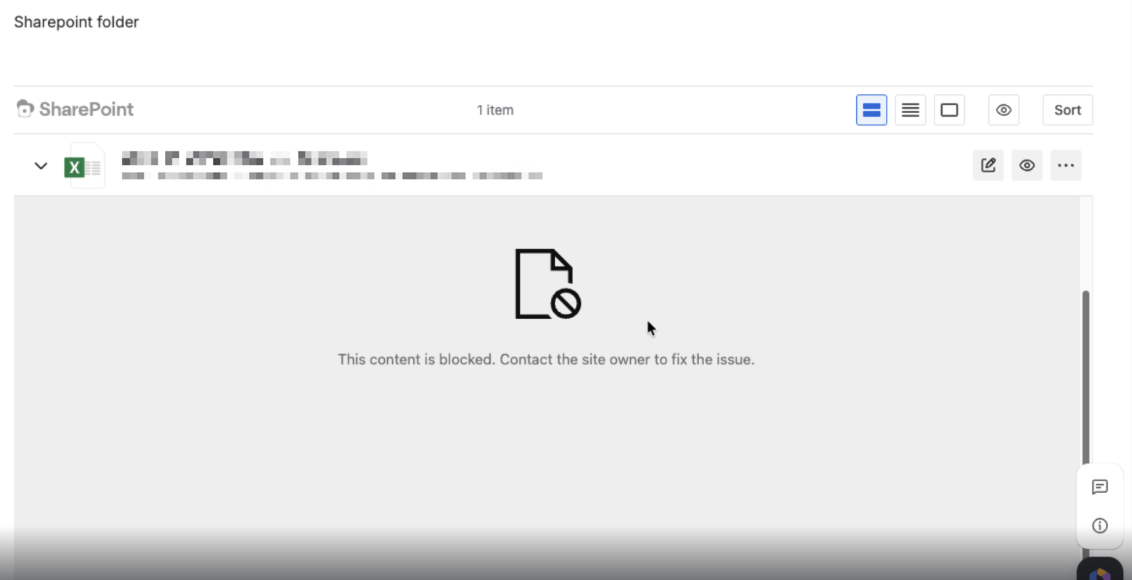
With Mirror Storage Permissions ON, ikuTeam Files shows SharePoint and OneDrive files with Microsoft's own preview, embedded in Jira. The preview is blocked when your organization's IT policies block personal OneDrive accounts, or when Microsoft won't show its preview inside another site. With Mirror Storage Permissions OFF, the ikuTeam Office engine shows the preview instead, so this problem doesn't occur.
Switch to a OneDrive work or school account
Make sure the account is connected with a Microsoft work or school account, not a personal OneDrive account. Many company IT environments block personal OneDrive access by default, and that's often the cause.
Check network authorization
Ask your network administrator to confirm that traffic to and from *.sharepoint.com is allowed, and that no firewall or proxy blocks communication with your Jira site.
Review browser privacy settings
Make sure the browser isn't running in "Strict" privacy mode
Confirm third-party cookies aren't blocked, since this can interrupt sign-in between Jira and Microsoft
Preview with the ikuTeam Office engine instead
If your organization can't allow Microsoft's preview inside Jira, a Jira admin can turn Mirror Storage Permissions OFF. Previews then use the ikuTeam Office engine. This also changes how storage permissions apply in Jira, so please read 3.1.1 What changes with Mirror Storage Permissions OFF first.
Open a request in our support portal and, if you can, attach a HAR file (see Collecting a HAR file for support). We're happy to dig in further with you.


