

Confluence Google Drive Integration
Create a single source of truth with seamless syncing and real-time collaboration.
Read more


This guide shows you how to set up a Jira Automation flow that uploads the attachments on a Jira work item (previously called an issue) to a Google Drive folder, then deletes them from Jira to save space.
This flow is ideal for teams that want to keep their documents in Google Drive while keeping their Jira space (previously called a project) clean and organized. You build it with Google Drive Connector for Jira.
Automatic upload: Move attachments to Google Drive as soon as a work item reaches the status you choose.
Storage optimization: Delete attachments from Jira after a successful upload.
One home for files: Final assets live in Google Drive, where your team already works on them.
A marketing creative team produces campaign assets like video ads, high-resolution banners, product photography, and motion graphics. Each asset goes through several rounds of review before final approval. When an asset's work item moves to Done, the flow moves its files to the campaign folder in Google Drive and clears them from Jira.
Google Drive Connector for Jira is installed on your Jira site.
You have permission to create automation flows in the space (space admin) or globally (Jira admin).
You have access to a Google account. You'll authenticate it while setting up the "Google - Upload attachments to folder" action.
The flow runs as the user set in Actor, in the flow's Settings panel. That person needs access to the app and permission on the folder. With Mirror Storage Permissions ON, they must also have signed in to the Google account.
Your site has the Advanced Edition of Google Drive Connector for Jira. The automation actions are part of it.
Create a new flow and set the trigger to "Work item transitioned", for example when a work item moves to Done.
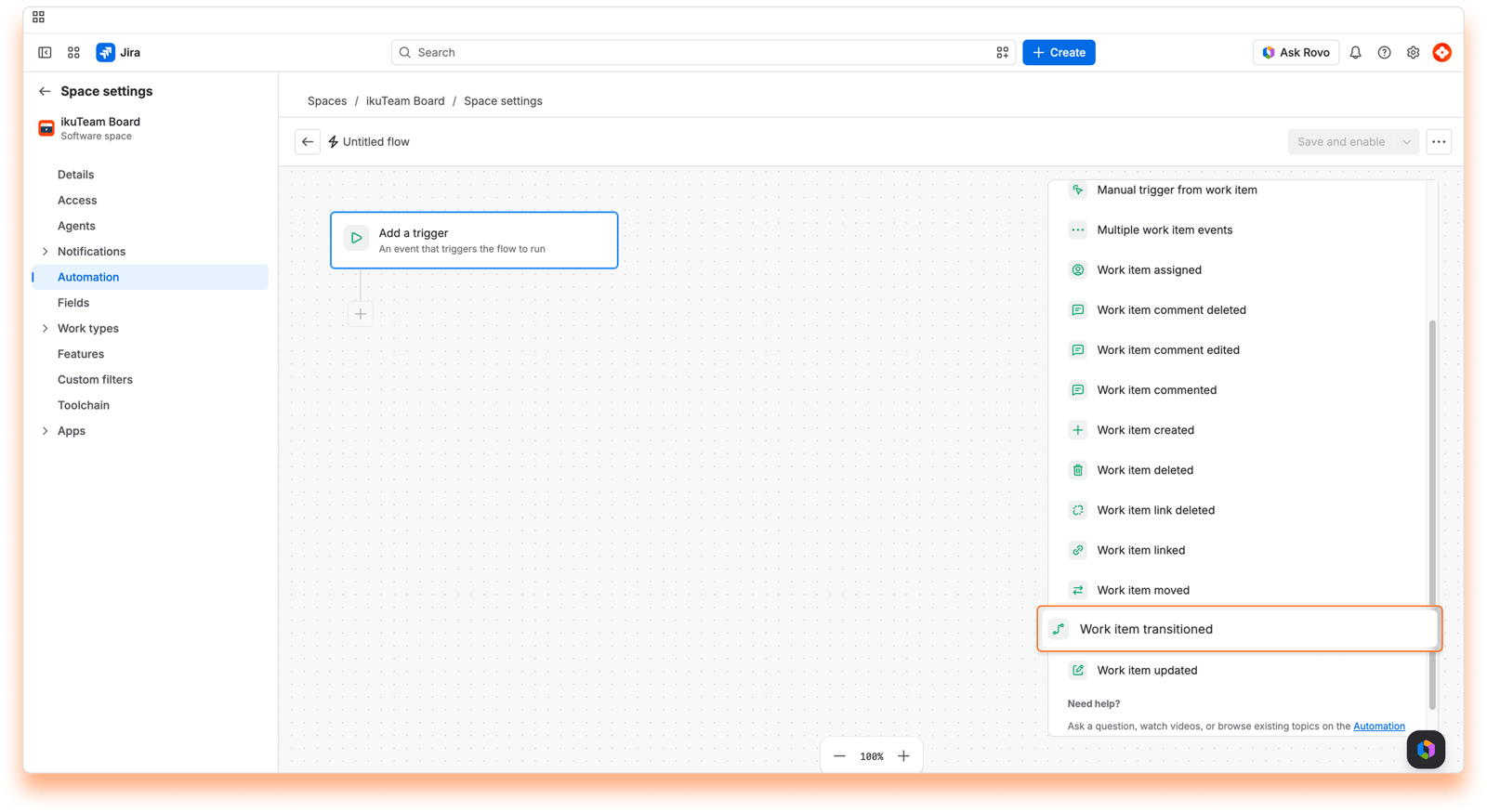
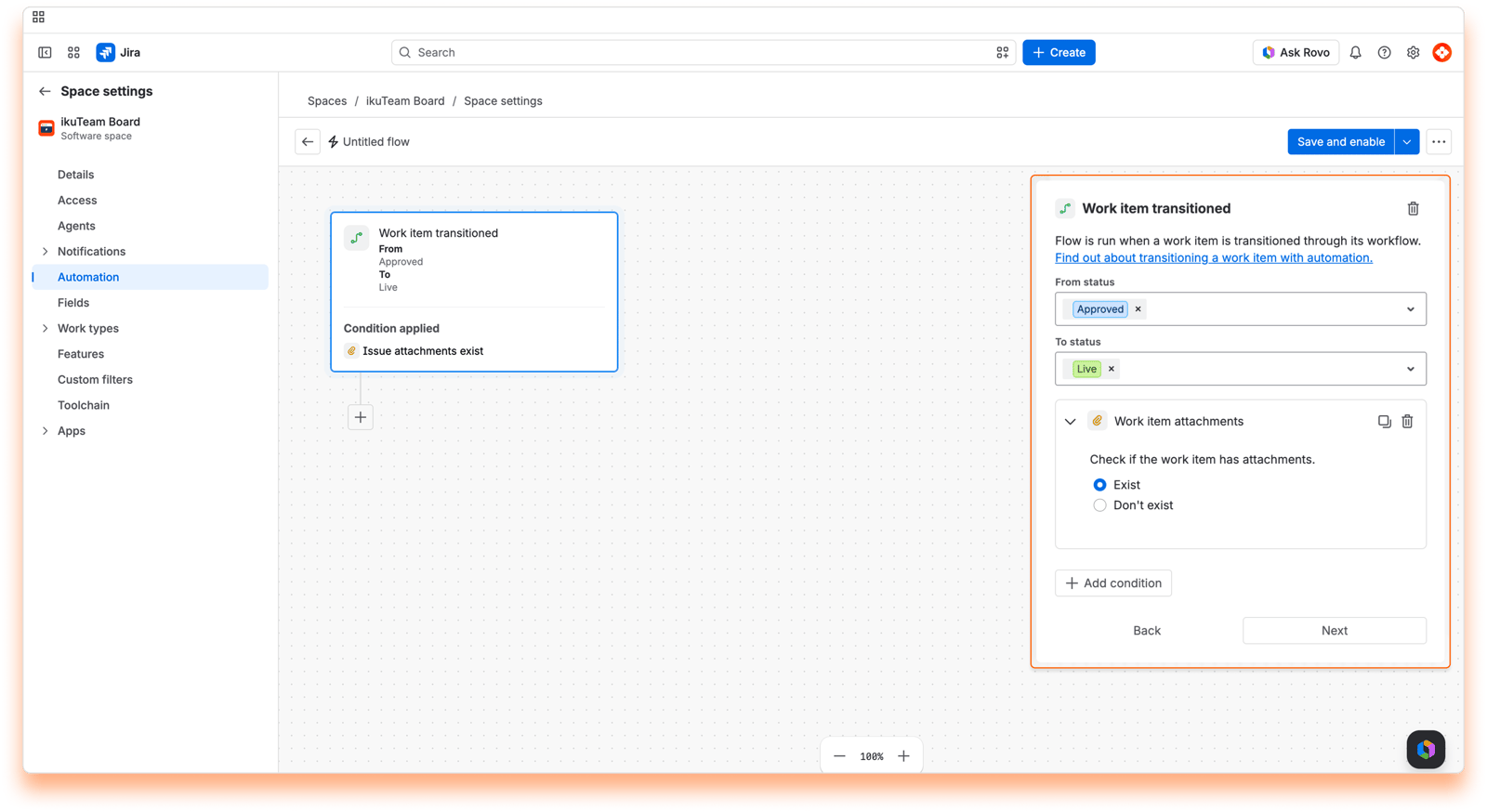
Add a condition so the flow only runs when the work item has attachments, for example a "Work item fields condition" that checks that Attachment is not empty. Prefer to choose when files are moved? Use a "Manual trigger" instead of "Work item transitioned".
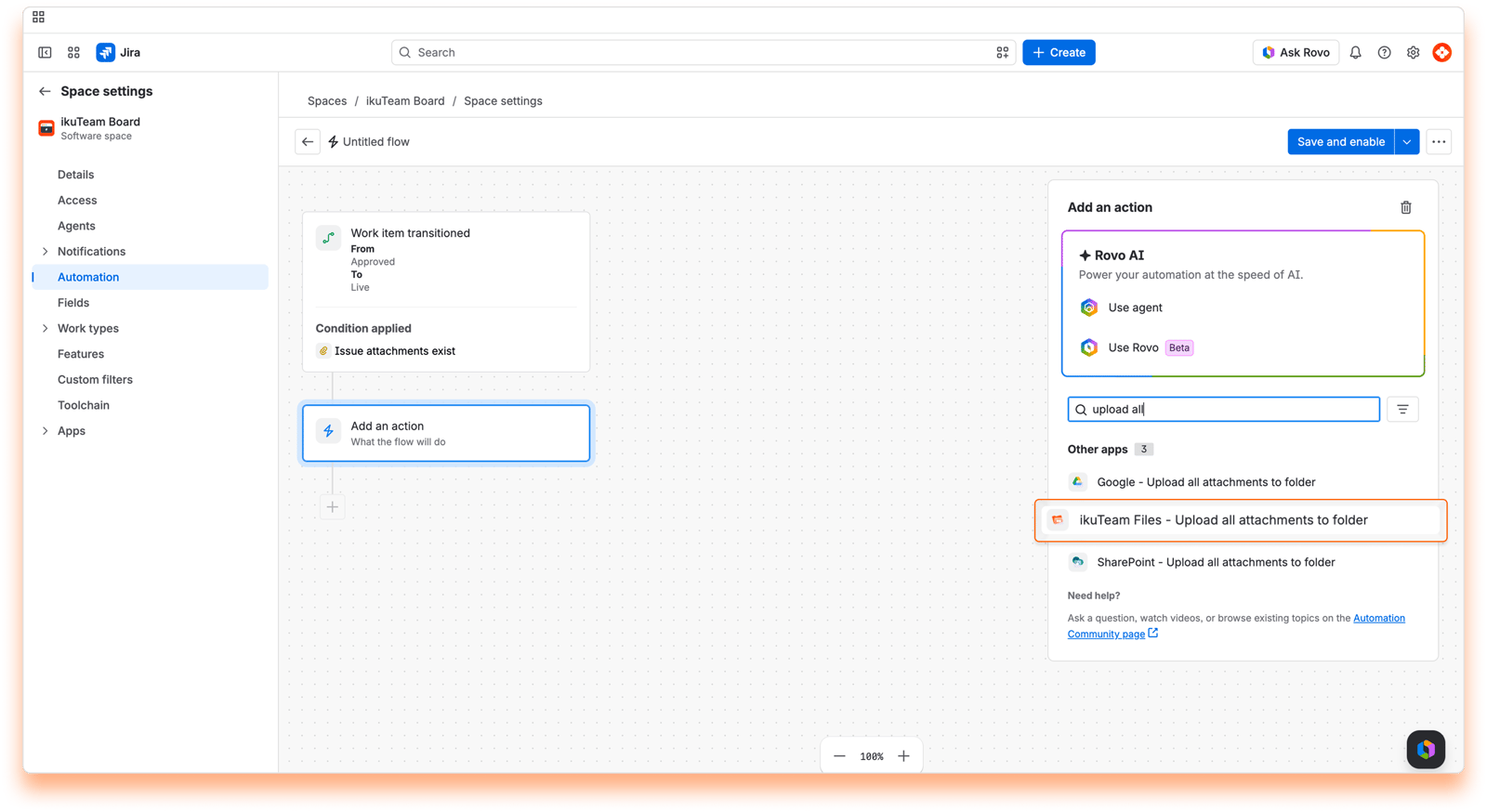
Add a new action, search for "Google - Upload attachments to folder", and select it.
Click "Connect" and select the folder where the attachments will be uploaded.
If an earlier action in the flow created or found a folder, select "Use folder from previous step" instead. Use this when you want a dedicated folder per work item, created by the "Create folder" action.
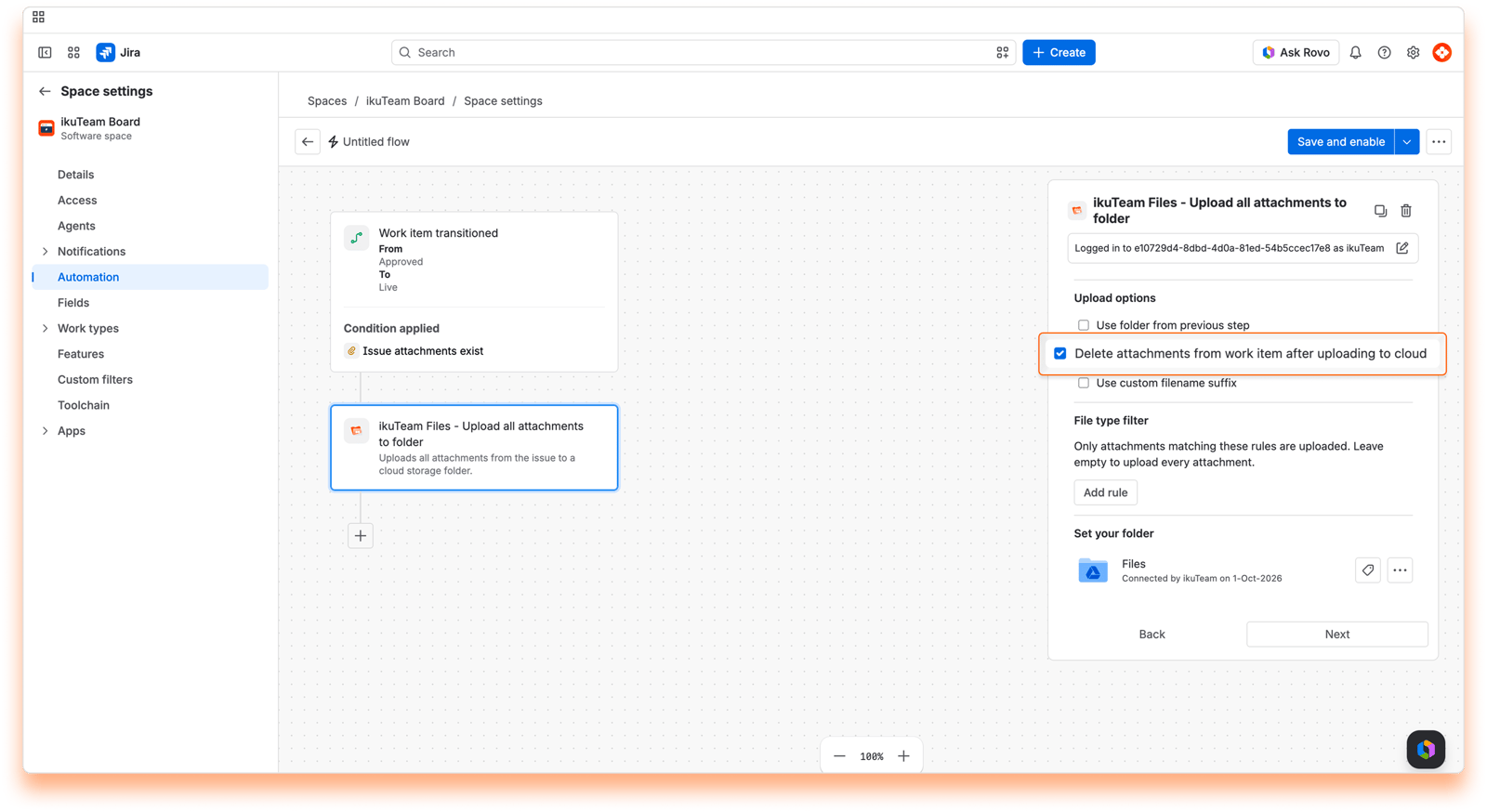
Select "Delete attachments from work item after uploading to cloud" to remove the attachments from Jira once they're uploaded. If you leave it unselected, the attachments stay on the work item and a copy is uploaded to Google Drive.
When "Delete attachments from work item after uploading to cloud" is selected, the attachments are permanently removed from Jira after upload. You can't restore them in Jira. The only copies are the ones in Google Drive.
By default, each uploaded file gets the work item key and a unique ID, for example design-specs.pdf on MKT-101 is uploaded as design-specs (MKT-101 - 3f2a...).pdf. To use your own suffix, select "Use custom filename suffix" and enter it, or leave it empty to keep the original names.
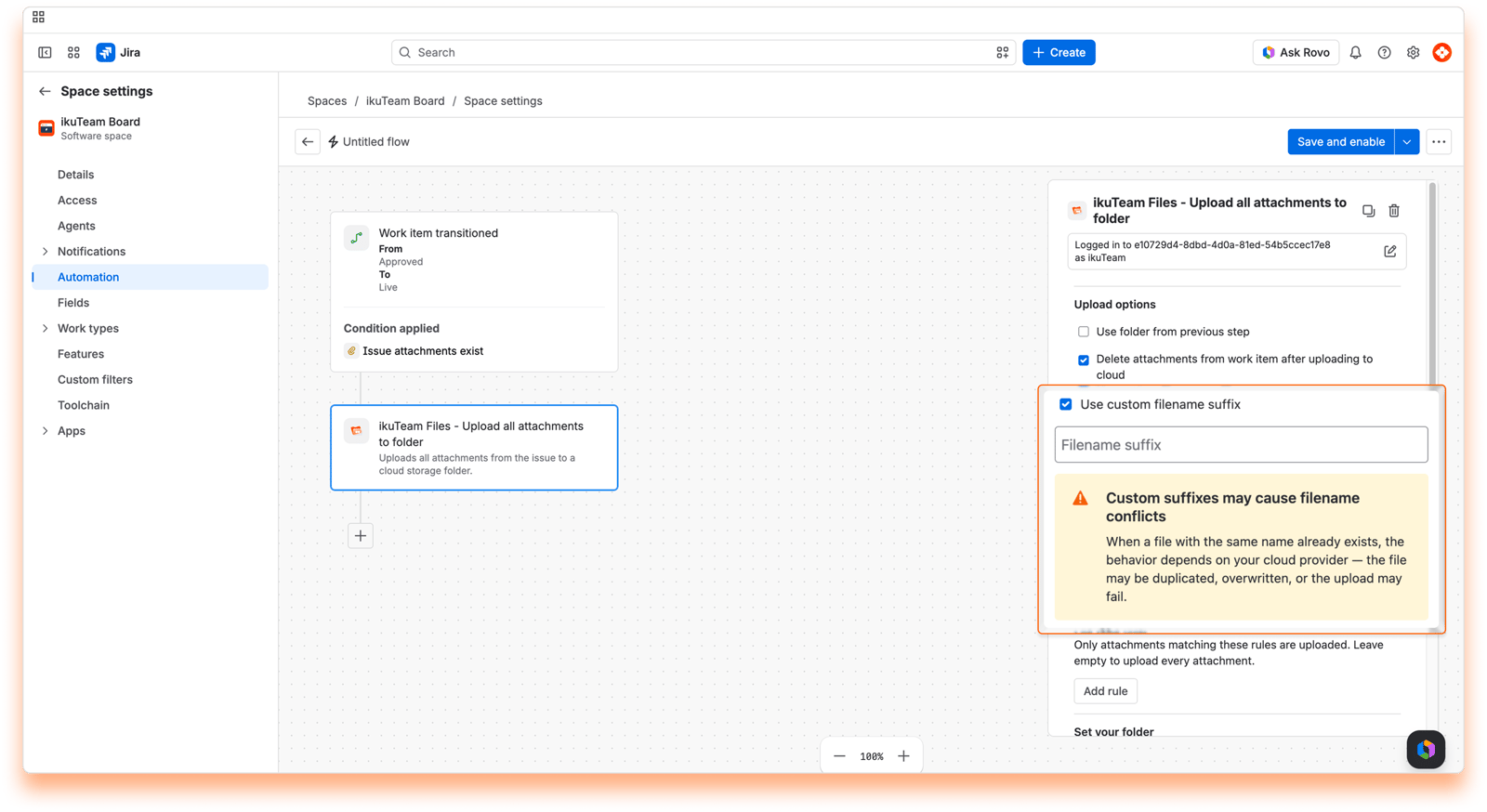
With a custom suffix, or none, two files can end up with the same name. Google Drive allows multiple files with the same name, so a file with the same name as an existing one is added as a duplicate in the folder.
Save and turn on the flow, and your automation is ready to upload attachments to Google Drive on every successful run.
Test first. Run the flow with a manual trigger on a test work item, or in a sandbox or staging environment, before turning it on in production.
Use a dedicated folder per work item. Add the "Create folder" action before the upload, with {{issue.key}} as the folder name, then select "Use folder from previous step" in the upload action. Auditing attachments later is much easier. Keep "Use the existing folder" selected in the "Create folder" action, so every upload for the same work item goes into the same folder.
Check the audit log. If files aren't uploading as expected, the flow's "Audit log" shows every time the flow ran, or failed to run.
With this flow in place, finished work items hand their files over to Google Drive automatically, and Jira stays lean. To see every action you can use, read 4.1 Google Drive Connector automation actions. If you need a hand, reach out on our support portal.


