

Confluence Google Drive Integration
Create a single source of truth with seamless syncing and real-time collaboration.
Read more


The Google Drive Agent for Jira and JSM is a specialized AI extension designed to work alongside Atlassian Rovo. It bridges the gap between your Atlassian workspace and your Google Drive.
Instead of opening and reading every attached or linked file yourself, just ask Rovo. The agent pulls the file from Google Drive, extracts its text and hands it to Rovo when you ask. Built on Atlassian’s Forge platform, we never store your files’ content.
To set up Atlassian Rovo in Jira, you must be an Organization Admin. Your site must have:
Atlassian Rovo active (Rovo is available on Standard, Premium, and Enterprise plans). More details about Rovo plans and trials: Rovo licensing. Admins can check the current state in Atlassian’s Rovo activation guide.
Advanced Edition of the Google Drive Connector for Jira app installed.
Once these are in place, anyone who can use Google Drive Connector and Rovo on your site can use the agent. They don't need to be admins.
Enable Atlassian Rovo. Follow Atlassian's Get started with Atlassian Rovo guide to turn on the feature for your site.
Find Rovo Chat. Once it's enabled, you'll see the Ask Rovo button next to the notification icon in your Jira site.
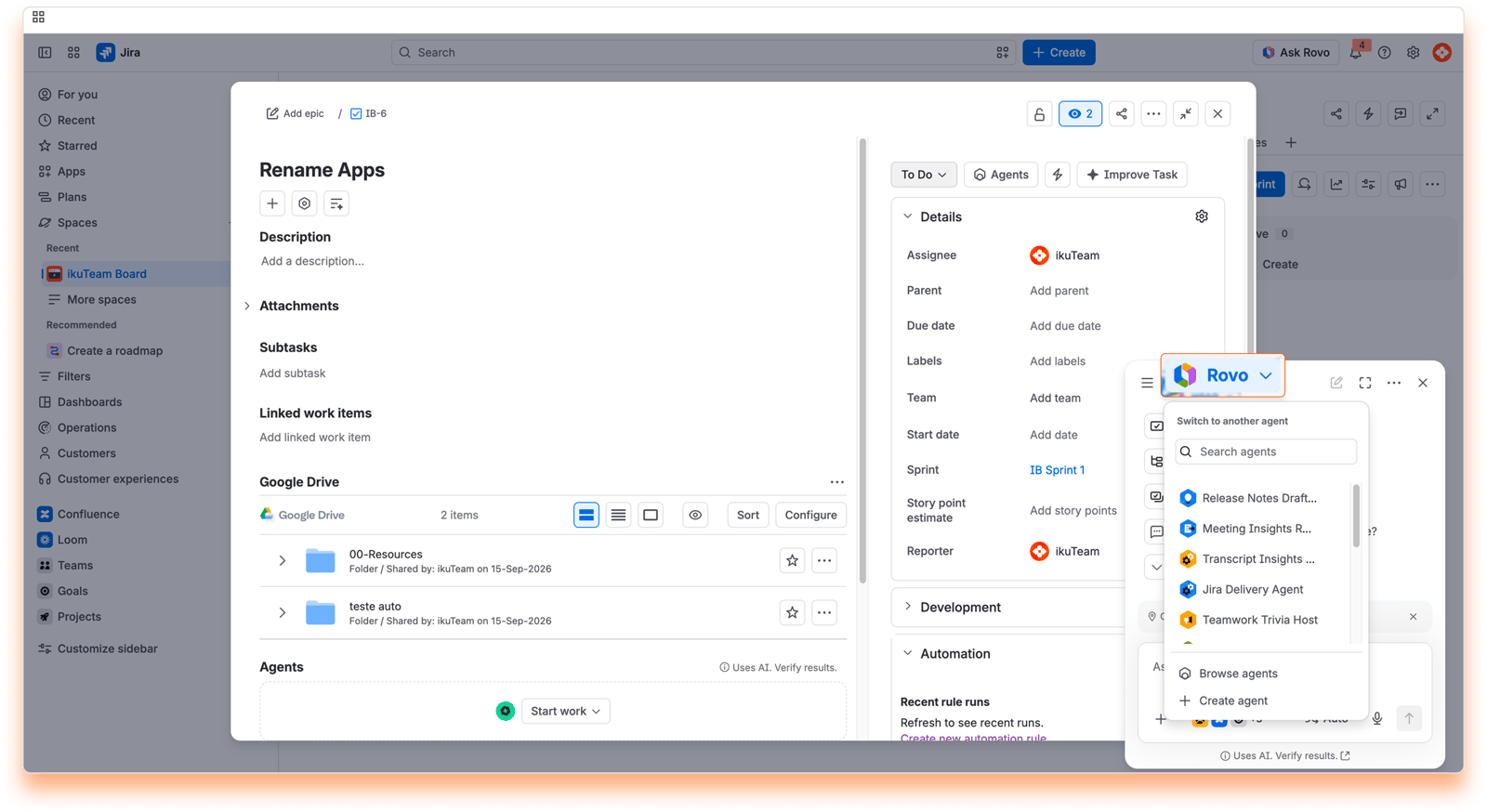
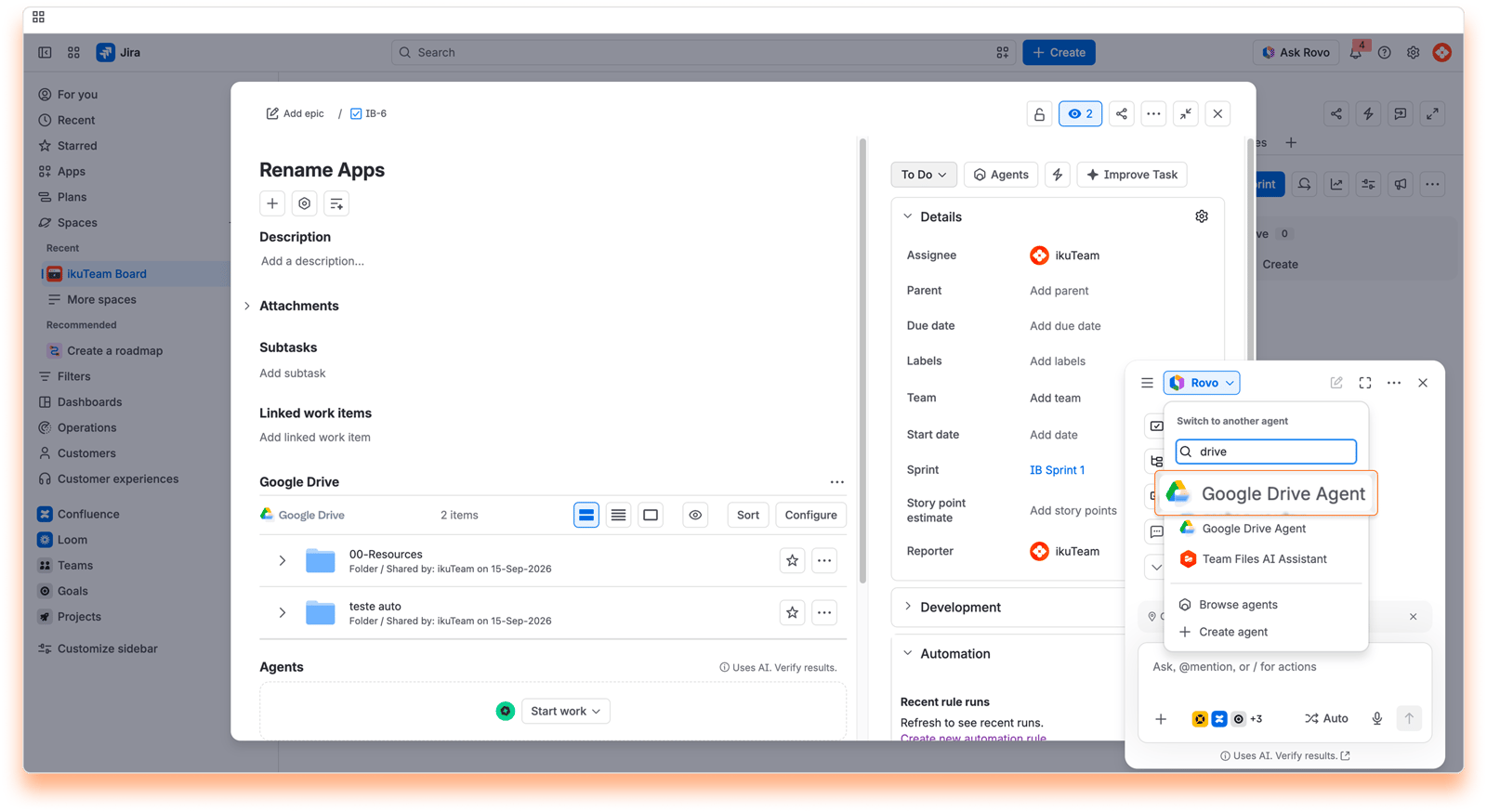
Select the agent. Open Rovo Chat, switch to the Google Drive Agent, and you're ready to start getting insights about the files on your work item.
Instant AI summaries.
Get concise highlights from long documents (PDF, Word, Excel, PowerPoint, and Google Docs, Sheets, and Slides) directly within a Jira work item.
Answers about your files.
Ask a question about a file on your work item or in the folders connected to your space, and get an answer based on its content, without switching tabs or downloading anything.
More context from the file manager.
Access files inside the root folders connected to the Jira space in the Google Drive Connector file manager to provide more context.
Find files by name.
The agent finds a file by its name, or part of it, in a work item or across the folders connected to your space. You can narrow the search to a folder name. When you ask, it then reads the file's content to answer your question.
Secure data handling.
The agent reads a file only when you ask, and we never store your files’ content. ikuTeam is ISO/IEC 27001:2022 certified.
You can interact with the agent using natural language. Try these examples:
"What are the files attached to this work item?"
"Find the file named Budget in this space."
"Which technical constraints are listed in the requirements doc attached to this work item?"
"Summarize the file 'TestCases.xlsx'."
"What are the key takeaways from the PDF attached here?"
"Find the onboarding checklist in the HR folder."
When you open the agent in Rovo Chat, you can also start with one of its conversation starters: Summarize a file, Find a file or Find a file in this space.
We're just getting started. More file features are on the way, so keep an eye out for what's next.
The Google Drive Agent works only with files from Google Drive. Within Google Drive, it works from the files and folders your team has already connected in Jira, not from your entire Drive:
The files and folders attached to the work item you are viewing (the same files you find in that work item’s Google Drive section).
The root folders connected to the Jira space in the Google Drive Connector file manager, so a shared team library connected there can also give the agent context.
The agent opens files the same way the app does. With Mirror Storage Permissions ON, it uses your own Google account, so it only reads what your Google Drive permissions allow. With Mirror Storage Permissions OFF, it uses the folder owner's account, and the app's folder permissions decide what you can reach.
If some of the folders connected to the space need authentication first, the agent can't search them yet. It lets you know with this message: "I may not have access to all your files. One or more folders require authentication before I can search them. Head to the app's File Manager to connect them." Connect those folders in the Google Drive Connector file manager, then ask again.
Very large files are read only in part. The agent reads up to the first 440,000 characters of a file. When a file is longer, it answers from that first part and tells you that the rest of the file wasn't read.
When your team asks the agent the same kind of question on every work item, you can turn it into an automation flow. You need space admin permission on the space you are automating.
In your space, go to Settings > Automation and create a new flow.
Set a trigger, or configure the flow to run manually.
Add the agent action and select the Google Drive Agent.
Enter a prompt: a plain-language instruction telling it what you want back.
Add a follow-up Add comment action, and insert the response using the smart value {{agentResponse}}.
For example, when a new feature request comes in with a spec attached from Google Drive, the flow can have the agent read the spec and post a summary as a comment as soon as the work item is created.
Prompts that work well inside automation:
Specific extraction: “List all due dates and owners mentioned in the ‘Timeline’ section.”
Tone adjustment: “Write a two-sentence executive summary suitable for a stakeholder update.”
Formatting: “Return the findings as a markdown table with columns for ‘Risk’ and ‘Mitigation Strategy’.”
Gap analysis: “Identify if the document is missing a section on budget or resource allocation.”
When several files are attached to a work item, the agent asks which one you mean, and a flow can't answer back. So name the file in your prompt. For step-by-step flows, see 4.9 Summarize attached documents with the Google Drive Agent and 4.10 Check documents at a workflow transition with the Google Drive Agent. For more ideas, see Atlassian’s Rovo prompts and use cases.


