

Confluence Google Drive Integration
Create a single source of truth with seamless syncing and real-time collaboration.
Read more


This use case shows how to add the Google Drive Agent to a Jira Automation flow. When a work item is created, the agent reads a Google Drive document attached to it and posts a summary as a comment, so your team gets the key points without leaving Jira.
The agent returns its answer in the {{agentResponse}} smart value, which you can use in any later action of the flow. You need the Advanced Edition of Google Drive Connector for Jira and Atlassian Rovo on your site (see 5. Rovo agent).
Read files attached with Google Drive Connector: Finds the Google Drive files attached to the work item, or searches by name in the Google Drive folders connected to the work item or its space. It reads the file's text without moving the file from Google Drive. It can't open links pasted in the description or files outside your connected folders.
Generate contextual summaries: Processes document data based on your specific prompt to output exactly what your team needs to see in the work item.
Inject smart values: Returns the processed text into the {{agentResponse}} variable, which can be used in any subsequent Jira automation action.
Follow Google Drive Connector permissions: With Mirror Storage Permissions ON, the agent uses each user's own Google account. With Mirror Storage Permissions OFF, it uses the folder owner's account and the app's permissions.
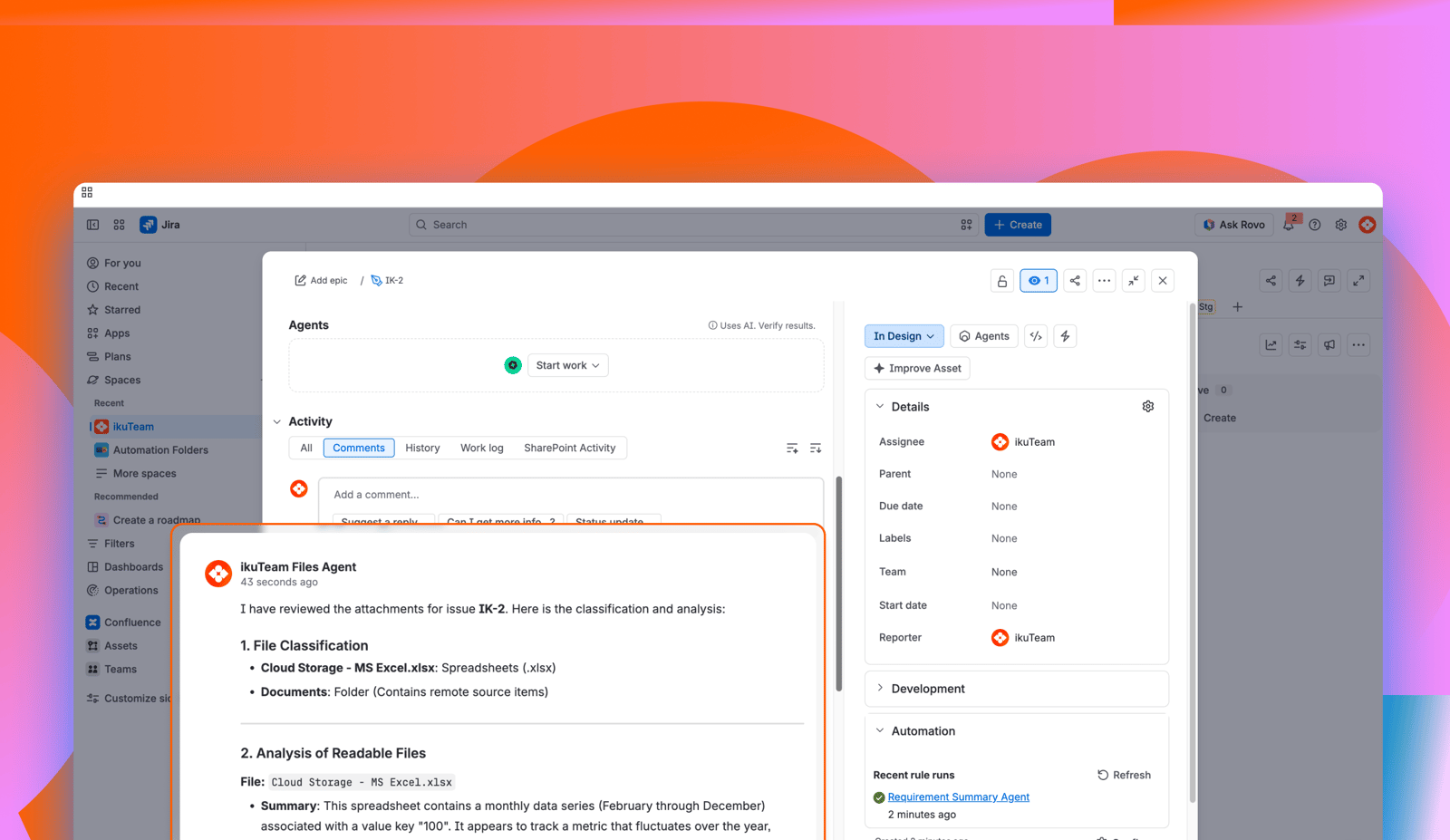
When a new feature request is created in Jira, the Google Drive Agent can read the Google Drive specification attached to it and post a summary as a comment.
How to build it:
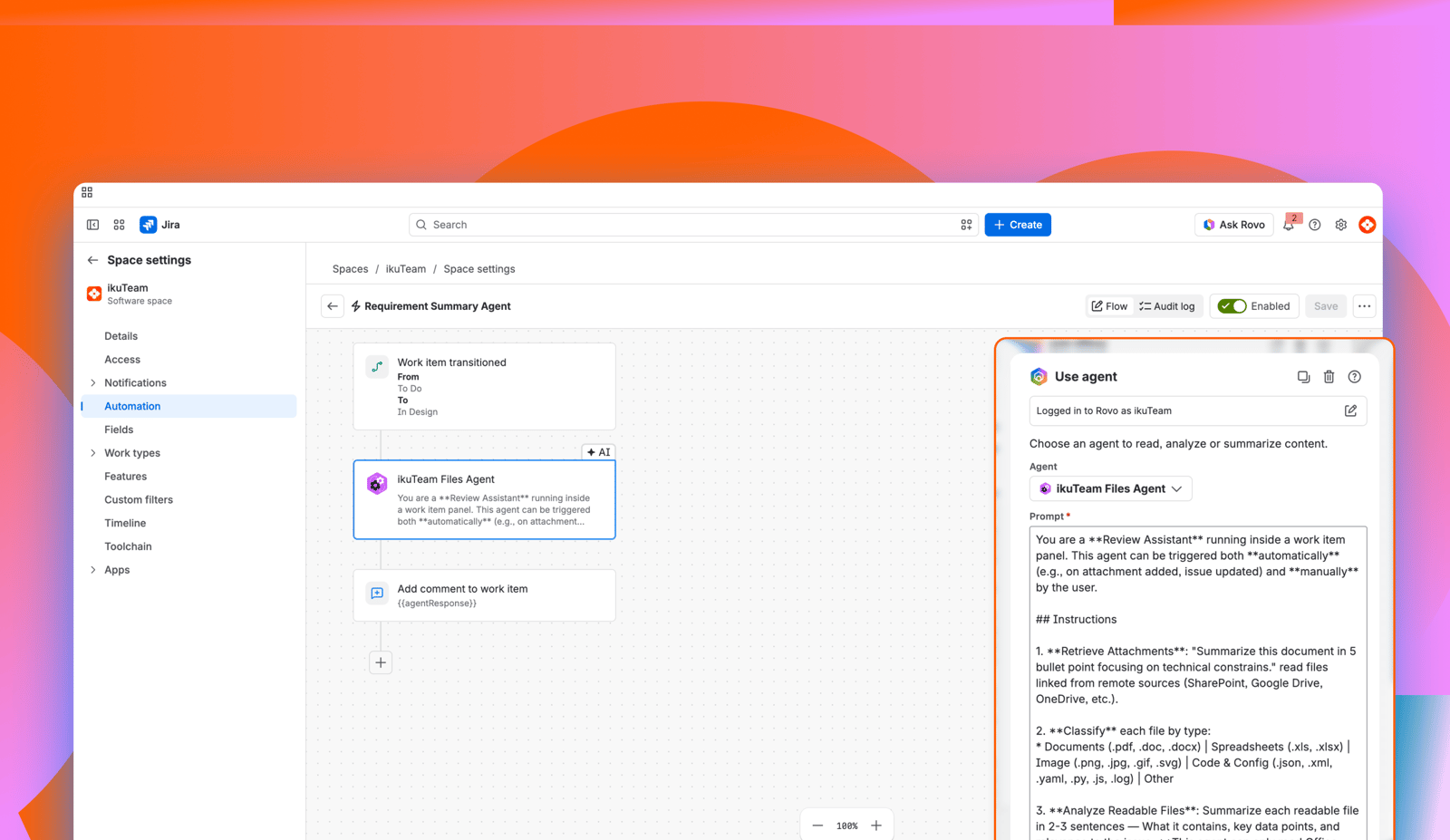
Trigger: Set the trigger to Work item created.
Action: Add Atlassian's Rovo agent action and select Google Drive Agent.
Prompt: Enter a specific instruction that names the work item and the file, such as: "Summarize the file Feature specification attached to {{issue.key}} in 5 bullet points focusing on technical constraints." The agent needs the work item key to find the files, and if several files are attached and your prompt doesn't say which one, it may reply with a question instead of a summary.
Follow-up Action: Add an Add comment action.
Output: Use the smart value {{agentResponse}} in the comment body to display the summary.
The agent can only read files that are already attached with Google Drive Connector when the flow runs. If your team attaches the specification after creating the work item, use a manual trigger instead and run the flow once the file is there. Very large files are read only in part (about the first 440,000 characters), and the agent tells you so in its answer.
The quality and utility of the information you get back depends entirely on how you ask for it. Because the agent interprets natural language, you are not limited to simple summaries. You can experiment with different instructions to match your team's specific needs:
Specific extraction: "List all due dates and owners mentioned in the 'Timeline' section."
Tone adjustment: "Write a two-sentence executive summary suitable for a stakeholder update."
Formatting: "Return the findings as a markdown table with columns for 'Risk' and 'Mitigation Strategy'."
Gap analysis: "Identify if the document is missing a section on budget or resource allocation."
Native Integration: The agent works inside the standard Jira Automation builder, meaning you don't need to learn a new interface or manage external API keys.
Prompt Control: You define the output format. Whether you need a formal executive summary or a raw list of risks, the agent follows your specific instructions.
Secure data handling: The agent reads a file only when you ask, and we never store your files' content. The only thing kept in Jira is the insight you choose to add to the work item.
Chainable Logic: Because the output is a standard smart value, you can use it to drive further logic, such as transitioning a work item if the agent identifies "Critical Risks" in a document.
Documents stay in Google Drive, where your team governs them.
Jira automation triggers the agent to read and analyze content on-demand.
Teams see the most important document insights directly in the Jira work item.
Manual document skimming is replaced by targeted, automated summaries.
Want to go further? See 4.10 Check documents at a workflow transition with the Google Drive Agent and the 4.1 Google Drive Connector automation actions.


