

Confluence Google Drive Integration
Create a single source of truth with seamless syncing and real-time collaboration.
Read more


Google Drive Connector for Jira adds its own actions to Jira Automation. With them, your flows can create, find, connect and disconnect folders, upload work item attachments to Google Drive, and attach or copy files. This page explains every action: what it does, the parameters you fill in, what it gives back to later steps, and what to keep in mind.
For one space, go to Space settings > Automation. For flows across spaces, a Jira admin goes to Settings > System > Global automation.
In the flow, add an action and search for Google. Every action name starts with "Google -", and you'll also find them under Other apps.
Combine them with any Jira trigger, condition or branch, for example a "Work item fields condition" or an "If/else" block.
The Google Drive Connector automation actions are part of the Advanced Edition of Google Drive Connector for Jira. On other editions, the flow stops with the message "This action requires an Advanced license." New to automation? Start with 4.2 Set up your first automation flow.
Action | What it does | Parameters | Returns |
|---|---|---|---|
Google - Create folder | Creates a folder in Google Drive, or reuses one with the same name. | Folder to create it in (or Use folder from previous action), Folder name (smart values), If a folder with this name already exists |
|
Google - Find folder | Finds an existing folder by name inside a folder you choose. | Folder to search inside (or Use folder from previous action), Folder name pattern (smart values) |
|
Google - Connect a folder | Connects a folder to the work item, for your team. | Folder (or Use folder from previous step). The work item is the one in the flow. |
|
Google - Connect a customer folder | Connects a folder to the work item and shares it with customers on the Jira Service Management portal. | Folder (or Use folder from previous step). The work item is the one in the flow. |
|
Google - Connect folder to space | Connects a folder to a space, so it shows in the space's Google Drive tab. | Folder (or Use folder from previous action), Space ID (default |
|
Google - Disconnect folder | Disconnects a folder from the work item and, if you choose, deletes it from Google Drive. | Folder name (smart values, default | Nothing |
Google - Upload attachments to folder | Uploads the work item's Jira attachments to a Google Drive folder. | Folder (or Use folder from previous step), Upload only the latest attachment, Delete attachments from work item after uploading to cloud, Use custom filename suffix, File type filter | Nothing |
Google - Attach a file | Attaches a file from Google Drive to the work item. | File (or Use file from previous step). The work item is the one in the flow. |
|
Google - Copy file | Copies a file to a folder in Google Drive. | Source file (or Use file from previous step), destination folder (or Use folder from previous step) |
|
Want to chain actions? Each action that returns a folder or file fills the Google Drive Connector smart values, and the "Use folder from previous step" (or "previous action") and "Use file from previous step" options pick them up for you. See Smart values reference below.
Action name: Google - Create folder
Creates a folder inside a folder you choose in Google Drive, and passes it on to the next actions in the flow. If a folder with the same name is already there, it can reuse that folder instead.
Great for teams that want every new work item or space to start with its own storage location already in place: design teams, client projects, or anything that needs predictable, ready-made documentation from day one.
Field | Required | Details |
|---|---|---|
Set your folder (Connect) | Yes, unless you use the option below | The folder where your automated folders will be created. Click Connect, sign in to your Google account and pick the folder, or create one with New folder. |
Use folder from previous action | No | Creates the folder inside the folder returned by an earlier Google Drive Connector action in the same flow, for example to build a subfolder. |
Folder name | Yes | Default |
If a folder with this name already exists | Yes (default set) | Use the existing folder (default) or Stop the rule and show an error. Names are compared without matching upper and lower case. |
Search for the "Google - Create folder" action.
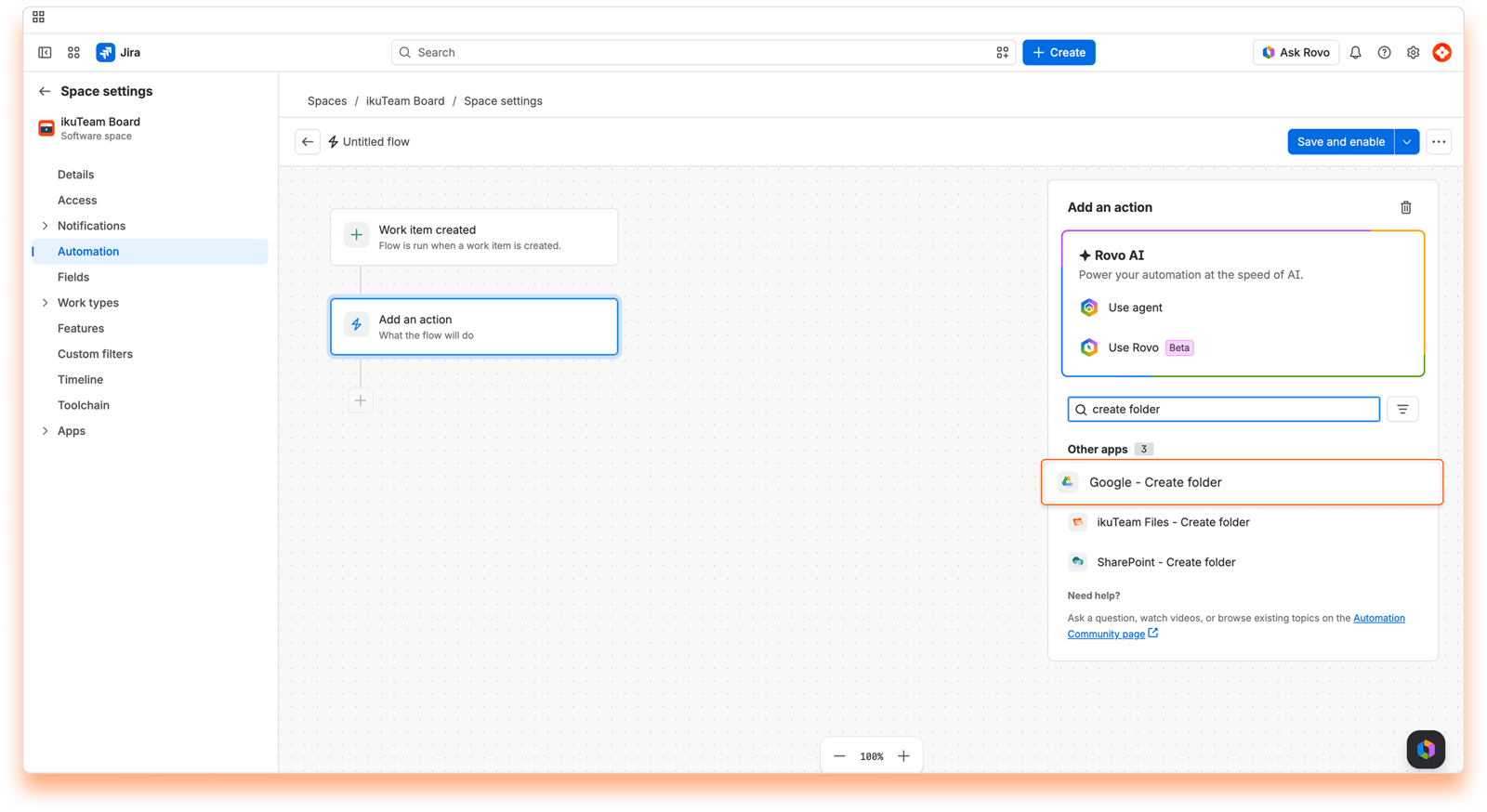
Click Connect to set your folder in Google Drive. Your automated folders will be created inside it.
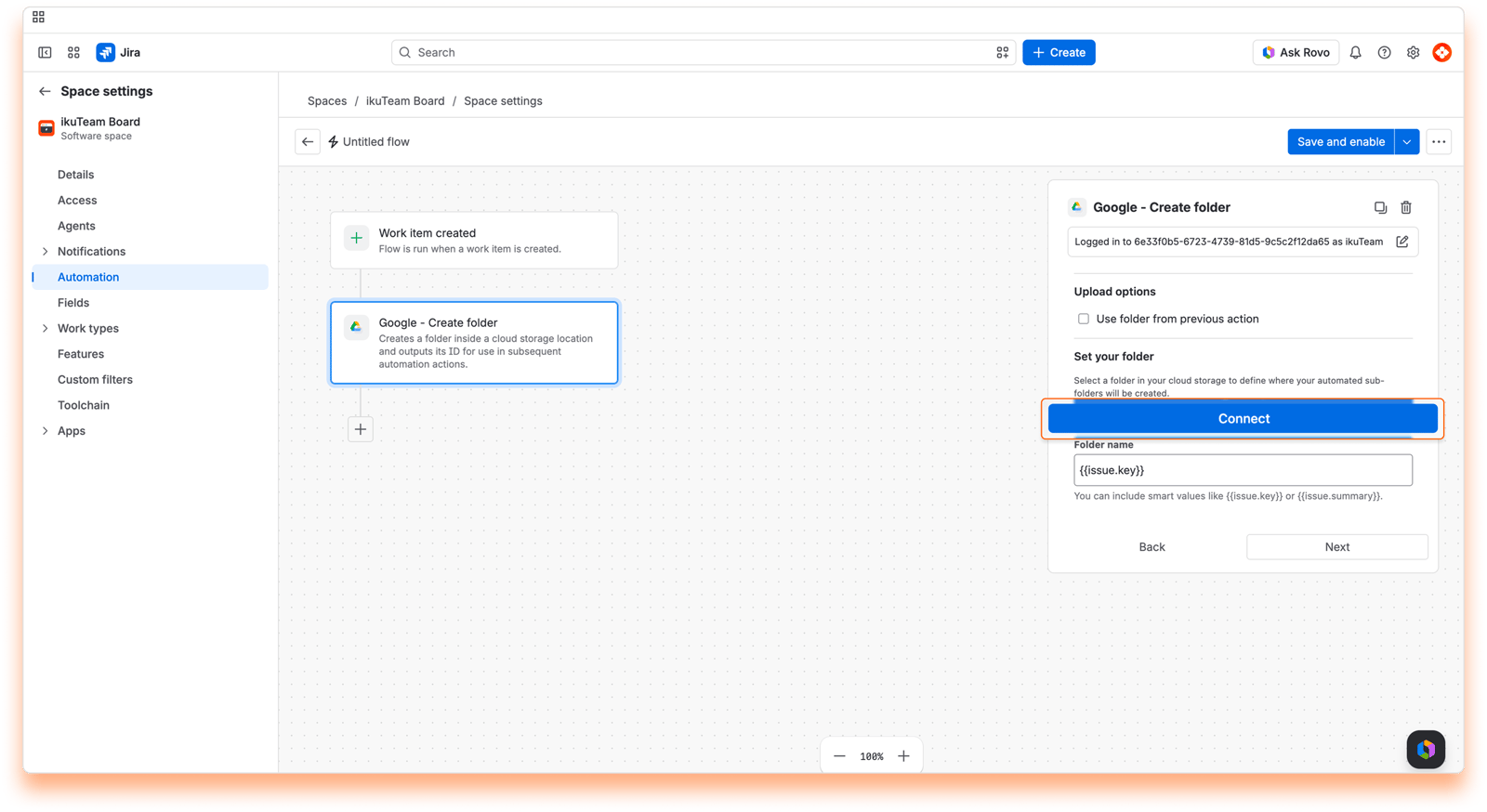
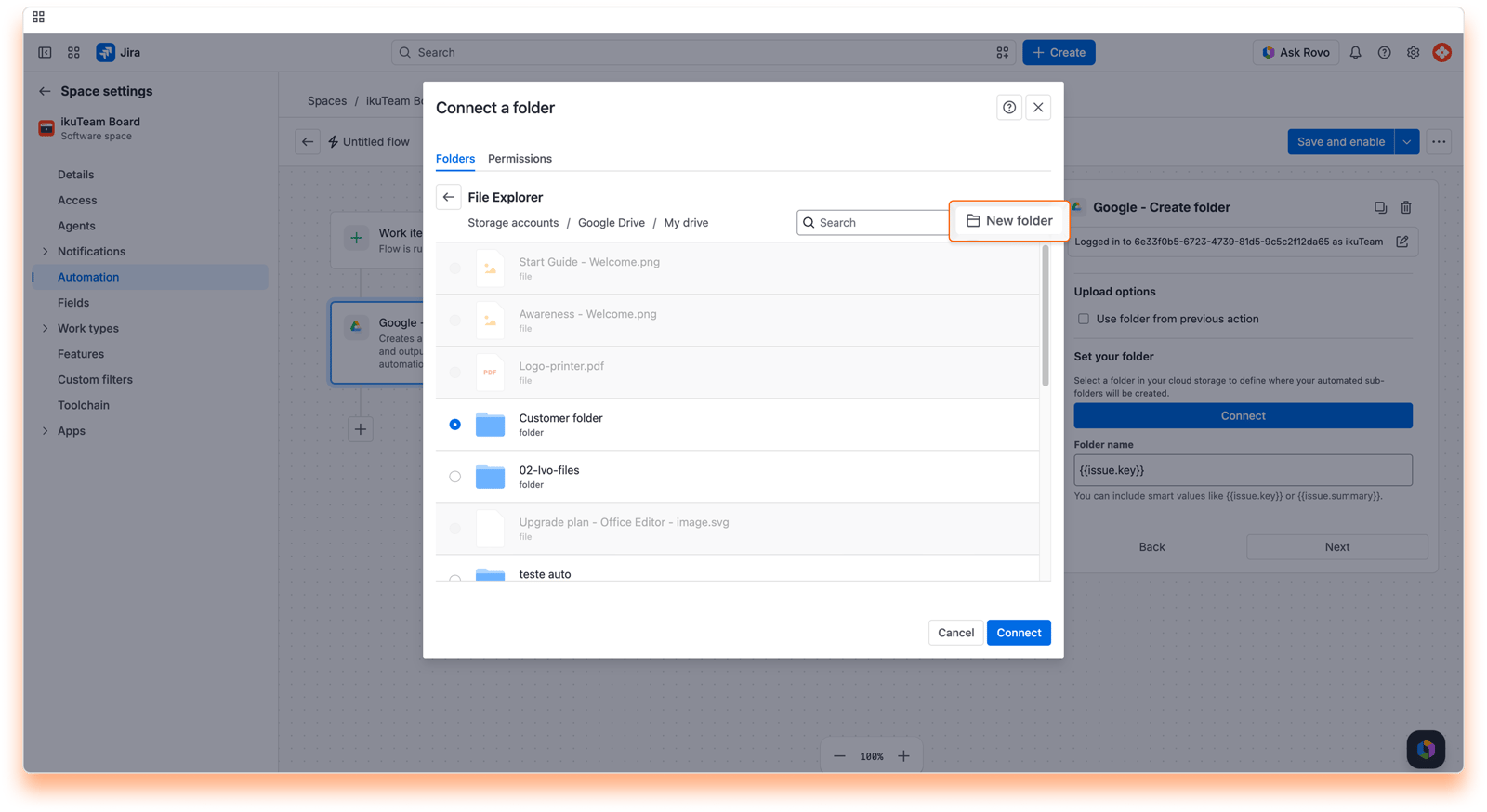
Sign in to your Google account and select the folder that will hold the folders your automation creates.
Prefer to start fresh? Use New folder to create one on the spot, then connect it.
Fill in Folder name with smart values, so every new folder stays unique and easy to identify.
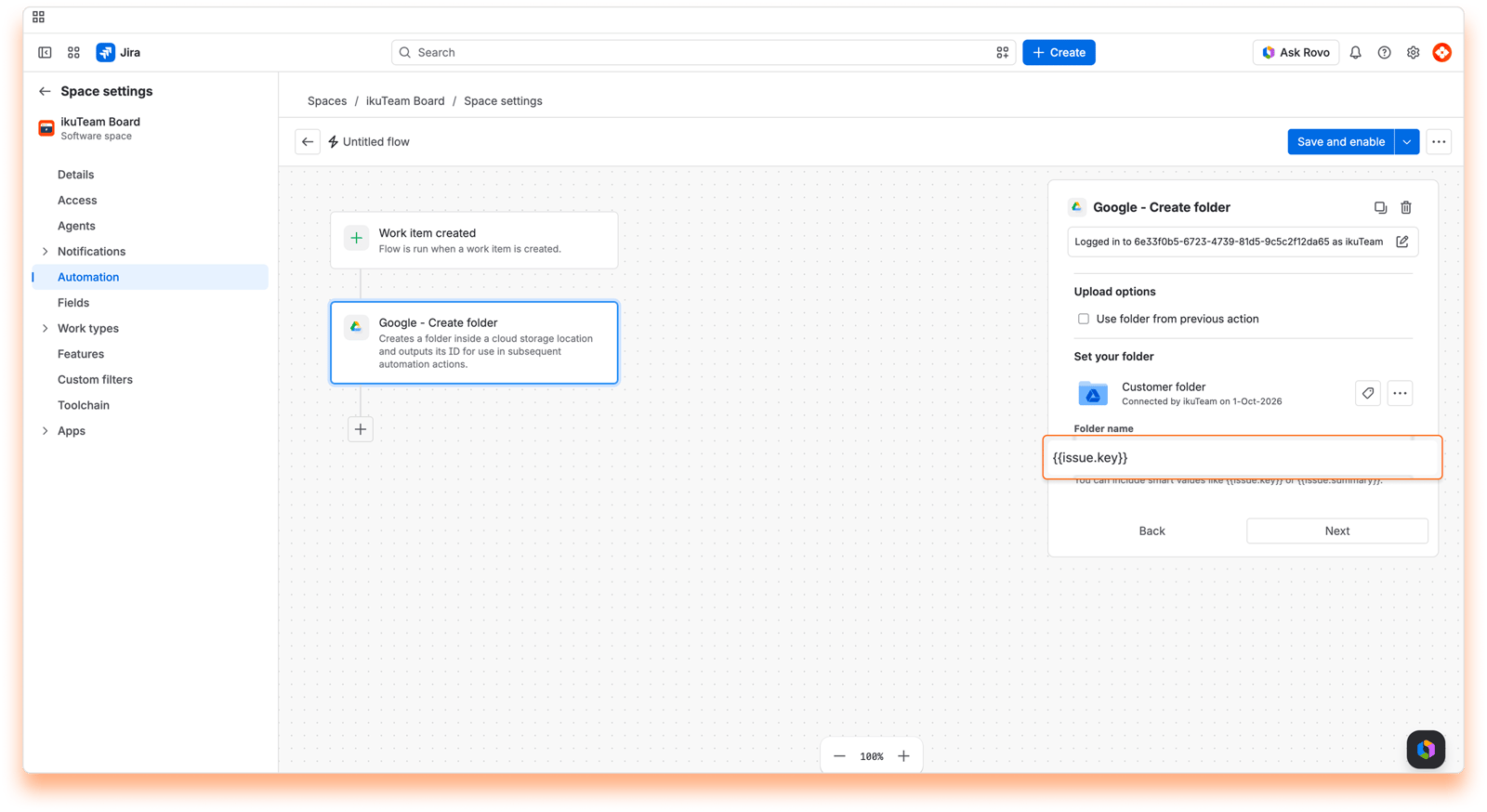
Save the flow, and your automation is ready to create a folder automatically on every successful run.
{{createdTeamfilesFolder.folderId}}: the ID of the created or existing folder.
{{createdTeamfilesFolder.rootFolderId}}: the ID of the connected folder it was created in.
{{createdTeamfilesFolder.folderUrl}}: the web link to the folder in Google Drive.
{{createdTeamfilesFolder.folderCreated}}: true if this action created the folder, false if it used an existing one. Later steps can check it, for example with an "If/else" condition, to only connect brand new folders.
You need Edit permission on the selected folder in Google Drive Connector. See Permissions, accounts and Mirror Storage Permissions.
When two flows run at the same time with the same folder name, only one folder is created and both flows use it.
If the name is not valid for Google Drive, for example because it's too long, the flow stops with "The folder name '...' is not valid for the configured cloud provider. Check the folder name for invalid characters or excessive length."
With Stop the rule and show an error, an existing folder stops the flow with "A folder named '...' already exists in the configured location. Update the rule to use a different folder name."
Flows created before the If a folder with this name already exists option was added: open the flow and save it, so the option applies.
See 4.3 Automation example 1: Create and connect a folder for new work items, 4.5 Automation example 3: Create a base folder for new spaces and 4.6 Automation example 4: Automate the complete attachment workflow.
Action name: Google - Find folder
Looks for an existing folder by name inside a folder you choose, and passes the first match on to the next actions in the flow.
Perfect when the folder already exists in Google Drive, for example a customer or project folder your team created by hand, and you want to connect it, upload into it or copy files to it.
Field | Required | Details |
|---|---|---|
Set your folder (Connect) | Yes, unless you use the option below | The folder to search inside. |
Use folder from previous action | No | Searches inside the folder returned by an earlier Google Drive Connector action. |
Folder name pattern | Yes | Default |
Search for the "Google - Find folder" action.
Click Connect and select the Google Drive folder to search inside.
Enter the Folder name pattern and save the flow.
{{createdTeamfilesFolder.folderId}}: the ID of the folder found.
{{createdTeamfilesFolder.rootFolderId}}: the ID of the connected folder you searched in.
{{createdTeamfilesFolder.folderUrl}}: the web link to the folder found.
To use the folder found in a later action, select Use folder from previous step (or Use folder from previous action) in that action.
You need View permission on the selected folder in Google Drive Connector.
If nothing matches, the flow stops with "No folder matching '...' was found inside the configured location. Update the rule or create the folder first."
A short pattern can match more folders than you expect (for example, PROJ-1 also matches PROJ-12). Make the pattern as specific as you can.
Want the folder found, or created when it's missing? Use Create folder with Use the existing folder instead.
See use case 2 in 4.7 Automation use cases: Support workflows.
Action name: Google - Connect a folder
Connects a folder to the work item in the flow, so your team sees it on the work item.
Your team already has a working folder structure, and you just want to see it in Jira, with no need to recreate anything. Or you just created or found a folder in an earlier step and want it on the work item.
Field | Required | Details |
|---|---|---|
Set your folder (Connect) | Yes, unless you use the option below | The folder to connect to the work item. You can also create one with New folder. |
Use folder from previous step | No | Connects the folder returned by an earlier Create folder or Find folder action. |
The work item is always the one in the flow ({{issue.key}}), so use a trigger or branch that has a work item.
Search for the "Google - Connect a folder" action.
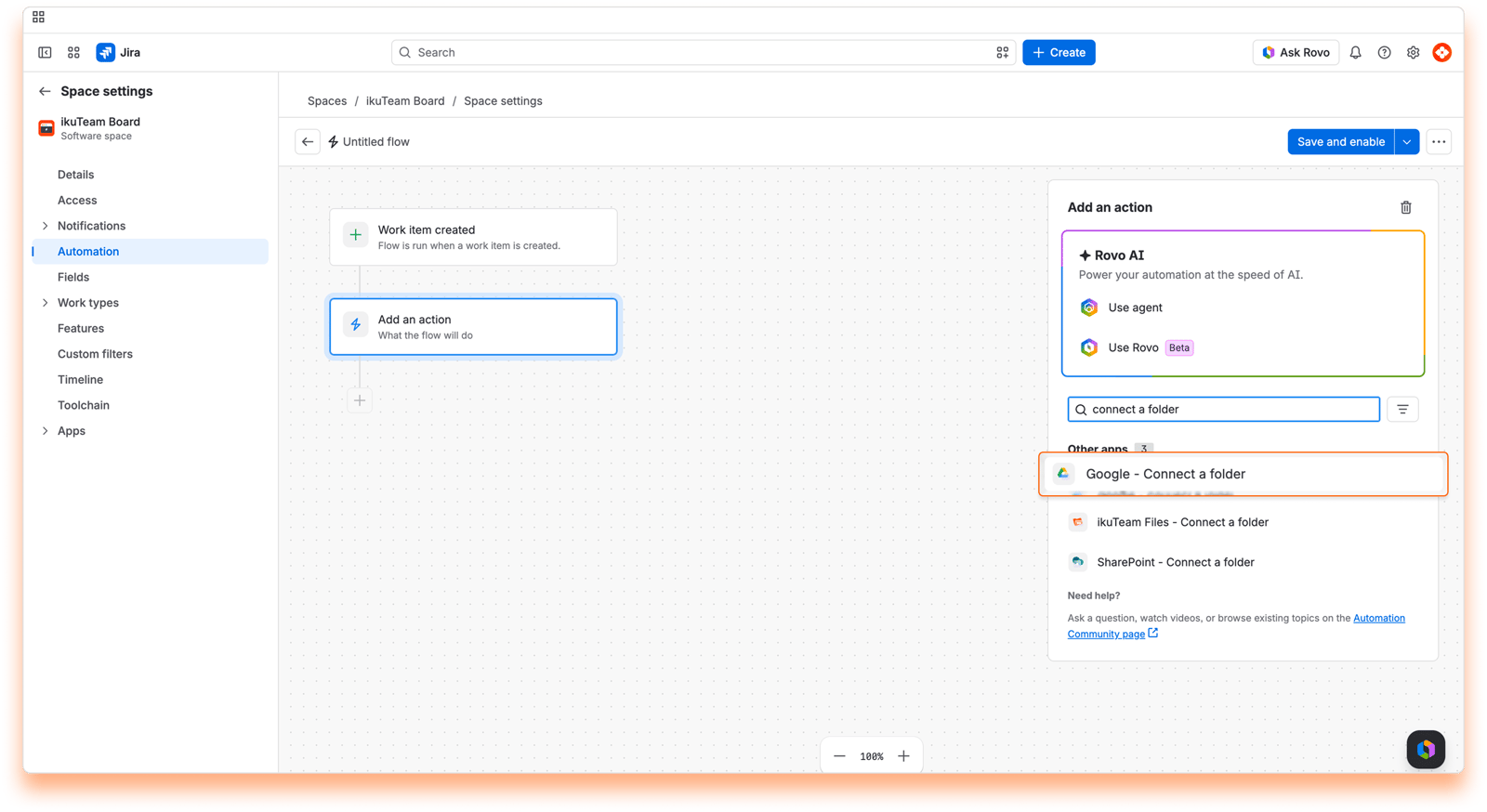
Click Connect and choose the folder you want on the new work item, or on any work item matching your conditions.
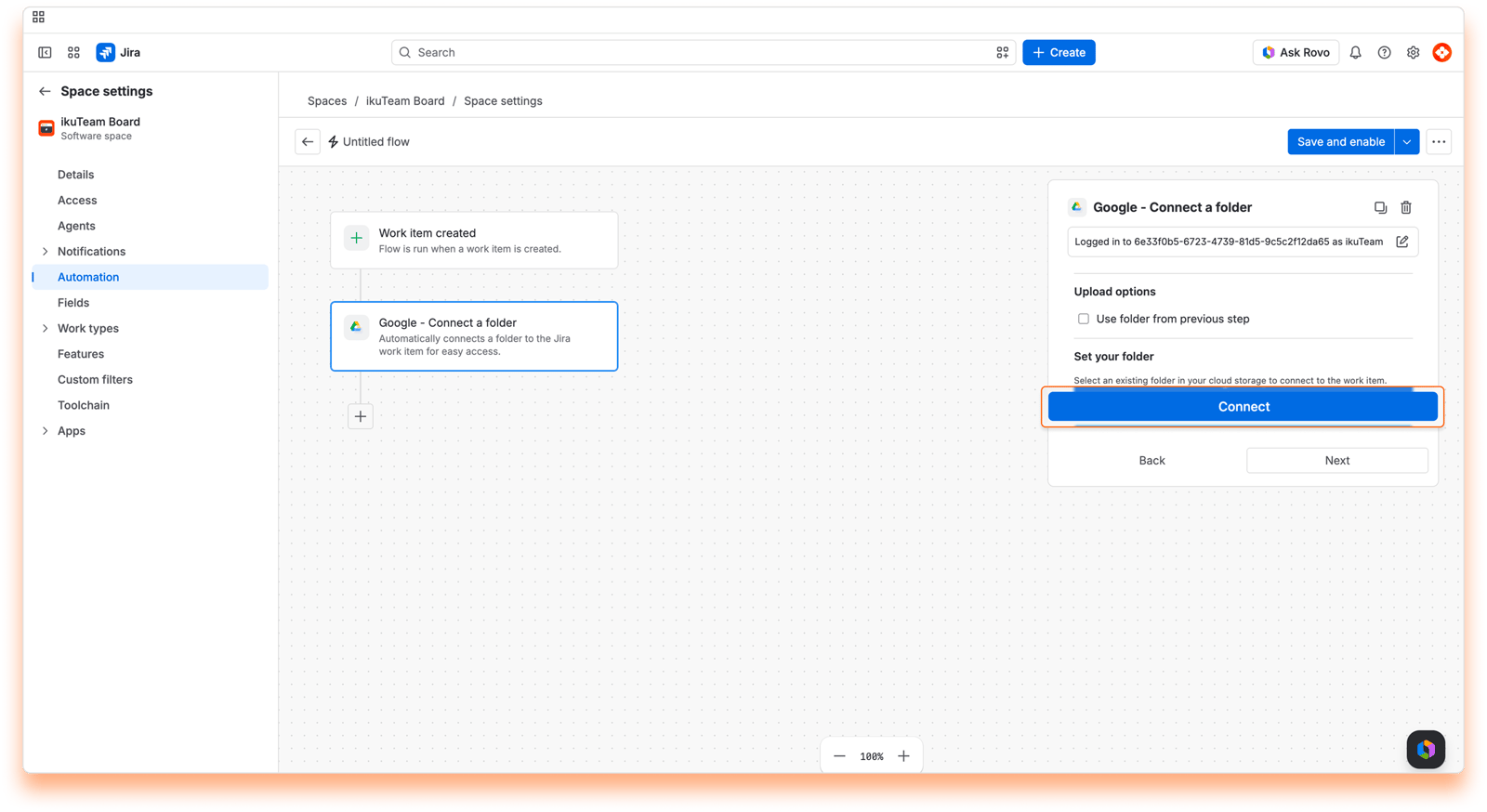
Prefer to start fresh? Use New folder to create one on the spot, then connect it.
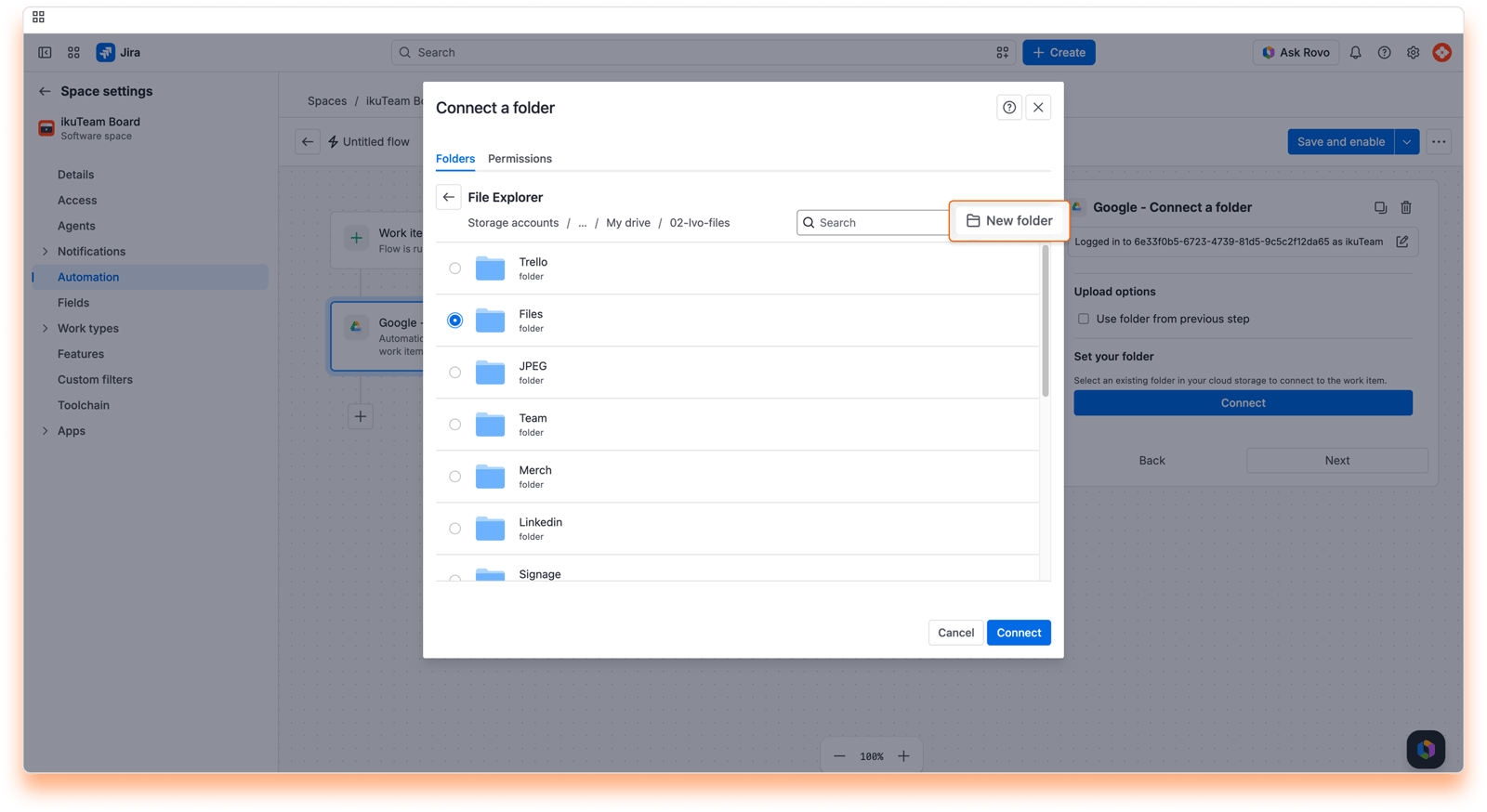
Save the flow, and your automation is ready to connect the selected folder automatically on every successful run.
{{createdTeamfilesFolder.folderId}}, {{createdTeamfilesFolder.rootFolderId}} and {{createdTeamfilesFolder.folderUrl}} for the connected folder.
You need View permission on the folder in Google Drive Connector.
If the folder is already connected to the work item, the action doesn't add it twice and the flow carries on.
The folder is for your team only. To share it with customers, use Connect a customer folder.
See 4.3 Automation example 1: Create and connect a folder for new work items.
Action name: Google - Connect a customer folder
Connects a folder to the work item and shares it with the customers who can see the request on the Jira Service Management portal.
Built for service teams and client-facing spaces that need a clear, dependable line between what customers can see and what stays internal. For example, every new request gets a folder where the customer can find the files you share.
This action is only available in the Advanced Edition of Google Drive Connector for Jira, which lets agents share folders directly with customers in Jira Service Management.
Field | Required | Details |
|---|---|---|
Set your folder (Connect) | Yes, unless you use the option below | The folder to share with customers. You can also create one with New folder. |
Use folder from previous step | No | Connects the folder returned by an earlier Create folder or Find folder action. |
Search for the "Google - Connect a customer folder" action and click Connect.
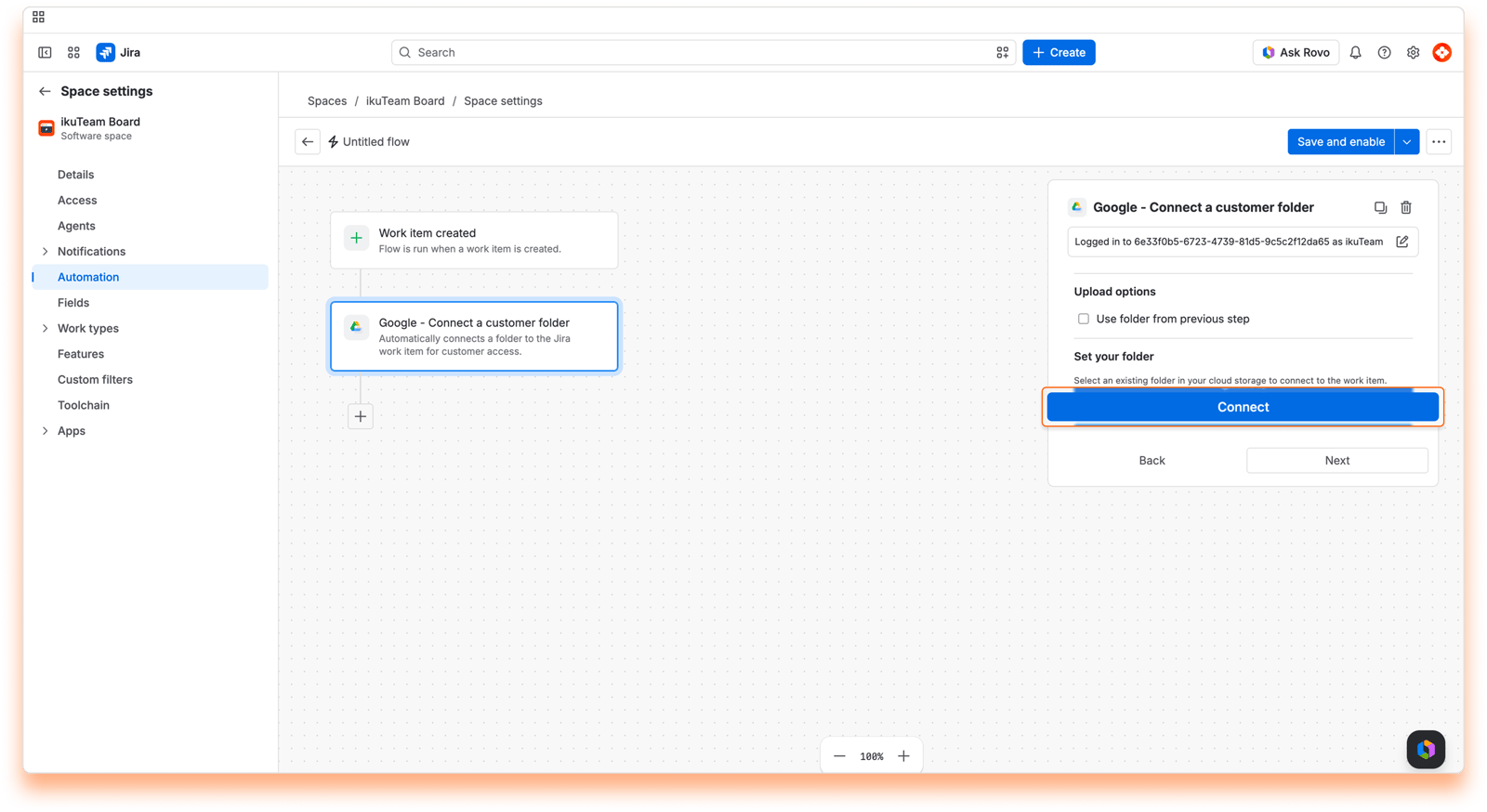
Go to the folder you want to make available to customers.
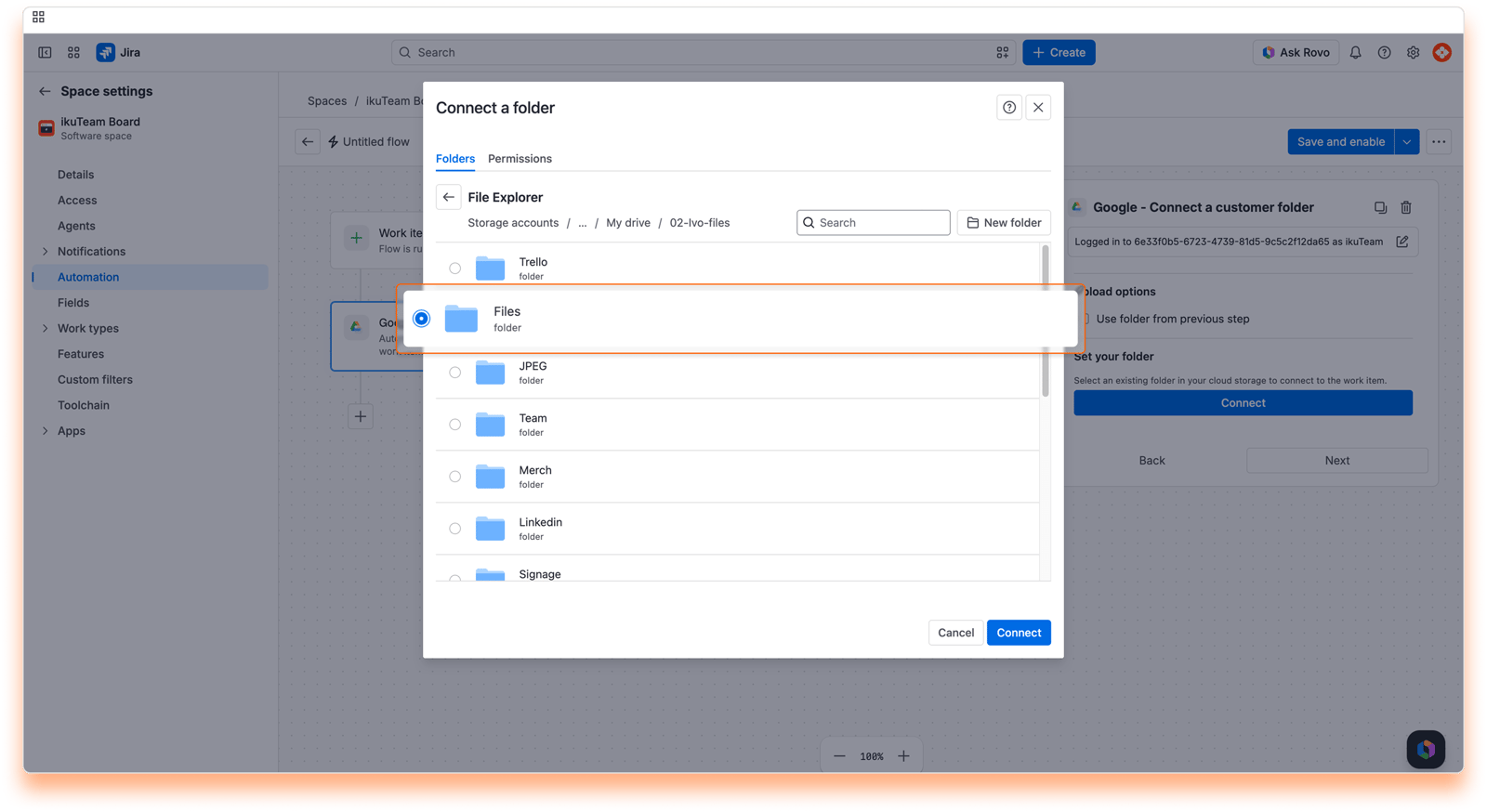
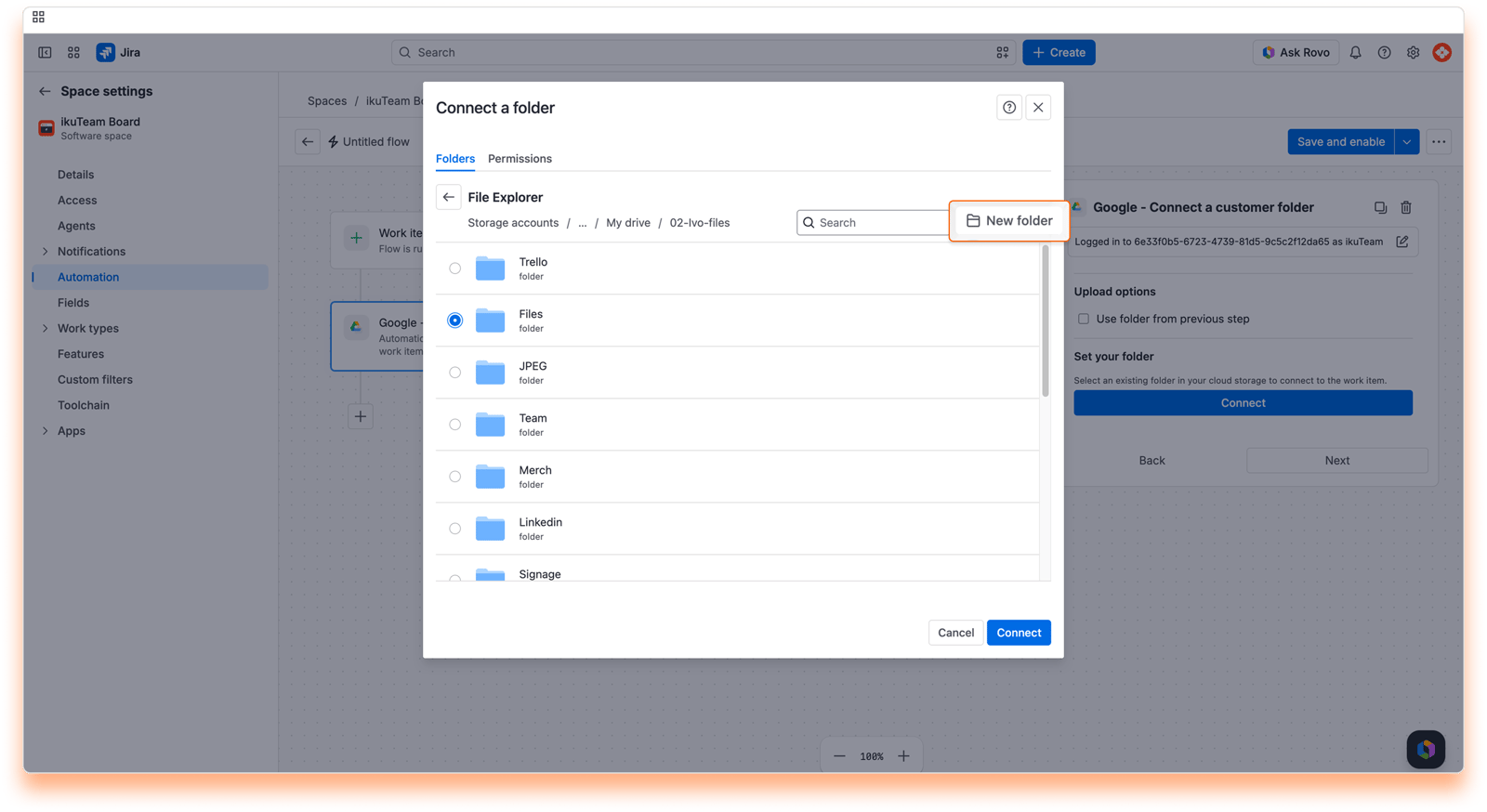
Prefer to start fresh? Use New folder to create one on the spot, then connect it.
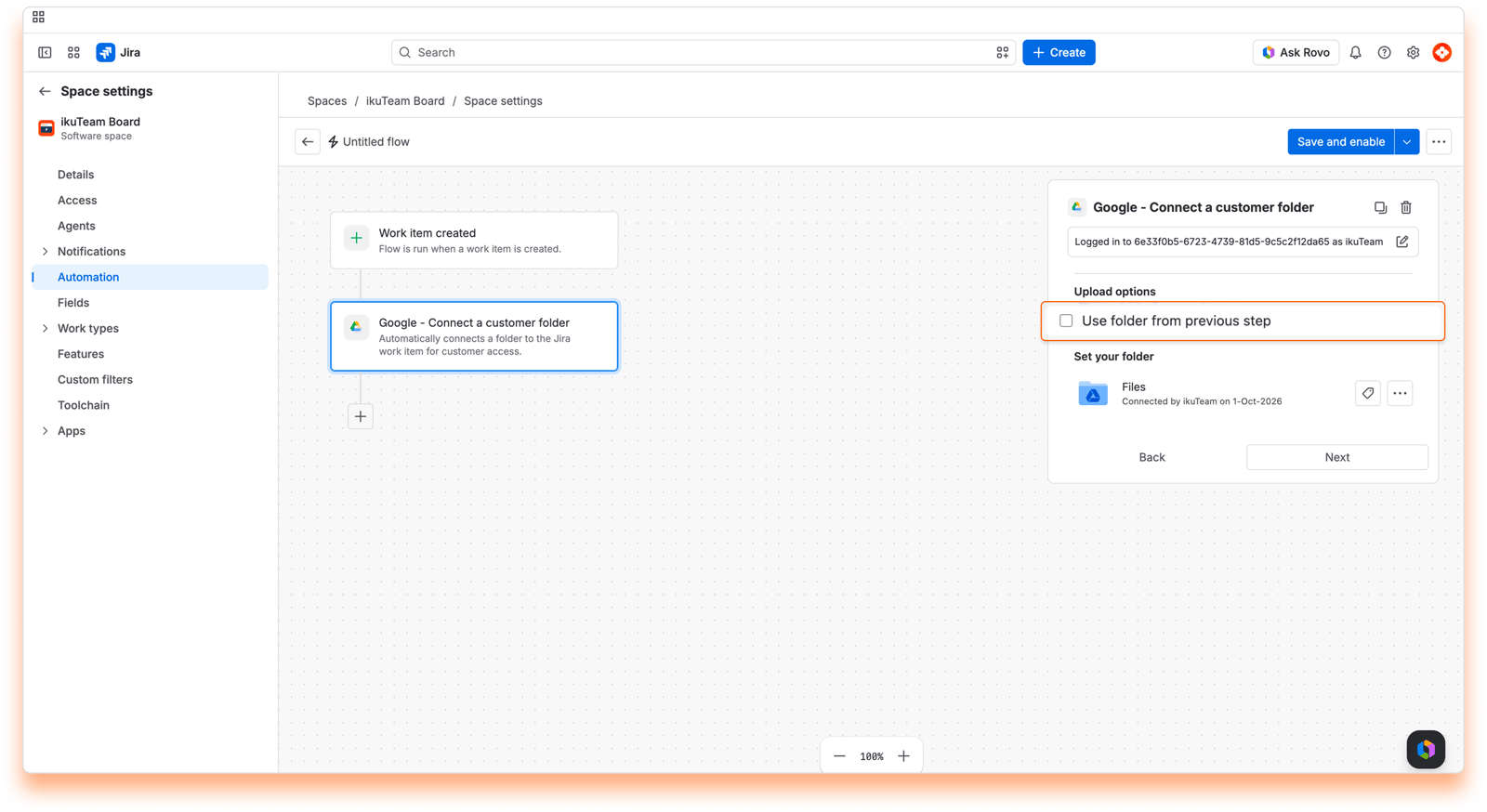
If an earlier step already created or found a folder, select Use folder from previous step instead.
Save the flow, and your automation is ready to connect the selected customer folder automatically on every successful run.
{{createdTeamfilesFolder.folderId}}, {{createdTeamfilesFolder.rootFolderId}} and {{createdTeamfilesFolder.folderUrl}} for the connected folder.
A Jira admin needs to turn on Customer access in the Google Drive Connector admin settings first. Until then, the action settings show a message asking you to enable Customer access.
Customers get the space's default customer permission on the folder. The person the flow runs as needs at least that permission on the folder in Google Drive Connector, so the flow can never give customers more access than that person has.
If the folder is already connected to the work item, the action doesn't add it twice and the flow carries on.
For example, start with the Work item created trigger in a service space. Add Create folder with {{issue.key}} as the folder name, then add Connect a customer folder and select Use folder from previous step. Every new request gets its own folder, ready for the files you share with the customer.
Action name: Google - Connect folder to space
Connects a folder to a whole space, so it shows in the space's Google Drive tab for everyone in the space.
Ideal when you set up new spaces automatically, or for cross-functional teams sharing a common set of resources (brand assets, SOPs, shared references), where consistency matters more than a folder per work item.
Field | Required | Details |
|---|---|---|
Set your folder (Connect) | Yes, unless you use the option below | An existing folder from Google Drive, or a new one created with New folder. |
Use folder from previous action | No | Connects the folder returned by an earlier Create folder or Find folder action. |
Space ID | Yes | The ID (not the key) of the Jira space. Default |
Search for the "Google - Connect folder to space" action.
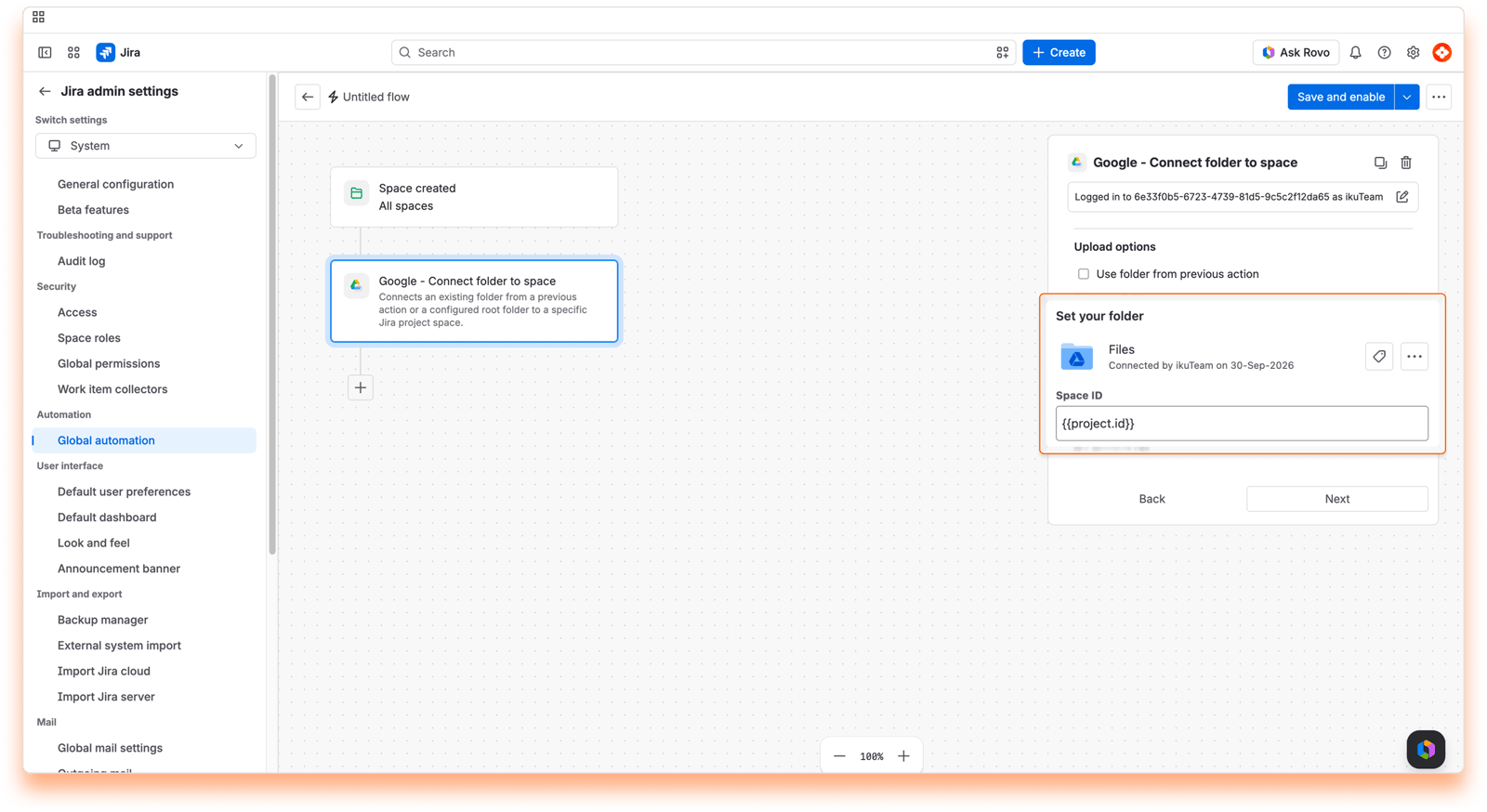
Go to the folder you want connected to the space, or create a new one.
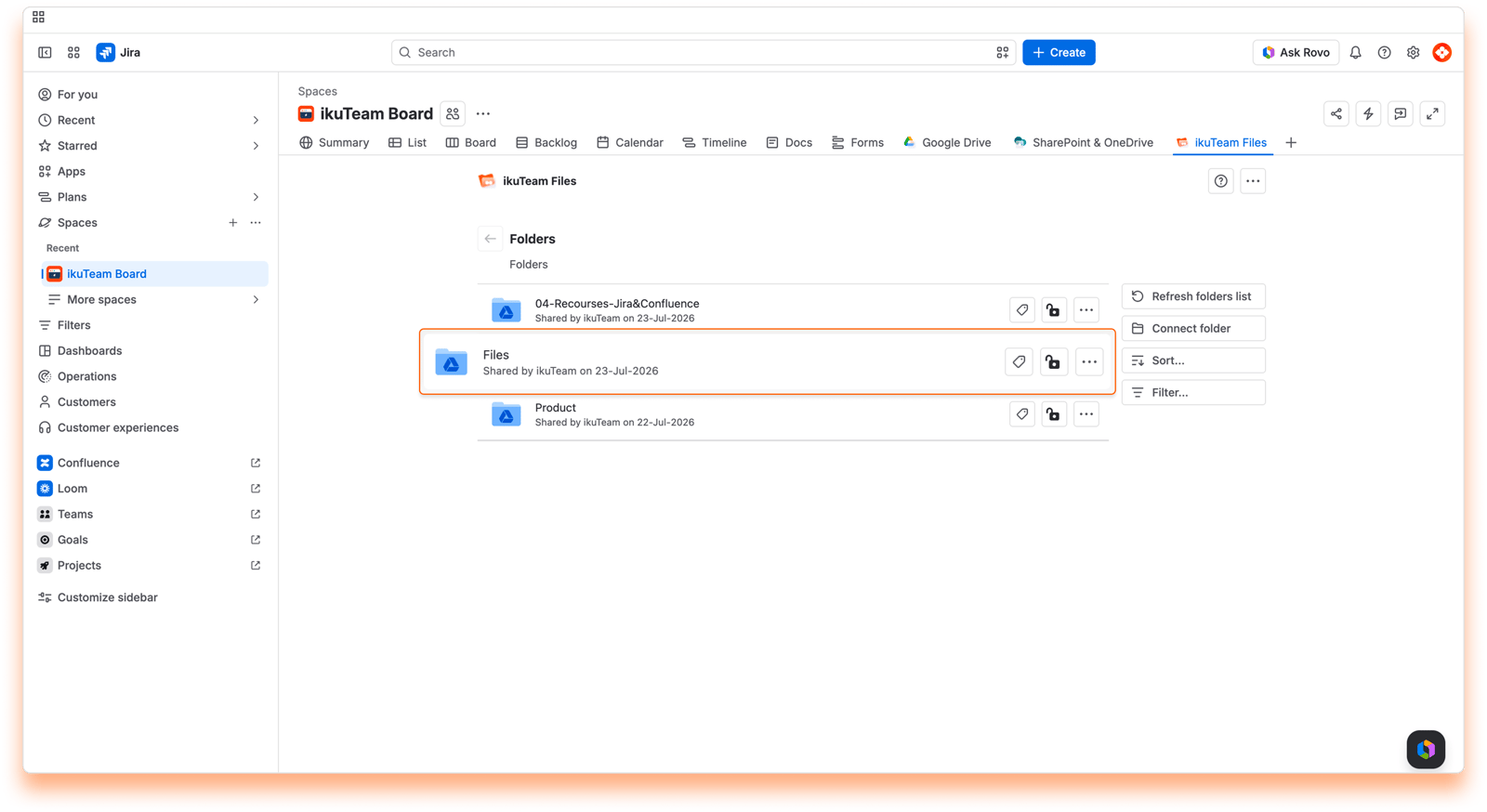
Save the flow, and your automation is ready to add the selected folder to the space's file manager automatically.
{{createdTeamfilesFolder.rootFolderId}}: the ID of the new connection in the target space.
{{createdTeamfilesFolder.folderId}} and {{createdTeamfilesFolder.folderUrl}} for the connected folder.
You need View permission on the folder in Google Drive Connector.
The connected folder keeps the owner, default permission and tag of the folder you selected in the action, and the connection shows in the space's connected folder logs.
If the app is turned off for the target space, the flow stops with a message saying the app is disabled for that space and asking you to contact your administrator.
Known issue: with Use folder from previous action, the folder may show up in the space with the name of the folder you selected in the earlier action (for example, Project Files) instead of its own name. It's the right folder, only the name shown is wrong. To fix it, open the Google Drive tab in the space and select Rename in the folder's menu. Renaming also renames the folder in Google Drive, so enter the name it already has there. We're working on a fix.
See flow 1 in 4.6 Automation example 4: Automate the complete attachment workflow.
Action name: Google - Disconnect folder
Disconnects a folder from the work item in the flow. If you select Delete folder, it also deletes the folder from Google Drive.
Helpful for clean-up: remove a working folder when a work item is closed or cancelled, or remove a folder your flow connected by mistake.
Field | Required | Details |
|---|---|---|
Folder name (under Choose the folder) | Yes | The exact name of the folder connected to the work item. Default |
Delete folder (under Also delete the folder from cloud storage) | No | Off by default. When selected, the folder is also deleted from Google Drive. |
Nothing. The folder is no longer connected to the work item.
It looks at both the team folders and the customer folders connected to the work item. The name must match exactly, including upper and lower case.
Disconnecting needs View permission, and deleting needs Edit permission on the connected folder in Google Drive Connector.
The folder connected to the app itself (the base folder your flow's folders live in) can't be deleted by the flow. The flow stops with a message saying it's the base folder and can't be deleted, so disconnect it without deleting it instead.
If no connected folder has that name, the flow stops with "No folder named '...' is connected to work item ...".
With Delete folder selected, the folder and everything in it are deleted from Google Drive. Whether you can restore it depends on your Google Drive trash. Test the flow on a sample work item first.
For example, start with the Work item transitioned trigger set to Done, then add Disconnect folder with {{issue.key}} as the folder name. When the work item is done, the folder named after it is disconnected. Leave Delete folder off to keep the files in Google Drive.
Action name: Google - Upload attachments to folder
Uploads the Jira attachments of the work item in the flow to a Google Drive folder. It can upload only the newest attachment, filter by file type, rename the files with a suffix, and delete the attachments from Jira afterwards.
Perfect for moving files to their long-term home when a work item is done, mirroring new attachments as they arrive, or cleaning up legacy attachments, so nothing stays stranded as a static Jira file.
Field | Required | Details |
|---|---|---|
Set your folder (Connect) | Yes, unless you use the option below | The folder where the work item's attachments are uploaded. You can also create one with New folder. |
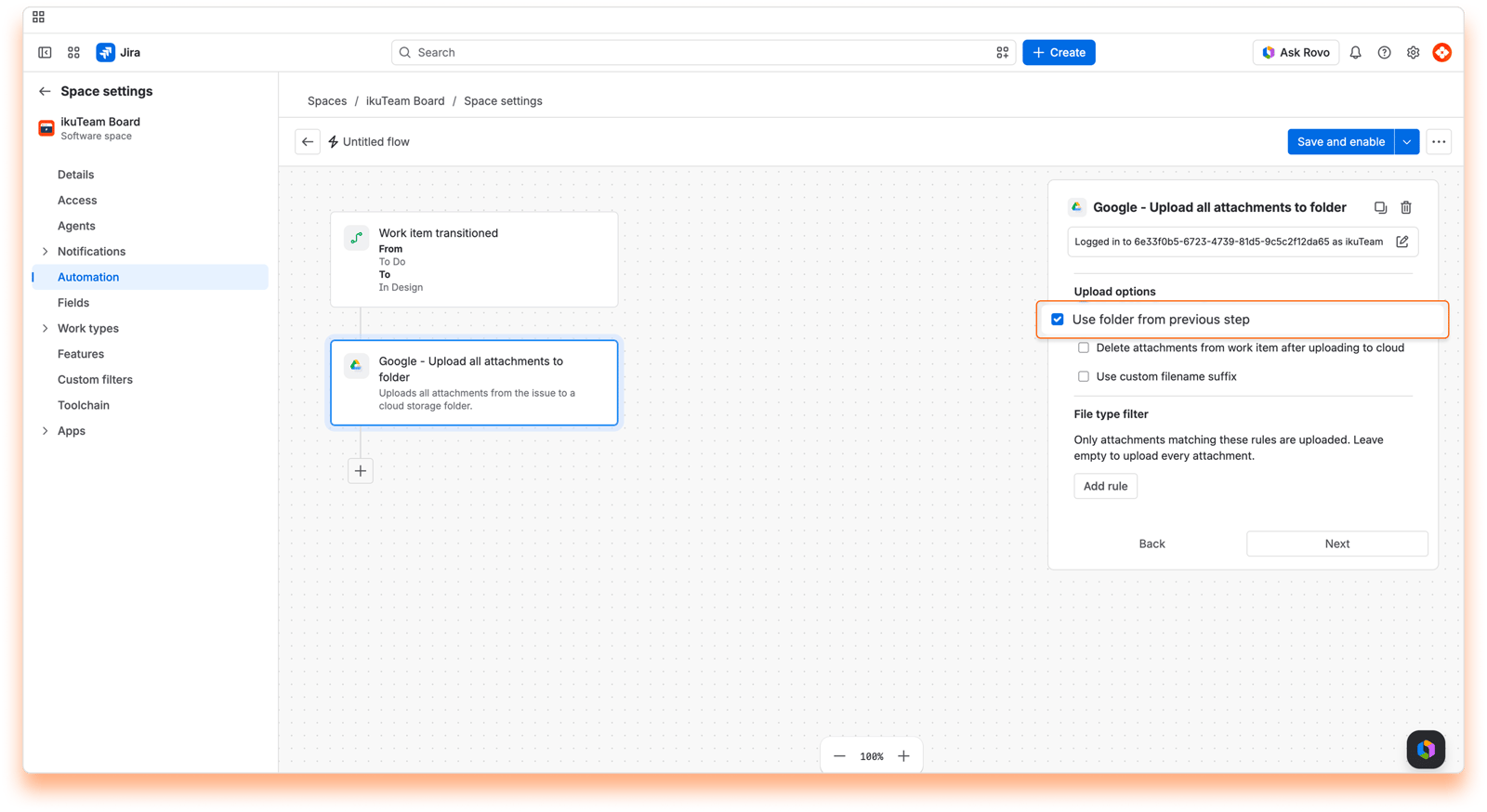
Use folder from previous step | No | Uploads into the folder returned by an earlier Create folder or Find folder action. The best choice when you want a folder per work item. |
Upload only the latest attachment | No | Uploads only the most recently added attachment instead of all of them. Pair it with the "Attachment added" trigger. |
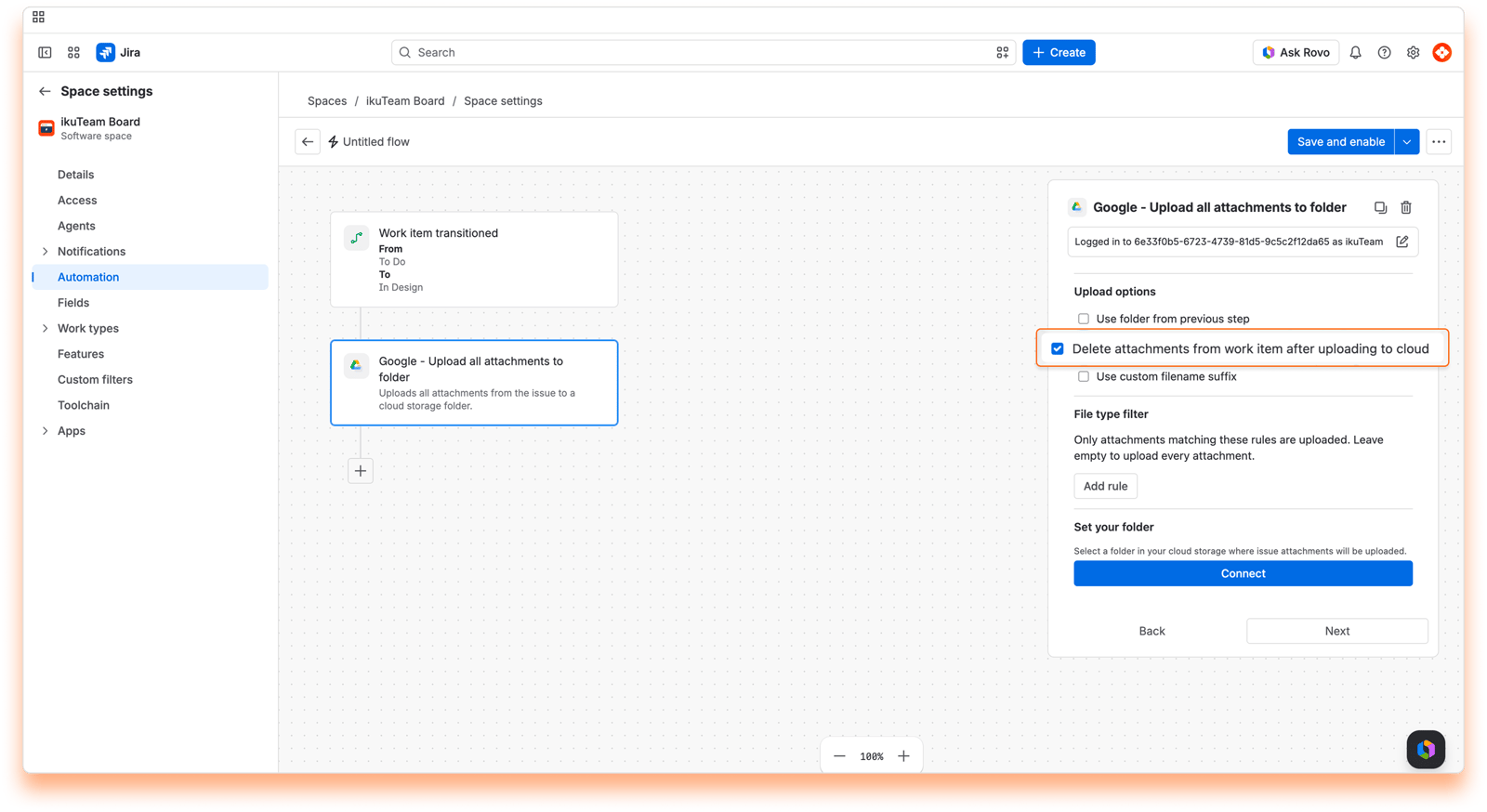
Delete attachments from work item after uploading to cloud | No | Removes each attachment from Jira once it's uploaded. |
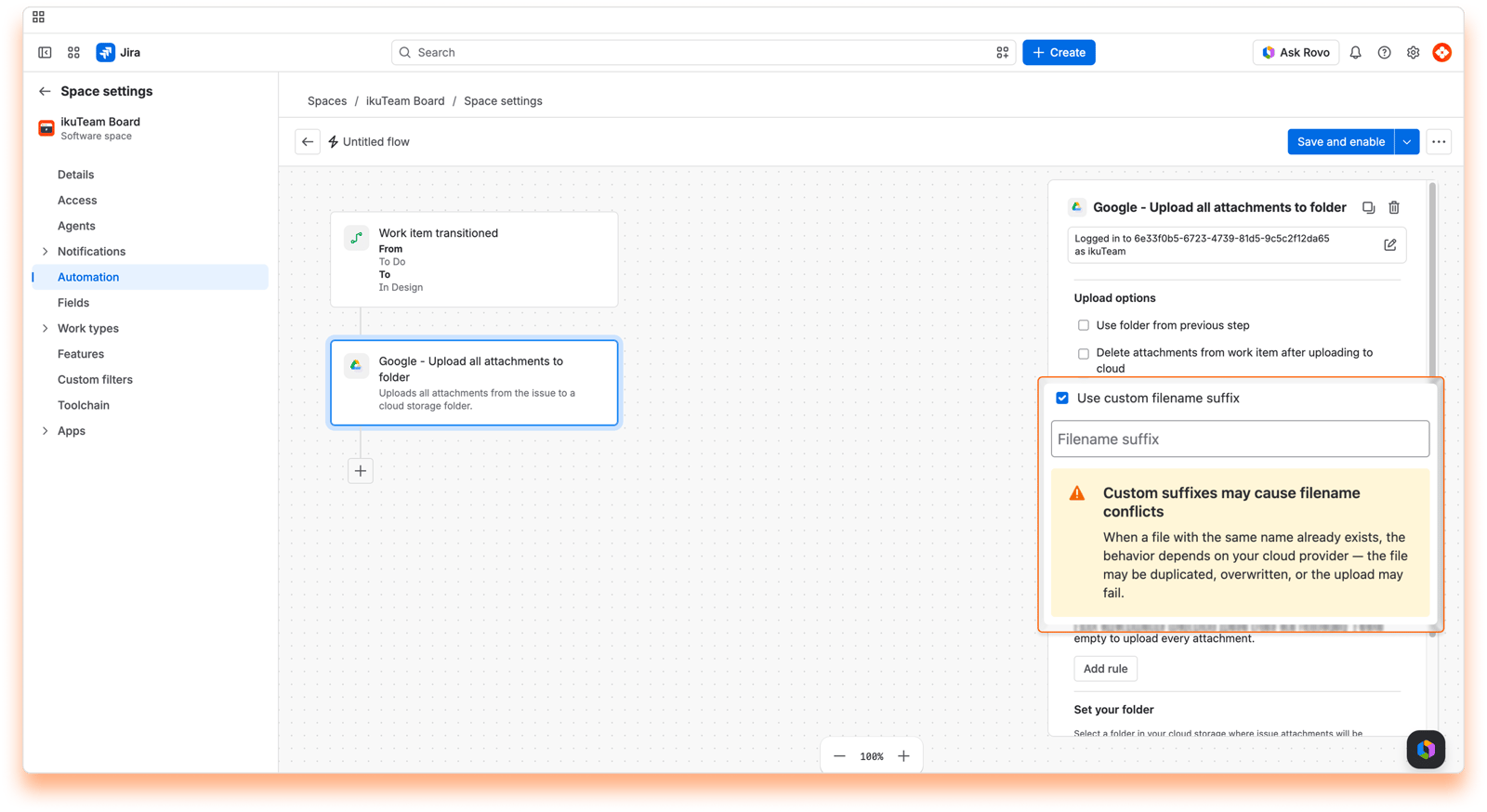
Use custom filename suffix and Filename suffix | No | Replaces the default suffix with your own text. See below. |
File type filter | No | Only attachments matching these rules are uploaded. Leave it empty to upload every attachment. Each rule is File type is or is not a type (PNG, JPG, GIF, SVG, WEBP, HEIC, PDF, DOC, DOCX, XLS, XLSX, PPT, PPTX, TXT, CSV, ZIP, MP4, MOV, MP3, JSON, HTML, XML). Use Add rule for more. |
Search for the "Google - Upload attachments to folder" action once your trigger is set.
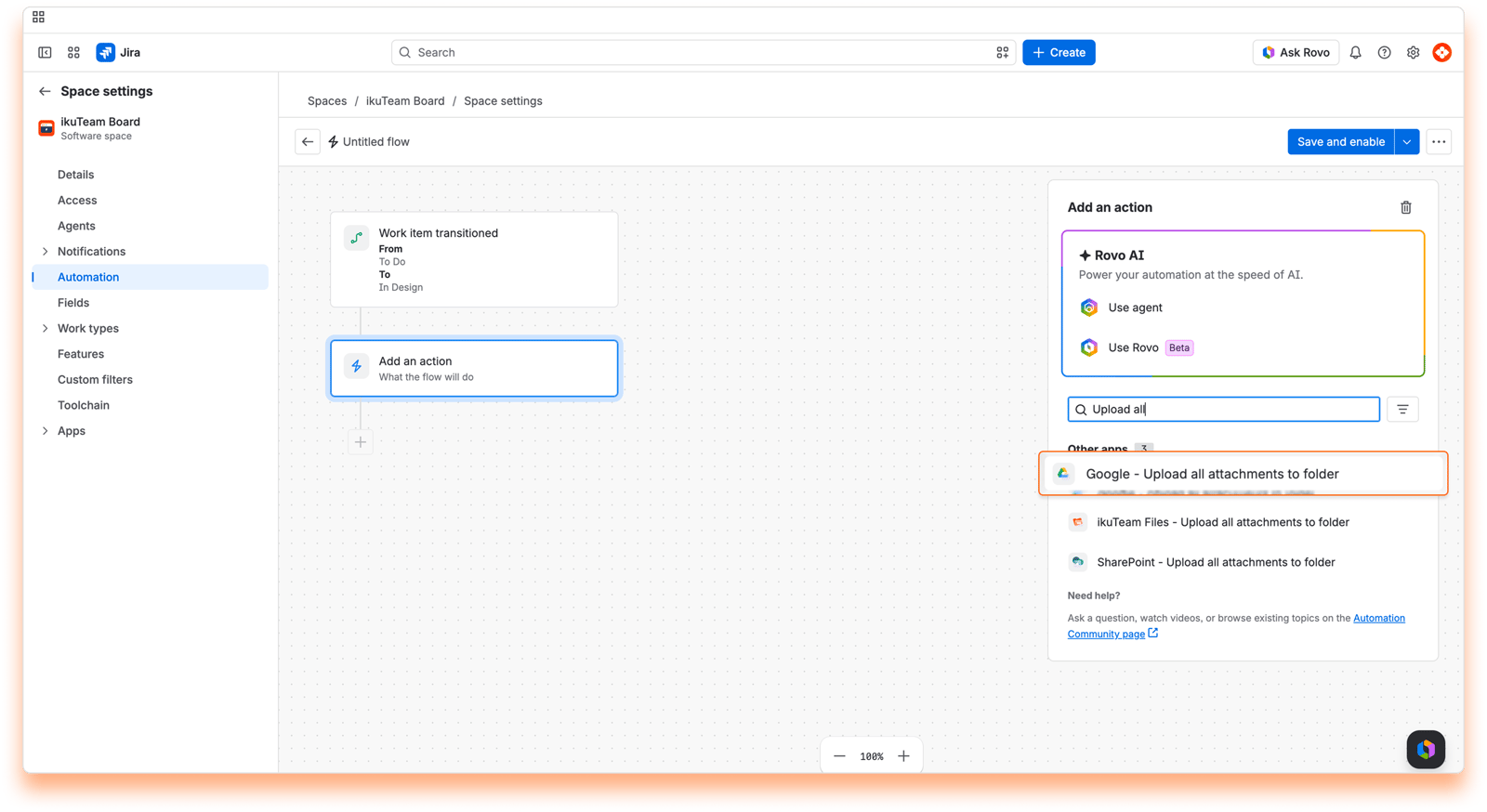
Click Connect to set the Google Drive folder where the work item's attachments will be uploaded.
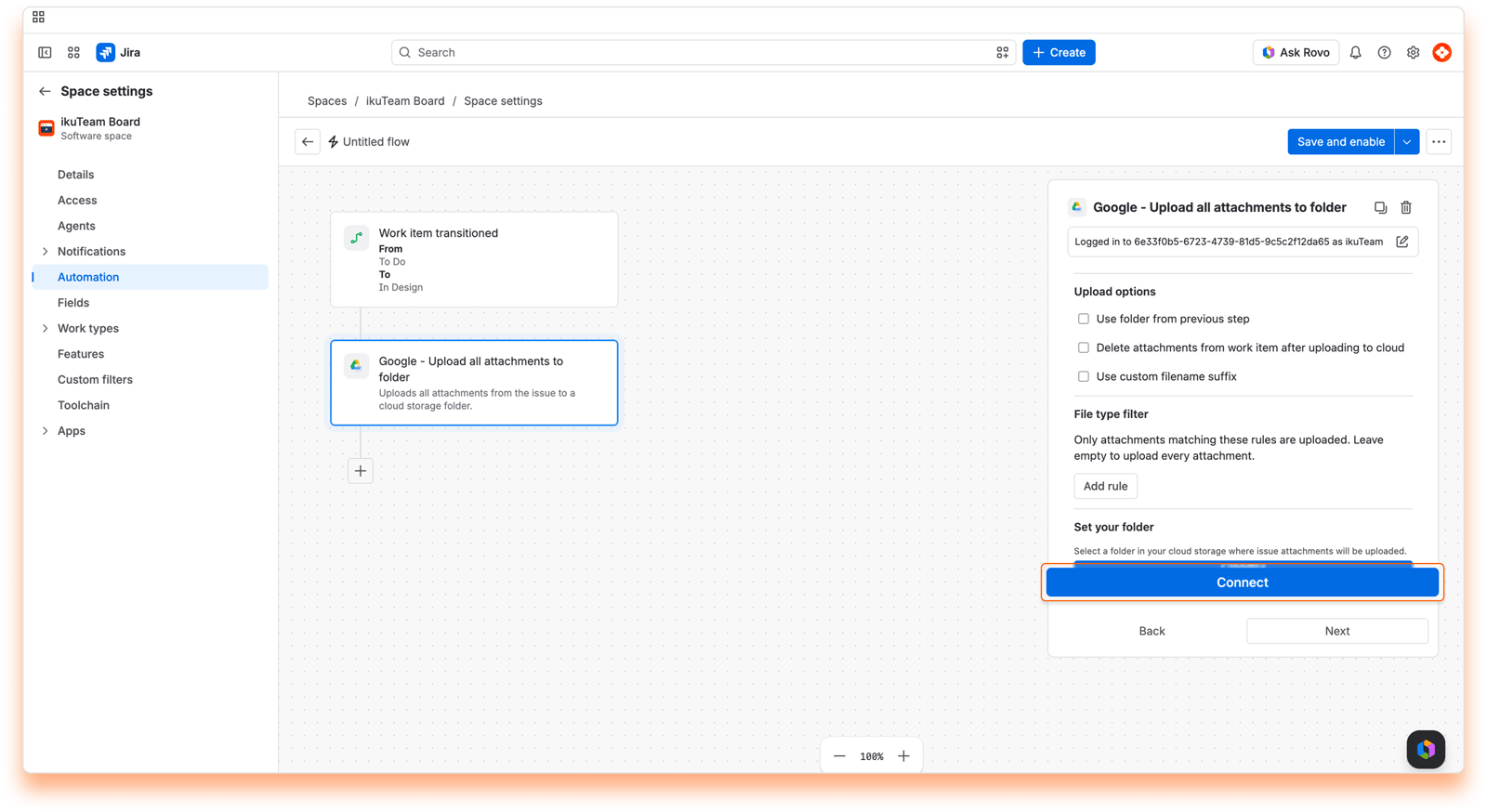
Prefer to start fresh? Use New folder to create one on the spot, then connect it.
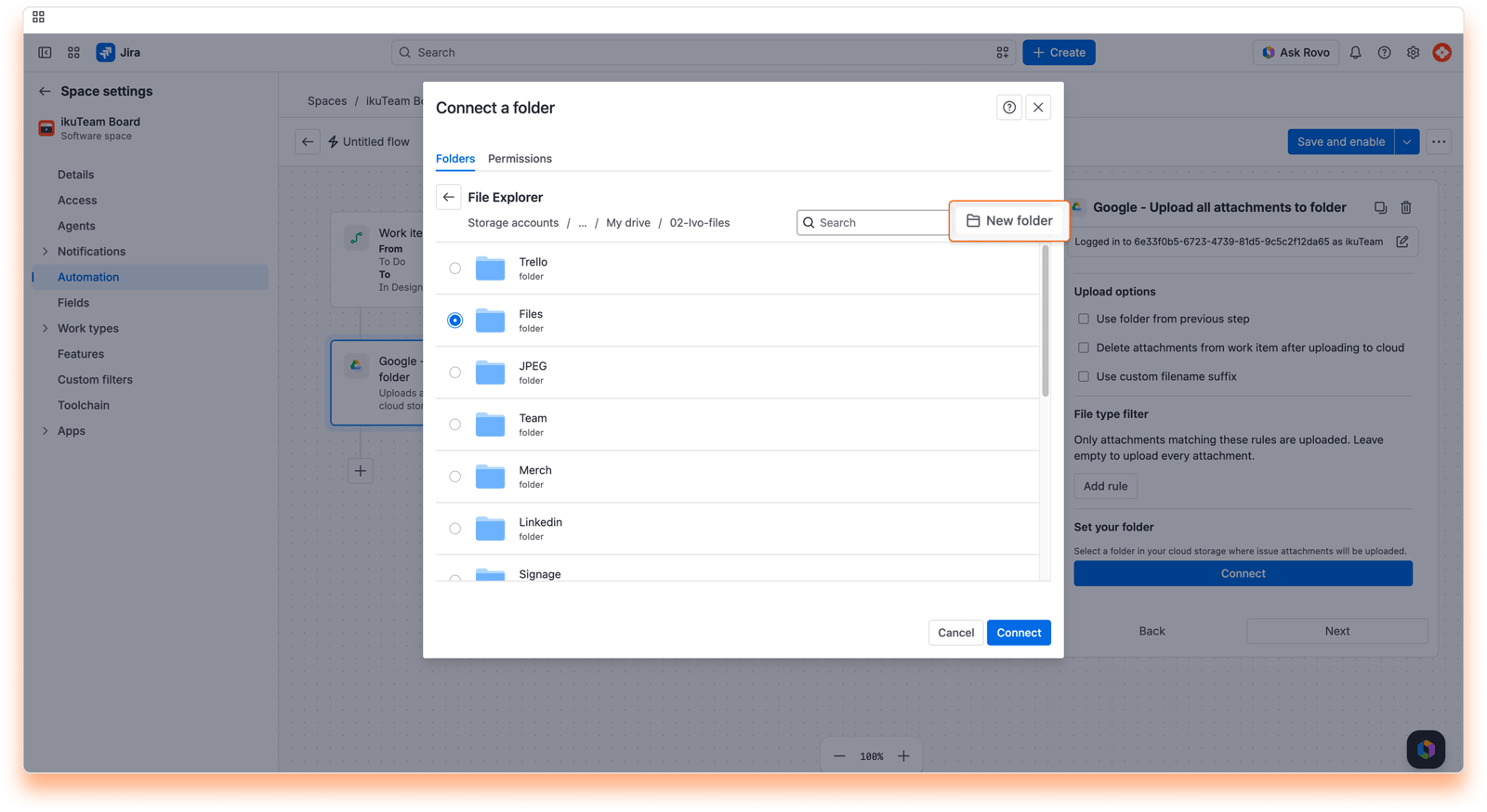
If an earlier step created or found a folder, select Use folder from previous step instead. This is the best choice when you want a folder per work item, which makes checking attachments later much easier.
Select Delete attachments from work item after uploading to cloud if you want the originals removed once they're uploaded.
Select Use custom filename suffix to set your own suffix. See File names below.
Save the flow, and your automation is ready to upload the work item's attachments to your chosen folder automatically.
To keep uploads from overwriting each other, every uploaded file gets a suffix with the work item key and a unique ID by default. For example, design-specs.pdf on MKT-101 is uploaded as design-specs (MKT-101 - 3f2a...).pdf.
Select Use custom filename suffix to use your own suffix instead, for example - {{issue.key}}, or leave the Filename suffix empty to keep the original names. Add {uuid} to your suffix if you still want a unique ID.
Google Drive allows multiple files with the same name. With a custom suffix, a file with the same name as an existing one is added as a duplicate in the destination folder.
Several is rules upload a file that matches any of them (for example, PDF or DOCX).
is not rules leave those types out (for example, everything except ZIP).
The file type comes from the file extension, or from the file's type when it has no extension.
Nothing. The files are uploaded to the folder you chose.
You need Edit permission on the folder in Google Drive Connector.
Uploads run in the background after the flow finishes, one attachment at a time, so large files can take a few minutes to appear. The flow's audit log shows that the upload started, not each file.
If the work item has no attachments, or none match the filter, nothing is uploaded and the flow carries on.
With Delete attachments from work item after uploading to cloud selected, the attachments are permanently removed from Jira after upload. You can't restore them in Jira, so the copies in Google Drive are the only ones left.
See 4.4 Automation example 2: Upload work item attachments to Google Drive and flow 2 in 4.6 Automation example 4: Automate the complete attachment workflow.
Action name: Google - Attach a file
Attaches a file from Google Drive to the work item in the flow. The file stays in Google Drive; your team opens it from the work item.
Your team has a document every work item needs, like a checklist, a template or a policy, and you want it on the work item automatically. Or you just copied a file in an earlier step and want it on the work item.
Field | Required | Details |
|---|---|---|
Set your file (Select file) | Yes, unless you use the option below | The file to attach to the work item. |
Use file from previous step | No | Attaches the file returned by an earlier Copy file action. |
Search for the "Google - Attach a file" action.
Click Select file and go to the folder that has the file.
Select the file and save the flow.
{{createdTeamfilesFile.fileId}}: the ID of the attached file.
{{createdTeamfilesFile.rootFolderId}}: the ID of the connected folder that holds the file.
{{createdTeamfilesFile.fileUrl}}: the web link to the file in Google Drive.
You need View permission on the file in Google Drive Connector.
The file is attached for your team, not shared with customers on the portal.
If the file is already attached to the work item, the action doesn't add it twice and the flow carries on.
See the example in 9. Copy file: the flow copies a template into the work item's folder, then Attach a file with Use file from previous step puts the copy on the work item.
Action name: Google - Copy file
Copies a file to a folder in Google Drive.
Useful when duplication is exactly the point: pushing an approved template into a new work item folder, or copying a finished deliverable from your internal folder into a client-facing one.
Field | Required | Details |
|---|---|---|
Source file (Select file) | Yes, unless you use the option below | The file to copy. |
Use file from previous step (under File options) | No | Copies the file returned by an earlier Attach a file or Copy file action. |
Destination folder (Connect) | Yes, unless you use the option below | The folder the file is copied to. You can also create one with New folder. |
Use folder from previous step (under Folder options) | No | Copies into the folder returned by an earlier Create folder or Find folder action. |
Search for the "Google - Copy file" action once your trigger is set.
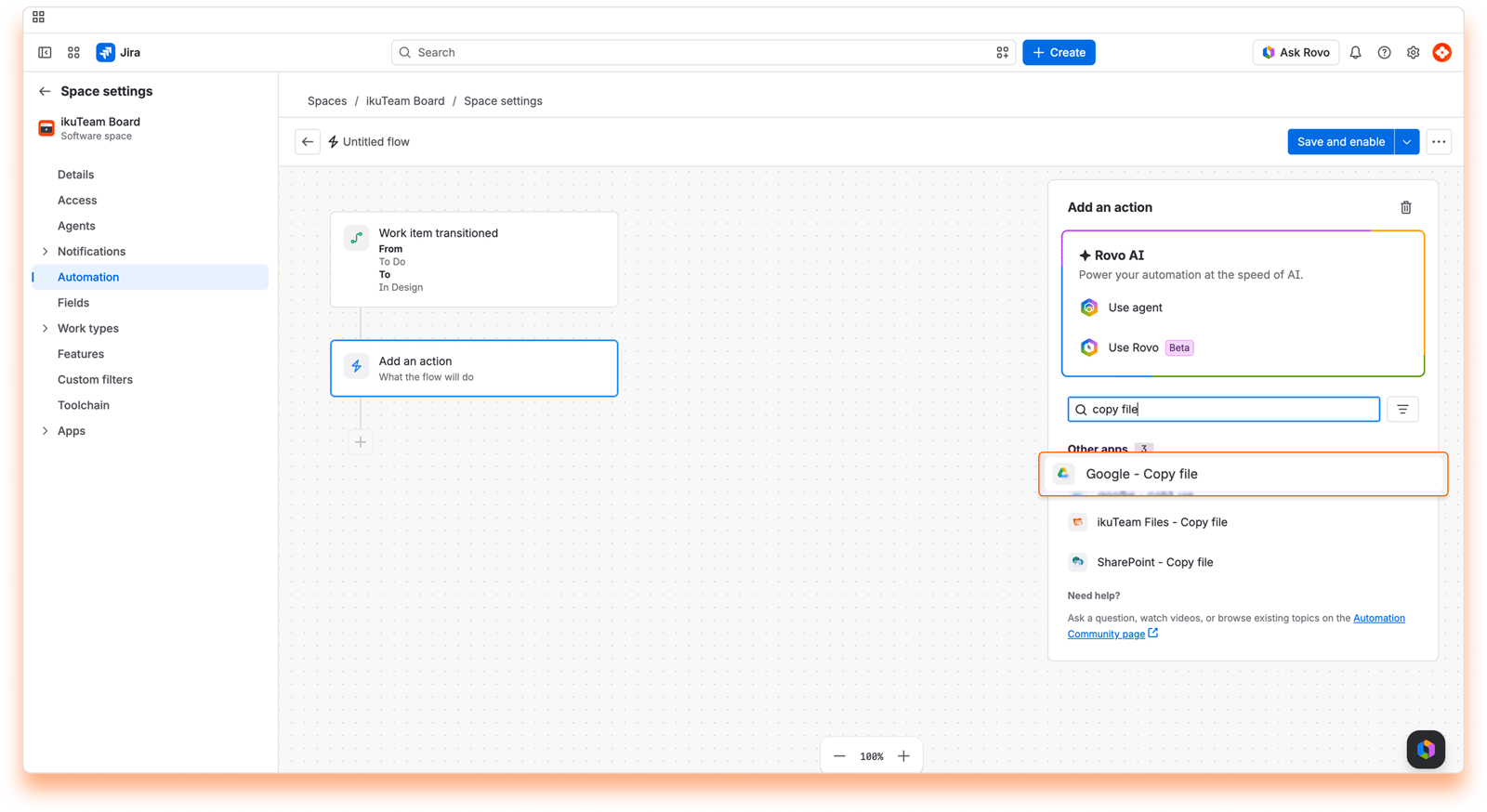
Select the source file with Select file.
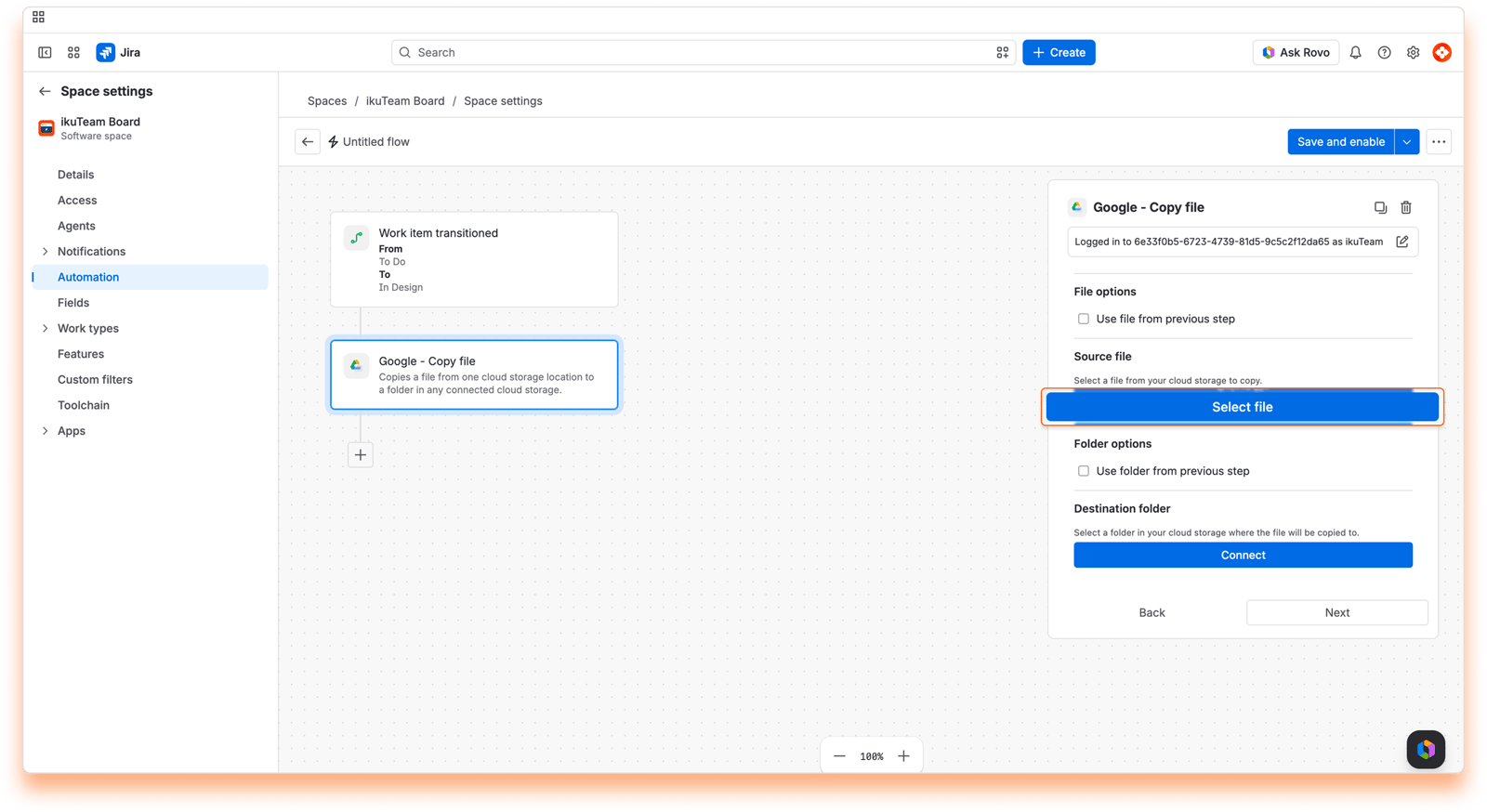
Select the destination folder with Connect.
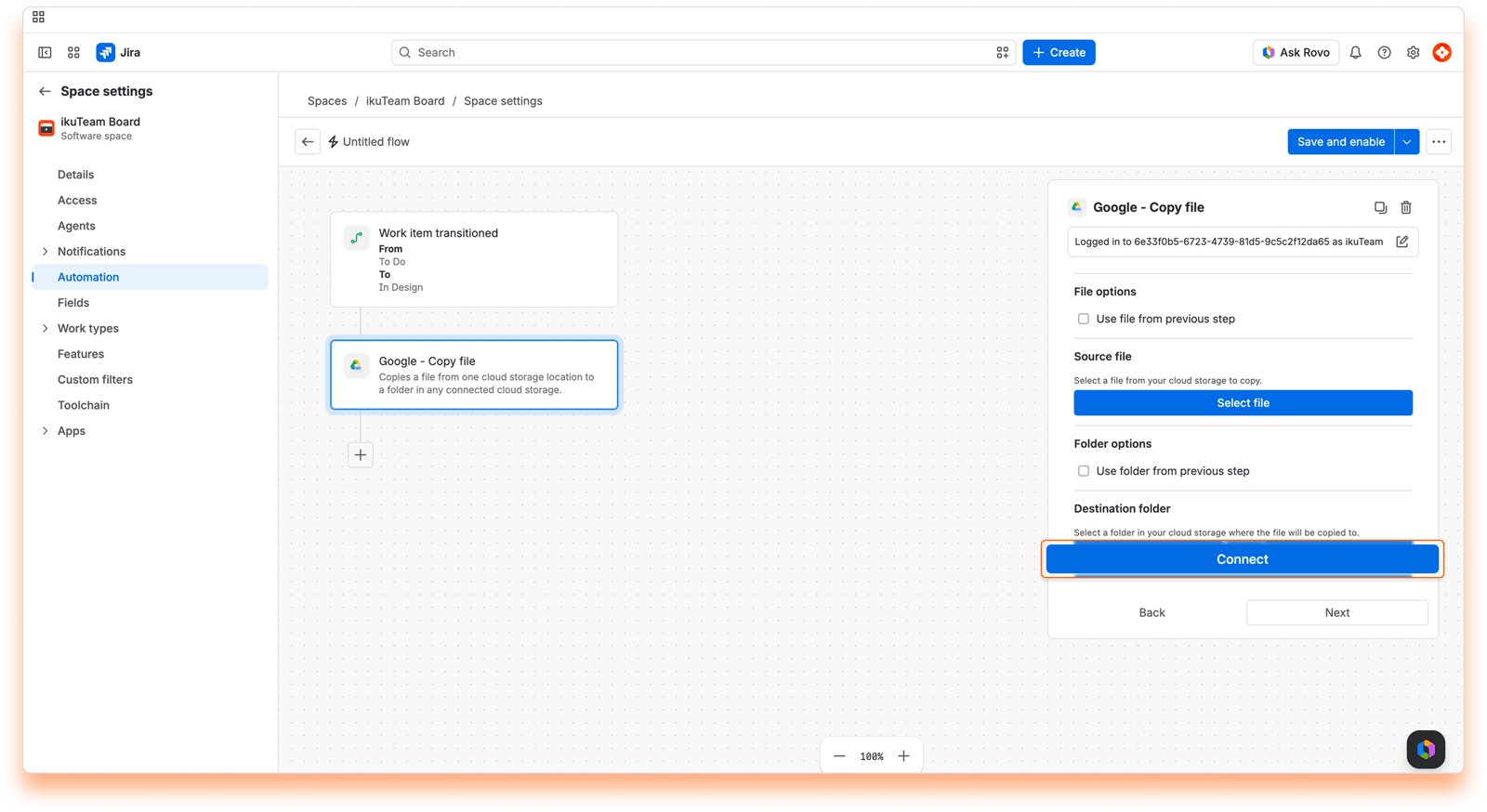
Prefer to start fresh? Use New folder to create one on the spot, then connect it.
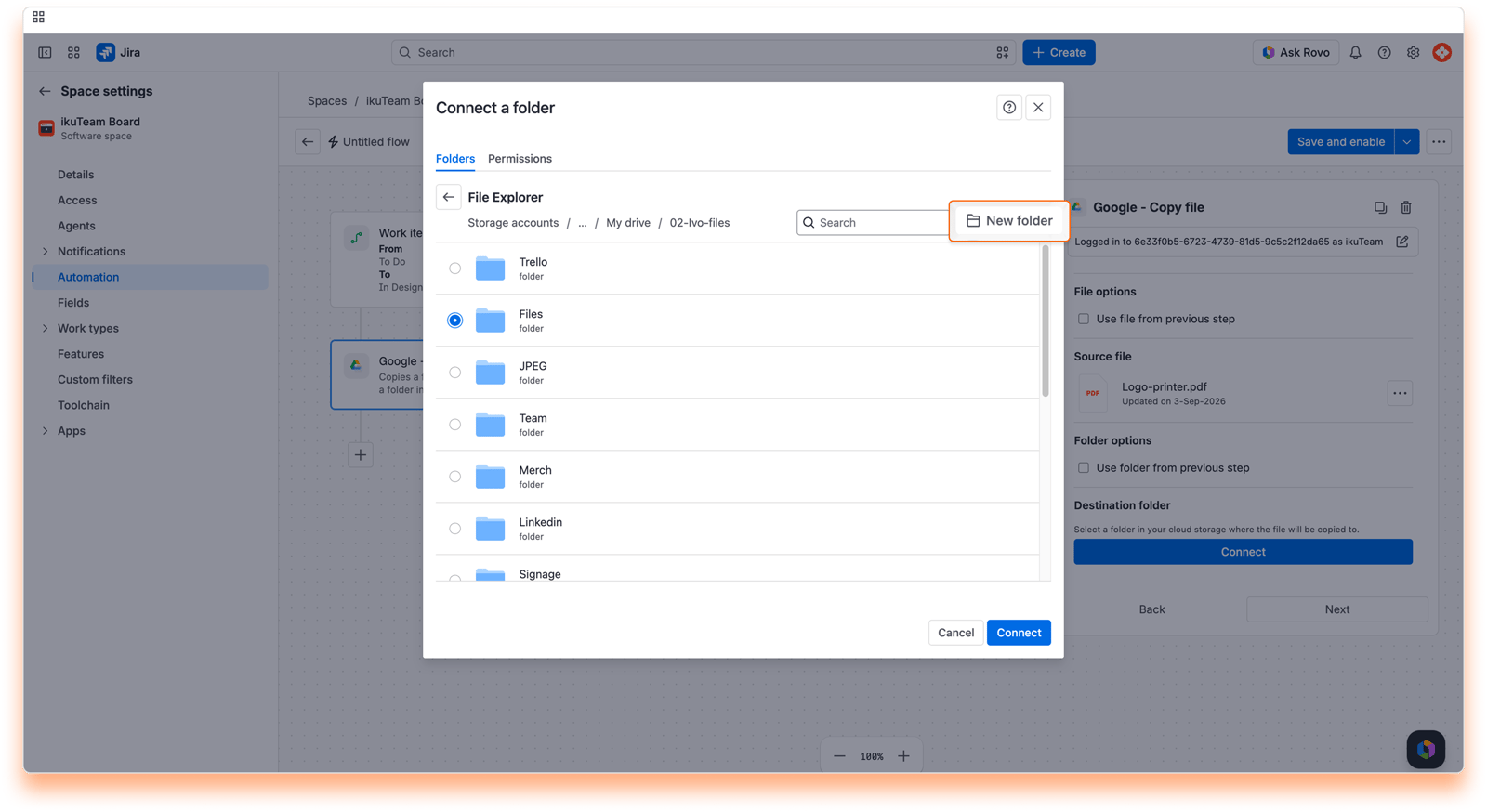
Save the flow, and your automation is ready to copy the selected file to the chosen folder automatically.
{{createdTeamfilesFile.fileId}}: the ID of the copy.
{{createdTeamfilesFile.rootFolderId}}: the ID of the connected folder the copy is in.
{{createdTeamfilesFile.fileUrl}}: the web link to the copy.
Add Attach a file with Use file from previous step to put the copy on the work item.
You need Download permission on the source file and Edit permission on the destination folder in Google Drive Connector.
If the source file was moved or deleted, the flow stops with "The source file could not be found. It may have been deleted or moved."
For example, start with the Work item created trigger and add Create folder with {{issue.key}} as the folder name. Then add Copy file, select your template as the source file and select Use folder from previous step for the destination. Finish with Attach a file and select Use file from previous step, so every new work item starts with its own copy of the template.
Smart values let your flows use live data from Jira instead of fixed text. For example, you can name a folder after the work item with {{issue.key}} - {{issue.summary}}, or after the space with {{project.key}}. Type them exactly as shown: they still say "issue" and "project", even though Jira now calls them work items and spaces. To learn more, see the Atlassian documentation: What are smart values?
Google Drive Connector adds its own smart values, which you can use in any later action in the same flow:
Smart value | Filled by | What it holds |
|---|---|---|
| Create folder, Find folder, Connect a folder, Connect a customer folder, Connect folder to space | The ID of the folder. |
| Same as above | The ID of the connected folder it belongs to. |
| Same as above | The web link to the folder in Google Drive. Handy in a comment or an email. |
| Create folder | true if the folder was created, false if an existing folder was used. |
| Attach a file, Copy file | The ID of the file. |
| Attach a file, Copy file | The ID of the connected folder that holds the file. |
| Attach a file, Copy file | The web link to the file in Google Drive. |
The "Use folder from previous step", "Use folder from previous action" and "Use file from previous step" options fill in these smart values for you. When a flow has several folder actions, they refer to the most recent one before the current action.
The folder or file you pick in an action is connected by you, so you're its owner. The action card shows "Connected by (name) on (date)", and from its menu you can edit the tag, open it in Google Drive, copy the link or disconnect it. A space admin or Jira admin can take over a folder with Transfer ownership, for example when you change teams.
Your flow runs as the user set in Actor, in the flow's Settings panel. Choose a person who can use Google Drive Connector and has the permission each action needs on the folder or file. With Mirror Storage Permissions ON, that person must also have signed in to the Google account in Google Drive Connector.
Each time the flow runs, Google Drive Connector checks two things:
App permission: the person the flow runs as must be allowed to use Google Drive Connector, and needs the permission level listed for each action (View, Download or Edit) on the folder or file.
Storage account: with Mirror Storage Permissions ON, the action uses that person's own Google account for the folder, so they must have signed in to it in Google Drive Connector. With Mirror Storage Permissions OFF, the action uses the folder owner's account.
With Mirror Storage Permissions OFF, we recommend connecting folders with a service account instead of a personal account. That way, your audit trail stays clear and folders keep working when people leave.
"This action requires an Advanced license." Your site uses another edition of Google Drive Connector for Jira.
"The folder configured in this automation rule no longer exists. Please open the rule and select a different folder." The folder was disconnected from the app. Open the flow and pick the folder again.
"The cloud account linked to this automation rule no longer exists. Please open the rule and reconnect your account."
"The cloud account credentials have expired. Please reconnect the account in the cloud storage settings."
"The automation account does not have permission to access the selected folder. Ensure the account has read access to the folder." (or the same message for create, list or copy). Check the person's permission on the folder in Google Drive Connector and in Google Drive.
"Could not determine the user who triggered this automation."
Test first. Try new flows on a test work item, or in a sandbox or staging site, before turning them on in production. It's the easiest way to confirm the folder structure fits your team's needs.
Check the audit log. If folders or files aren't appearing as expected, the flow's Audit log is the best place to find out why. It shows every time the flow ran, or failed to run, with the messages above.
Use the work item key in folder names. Keys are unique, so folders stay easy to tell apart even when work items have similar summaries.
Reuse instead of duplicating. Keep Use the existing folder selected in Create folder, so a flow that runs twice for the same work item doesn't fail.
That's the full toolbox. Mix and match these actions with Jira's own triggers and conditions, and your files land in the right place without anyone lifting a finger. If you need a hand, reach out on our support portal.


