

Confluence Google Drive Integration
Create a single source of truth with seamless syncing and real-time collaboration.
Read more


This guide shows you how to set up a global Jira Automation flow that creates a Google Drive folder every time a new Jira space (previously called a project) is created.
Every new space gets a consistent, central home for its files from day one, with no manual setup. You build it with Google Drive Connector for Jira.
Automatic folder creation: Every new space gets its own Google Drive folder as soon as it's created.
Smart naming: Name each folder after the space key with smart values.
Files stay in Google Drive: Keep space files in Google Drive instead of attaching them in Jira.
A small marketing team (5 to 8 people) creates a new Jira space for each product launch campaign. Briefs, design assets, timelines, budgets, meeting notes, and deliverables used to end up scattered across different folders. With this flow, each new campaign space gets its own folder, named after the space key, so everyone knows where the files go.
Google Drive Connector for Jira is installed on your Jira site.
You're a Jira admin. Only Jira admins can create global automation flows.
You have access to a Google account, with permission to create folders in the parent folder you'll choose.
The flow runs as the user set in Actor, in the flow's Settings panel. That person needs access to the app and permission on the folder. With Mirror Storage Permissions ON, they must also have signed in to the Google account.
Your site has the Advanced Edition of Google Drive Connector for Jira. The automation actions are part of it.
Go to Settings > System > Global automation and click "Create flow".
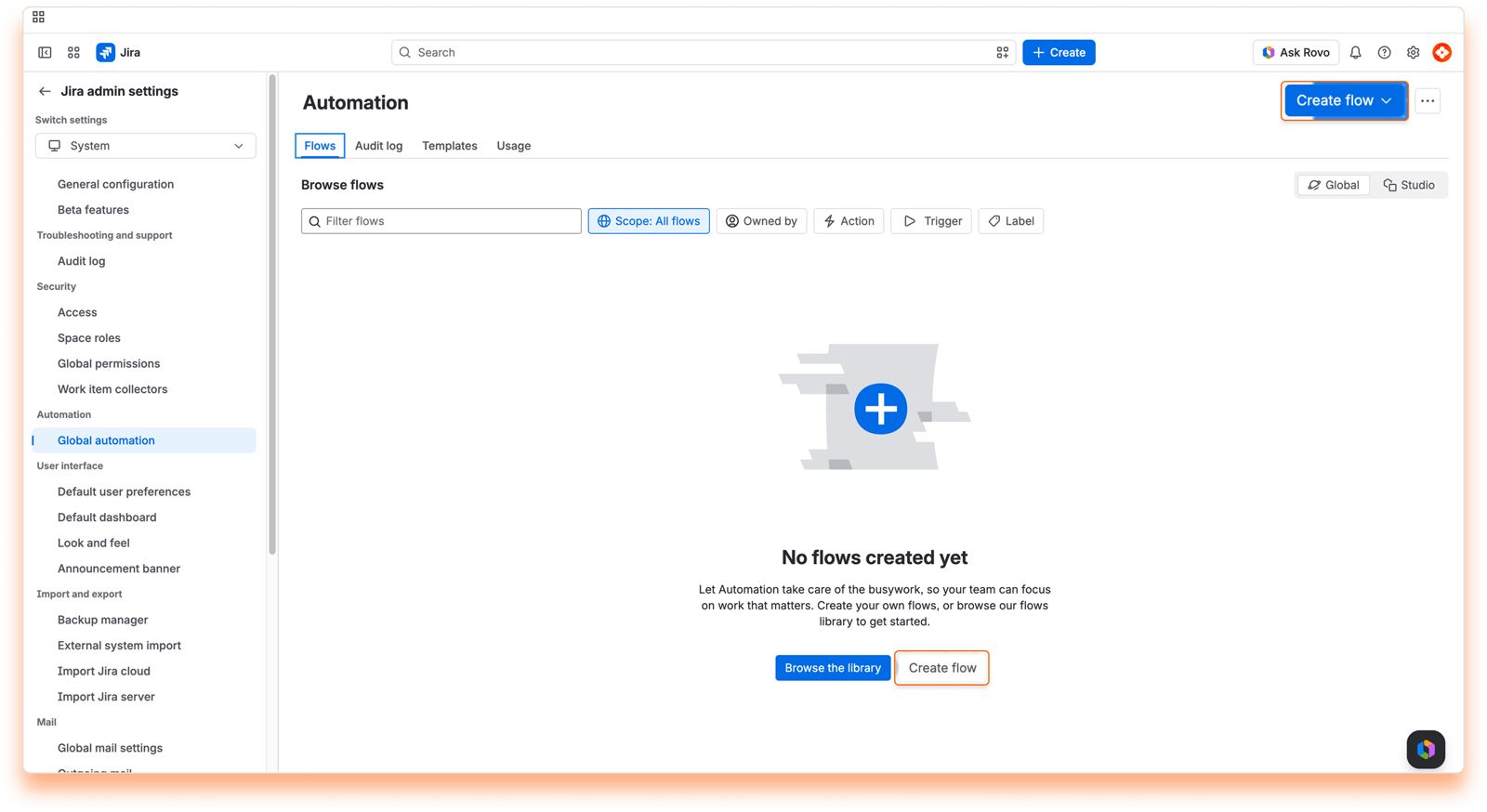
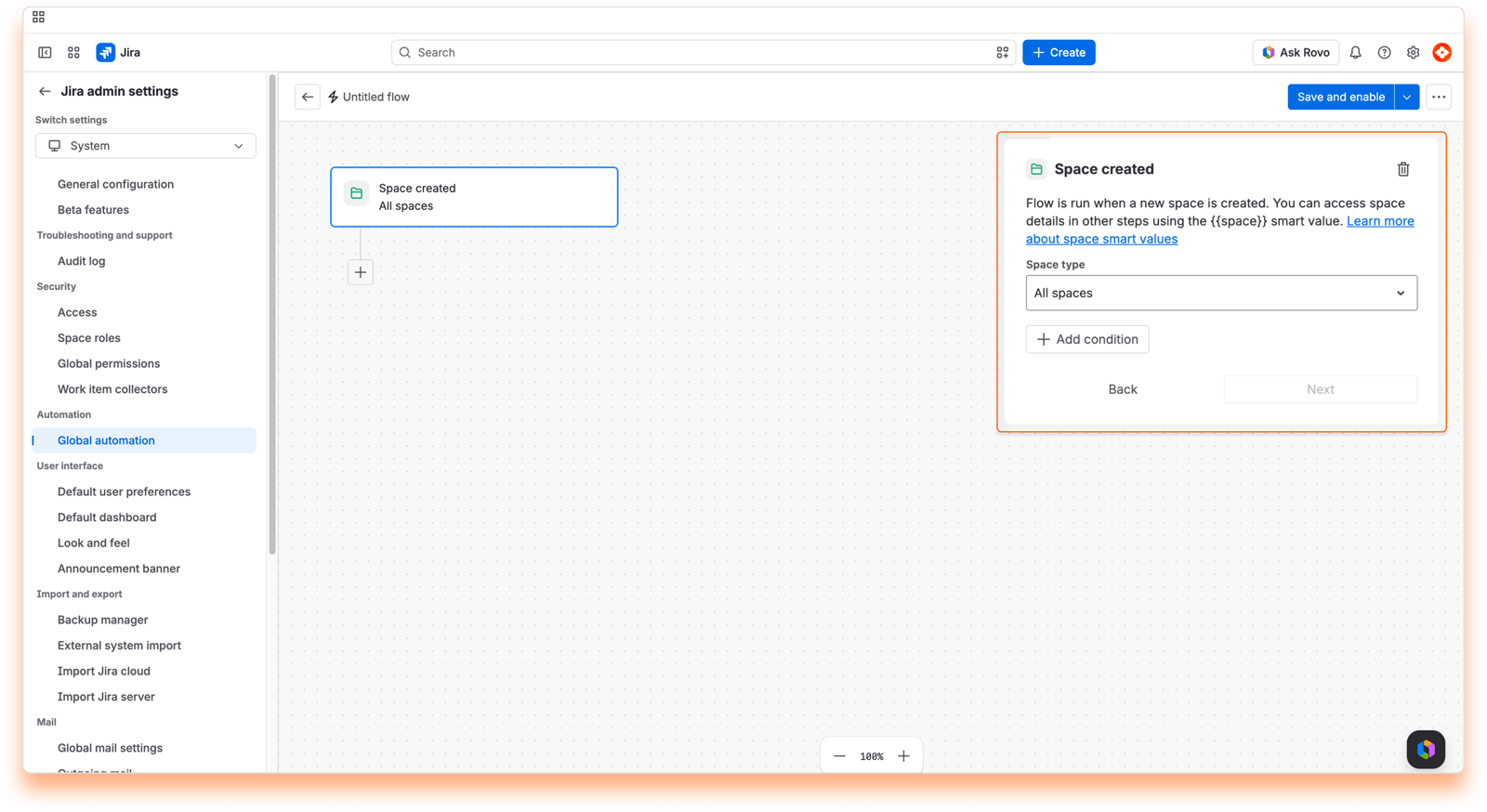
Set the trigger to run when a new space is created, and pick the space types the flow should run for.
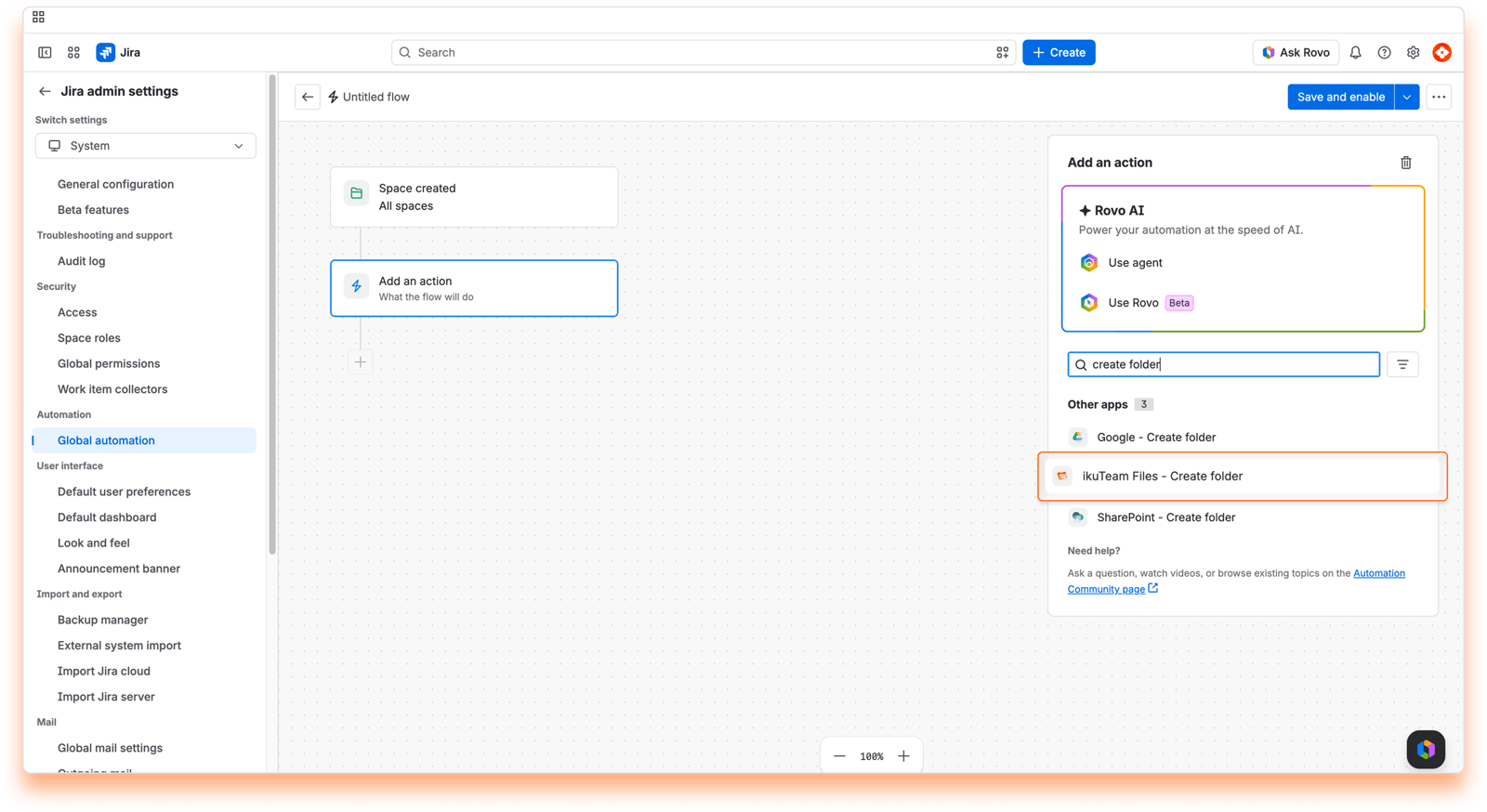
Add a new action, search for "Google - Create folder", and select it.
Click "Connect" and authenticate your Google account.
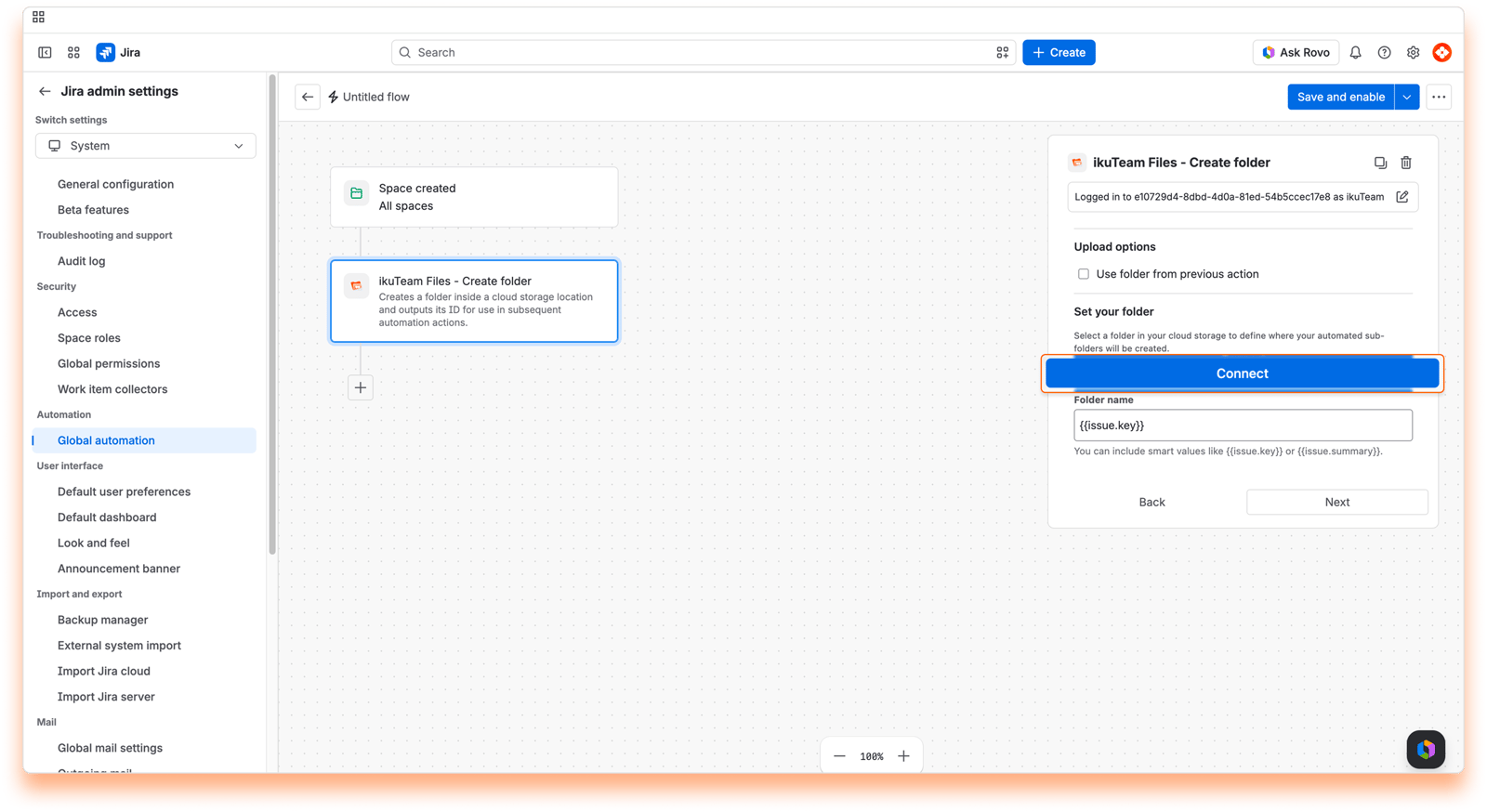
Choose the parent folder where the new space folders will be created.
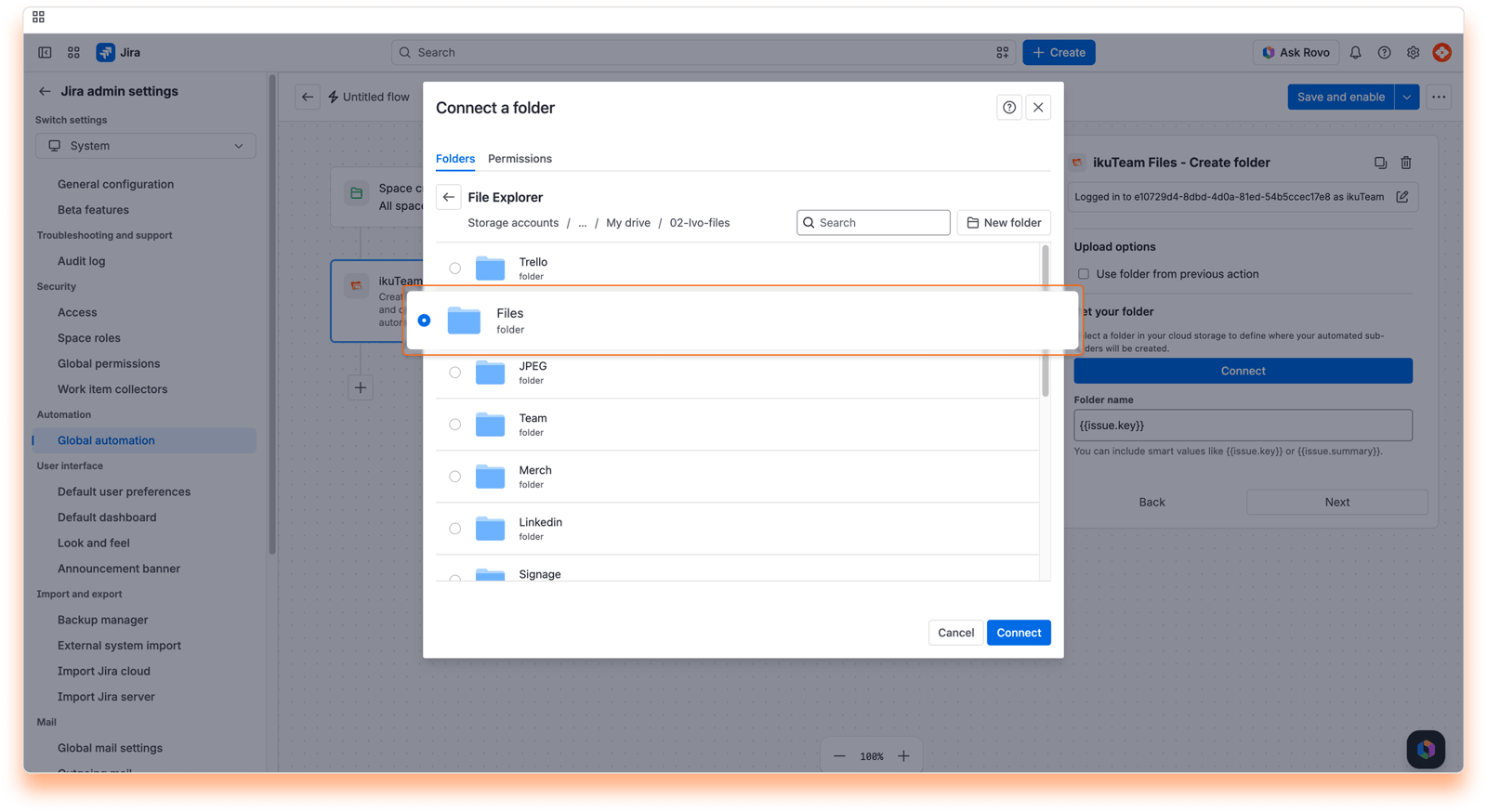
In the "Folder name" field, enter {{project.key}}, so each folder matches the space key in Jira.
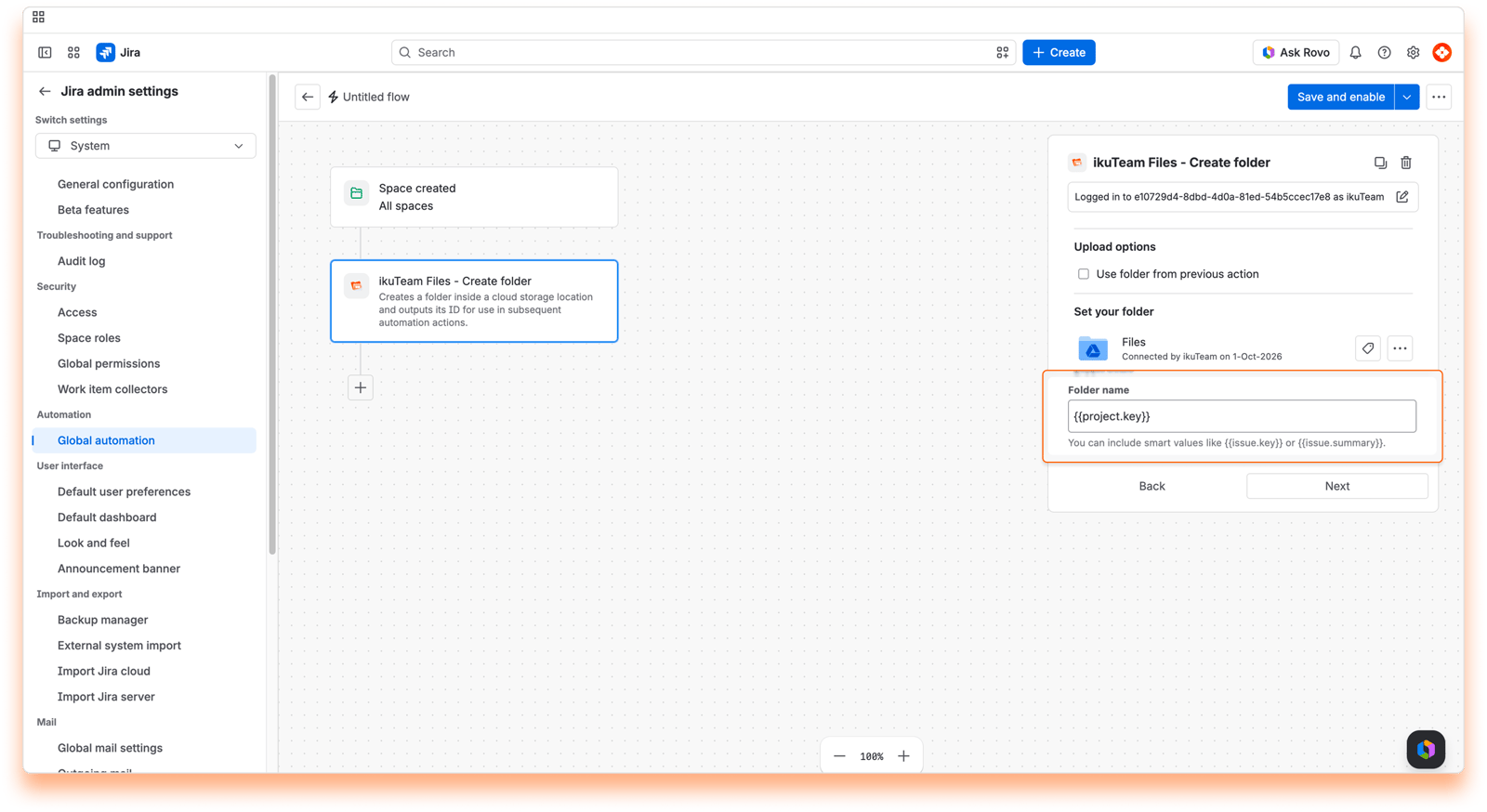
Type the smart value exactly as shown. It still says "project", even though Jira now calls them spaces.
Leave "Use folder from previous action" unselected. This flow creates a new folder for each new space, so there's no earlier folder to reuse.
Keep "Use the existing folder" selected under "If a folder with this name already exists": if a folder with the space's name is already there, the flow reuses it instead of creating a second one.
Save and turn on the flow, and your automation is ready to create a folder for every new space.
Test first. Run new flows in a sandbox or staging environment before turning them on in production. It's the easiest way to confirm the folder structure fits your team's needs.
Check the audit log. If folders aren't appearing as expected, the flow's "Audit log" is the best place to find out why. It shows every time the flow ran, or failed to run.
Use the space key in folder names. Space keys are unique, so folders stay easy to tell apart even when spaces have similar names.
With this flow in place, every new space starts with its own folder, ready for your team's files. To also connect the folder to the space, see 4.6 Automation example 4. To see every action you can use, read 4.1 Google Drive Connector automation actions. If you need a hand, reach out on our support portal.


