

Confluence Google Drive Integration
Create a single source of truth with seamless syncing and real-time collaboration.
Read more


These use cases use the SharePoint Connector automation actions, which are part of the Advanced Edition of SharePoint Connector for Jira. For every action and option, see 4.1 SharePoint Connector automation actions.
Trigger: When a work item is transitioned to Won or Closed-Won status.
Steps:
Create or reuse this year’s folder: Add SharePoint - Create folder, click Connect and select the Sales Closed Deals folder. Name the folder {{now.format("yyyy")}} and keep Use the existing folder selected, so every deal won this year goes into the same yearly folder, for example, 2026.
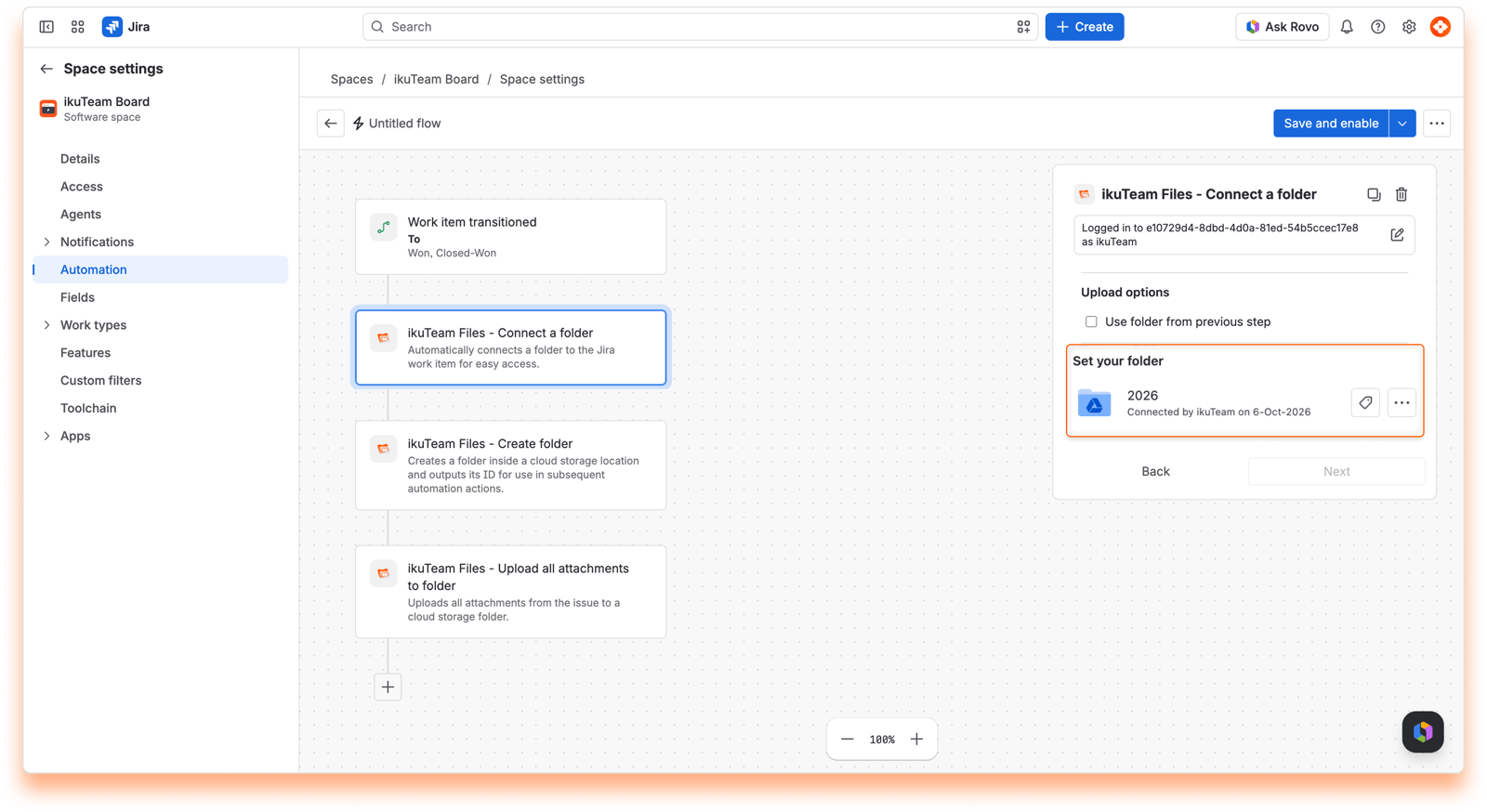
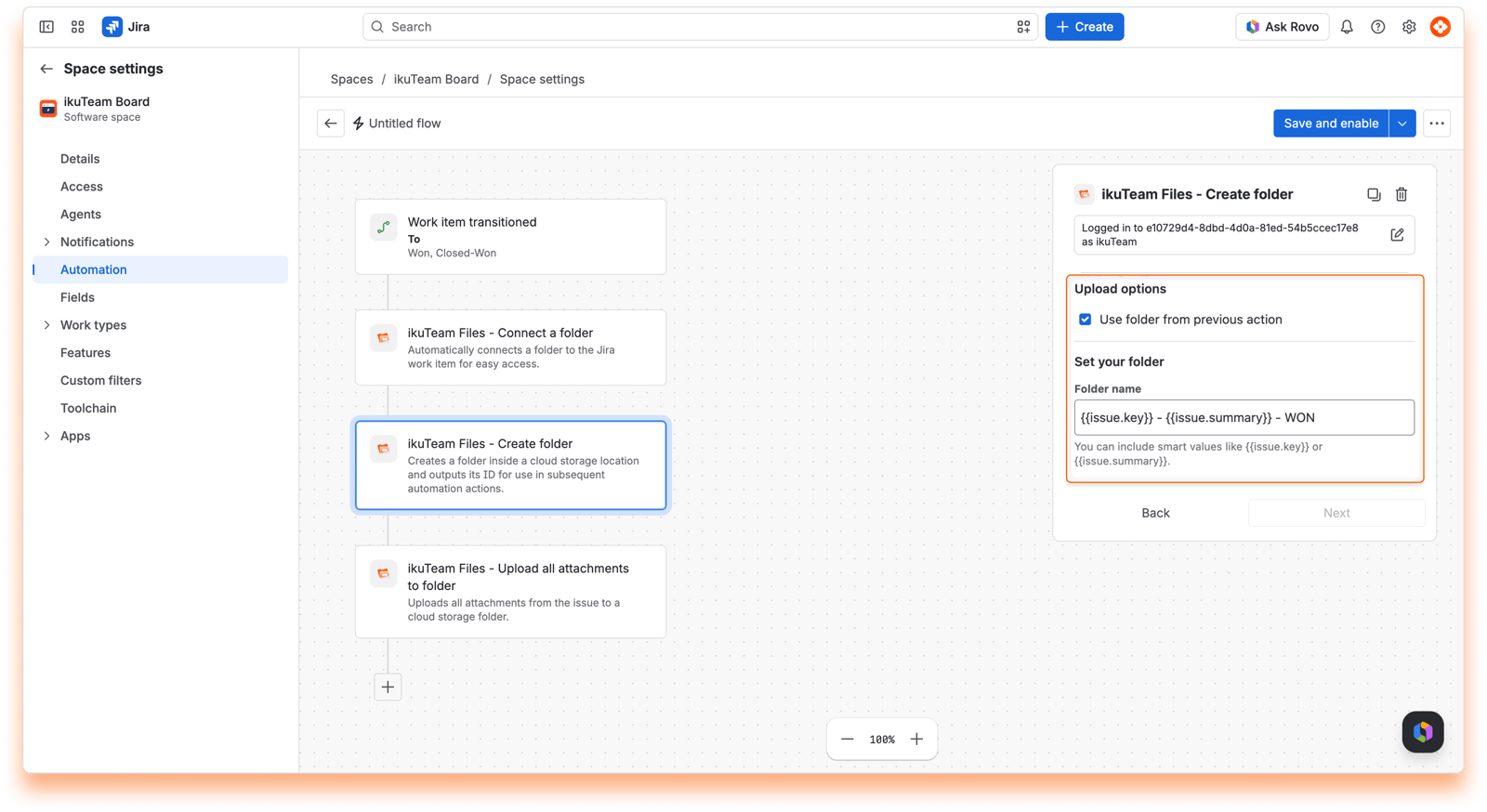
Create a closed deal folder: Add another SharePoint - Create folder, select "Use folder from previous action" and use smart values {{issue.key}} - {{issue.summary}} - WON.
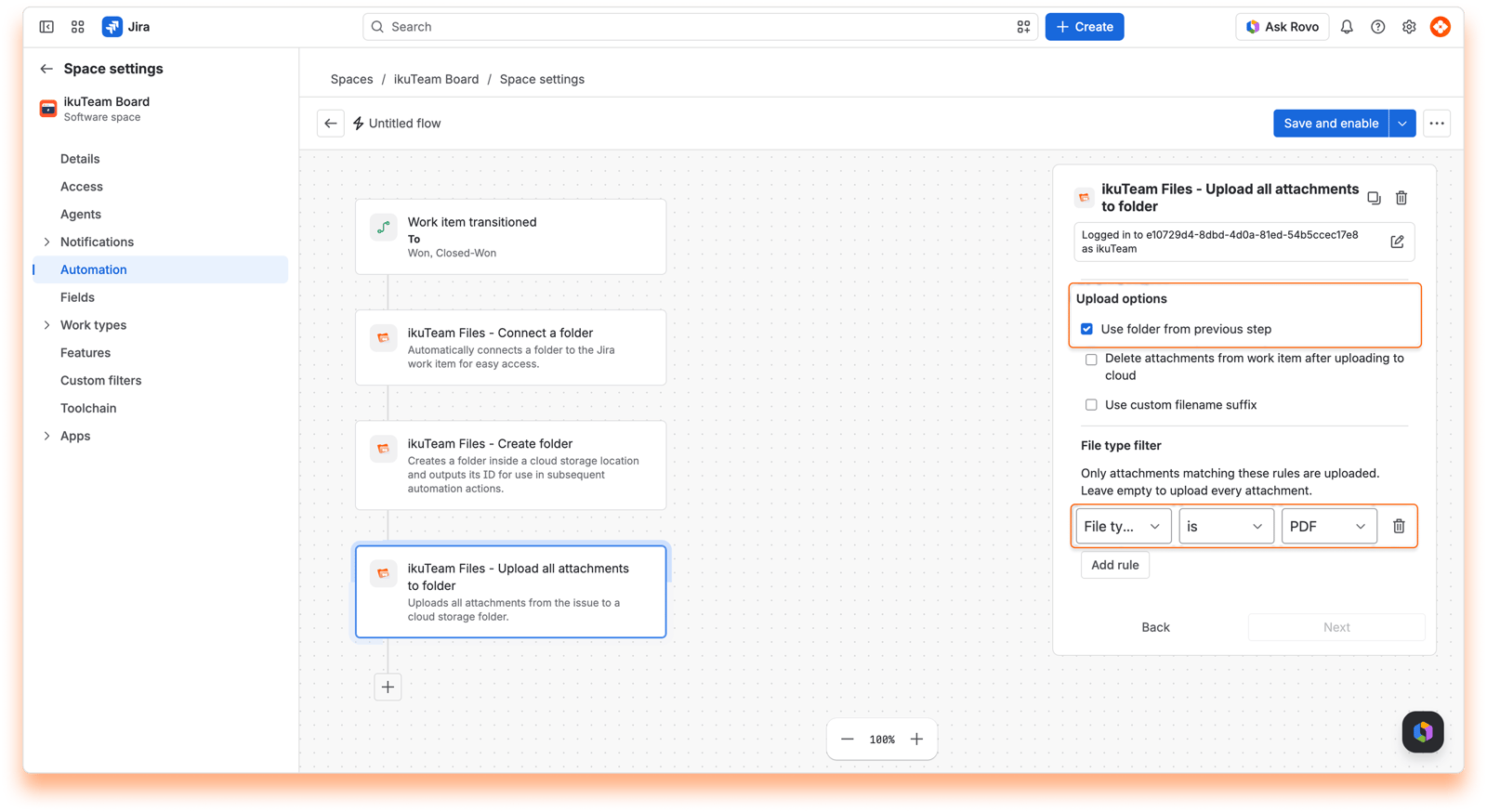
Upload contract documents: Add SharePoint - Upload attachments to folder, select "Use folder from previous step", and add a PDF File type filter to upload the final signed contract attached to the work item.
Outcome: All won deal documents are automatically organized in a yearly archive.
Trigger: When a work item is transitioned to Proposal Sent, for example, from Qualification.
Steps:
Choose the proposals folder: Add SharePoint - Create folder, click Connect and select the Sales Pipeline Proposals folder.
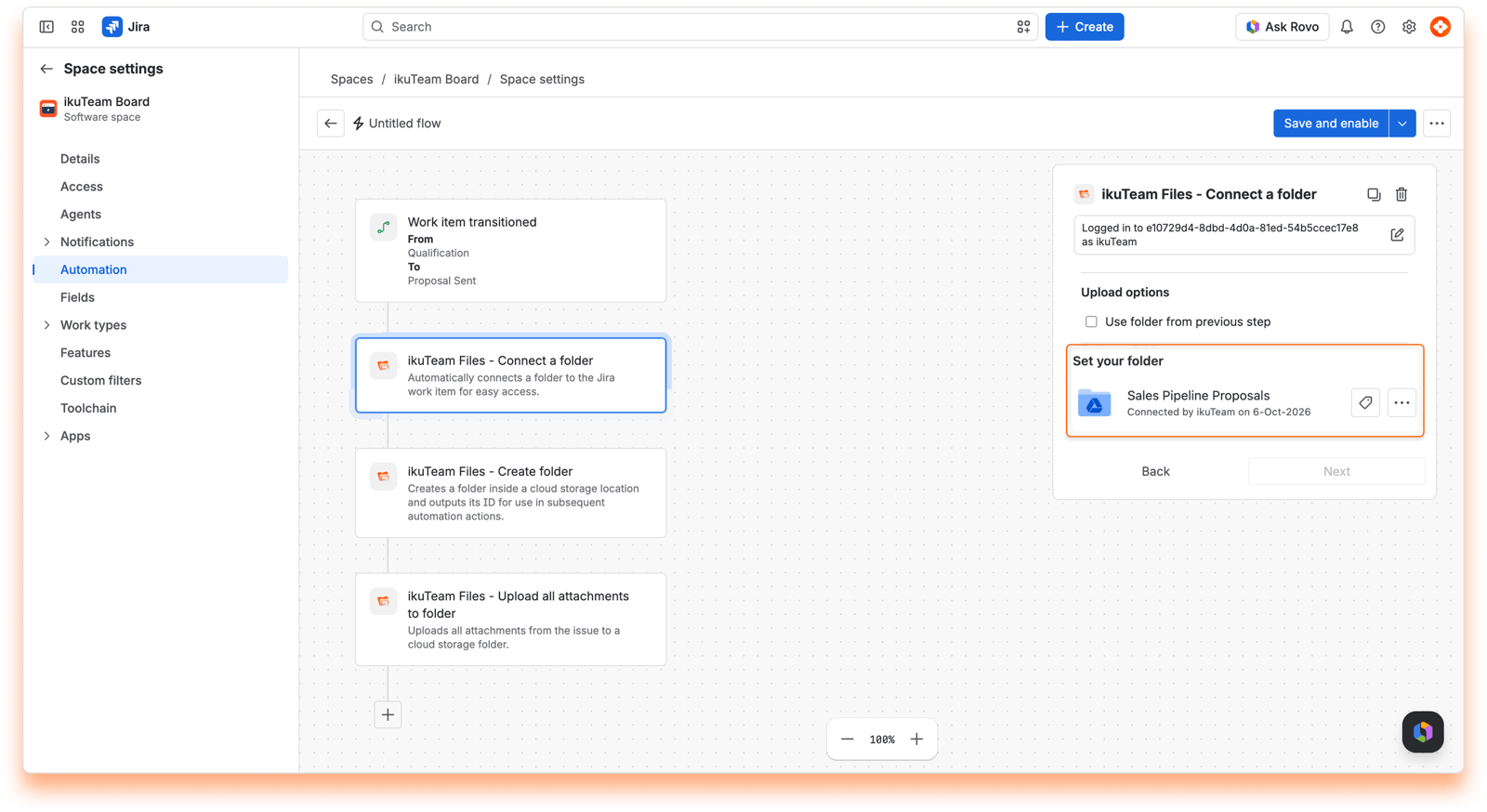
Create a proposal folder: In the same action, use smart values {{issue.key}} - {{issue.summary}} and keep Use the existing folder selected, so a deal that comes back to this stage reuses its folder.
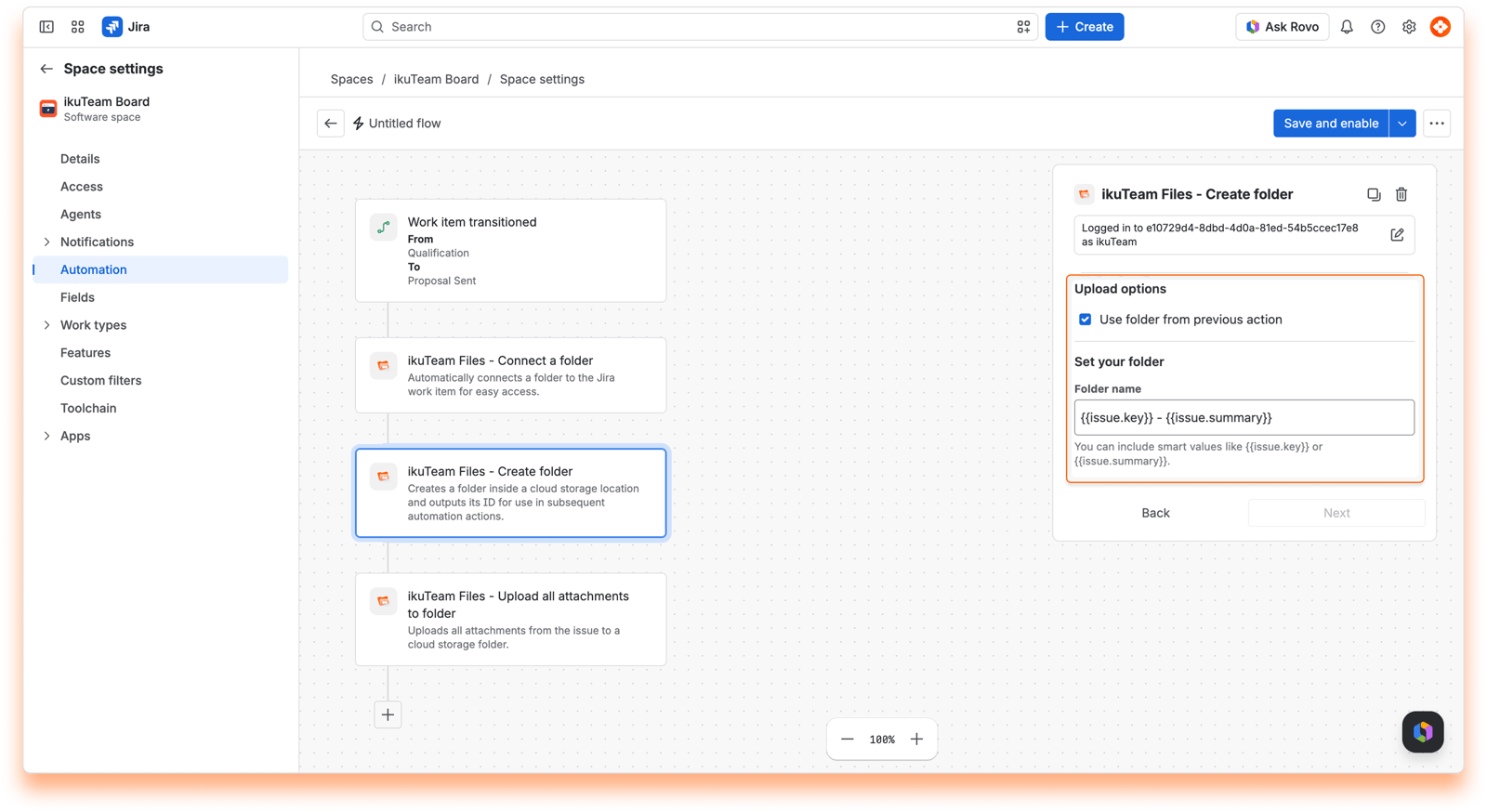
Connect the folder to the deal: Add SharePoint - Connect a folder and select "Use folder from previous step", so the proposal folder shows on the work item. If it’s already there, the action doesn’t add it twice.
Upload the proposal document: Add SharePoint - Upload attachments to folder, select "Use folder from previous step", and add PDF and DOCX File type filter rules to upload the proposal or quote attached to the work item.
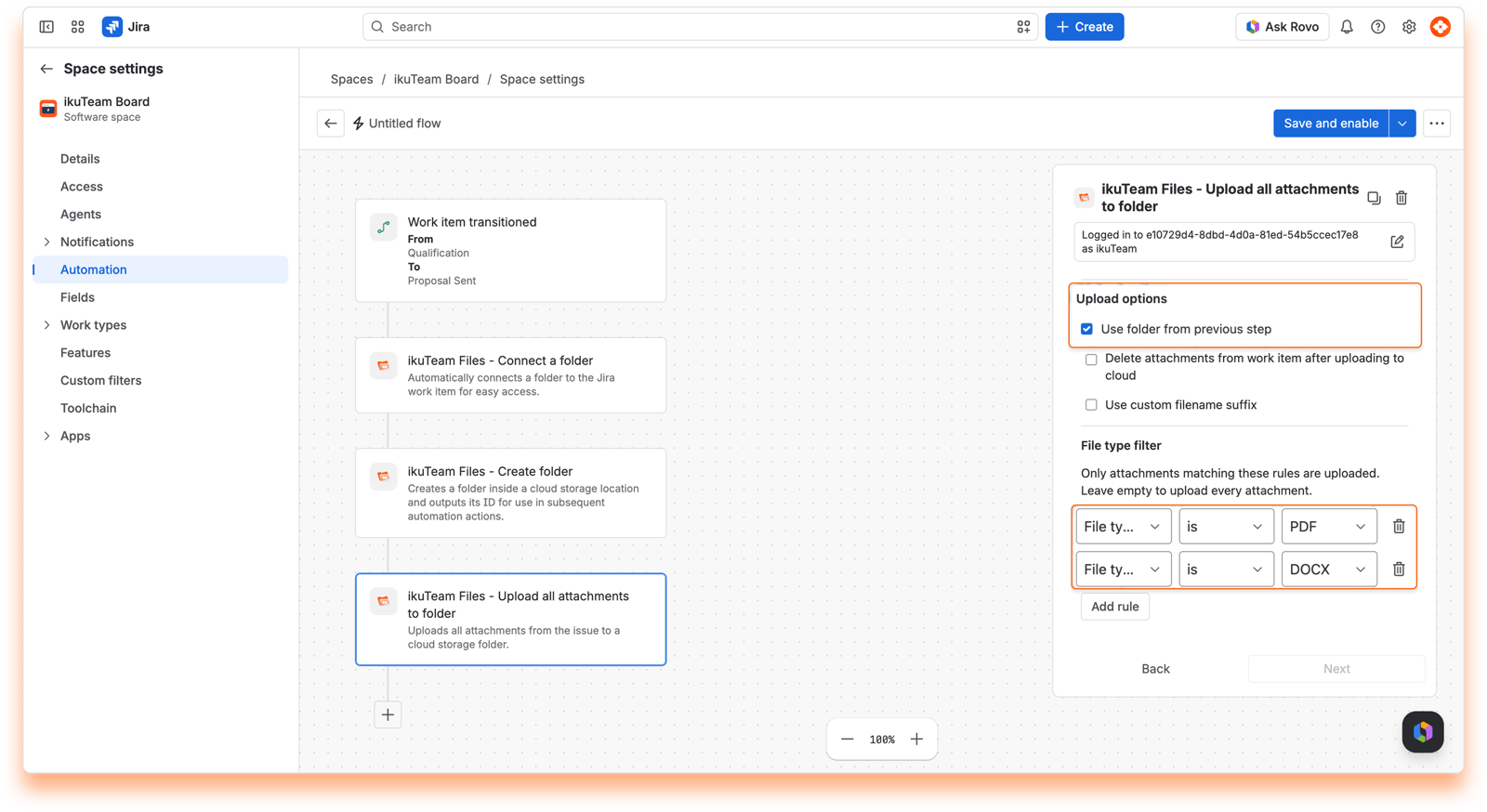
Outcome: Proposals are stored and organized in one place, so sales managers can review pipeline activity.
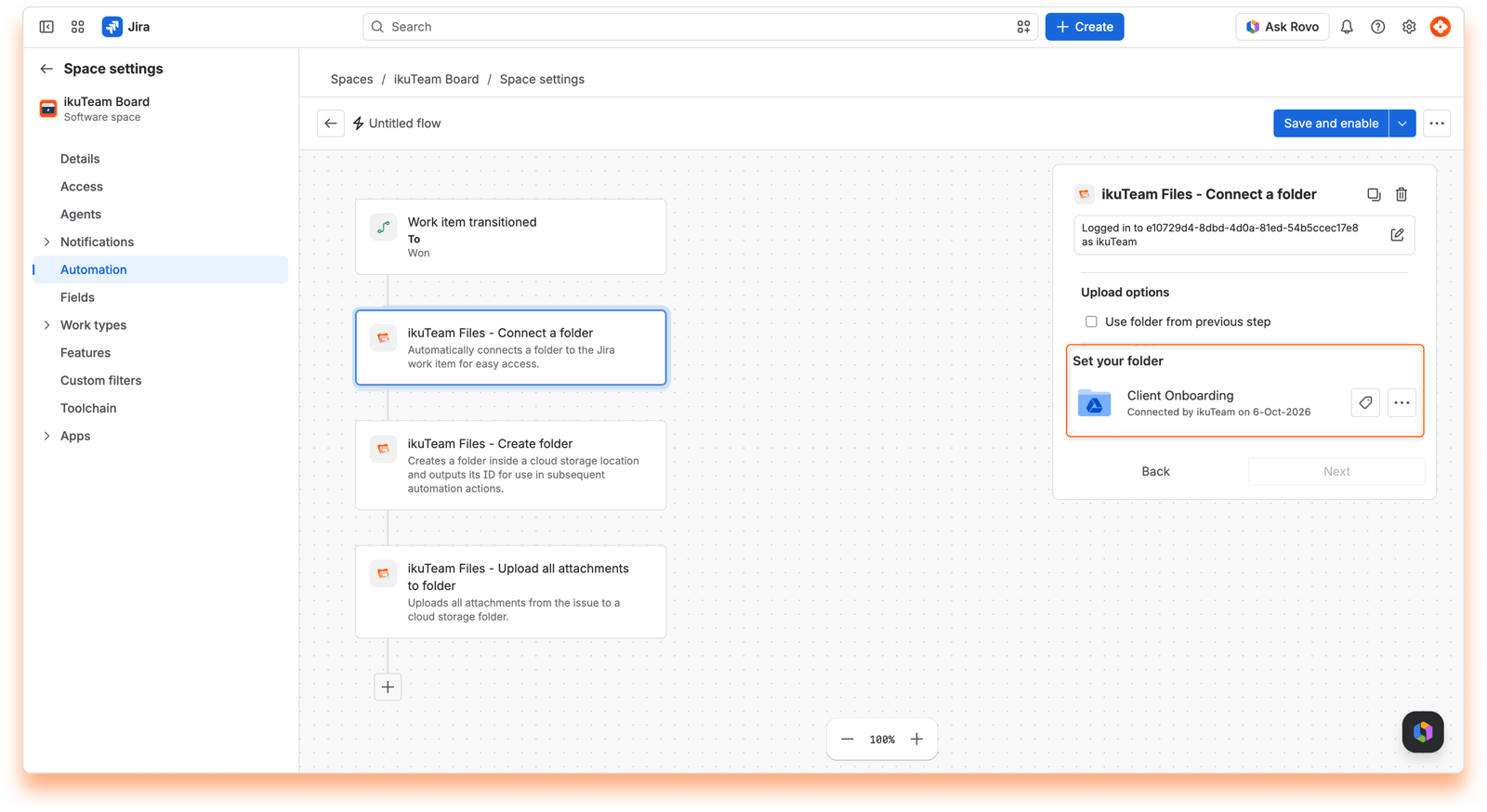
Trigger: When a work item is transitioned to Won status in the Sales space.
Steps:
Choose the onboarding folder: Add SharePoint - Create folder, click Connect and select the Client Onboarding folder in SharePoint or OneDrive.
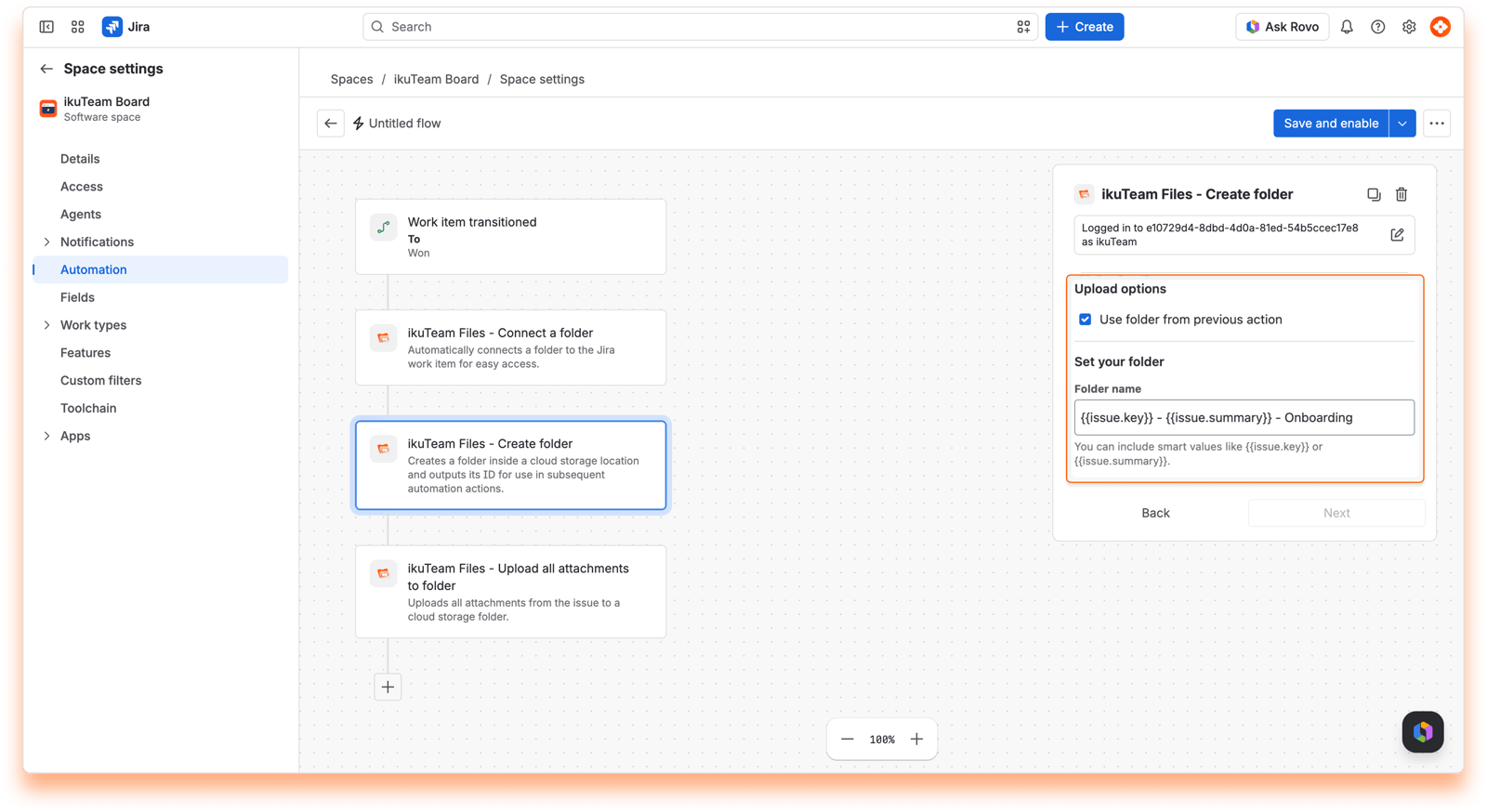
Create a client folder: In the same action, use smart values {{issue.key}} - {{issue.summary}} - Onboarding.
Connect the folder to the work item: Add SharePoint - Connect a folder and select "Use folder from previous step", so the client success team finds the onboarding folder on the work item.
Add onboarding documents: Add SharePoint - Copy file. Under Source file, select your onboarding checklist, and under Folder options, select "Use folder from previous step", so a copy lands in the client folder. Add one Copy file action for each document, such as the welcome kit and setup guides.
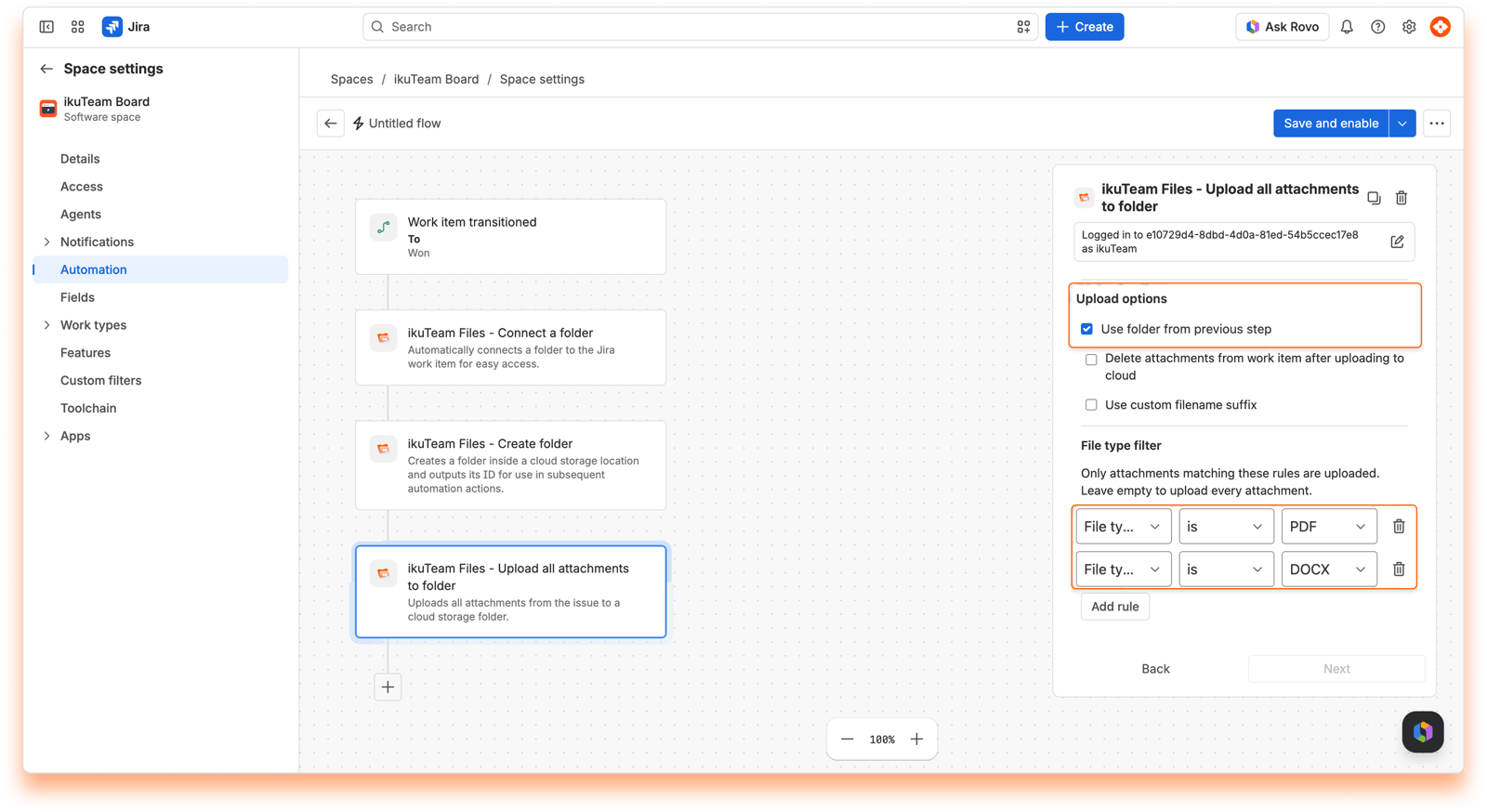
Outcome: A smooth handoff from sales to the client success team, with the onboarding folder ready with all the necessary documents.
Tip | Description |
|---|---|
Use smart values | Use Jira smart values like |
Chain actions | In Connect a folder, Copy file and Upload attachments to folder, select "Use folder from previous step" to work with the folder created or found earlier in the same automation run. In Create folder and Find folder, the option is called "Use folder from previous action". |
Multiple connections | You can connect different SharePoint sites, OneDrive for Business or OneDrive accounts in different automation flows based on your team’s needs. |
Conditions and branches | Combine folder creation actions with Jira automation conditions, for example, to trigger only for specific work types, priorities, or components. |
Refer to the docs | For advanced configurations, see the Jira Cloud Automation documentation. |


