team-files-vs-confluence-1
Confluence Smart Links Explained
See how they work, where they fail with external files, and more secure, consistent management alternatives.
Read more: Confluence Smart Links Explained
untitled_Flux 2 Pro_2026-03-26_21-41-00
Jira SharePoint Integration
Discover how to sync files, automate folders, and enhance collaboration in Jira Cloud and Data Center.
Read more: Jira SharePoint Integration
Porto-pic
About us
From the start, our goal has been to remove the hidden friction that prevents teammates from collaborating easily on the files that matter most. We believe productivity is not about adding more tools but making the ones you already use work together seamlessly. Based in Porto, ikuTeam builds the invisible layer for the Atlassian ecosystem to dissolve file silos and help over a million users stay focused and move faster.
Read more: About us
team-files-vs-confluence-1

Confluence Smart Links Explained

See how they work, where they fail with external files, and more secure, consistent management alternatives.
Read more: Confluence Smart Links Explained
untitled_Flux 2 Pro_2026-03-26_21-41-00

Jira SharePoint Integration

Discover how to sync files, automate folders, and enhance collaboration in Jira Cloud and Data Center.
Read more: Jira SharePoint Integration

About us

From the start, our goal has been to remove the hidden friction that prevents teammates from collaborating easily on the files that matter most. We believe productivity is not about adding more tools but making the ones you already use work together seamlessly. Based in Porto, ikuTeam builds the invisible layer for the Atlassian ecosystem to dissolve file silos and help over a million users stay focused and move faster.
Read more: About us
Porto-pic
Product Documentation

Nov 19, 2026

6.6 Does SharePoint Connector support SharePoint version history?

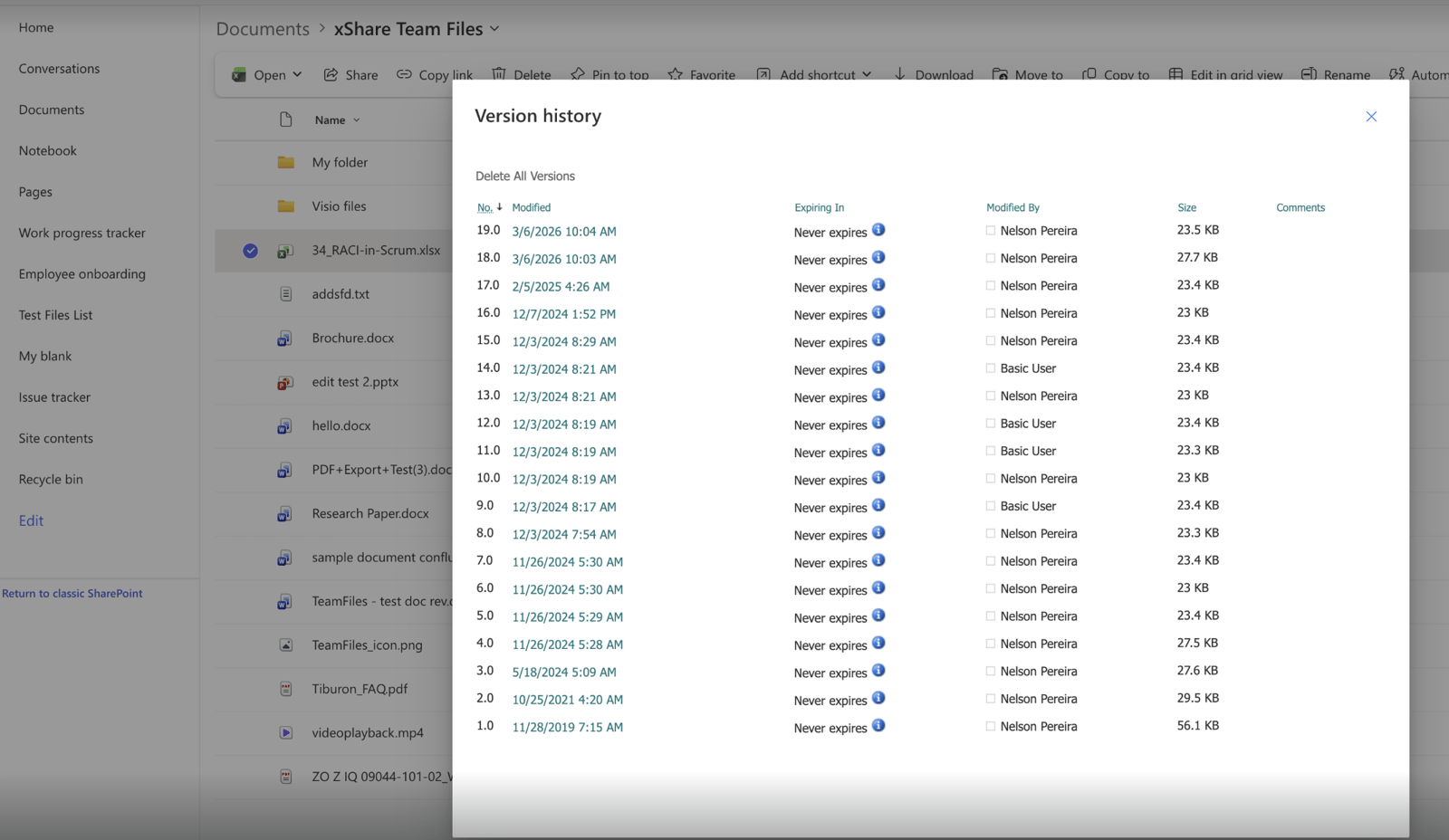
Yes. When you edit a SharePoint or OneDrive file from Jira, the changes are saved back to the same file, and SharePoint keeps its version history as usual. Who appears as the editor of each version depends on Mirror Storage Permissions.

Who shows up in the version history

  • With Mirror Storage Permissions ON (the default): each user edits with their own Microsoft account, so SharePoint logs every version with the name of the person who made the change.

  • With Mirror Storage Permissions OFF: the app uses the account of the user who connected the folder (the folder owner). SharePoint still keeps every version, but all changes appear as made by that one account. This mode lets people without a SharePoint account edit files, but SharePoint can't tell them apart.

Customers who edit files on the Jira Service Management customer portal don't sign in to SharePoint. Their changes are saved with the account that connected the folder, so that account appears in the version history. That's why we recommend connecting the folders you share with customers, including the ones your automation flows create, with a service account.

Don't see any version history?

  1. Check that versioning is turned on for the document library in SharePoint.

  2. Check Mirror Storage Permissions in 3.1 Admin settings. With Mirror Storage Permissions OFF, every edit is attributed to the folder owner's account.

  3. With Mirror Storage Permissions ON and edits still not attributed to each person, review the library's permissions in SharePoint and how the folder was connected.

Need each person's name on every version? Keep Mirror Storage Permissions ON and make sure versioning is on in your SharePoint library. See 6.4 Mirror Storage Permissions ON or OFF: which should I choose?

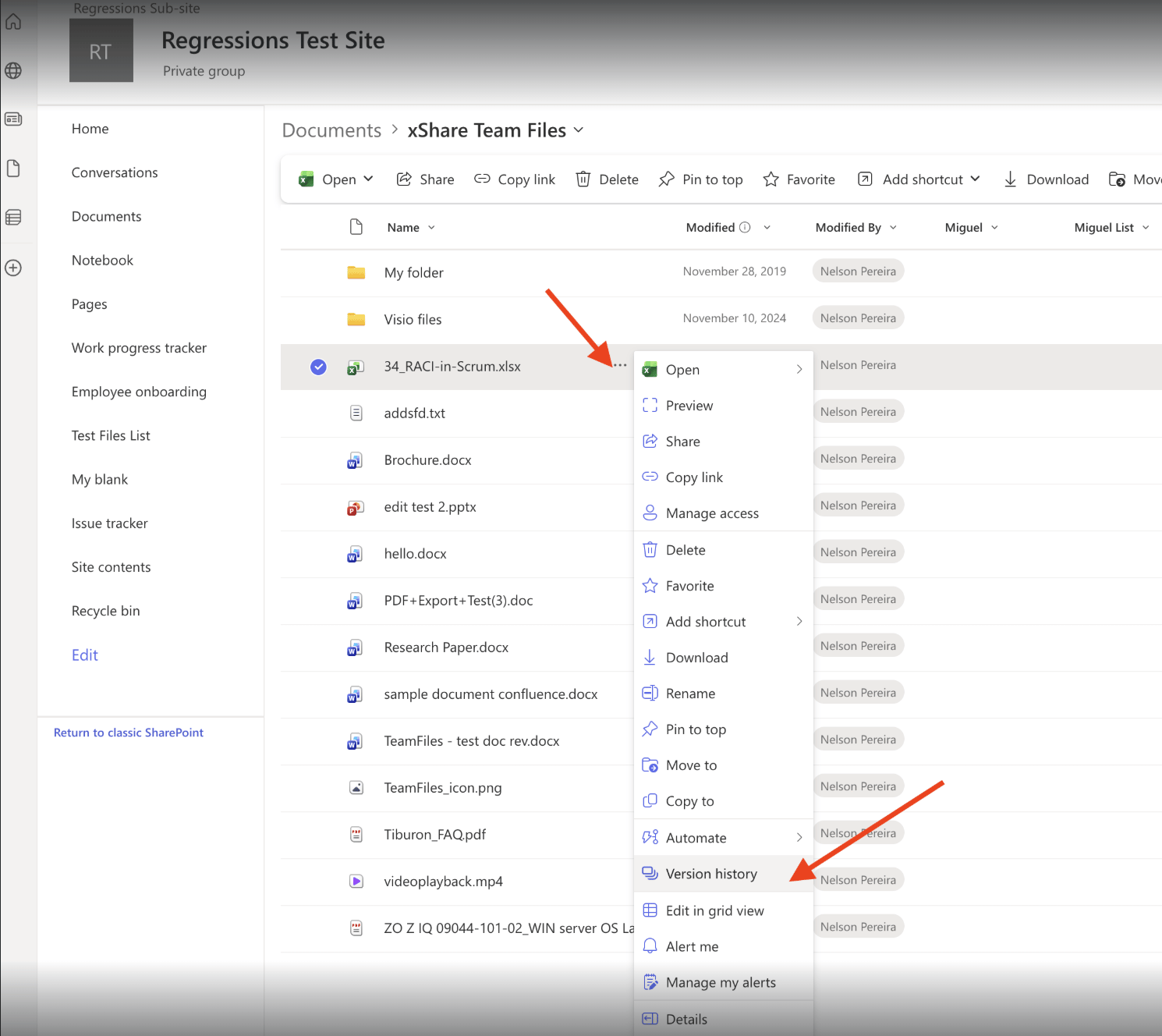
Where to find the version history in SharePoint

In SharePoint, open the file's menu and select Version history.
Screenshot: Does SharePoint Connector support SharePoint version history?