

Confluence Google Drive Integration
Create a single source of truth with seamless syncing and real-time collaboration.
Read more


SharePoint Connector works with Jira automation, so you can create, find and connect SharePoint and OneDrive folders without lifting a finger. This guide walks you through your first flow, one that creates a folder in SharePoint or OneDrive every time something happens in Jira.
The SharePoint Connector automation actions are part of the Advanced Edition of SharePoint Connector for Jira.
To create a flow for one space, you need to be an admin of that space. Jira admins can also create global flows that run across spaces.
Every action, option and smart value is listed in 4.1 SharePoint Connector automation actions.
Go to Space settings > Automation, create a new flow and choose a trigger. For a folder per work item, Work item created is a good place to start.
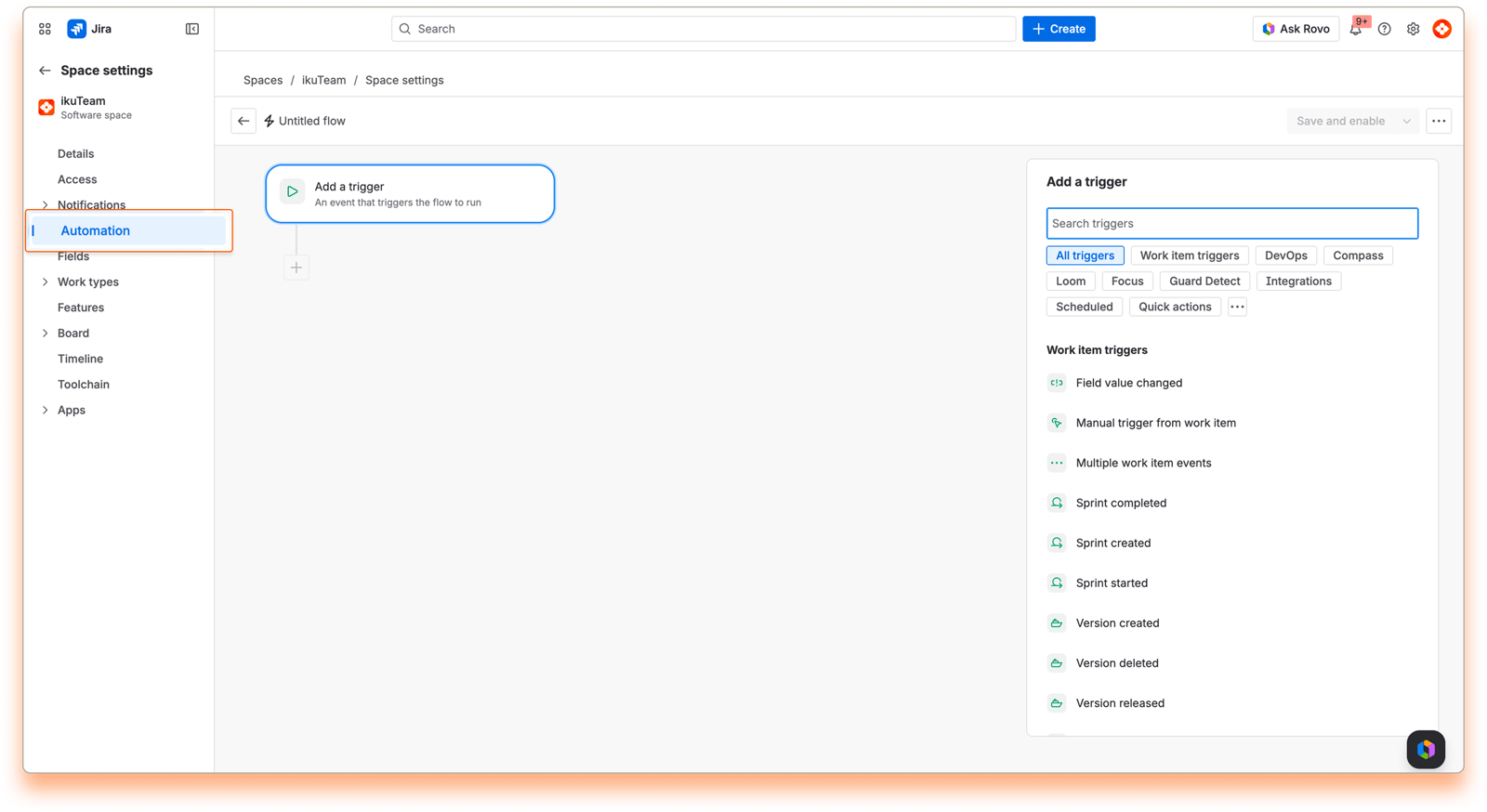
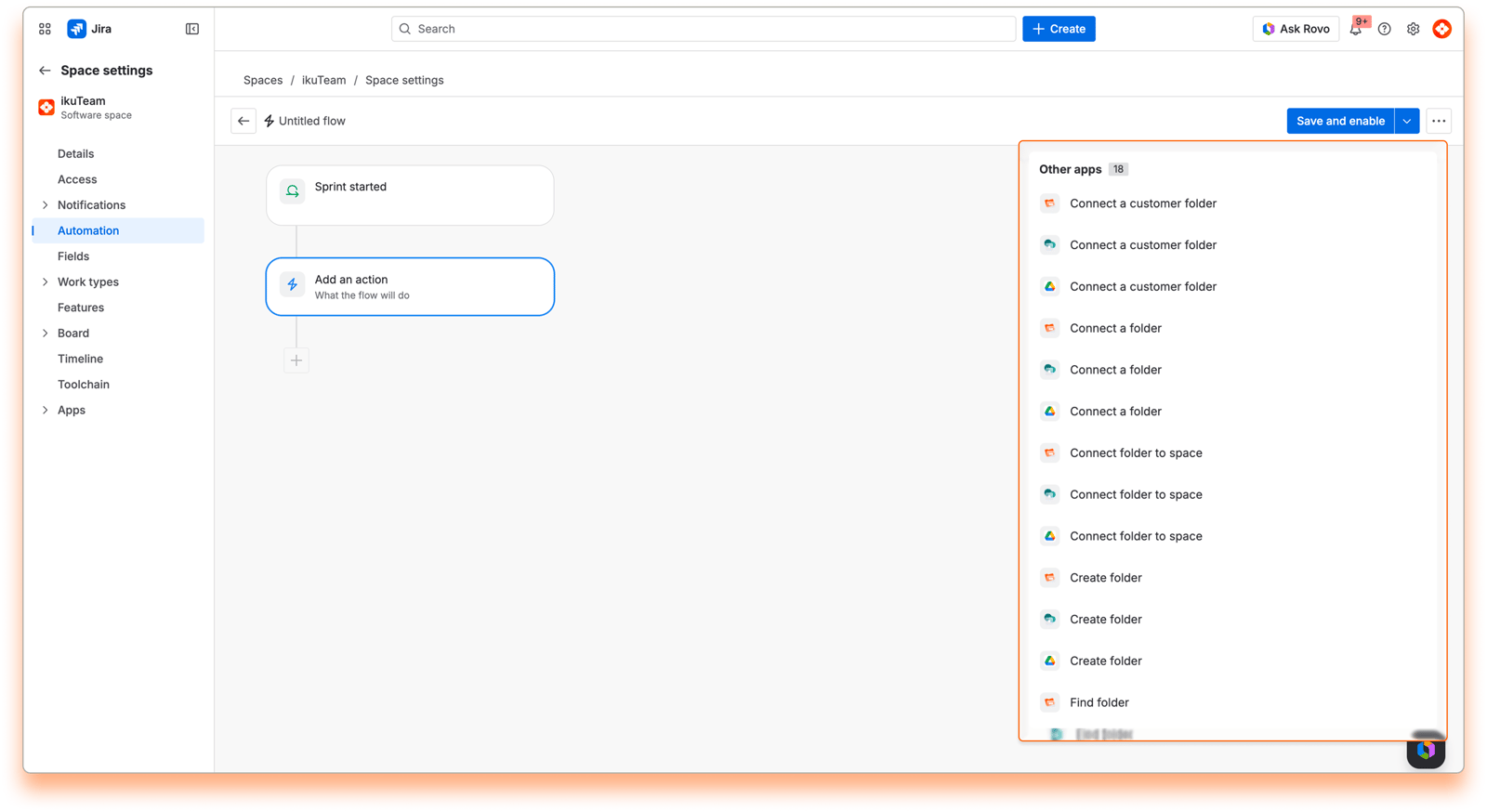
Add an action. The SharePoint Connector actions are in the Other apps section, with the SharePoint Connector icon. You can also search for SharePoint. Every SharePoint Connector action name starts with "SharePoint - ". Pick SharePoint - Create folder.
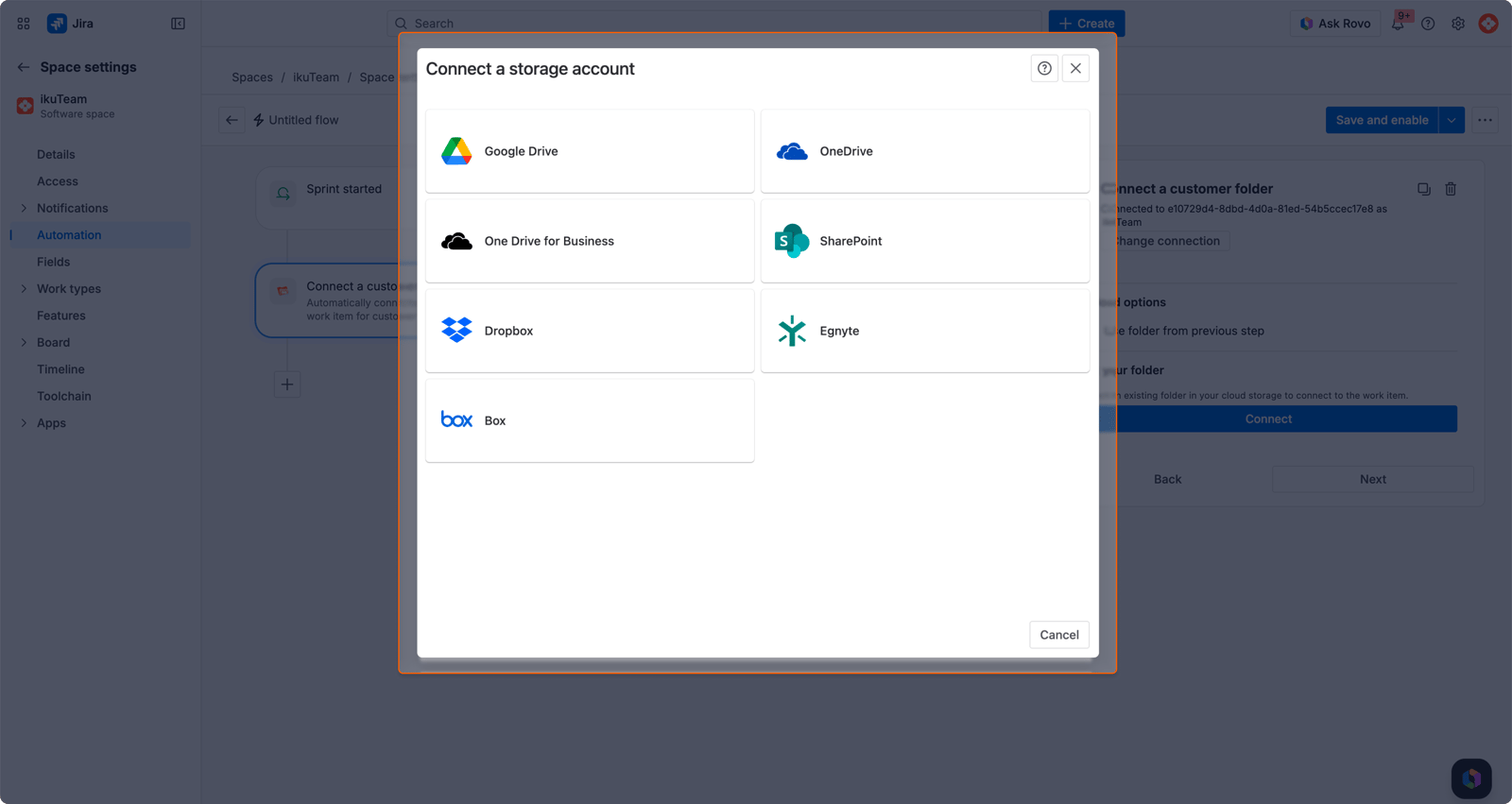
Under Set your folder, click Connect, choose your storage (SharePoint, OneDrive for Business or OneDrive), sign in if asked and select the folder where the new folders should go.
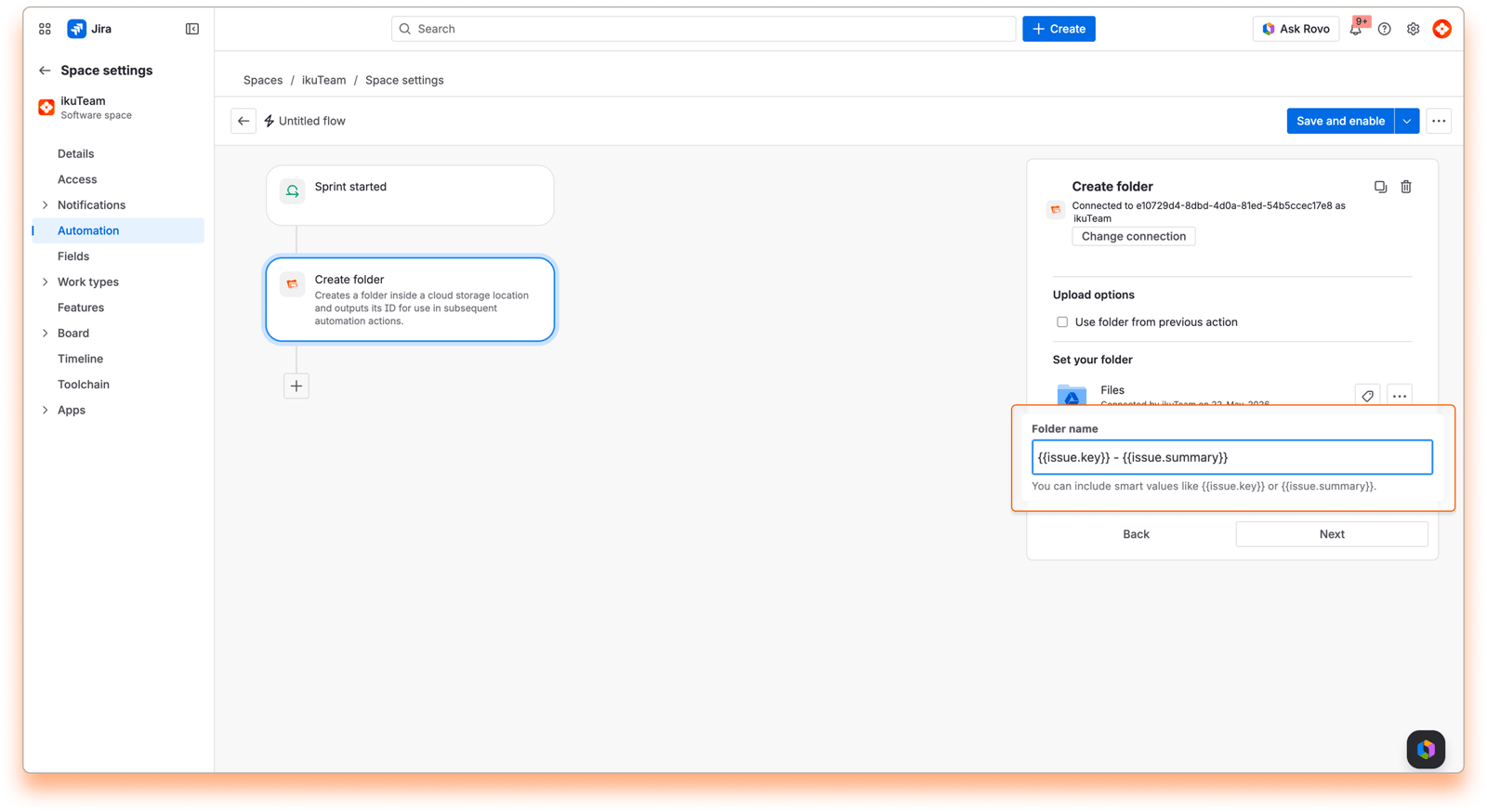
In Folder name, type the name for each new folder. Smart values make every name unique, for example {{issue.key}} - {{issue.summary}}. Under If a folder with this name already exists, choose Use the existing folder (the default) or Stop the rule and show an error.
Want to build on a folder from an earlier action in the same flow, such as one found with SharePoint - Find folder? Select Use folder from previous action, and the new folder is created inside it.
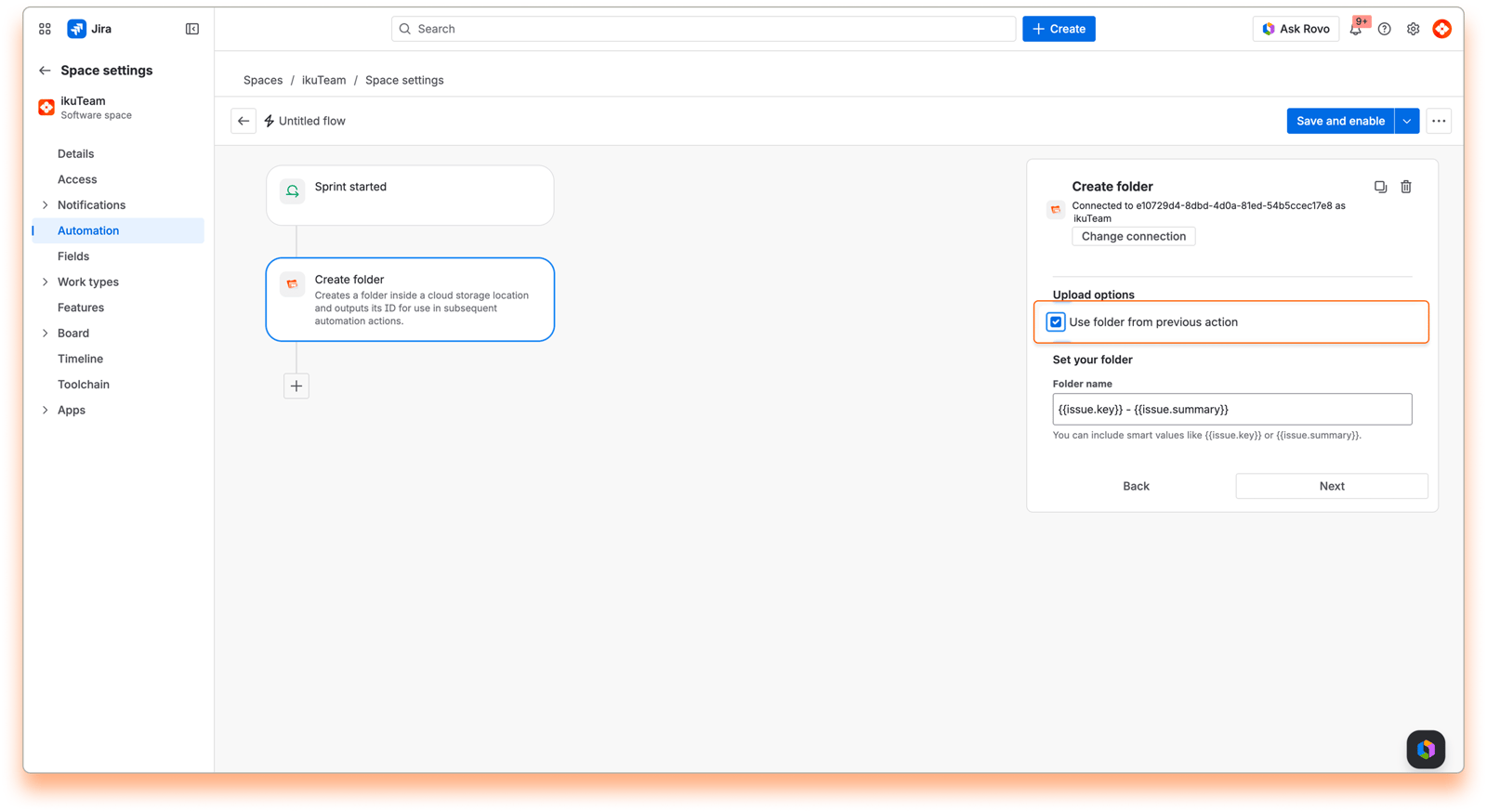
Add more actions if you need them. For example, add SharePoint - Connect a folder and select Use folder from previous step to attach the new folder to the work item. The full flow is in 4.3 Automation example 1: Create and connect a folder for new work items.
Give your flow a name, then click Save and enable.
Smart values let your flows use live Jira data instead of fixed text, like {{issue.key}}, {{issue.summary}} or {{project.name}}. To learn more, see Atlassian's guide What are smart values?
SharePoint Connector actions also return their own smart values, which you can use in any later action of the same flow.
After Create folder, Find folder, Connect a folder, Connect a customer folder or Connect folder to space:
{{createdTeamfilesFolder.folderId}}: the ID of the folder.
{{createdTeamfilesFolder.folderUrl}}: the web link to the folder in SharePoint or OneDrive.
{{createdTeamfilesFolder.rootFolderId}}: the ID of the connected folder it belongs to.
{{createdTeamfilesFolder.folderCreated}} (Create folder only): tells you whether this step created the folder or used an existing one.
After Attach a file or Copy file: {{createdTeamfilesFile.fileId}}, {{createdTeamfilesFile.fileUrl}} and {{createdTeamfilesFile.rootFolderId}}.
That's it, your first flow is ready. For more ideas, see the automation examples in this section, and Atlassian's Jira Cloud Automation documentation.


