

Confluence Google Drive Integration
Create a single source of truth with seamless syncing and real-time collaboration.
Read more


Applies to: SharePoint Connector for Jira, SharePoint and OneDrive for work or school
The first time someone in your organization connects SharePoint to SharePoint Connector, Microsoft may ask for an admin's approval. A Microsoft Entra admin (for example a Global Administrator or Cloud Application Administrator) approves the app once for the whole organization, and after that everyone can connect folders with their own account. That's expected, and it's easy to fix.
SharePoint already worked and now your folders show an error such as "Access denied" or ask you to reauthenticate? See 7.2 Connected SharePoint folders stopped working instead.
You connect a folder for the first time, choose SharePoint and sign in. Instead of your sites, you see a Microsoft prompt such as "Need admin approval" or "Approval required", or the sign-in fails with an authentication error.
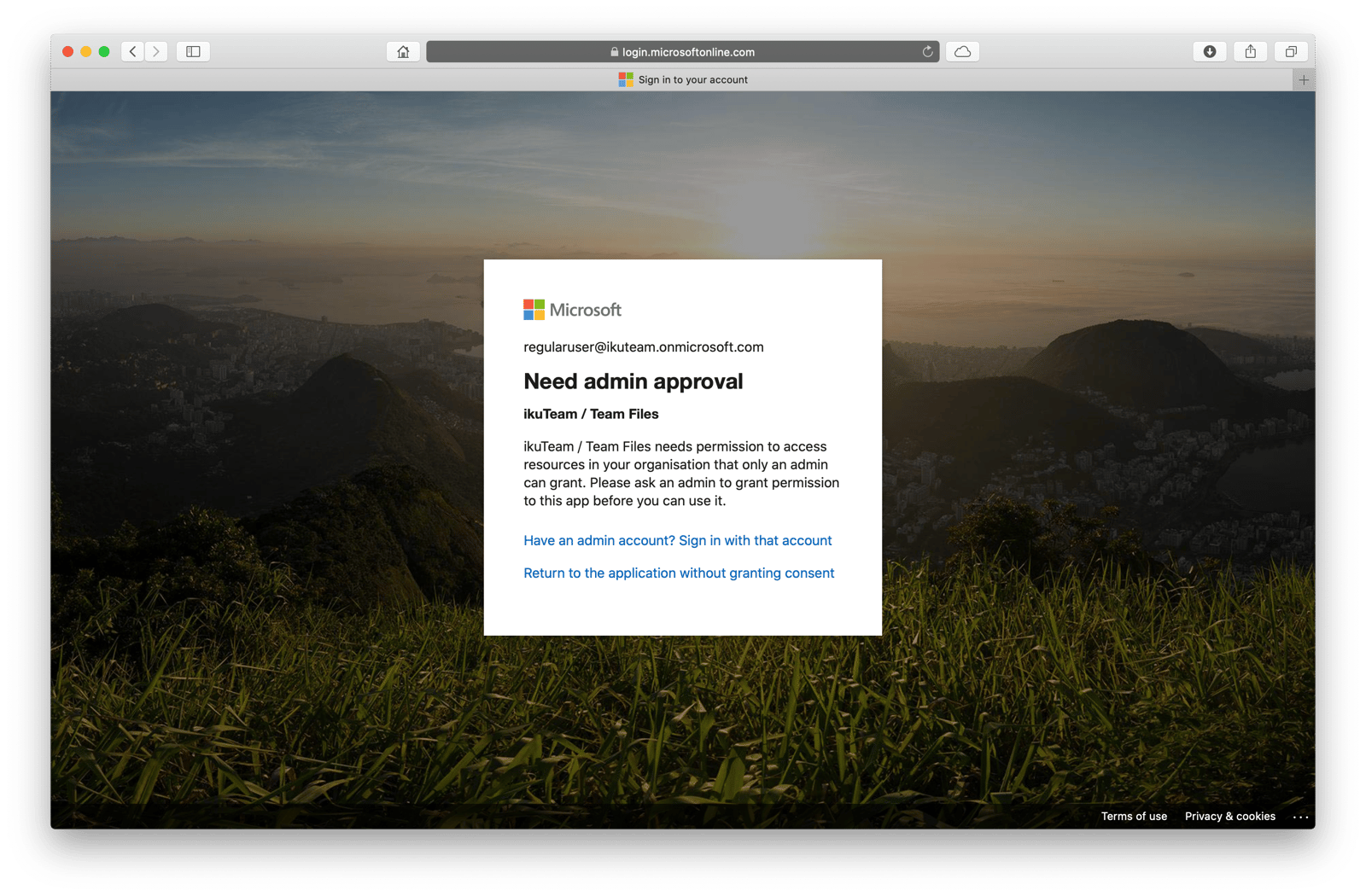
SharePoint Connector connects to SharePoint through an Enterprise Application called ikuTeam Apps - SharePoint and OneDrive in your Microsoft Entra ID (Azure AD) tenant. Many organizations only let admins approve new apps, so the first connection waits for that one-time approval.
SharePoint Connector is designed for highly regulated environments. It uses a delegated access model: every operation runs with each user's own SharePoint permissions, and the app has no read or write access of its own. User OAuth tokens are stored encrypted in Atlassian Forge storage, not in the browser and not on ikuTeam servers. Our information security management system is ISO/IEC 27001:2022 certified.
Ask a Microsoft Entra admin to do one of the following. Approving the app for the whole organization needs a role that can grant tenant-wide consent, such as Global Administrator or Cloud Application Administrator (the SharePoint Administrator role alone isn't enough). The admin doesn't need to be a Jira admin. It only needs to be done once for your organization.
The admin opens SharePoint Connector in Jira and clicks Connect folder.
They choose SharePoint and sign in with their Microsoft 365 admin account.
On the Microsoft consent screen, they select Consent on behalf of your organization and accept.
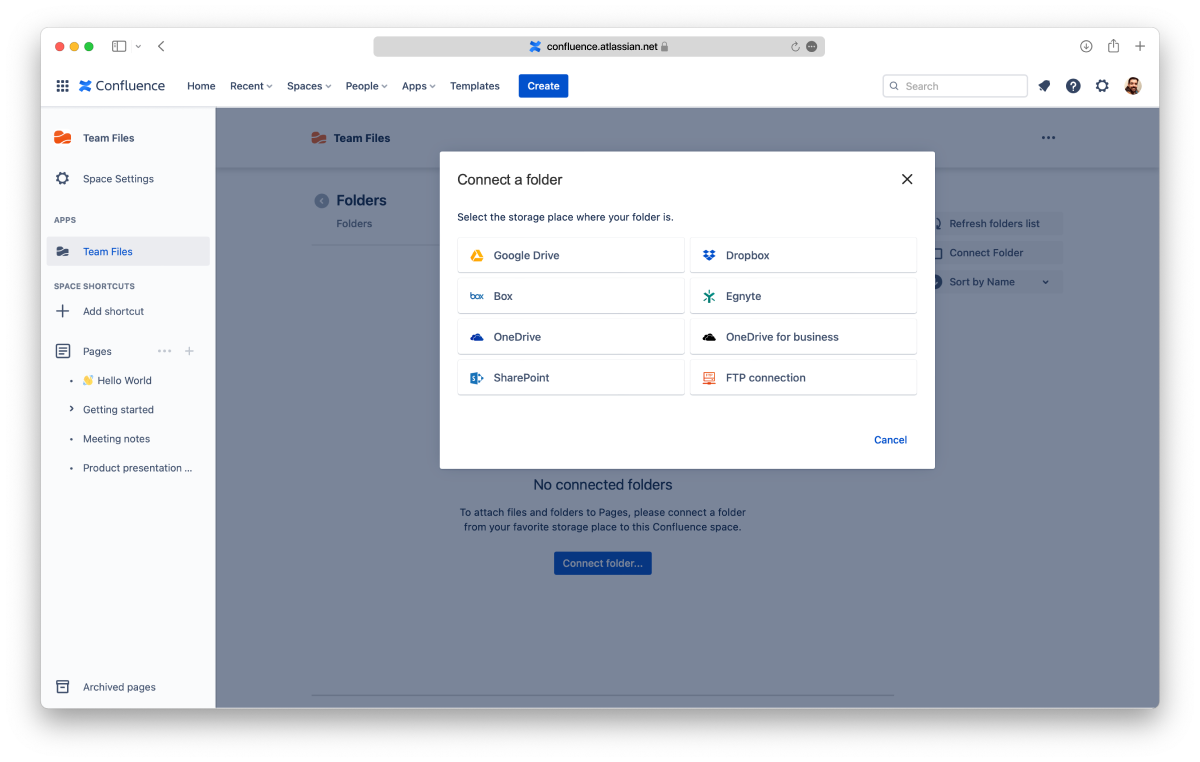
In Jira, open SharePoint Connector from its SharePoint & OneDrive tab at the top of your space (if you don't see it, expand the menu at the end of the tabs; in Jira Service Management spaces, use the sidebar).
Select … (More options) and then SharePoint & OneDrive settings.
Select SharePoint Permissions and click Authorize App.
Sign in as a Microsoft 365 admin and authorize the app on behalf of the organization.
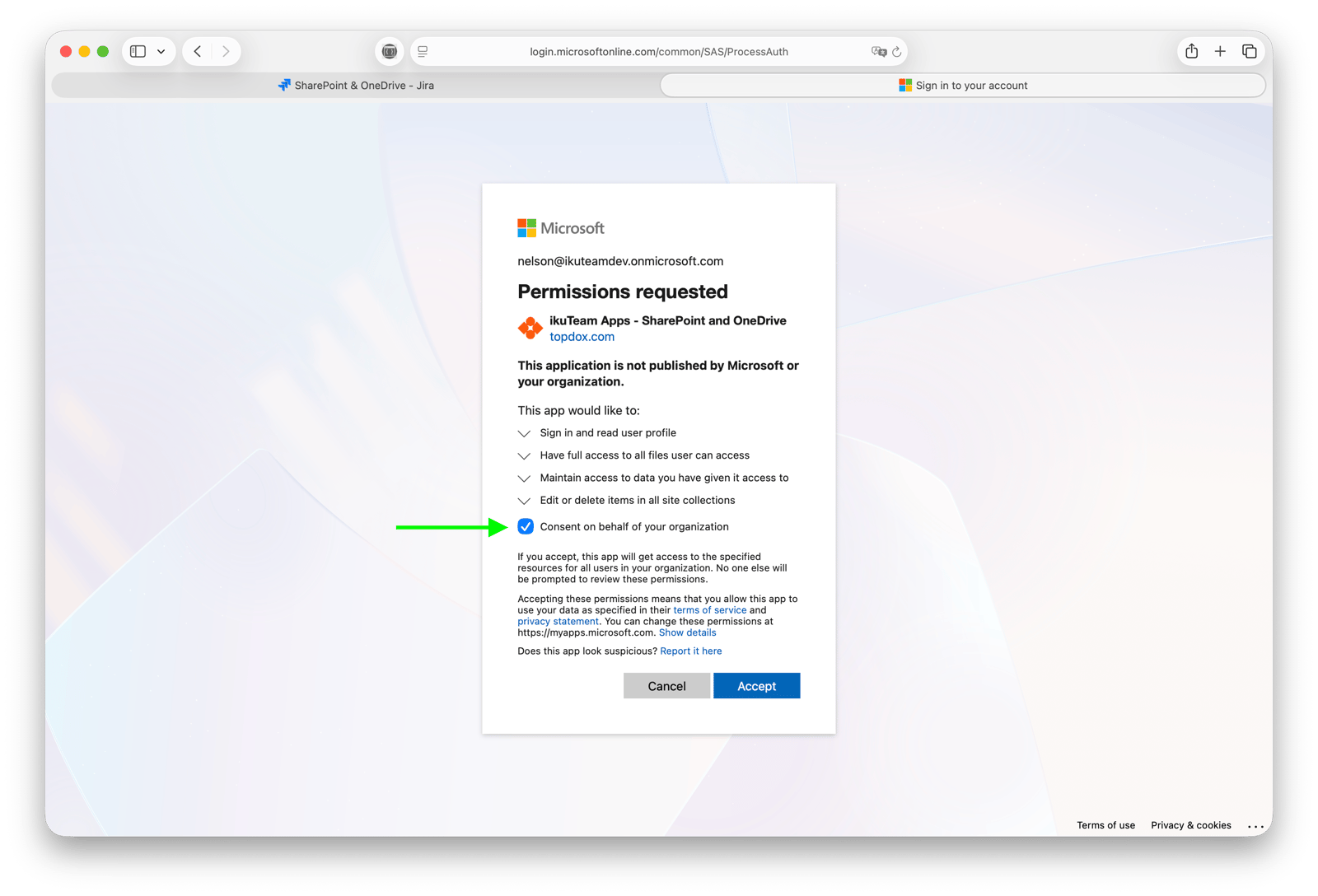
That's it. Every user can now connect SharePoint folders in Jira with their own account, with no further admin steps. Read and write access always follows each user's own SharePoint permissions.
SharePoint Connector uses these Microsoft Graph permissions on behalf of the user, through OAuth 2.0. They're delegated permissions, so they only ever reach what the signed-in user can already access.
Permission | Type | Description | Admin consent required |
|---|---|---|---|
| Delegated | Have full access to all files the user can access | No |
| Delegated | Edit or delete items in all site collections | No |
| Delegated | Sign in and read user profile | No |
| Delegated | Maintain access to data you have given access to | No |
Please keep these permissions in place after the approval. If they're removed or changed later, connected folders stop working (see 7.2).
With Mirror Storage Permissions ON (the default), each user signs in with their own SharePoint account and sees only what SharePoint allows them to see. Nothing changes on the SharePoint side. Learn more in 3.1 Admin settings and 3.1.1 What changes with Mirror Storage Permissions OFF.
Our support team is happy to help. Open a request in our support portal and, if you can, attach a HAR file (see Collecting a HAR file for support).


