

Confluence Google Drive Integration
Create a single source of truth with seamless syncing and real-time collaboration.
Read more


Applies to: SharePoint Connector for Jira, SharePoint and OneDrive for work or school
Your SharePoint folders worked before, and now they won't open. You see an error such as Access denied, or the app asks you to reauthenticate. This almost always means your organization's approval of the ikuTeam app in Microsoft Azure was removed or changed. A Microsoft Entra admin (for example a Global Administrator or Cloud Application Administrator) can grant it again in about a minute, and your connected folders come back exactly as they were.
Setting up SharePoint for the first time and seeing a "Need admin approval" prompt? See 7.1 Set up SharePoint for the first time: admin approval instead.
Folders that were already connected to your Jira spaces stop opening and show an error such as Access denied or Reauthentication required, or the app can't find a SharePoint site anymore.
Files attached from those folders to work items stop loading.
You can still open the same sites and folders in SharePoint on the web.
After an app update (for example, when SharePoint Connector moved to Atlassian Forge), people are asked to authorize the app again, even though Atlassian still lists it as connected.
SharePoint Connector reads SharePoint through the Microsoft Graph API, using an Enterprise Application called ikuTeam Apps - SharePoint and OneDrive in your Microsoft Entra ID (Azure AD) tenant. Your organization approved this app once, when SharePoint was first set up. The Graph permissions it uses are delegated, so the app always works with each person's own SharePoint access.
If someone later removes that approval or changes the app's permissions in Azure (for example during a security review or a tenant clean-up), Microsoft Graph refuses the app's requests. Opening SharePoint in the browser still works, because web access and app access are granted separately.
A Microsoft Entra admin grants admin consent again. This needs a role that can grant tenant-wide consent, such as Global Administrator or Cloud Application Administrator. The SharePoint Administrator role alone isn't enough. Granting consent again doesn't reset the app or disconnect your folders.
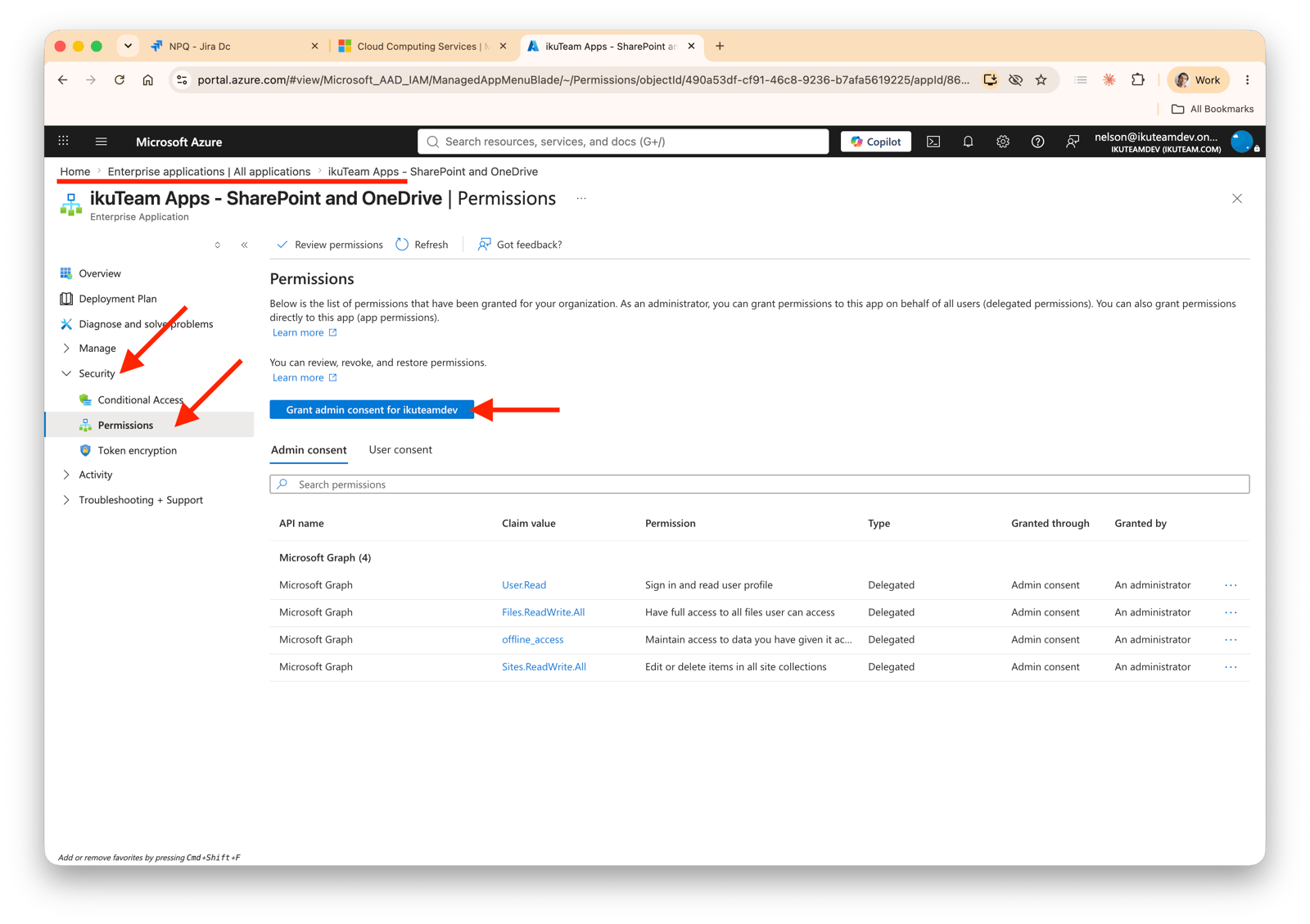
Go to the Azure portal at https://portal.azure.com/.
Open Enterprise Applications and search for ikuTeam.
Open the ikuTeam Apps - SharePoint and OneDrive application, then go to Security > Permissions.
Select Grant admin consent and accept the prompt.
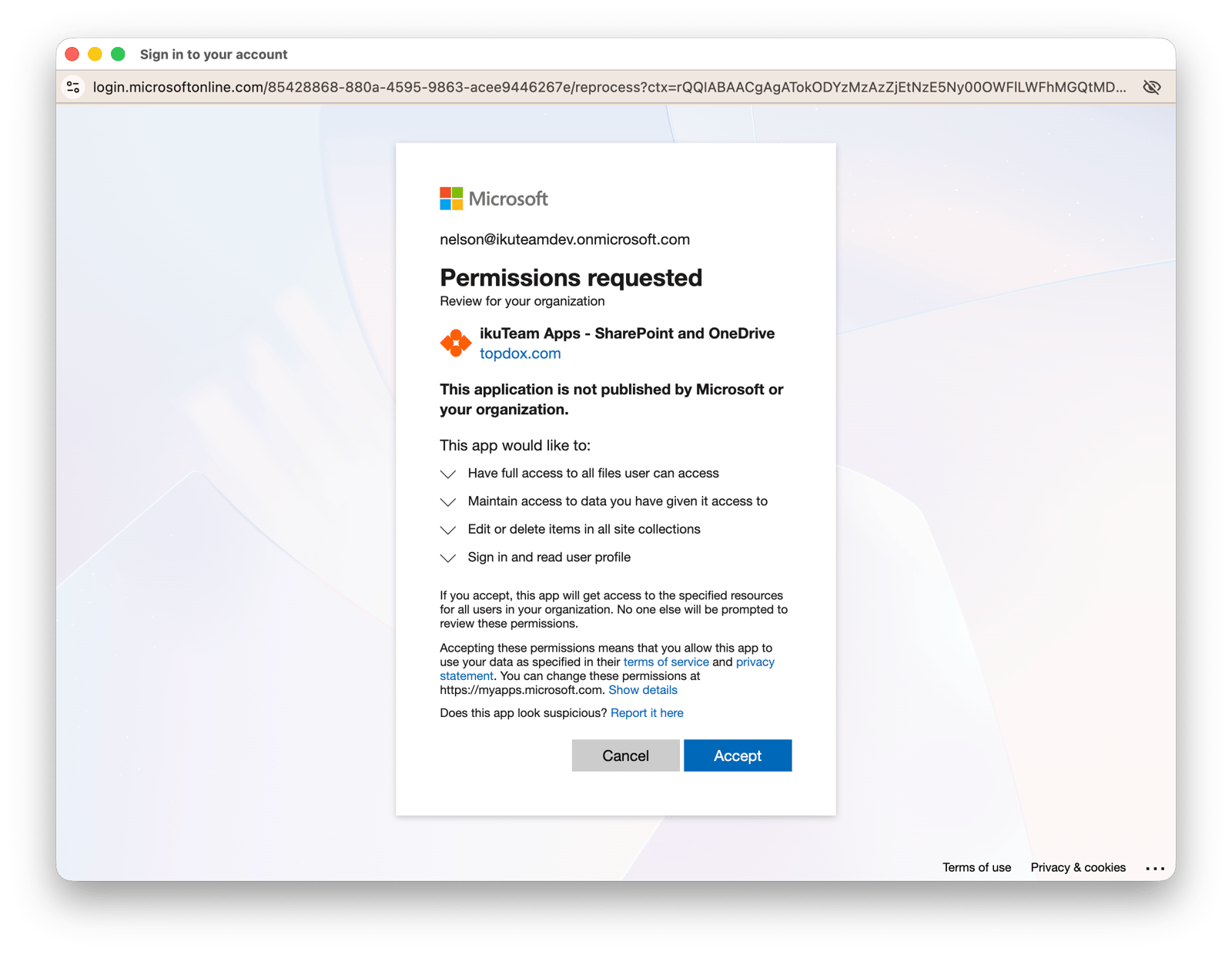
Then reload the work item or the file manager in Jira. Your connected folders work again. You may be asked to sign in to SharePoint once more.
The ikuteam application needs these Microsoft Graph permissions. Removing or changing them is the most common cause of this problem, so please keep them in place:
Files.ReadWrite.All
Sites.ReadWrite.All
User.Read
offline_access
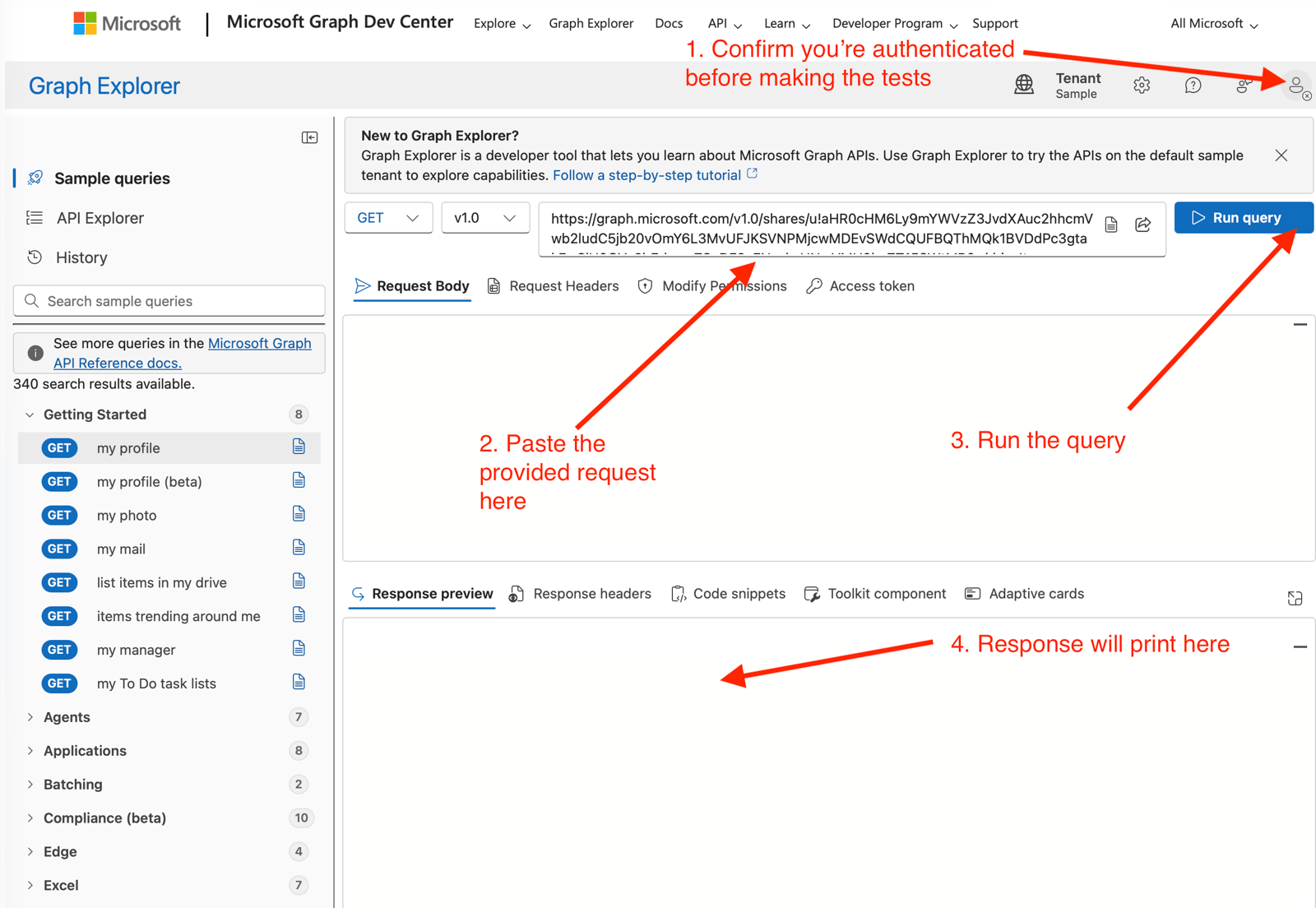
If you'd like to confirm the diagnosis before granting consent, reproduce the check in Microsoft Graph Explorer, signed in with the same account you use in SharePoint Connector.
Open https://developer.microsoft.com/en-us/graph/graph-explorer and sign in.
List your sites: GET https://graph.microsoft.com/v1.0/sites?search=*&$top=200 and look for the site.
Resolve the folder: GET https://graph.microsoft.com/v1.0/shares/u!{base64url-encoded-share-URL}/driveItem.
If these return Forbidden, add the Sites.ReadWrite.All and Files.ReadWrite.All scopes in the Graph Explorer permissions panel and run them again. If they then succeed, the fix is to grant those same permissions to the ikuteam app in Azure, as described above.
In SharePoint, open the folder and use Copy link to get a share URL (something like https://yourtenant.sharepoint.com/:f:/s/YourSite/...?e=...). A browser address-bar URL can point to the whole library instead of the folder, so a Copy link result is more reliable.
Base64-encode that URL, then make it URL-safe: remove any trailing =, replace / with _ and + with -, and add u! at the start.
Terminal (macOS or Linux):
printf '%s' 'PASTE_FOLDER_URL_HERE' | base64 | tr -d '\n=' | tr '/+' '_-' | sed 's/^/u!/'No share link handy? You can address the folder by path instead: GET https://graph.microsoft.com/v1.0/sites/yourtenant.sharepoint.com:/sites/YourSite:/drive/root:/Folder Name:/children
Your connections are safe. Granting admin consent again restores access without resetting the app, so your connected folders and work item attachments stay intact.
Only one folder affected? If other folders still work, check that the folder still exists and that your account can open it in SharePoint. To reconnect a specific folder by its address, see 7.3 Finding a SharePoint site manually.
Keep a record. Note who granted admin consent and when. If your organization reviews app permissions later, it helps to know who to ask.
If the error continues after your admin has granted consent, open a request in our support portal. Please include the folder URL and, if you can, a HAR file of the failing attempt (see Collecting a HAR file for support). We're happy to help you get it working again.


