

Confluence Google Drive Integration
Create a single source of truth with seamless syncing and real-time collaboration.
Read more


You can install the SharePoint Connector for Jira app from the Atlassian Marketplace, then open it from the SharePoint & OneDrive tab at the top of your Jira space. If you don't see the tab, expand the menu at the end of the tabs to find it. You can also drag the tab to the position you prefer. In Jira Service Management spaces, SharePoint & OneDrive is in the space sidebar. By default, the app is turned on for all spaces.
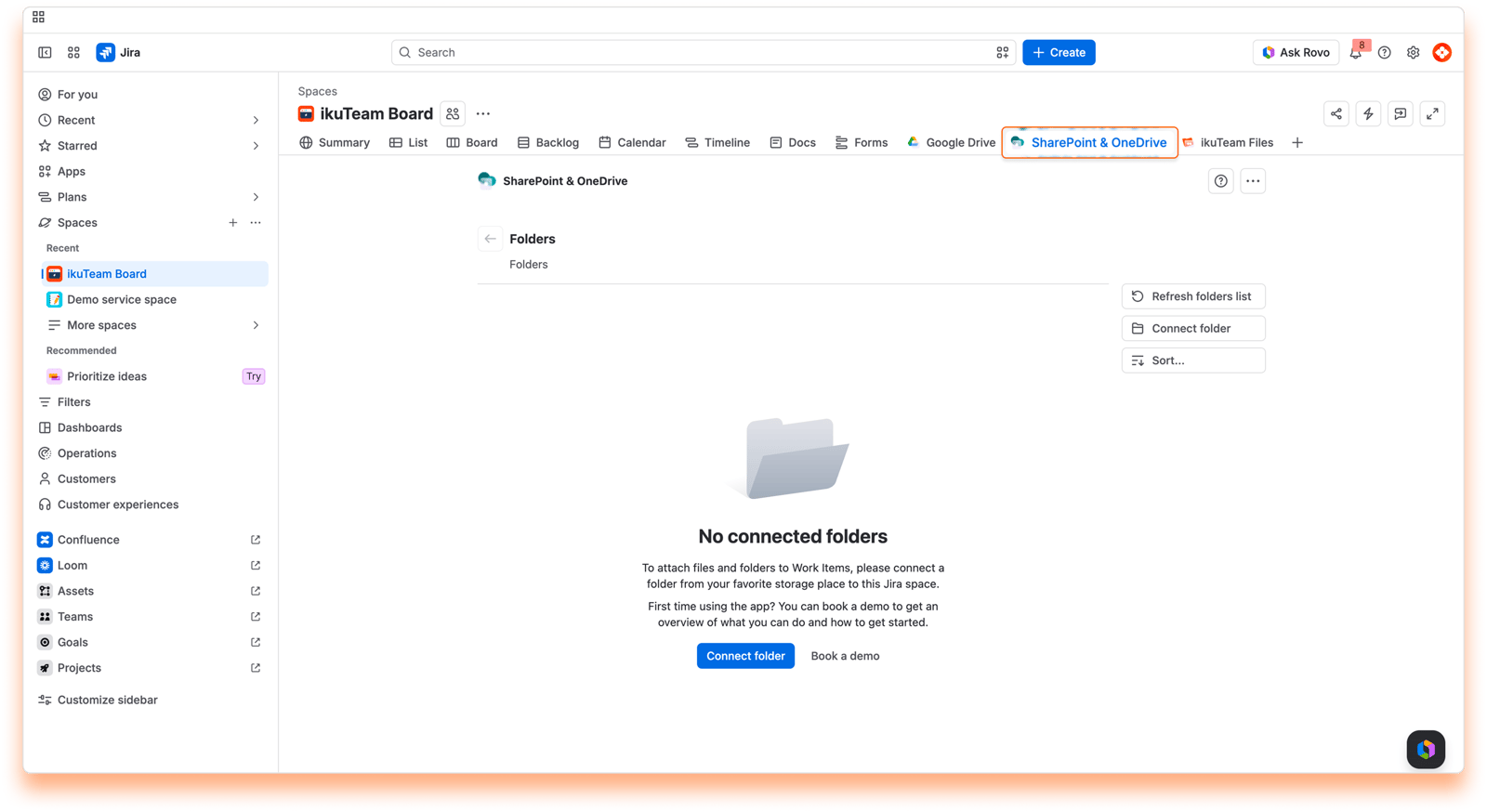
You don't need an ikuTeam account to use the app. You sign in with your Microsoft account when you connect your first folder. You can add a folder to a space from the SharePoint Connector file manager, or connect folders automatically with Jira global automation (Advanced Edition).
If there's already a folder connected when you first open the app, someone in your team already shared a folder. You can use that one or add more, following the same steps.
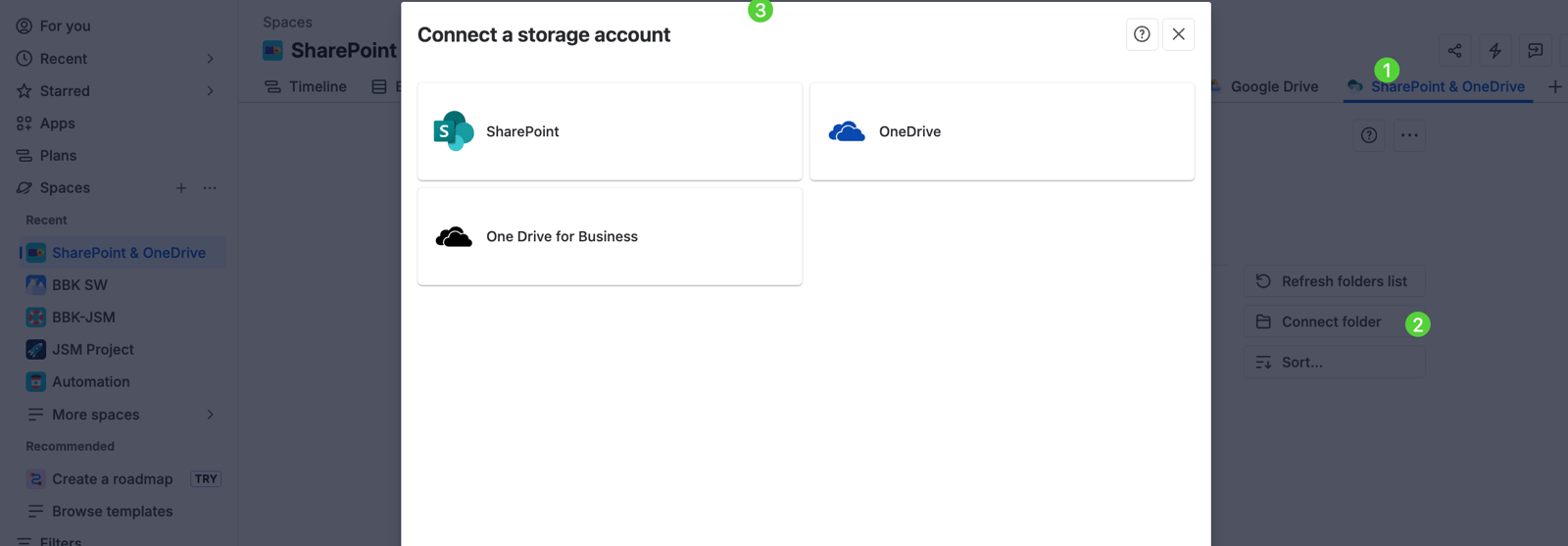
Open the SharePoint & OneDrive tab at the top of your Jira space. If you don't see it, expand the menu at the end of the tabs to select it. In Jira Service Management spaces, SharePoint & OneDrive is in the space sidebar.
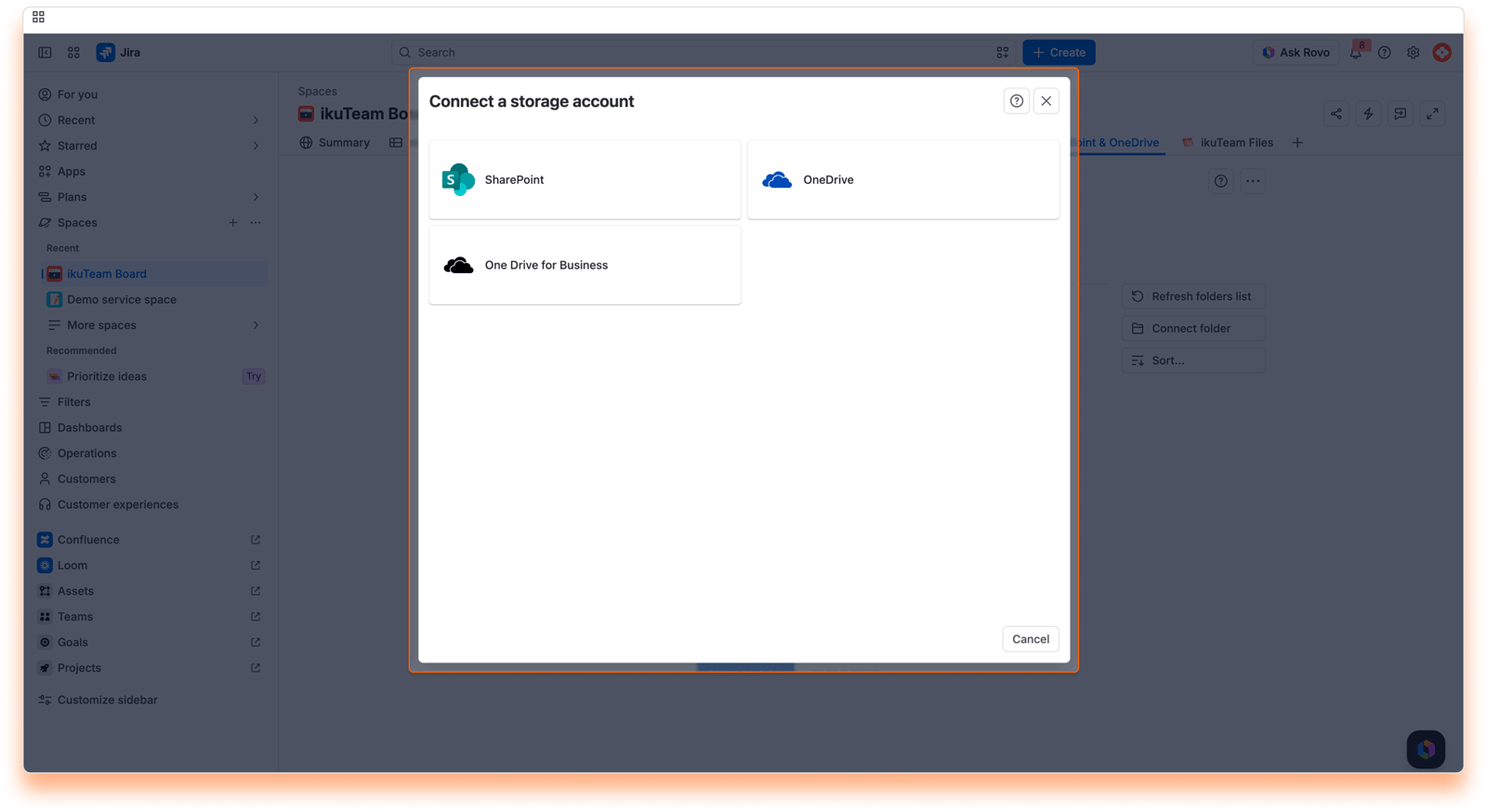
You can connect a folder stored in SharePoint, OneDrive for Business, or OneDrive.
You can connect more places later from the file manager. Learn more
Learn how to authorize the SharePoint Connector for Jira app to access the content in your SharePoint account so that you can connect a folder.
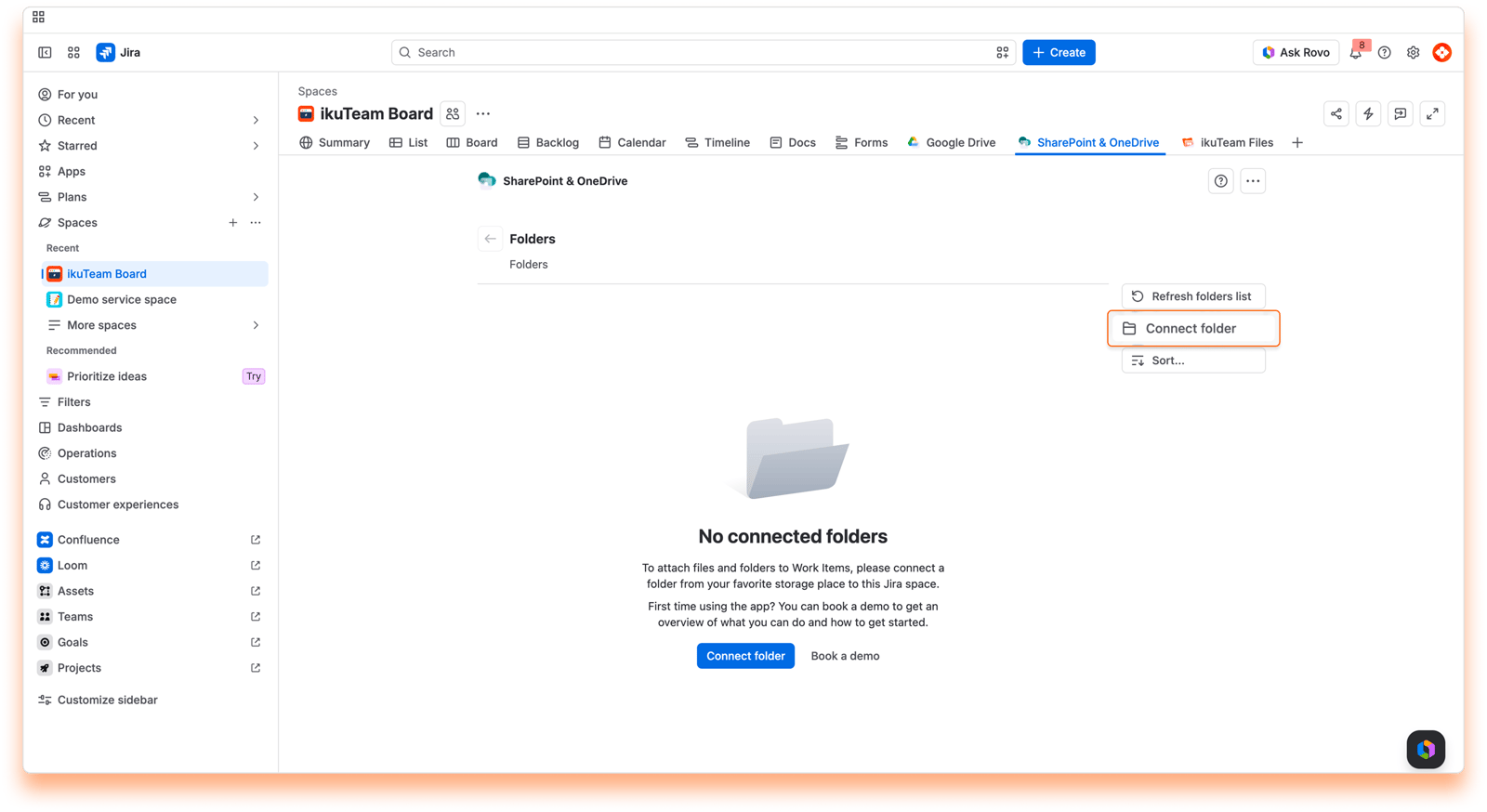
In the file manager, click the "Connect folder" button on the right (or select the option from the [···] menu if the window is too narrow).
If it's your first time connecting to a storage place, skip this step. The modal dialog shows a list with your connected storages. Click the "Connect account" button.
Select SharePoint from the list.
Sign in when the screen loads.
Press the "Allow" button.
You can now browse your SharePoint to connect a folder to your Jira space.
We never store your username or password. We use state-of-the-art OAuth 2.0 to connect securely through an encrypted connection. The app gets an authorization token to use the storage. You can revoke this authorization at any time.
Using SharePoint for the first time? Check 7.1 Set up SharePoint for the first time: admin approval.
Learn how to authorize the SharePoint Connector for Jira app to access the content in your OneDrive for Business account so that you can connect a folder.
In the file manager, click the "Connect folder" button on the right (or select the option from the [···] menu if the window is too narrow).
If it's your first time connecting to a storage place, skip this step. The modal dialog shows a list with your connected storages. Click the "Connect account" button.
Select OneDrive for Business from the list.
Sign in when the screen loads.
Press the "Allow" button.
You can now browse your OneDrive for Business to connect a folder to your Jira space.
We never store your username or password. We use state-of-the-art OAuth 2.0 to connect securely through an encrypted connection. The app gets an authorization token to use the storage. You can revoke this authorization at any time.
Using SharePoint or OneDrive for Business for the first time? Check 7.1 Set up SharePoint for the first time: admin approval.
Please make sure to allow pop-ups in your browser. It will open a new tab to let you authorize the remote storage for your Jira site.
Once the connection is successful the previous tab will give you a success message and the site will be added to the list.
SharePoint tip: If you can’t see the site where your folder is, you can use “Find site” and “Connect by URL” to directly use the site address or the folder link. See 7.3 Finding a SharePoint site manually.
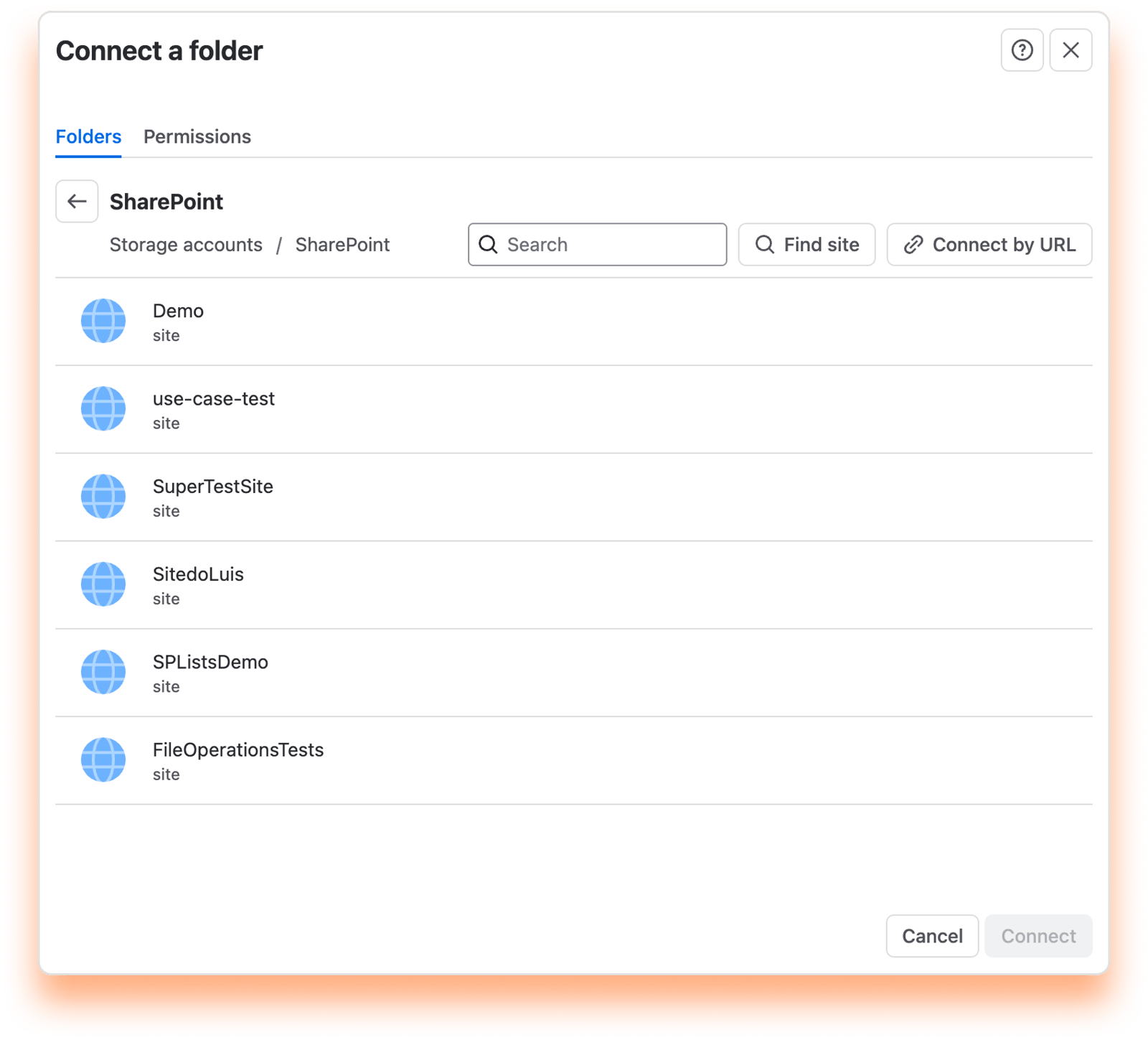
Use the checkbox to select the folder you want to connect.
We recommend connecting a folder where you and your team store your documents, but you can start with a new one by clicking the "New folder" button.
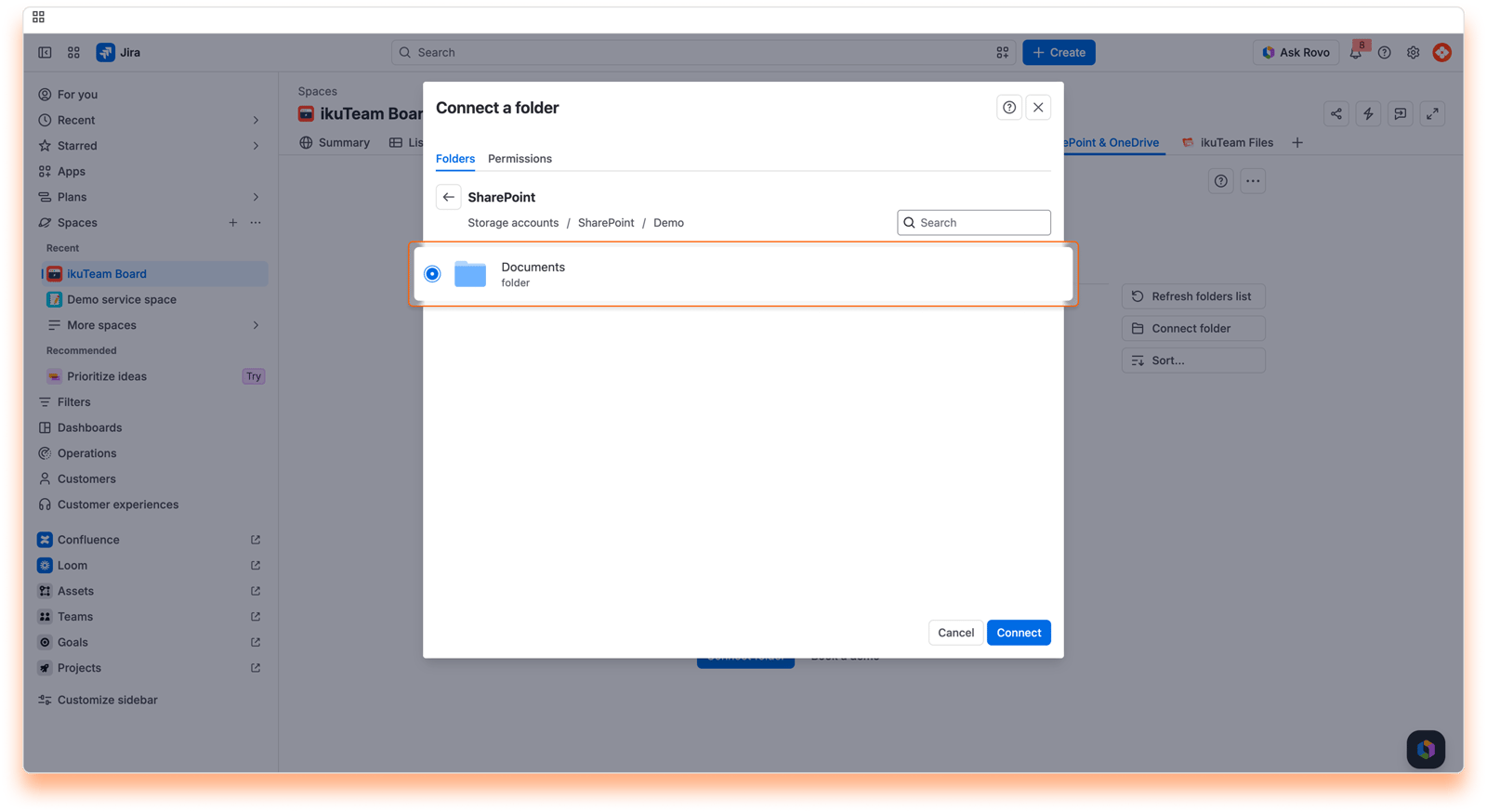
Tip: You can select multiple folders.
Click the "Permissions" tab. By default, your team can view and edit any folders you connect. If you want to limit access or block the edit feature, click the dropdown to change the permissions.
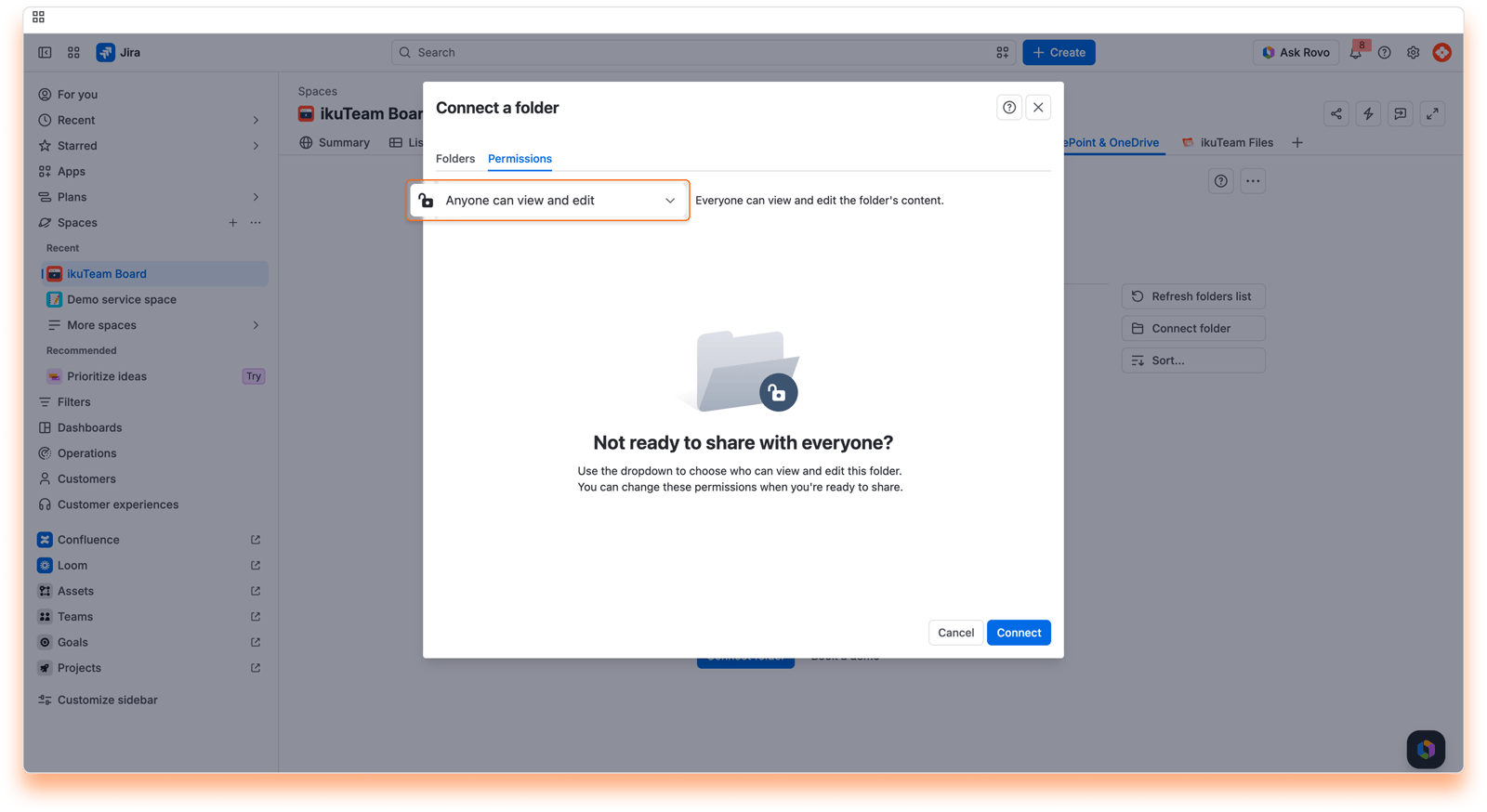
For more information, check the permissions page.
You’re all done. You're ready to use the app. Learn more about the file manager, how to edit documents, and how to attach files and folders to your work item.
Go to Settings > System > Global automation and click Create flow.
Pick the type of space and the condition that triggers the automation.
Add a new action to your flow and select SharePoint - Create folder.
Click the Connect button to authorize your SharePoint or OneDrive account.
Choose the parent folder where you want these new folders to be organized.
In Folder name, enter {{project.name}}, so each new folder is named after its space.
Add another action and select SharePoint - Connect folder to space. Select Use folder from previous action and enter {{project.id}} as the Space ID. Click Save and enable. From now on, every new space gets its own folder, ready in its SharePoint & OneDrive tab.
For the full walkthrough, see Flow 1 in 4.6 Automation example 4: Automate the complete attachment workflow, including a known issue: the connected folder may show its parent folder's name, and you can rename it. New to automation? Start with 4.2 Set up your first automation flow.
SharePoint and OneDrive are your single source of truth. A few things to know:
When you share the same file on several Jira work items, an edit made in one place shows up in all of them.
If someone deletes a file or folder attached to a work item in SharePoint or OneDrive, it's no longer available in Jira.
If someone edits an attached file in SharePoint or OneDrive, for example with a desktop app, you see the changes in Jira too.
This way you avoid duplicates and untracked versions across tools: one file, the same everywhere. Just handle it with care.


