

Confluence Google Drive Integration
Create a single source of truth with seamless syncing and real-time collaboration.
Read more


Adjust the SharePoint & OneDrive Settings to your needs.
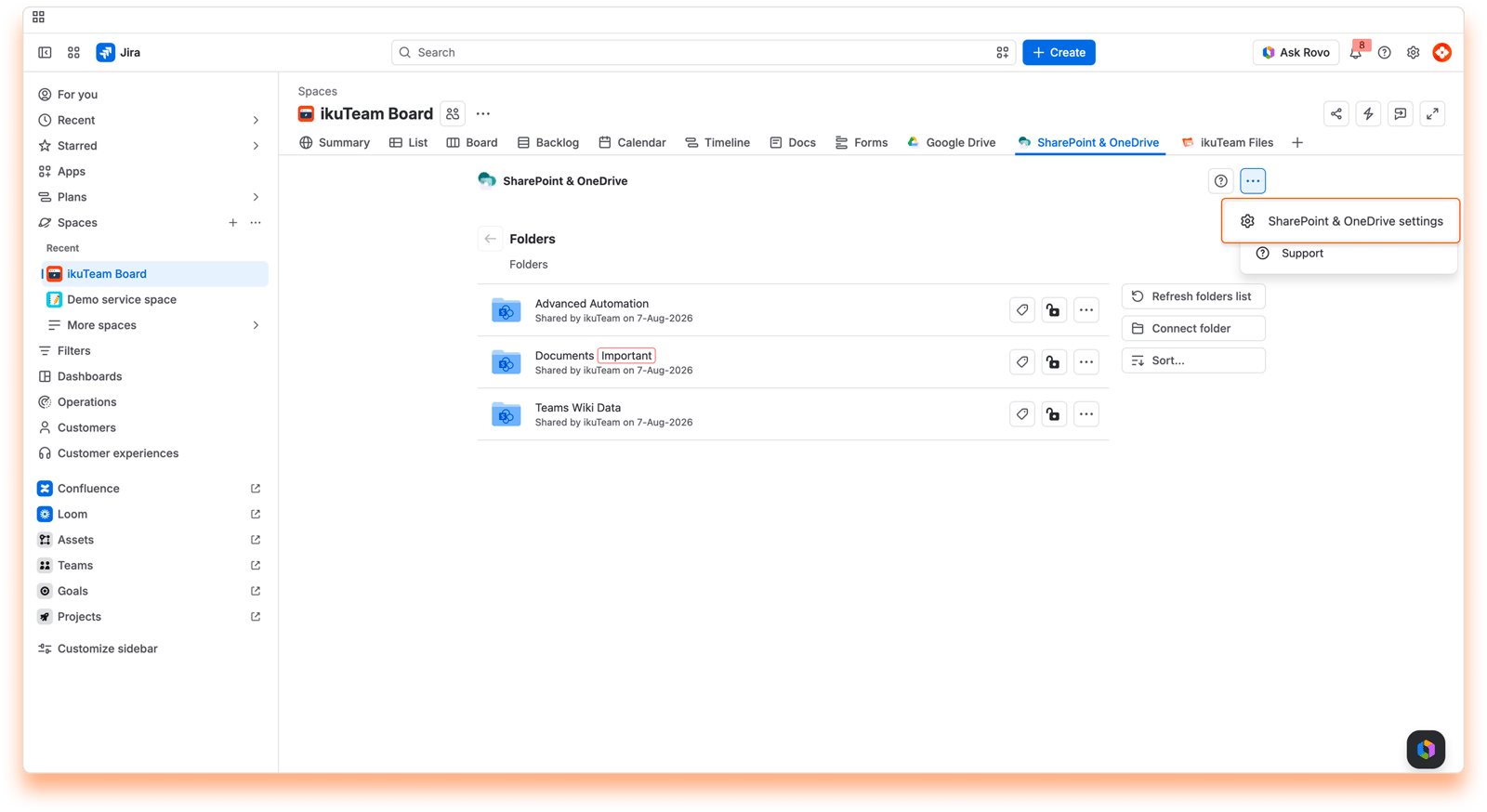
To open the settings, go to the file manager from the SharePoint & OneDrive tab at the top of the space (or from the sidebar in Jira Service Management spaces), click the "More options" button, and select "SharePoint & OneDrive settings". You'll find three tabs: Accounts, SharePoint Permissions and Help.
You can manage your connected SharePoint and OneDrive accounts from the "Accounts" tab inside the SharePoint & OneDrive Settings. You're in control of your storage accounts: only you can see the accounts you connected, and only you can disconnect them.
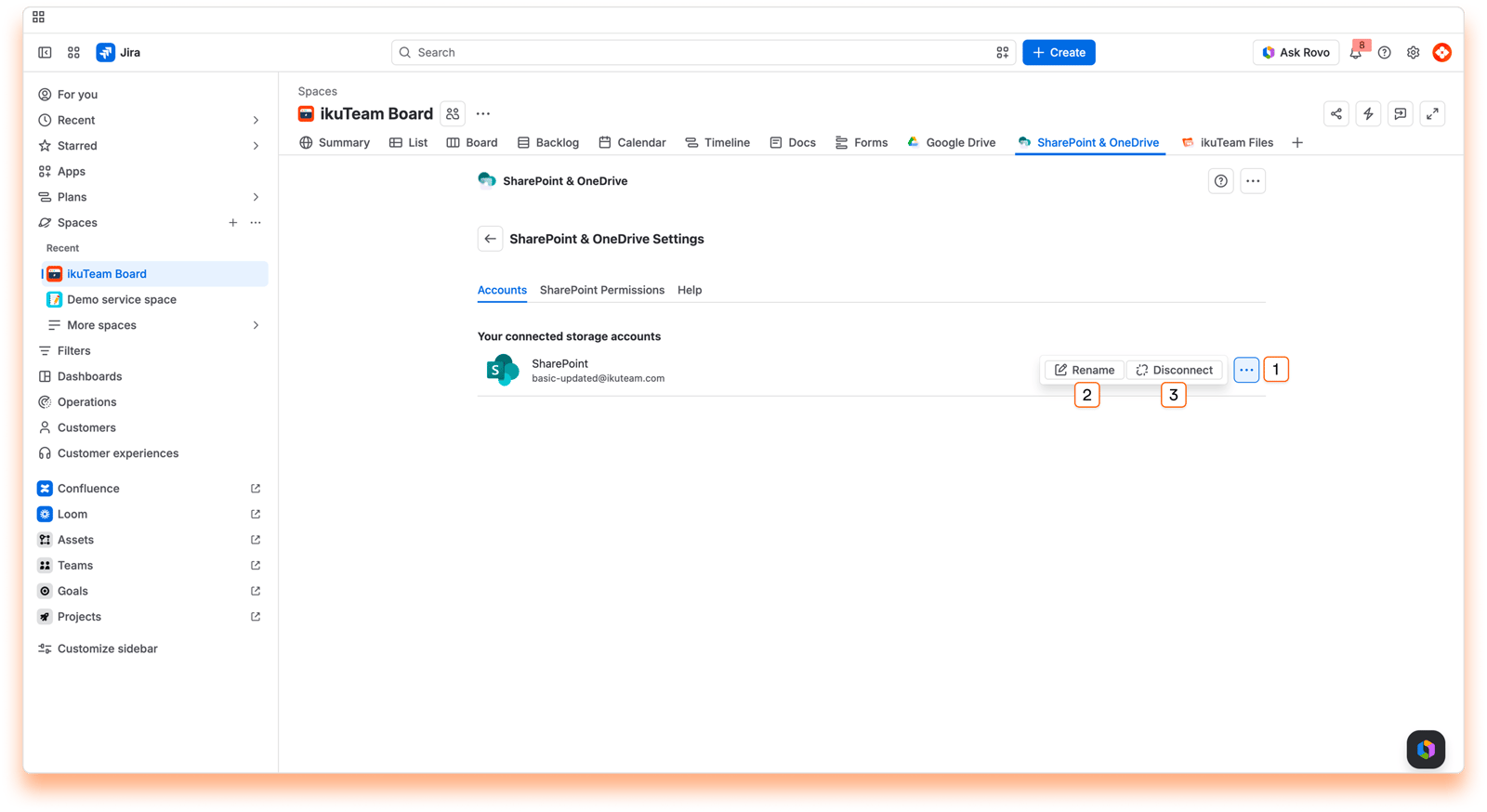
List of your connected storage accounts.
Context menu button
Rename account option
Disconnect account option
You can connect several accounts from the same service. By default, each new account is named after its service (for example, "SharePoint"). To keep things organized, you can rename your accounts to something more meaningful to you.
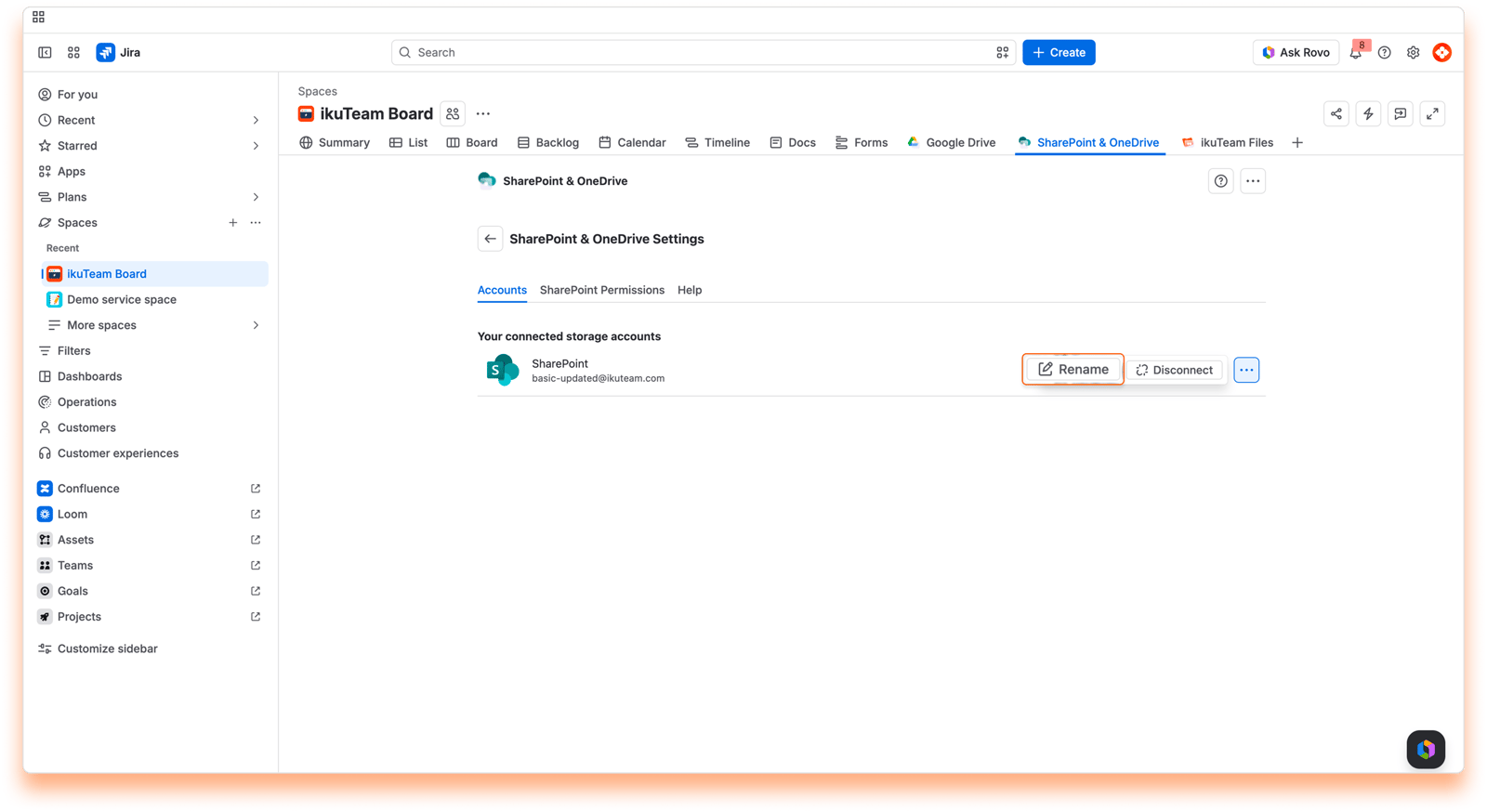
Click the context menu button on the right side of the account you want to rename.
Click the "Rename" option.
Enter the new name and click "Rename".
That's it. Updating the name just takes a few moments, and it's ready to use.
You can also rename and manage your storage accounts from the "Connect a folder" dialog.
Before getting into how to do it, it's relevant to know that you're only breaking the link in the SharePoint Connector for Jira app to SharePoint or OneDrive when you disconnect a storage account. All your content is safe, and the folders you connected stay connected. With Mirror Storage Permissions ON, you're signed out of the connected folders you used with that account, so you need to authenticate them again to access their files and attachments. With Mirror Storage Permissions OFF, the folders you connected with that account, and the files and folders attached from them, become temporarily inaccessible until you connect the same account again.
If you disconnect an account by mistake, connect the same account again to restore access to those folders and attachments.
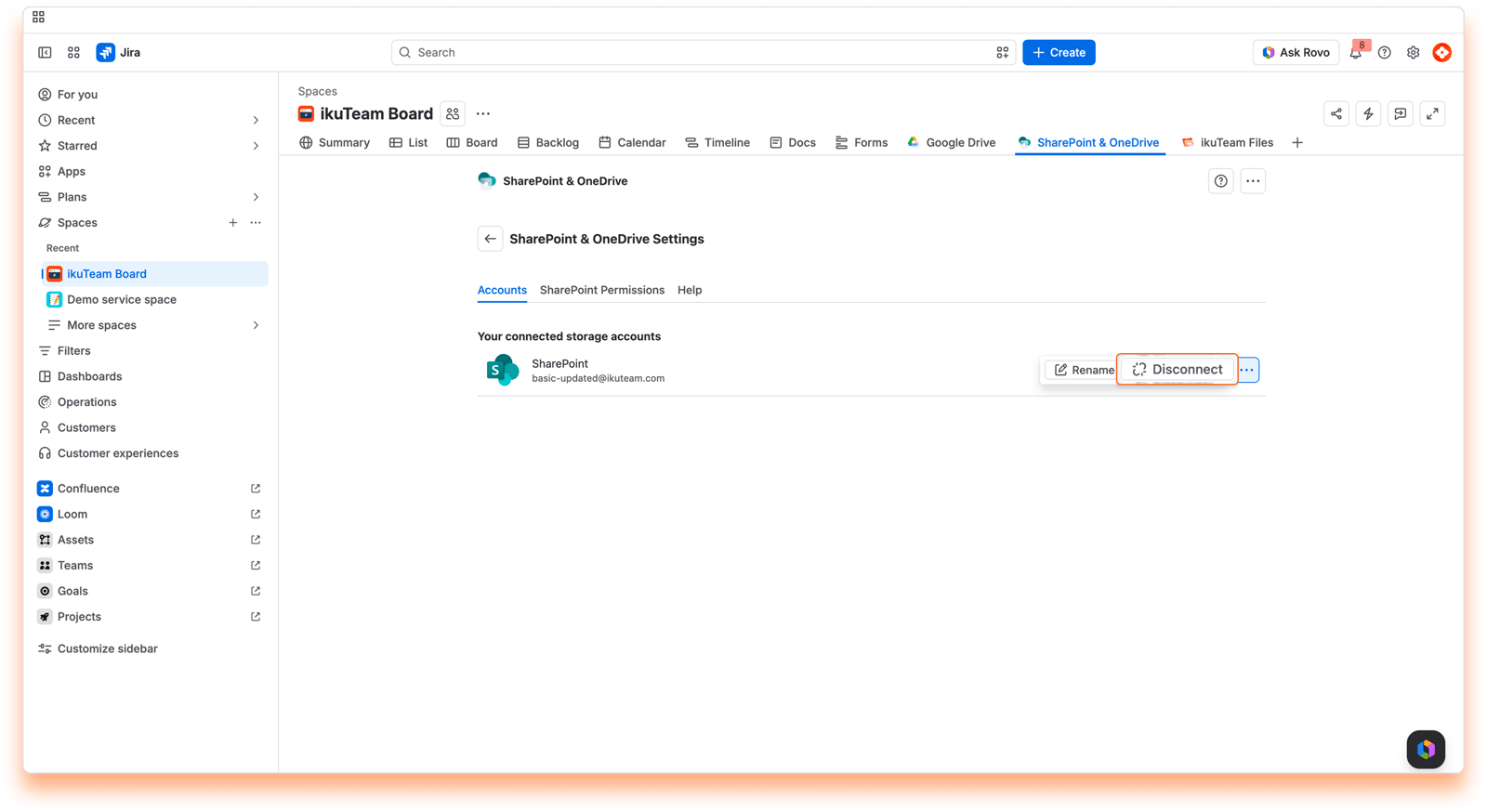
Click the context menu button on the right side of the account you want to disconnect.
Click the "Disconnect" option.
Confirm by clicking the "Disconnect" button.
All done. The content in SharePoint and OneDrive is safe and sound, but this account is no longer available in the SharePoint Connector for Jira app.
You can also disconnect and manage your storage accounts from the "Connect a folder" dialog.
The "SharePoint Permissions" tab is where a Microsoft Entra admin (for example a Global Administrator or Cloud Application Administrator) approves SharePoint Connector for your whole organization. It only needs to be done once. After that, everyone can connect SharePoint folders with their own account, and access always follows each person's own SharePoint permissions.
Select the "SharePoint Permissions" tab.
Click the "Authorize App" button.
Sign in with your Microsoft 365 admin account and authorize the app on behalf of your organization.
All set. The tab now shows the date a Microsoft Entra admin authorized the app.
Not a Microsoft Entra admin? Share these steps with yours. For the full walkthrough, including how to approve the app while connecting a folder, see Set up SharePoint for the first time: admin approval.
The Help tab contains a brief description of the app, information about the team that developed it, and links to learn more.
You also find the links to contact the support team and to this documentation.
On this page, you learned about all the settings available at the moment. As we introduce new features, we'll add additional settings so you can further customize your experience.
If you still have questions about the topics covered on this page, visit our support portal and send them to us. Our team is always happy to help.


