team-files-vs-confluence-1
Confluence Smart Links Explained
See how they work, where they fail with external files, and more secure, consistent management alternatives.
Read more: Confluence Smart Links Explained
untitled_Flux 2 Pro_2026-03-26_21-41-00
Jira SharePoint Integration
Discover how to sync files, automate folders, and enhance collaboration in Jira Cloud and Data Center.
Read more: Jira SharePoint Integration
Porto-pic
About us
From the start, our goal has been to remove the hidden friction that prevents teammates from collaborating easily on the files that matter most. We believe productivity is not about adding more tools but making the ones you already use work together seamlessly. Based in Porto, ikuTeam builds the invisible layer for the Atlassian ecosystem to dissolve file silos and help over a million users stay focused and move faster.
Read more: About us
team-files-vs-confluence-1

Confluence Smart Links Explained

See how they work, where they fail with external files, and more secure, consistent management alternatives.
Read more: Confluence Smart Links Explained
untitled_Flux 2 Pro_2026-03-26_21-41-00

Jira SharePoint Integration

Discover how to sync files, automate folders, and enhance collaboration in Jira Cloud and Data Center.
Read more: Jira SharePoint Integration

About us

From the start, our goal has been to remove the hidden friction that prevents teammates from collaborating easily on the files that matter most. We believe productivity is not about adding more tools but making the ones you already use work together seamlessly. Based in Porto, ikuTeam builds the invisible layer for the Atlassian ecosystem to dissolve file silos and help over a million users stay focused and move faster.
Read more: About us
Porto-pic
Product Documentation

Nov 19, 2026

4.3 Applying a workflow

Let's learn how to add a workflow to your pages, so the files attached to them can be reviewed and approved.


About applying a workflow

Every workflow created on your site can be used on pages in any space. Each page uses one workflow at a time. You can add a workflow in two ways:

  • From a page: page editors add a workflow to the page they're working on.

  • From the Workflows Overview: add a workflow to several spaces at once.

You need permission to edit a page to add a workflow to it.


Add a workflow from a page

  1. Open the page with the files you want to review.

  2. Select Attachments next to the page title. If the page doesn't have a workflow yet, you'll see a short message.

  3. Select Add a workflow.

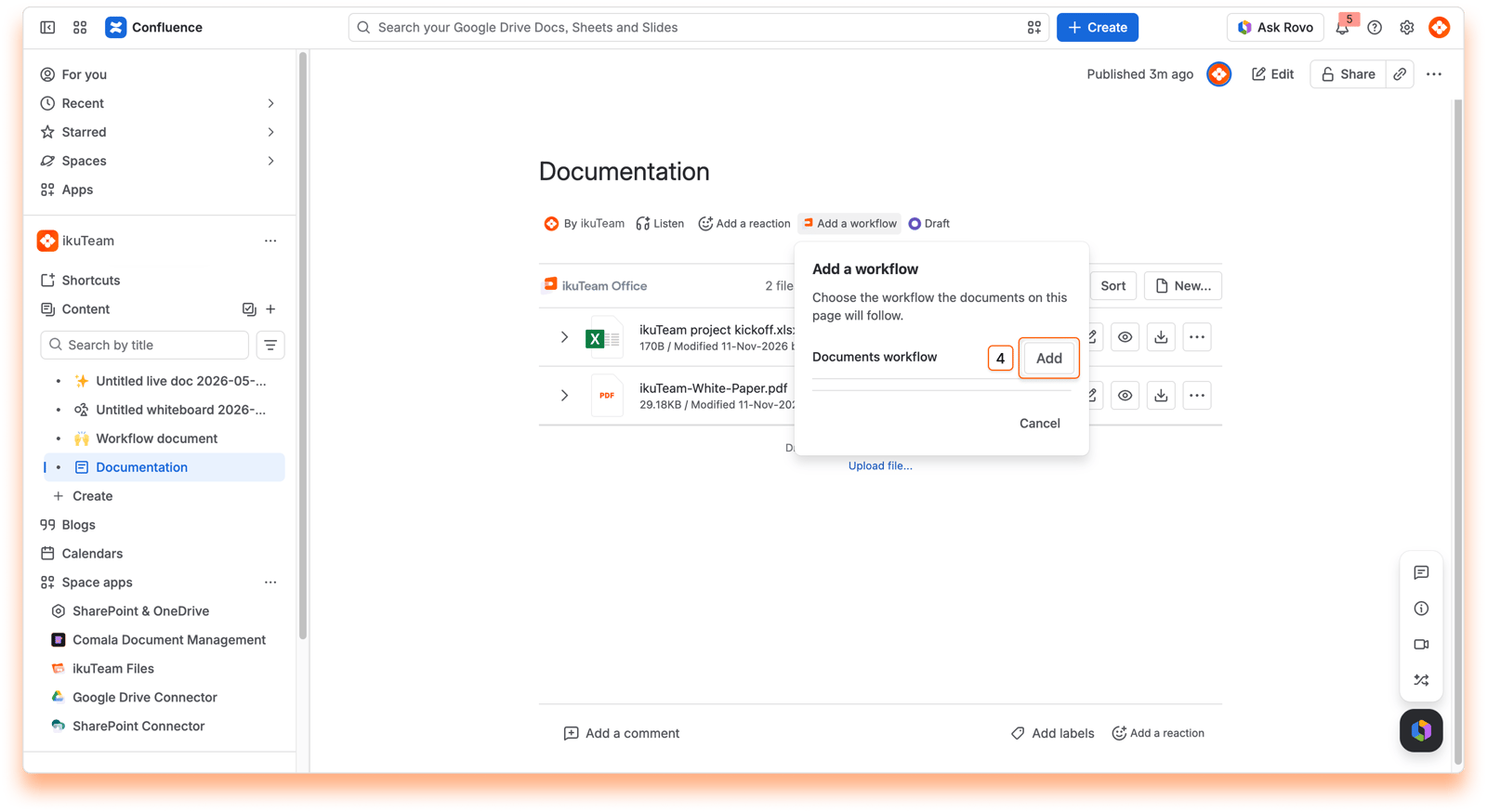
  4. Choose a workflow from the list and select Apply workflow.

  5. Choose the files to review. Include all attachments on the page, or only the ones you select.

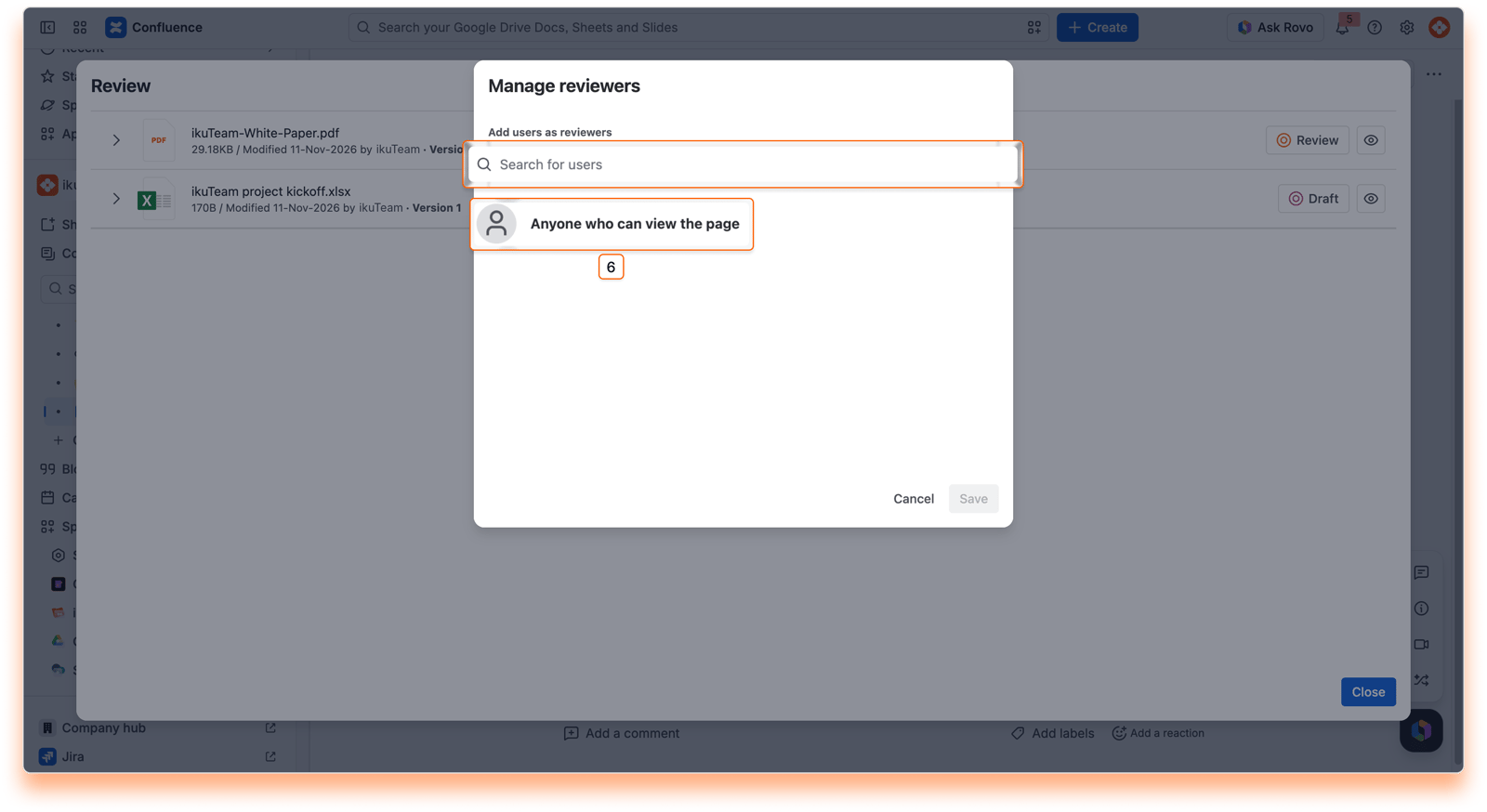
  6. Assign reviewers. Add the people who will review the files. You can change them at any time. If you don't assign anyone, everyone who can view the page can review the files.
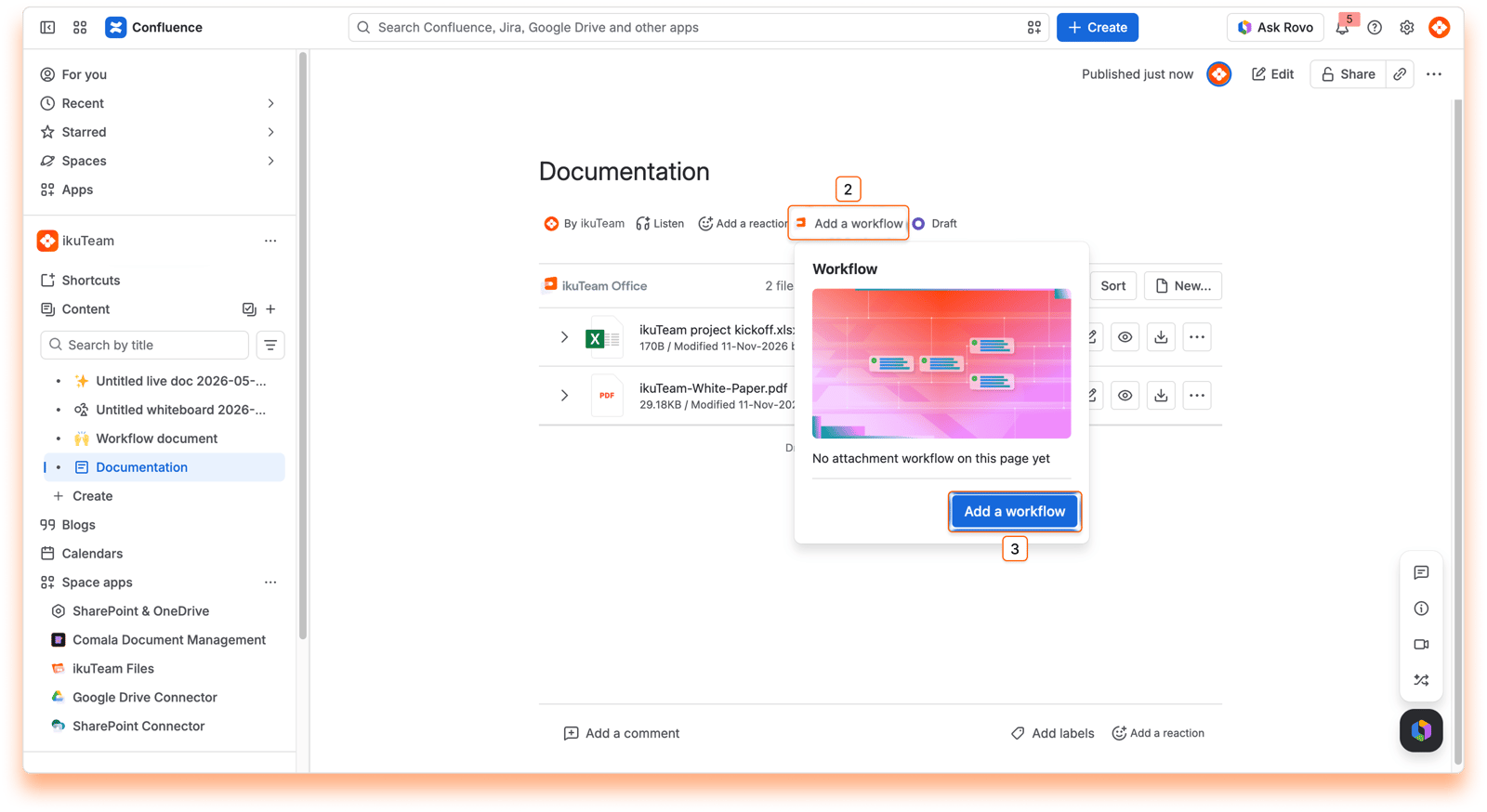
Screenshot: 08: Add a workflow on a page
Screenshot: 09: Choose a workflow
Screenshot: 10: Manage reviewers

Each file starts in the workflow's first state, for example, Draft, and the page shows Open.


Start the review

  1. Select the status button next to a file, for example, Draft.

  2. Select Review.

  3. Repeat for each file you want to send to review.

Anyone who can read the page can change a file's status, for example from Draft to Review, or from Rejected back to Draft.


Add a workflow to several spaces

  1. Open the Workflows Overview from ikuTeam Office in the Apps menu.

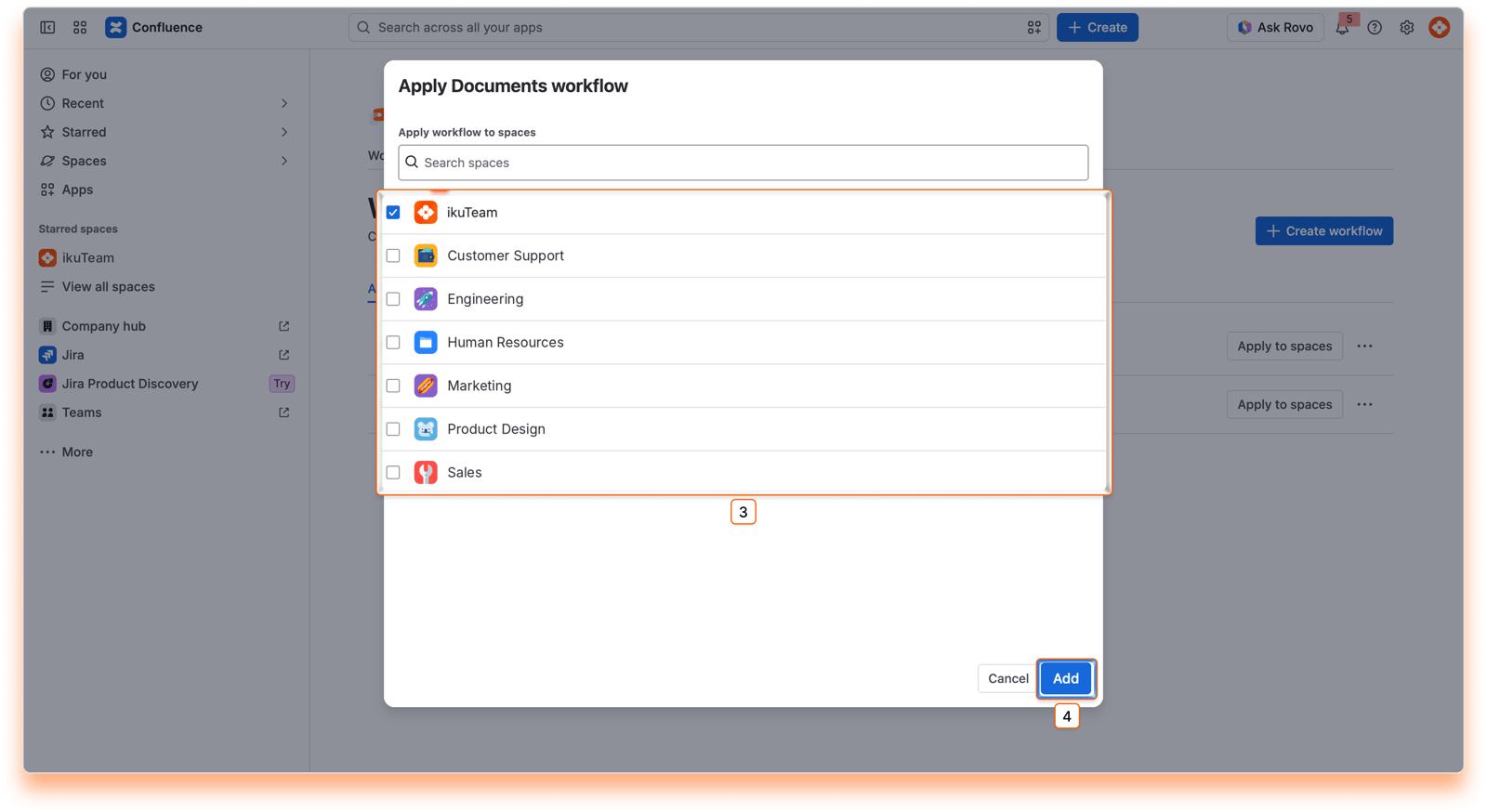
  2. Select Apply workflow next to the workflow you want to use.

  3. Search for the spaces and select them.
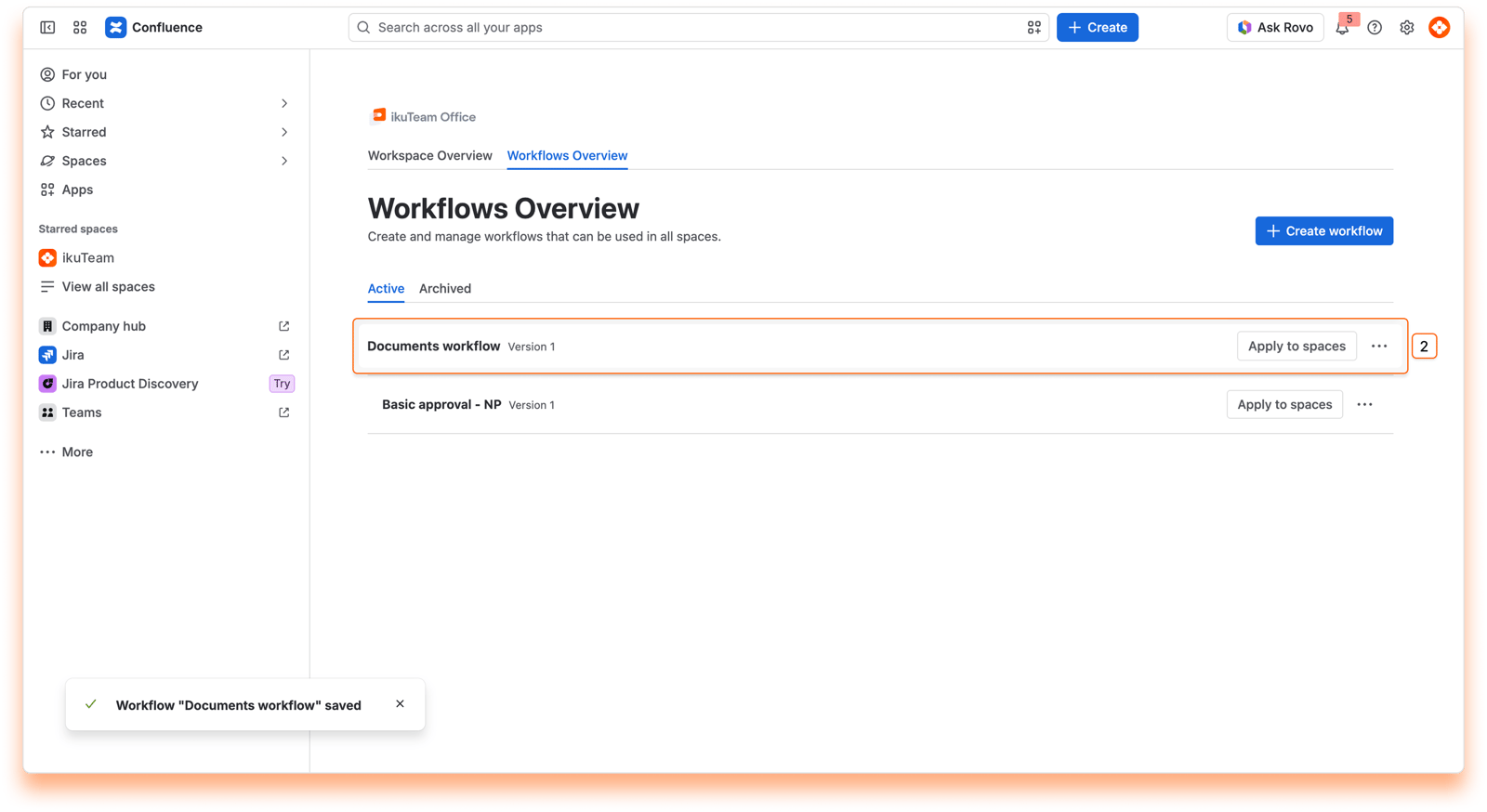
Screenshot: 11: Workflow saved
Screenshot: 12: Apply workflow to pages

Remove a workflow from a page

You can remove a workflow from a page at any time from the workflow menu on the page. See Managing a workflow on a page.

Removing a workflow clears the page status and every review decision on that page. This can't be undone.


Wrap up

Your page is now ready for review. Next, see how reviewers approve or reject files in Reviewing attachments.

If you have questions, contact our support team. Our team is always happy to help.