

Confluence Google Drive Integration
Create a single source of truth with seamless syncing and real-time collaboration.
Read more


Let's learn how to manage, track, and create documents across your entire workspace using the centralized dashboard in ikuTeam Office for Confluence.
The Workspace Overview is the home page of ikuTeam Office. It brings together the documents your team opens, edits and creates with ikuTeam Office, so you can track recent changes, jump back into your spaces, and create or upload documents without hunting through pages.
Open the app. Open the Apps menu in Confluence and select ikuTeam Office. The app opens on the Workspace Overview tab. When attachment workflows are on for your site, you'll also see a Workflows Overview tab (see 4. Attachments Workflow).
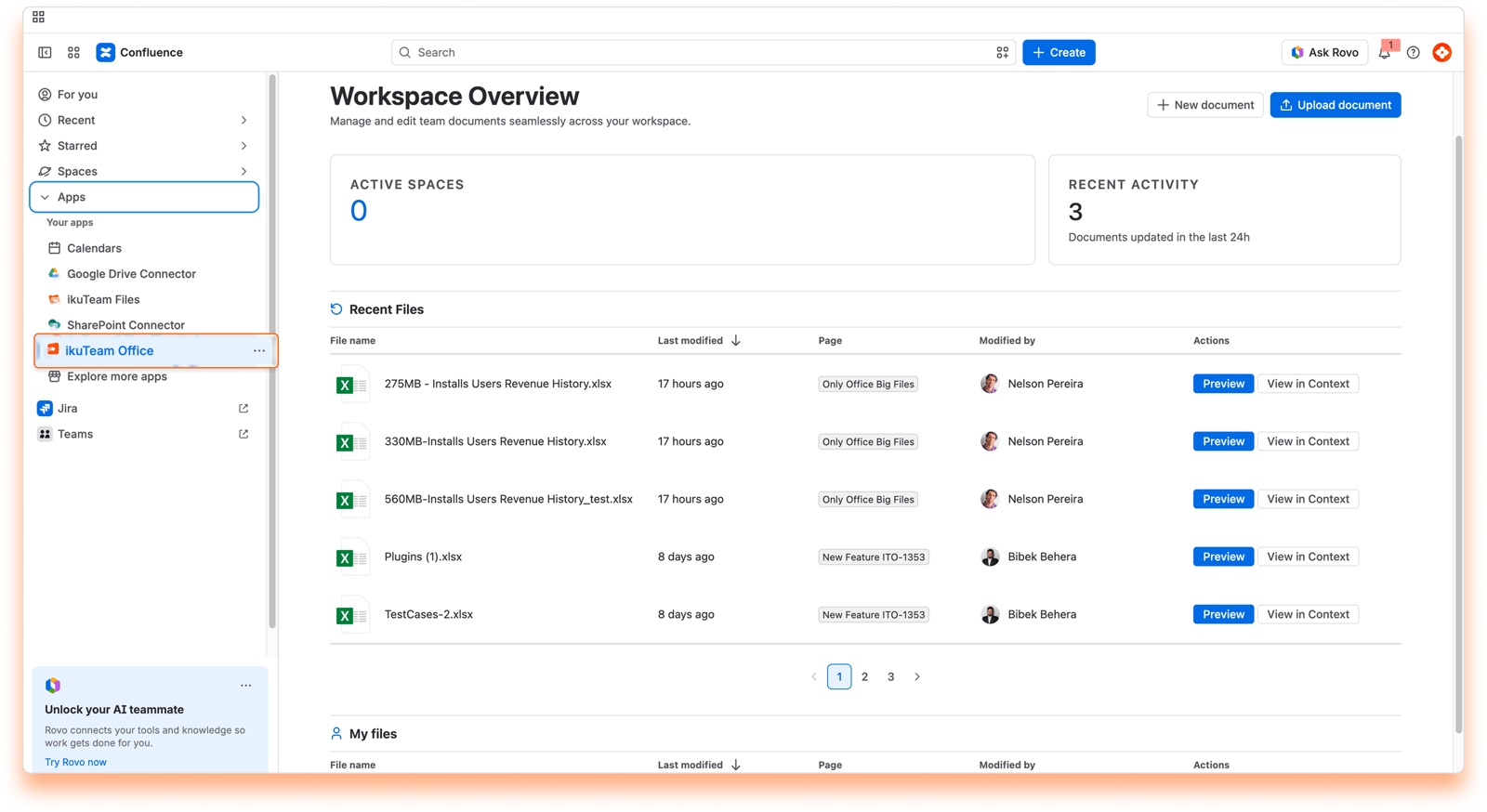
Monitor updates. Check the Recent Activity section to see what your team has been working on.
Create or insert documents. Create a new file or upload an existing one to your Confluence pages on the go.
Access files. Use the Recent Files or My Files lists to jump back into a document you or your team were recently working on.
The dashboard is divided into four sections to help you stay organized and informed.
The spaces where you've worked on files with ikuTeam Office, so you can get back to them quickly.
Total Active Spaces: the number of spaces where you've opened, edited or created files with ikuTeam Office.
Space List: the avatars of these spaces, most recent first. Click one to open the space.
A snapshot of the document activity on your site.
Activity Metric: the number of documents updated in the last 24 hours, so you can gauge team momentum at a glance.
A detailed history of document changes across the workspace.
File Tracking: the table shows the File name, Last modified, Page, Modified by and Actions of each file, so you can see which files changed, where they live, and who last worked on them. It also shows which files people are reading.
Quick Actions:
Preview: open a view of the file content instantly.
View in Context: go straight to the Confluence page where the file is attached.
A personalized history of your own document activity. While Recent Files shows team-wide updates, this section filters the history to just the files you've worked on, so it's easy to pick up where you left off.
Personalized History: track your own recent changes, including which files you've edited and when.
Quick Actions:
Preview: open your document instantly to check your last changes.
View in Context: jump directly to the Confluence page where your file is located.
At the top of the dashboard, you have immediate access to document creation and management.
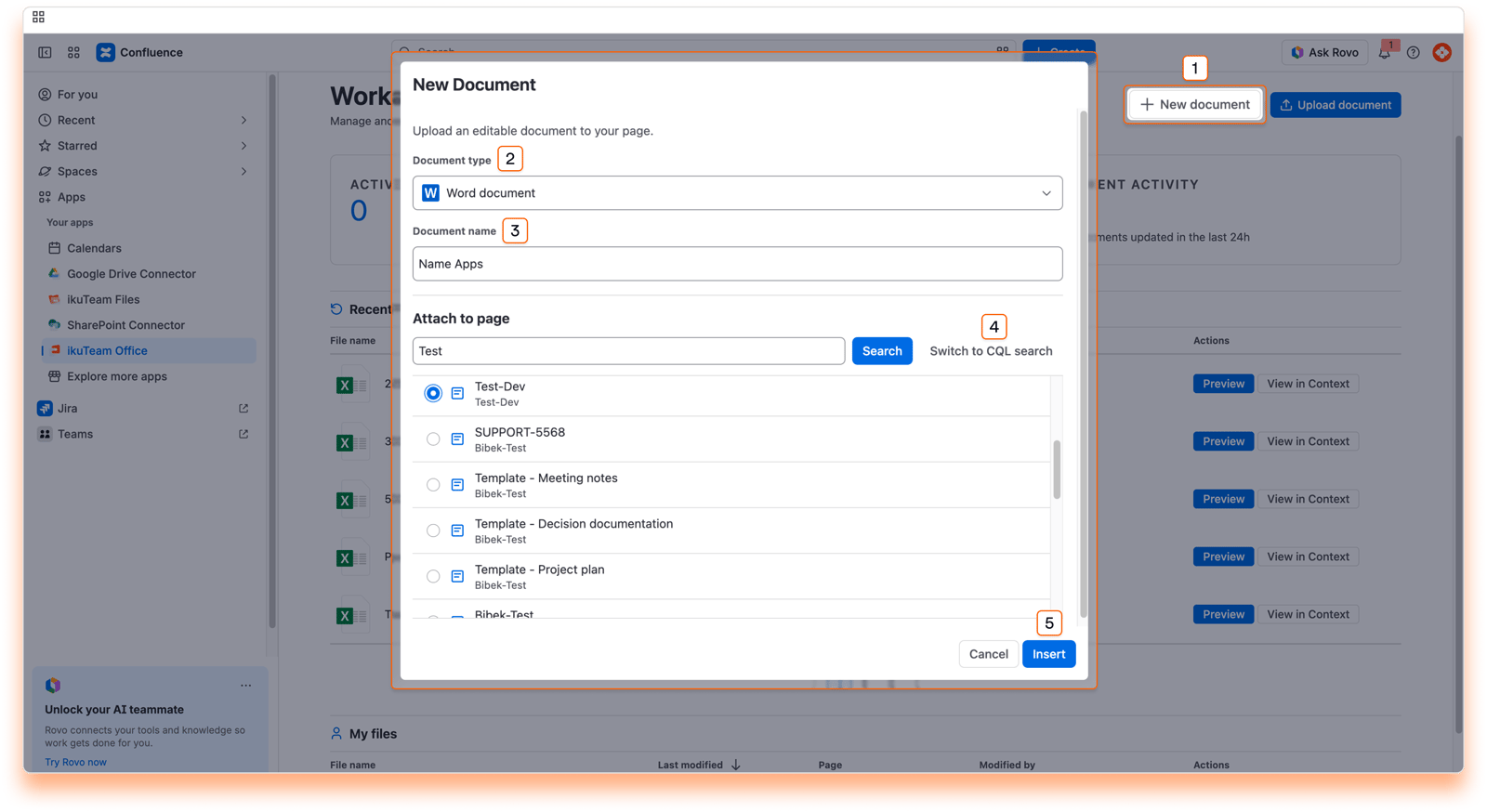
Click New document, choose the Document type (Word document, Excel document or Powerpoint document) and enter a Document name. Under Attach to page, find the page with a text search, or click Switch to CQL search. Then click Insert.
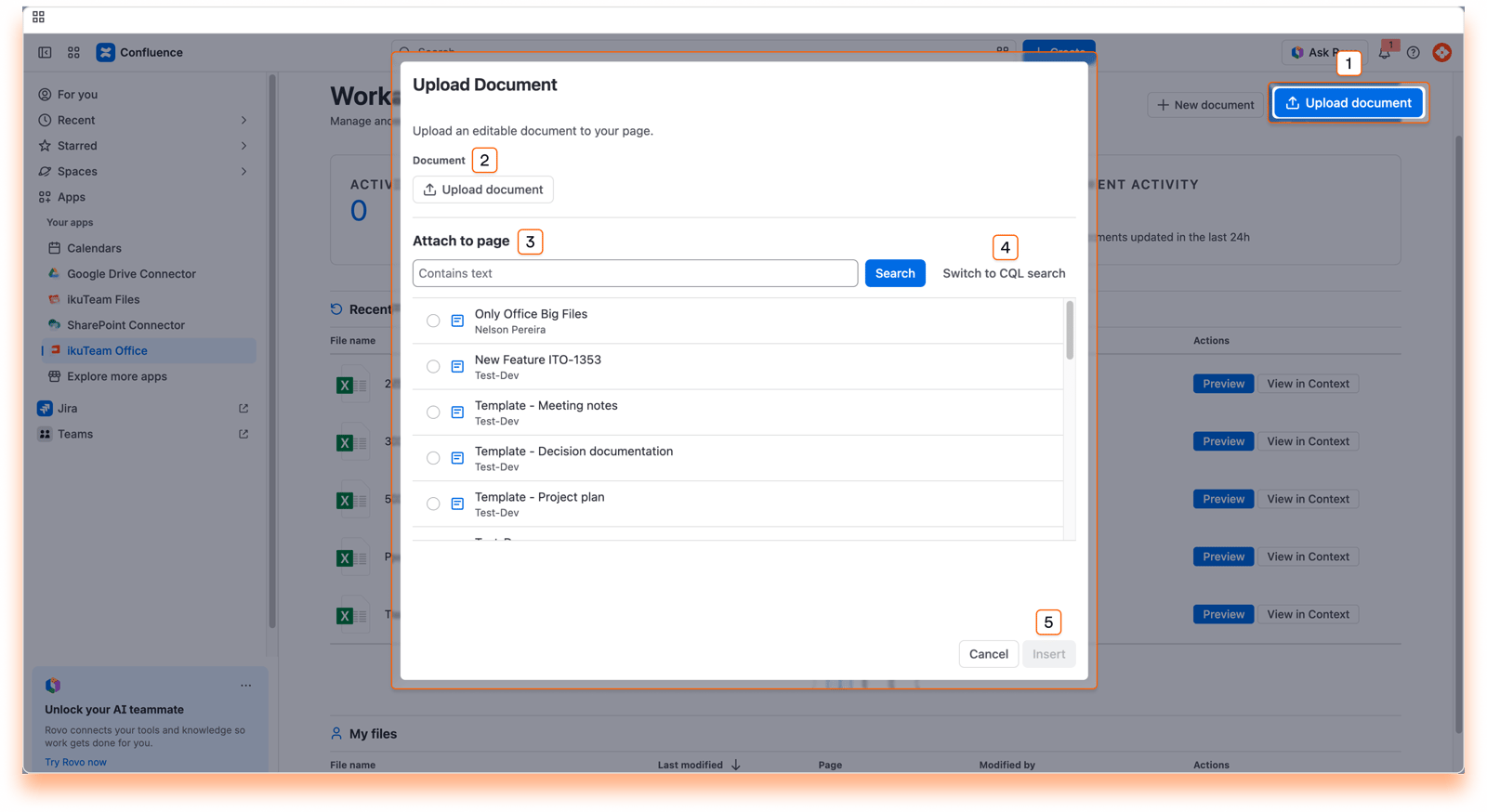
Click Upload document, choose a DOCX, XLSX or PPTX file from your computer, and pick the page to attach it to with a text or CQL search.
The Workspace Overview dashboard simplifies how you work with documents by bringing everything into one view.
If you have questions about managing your workspace, contact our support team. Our team is always happy to help.


