

Confluence Google Drive Integration
Create a single source of truth with seamless syncing and real-time collaboration.
Read more


Let's learn how reviewers approve or reject the files attached to a page.
When a page has a workflow, each file in the review gets its own decision. You can preview every file, approve the ones that are ready, and reject the ones that need changes, all without leaving Confluence.
Who can change reviewers on a file?
How a workflow’s reviewers are set decides whether they can be changed on a file:
Set “Anyone who can view the page”: anyone who can edit the page can change the reviewers of a file that uses the workflow.
Set “Specific reviewers”: the reviewers set in the workflow settings are fixed. You can’t change them on the file, and they always need to review.
Open the page you've been asked to review.
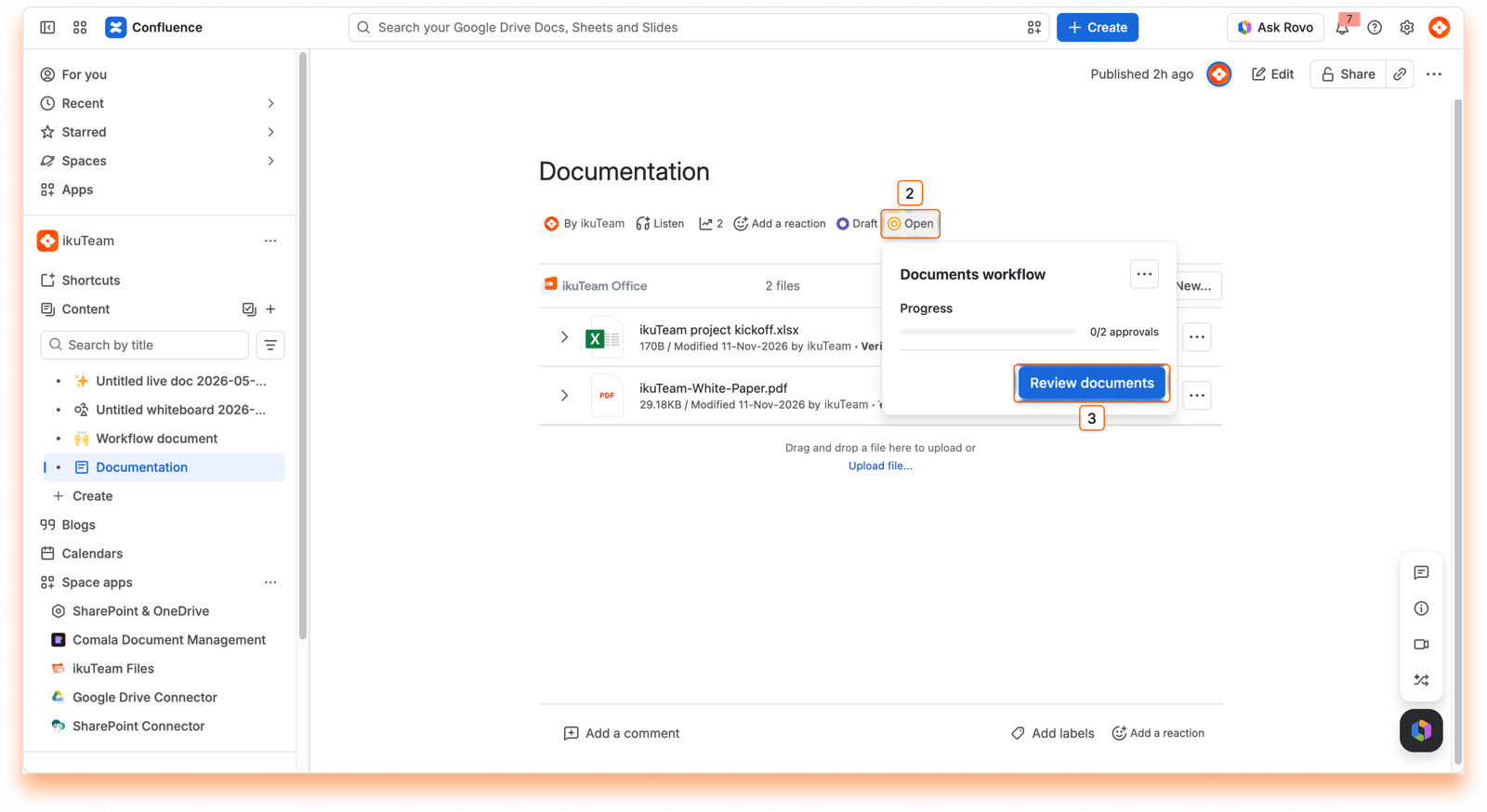
Select the page status next to the page title, for example, Open.
Select Review documents. The Review window lists every file in the review.
Preview a file with the eye icon to check its content. You can also select See other attachments to view the other files on the page.
Choose a decision from the status menu next to the file: Approved or Rejected.
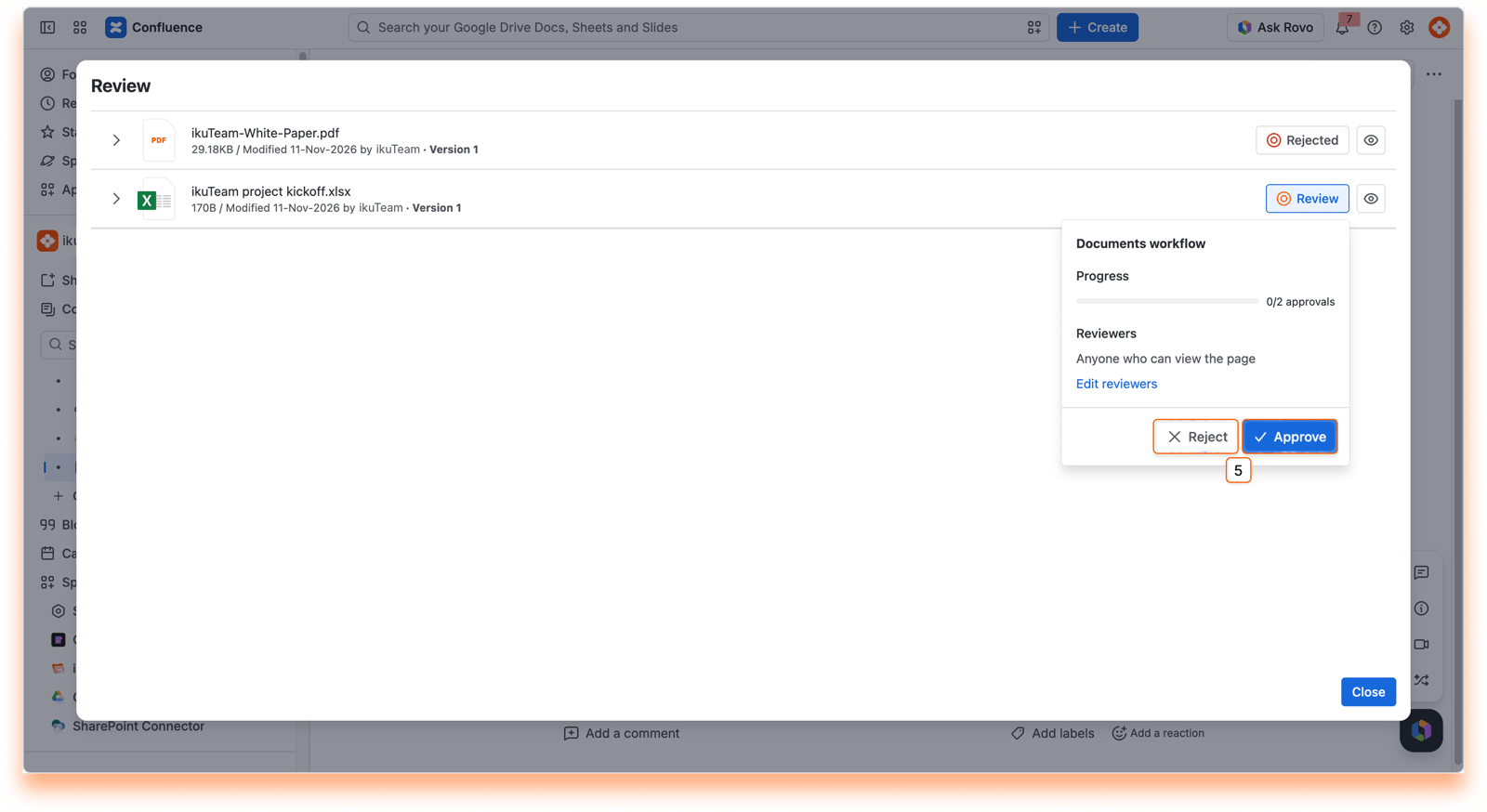
When a file needs changes, let the author know why. If the review state requires a comment on rejection, a Reject window opens when you choose Rejected.
Write a short comment explaining what needs to change.
Select Confirm.
Your comment is saved with your decision, so the author knows exactly what to update.
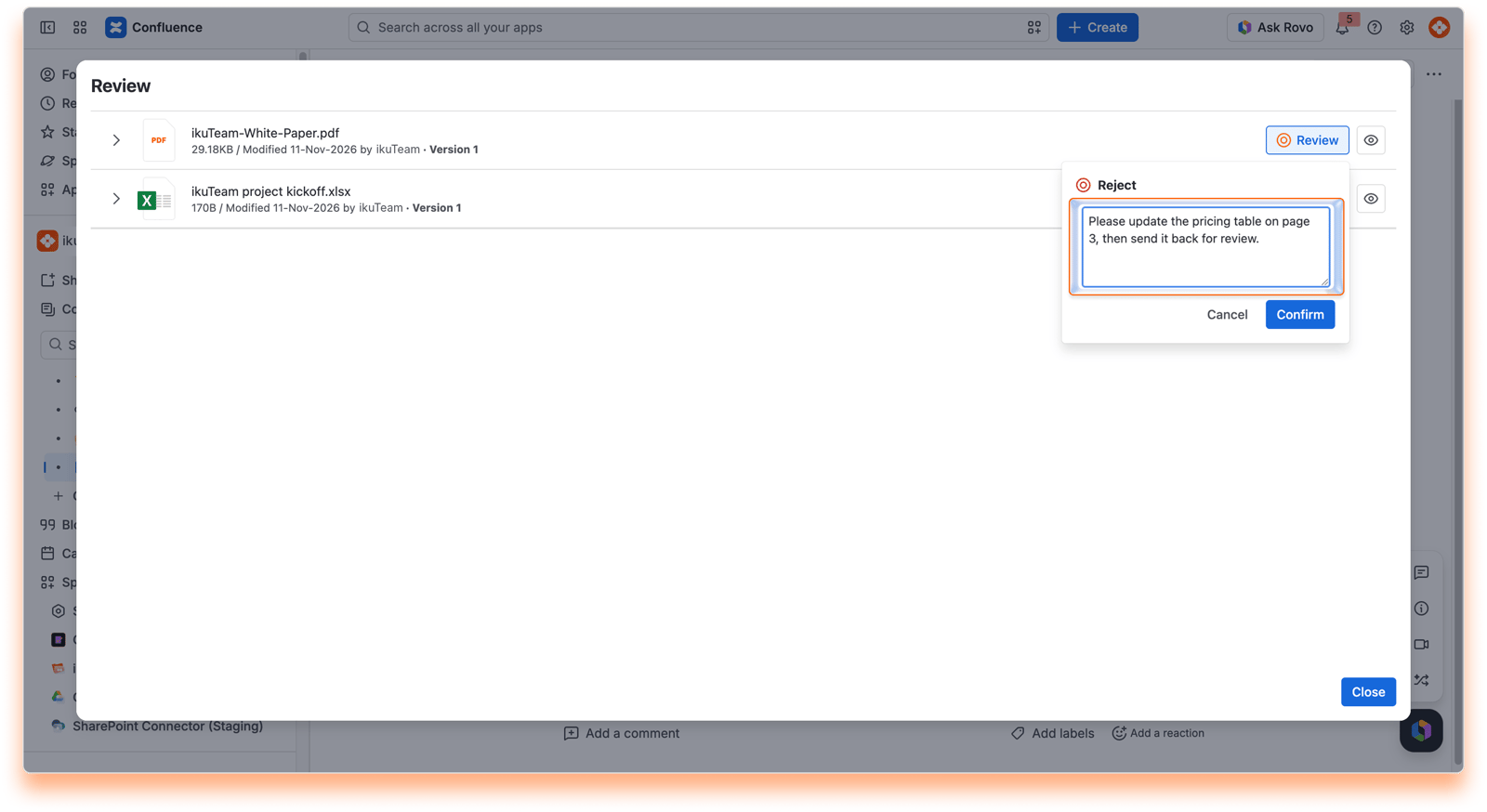
If you reject a file, it shows Rejected, and the page stays Open. To review it again, select its status button, choose Draft, then send it back to Review.
When every file is approved, the page shows Approved.
Every decision records who made it and when.
Reviewing files on the page keeps feedback close to the work, and the page status updates itself as you go. See Tracking approval status to follow the progress.
If you have questions, contact our support team. Our team is always happy to help.


