

Confluence Google Drive Integration
Create a single source of truth with seamless syncing and real-time collaboration.
Read more


Let's learn how to review and approve the files attached to your Confluence pages with Attachments Workflow in ikuTeam Office for Confluence.
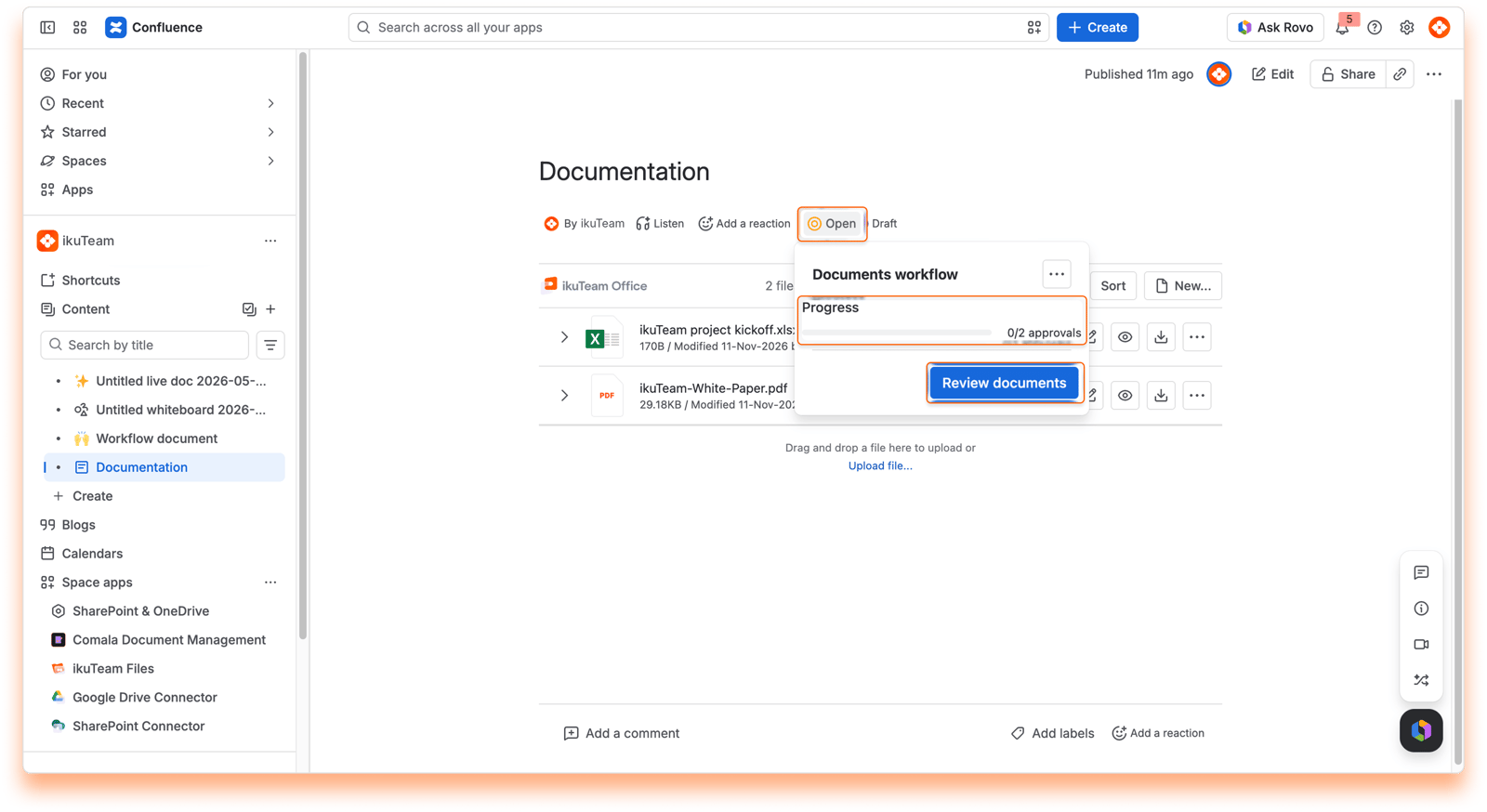
Attachments Workflow gives your team a clear, shared way to review the files on a page. Instead of chasing approvals by email or chat, reviewers approve or reject each attachment right where it lives, and everyone can see where things stand at a glance.
Created once, used everywhere. A Confluence admin creates workflows for the whole site. Every workflow is ready to use in any space, with no extra setup per space.
One workflow per page. Each page uses one workflow at a time.
A decision for every file. Reviewers approve or reject each attachment on its own.
A page status that keeps itself up to date. The page status follows the file decisions automatically, so nobody has to update it by hand.
Term | What it means |
|---|---|
Workflow | The set of states each file moves through, such as Draft, Review, Approved, and Rejected, and the rules for moving between them. |
State | A step in the workflow. You choose its name so it matches the words your team already uses. |
Transition | The move from one state to the next, for example, from Review to Approved. |
Page status | Open while the review is in progress, Approved once every file is approved. It shows next to the page title. |
File status | The step a single file is in: Draft, Review, Approved, or Rejected. |
Once the review starts, the page status follows the file decisions. You never need to set it by hand.
When this happens | The page shows |
|---|---|
Any file isn't approved yet (Draft, Review or Rejected) | Open |
Every file is approved | Approved |
Role | What they can do |
|---|---|
Confluence admin | Create, edit and archive workflows for the whole site. Workflows are archived, not deleted, so their history is kept. |
Page editor | Add a workflow to a page or remove it, choose which attachments are reviewed, and assign reviewers. |
Reviewer | Approve or reject each file in Review, with a comment. If no specific reviewers are assigned, anyone who can view the page can review the files. |
Viewer | See the page status, the status of each file, and who made each decision and when. Change a file's status, for example from Draft to Review, or from Rejected back to Draft. |
Confluence Attachments Workflow brings reviews and approvals into the page itself, so your team always knows which files are ready and which still need attention.
If you have questions about workflows, contact our support team. Our team is always happy to help.


