

Confluence Google Drive Integration
Create a single source of truth with seamless syncing and real-time collaboration.
Read more


Let's learn how to see where a review stands, for the whole page and for each file.
Everyone who can view the page can see its status. There's no need to ask around: the page title, the status popup and each file show you exactly where things are.
The page status shows next to the page title, for example, Open. It shows Open while the review is in progress and Approved once every file is approved. It updates automatically as reviewers make their decisions.
Select the page status to open the popup. It shows:
The workflow used on the page, for example Basic approval.
Progress: how many files in the review are approved so far, for example 1/2 files approved.
Reviewers: the people assigned to review the files.
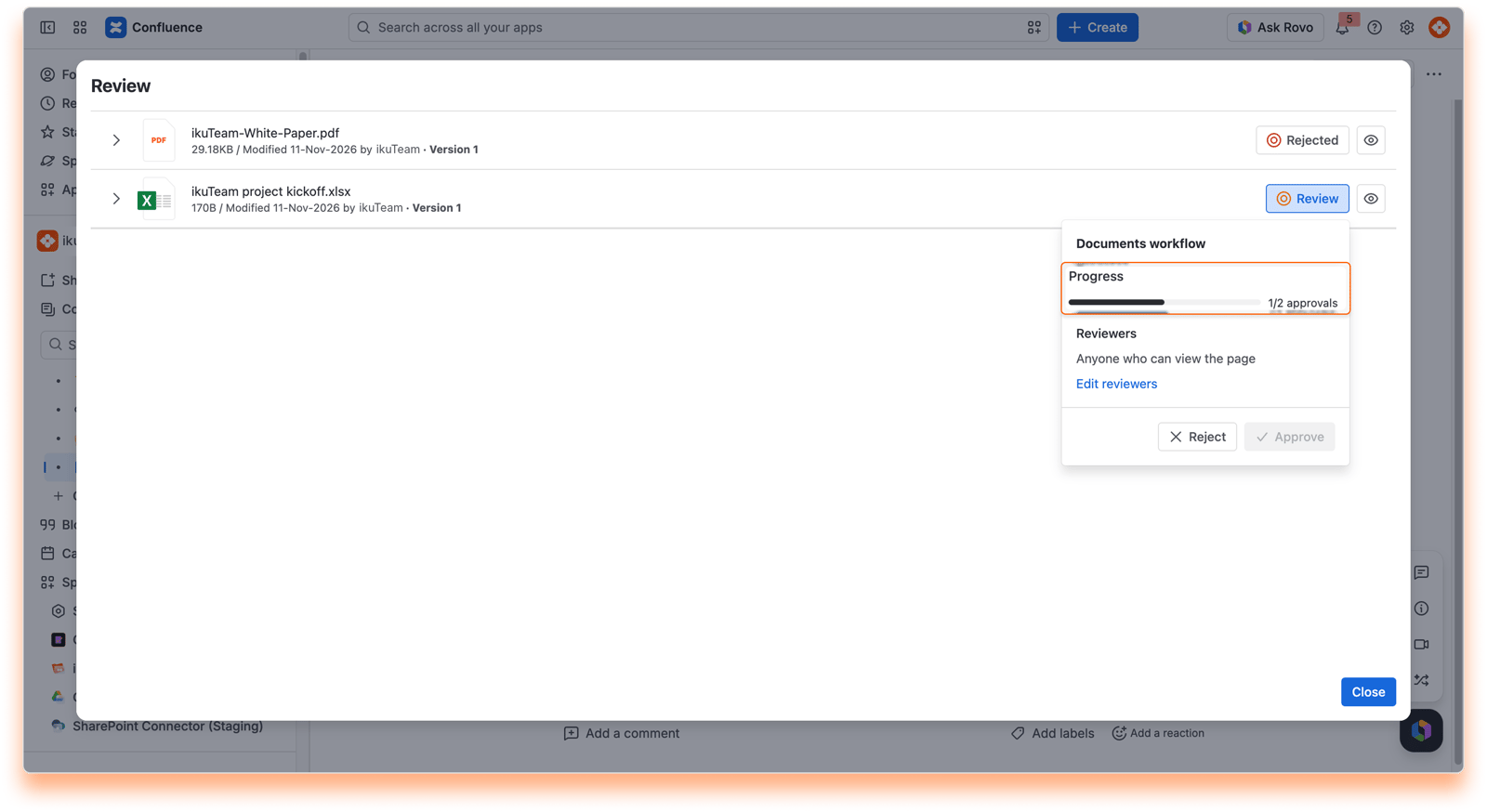
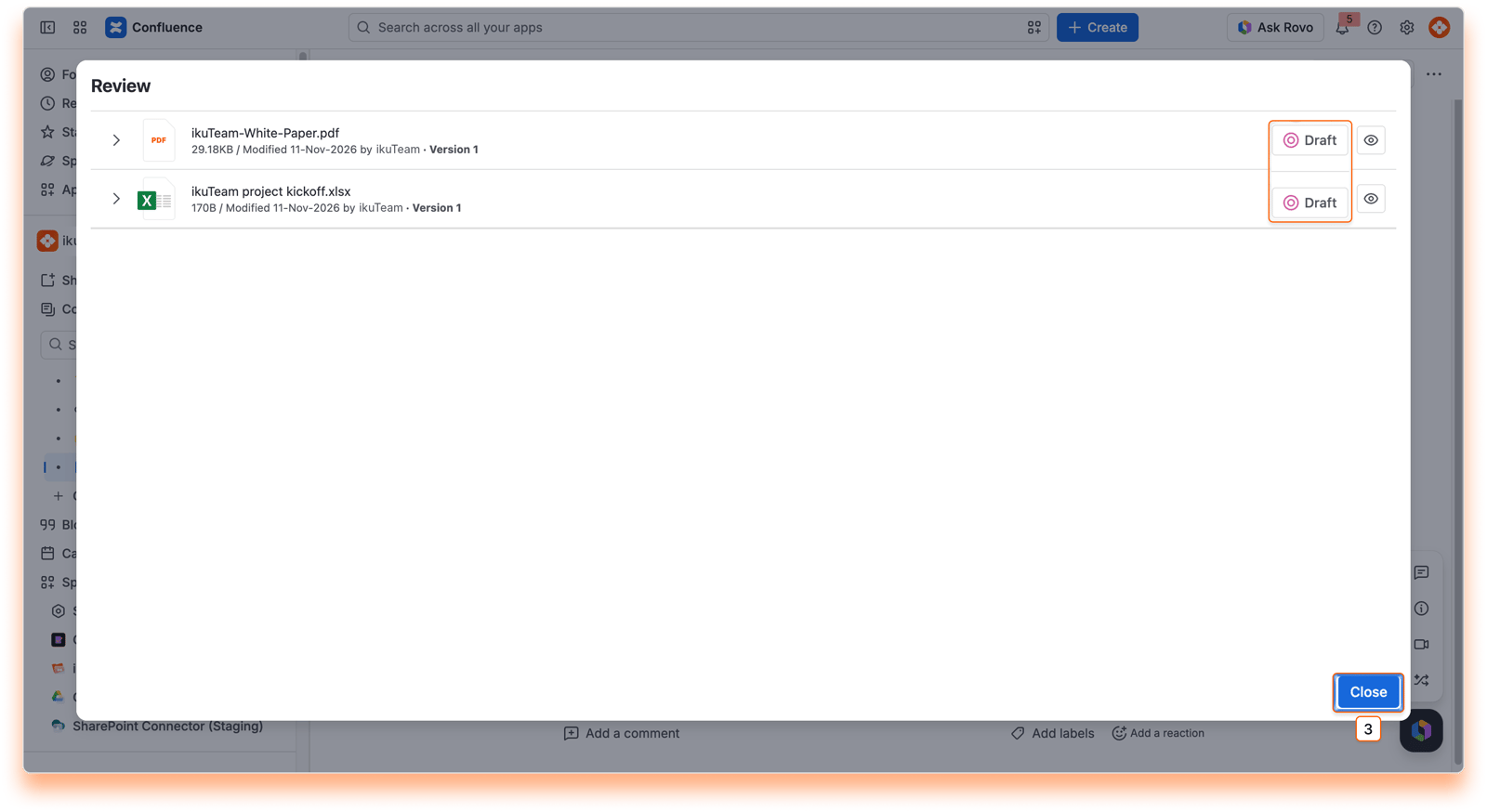
Each file shows its own status: Draft, Review, Approved, or Rejected. Select it to move the file to the next step, or to approve or reject it when it's in Review. You'll see it in the ikuTeam Office file list on the page and in the Review window.
To see who made each decision and when, open Document Activity from the workflow menu. See Managing a workflow on a page.
When this happens | What changes |
|---|---|
A reviewer rejects any file | The file shows Rejected, and the page stays Open. |
The last waiting file is approved | The page shows Approved. |
A new file is added to the page | The new file starts in the workflow's first state, for example Draft. If the page was Approved, it goes back to Open. |
A new version of an approved file is uploaded | That file goes back to the workflow's first state, for example Draft, and the page goes back to Open. |
This keeps your approvals honest: an approval always belongs to the exact version of the file that was reviewed.
With the status always visible, your whole team knows which files are ready and which still need attention.
If you have questions, contact our support team. Our team is always happy to help.


