

Confluence Google Drive Integration
Create a single source of truth with seamless syncing and real-time collaboration.
Read more


Let's learn how to create a workflow that fits the way your team reviews files.
Workflows are created by Confluence admins for the whole site. Once you save a workflow, it's ready to use on pages in any space.
Each workflow is made of states (for example Draft, Review, Approved and Rejected) and transitions that move a file from one state to the next. You choose the names, so the workflow speaks your team's language.
Only Confluence admins can create and edit workflows.
Select ikuTeam Office from the Apps menu in the Confluence sidebar.
Open the Workflows Overview. Here you'll find every workflow on your site, listed under Global Workflows.
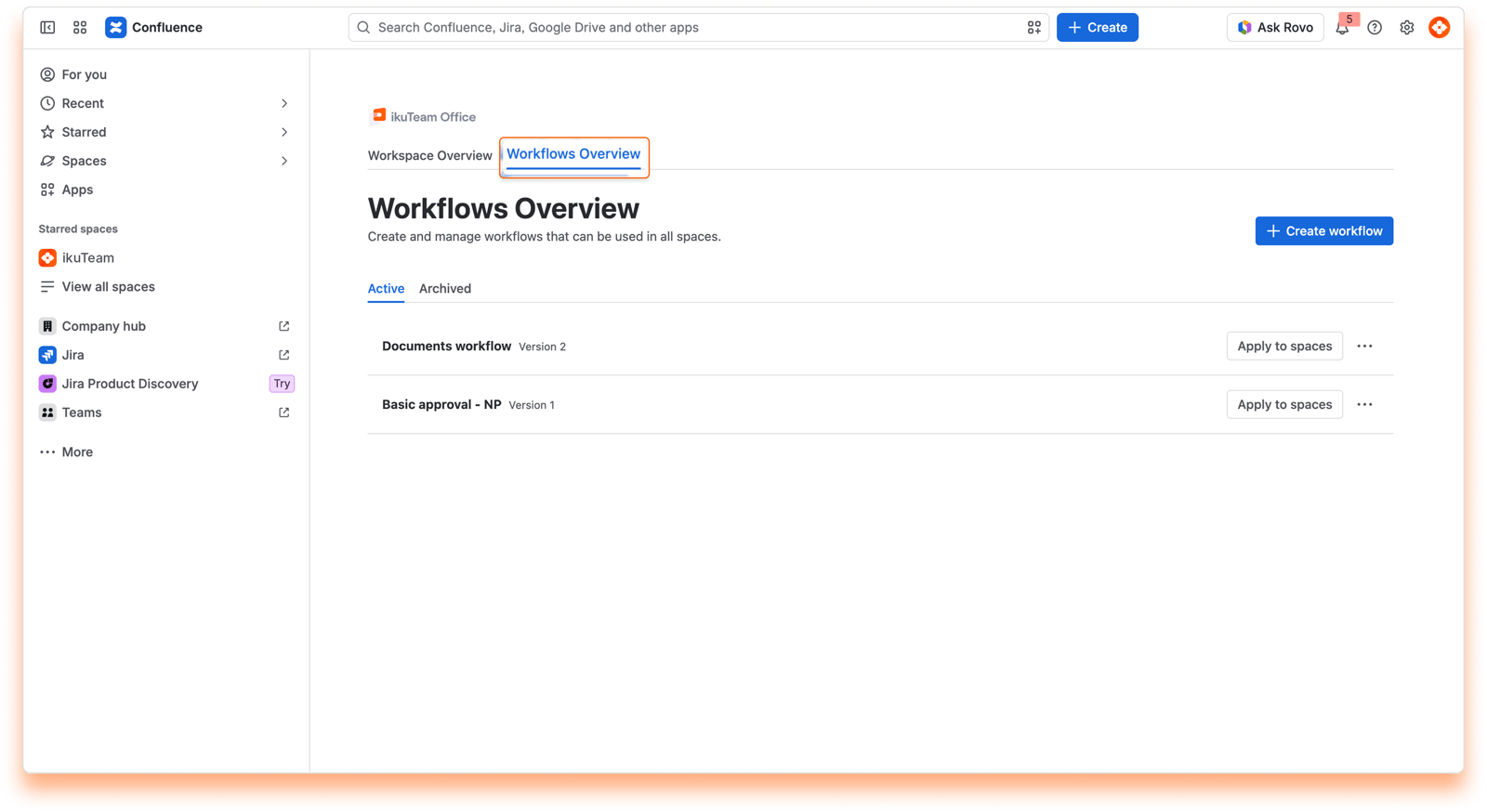
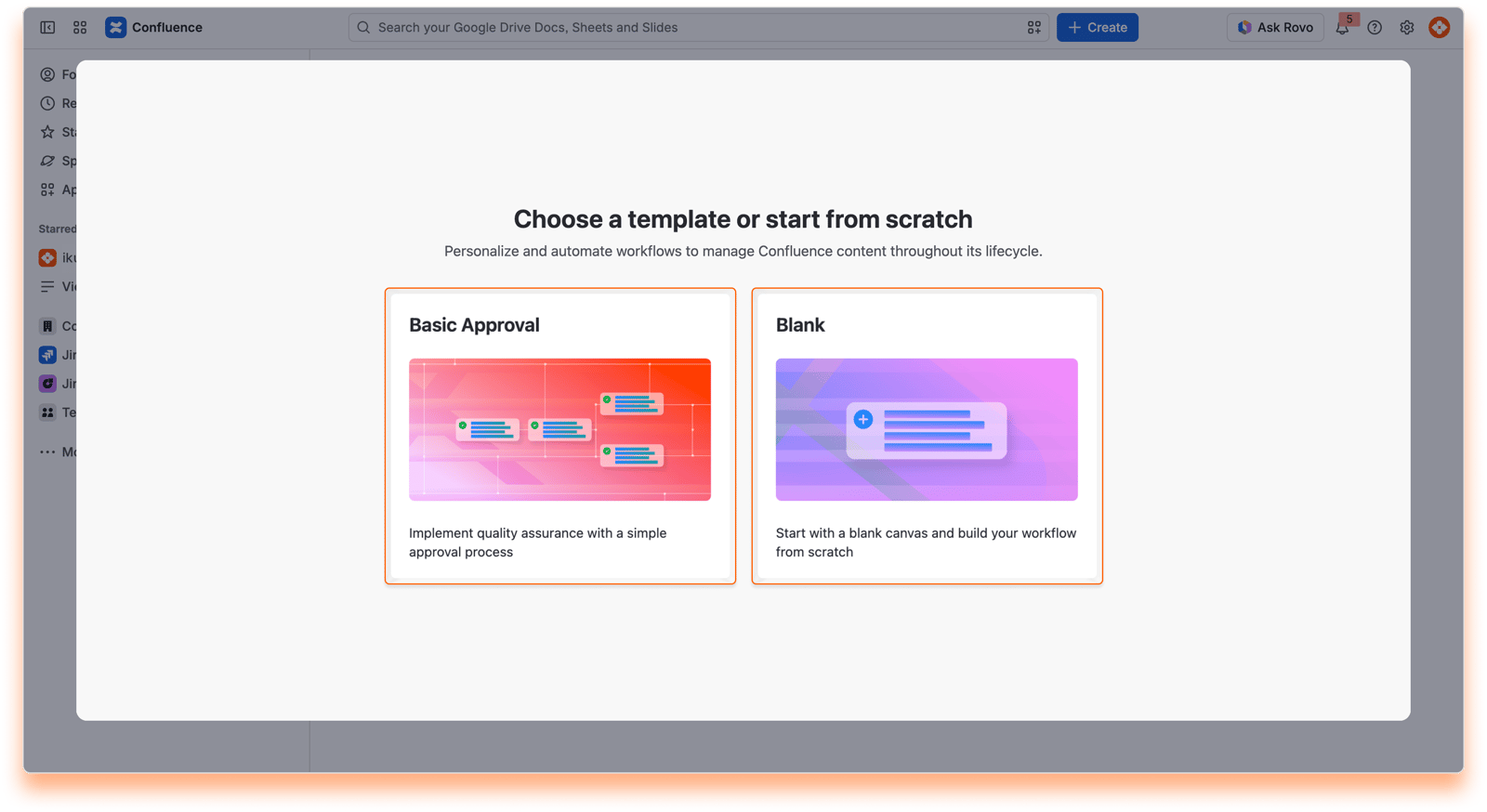
Select Create workflow, then choose how you want to start:
Basic Approval: a ready-made workflow with Draft, Review, Approved and Rejected. A great choice for most teams.
Blank: start with an empty canvas and build your workflow from scratch.
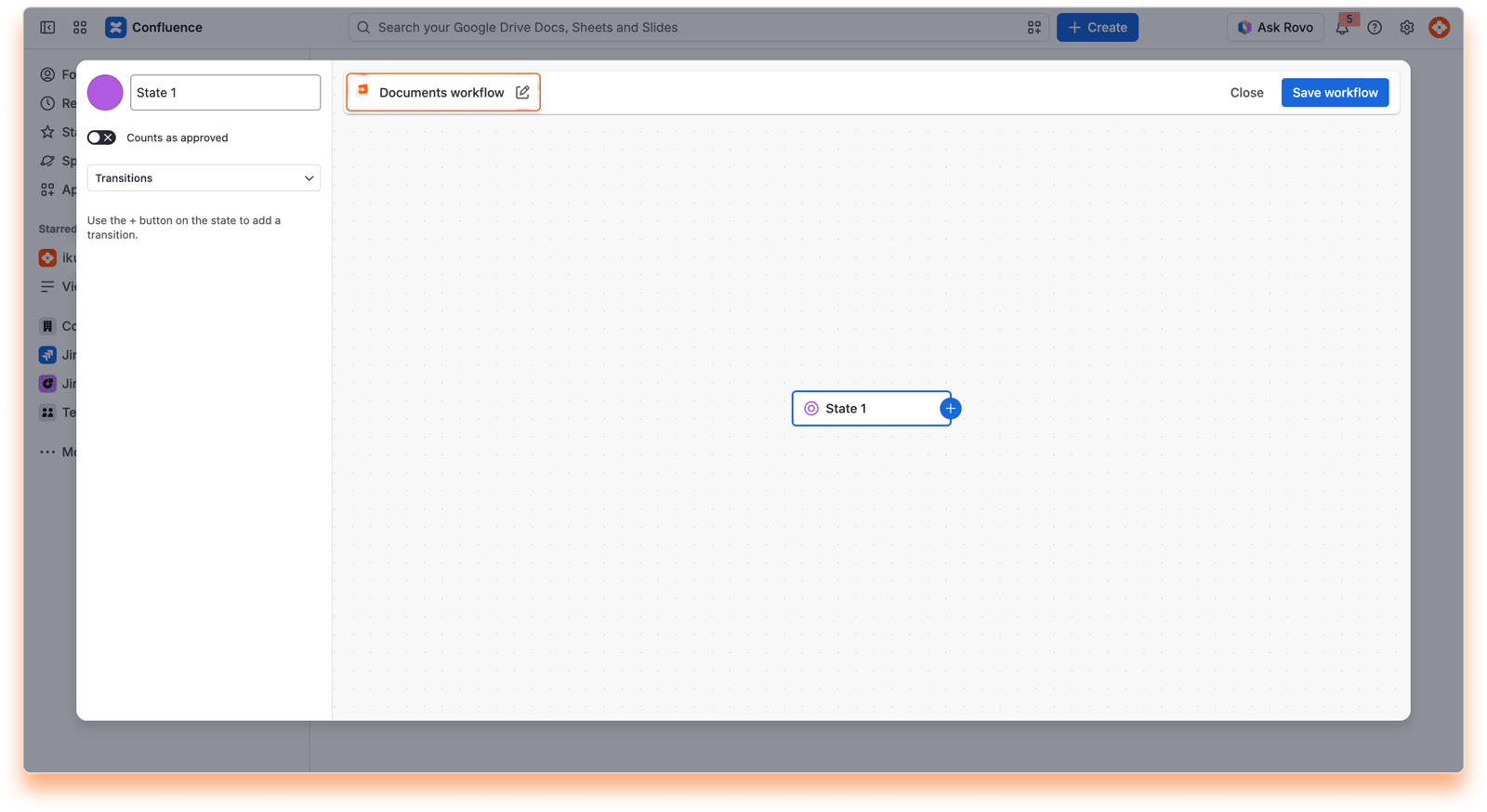
Select the edit icon next to the workflow name at the top of the editor and give it a clear name, like Documents workflow.
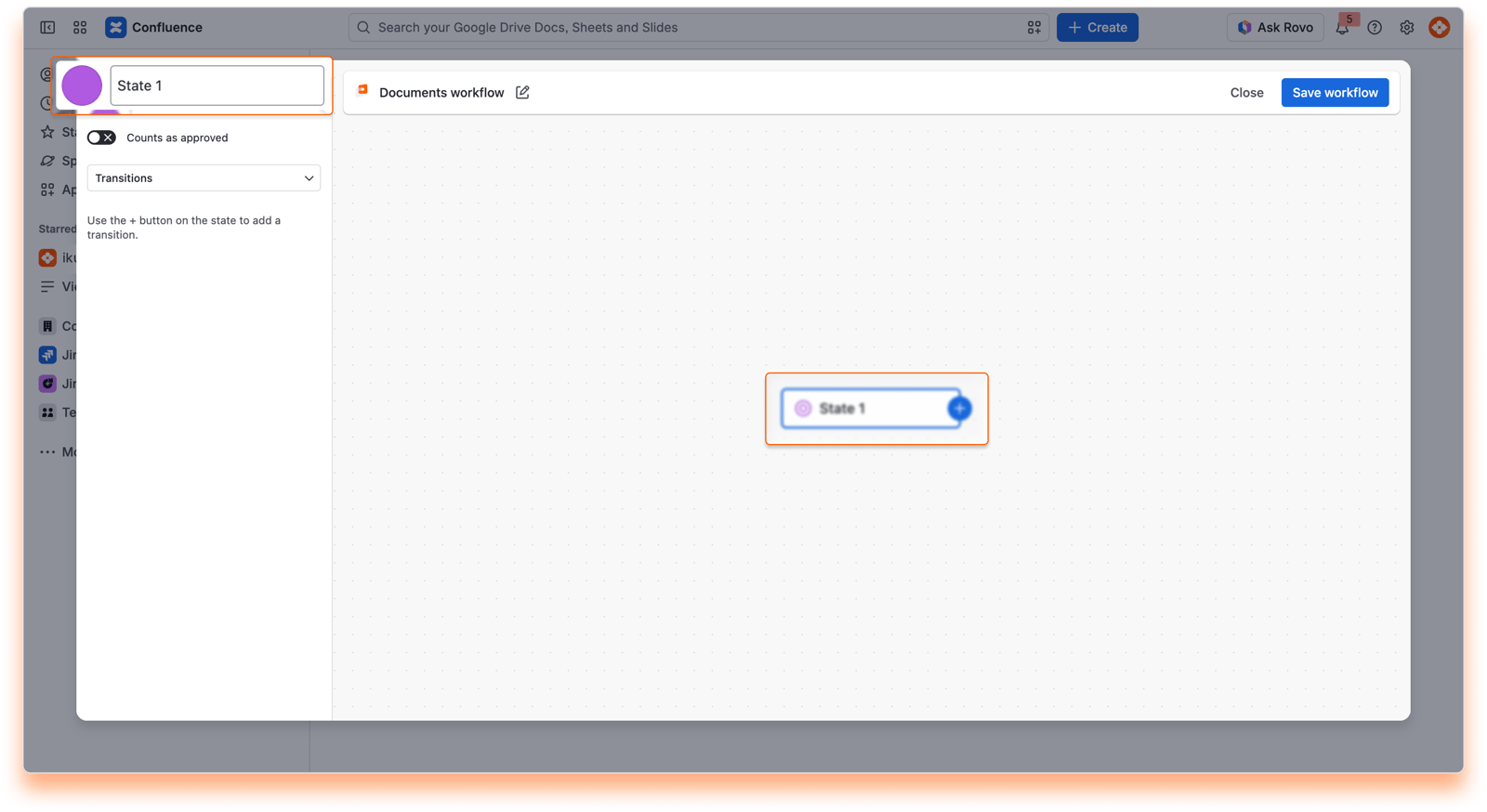
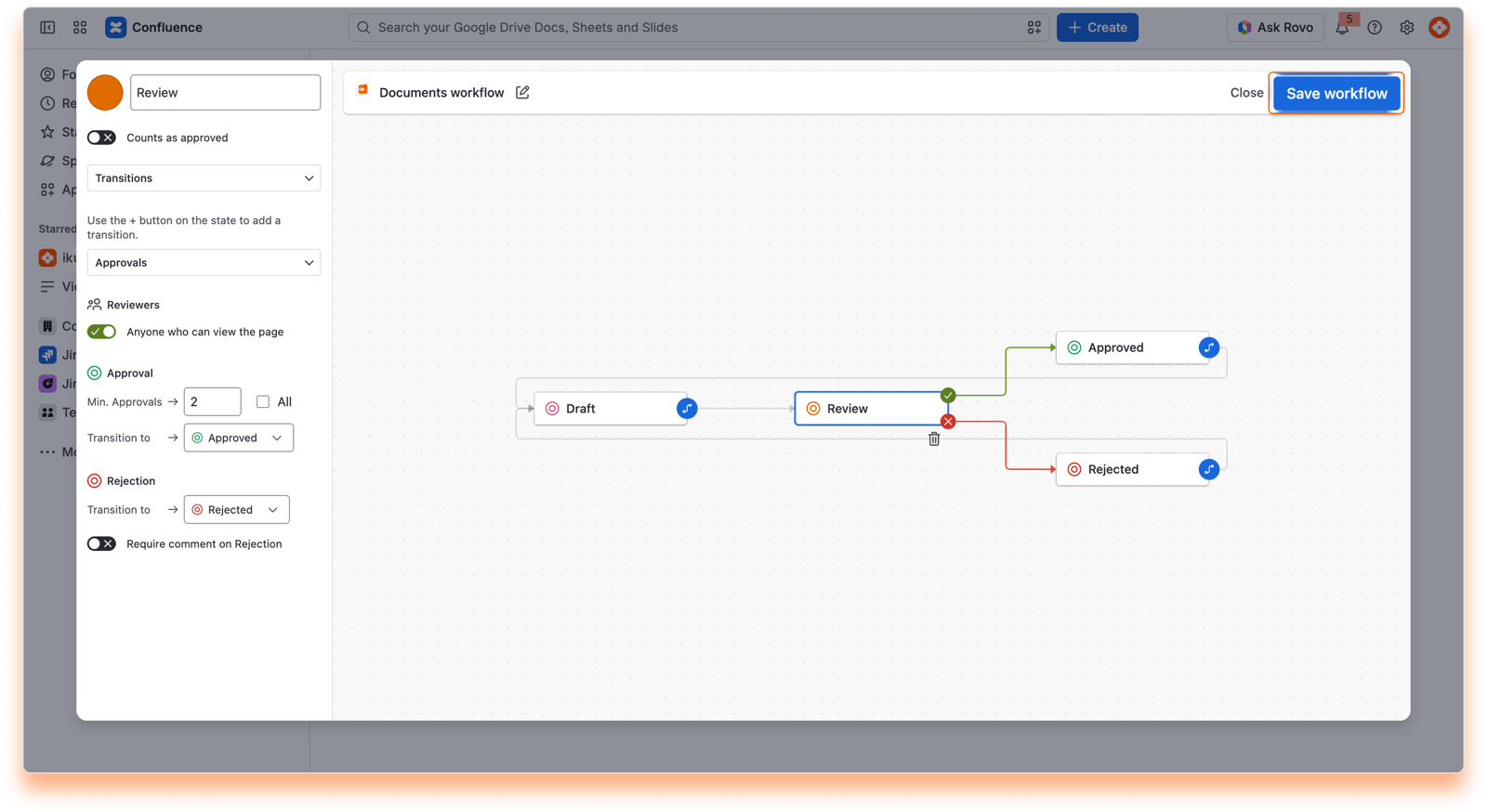
Each box on the canvas is a state. Select the edit icon on a state to rename it or change its colour. If you started from a blank canvas, your first state is created for you.
Open a state to set where a file goes next under Transitions. For your review state, set two paths:
Approval > Transition to: where a file goes when it's approved, for example Approved.
Rejection > Transition to: where a file goes when it's rejected, for example Rejected.
You can also send a rejected file back to an earlier state, so authors can update it and ask for a new review.
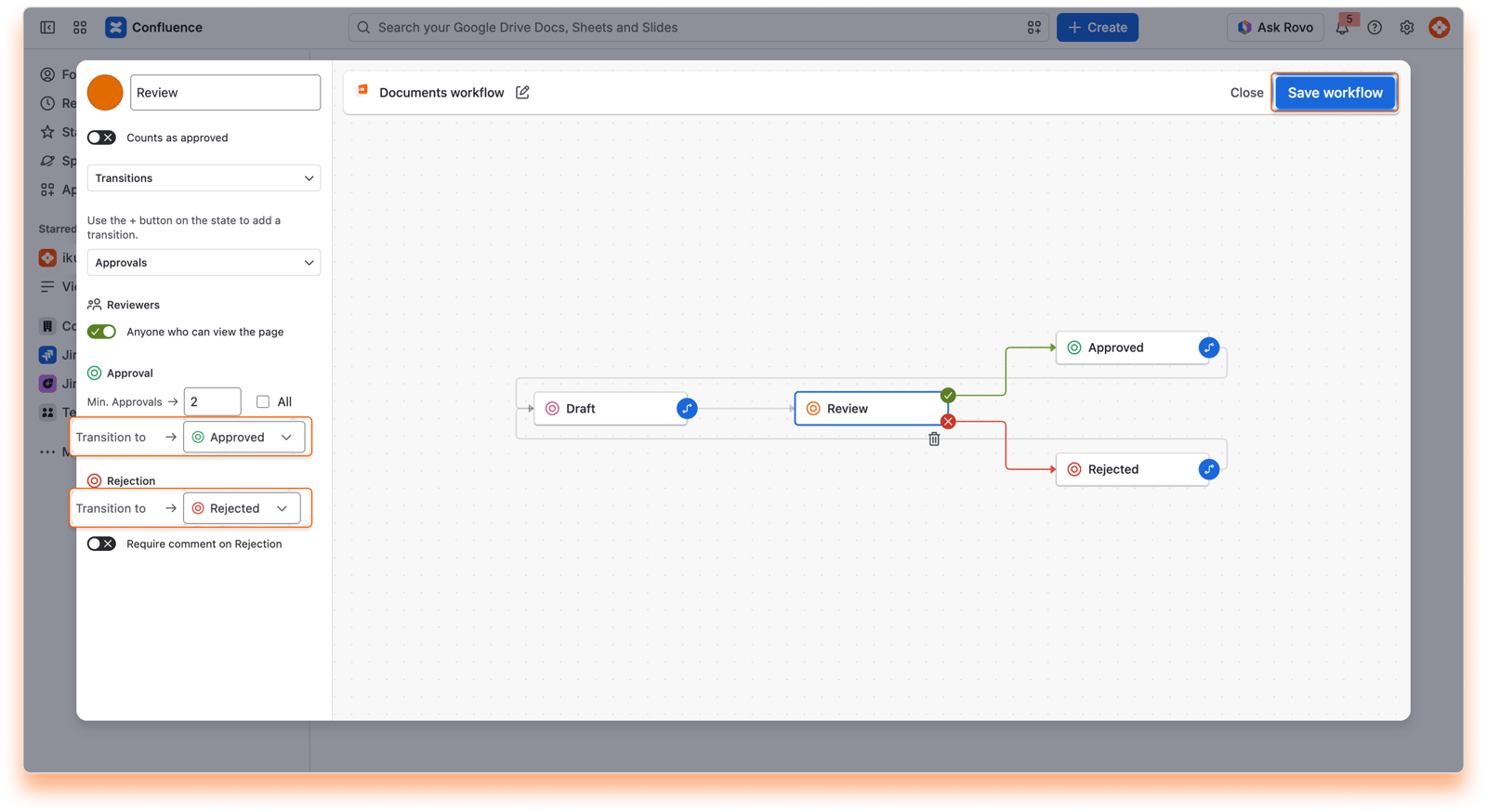
Select Save workflow. Your workflow now appears under Global Workflows and is ready to use on any page.
To protect reviews that are already in progress, a few rules apply:
A workflow needs at least two states, and at least one of them must be a final state, like Approved.
The approval and rejection paths must point to states that exist in the workflow.
A state can't be renamed or deleted while a page is using it.
Workflows are archived, not deleted, so their history is kept. An archived workflow can't be added to new pages, and pages that already use it keep working as before. You can filter the workflow list by active or archived workflows.
With your workflow saved, page editors across your site can start using it right away. Next, learn how to add it to a page in Applying a workflow.
If you have questions, contact our support team. Our team is always happy to help.


