

Confluence Google Drive Integration
Create a single source of truth with seamless syncing and real-time collaboration.
Read more


Let's learn how to manage the workflow on a page: change reviewers, check the history, start over, or remove the workflow.
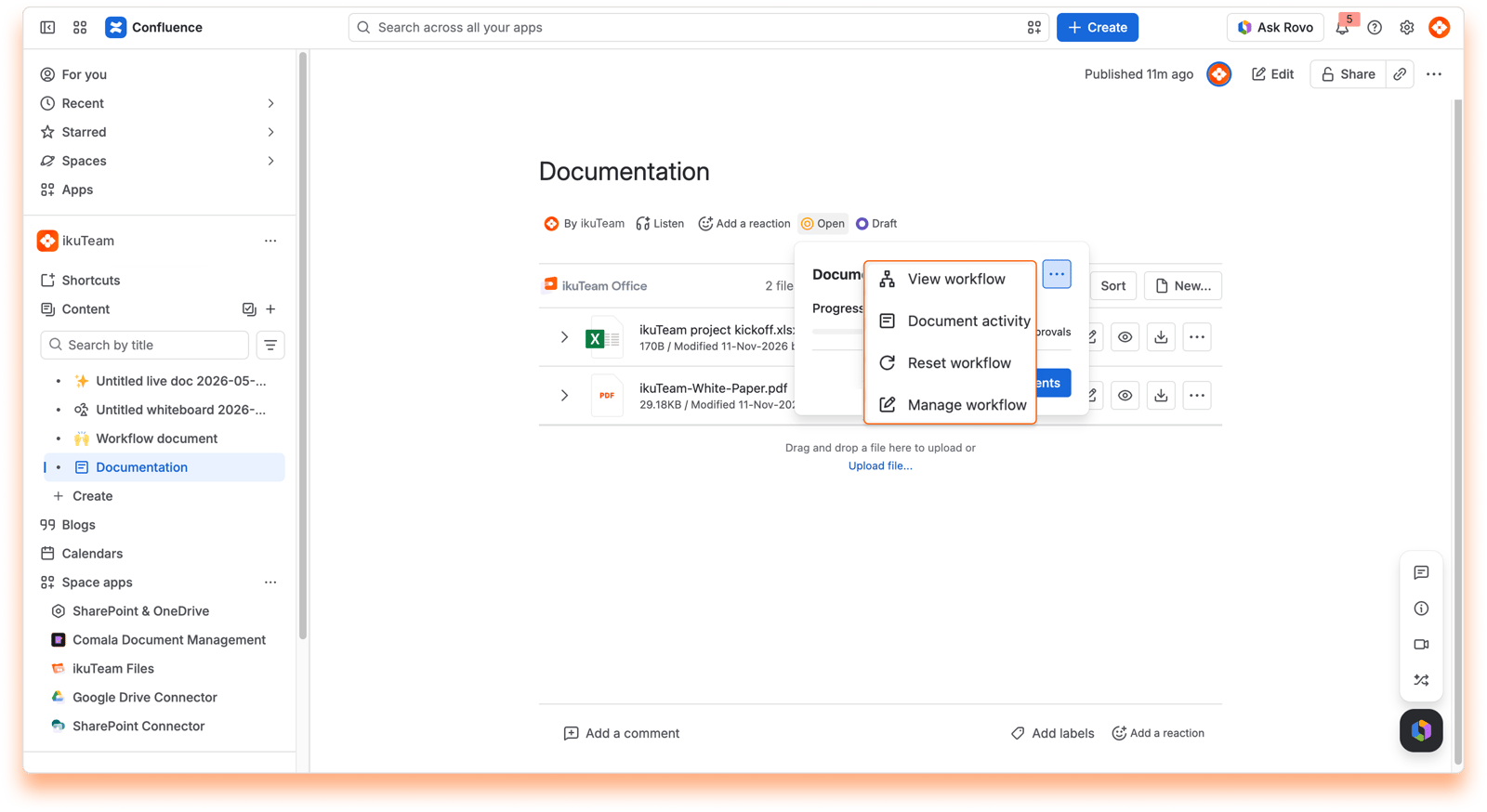
Select the page status next to the page title.
Select the more actions icon (...) in the top corner of the status popup.
The menu gives you four options: View workflow, Document Activity, Reset workflow and Manage workflow.
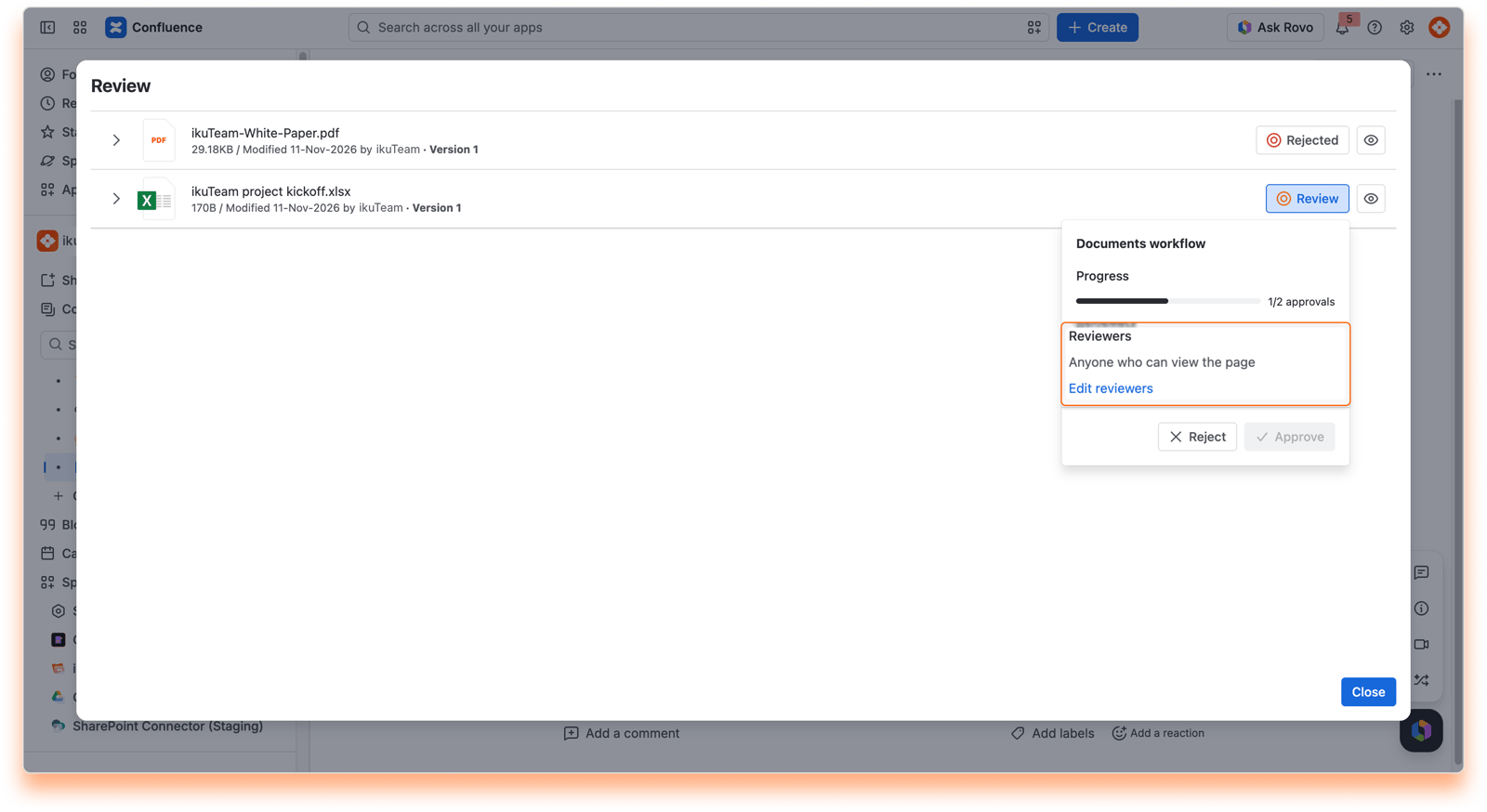
Page editors can add or remove reviewers at any time. If no reviewers are assigned, anyone who can view the page can review the files.
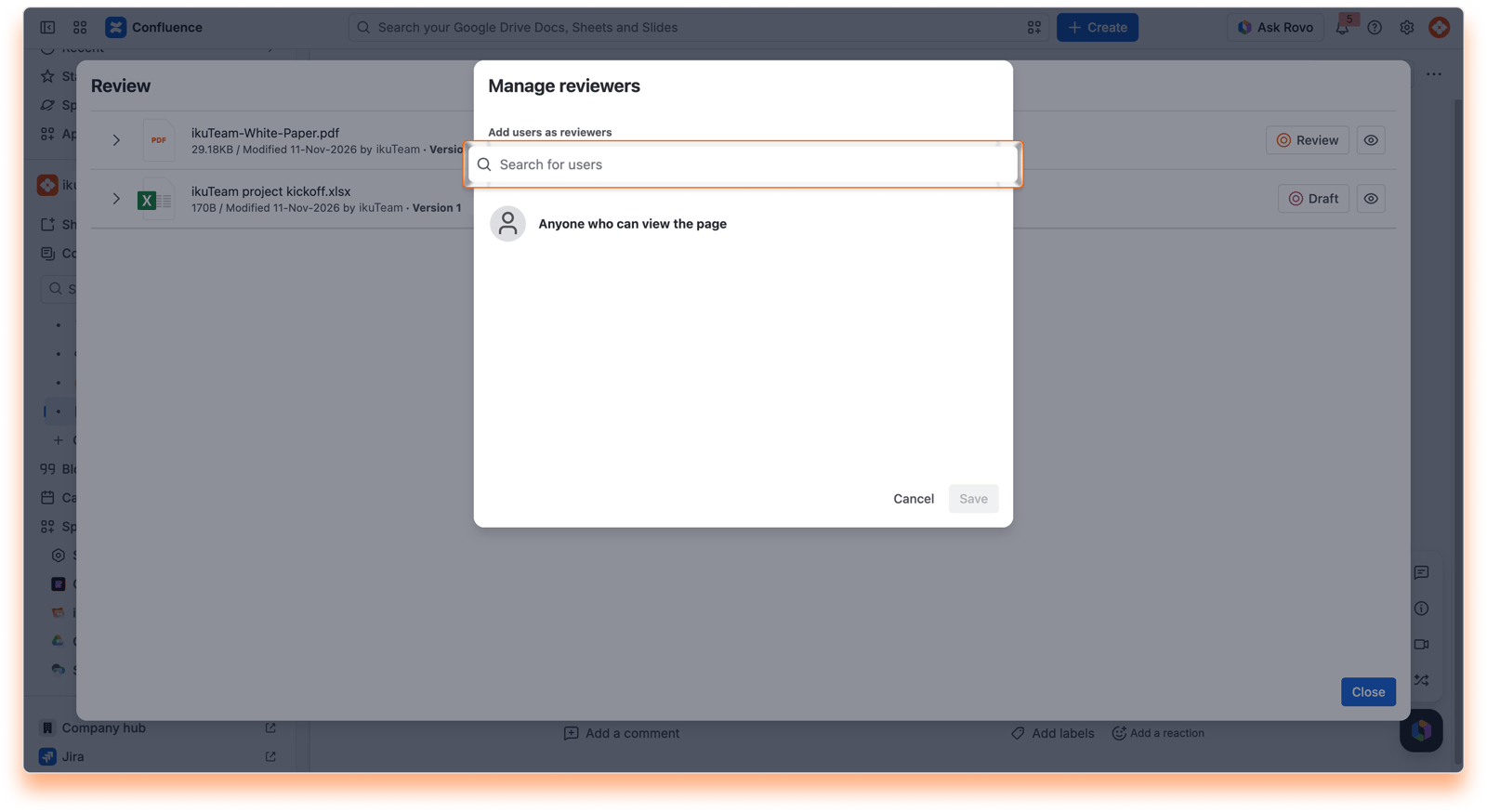
Select the status button on any file in Review, then select Edit reviewers. Reviewers apply to every file on the page.
Search for users and select them to add them as reviewers.
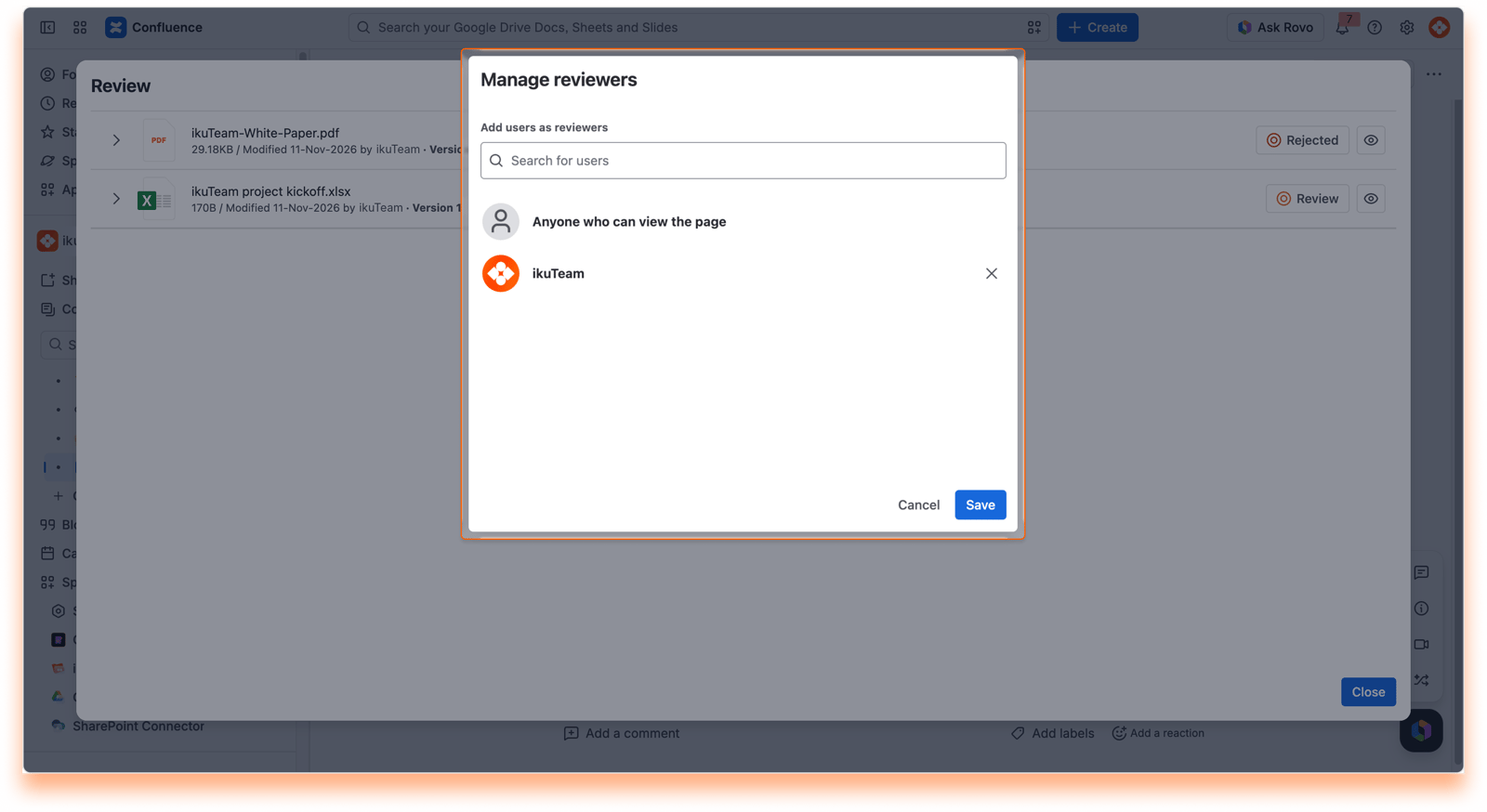
Select the X next to a name to remove a reviewer.
Select Save to save your changes.
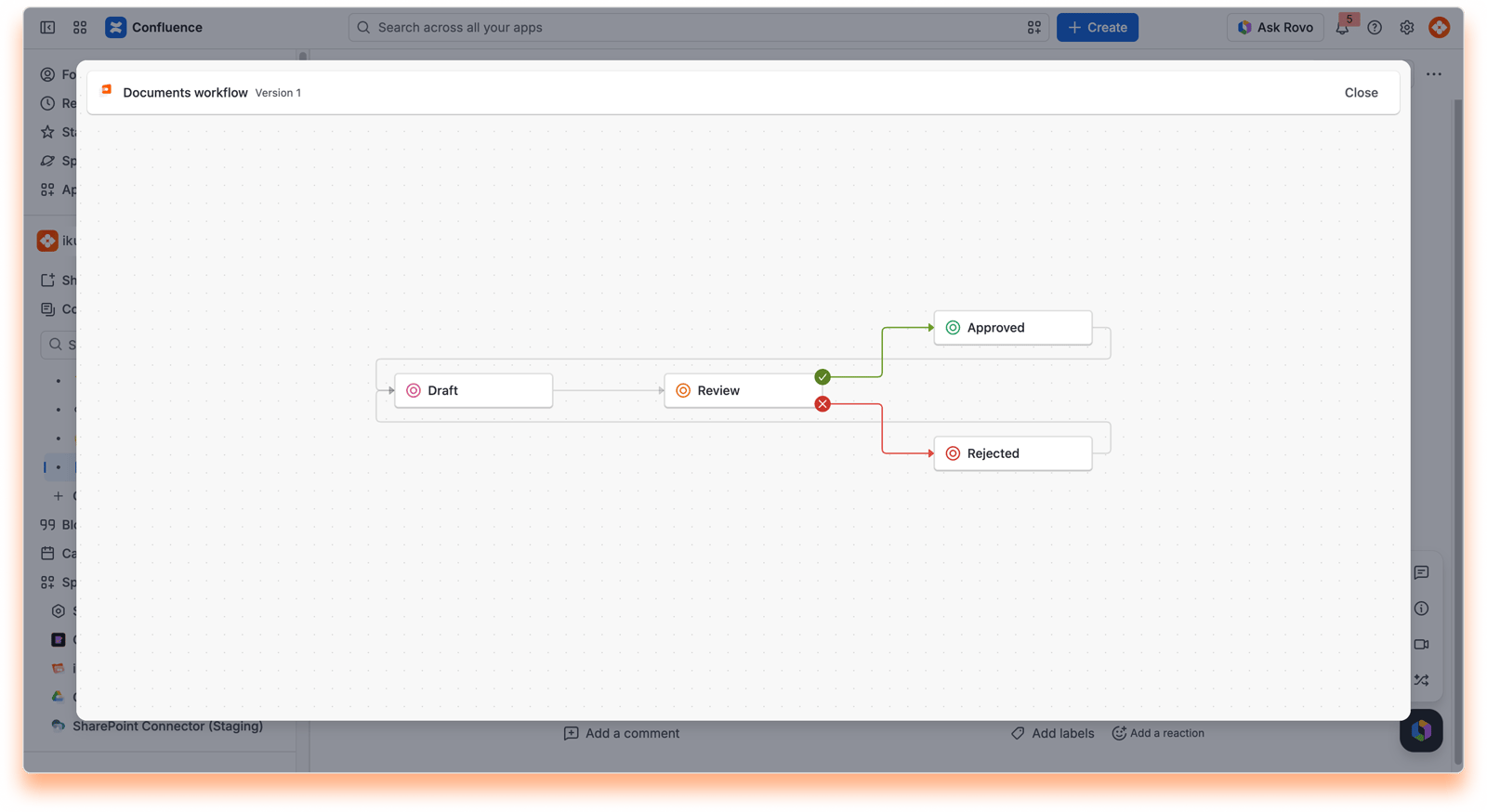
Select View workflow to see a read-only diagram of the workflow used on the page, with all its states and transitions. It's a handy way to understand what comes next.
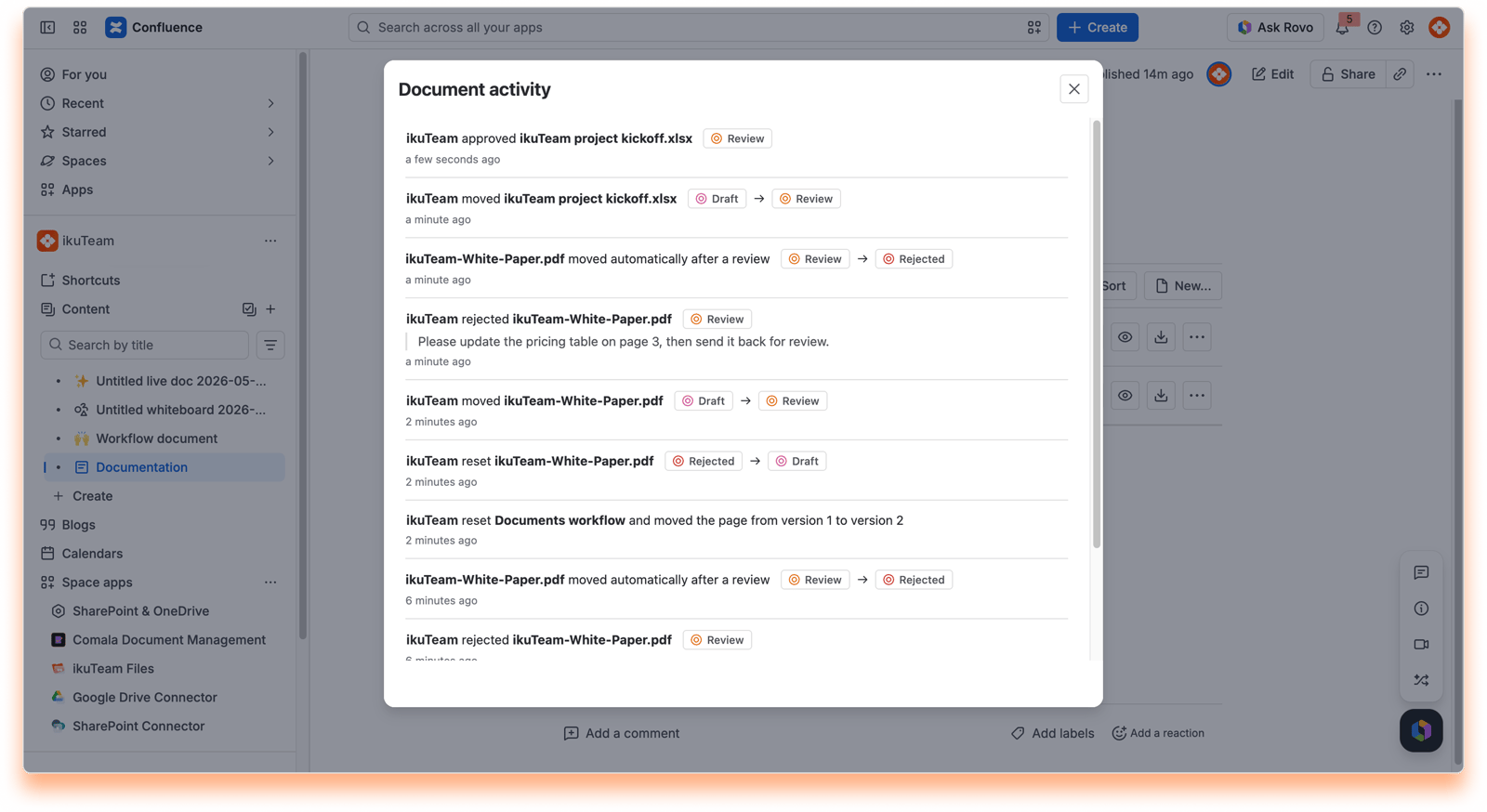
Select Document Activity to see the history of the review: who added reviewers, who changed a status, and when. Every entry shows the person, the change, and the time.
Select Reset workflow to start the review again from the beginning. Every file goes back to the workflow's first state, for example Draft, and the page shows Open.
Resetting removes all the decisions made so far on the page. Use it when the files have changed enough that a fresh review makes sense.
Select Manage workflow to change which files are part of the review, or to remove the workflow from the page.
Removing a workflow clears the page status and every review decision on that page. This can't be undone.
These options keep you in control of each review, from the first reviewer to the final approval.
If you have questions, contact our support team. Our team is always happy to help.


