

Confluence Google Drive Integration
Create a single source of truth with seamless syncing and real-time collaboration.
Read more


Customize the preview of the attached files to your needs.
By default, the files in the ikuTeam Office macro use a regular header and appear collapsed, to save space on the page. Expand a file to preview it: the preview uses the width of the page and is 400 px tall.
You can change this for each macro. To open the layout settings:
Edit the page.
Select the macro and click the edit icon.
Click the Layout tab.
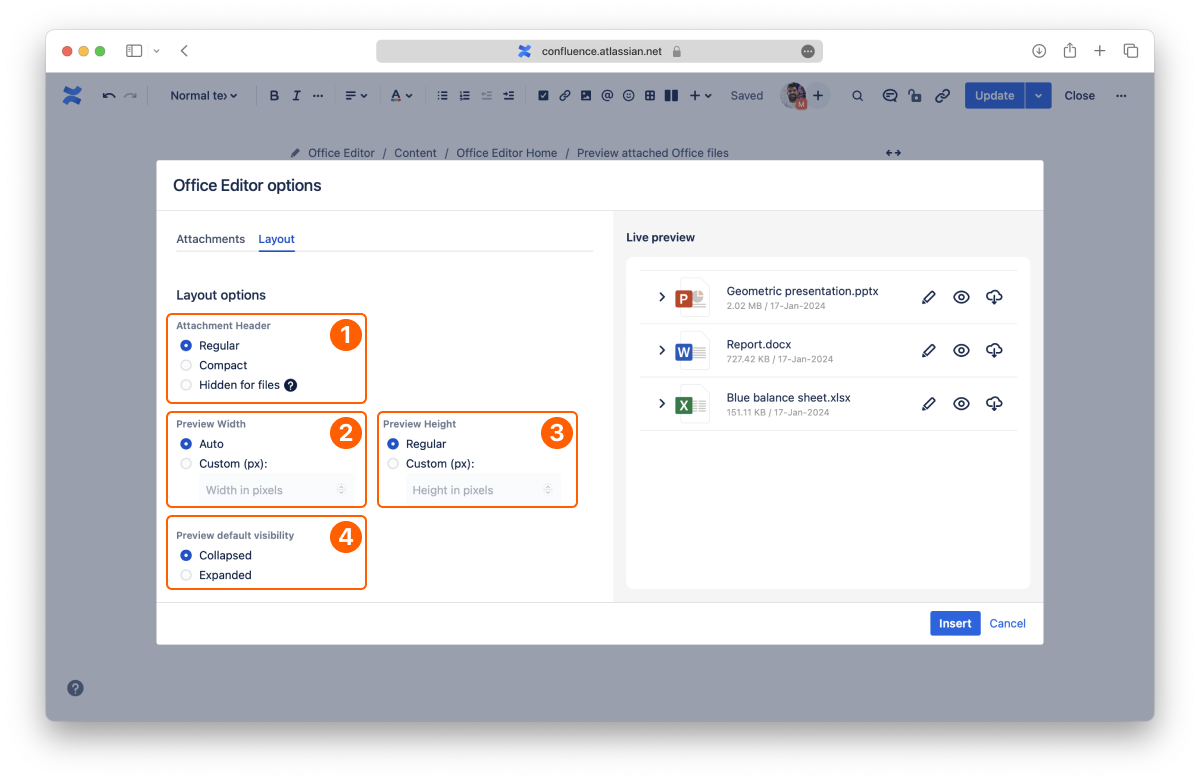
Attachment header options
Preview width options
Preview height options
Preview default visibility options
Select the size for the header of the attachment:
Regular: the standard header. It shows a big icon and the file details.
Compact: a smaller icon and only the file name.
Hidden for files: hides the file header, so previews are always expanded. Moving the mouse over the file shows a compact header.
Select the width for the preview:
Auto: the standard width. The preview uses the available space.
Custom (px): enter the width of the preview area in pixels.
Select the height for the preview:
Regular: the standard height for previews (400 px).
Custom (px): enter the height of the preview area in pixels.
Select the behavior for the preview:
Collapsed: the standard option. Previews stay hidden until you expand a file.
Expanded: shows the preview of every file automatically. This option is always used with the Hidden for files header.
Choose the order of the files in the macro: by Name, Type, Size or Date modified, in Ascending or Descending order. By default, the most recently modified files come first. People viewing the page can also change the order for themselves with the Sort button in the toolbar.
Next to the tabs, the Live preview panel shows how the macro will look on the page. You can also choose what it shows:
Show toolbar: the toolbar above the files, with the header and preview buttons, Sort and New....
Show upload hint: an area below the files where people can drop a file to upload it.
Show version: the version number of each file.
To choose what people can do with the files in the macro, use the Permissions tab. See 2.4 Macro permissions and file versions.
This covers all the layout options.
If you still have questions about any topics covered on this page, visit our support portal and send us your questions. Our team is always happy to help.


